HTML To PDF Converter
Convert HTML content to PDF documents using Power Automate flows
A Power Automate premium connector for converting HTML content to PDF documents. It is built to handle larger HTML payloads without the usual 2MB size limitation.
1 Page
Free Use
Multi-Page
Licensed
Power Automate
Connector
Available on Power Automate Premium Connector
Key Features
- Convert HTML content to PDF inside Power Automate flows
- Free for one-page PDF generation without a licensing key
- Supports larger HTML content
- Fast and powerful connector experience
- Can be used with OneDrive, Dataverse, or SharePoint outputs
- Supports multi-page PDFs with a Pascalcase-provided key
Pricing
Pay yearly and cancel anytime.
Free Version
$0
- Convert HTML content to pdf document (one page only)
- Available on Power Automate
- 100 calls per month
Paid
$49 per month*
*billed annually
- Convert HTML content to pdf document (Up to 5 pages)
- Up to 10MB of HTML content
- 1000 calls per month
Credit card required.
Setting up
Follow these steps to configure the Pascalcase connector in your Power Automate flow.
Search for the Pascalcase connector
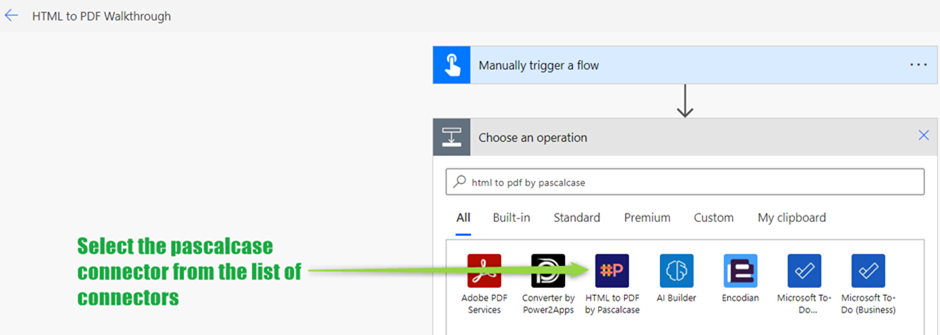
Search for HTML to PDF by Pascalcase in the "Add an action" section and select the Pascalcase connector.
Provide the HTML string or code
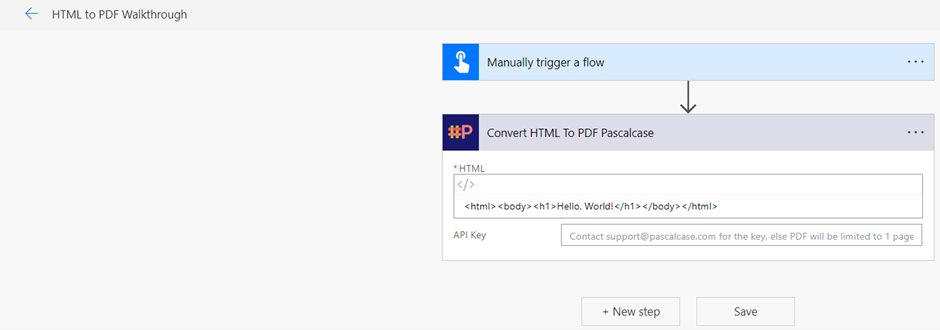
Provide the HTML string or code along with an optional key. The key provided by Pascalcase Software Pvt. Ltd. enables users to generate multi-page PDFs. By default, the HTML string contains pre-defined values, but users can customize it according to their requirements.
Use the response byte array
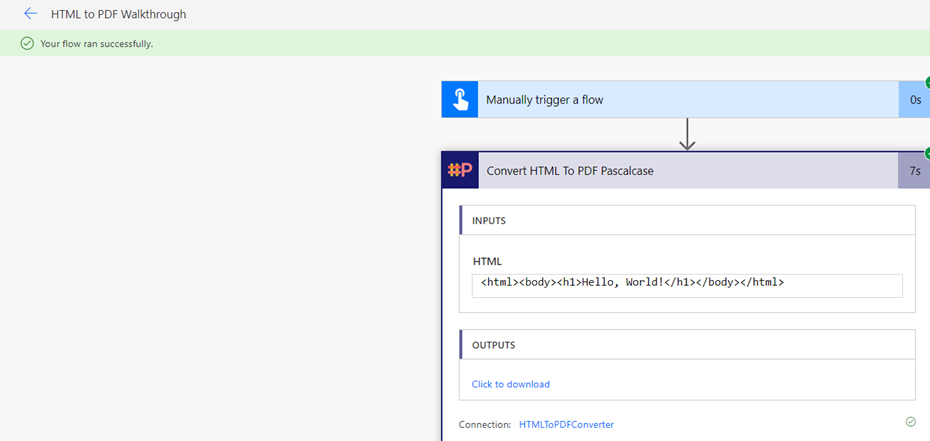
After running the flow, the response will be a byte array that can be used as file content for various purposes, such as storing in Dataverse or SharePoint.
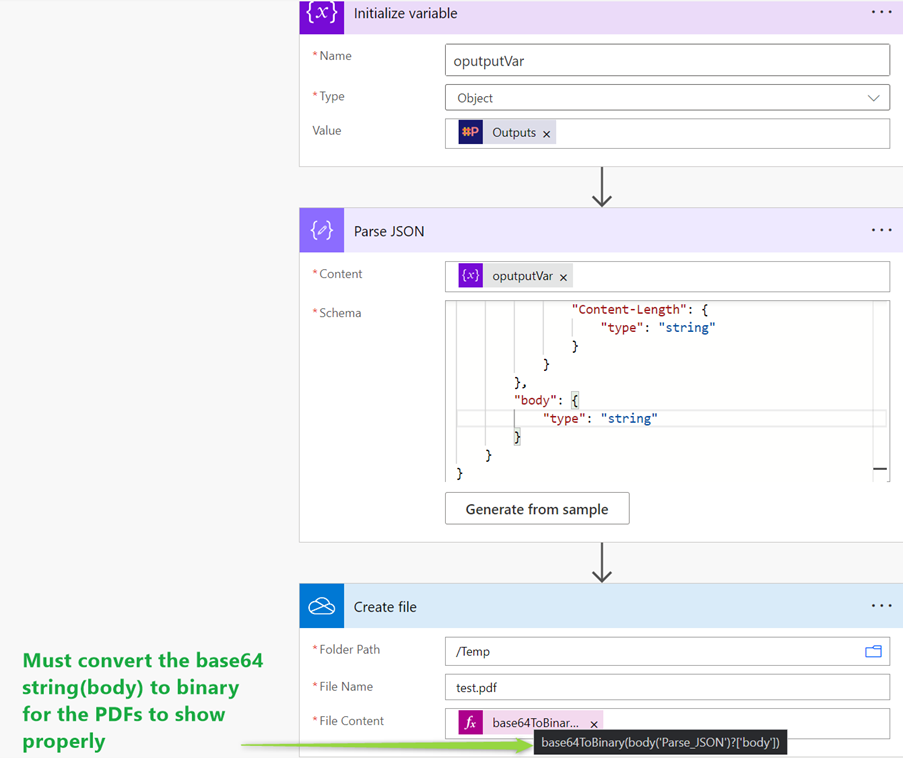
Parse the connector output
While creating a OneDrive, Dataverse, or SharePoint PDF file, you must parse the output of the connector using the schema below.
{ "type": "object", "properties": { "statusCode": {"type": "integer"}, "headers": { "type": "object", "properties": { "Pragma": {"type": "string"}, "Vary": {"type": "string"}, "Cache-Control": {"type": "string"}, "Set-Cookie": {"type": "string"}, "X-AspNet-Version": {"type": "string"}, "X-Powered-By": {"type": "string"}, "Timing-Allow-Origin": {"type": "string"}, "x-ms-apihub-cached-response": {"type": "string"}, "x-ms-apihub-obo": {"type": "string"}, "Date": {"type": "string"}, "Content-Type": {"type": "string"}, "Expires": {"type": "string"}, "Content-Length": {"type": "string"} } }, "body": {"type": "string"} } }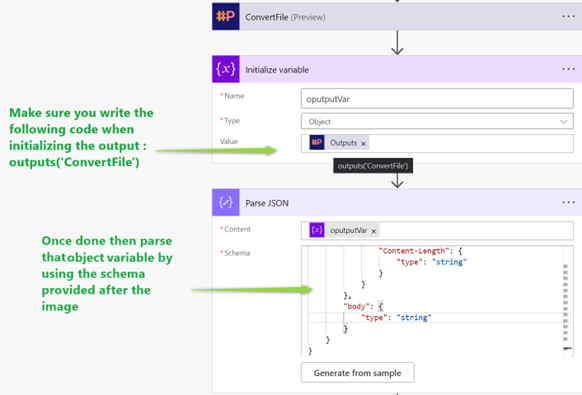
Create the final PDF file
The desired file can then be created using the body output from the parsed object. When creating PDF files for OneDrive or SharePoint, use the base64toBinary function to convert the body to binary.
FAQs
Frequently Asked Questions
Can I cancel the subscription at any time?
Yes. The plan is billed annually, and you can cancel your subscription at any time.
Can I get a refund if I’m not satisfied?
Please contact Pascalcase support for refund-related questions so the team can review your subscription details and assist you.
Can I get a free trial before subscribing?
The free version lets you generate one-page PDF documents without a licensing key, which is the best way to evaluate the connector before moving to the paid plan.
Need a custom solution?
Our products started as custom solutions for specific clients. If you have a unique need, let's talk about building something together.