Creating Low-Code Plug-ins in Dataverse Accelerator for Dynamics 365
August 22, 2024
#Dataverse#PowerApps
Mahith Reddy
After exploring API testing in the Dataverse Accelerator app with Custom API and OData requests, it's time to dive into the third request type: Low-Code Plug-ins. A low-code plugin is a tool or add-on that allows you to create software applications or extend existing ones with minimal coding. Low-code plug-ins allow users to implement custom business logic in Dataverse without writing extensive code.
These low-code development methods are transforming the way developers and business users create applications by simplifying the process and reducing the need for extensive coding. In this blog, we'll guide you through creating low-code plug-ins, both instant and automated, using the Dataverse Accelerator in Dynamics 365.
These plug-ins can be categorized into:
1. Instant Plug-ins: Executed immediately in response to a specific event.
2. Automated Plug-ins: Triggered automatically based on pre-defined conditions or schedules.
Creating an Instant Plug-in
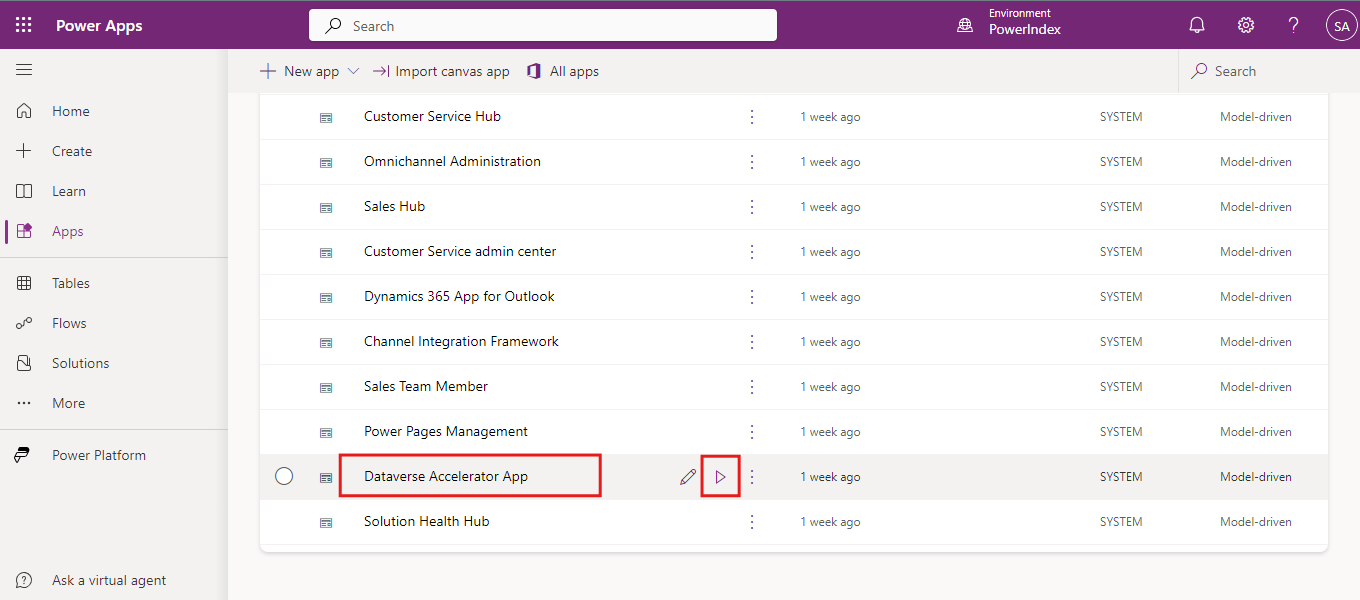
Firstly, Log in to Power Apps
Open the Dataverse Accelerator App
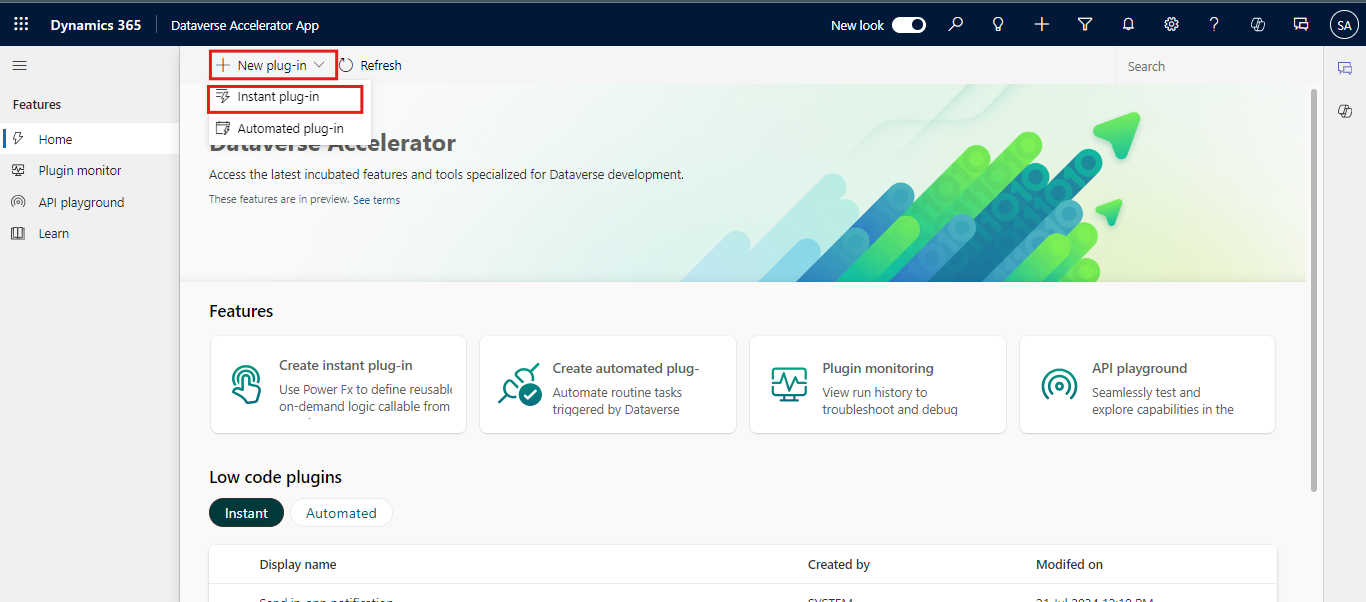
On the home page, click on the New Plug-in dropdown and select Instant plug in.
In this low code plugin example, we will calculate the sum of two integers.
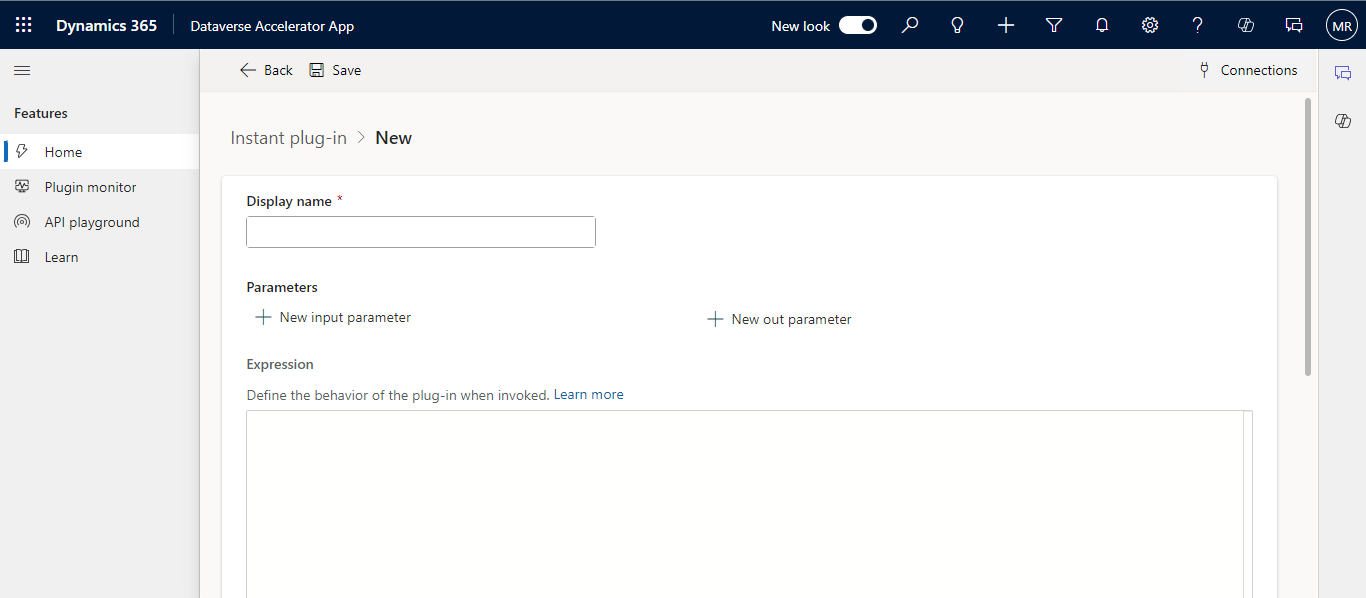
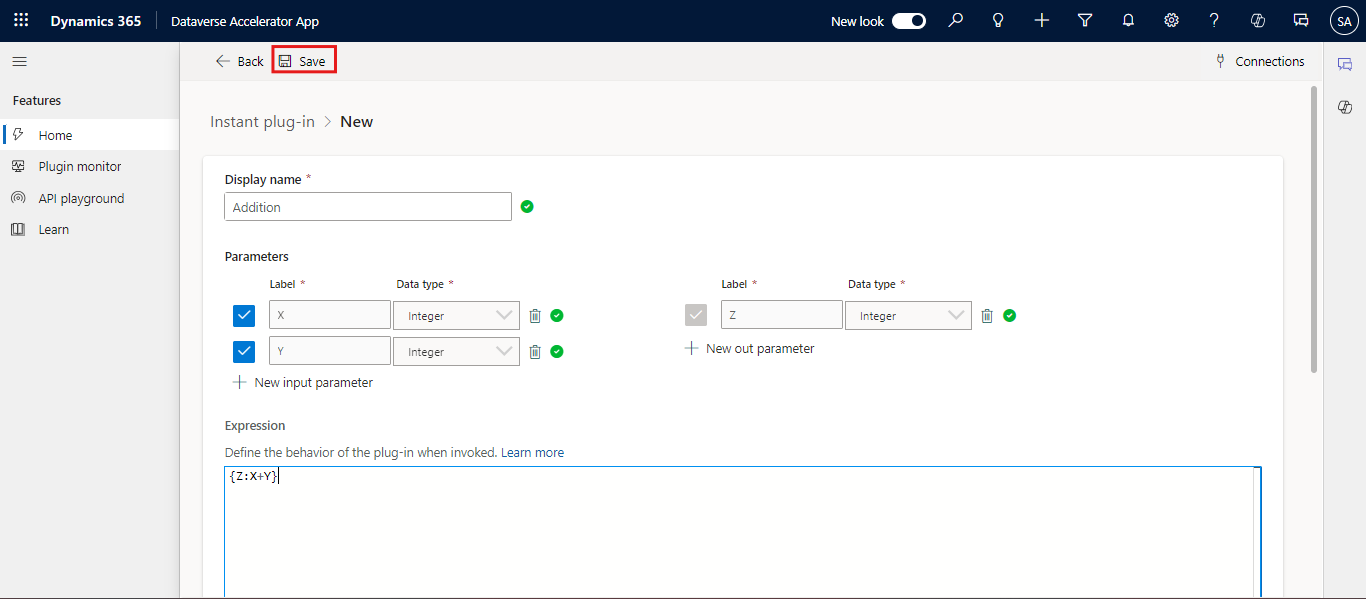
After choosing the type, you will find a Display Name field where you can name your plugin and a Parameters section which allows you to add new input and output parameters to the plugin. You can also add parameters as per your requirement.
Need help with your business solution?
Our team can help you implement the right solution for your organization.
Lastly, there is an Expression Section, it provides a text area to define your plug-in's behavior when invoked.
Here, we will name our plugin ‘Addition’ and set the parameters using the + icon... We will create two input parameters, X and Y (both of data type integer), and one output parameter, Z (integer).
Use the following formula in the Expression section: {Z: X + Y }
Click on Save after entering the details as shown in the image below.
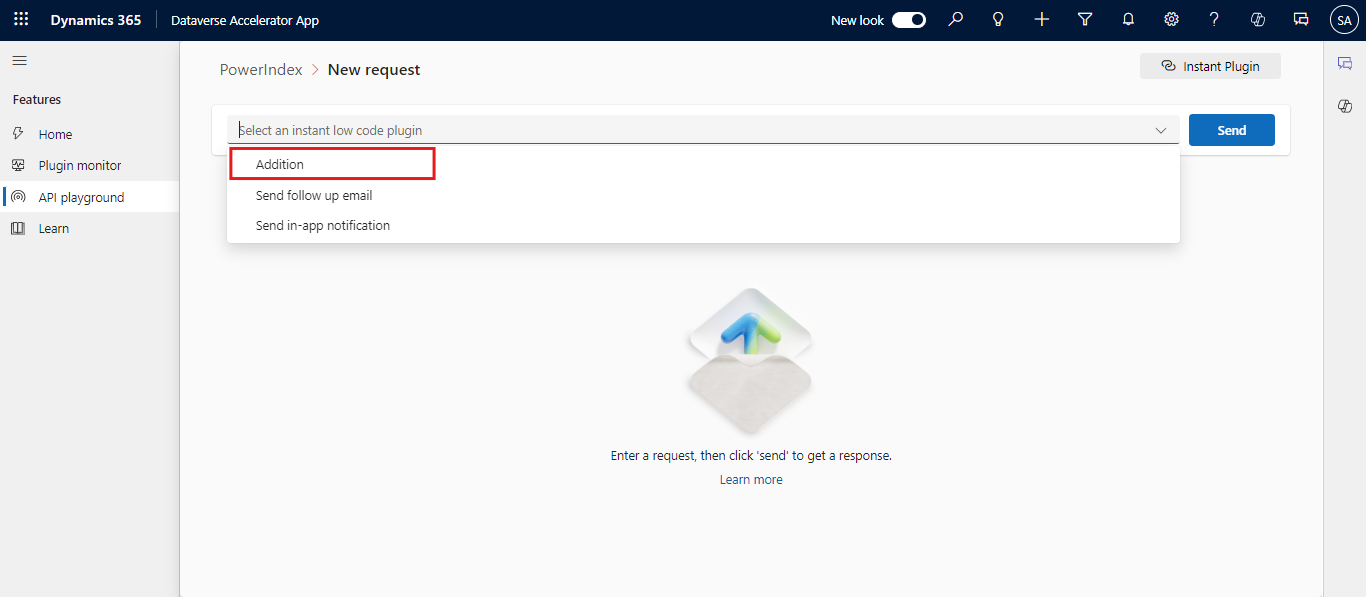
Navigate to the API playground to test the instant plugin.
Select our newly created instant plugin.
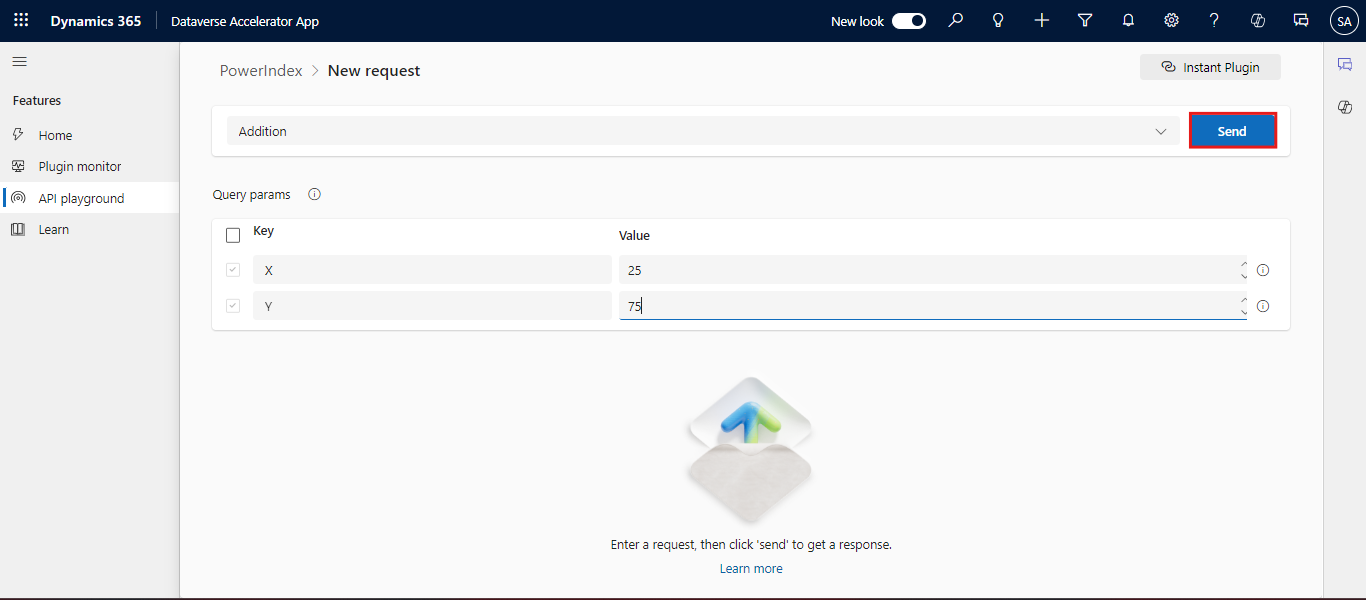
Enter sample data to simulate the triggering event.
Click Send to execute the plug-in.
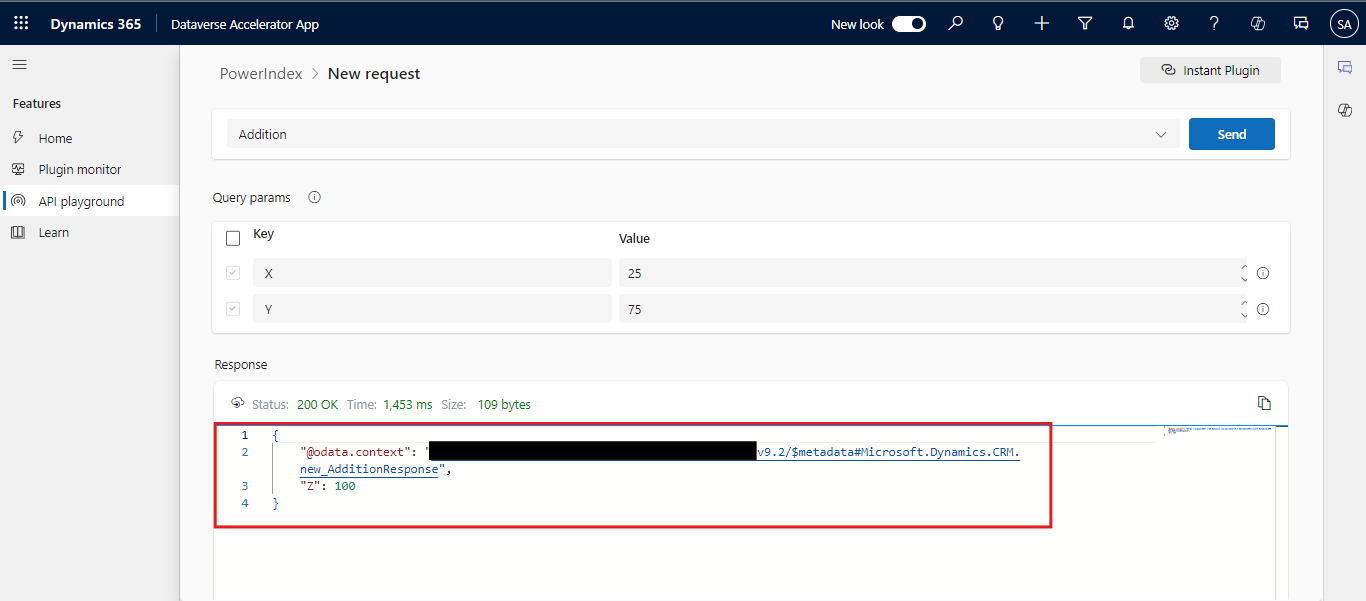
Check the response section to see the results of your plug-in execution.
Creating an Automated Plug-in
An automated plugin in Dynamics 365 is a custom code that automatically executes in response to specific events within the system. These plugins are designed to run without user intervention, typically triggered by actions such as creating, updating, or deleting records.
Now, we'll walk through the process of setting up an Automated Plugin,
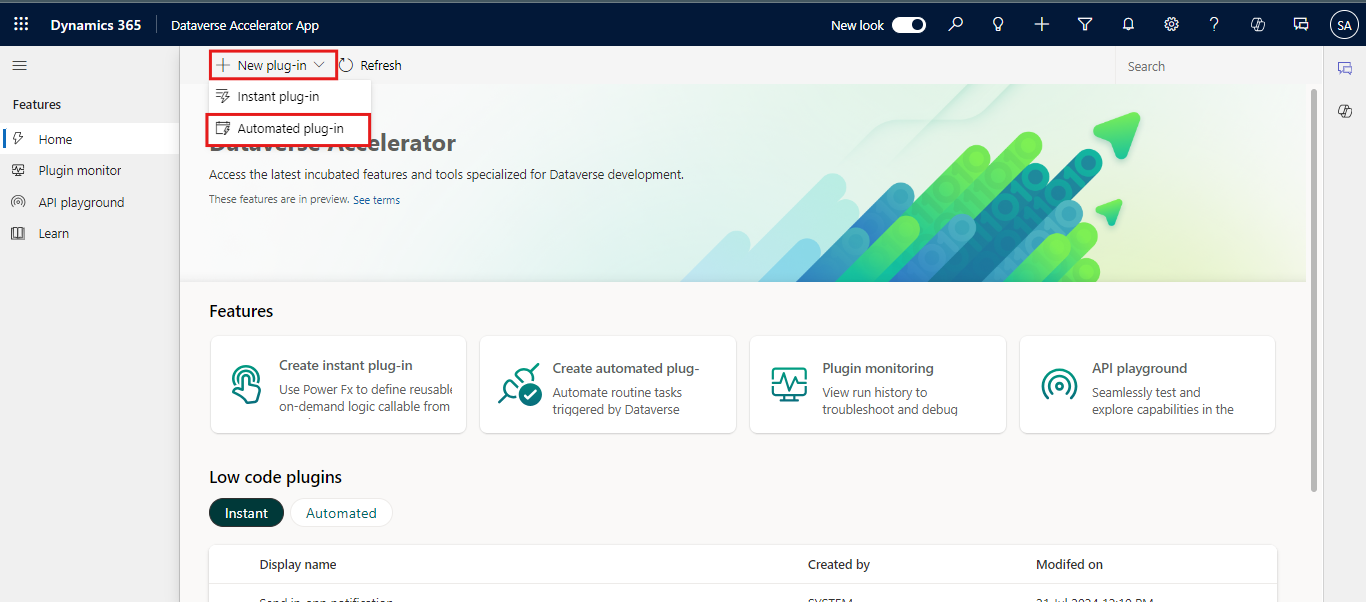
Return to the home page, select the "New Plug-in" dropdown menu and choose "Automated Plug-in."
In this example, we will create a plugin where it will trigger upon creation of a contact record and update the job title section with “Associate”.
Automated plugins can be activated in three scenarios: when a row or record is created, updated, or deleted.
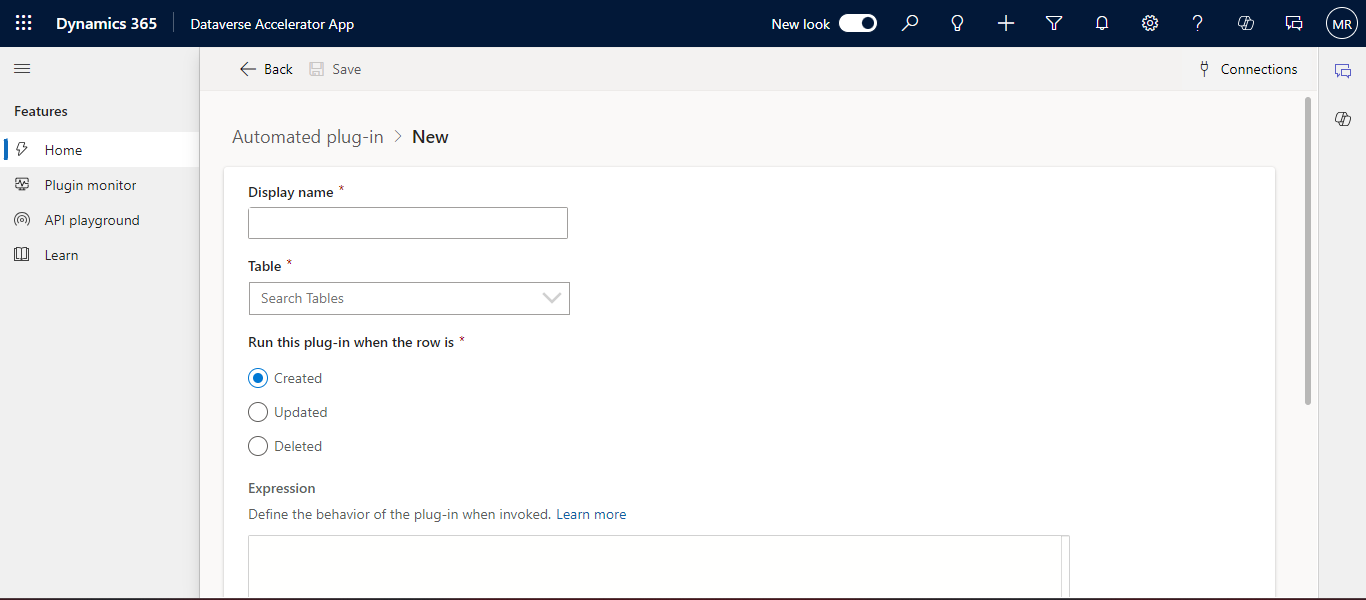
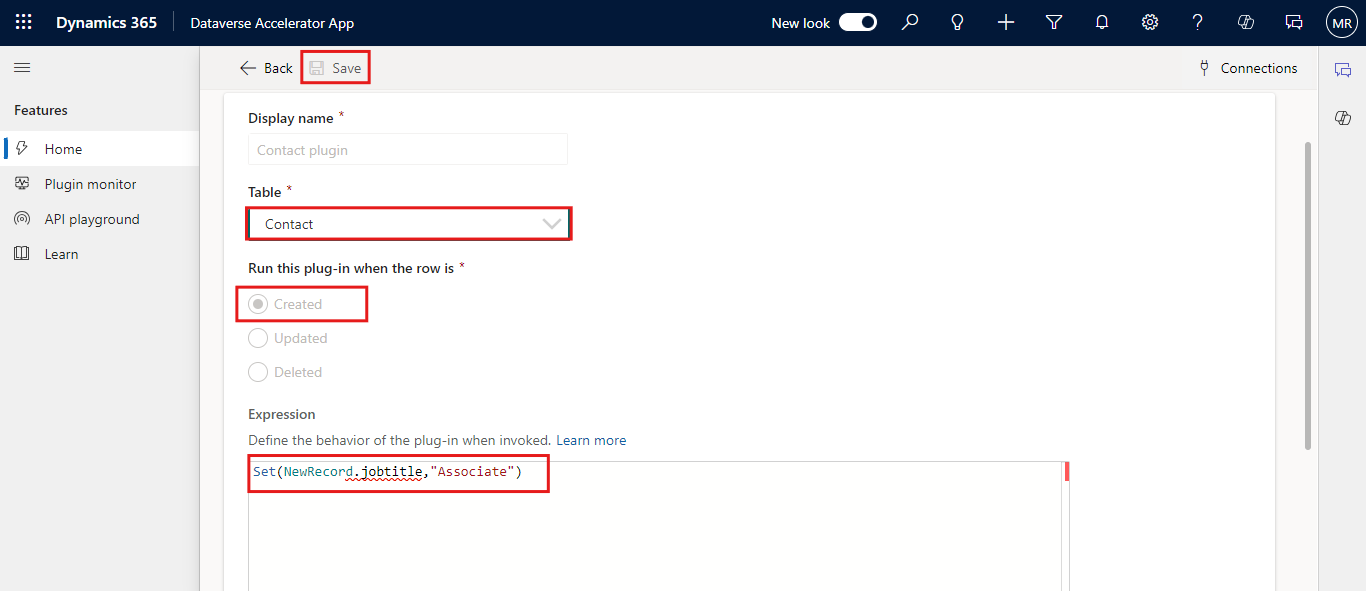
Provide details including the name and conditions for triggering the plug-in. In this instance, I have chosen the "Created" condition.
Select the Contact as Table.
Use the low-code interface to set up the automation logic. Create the logic to update the job title for a contact record as described below.
Set(NewRecord.jobtitle,"Associate")
The logic `Set(NewRecord.jobtitle, "Associate")` assigns the value "Associate" to the `jobtitle` property of the `NewRecord` object. This means any new record will have the job title set as "Associate."
Click on Save.
Test the Automated Plug-in
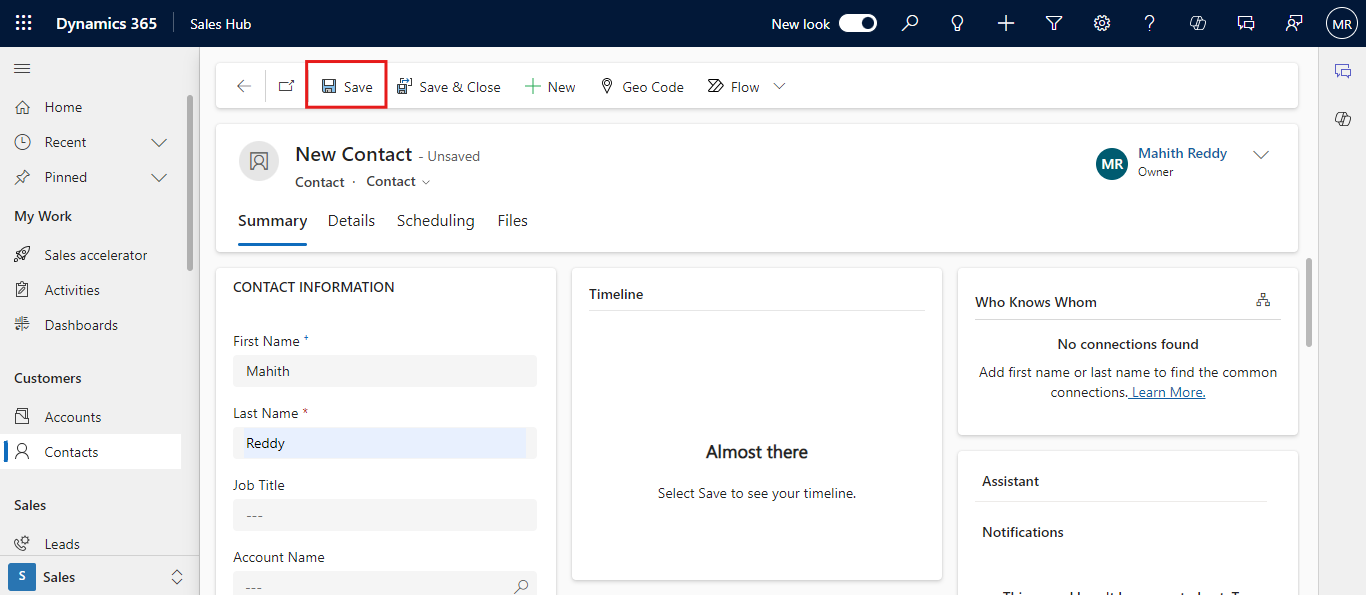
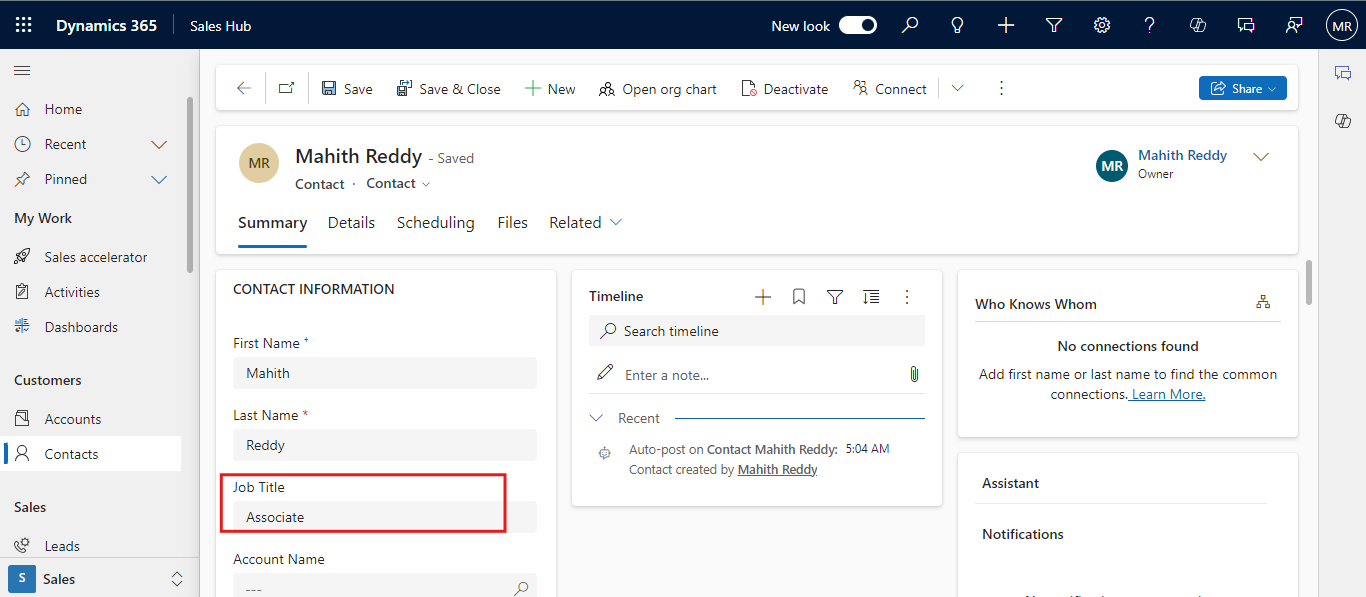
Simulate the conditions to trigger the plug-in. Here, we will create a new contact record and save it, to test if the job title gets updated to ‘Associate’.
Monitor the response. In the below image, we can see the Job title has been updated.
Creating low-code plug-ins in the Dataverse Accelerator for Dynamics 365 streamlines the development process, enabling you to quickly implement custom business logic with minimal coding. By following the steps outlined above, you can create both instant and automated plug-ins to enhance your Dataverse applications. Stay tuned for more detailed guides and advanced use cases in our upcoming blogs.
Frequently Asked Questions (FAQs):
1. What are the prerequisites for creating low-code plug-ins?
You need access to Dynamics 365, Dataverse, and the Dataverse Accelerator app, along with proper permissions.
2. Can I test my plug-ins before deploying them?
Yes, the API Playground allows you to test both instant and automated plug-ins with sample data.
3. Are there any limitations to using low-code plug-ins?
Low-code plug-ins are designed for ease of use and may have some limitations in terms of complexity compared to fully coded solutions.
4. How do I schedule an automated plug-in?
You can set the schedule or conditions for triggering an automated plug-in within the Dataverse Accelerator interface.