Generate Temporary Download URLs in Dynamics 365 Using GetFileSasUrl
January 20, 2026
#Dynamics 365#Dataverse
Ushaswi Gurrampati
In many scenarios, documents stored in Dynamics 365—such as ID proofs, invoices, contracts, or email attachments—must be shared with external users. However, Dataverse does not allow direct file downloads without CRM authentication, forcing users to manually download and resend files, which increases effort and security risks.
This blog demonstrates how to:
Generate secure temporary download links for Dataverse files
Use GetFileSasUrl for File columns, Notes, and Email attachments
Share documents externally without CRM login
This approach enhances security and simplifies document sharing in Dynamics 365.
Business Scenario
Our organization stores various documents in Dynamics 365, including ID proofs in Contact records, files attached as Notes, and email attachments. Currently, users must manually download and resend these files when sharing with customers or external systems.
We need a solution that can generate a temporary, secure download URL directly from Dataverse—accessible without CRM login and automatically expiring for security.
Prerequisites:
Access to a Dataverse and Dynamics 365
System Customizer or System Administrator
Visual Studio for C# implementation
NuGet packages:
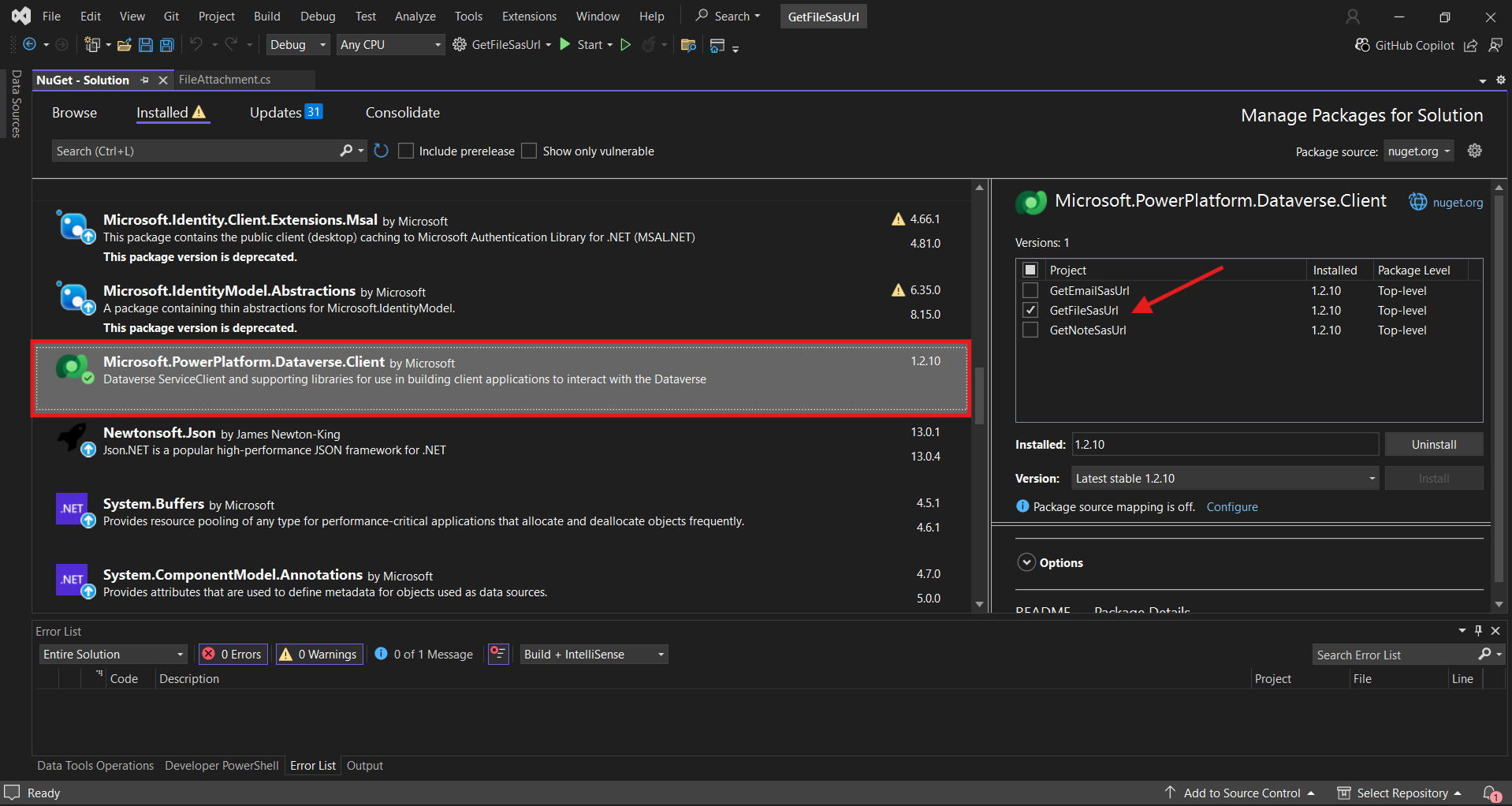
Microsoft.PowerPlatform.Dataverse.Client
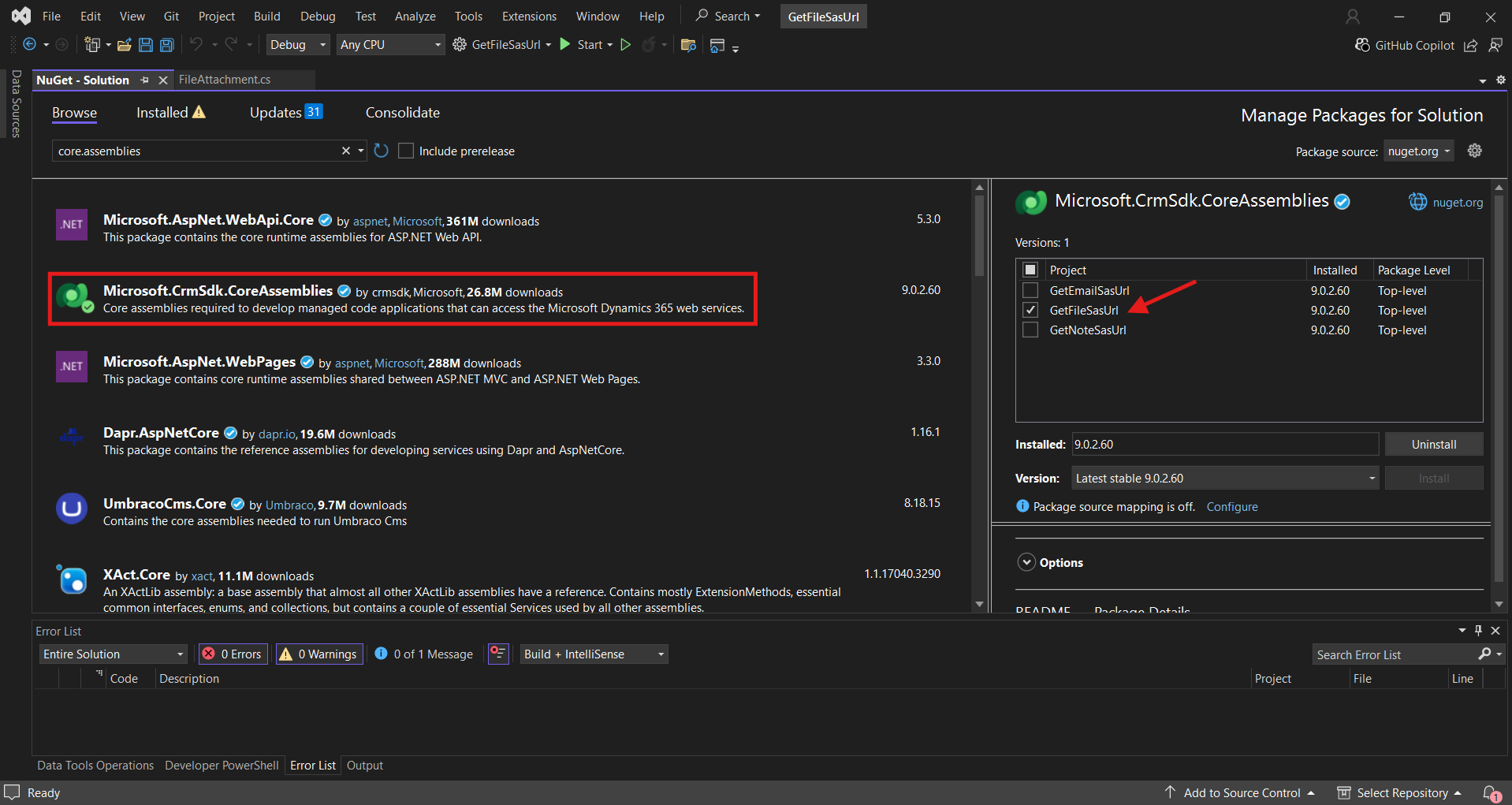
Microsoft.CrmSdk.CoreAssemblies
Step-By-Step Guide:
Need help with your business solution?
Our team can help you implement the right solution for your organization.
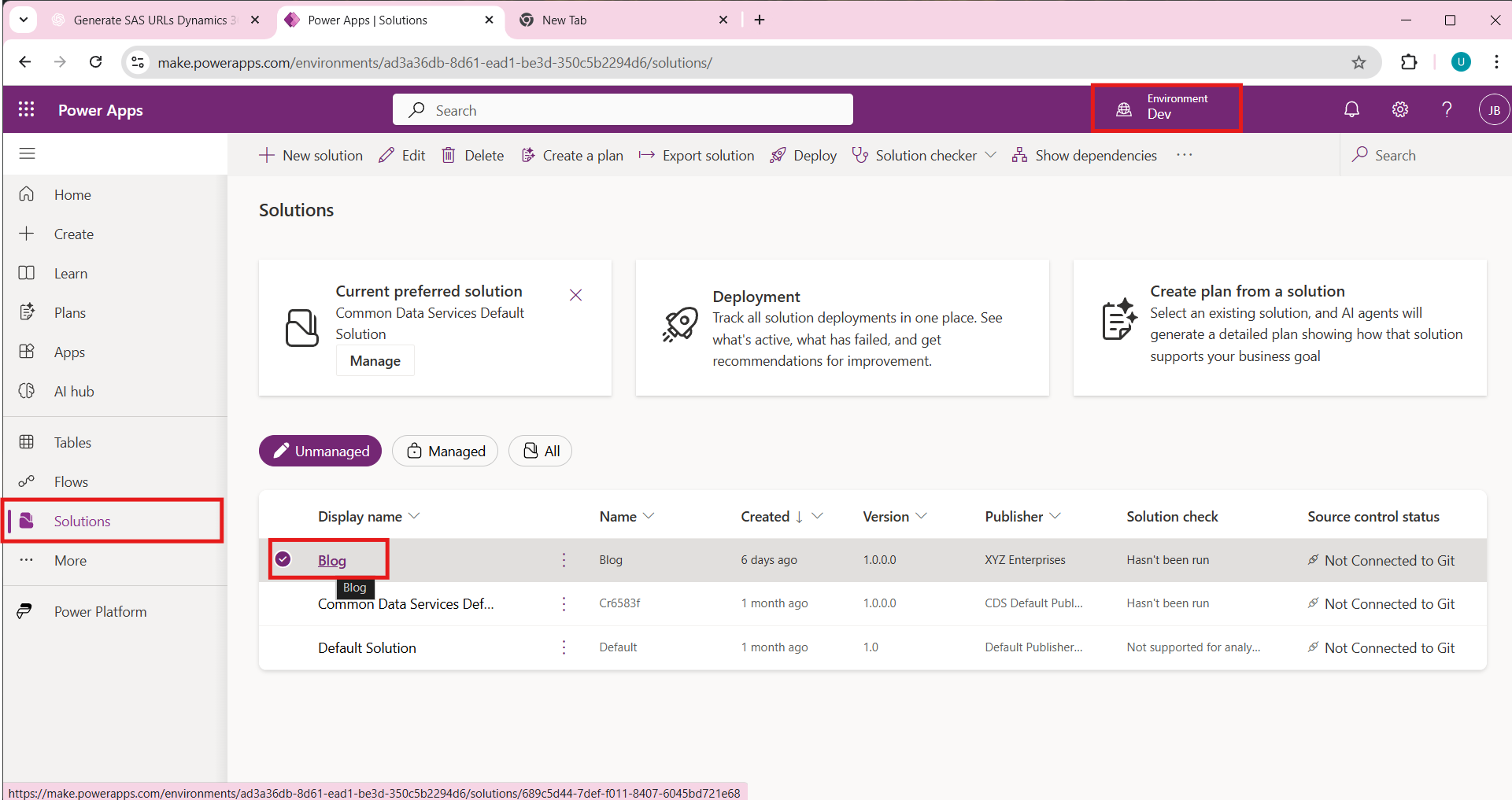
Choose the environment and select the required solution from the solution list.
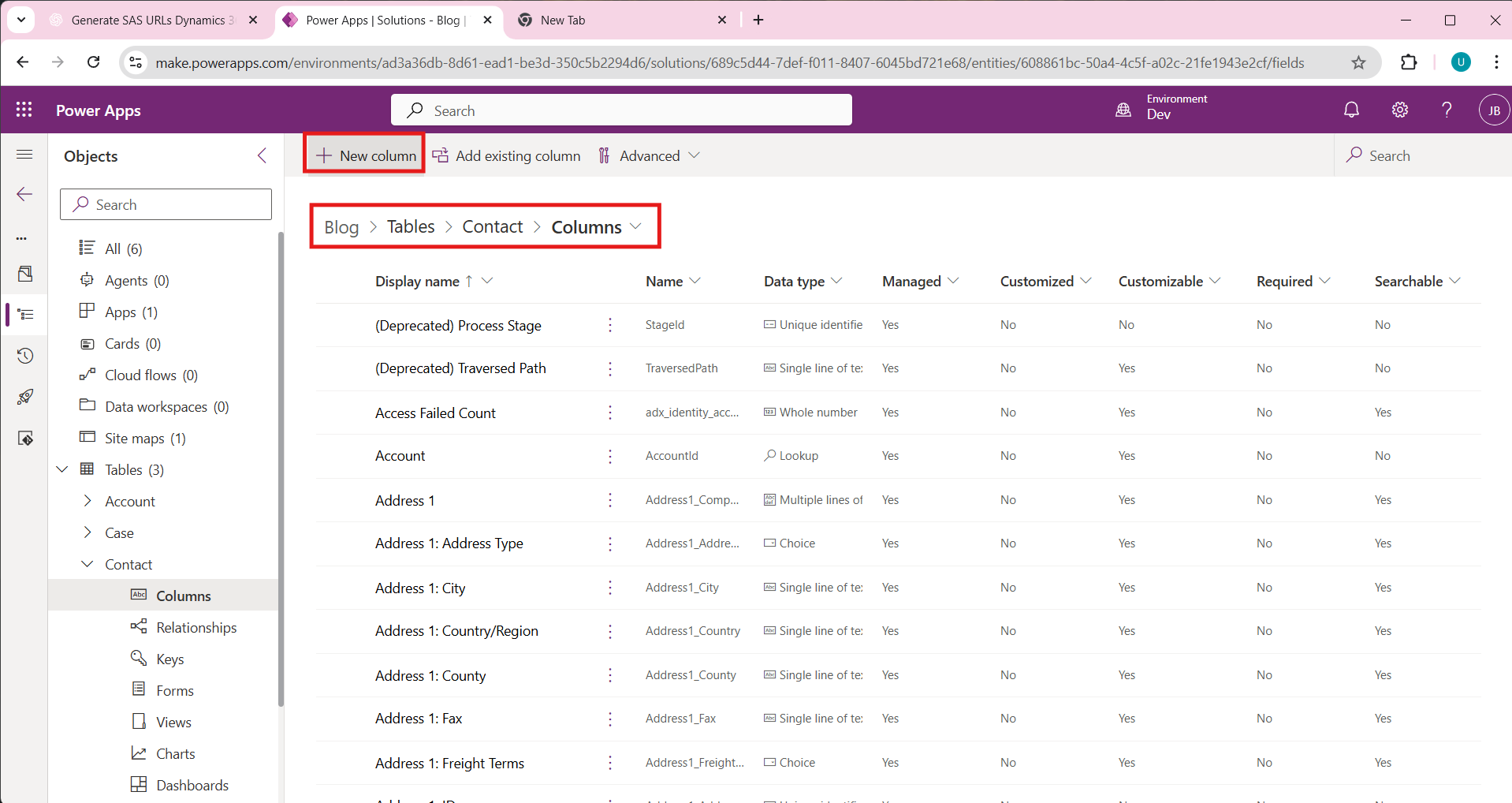
From the solution, locate the Contact entity, open columns, and click New Column.
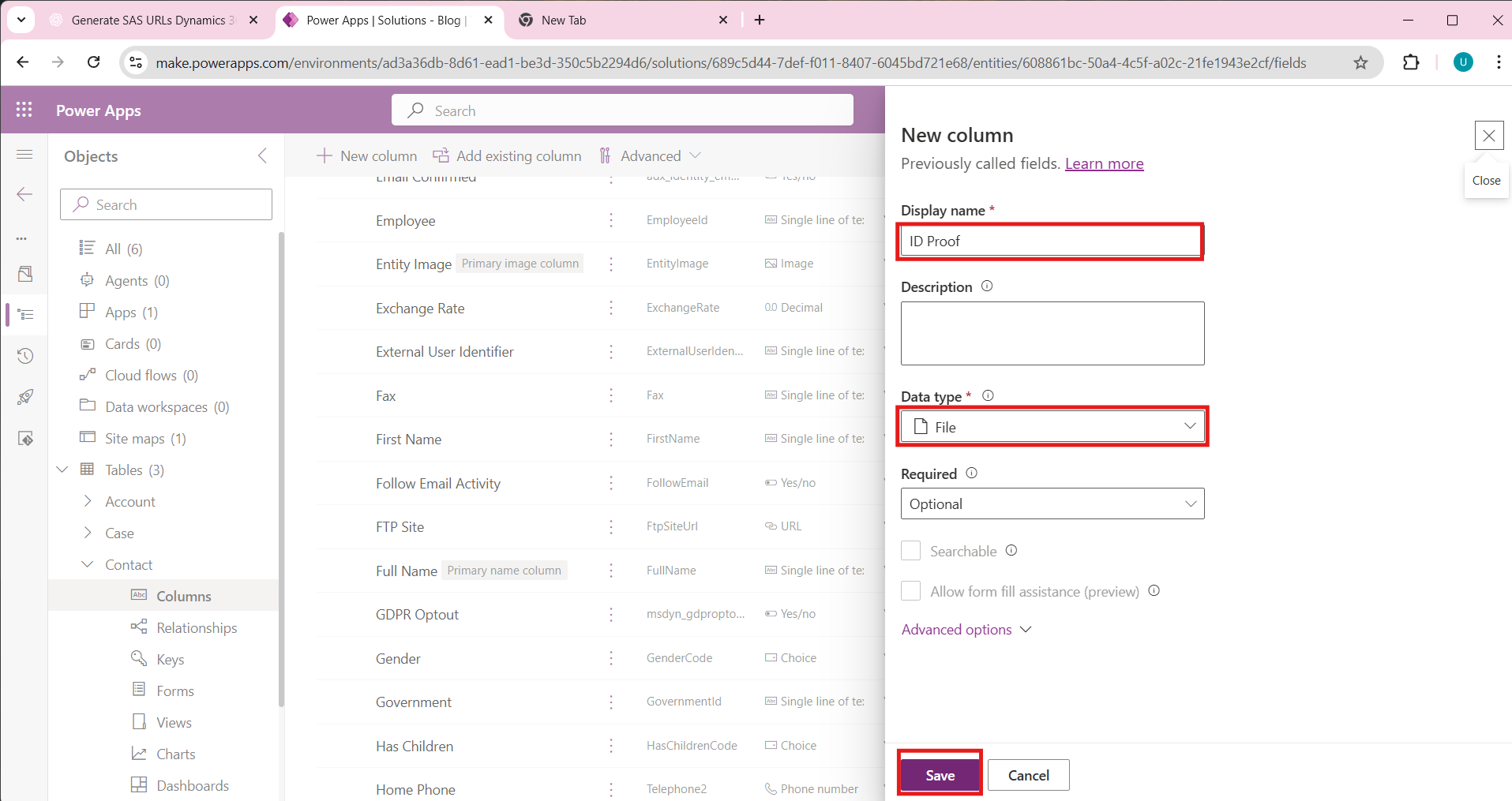
Display name: ID Proof
Data type: File
Schema name: xyz_idproof
Click Save.
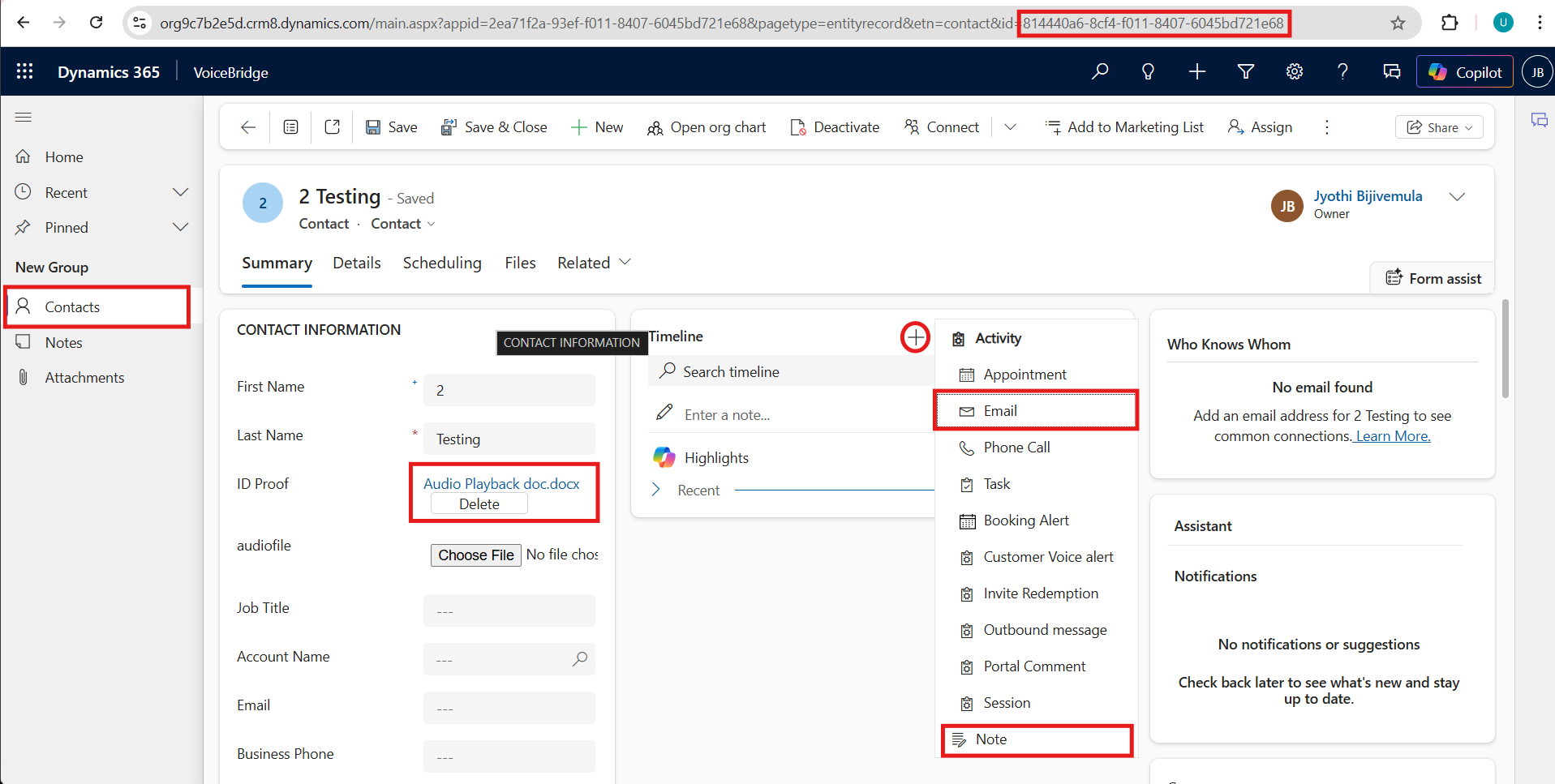
Create a new contact and a upload file in the ID Proof field. Save it.
Note down the GUID of that contact record.
Go to timeline > click + > Select Note.
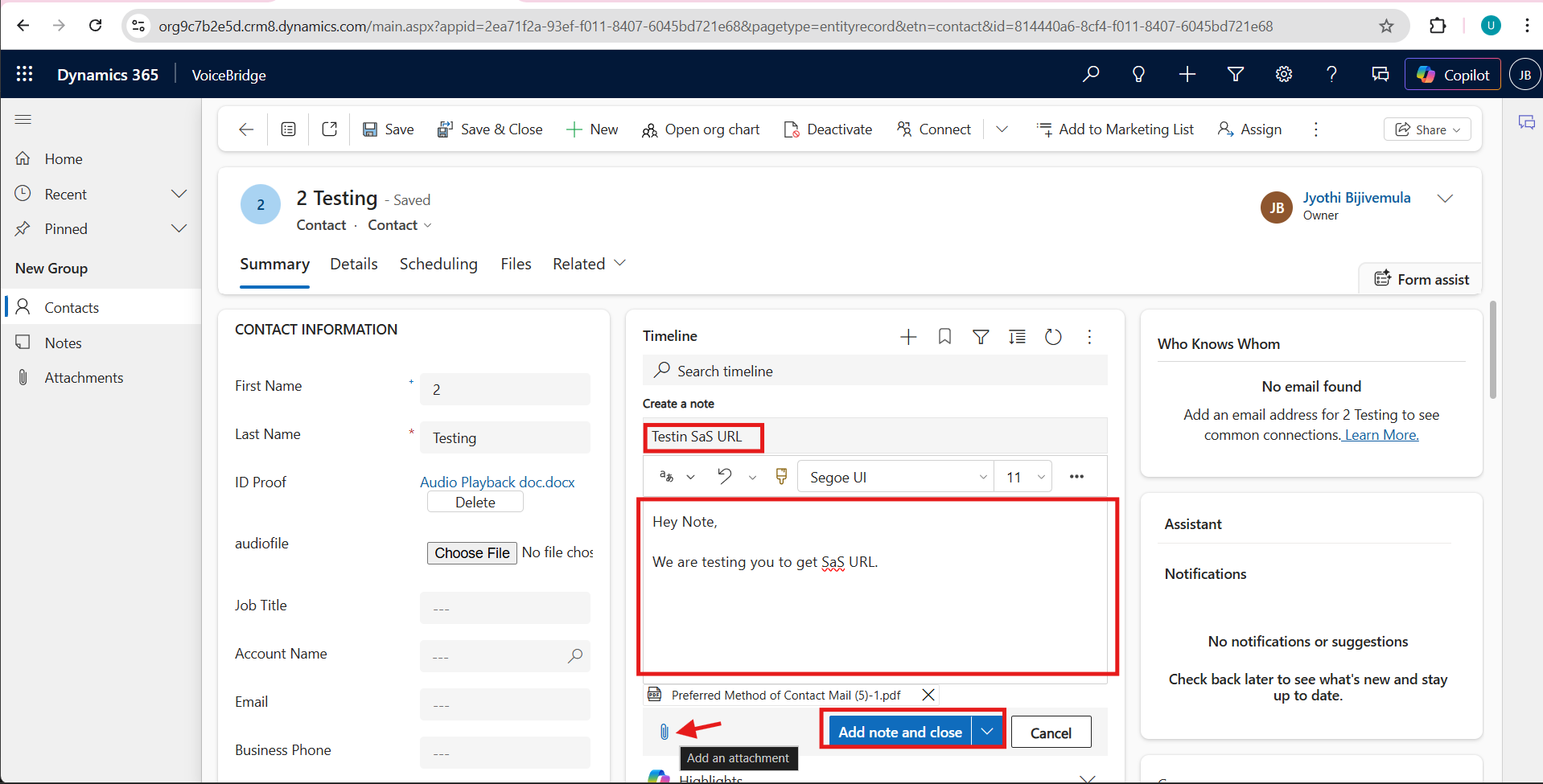
Create a note and add an attachment. Once after filling the required data, click on Add note and close.
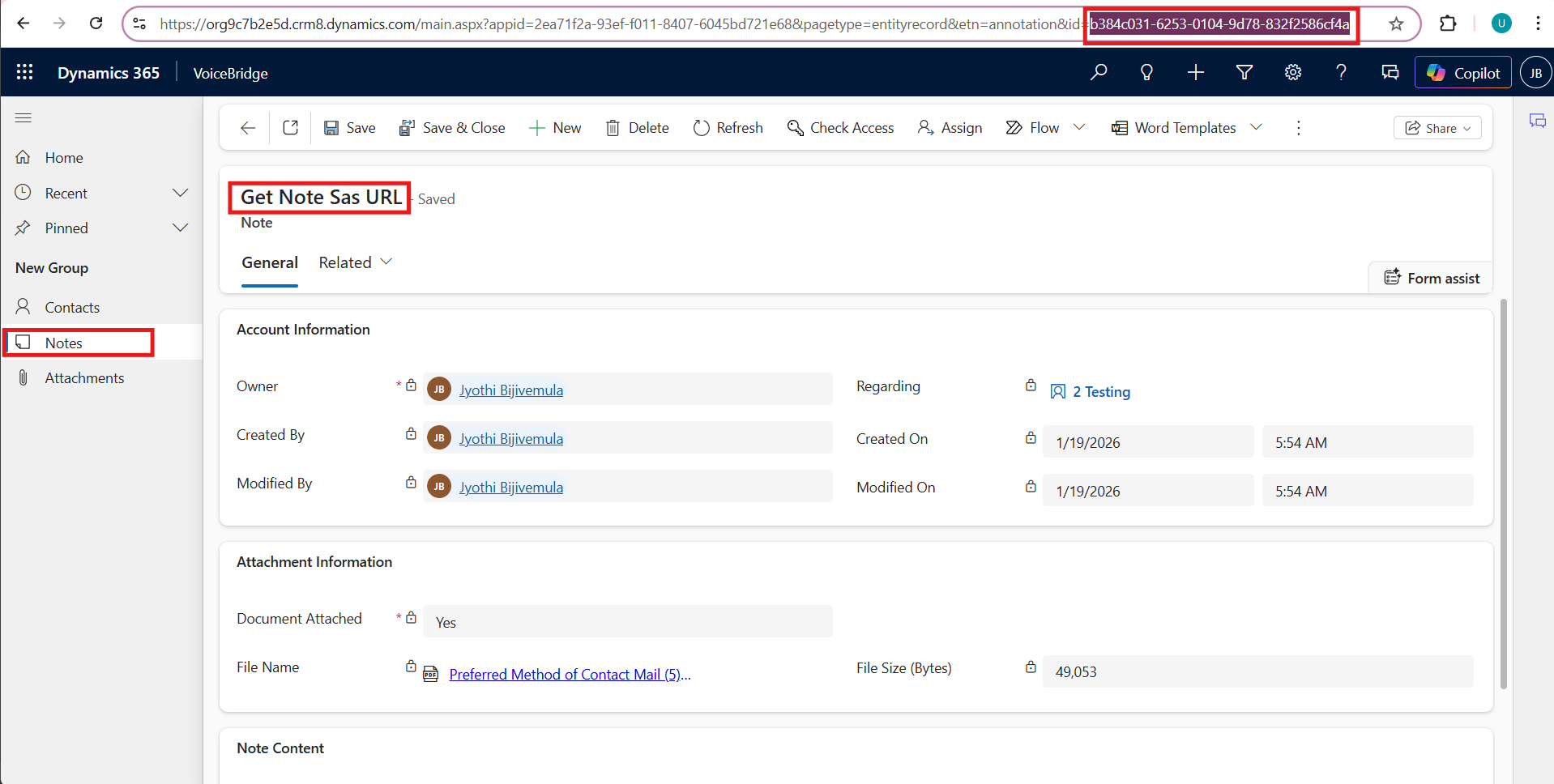
Open the Notes entity. Click on the note that you created and capture the unique annotation ID, which is required by the GetFileSasUrl function to locate the exact file.
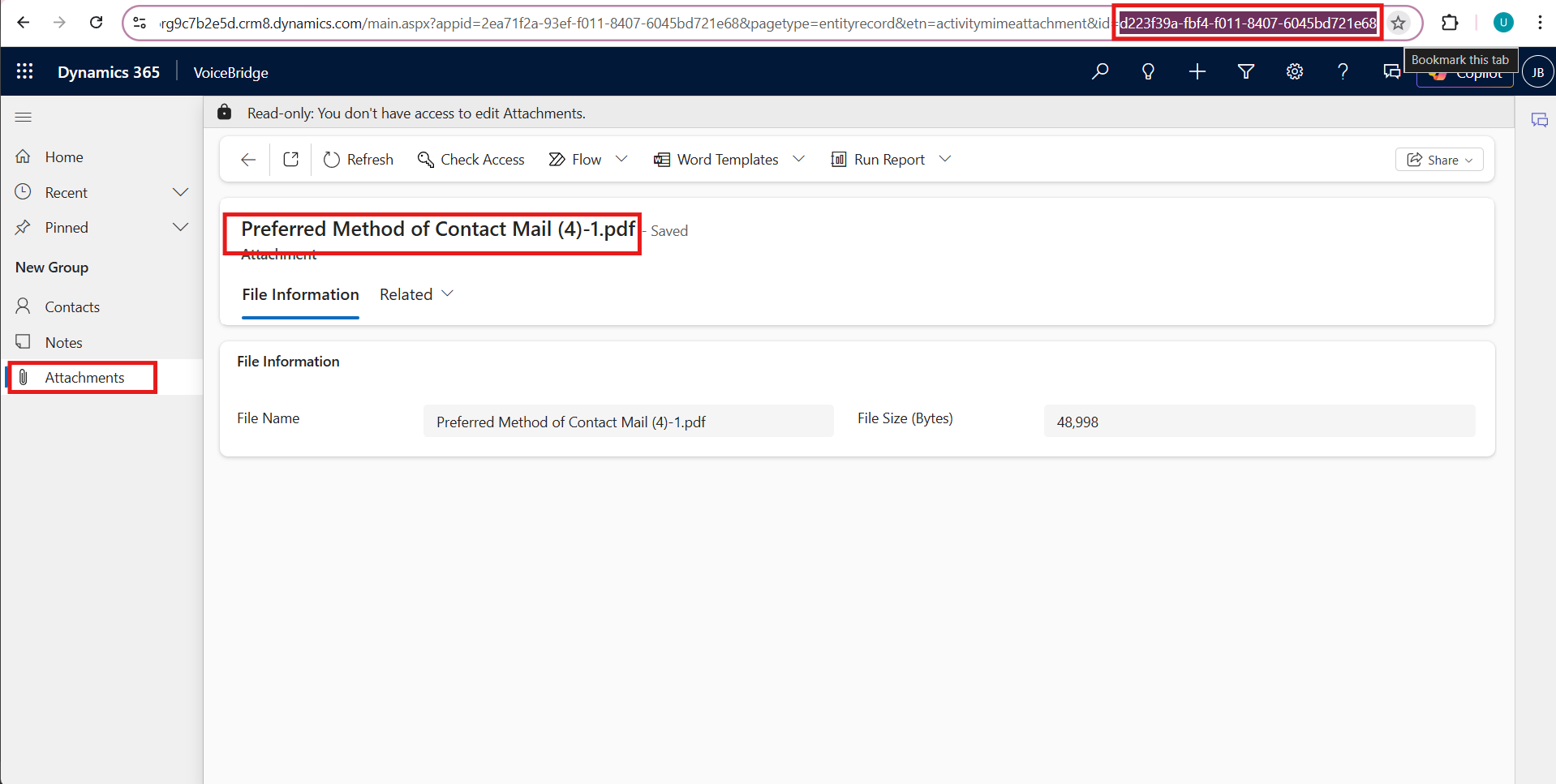
Open the Attachments entity. Click on the Email Attachment that you created and check the URL of the email attachment record to copy the activitymimeattachment ID.
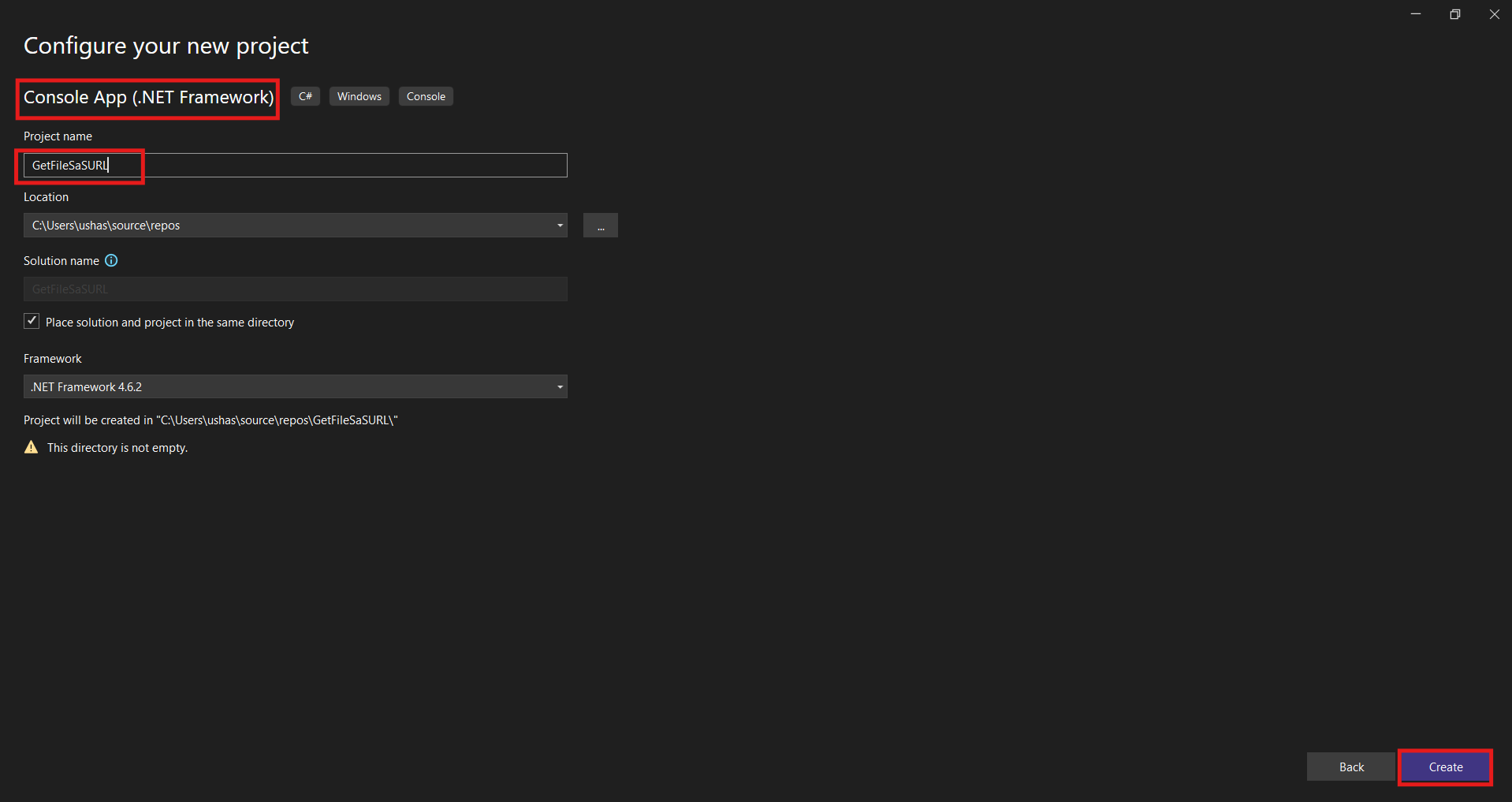
Launch Visual Studio and create a new Console Application project to implement the Dataverse integration logic.
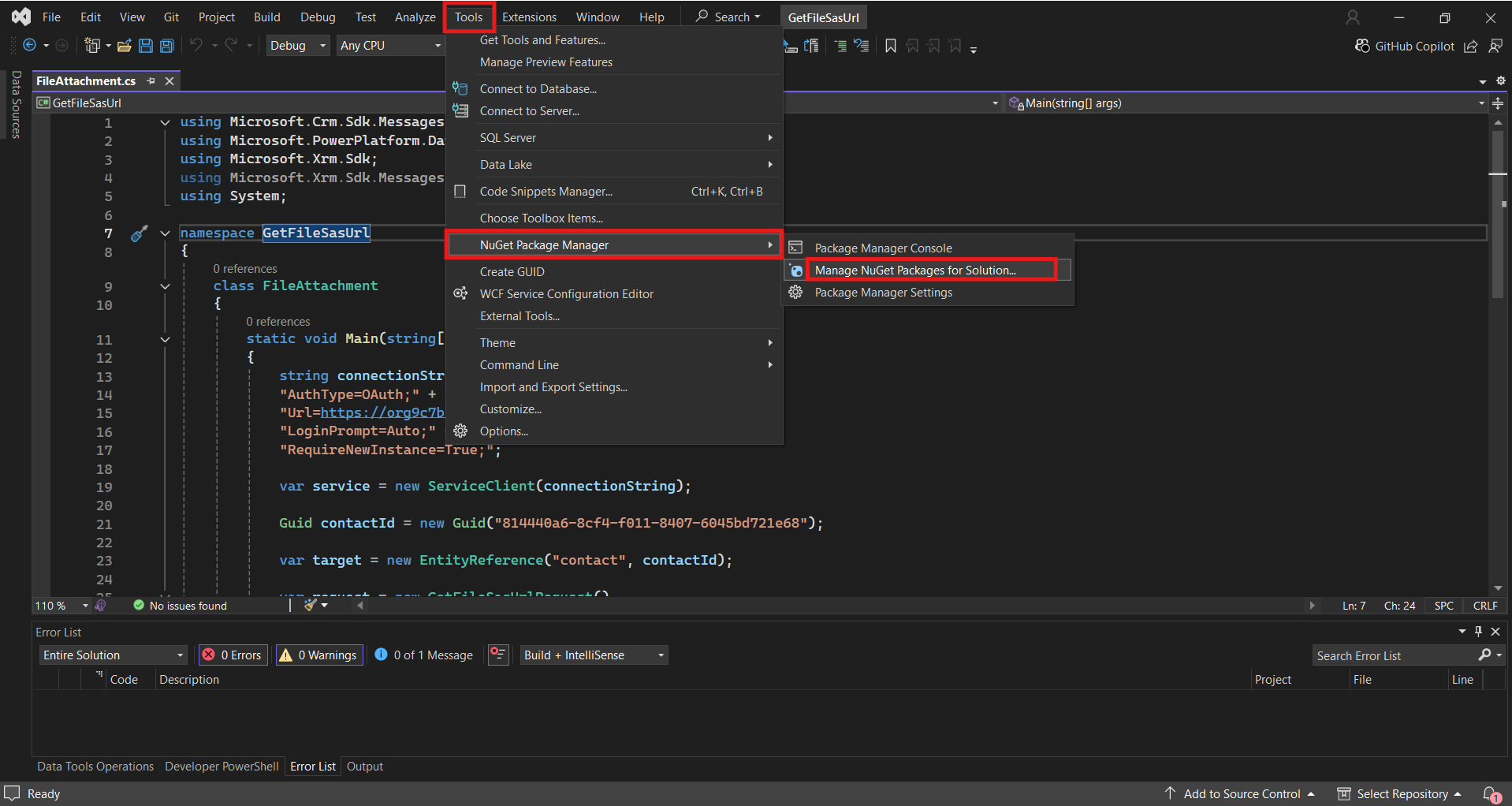
To install the required NuGet packages : Go to Tools> NuGet Package Manager > Manage NuGet Packages for Solution.
Search for : Microsoft.PowerPlatform.Dataverse.Client, Microsoft.CrmSdk.CoreAssemblies , select the project and click on install.
Connection String:
using Microsoft.Crm.Sdk.Messages;
using Microsoft.PowerPlatform.Dataverse.Client;
using Microsoft.Xrm.Sdk;
using System;
namespace GetEmailSasUrl
{
    class EmailAttachment
    {
        static void Main(string[] args)
        {
            string connectionString =
            "AuthType=OAuth;" +
            "Url=https://org9c7b2e5d.crm8.dynamics.com;" +
            "LoginPrompt=Auto;" +
            "RequireNewInstance=True;";
        }
    }
}
Generating SAS URL for a File Column:
var service = new ServiceClient(connectionString);
Guid contactId = new Guid("GUID of Contact record");
var target = new EntityReference("contact", contactId);
var request = new GetFileSasUrlRequest()
	{
                Target = target,
                FileAttributeName = "xyz_idproof"
        };
var response = (GetFileSasUrlResponse)service.Execute(request);
var fileResponse = response.Result;
Console.WriteLine("SAS URL: " + fileResponse.SasUrl);
Note : Replace “GUID of Contact record” with your GUID
Generating SAS URL for a Note Attachment Column:
var service = new ServiceClient(connectionString);
Guid attachmentId = new Guid("AttachmentId  of record ");
var target = new EntityReference("activitymimeattachment", attachmentId);
var request = new GetFileSasUrlRequest()
{
    Target = target,
    FileAttributeName = string.Empty
};
var response = (GetFileSasUrlResponse)service.Execute(request);
Console.WriteLine(response.Result.SasUrl);
Note : Replace “AttachmentId of record” with your AttachmentId
Generating SAS URL for a Note Attachment Column:
var service = new ServiceClient(connectionString);
Guid annotationId = new Guid("AnnotationId of record");
var target = new EntityReference("annotation", annotationId);
var request = new GetFileSasUrlRequest()
{
    Target = target,
    FileAttributeName = string.Empty
};
var response = (GetFileSasUrlResponse)service.Execute(request);
Console.WriteLine(response.Result.SasUrl);
Note : Replace “AnnotationId of record” with your AnnotationId
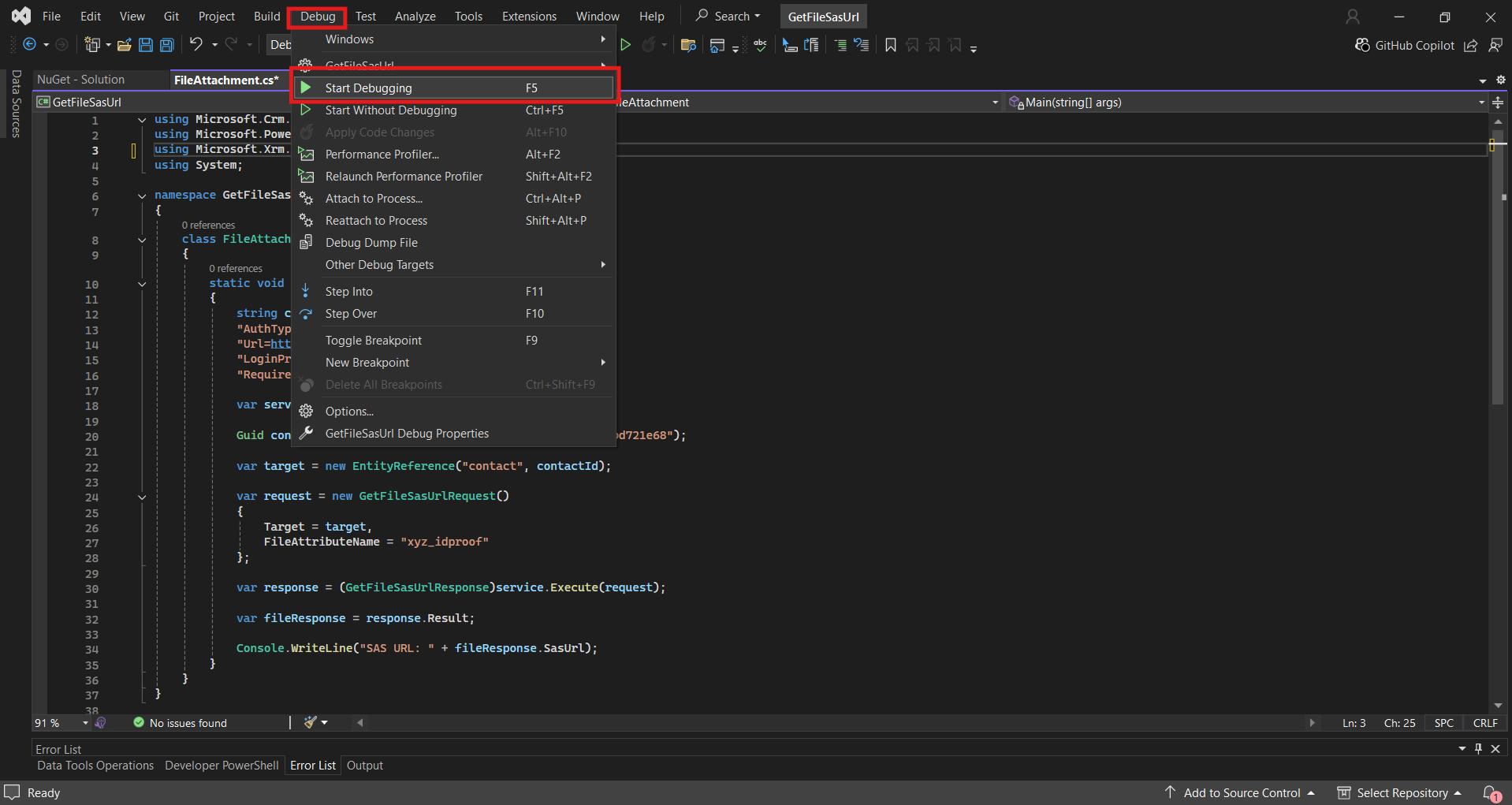
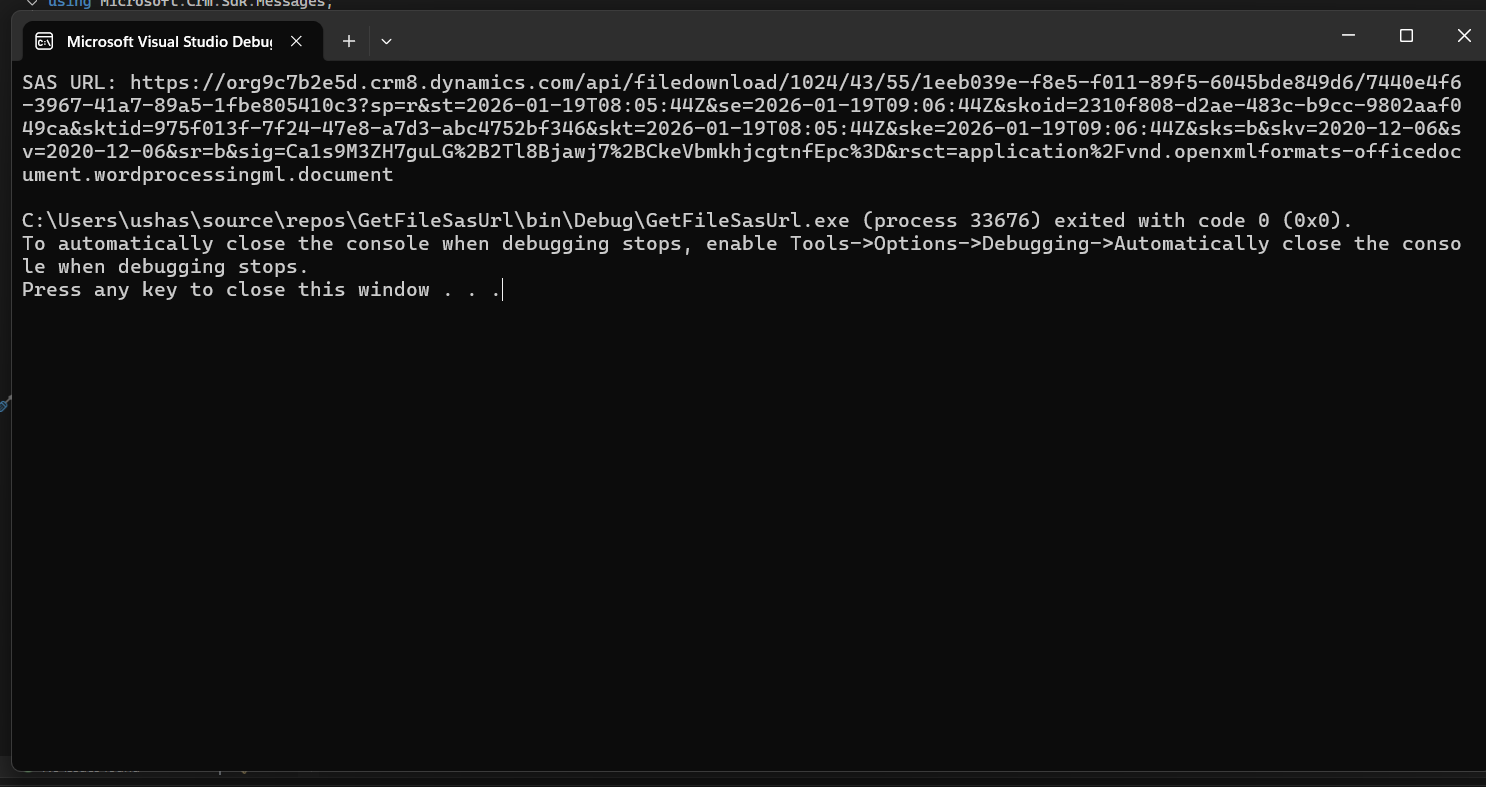
Run the console application to execute the request and view the response returned from Dataverse in the output window.
Copy the SAS URL displayed in the console and paste it into a browser to verify that the file downloads without requiring CRM authentication.
GetFileSasUrl in Dynamics 365 allows users to generate temporary and secure download links for files stored in Dataverse. These links can be created for file columns, notes, and email attachments without requiring CRM authentication. The approach simplifies document sharing while maintaining security through automatic expiration of the URL.
Frequently Asked Questions (FAQs):
1. Does the user need to log in to CRM to open the generated link?
No, the SAS URL allows the file to be downloaded without any Dynamics 365 authentication.
2. How long does the download link remain valid?
The link is temporary and automatically expires after a short duration, typically around one hour.
3. Can this be used for Notes and Email attachments?
Yes, GetFileSasUrl works for file columns, note attachments, and email attachments in Dataverse.
4. Is any additional storage or SharePoint integration required?
No, the file is accessed directly from Dataverse without using SharePoint or external storage.
5. Can this process be automated?
Yes, the same function can be called from Power Automate, plugins, or custom applications to generate links dynamically.