Sending a Feedback Survey Using Customer Voice in Dynamics 365
May 25, 2026
#Dynamics 365
Harika Guddeti
Introduction
Customer feedback plays a vital role in improving services and enhancing customer satisfaction. Microsoft Customer Voice allows organizations to create and send feedback surveys directly from Dynamics 365. By integrating Customer Voice with Dynamics 365, businesses can automatically send surveys to customers after case resolution, collect responses, and analyze customer satisfaction efficiently.
In this blog, we’ll explore how to create and send a feedback survey using Customer Voice in Dynamics 365.
Business Scenario
Imagine a customer support team using Dynamics 365 Customer Service to manage customer issues. Once a support case is resolved, the organization wants to automatically send a feedback survey to the customer to measure their satisfaction with the support experience.
Using Customer Voice, the support team can:
Automatically send surveys after case resolution.
Collect customer ratings and feedback.
Analyze customer satisfaction trends.
Improve service quality based on customer responses.
Prerequisites
Before starting, ensure the following prerequisites are completed:
Access to Dynamics 365 Customer Service.
Customer Voice license enabled.
Power Automate access.
A configured Customer Voice project.
Customer email addresses available in Dynamics 365 contacts.
Step-By-Step Guide
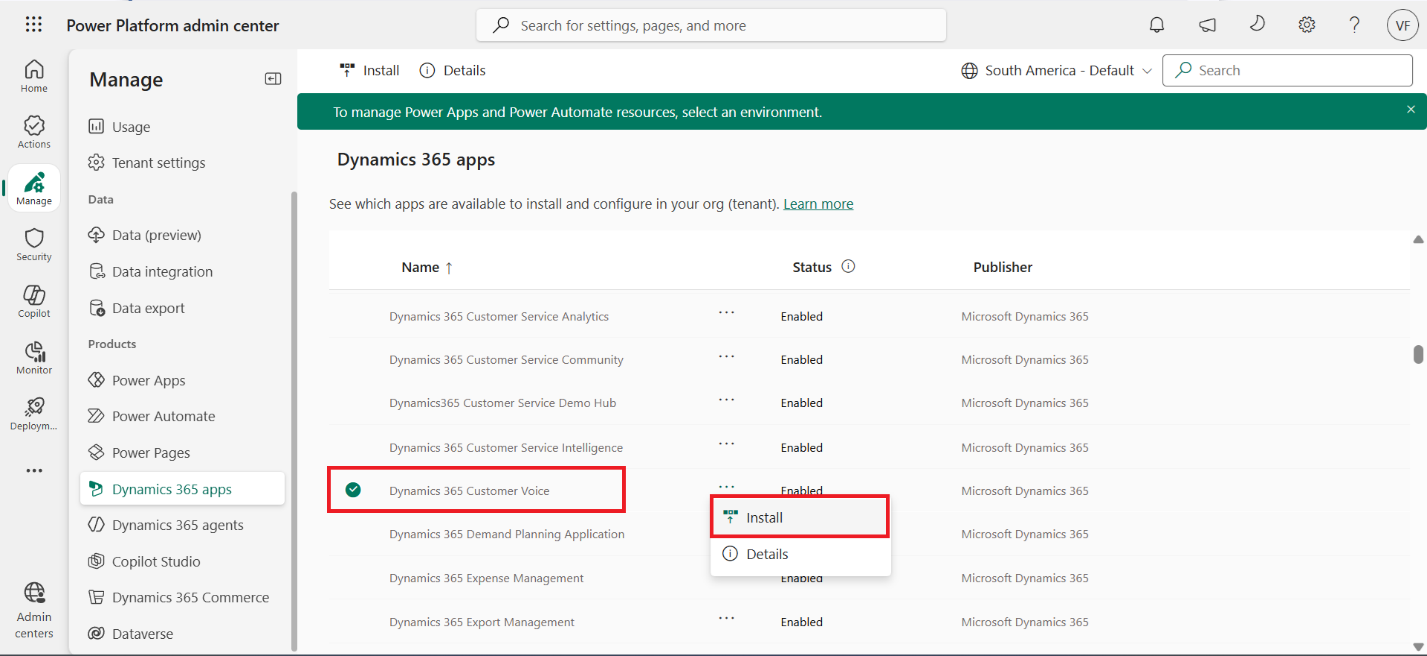
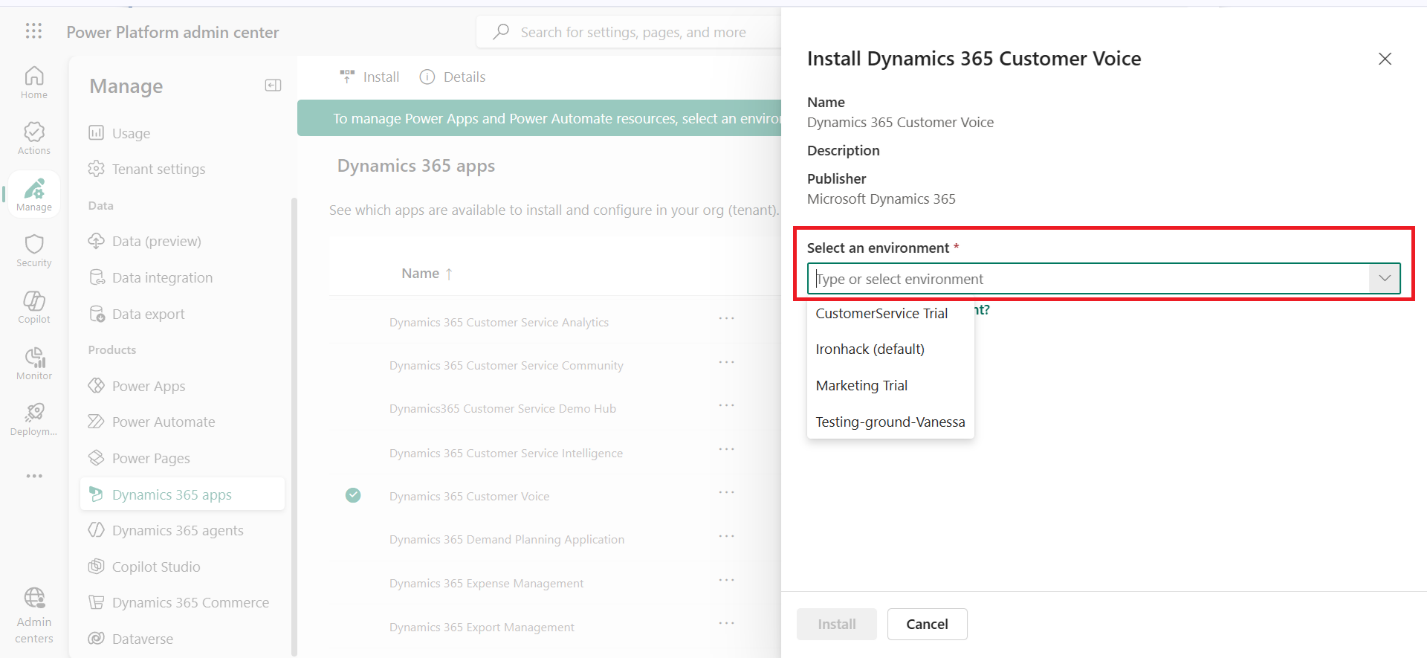
Step 1: Install Dynamics 365 Customer Voice
Open the Power Platform Admin Center by navigating to .
Need help with your business solution?
Our team can help you implement the right solution for your organization.
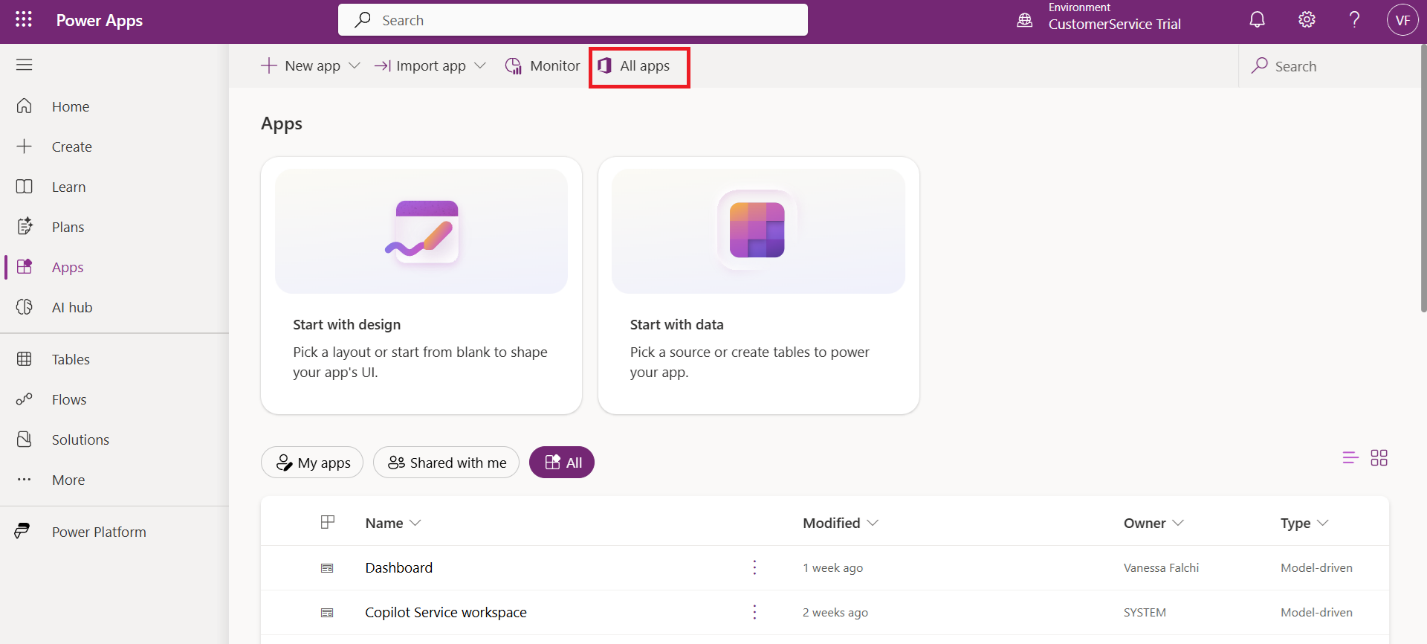
Click on All Apps to navigate to all the Microsoft 365 apps.
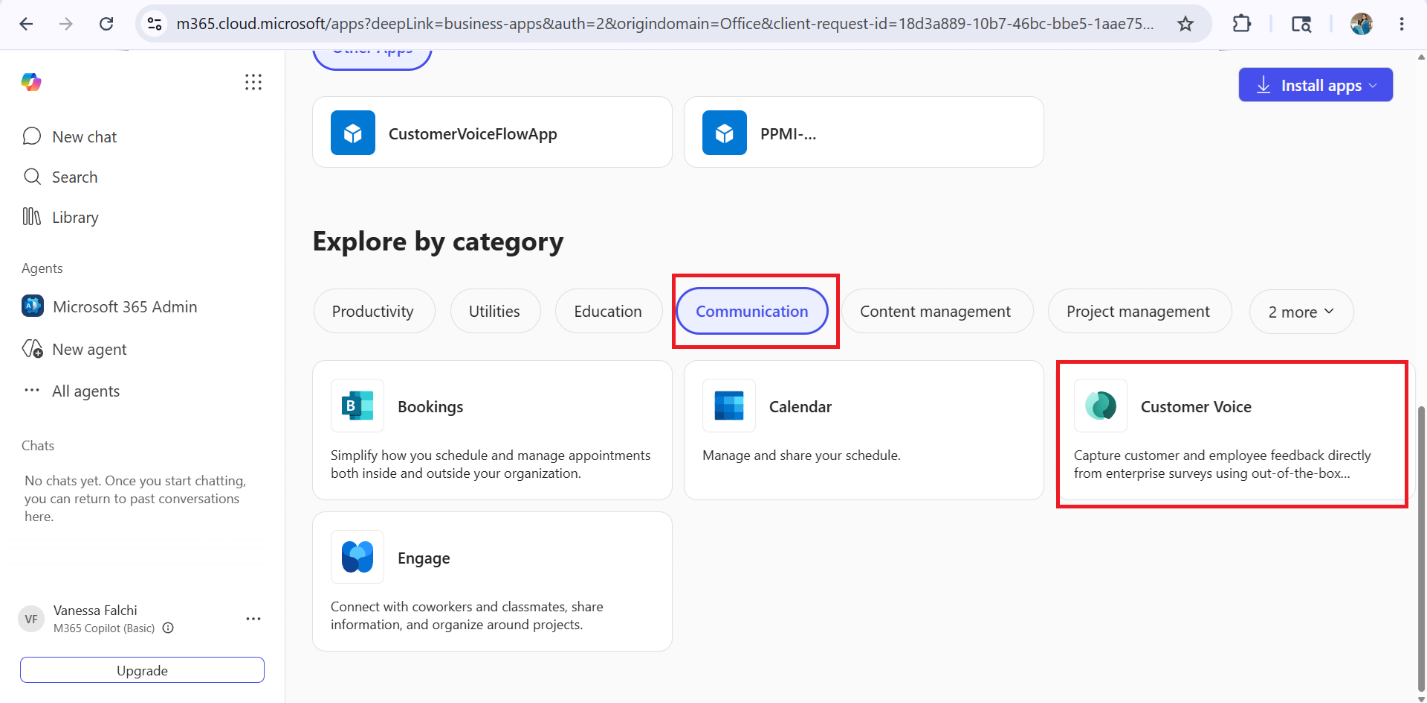
Under Explore by Category, go to Communication.
There you can see the Customer Voice app. Click on the app to open it.
Step 3: Create a Customer Voice Project
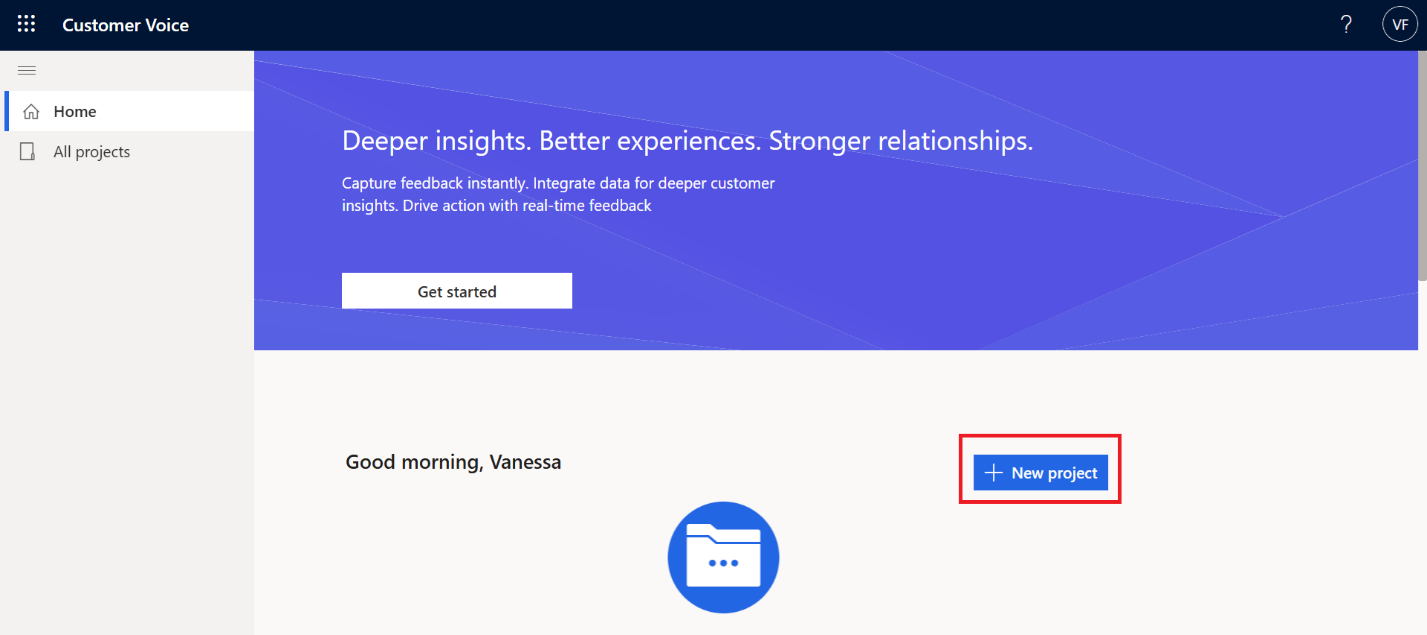
Open the Customer Voice app and click on New Project.
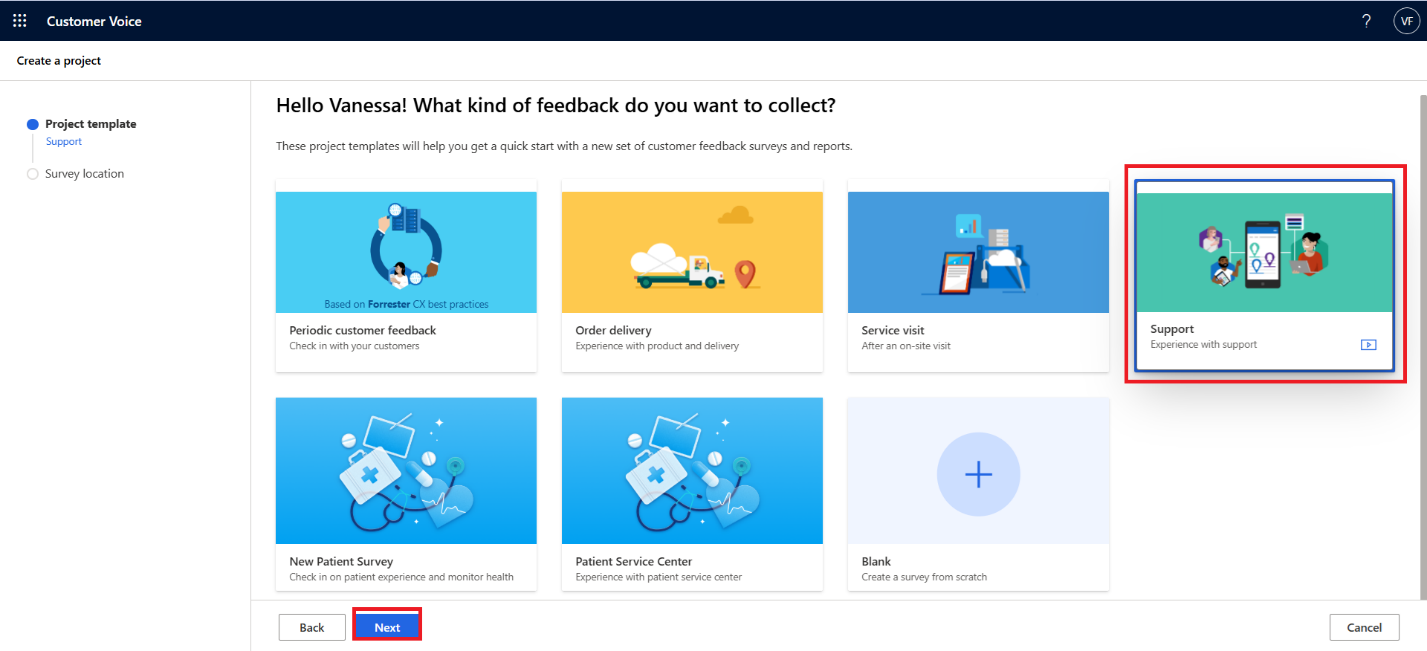
You will now be able to see different Project Templates. Select the template based on your requirement.
Here, select the Support template instead of creating the survey from scratch, then click on Next.
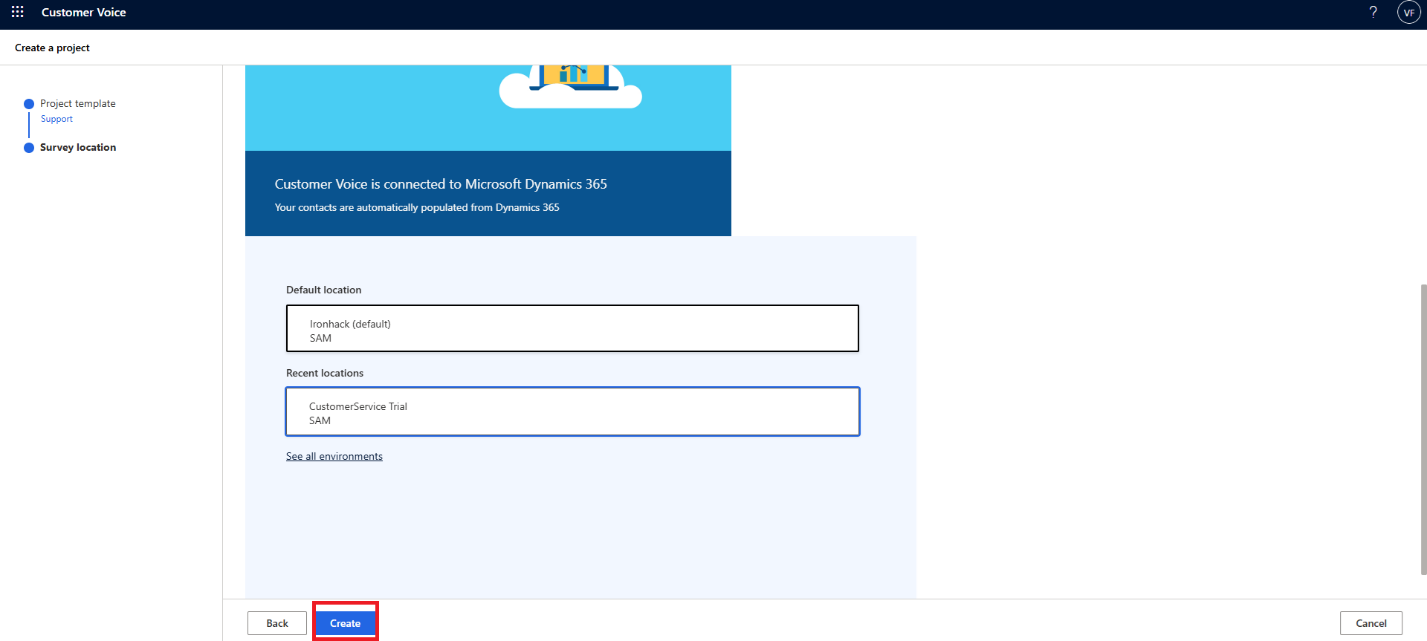
To select the environment, click on See all environments.
Choose your required environment and click on Select and Close.
Click on Create.
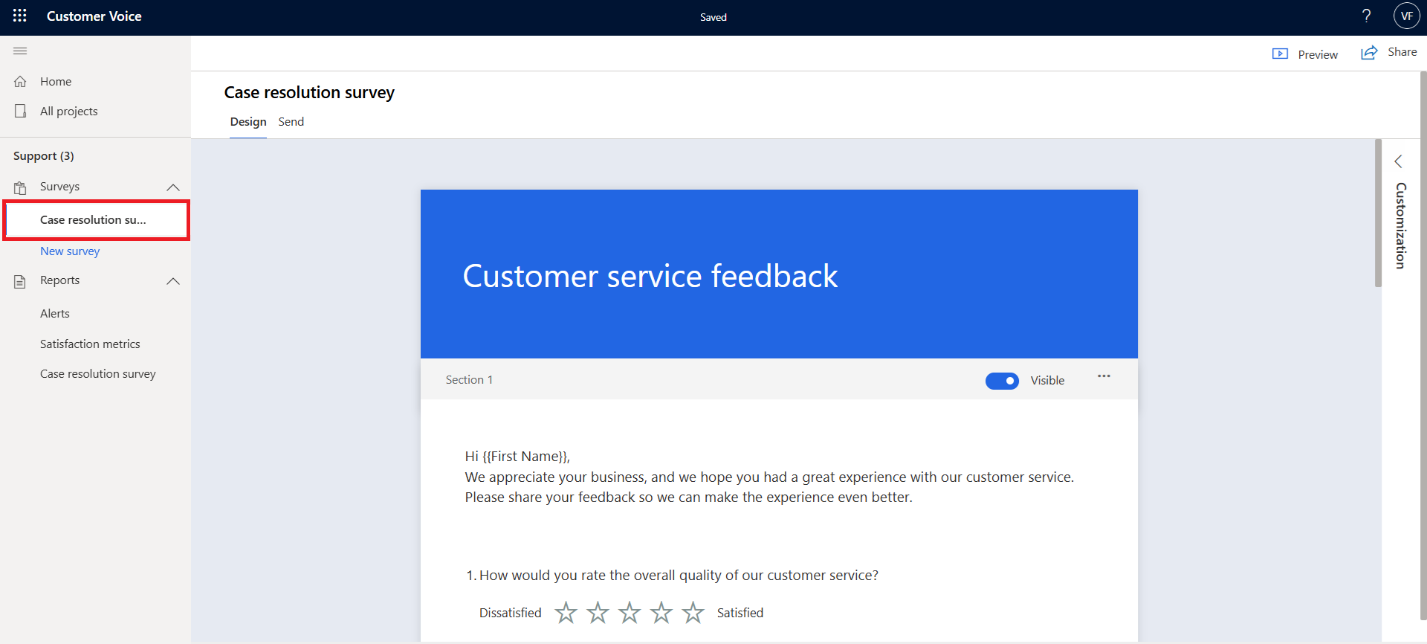
The Customer Voice project will now be created successfully.
Step 4: Create a Survey
Inside the Customer Voice project, for the Support template, a survey named Customer Resolution Survey is already created.
A few default survey questions will also be added automatically.
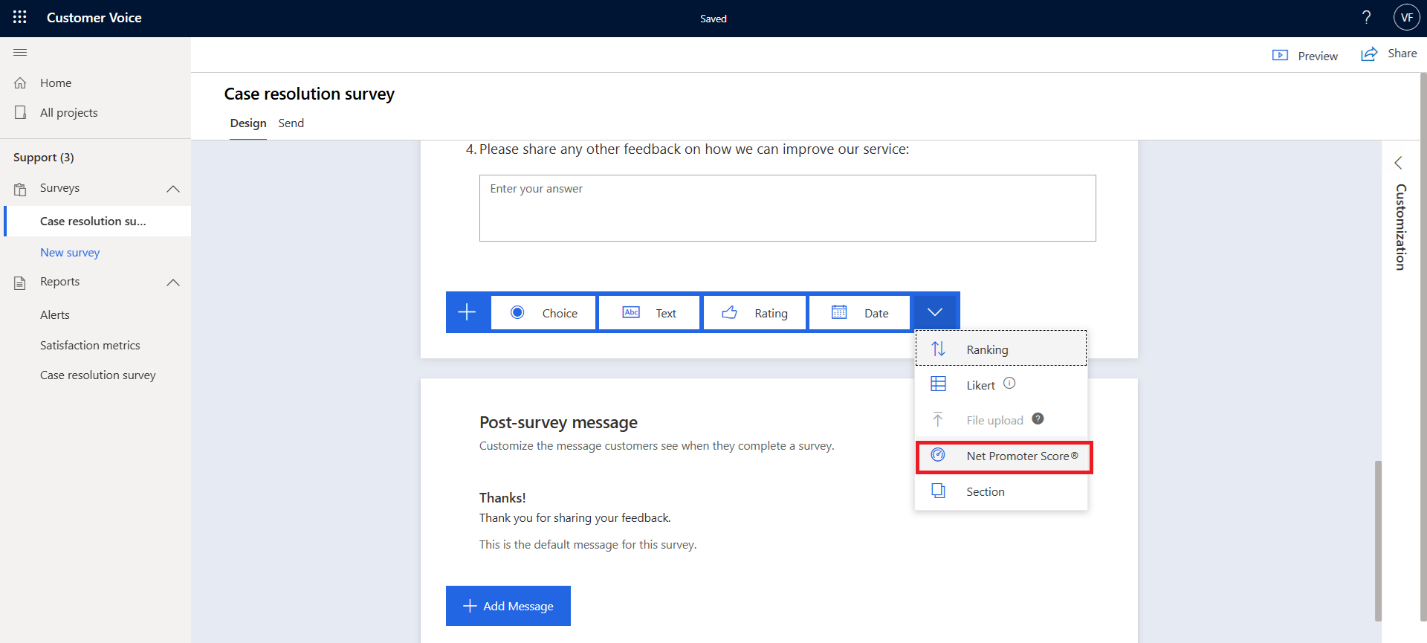
On clicking Add New, you can add different types of survey questions such as:
Rating
Choice
Text
NPS
Ranking and more
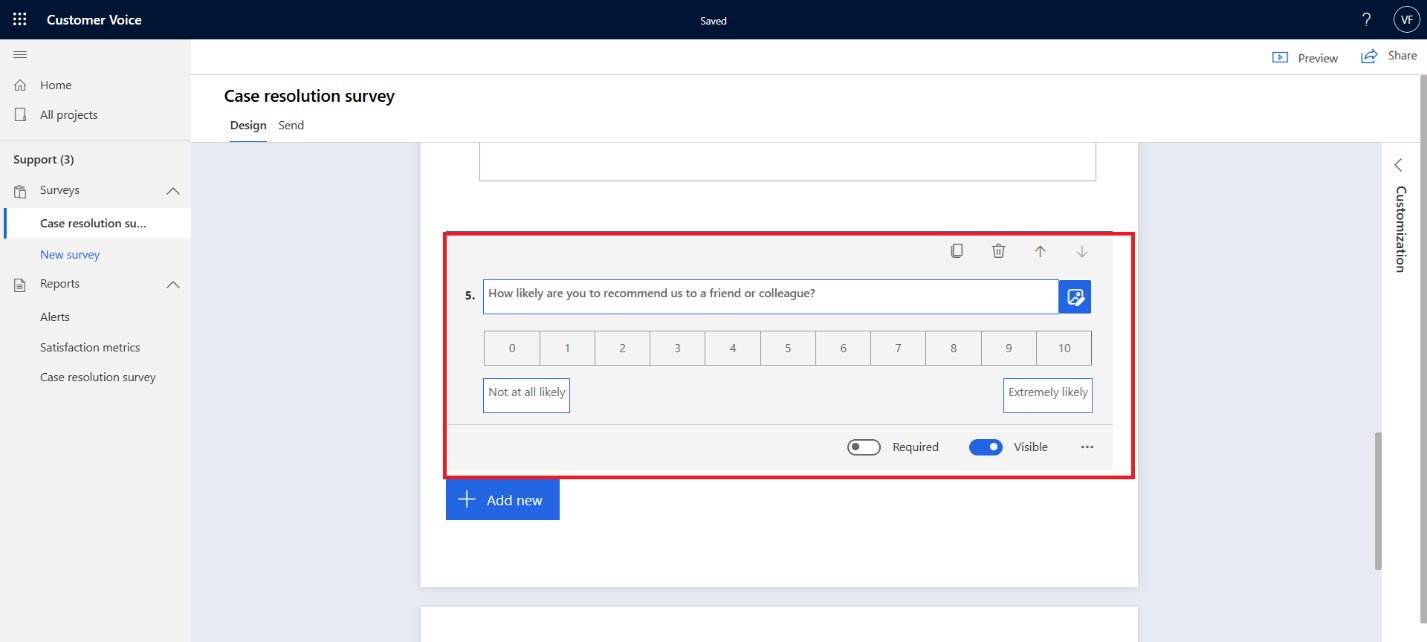
Here, add an NPS (Net Promoter Score) question to the survey.
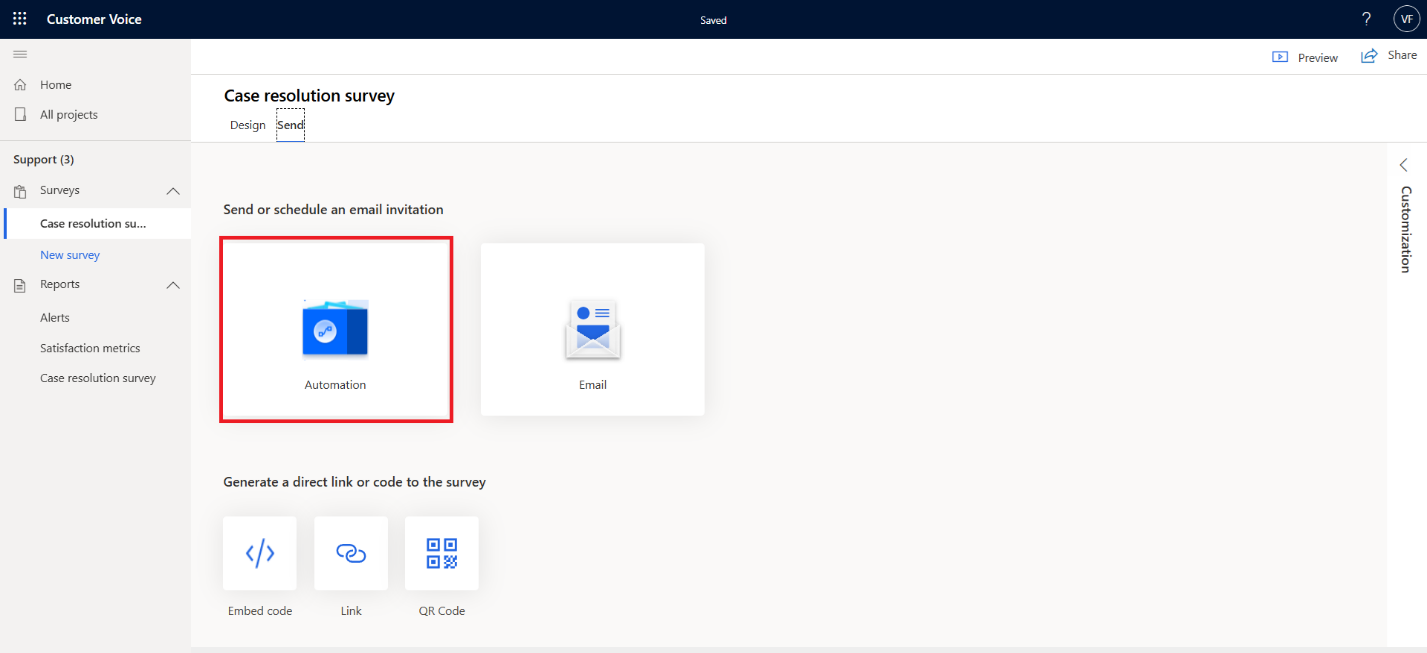
After customizing the survey, click on Send in the survey page.
Step 5: Send Survey Using Power Automate Flow
After clicking on Send in the survey, select Automation.
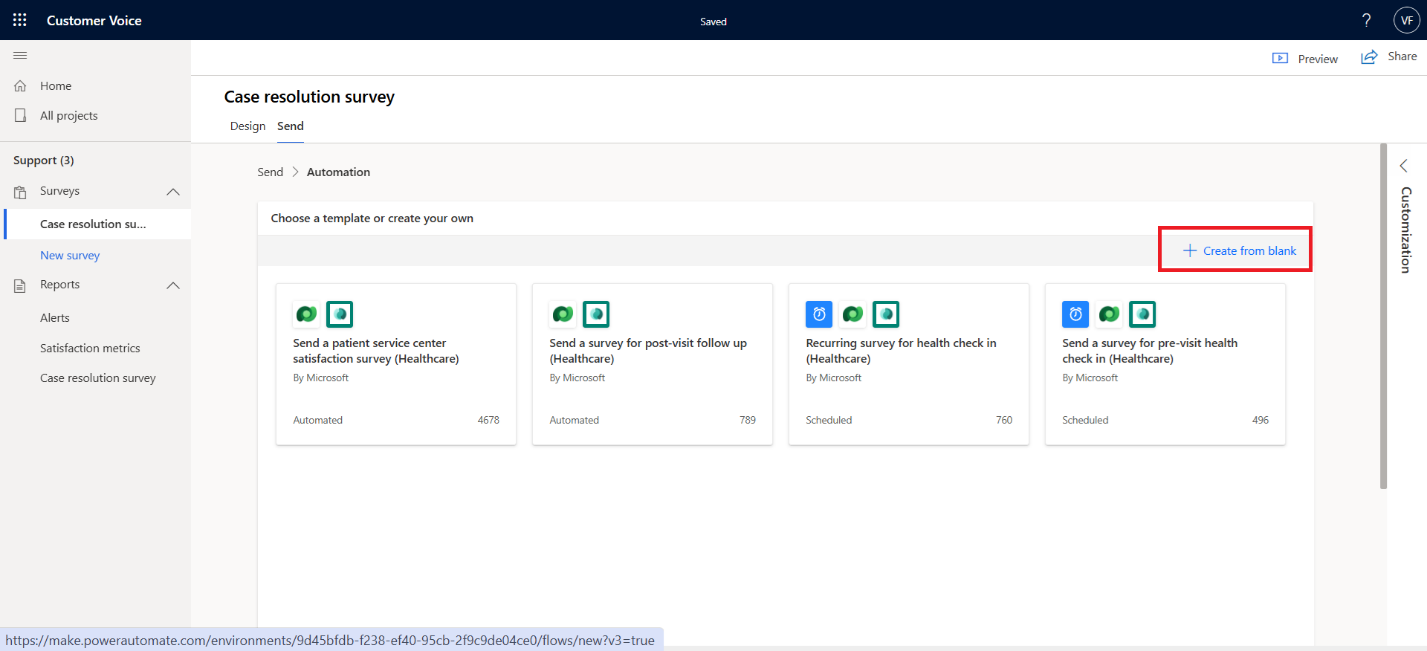
You can either select the available templates or create a flow from scratch.
Here, select Create from blank.
Configure the Trigger
Select Microsoft Dataverse as the connector.
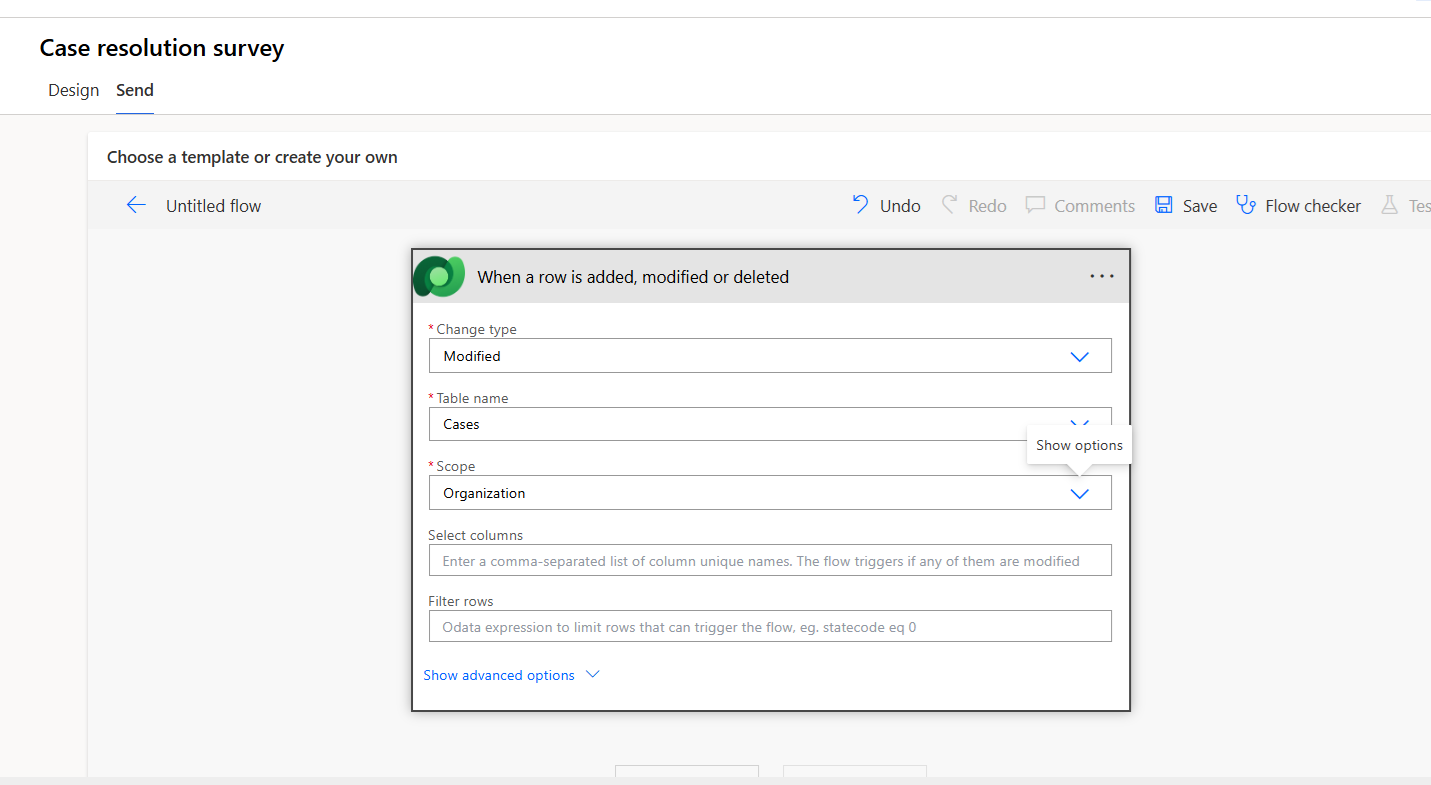
Choose the trigger When a row is added, modified, or deleted.
Configure the trigger with the following values:
Change Type → Modified
Table Name→ Cases
Scope → Organization
Get Customer Email from Case
Click on + New Step and select the Dataverse connector again.
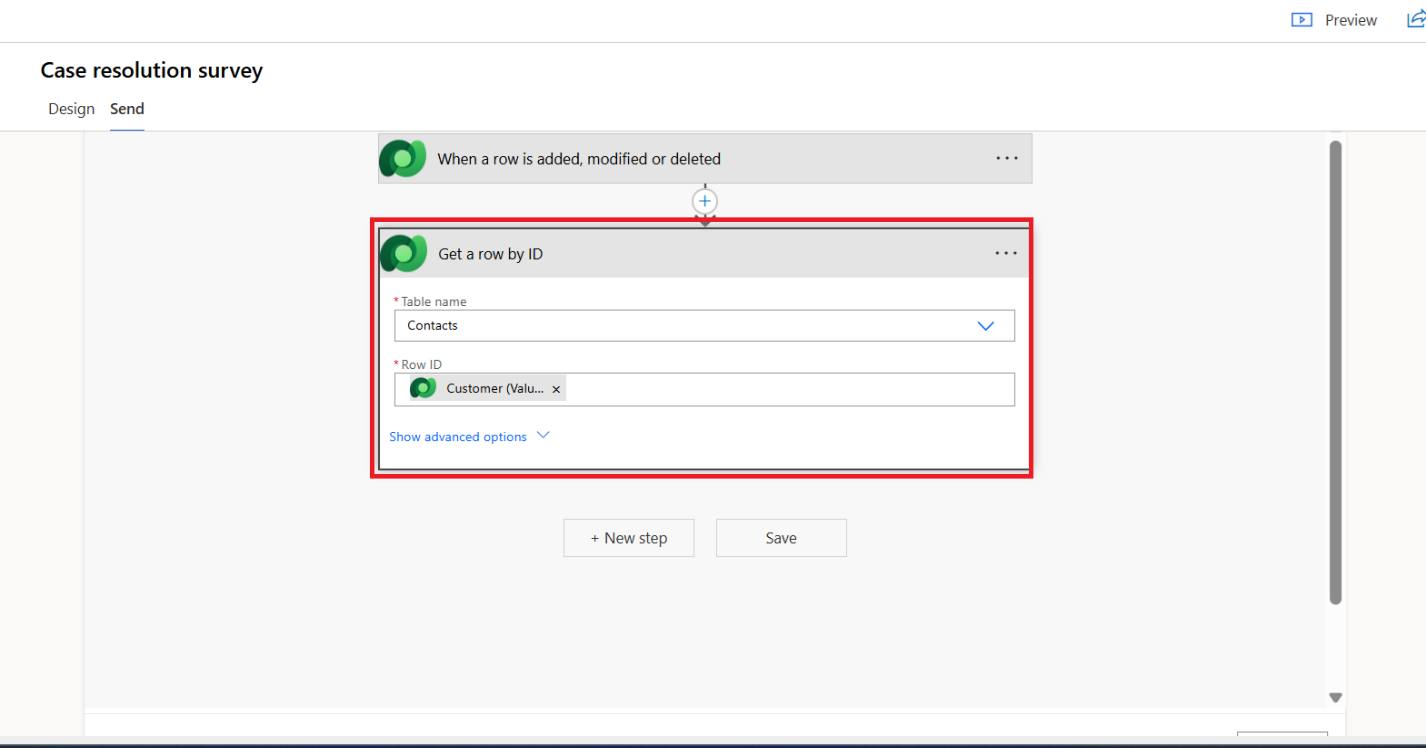
Select the action Get a row by ID.
This step is used to retrieve the customer email from the Contact record linked to the Case.
Configure the action as follows:
Table Name → Contacts
Row ID → Select the Customer lookup value from the Case entity
Add Condition
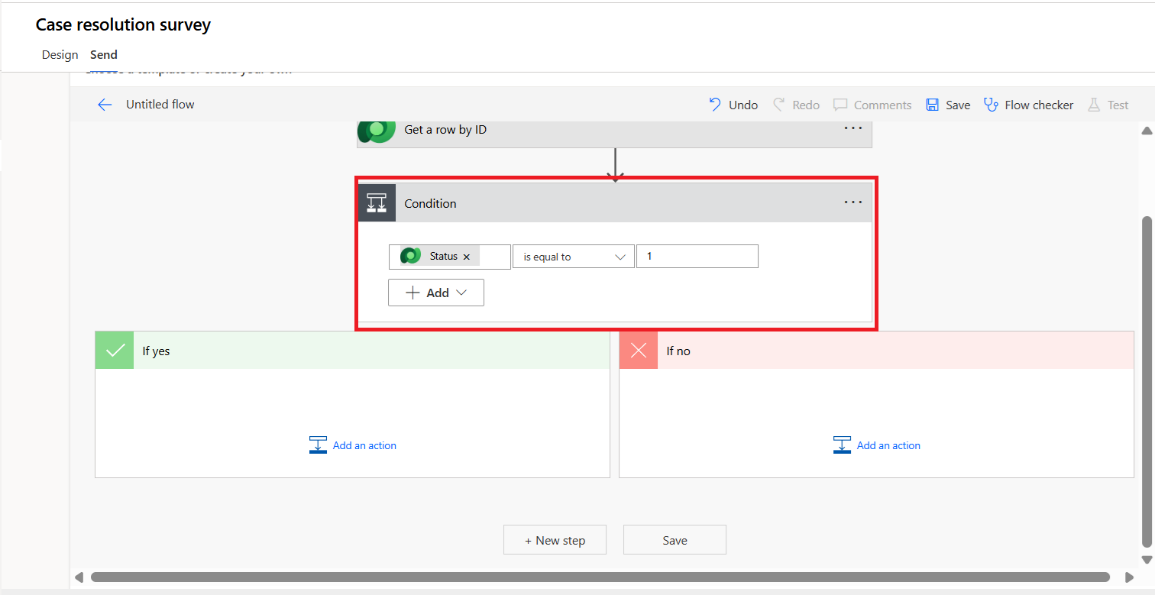
Click on + New Step and select Condition.
Configure the condition with the following values:
Left Value → Status
Condition → Is equal to
Right Value → 1
Here, the value 1 represents the Resolved status of the Case.
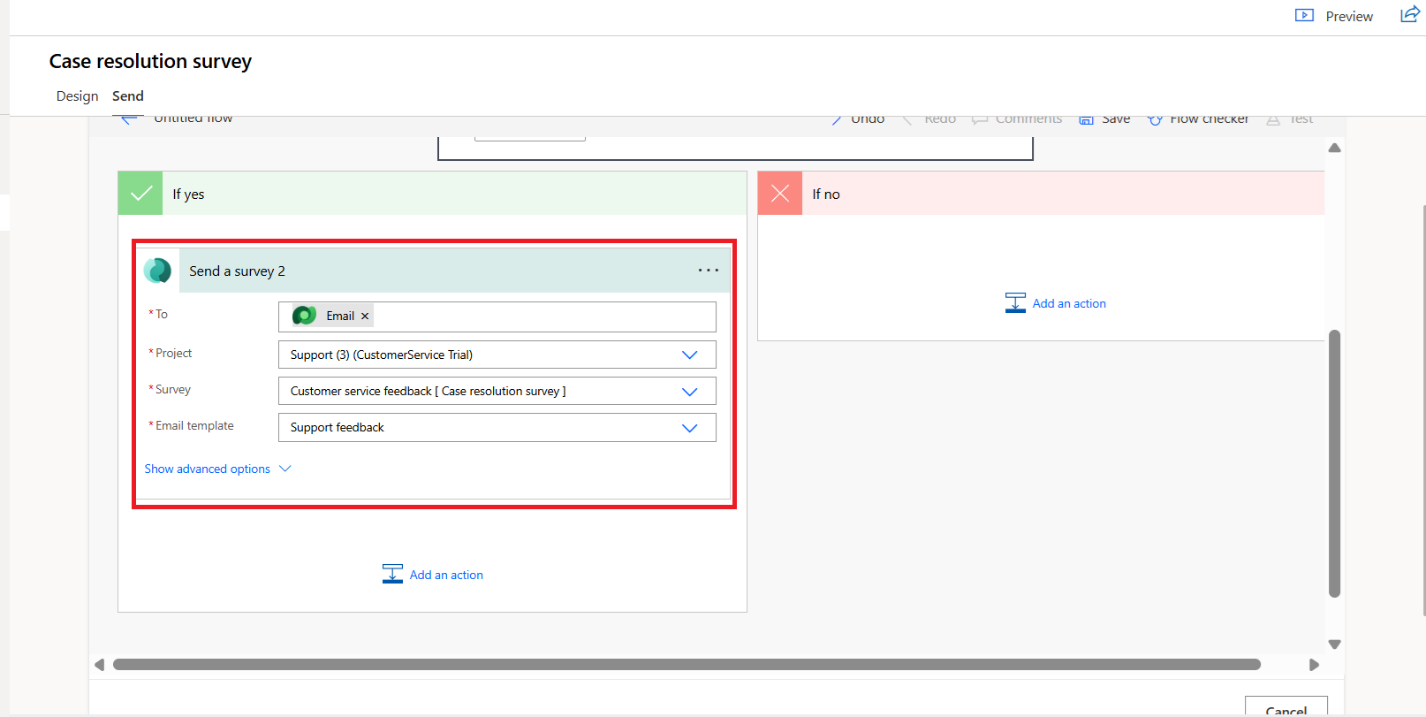
Send the Customer Voice Survey
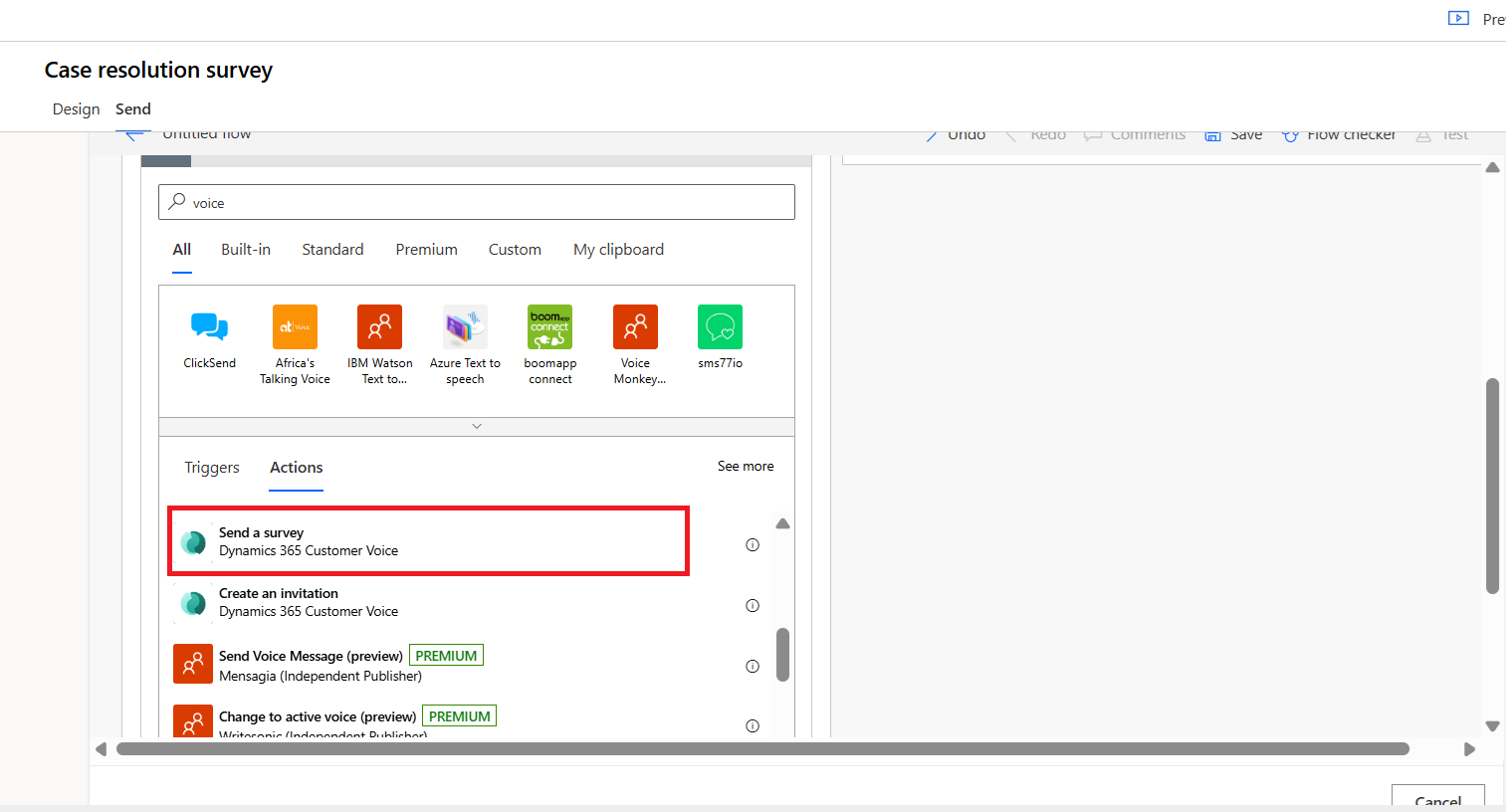
Under the True branch of the condition, click on Add an Action.
Search for Voice in the action search box.
Select the action Send a survey from Dynamics 365 Customer Voice.
Configure the Survey Action
In the To field, select the email value from the Get a row by ID action.
Select the Customer Voice Project you created.
Select the Survey you created.
Choose the required Email Template.
Save the Flow
After configuring all the steps, click on Save.
The flow is now ready to automatically send a feedback survey whenever a case is resolved.
Step 6: Testing the Flow
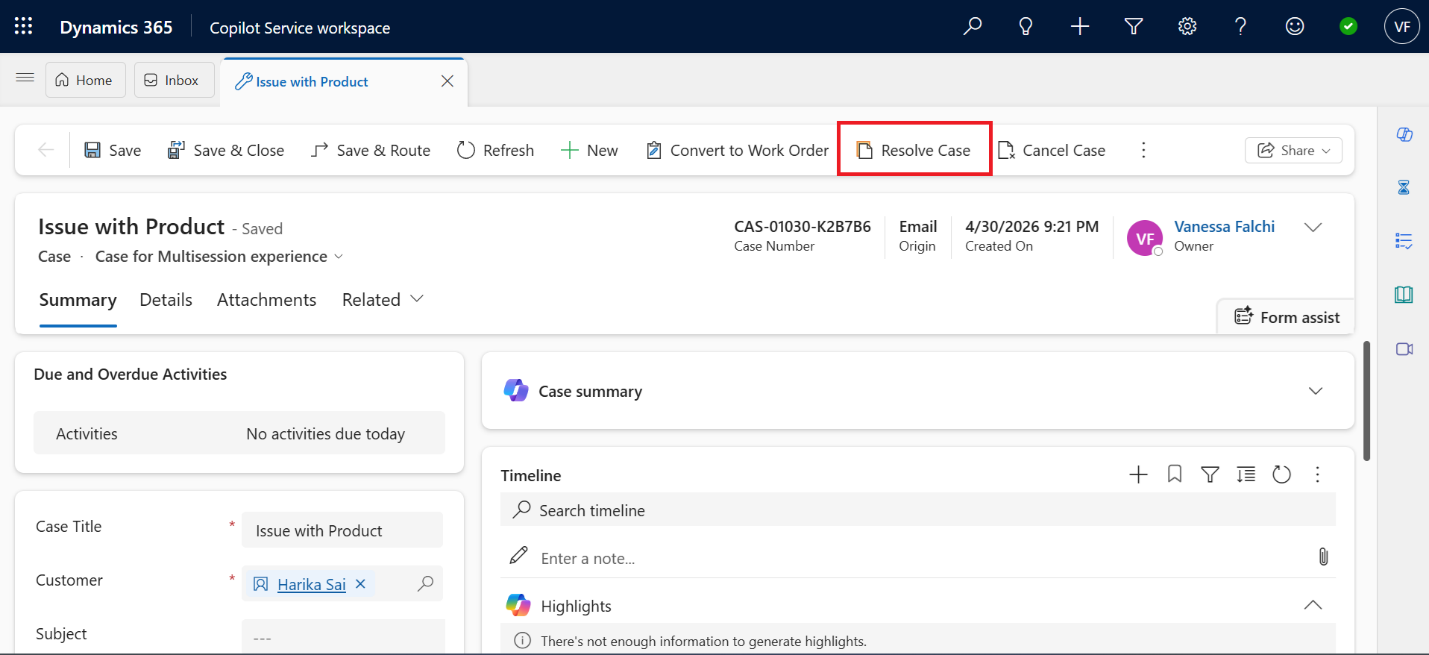
To test the flow, go to the Case form in Dynamics 365 and resolve the case.
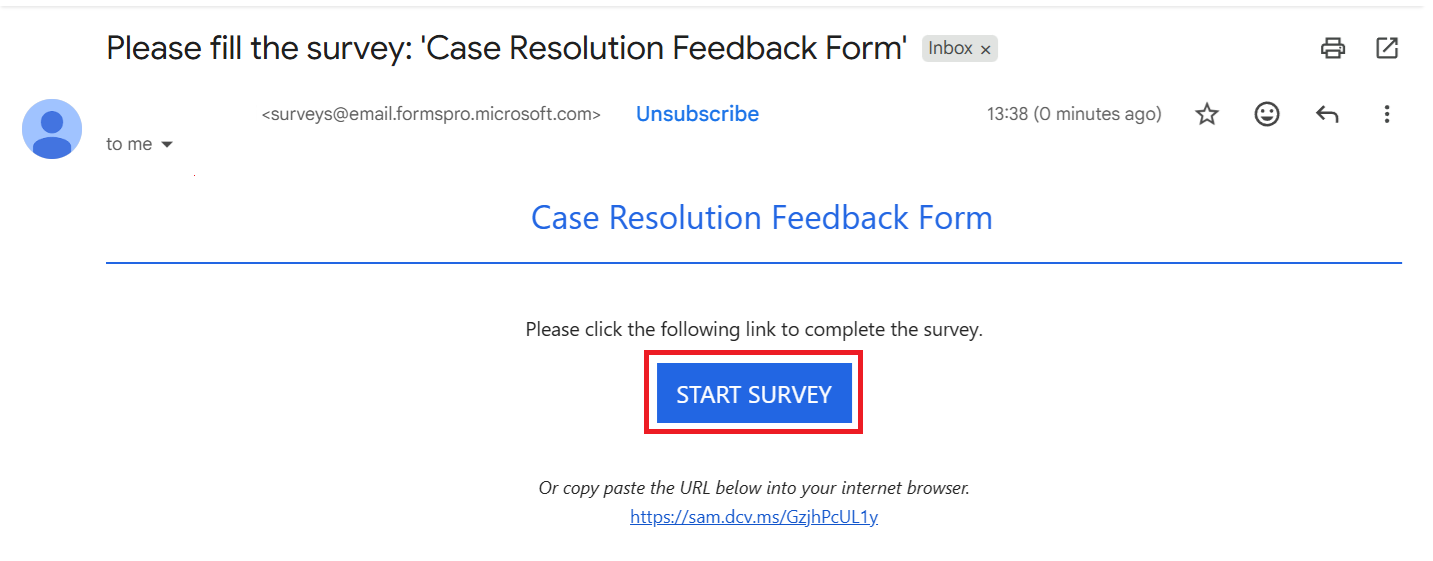
Once the case is resolved, the Power Automate flow gets triggered automatically, and the customer receives the feedback survey email.
Submit the Survey
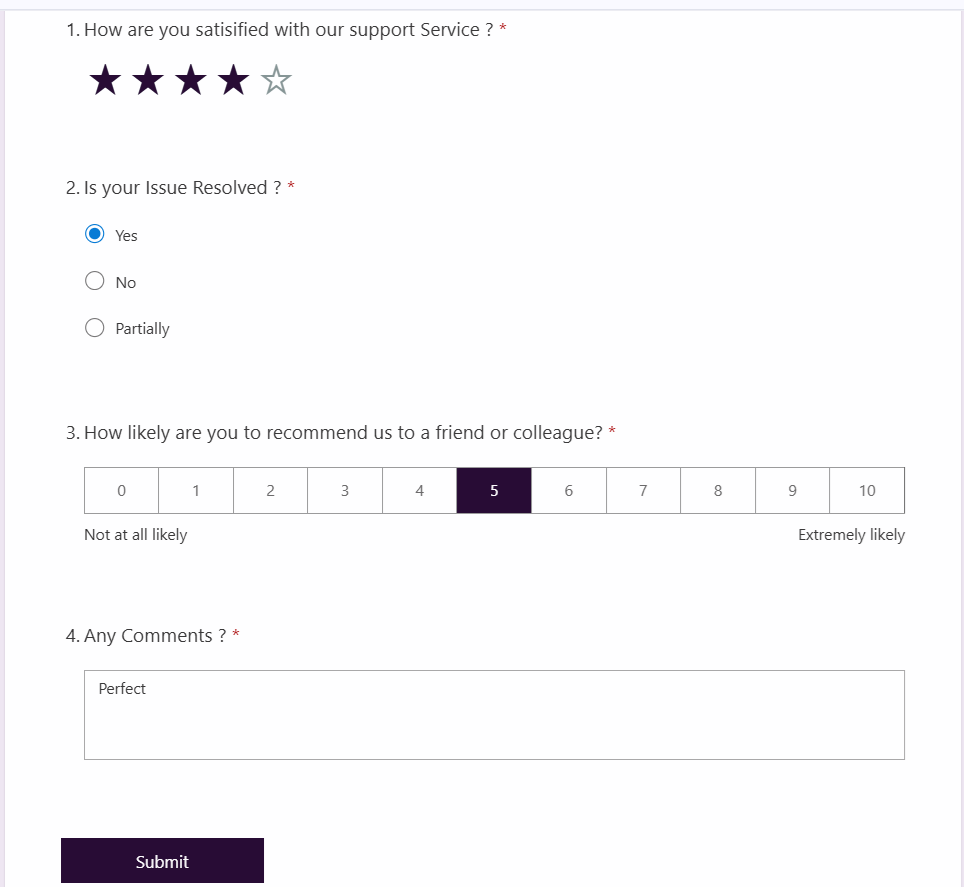
On clicking Start Survey, the survey form will appear.
Fill out the survey form and click on Submit.
Once the survey is submitted successfully, a Thanks message will be displayed.
Step 7: View Survey Responses
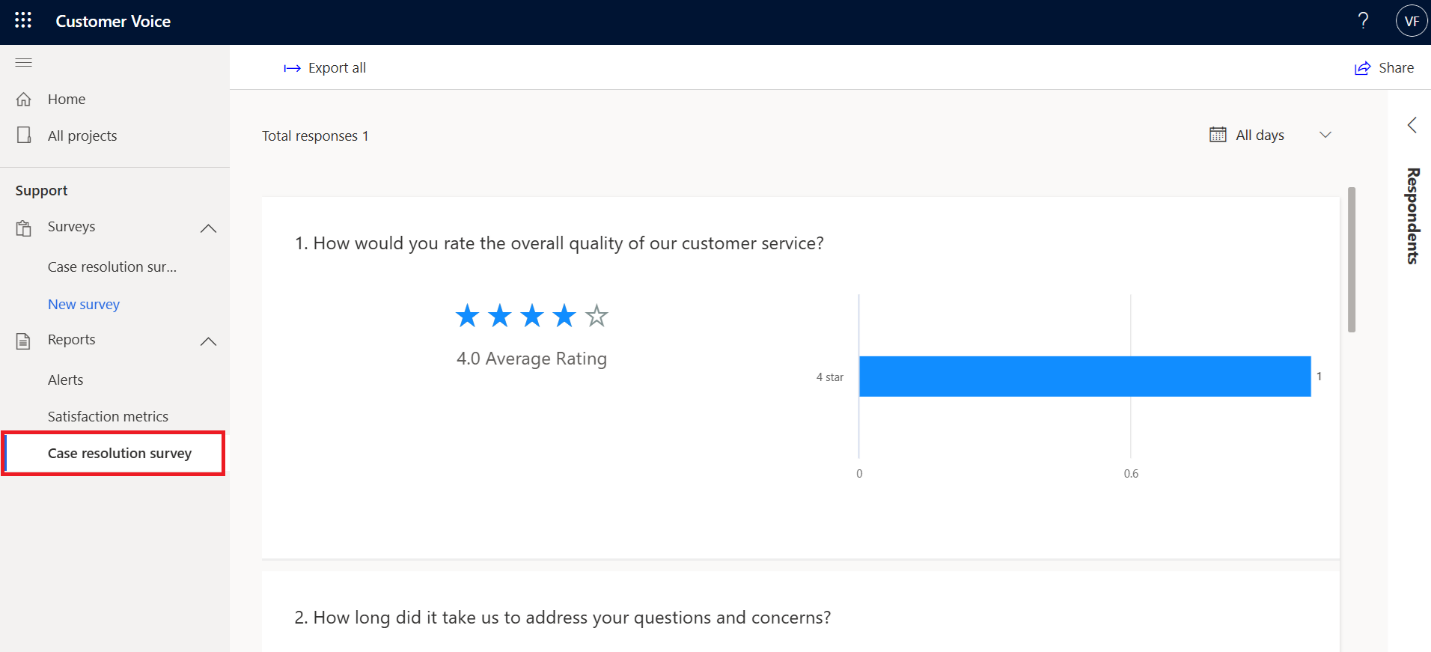
Open the Customer Voice project and navigate to the Reports section.
Under Reports, you can see the survey that was created, i.e., Customer Resolution Survey.
On clicking the survey, you will be able to view all the submitted survey responses.
Here, you can analyze customer ratings, feedback comments, and overall satisfaction results.
Conclusion
Dynamics 365 Customer Voice provides a seamless way to collect customer feedback and improve service quality. By integrating Customer Voice with Dynamics 365 and Power Automate, organizations can automate survey delivery, track customer satisfaction, and gain valuable insights from customer responses. This helps businesses enhance customer engagement and continuously improve their support experience.
Frequently Asked Questions (FAQ)
1. What is Dynamics 365 Customer Voice?
Dynamics 365 Customer Voice is a Microsoft tool used to create, send, and analyze customer feedback surveys.
2. How does Customer Voice help in customer service?
Customer Voice helps organizations collect customer feedback after service interactions and improve customer satisfaction.
3.What is the purpose of using Power Automate with Customer Voice?
Power Automate is used to automate survey delivery based on events such as case resolution in Dynamics 365.
4. How can survey responses be viewed?
Survey responses can be viewed under the Reports section inside the Customer Voice project.
5. What types of questions can be added to a survey?
Customer Voice supports question types such as Rating, Choice, Text, NPS, Ranking, and more.