LogoLogo

Our Products

Metadata Browser

Edge Add-on

HTML To PDF Converter

Power Automate Connector

Data Mask for Dataverse

Dataverse App

Commission 365

Dynamics 365 App

AI Autocloser

Dataverse App

Flow Monitor

Power Automate App

ServicesAboutCareersBlogContact
Chat on Teams
Metadata BrowserHTML To PDF ConverterData Mask for DataverseCommission 365AI AutocloserFlow Monitor
ServicesAboutCareersBlogContactChat on Teams
HomeBlogBuild a Modern Popup Dialog in Dynamics 365 Using Ribbon Commands and JavaScript

Build a Modern Popup Dialog in Dynamics 365 Using Ribbon Commands and JavaScript

May 24, 2026
#Dynamics 365
Chetan Jha
Build a Modern Popup Dialog in Dynamics 365 Using Ribbon Commands and JavaScript

Introduction

Have you ever wanted to give your Dynamics 365 users a rich, custom experience directly from an entity form without navigating away from the record? In this blog, we walk you through how to build a custom popup dialog that opens when a user clicks a ribbon button on the Account form. The dialog allows users to create a new Task record that is automatically linked to the Account they are viewing, without ever leaving the form.

This solution uses three pieces that work together: a JavaScript web resource that reads the Account context and opens the dialog, an HTML web resource that renders the popup UI and calls the Dataverse Web API to create the Task, and a ribbon command configured via the Command Designer that wires the button to the JavaScript function.

By the end of this guide you will have a fully working Create Task button on the Account command bar that opens a clean, validated popup form and saves the Task directly to Dataverse.

Business Scenario

Sales and service teams often work on Account records in Dynamics 365 and need to quickly assign follow-up tasks without breaking their workflow. The standard New Task button navigates the user away from the Account form, causing context loss.

The goal is to add a dedicated Create Task button to the Account command bar. When clicked, it opens a modern popup where the user can fill in task details. On submit, the task is created in Dataverse and automatically associated with the Account through the Regarding field. The Account form timeline refreshes immediately to show the new task.

Entity

Logical Name

Account

account

Back to all articles

More from the blog

Sending a Feedback Survey Using Customer Voice in Dynamics 365

Enable Audio Playback in Dynamics 365 Contact Forms Using JavaScript

Generate Temporary Download URLs in Dynamics 365 Using GetFileSasUrl

Email Smarter in Outlook with Sales Copilot and Power Apps Integration

Creating And Embedding a Copilot Bot in Dynamics 365

Close Case on condition using Power Automate

Understanding and Using Polymorphic Lookups in Dynamics 365 with XrmToolBox

Connect Dynamics 365 to Console App Using Application Registration

Need help with your business solution?

Our team can help you implement the right solution for your organization.

Get in touch
LogoLogo

Ex-Microsoft experts helping businesses get more from their Dynamics 365 and Power Platform investments.

Products

Task

task

Task Field

Logical Name

Subject

subject

Description

description

Due Date

scheduledend

Priority

prioritycode

Duration

actualdurationminutes

Regarding (link to Account)

regardingobjectid_account@odata.bind

Prerequisites

  • A Microsoft 365 account with Dynamics 365 and Power Apps access

  • Access to make.powerapps.com and an active Dataverse environment

  • Permission to create and publish solutions and web resources

  • Basic familiarity with Model-Driven Apps and JavaScript

Note about Publisher Prefix: Throughout this guide, the prefix testpubl_ is used as the publisher prefix. Replace this with your own publisher prefix wherever you see it. Your prefix is defined when you create a Publisher in your Solution.

Step-By-Step Guide

Step 1: Create a New Solution

Navigate to make.powerapps.com and click on Solutions in the left navigation. Click New solution.

1

In the New solution panel, fill in the Display name and click New publisher if you do not have one.

2

In the New publisher panel, fill in the Display name, Name, and Prefix fields. The Prefix you enter here becomes your publisher prefix for all web resources in this solution. Click Save.

3

Click Create to finish creating the solution.

Step 2: Add the Account and Task Tables to the Solution

Inside your solution, click Add existing and then select Table from the dropdown.

4

In the Add existing tables panel, search for Account in the Search tables box, select it, and click Next. Repeat the same steps to add the Task table. Click Add to confirm.

5
Step 3: Create the JavaScript Web Resource

Inside your solution, click New, hover over More, and then select Web resource.

6

Fill in the web resource details as follows:

Field

Value

Display Name

Account Task Handler JS

Name

testpubl_new_accounttaskhandler (use your publisher prefix)

Type

Script (JScript)

Paste the following JavaScript code into the editor. Inline comments explain every part you may need to change.

var TaskHandler = TaskHandler || {};
 
TaskHandler.Ribbon = {
 
    openCreateTaskDialog: function (primaryControl) {
 
        if (!primaryControl) {
            Xrm.Navigation.openAlertDialog({
                text: "Form context not available.",
                title: "Error"
            });
            return;
        }
 
        var formContext = primaryControl;
 
        // getId() reads the GUID of the currently open record.
        // CHANGE: If using on a different entity, this still works unchanged.
        var rawId = formContext.data.entity.getId();
 
        if (!rawId || rawId.trim() === "") {
            Xrm.Navigation.openAlertDialog({
                text: "Please save the Account record first.",
                title: "Record Not Saved"
            });
            return;
        }
 
        // Remove curly braces from GUID e.g. {abc-123} becomes abc-123
        var accountId   = rawId.replace(/[{}]/g, "").toLowerCase().trim();
        var accountName = formContext.data.entity.getPrimaryAttributeValue() || "";
 
        // Build the query string to pass into the HTML dialog.
        // regardingId   = Account GUID
        // regardingName = Account display name
        // regardingType = entity type (used for reference)
        var dataParam =
            "regardingId="    + encodeURIComponent(accountId) +
            "&regardingName=" + encodeURIComponent(accountName) +
            "&regardingType=account";
 
        // CHANGE: Replace "testpubl_new_createtaskdialog" with your
        // publisher prefix + HTML web resource name.
        // Height and width control the popup size in pixels.
        Xrm.Navigation.openWebResource(
            "testpubl_new_createtaskdialog",
            { height: 580, width: 720 },
            dataParam
        );
    }
};

Code explanation:

primaryControl - Passed automatically by Command Designer when Parameter Type = PrimaryControl. Gives access to the current form record.

formContext.data.entity.getId() - Reads the GUID of the open Account record. This is sent to the HTML dialog as regardingId.

"testpubl_new_createtaskdialog" - The logical name of the HTML web resource created in Step 4. Change the prefix to match your publisher.

height / width - Controls the popup size in pixels. Adjust to match your screen layout.

dataParam - The query string passed to the HTML page. Carries Account ID, Account Name, and entity type.

Click Save and then Publish.

Step 4: Create the HTML Web Resource (Popup Dialog UI)

This is the dialog the user sees when they click the ribbon button. It contains the Task form fields, client-side validation, and the Dataverse Web API call that creates the Task record.

Inside your solution, click New, hover over More, and select Web resource again.

Field

Value

Display Name

Create Task Dialog HTML

Name

testpubl_new_createtaskdialog (use your publisher prefix)

Type

Webpage (HTML)

Paste the complete HTML code below into the editor. Every section is explained with inline comments so you know exactly what to change for your use case.

<!DOCTYPE html>
<html lang="en">
<head>
    <meta charset="UTF-8"/>
    <title>Create Task</title>
 
    <!--  MUST be first script - loads Xrm object inside the dialog -->
    <script src="ClientGlobalContext.js.aspx"></script>
    <link href="https://fonts.googleapis.com/css2?family=DM+Sans:wght@300;400;500;600&family=DM+Mono:wght@400;500&display=swap" rel="stylesheet">
 
    <style>
        *, *::before, *::after { box-sizing: border-box; margin: 0; padding: 0; }
 
        :root {
            --ink:        #0f0f0f;    /* Main text color */
            --ink-2:      #3a3a3a;    /* Secondary text */
            --ink-3:      #7a7a7a;    /* Muted/label text */
            --surface:    #f7f5f2;    /* Page background */
            --card:       #ffffff;    /* Card/field background */
            --accent:     #2563ff;    /* Blue accent - change for brand color */
            --warn:       #e53e3e;    /* Red for errors */
            --ok:         #16a34a;    /* Green for success */
            --border:     #e4e0db;    /* Border color */
            --radius:     12px;
            --radius-sm:  8px;
        }
 
        html, body { height: 100%; font-family: 'DM Sans', sans-serif;
            background: var(--surface); color: var(--ink);
            font-size: 14px; line-height: 1.5; }
        body { display: flex; flex-direction: column; overflow: hidden; }
 
        /* Dark header */
        .header { position: relative; background: var(--ink); color: #fff;
            padding: 20px 28px 18px; flex-shrink: 0; overflow: hidden; }
        .header::before { content: ''; position: absolute; inset: 0;
            background-image: linear-gradient(rgba(255,255,255,0.04) 1px, transparent 1px),
            linear-gradient(90deg, rgba(255,255,255,0.04) 1px, transparent 1px);
            background-size: 32px 32px; }
        .header::after { content: ''; position: absolute; right: -40px; top: -40px;
            width: 160px; height: 160px; border-radius: 50%;
            background: var(--accent); opacity: 0.18; }
        .header-inner { position: relative; z-index: 1; display: flex;
            align-items: flex-start; justify-content: space-between; }
        .header-eyebrow { font-family: 'DM Mono', monospace; font-size: 10px;
            letter-spacing: 0.12em; text-transform: uppercase;
            color: rgba(255,255,255,0.45); margin-bottom: 4px; }
        .header-title { font-size: 20px; font-weight: 600; color: #fff; }
        .header-title span { color: var(--accent); }
 
        /* Account pill shown in header */
        .account-pill { display: inline-flex; align-items: center; gap: 7px;
            margin-top: 10px; background: rgba(255,255,255,0.08);
            border: 1px solid rgba(255,255,255,0.12); border-radius: 100px;
            padding: 5px 12px 5px 6px; font-size: 12px; color: rgba(255,255,255,0.85); }
        .account-pill-dot { width: 22px; height: 22px; border-radius: 50%;
            background: var(--accent); display: flex; align-items: center;
            justify-content: center; font-size: 10px; font-weight: 700; color: #fff; }
        .step-badge { font-family: 'DM Mono', monospace; font-size: 11px;
            color: rgba(255,255,255,0.35); margin-top: 4px; }
 
        /* Progress bar */
        .progress-track { height: 3px; background: var(--border); flex-shrink: 0; }
        .progress-fill { height: 100%; background: var(--accent); width: 0%;
            transition: width 0.4s cubic-bezier(0.4,0,0.2,1); }
 
        /* Scrollable body */
        .body { flex: 1; overflow-y: auto; padding: 20px 28px 12px; }
        .body::-webkit-scrollbar { width: 4px; }
        .body::-webkit-scrollbar-thumb { background: var(--border); border-radius: 4px; }
 
        /* Error / success banners */
        .banner { border-radius: var(--radius-sm); padding: 11px 14px;
            font-size: 13px; margin-bottom: 16px; display: none;
            align-items: center; gap: 10px; font-weight: 500; }
        .banner.show { display: flex; }
        .banner-error  { background: #fff0f0; color: #e53e3e; border: 1px solid #fca5a5; }
        .banner-icon { width: 28px; height: 28px; border-radius: 50%;
            display: flex; align-items: center; justify-content: center; }
        .banner-error .banner-icon { background: #fee2e2; }
 
        /* Field groups - white cards with inner dividers */
        .field-group { background: var(--card); border: 1px solid var(--border);
            border-radius: var(--radius); overflow: hidden; margin-bottom: 12px; }
        .field-group-label { font-family: 'DM Mono', monospace; font-size: 10px;
            letter-spacing: 0.1em; text-transform: uppercase;
            color: var(--ink-3); padding: 10px 16px 0; }
        .field-row { padding: 8px 16px 12px; position: relative; }
        .field-row + .field-row { border-top: 1px solid var(--border); }
        .field-label { font-size: 11px; font-weight: 600; color: var(--ink-3);
            text-transform: uppercase; letter-spacing: 0.06em; margin-bottom: 5px;
            display: flex; align-items: center; gap: 4px; }
        .req-dot { width: 5px; height: 5px; border-radius: 50%;
            background: var(--warn); display: inline-block; }
 
        /* Bare inputs - no border, transparent bg */
        input[type="text"], input[type="date"], select, textarea {
            width: 100%; padding: 0; font-size: 14px; font-family: 'DM Sans', sans-serif;
            font-weight: 500; color: var(--ink); background: transparent;
            border: none; outline: none; appearance: none; -webkit-appearance: none; }
        textarea { resize: none; height: 64px; line-height: 1.6; }
        .select-wrap { position: relative; }
        .select-wrap::after { content: 'down'; position: absolute; right: 0; top: 50%;
            transform: translateY(-50%); font-size: 12px; color: var(--ink-3); pointer-events: none; }
        .select-wrap select { padding-right: 20px; }
 
        /* Invalid field state */
        .field-row.invalid { background: #fff8f8; }
        .field-row.invalid input, .field-row.invalid select,
        .field-row.invalid textarea { color: var(--warn); }
        .field-err { font-size: 11px; color: var(--warn); font-weight: 500;
            margin-top: 4px; display: none; }
        .field-err.show { display: block; }
 
        /* Two-column grid for Due Date + Priority */
        .field-row-grid { display: grid; grid-template-columns: 1fr 1fr;
            border-top: 1px solid var(--border); }
        .field-row-grid .field-row:first-child { border-top: none;
            border-right: 1px solid var(--border); }
        .field-row-grid .field-row:last-child { border-top: none; }
 
        /* Footer with Cancel + Submit */
        .footer { border-top: 1px solid var(--border); padding: 14px 28px;
            display: flex; align-items: center; justify-content: space-between;
            background: var(--card); flex-shrink: 0; }
        .footer-hint { font-size: 11px; color: var(--ink-3); font-family: 'DM Mono', monospace; }
        .footer-actions { display: flex; gap: 8px; align-items: center; }
 
        /* Buttons */
        .btn { padding: 9px 20px; font-size: 13px; font-weight: 600;
            border-radius: var(--radius-sm); cursor: pointer; border: none;
            transition: all 0.15s ease; }
        .btn:disabled { opacity: 0.5; cursor: not-allowed; }
        .btn-ghost { background: transparent; color: var(--ink-2);
            border: 1px solid var(--border); }
        .btn-ghost:hover:not(:disabled) { background: var(--surface); }
        .btn-primary { background: var(--accent); color: #fff;
            display: flex; align-items: center; gap: 7px; padding-right: 16px; }
        .btn-primary:hover:not(:disabled) { background: #1d4ed8; }
        .btn-icon { width: 20px; height: 20px; border-radius: 50%;
            background: rgba(255,255,255,0.2); display: flex;
            align-items: center; justify-content: center; font-size: 11px; }
 
        /* Spinner on submit button */
        .spinner { width: 14px; height: 14px; border: 2px solid rgba(255,255,255,0.3);
            border-top-color: #fff; border-radius: 50%;
            animation: spin 0.6s linear infinite; }
        @keyframes spin { to { transform: rotate(360deg); } }
 
        /* Full-screen success overlay */
        .success-overlay { position: fixed; inset: 0; background: var(--ink);
            display: flex; flex-direction: column; align-items: center;
            justify-content: center; z-index: 100; opacity: 0; pointer-events: none;
            transition: opacity 0.3s ease; }
        .success-overlay.show { opacity: 1; pointer-events: all; }
        .success-check { width: 72px; height: 72px; border-radius: 50%;
            background: var(--ok); display: flex; align-items: center;
            justify-content: center; font-size: 32px; color: #fff; margin-bottom: 20px;
            animation: popIn 0.4s cubic-bezier(0.34,1.56,0.64,1); }
        @keyframes popIn { from { transform: scale(0); opacity: 0; }
            to { transform: scale(1); opacity: 1; } }
        .success-title { font-size: 20px; font-weight: 600; color: #fff; margin-bottom: 6px; }
        .success-sub { font-size: 13px; color: rgba(255,255,255,0.5);
            font-family: 'DM Mono', monospace; }
    </style>
</head>
<body>
 
<!-- SUCCESS OVERLAY - shown after Task is created -->
<div class="success-overlay" id="success-overlay">
    <div class="success-check">checkmark</div>
    <div class="success-title">Task Created</div>
    <div class="success-sub" id="success-sub-text">linked to account</div>
</div>
 
<!-- HEADER -->
<div class="header">
    <div class="header-inner">
        <div class="header-left">
            <div class="header-eyebrow">New Activity - Task</div>
            <div class="header-title">Create <span>Task</span></div>
            <!-- Account name and initial are set dynamically by initDialog() -->
            <div class="account-pill">
                <div class="account-pill-dot" id="acct-initial">?</div>
                <span id="hdr-acct">Loading...</span>
            </div>
        </div>
        <!-- Field counter e.g. "3 / 5 fields" -->
        <div class="step-badge" id="step-counter">0 / 5 fields</div>
    </div>
</div>
 
<!-- PROGRESS BAR - fills as user fills fields -->
<div class="progress-track">
    <div class="progress-fill" id="progress-fill"></div>
</div>
 
<!-- BODY -->
<div class="body">
 
    <!-- Error banner - shown on validation failure or API error -->
    <div class="banner banner-error" id="banner-error">
        <div class="banner-icon">!</div>
        <span id="banner-error-text">Please fill in all required fields.</span>
    </div>
 
    <!-- GROUP 1: Task Details -->
    <div class="field-group">
        <div class="field-group-label">Task Details</div>
 
        <!-- Subject (required) -->
        <div class="field-row" id="row-subject">
            <div class="field-label">
                Subject <span class="req-dot"></span>
            </div>
            <input type="text" id="fld-subject"
                   placeholder="What needs to be done?"
                   maxlength="200"
                   oninput="onFieldInput(this,'row-subject','err-subject')" />
            <div class="field-err" id="err-subject">Subject is required</div>
        </div>
 
        <!-- Description (optional) -->
        <div class="field-row">
            <div class="field-label">Description</div>
            <textarea id="fld-desc"
                      placeholder="Add description, notes or details..."
                      oninput="updateProgress()"></textarea>
        </div>
    </div>
 
    <!-- GROUP 2: Schedule and Priority -->
    <div class="field-group">
        <div class="field-group-label">Schedule and Priority</div>
 
        <!-- Due Date + Priority side by side -->
        <div class="field-row-grid">
            <div class="field-row" id="row-duedate">
                <div class="field-label">Due Date <span class="req-dot"></span></div>
                <input type="date" id="fld-duedate"
                       onchange="onFieldInput(this,'row-duedate','err-duedate')" />
                <div class="field-err" id="err-duedate">Required</div>
            </div>
            <div class="field-row" id="row-priority">
                <div class="field-label">Priority <span class="req-dot"></span></div>
                <div class="select-wrap">
                    <select id="fld-priority"
                            onchange="onFieldInput(this,'row-priority','err-priority')">
                        <option value="">Select...</option>
                        <option value="0">Low</option>
                        <option value="1" selected>Normal</option>
                        <option value="2">High</option>
                    </select>
                </div>
                <div class="field-err" id="err-priority">Required</div>
            </div>
        </div>
 
        <!-- Duration -->
        <div class="field-row">
            <div class="field-label">Duration</div>
            <div class="select-wrap">
                <select id="fld-duration" onchange="updateProgress()">
                    <option value="1">1 minute</option>
                    <option value="15">15 minutes</option>
                    <option value="30" selected>30 minutes</option>
                    <option value="45">45 minutes</option>
                    <option value="60">1 hour</option>
                    <option value="90">1.5 hours</option>
                    <option value="120">2 hours</option>
                    <option value="150">2.5 hours</option>
                    <option value="180">3 hours</option>
                    <option value="210">3.5 hours</option>
                    <option value="240">4 hours</option>
                    <option value="480">8 hours (Full day)</option>
                </select>
            </div>
        </div>
    </div>
 
</div><!-- end .body -->
 
<!-- FOOTER -->
<div class="footer">
    <div class="footer-hint" id="footer-hint">Complete the required fields
</div>
    <div class="footer-actions">
        <button class="btn btn-ghost" id="btn-cancel" onclick="closeDialog()">Cancel</button>
        <button class="btn btn-primary" id="btn-submit" onclick="submitTask()">
            <span id="btn-label">Create Task</span>
            <div class="btn-icon" id="btn-icon">arrow</div>
        </button>
    </div>
</div>
 
<script>
    var regardingId   = "";  // GUID of the Account record
    var regardingName = "";  // Name of the Account record
 
    /*
     * parseAllParams()
     * Reads the query string from the URL.
     * Xrm.Navigation.openWebResource wraps the data param under a "Data=" key.
     * This function handles both the wrapped and unwrapped format.
     */
    function parseAllParams() {
        var result = {};
        try {
            var search = window.location.search;
            if (!search || search.length < 2) return result;
            var raw = search.substring(1);
            // Check for the Data= wrapper used by openWebResource
            var dataMatch = raw.match(/(?:^|&)[Dd]ata=([^&]*)/);
            if (dataMatch) {
                var inner = decodeURIComponent(dataMatch[1]);
                inner.split("&").forEach(function(pair) {
                    var idx = pair.indexOf("=");
                    if (idx > -1) {
                        result[pair.substring(0,idx).trim()] =
                            decodeURIComponent(pair.substring(idx+1).trim());
                    }
                });
                return result;
            }
            // Fallback: params appended directly
            var decoded = decodeURIComponent(raw);
            decoded.split("&").forEach(function(pair) {
                var idx = pair.indexOf("=");
                if (idx > -1) {
                    result[pair.substring(0,idx).trim()] =
                        decodeURIComponent(pair.substring(idx+1).trim());
                }
            });
        } catch(e) { console.error("parseAllParams:", e); }
        return result;
    }
 
    /*
     * initDialog()
     * Called on window.onload.
     * Reads Account context from URL params and populates the header.
     * Sets tomorrow as the default due date.
     */
    function initDialog() {
        var params    = parseAllParams();
        regardingId   = (params["regardingId"]   || "").trim();
        regardingName = (params["regardingName"] || "").trim();
 
        var dn = regardingName || "Unknown Account";
        document.getElementById("hdr-acct").textContent     = dn;
        document.getElementById("acct-initial").textContent = dn.charAt(0).toUpperCase();
        document.getElementById("success-sub-text").textContent = "linked to " + dn;
 
        // Default due date = tomorrow
        var d = new Date();
        d.setDate(d.getDate() + 1);
        document.getElementById("fld-duedate").value = d.toISOString().split("T")[0];
 
        if (!regardingId) {
            showError("Account ID not received. Raw URL: " + window.location.search);
        }
        updateProgress();
    }
 
    /*
     * updateProgress()
     * Counts filled fields and updates the progress bar + counter.
     * Called on every field input event.
     */
    function updateProgress() {
        var fields = [
            document.getElementById("fld-subject").value.trim(),
            document.getElementById("fld-desc").value.trim(),
            document.getElementById("fld-duedate").value,
            document.getElementById("fld-priority").value,
            document.getElementById("fld-duration").value
        ];
        var filled = fields.filter(function(v){ return v !== ""; }).length;
        var pct    = Math.round((filled / fields.length) * 100);
        document.getElementById("progress-fill").style.width = pct + "%";
        document.getElementById("step-counter").textContent  = filled + " / " + fields.length + " fields";
        var hint = document.getElementById("footer-hint");
        if (filled === fields.length) {
            hint.textContent = "Ready to create";
            hint.style.color = "var(--ok)";
        } else {
            hint.textContent = "Fill required fields";
            hint.style.color = "var(--ink-3)";
        }
    }
 
    /*
     * onFieldInput(el, rowId, errId)
     * Clears validation state from a field when the user starts typing.
     */
    function onFieldInput(el, rowId, errId) {
        document.getElementById(rowId).classList.remove("invalid");
        document.getElementById(errId).classList.remove("show");
        document.getElementById("banner-error").classList.remove("show");
        updateProgress();
    }
 
    /*
     * validate()
     * Checks required fields: Subject, Due Date, Priority.
     * Marks invalid fields with red highlight and shows error messages.
     */
    function validate() {
        var ok = true;
        if (!document.getElementById("fld-subject").value.trim()) {
            document.getElementById("row-subject").classList.add("invalid");
            document.getElementById("err-subject").classList.add("show");
            ok = false;
        }
        if (!document.getElementById("fld-duedate").value) {
            document.getElementById("row-duedate").classList.add("invalid");
            document.getElementById("err-duedate").classList.add("show");
            ok = false;
        }
        if (document.getElementById("fld-priority").value === "") {
            document.getElementById("row-priority").classList.add("invalid");
            document.getElementById("err-priority").classList.add("show");
            ok = false;
        }
        if (!ok) {
            showError("Please fill in all required fields marked with a red dot.");
        }
        return ok;
    }
 
    /*
     * submitTask()
     * Main submit handler:
     * 1. Validates required fields
     * 2. Builds the Dataverse Task payload
     * 3. Calls the Dataverse Web API to create the Task
     * 4. Links the Task to the Account via regardingobjectid_account@odata.bind
     * 5. Shows success overlay on creation, or error banner on failure
     *
     * TO CHANGE ENTITY: replace "regardingobjectid_account@odata.bind"
     * and "/accounts(" with the target entity equivalent.
     * Example for Contact: "regardingobjectid_contact@odata.bind": "/contacts(" + regardingId + ")"
     */
    function submitTask() {
        if (!regardingId) {
            showError("Account ID missing. URL: " + window.location.search);
            return;
        }
        if (!validate()) return;
 
        var subject  = document.getElementById("fld-subject").value.trim();
        var desc     = document.getElementById("fld-desc").value.trim();
        var duedate  = document.getElementById("fld-duedate").value;
        var priority = parseInt(document.getElementById("fld-priority").value);
        var duration = parseInt(document.getElementById("fld-duration").value);
 
        /* Task payload for Dataverse Web API
         * Logical names reference the actual Dataverse Task table columns.
         * To add more fields, add key-value pairs using the field logical name.
         * Priority values: 0=Low, 1=Normal, 2=High
         * statuscode: 2 = Not Started, 1 = In Progress
         * statecode:  0 = Open (Active)
         */
        var payload = {
            "subject":               subject,
            "description":           desc,
            "scheduledend":          duedate + "T00:00:00Z",
            "prioritycode":          priority,
            "statuscode":            2,
            "statecode":             0,
            "actualdurationminutes": duration,
            /* CHANGE THIS LINE to link to a different entity:
               For Contact:     "regardingobjectid_contact@odata.bind": "/contacts(" + regardingId + ")"
               For Opportunity: "regardingobjectid_opportunity@odata.bind": "/opportunities(" + regardingId + ")" */
            "regardingobjectid_account@odata.bind": "/accounts(" + regardingId + ")"
        };
 
        // Show loading state on the Submit button
        var btnSubmit = document.getElementById("btn-submit");
        var btnCancel = document.getElementById("btn-cancel");
        btnSubmit.disabled = true;
        btnCancel.disabled = true;
        document.getElementById("btn-label").textContent = "Creating...";
        document.getElementById("btn-icon").innerHTML = '<div class="spinner"></div>';
 
        // Get the Dynamics 365 org URL from Xrm context
        var clientUrl = "";
        try {
            clientUrl = Xrm.Utility.getGlobalContext().getClientUrl();
        } catch(e) {
            showError("Xrm error: " + e.message);
            resetBtn(); return;
        }
 
        // POST to Dataverse Web API
        fetch(clientUrl + "/api/data/v9.2/tasks", {
            method: "POST",
            headers: {
                "Content-Type":     "application/json; charset=utf-8",
                "OData-MaxVersion": "4.0",
                "OData-Version":    "4.0",
                "Accept":           "application/json"
            },
            body: JSON.stringify(payload)
        })
        .then(function(res) {
            if (res.ok || res.status === 204) {
                // Task created successfully - show overlay and refresh parent form
                document.getElementById("success-overlay").classList.add("show");
                try { window.opener.Xrm.Page.data.refresh(false); } catch(e) {}
                setTimeout(function() { window.close(); }, 2200);
            } else {
                res.json().then(function(errData) {
                    var msg = (errData && errData.error) ? errData.error.message : "HTTP " + res.status;
                    showError("API Error: " + msg);
                    resetBtn();
                }).catch(function() {
                    showError("HTTP Error: " + res.status);
                    resetBtn();
                });
            }
        })
        .catch(function(err) {
            showError("Network error: " + err.message);
            resetBtn();
        });
    }
 
    function showError(msg) {
        document.getElementById("banner-error-text").textContent = msg;
        document.getElementById("banner-error").classList.add("show");
    }
 
    function resetBtn() {
        var btn = document.getElementById("btn-submit");
        btn.disabled = false;
        document.getElementById("btn-label").textContent = "Create Task";
        document.getElementById("btn-icon").textContent  = "arrow";
        document.getElementById("btn-cancel").disabled   = false;
    }
 
    function closeDialog() { window.close(); }
 
    window.onload = initDialog;
</script>
</body>
</html>

Key sections to customise:

1. CSS Variables (lines inside :root {}) - Change --accent to your brand color. Change --radius and --radius-sm for rounded or sharp corners.

2. Adding more fields - Copy a .field-row block in the HTML and give it a unique id. Then read its value in submitTask() and add it to the payload object using the Dataverse field logical name as the key.

3. Linking to Contact instead of Account - In the payload object change "regardingobjectid_account@odata.bind" to "regardingobjectid_contact@odata.bind" and change "/accounts(" to "/contacts(".

4. Changing priority options - The select options for Priority use values 0, 1, 2 which map to Low, Normal, High in Dataverse. Do not change these numeric values.

5. Popup size - Controlled by the height and width object in the JS web resource openWebResource call, not in the HTML itself.

Click Save and then Publish.

Step 5: Create the Model-Driven App

Inside your solution, click New, hover over App, and select Model-driven app.

7

Give the app a name such as DemoApp and click Create.

8
Step 6: Add Tables to the App Navigation

In the App Designer, click New in the Pages panel. Select Dataverse table from the Add page options.

9

In the Select a table panel, search for Account, select it, ensure Show in navigation is checked, and click Add. Repeat for the Task table.

10

Click Save and Publish to save the app with both tables in the navigation.

Step 7: Add the Ribbon Button Using Command Designer

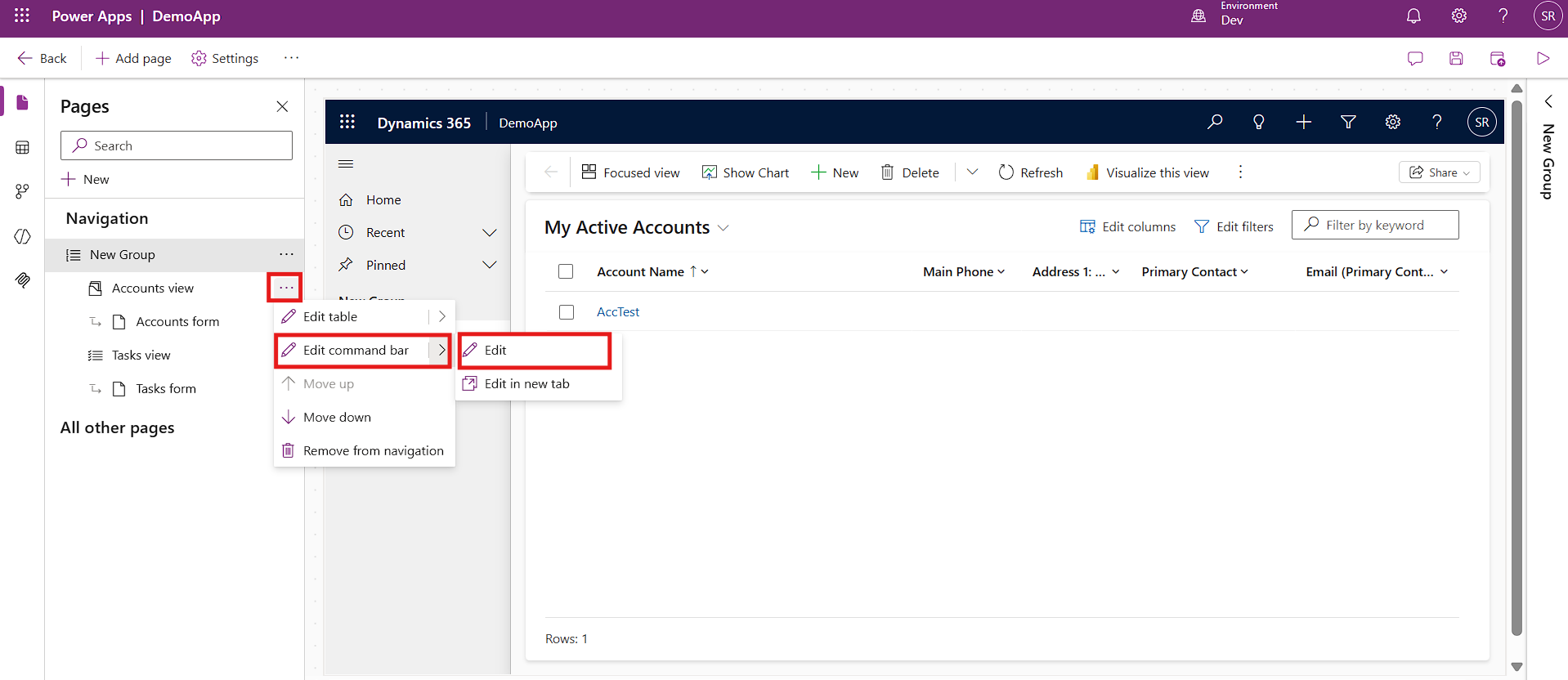
In the App Designer, find the Accounts view in the navigation panel. Click the three dots next to it, hover over Edit command bar, and click Edit.

11

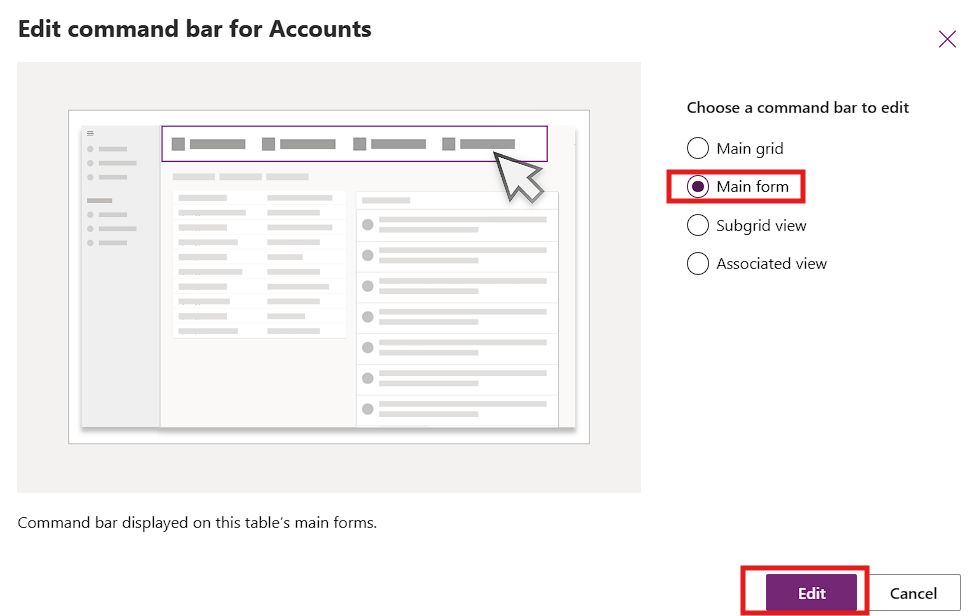
In the Edit command bar for Accounts dialog, select Main form and click Edit.

12

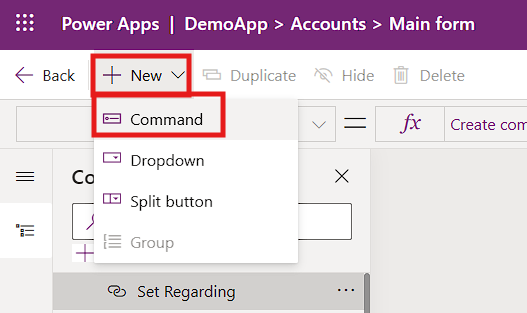
The Command Designer opens. Click New and select Command from the dropdown.

13

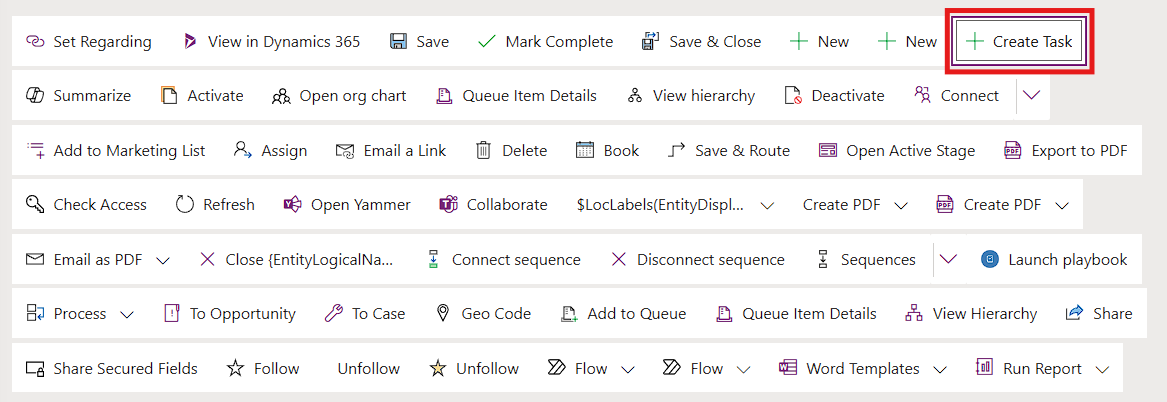
Your new command appears in the command bar preview as Create Task.

14

In the Command panel on the right, configure the following settings:

Field

Value

Label

Create Task

Icon

Choose any Fluent icon from the dropdown

Action

Run JavaScript

Library

testpubl_new_accounttaskhandler (your JS web resource)

Function name

TaskHandler.Ribbon.openCreateTaskDialog

Parameter 1 Type

PrimaryControl

Visibility

Show

Tooltip title

Create a New Task

15
16

Click Save and Publish in the top right corner of the Command Designer.

17
Step 8: Test the Solution End to End

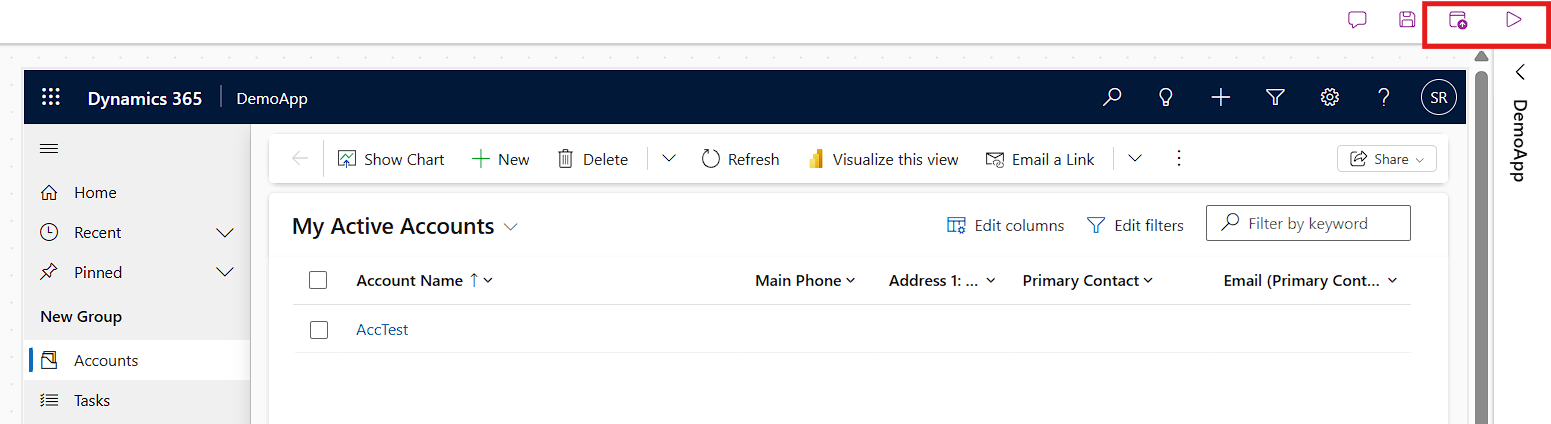
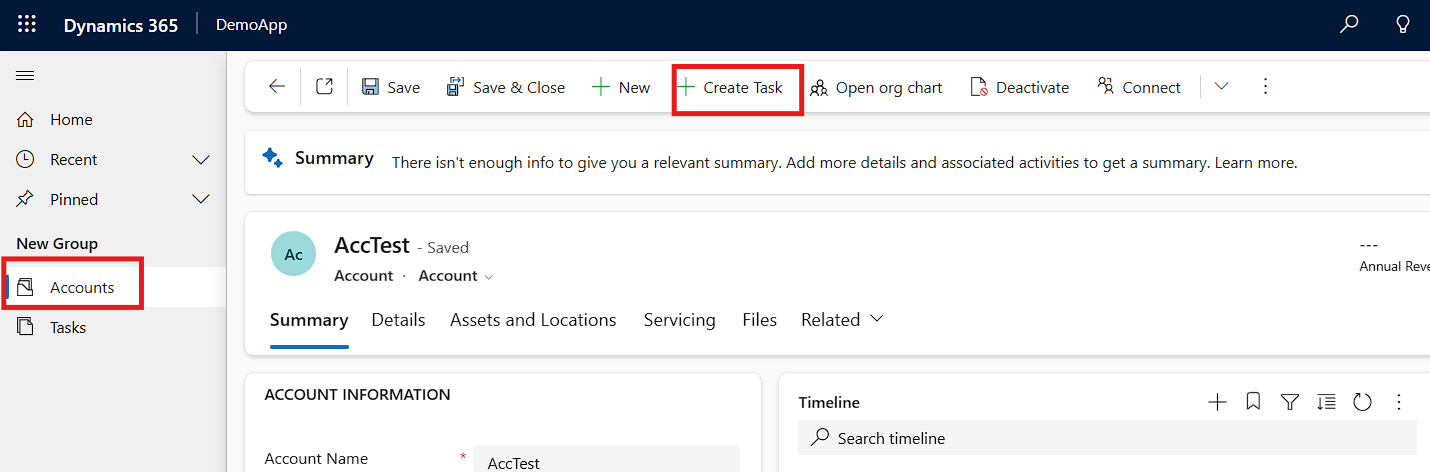
Open your Model-Driven App. In the left navigation, click Accounts and open any existing Account record such as AccTest. You should see the Create Task button in the command bar.

18

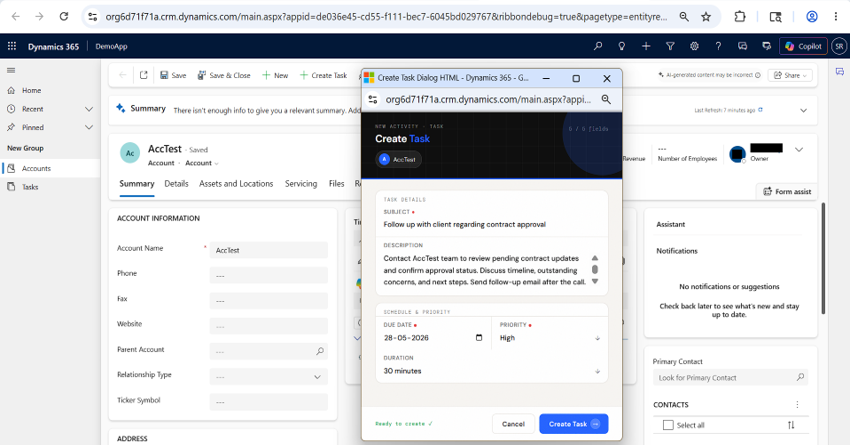
Click Create Task. The popup dialog opens, showing the Account name in the dark header and the progress bar at the top. The field counter shows how many fields you have filled.

19

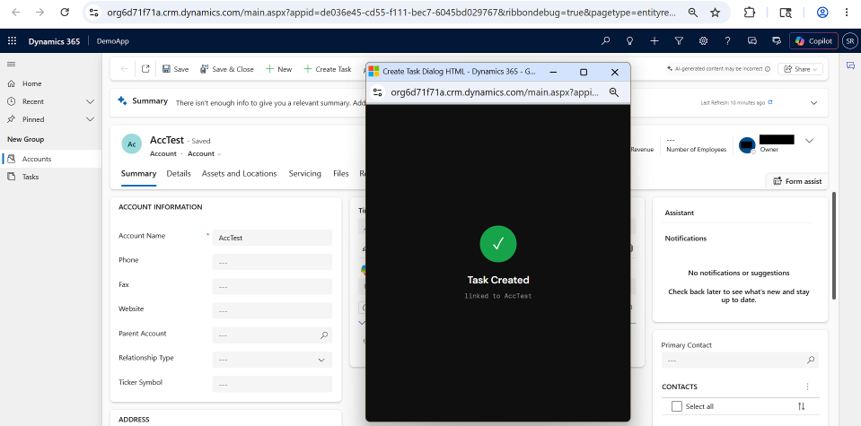
Fill in Subject, Due Date, and Priority. Click Create Task. The dialog shows a spinner while the API call runs. On success, a full-screen dark confirmation overlay appears with a green checkmark, confirming the Task was created and linked to the Account.

20

The dialog closes automatically after 2 seconds. The Account form timeline refreshes and the new Task appears under the Recent section.

Conclusion

This pattern provides a cleaner and more efficient user experience inside Dynamics 365 by eliminating unnecessary navigation and preserving form context.

By combining ribbon commands, JavaScript web resources, and the Dataverse Web API, organizations can build lightweight, reusable dialog experiences tailored to their business processes without relying on third-party tools.

Frequently Asked Questions (FAQ)

1. Why does my popup show Unknown Account and /accounts() error?

This happens when the Account ID is not being passed to the HTML dialog. The most common cause is the Parameter Type in the Command Designer being set to String instead of PrimaryControl. Go to the Command Designer, find your Create Task command, scroll to Parameter 1, and confirm the type is PrimaryControl with no value entered. Save and Publish again.

2. Why does the popup appear blank?What caused that?

A blank popup is almost always caused by a mismatch between the web resource logical name in the JavaScript code and the actual name registered in the solution. Open your JS web resource and verify that the name passed to Xrm.Navigation.openWebResource exactly matches the Name field of your HTML web resource, including the publisher prefix.

3. Can I use this dialog on the Contact or Opportunity form?

Yes. In the JavaScript web resource, the code reads the form context generically so it works on any entity. In the HTML web resource, change regardingobjectid_account@odata.bind to regardingobjectid_contact@odata.bind and change /accounts( to /contacts( for Contact. Then register a new ribbon command on the Contact table pointing to the same web resources.

4. How do I add more fields to the Task form in the popup?

In the HTML web resource, add a new input element inside a .field-row div in the .body section. Then in the submitTask() function, read its value and add a corresponding key-value pair to the payload object using the Task field logical name as the key.

5. The Task is created but not showing in the Account timeline. Why?

The timeline refresh relies on window.opener.Xrm.Page.data.refresh(false) being called after the Task is created. If the Account form was opened in a new tab or the browser blocked the opener reference, this call will silently fail. In that case, manually refresh the Account form and the Task will appear in the Timeline section.

6. Do I need Ribbon Workbench for this?

No. The Command Designer built into the modern App Designer handles everything covered in this guide without any third-party tools. Ribbon Workbench is only needed for advanced scenarios such as enable rules or complex visibility conditions that the Command Designer does not yet support.

Metadata Browser
  • HTML To PDF Converter
  • Data Mask for Dataverse
  • Commission 365
  • AI Autocloser
  • Flow Monitor
  • Services

    • D365 Marketing
    • D365 Sales
    • D365 Customer Service
    • D365 Field Service

    Company

    • About Us
    • Blog
    • Contact
    • Careers

    Copyright ©2026 Pascalcase Software Private Limited. All rights reserved.

    Privacy PolicyTerms of Service