Building a Lakehouse for Data Ingestion and Integrating with Power Apps
January 19, 2025
#Power BI#Power Pages
Harshitha Madem
Introduction
A Data Lakehouse is a unified data platform that allows you to store and manage both structured data (like tables) and unstructured data (like images and videos) in one place. This combination of data types within a single repository enables analytics and easy integration with other tools and applications.
In this blog, we will walk you through creating a Data Lakehouse in Power BI, importing CSV data and images, integrating it with Power Pages, and displaying the data on a portal.
Prerequisites
Microsoft Fabric Subscription: A Power BI Pro or Premium license is required to access Lakehouse and dataflows.
Power Apps Subscription: An active Power Apps account is required for creating and managing portals.
Matching Regions: Both Power BI and Power Apps resources must be in the same region, as cross-region integration is not supported.
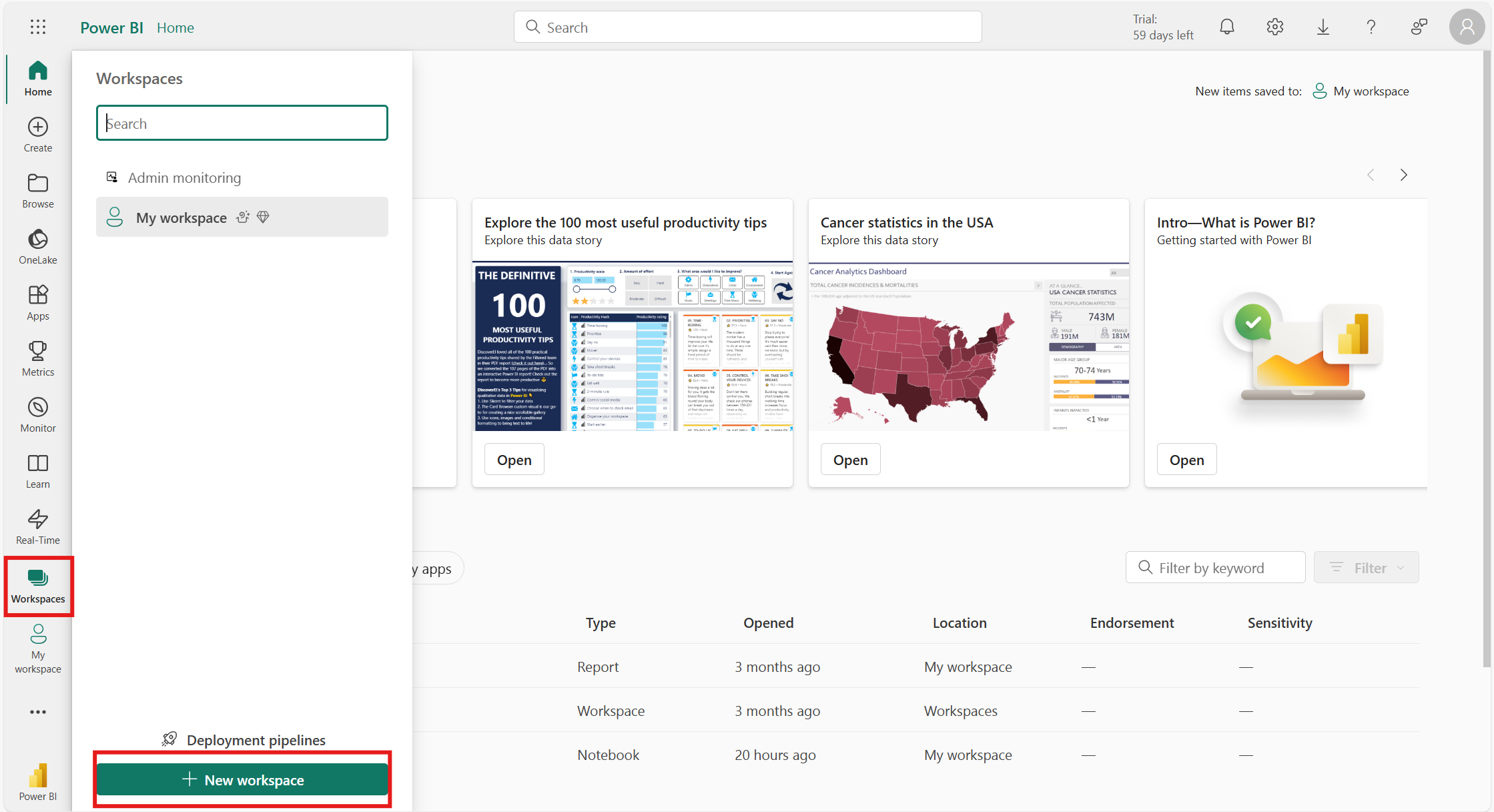
Firstly, log in to Power BI Service [https://app.powerbi.com].
Navigate to the Workspaces section in the left pane and click new workspace.
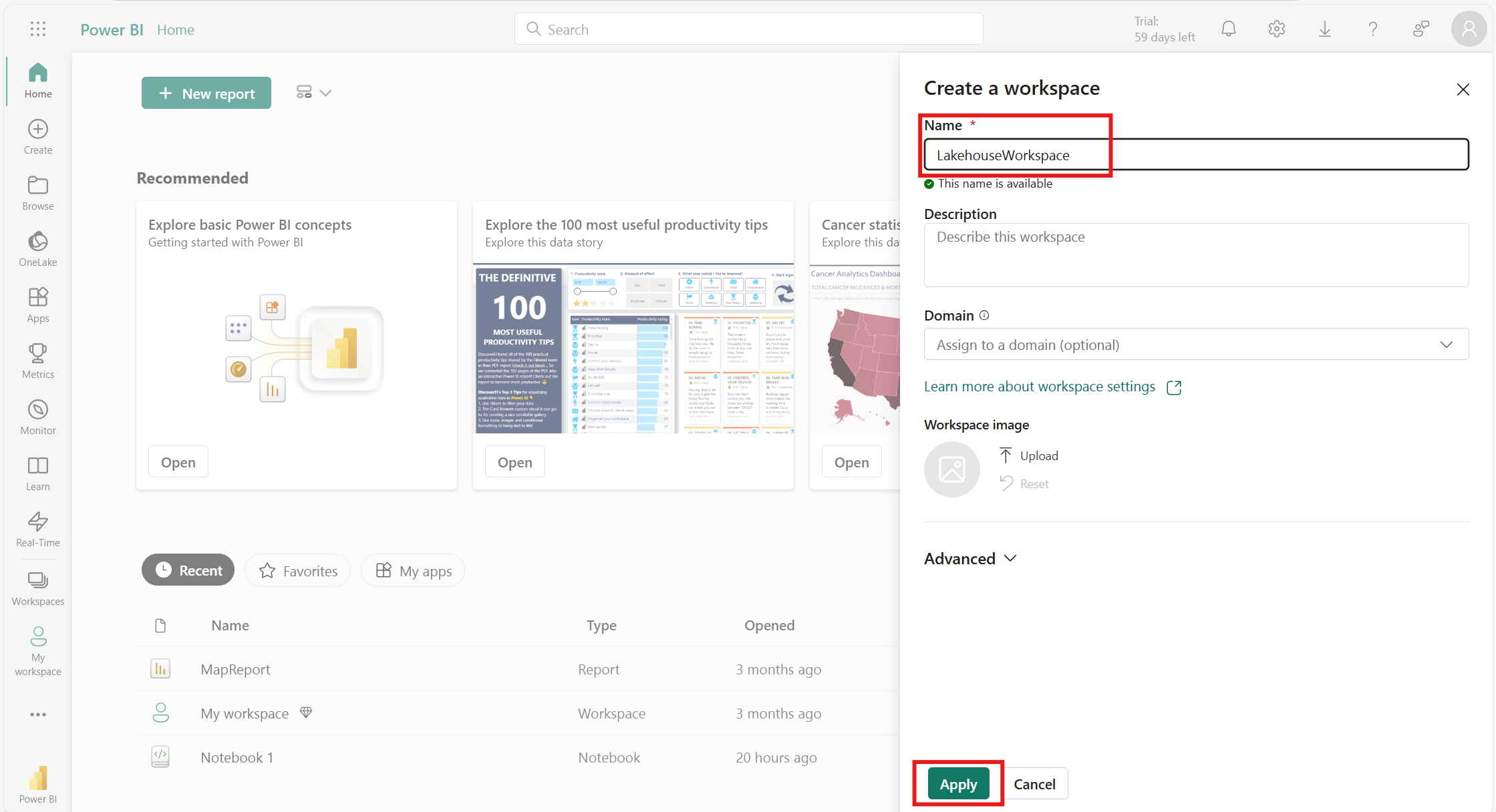
Enter a name for the workspace (e.g., LakehouseWorkspace) and then click Apply.
Need help with your business solution?
Our team can help you implement the right solution for your organization.
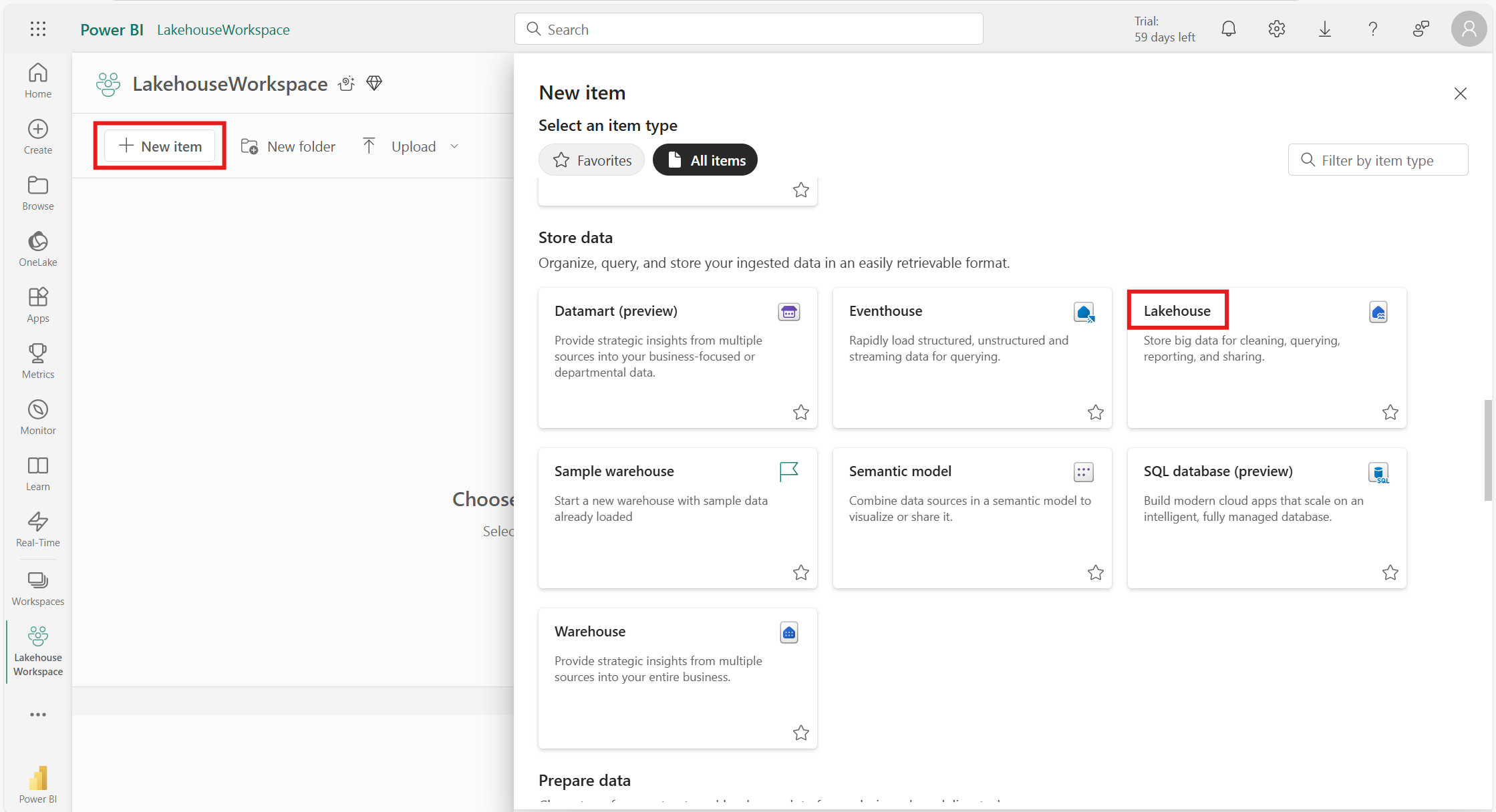
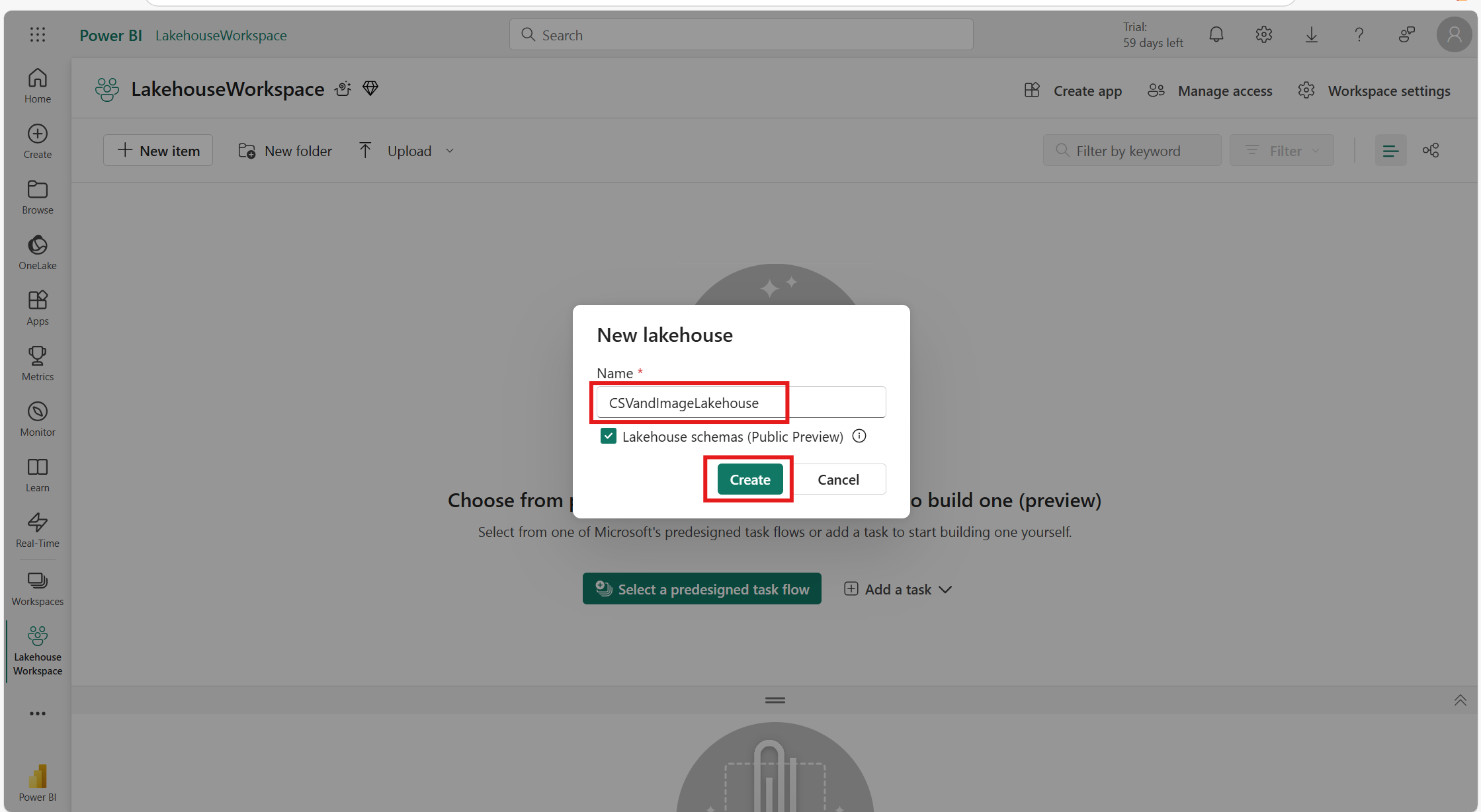
Provide a name for your lakehouse (e.g., CSVandImageLakehouse) and click Create.
Import CSV
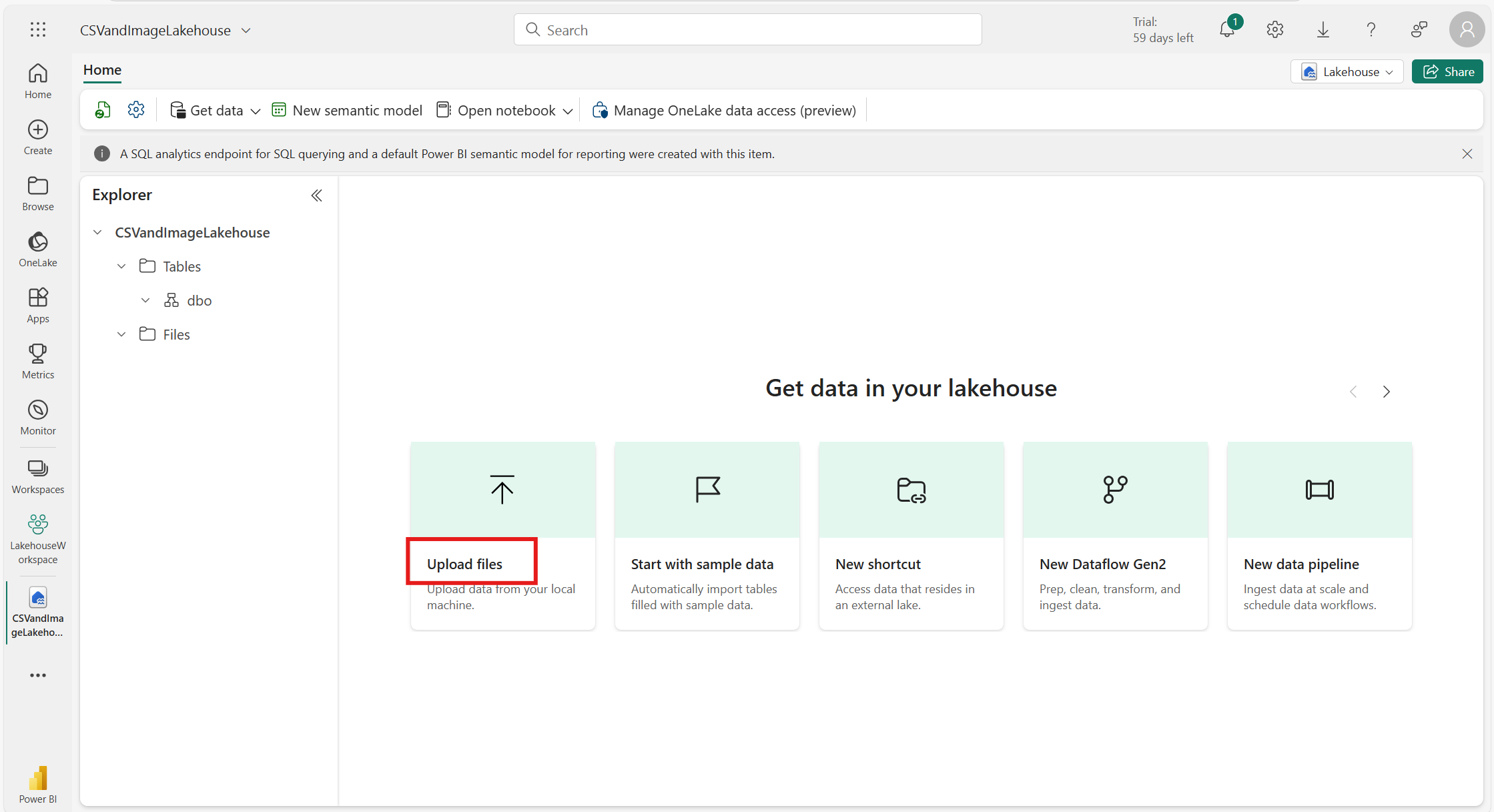
Open the lakehouse and click Upload files.
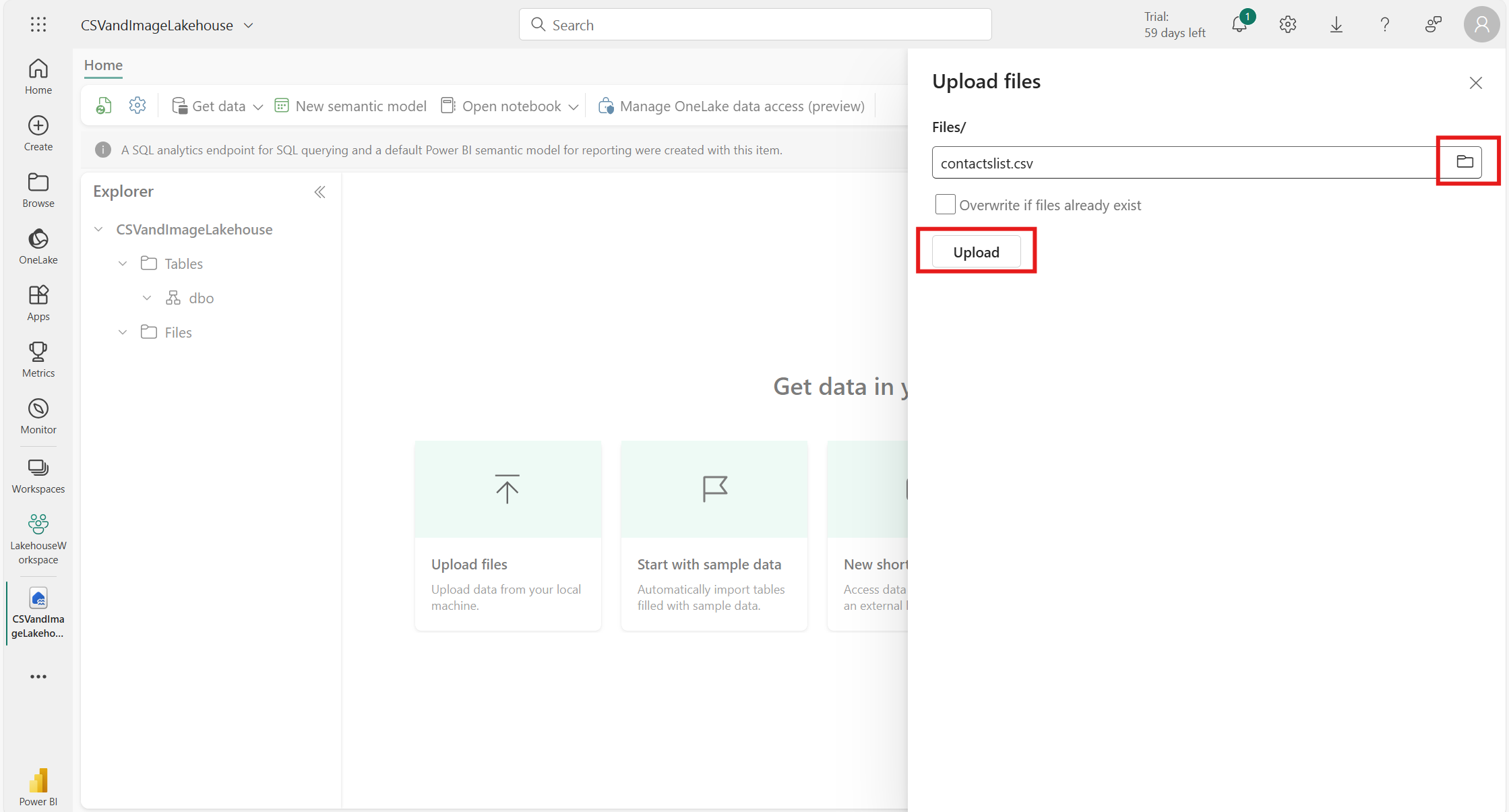
Choose a CSV file from your local device and upload it.
Repeat this process for as many CSV files as needed to include all relevant datasets.
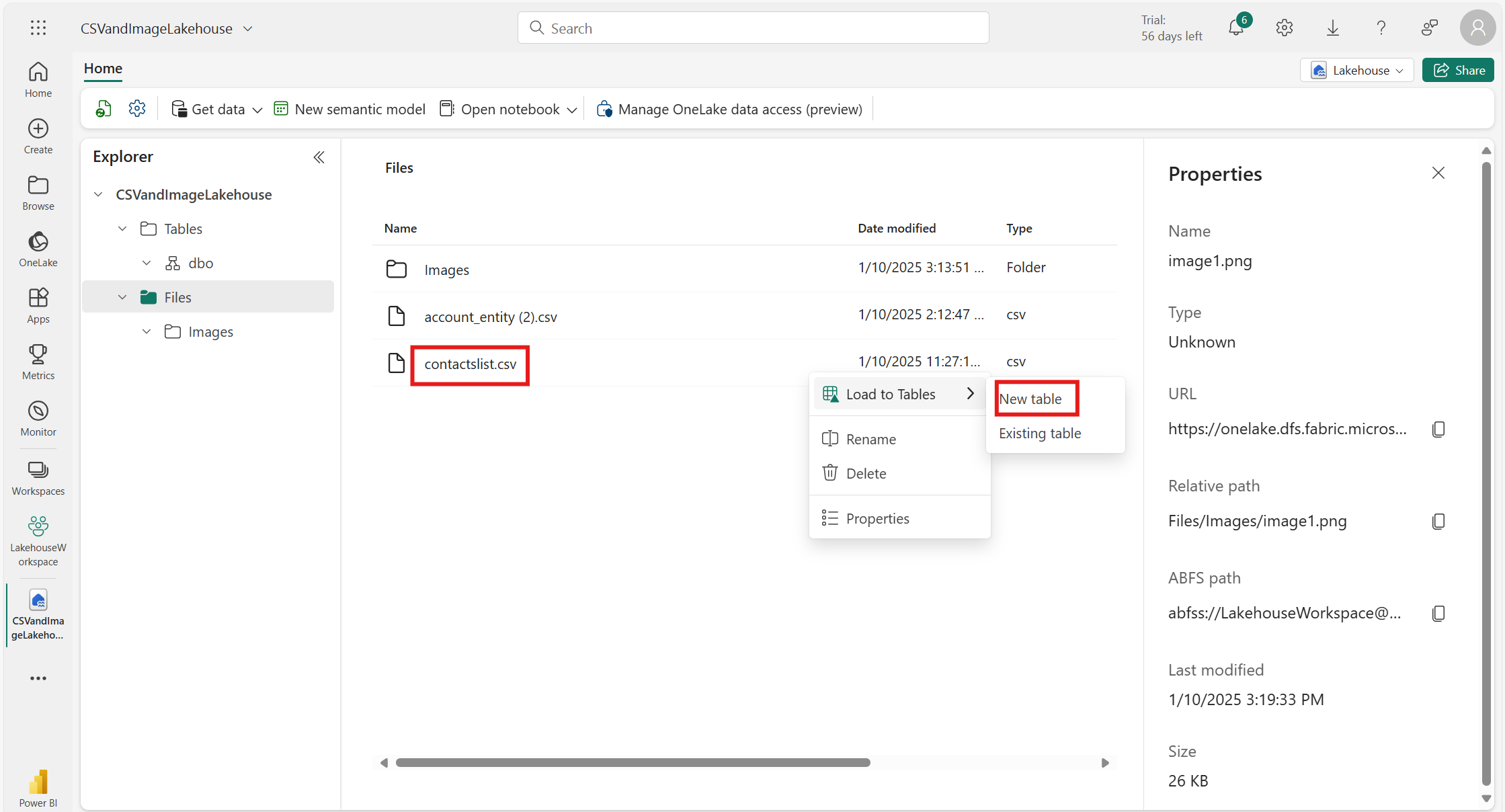
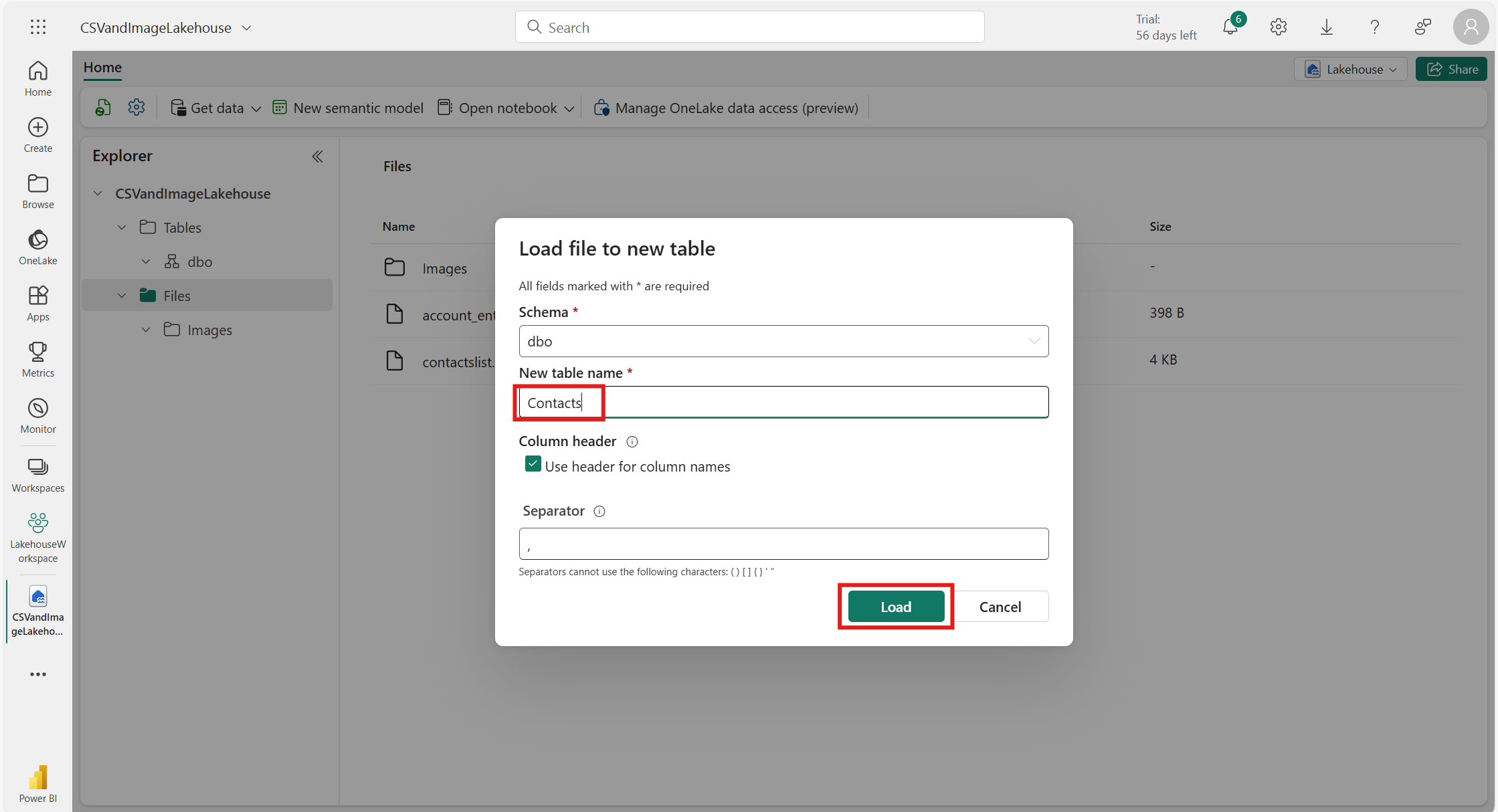
To make these flat CSV files structured data, choose the CSV file and load it as a new table.
Give the table name and click Load.
Integrate with Power Pages
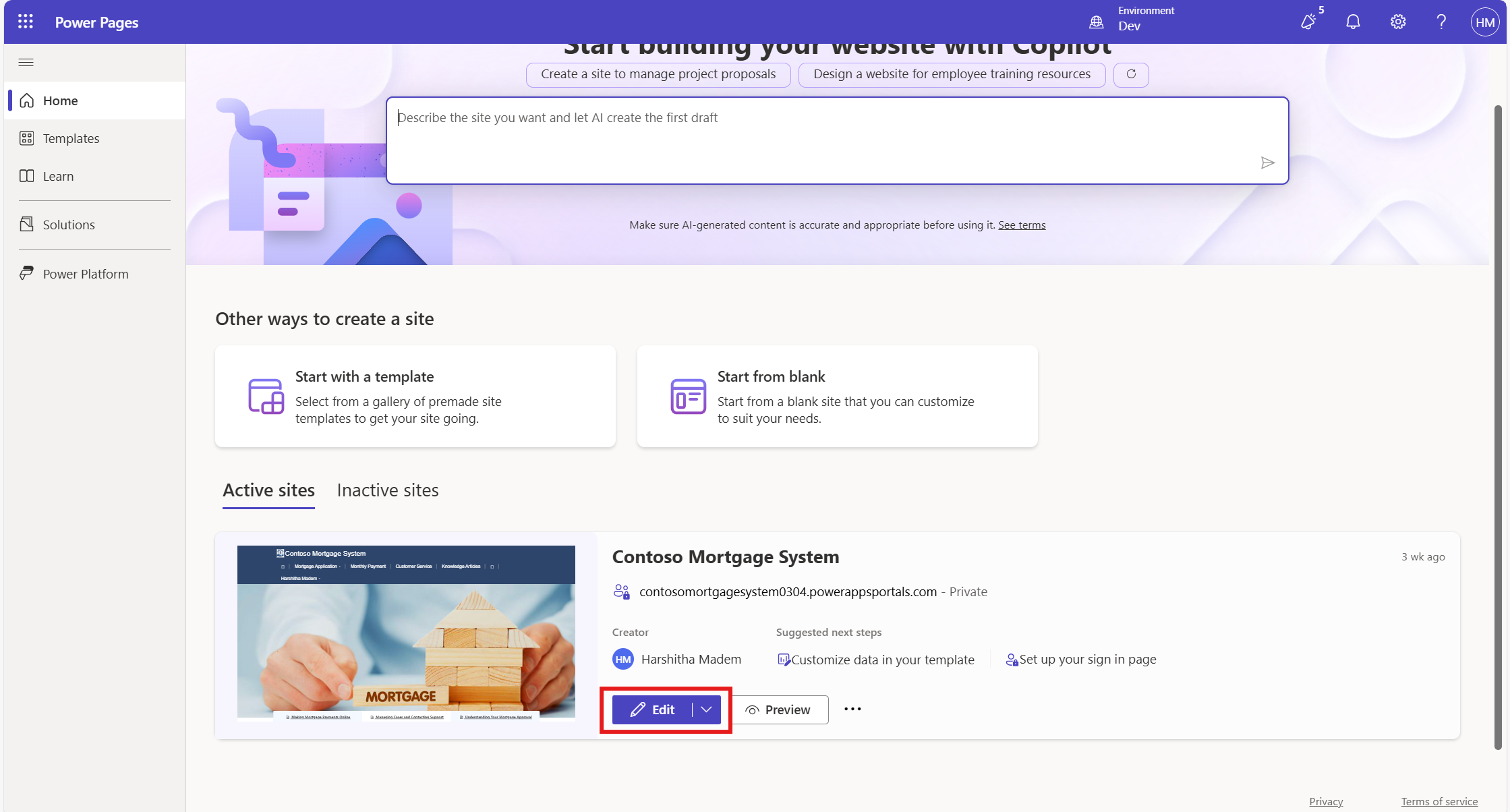
Log in to Power Pages and open your website in the Design Studio.
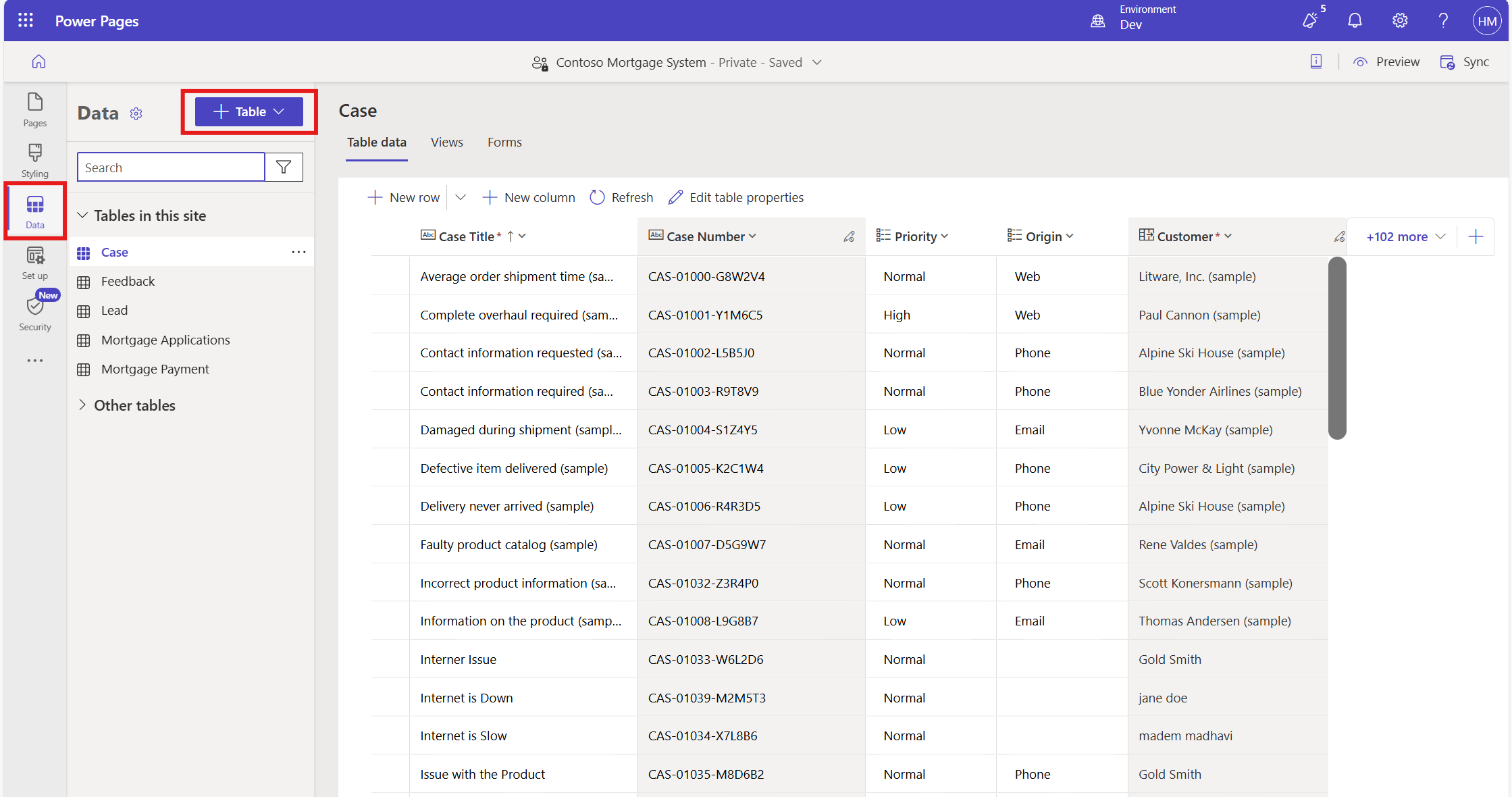
Navigate to Data and click on Table.
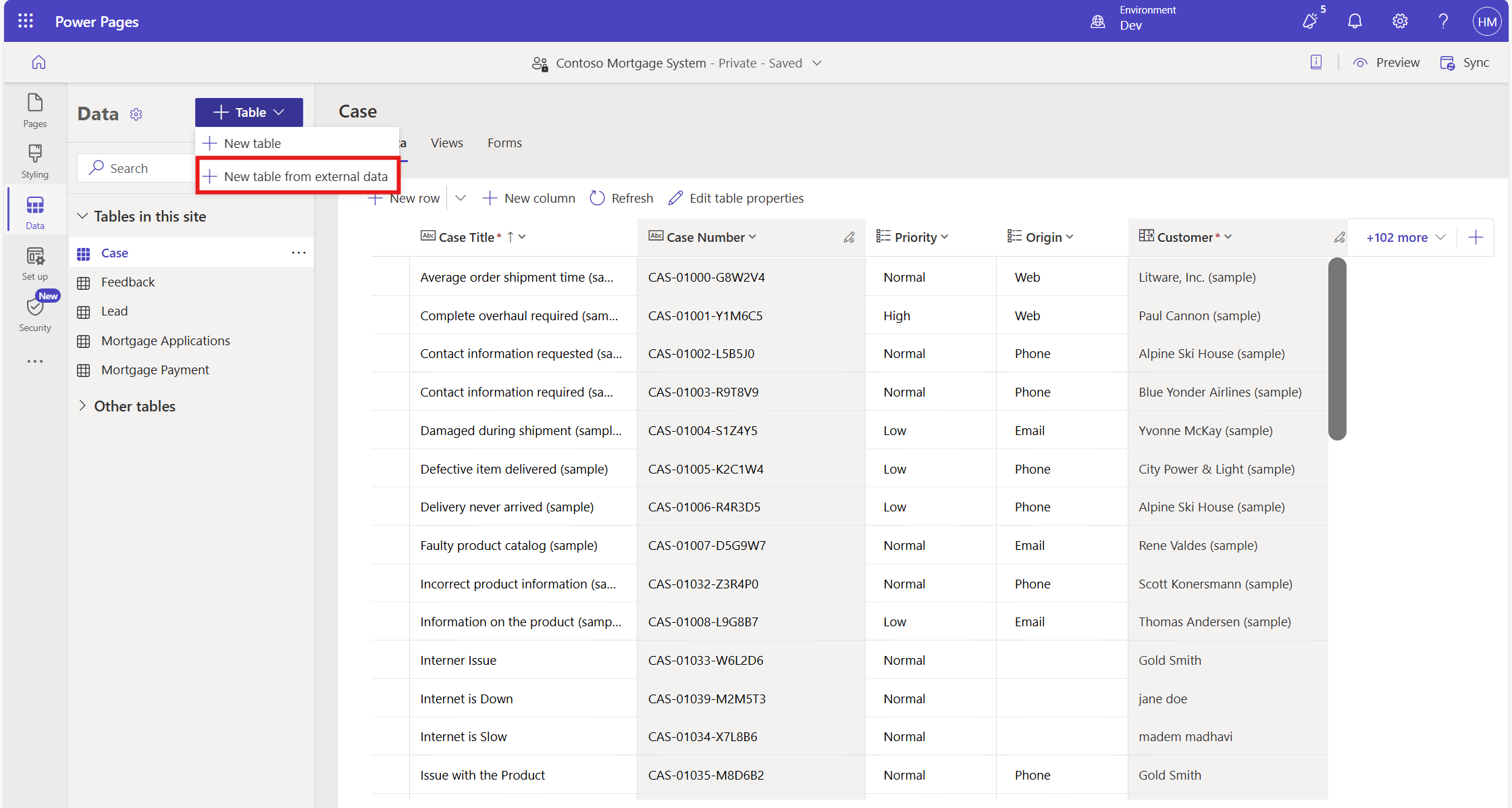
Select New table from external data.
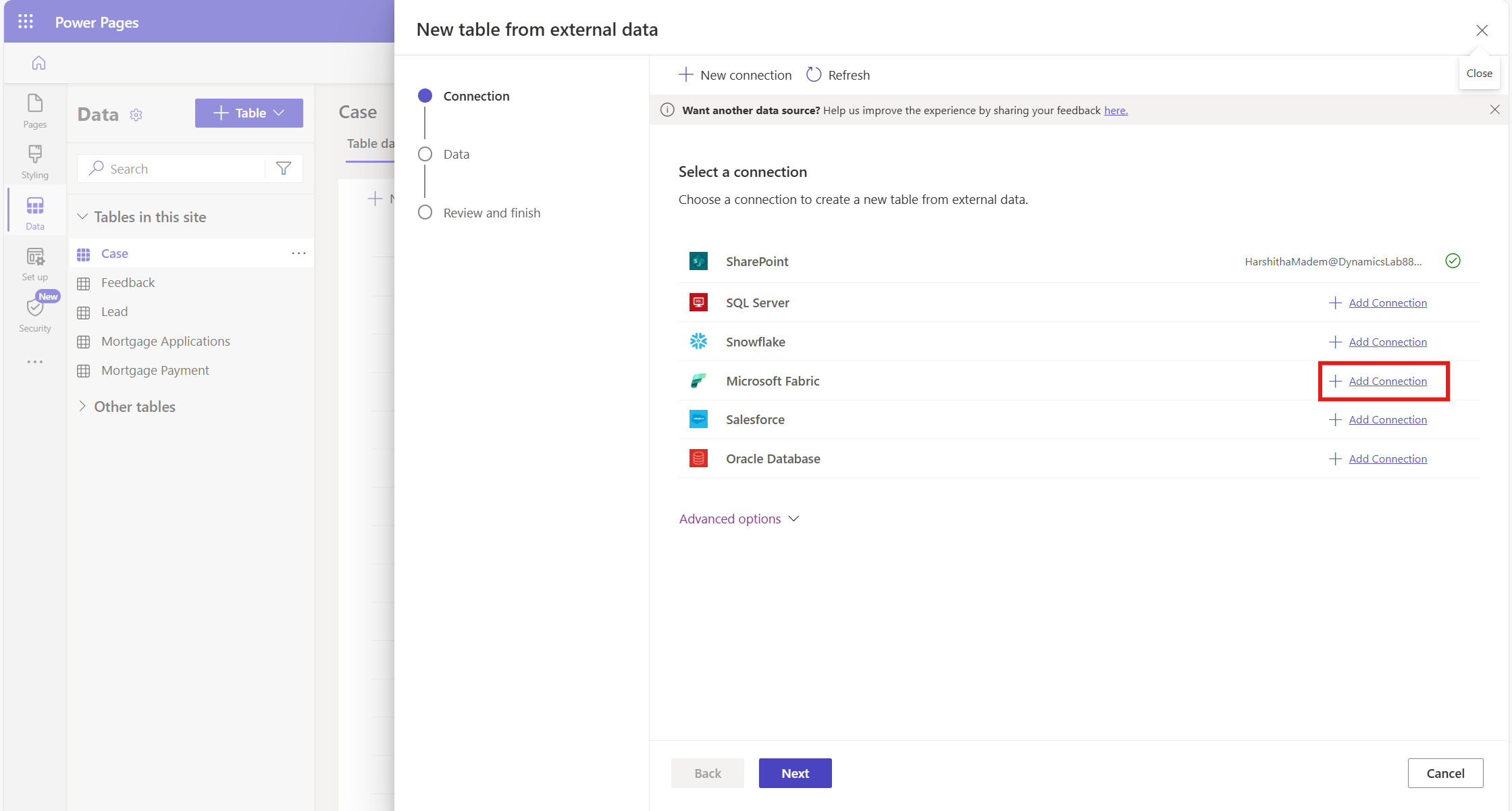
Select Microsoft Fabric as the data source and click on Add Connection to connect with your Microsoft Fabric account.
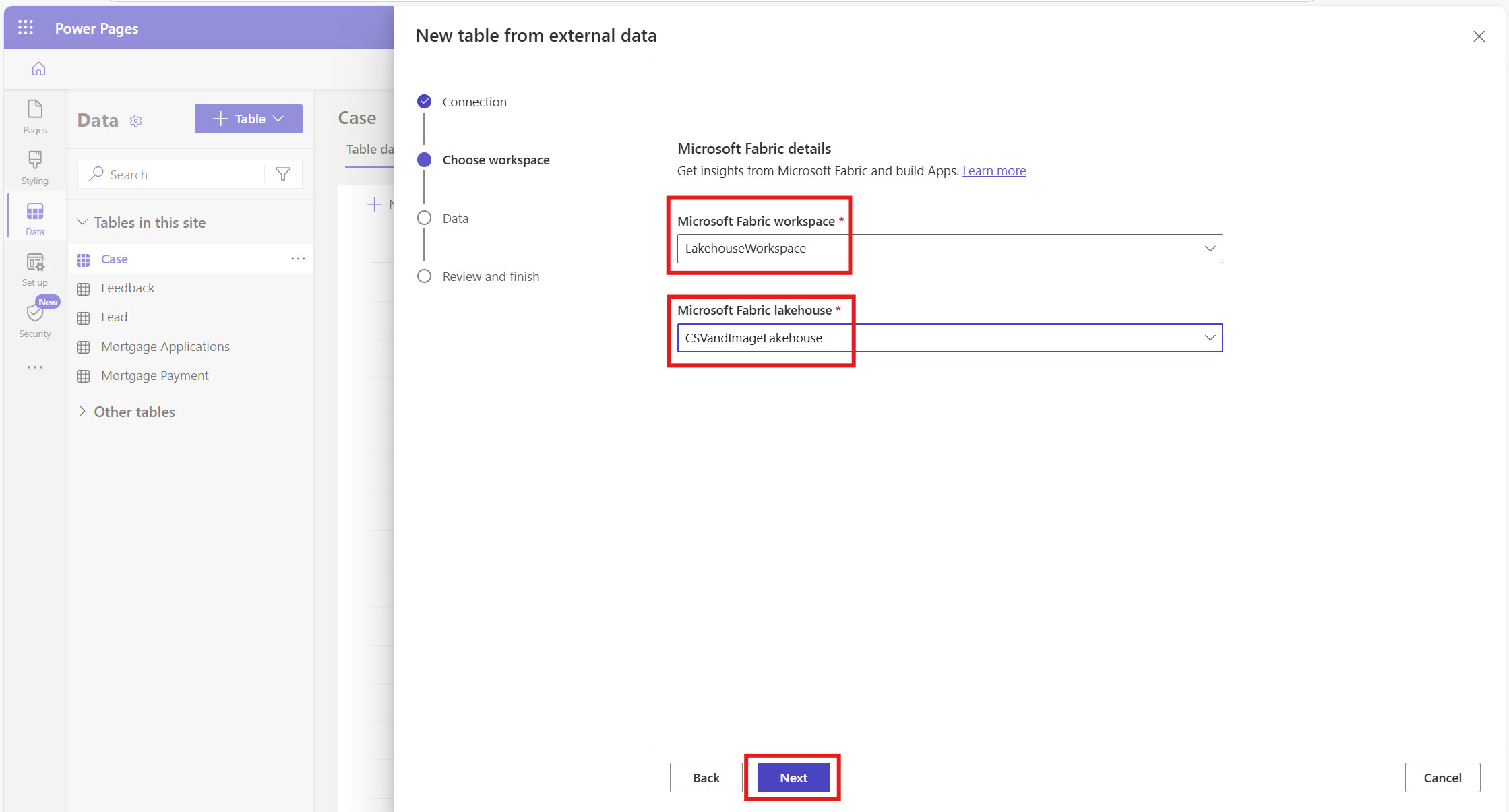
Select your Workspace and Lakehouse, then click Next.
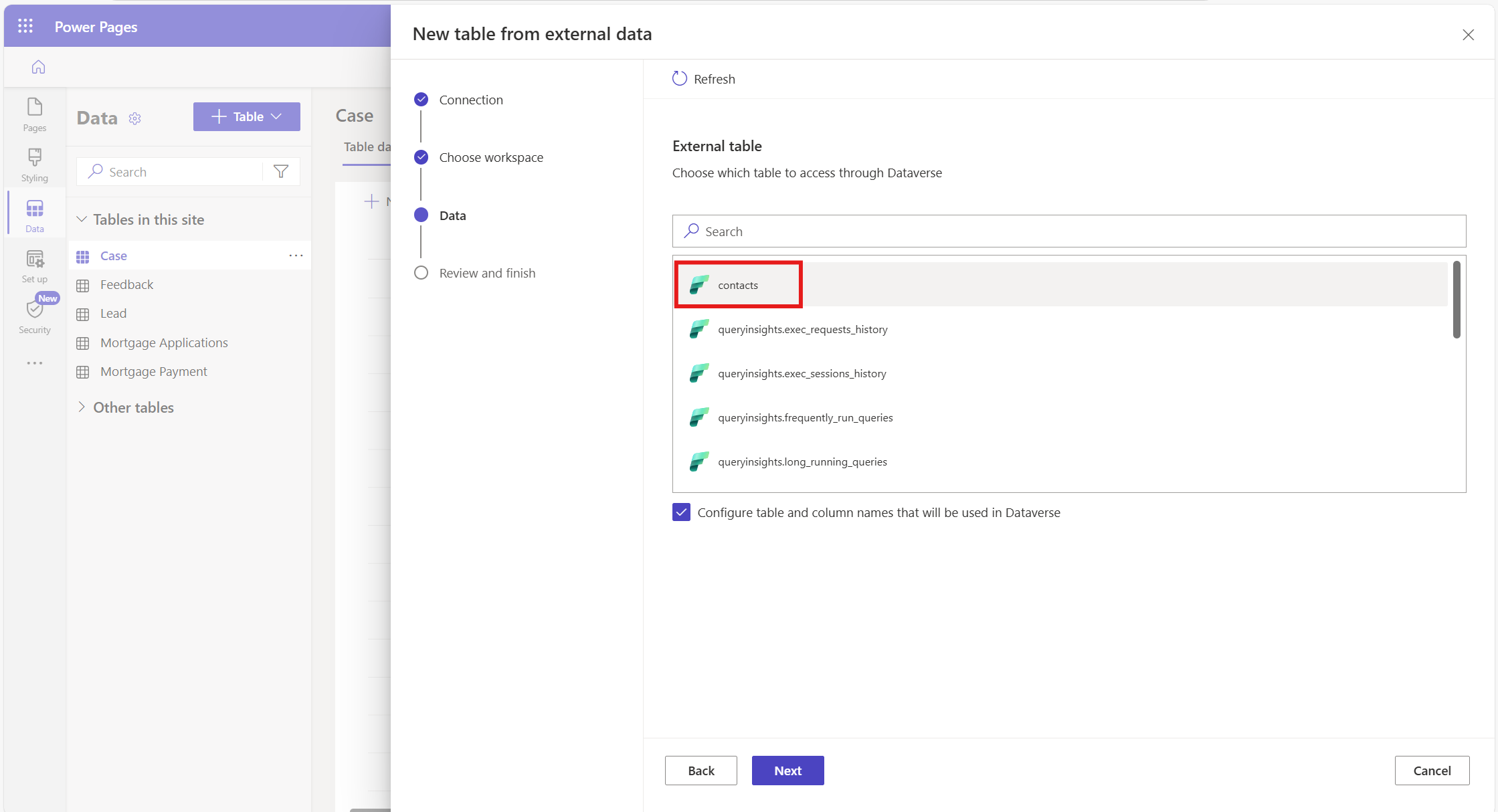
Choose Contact as a table.
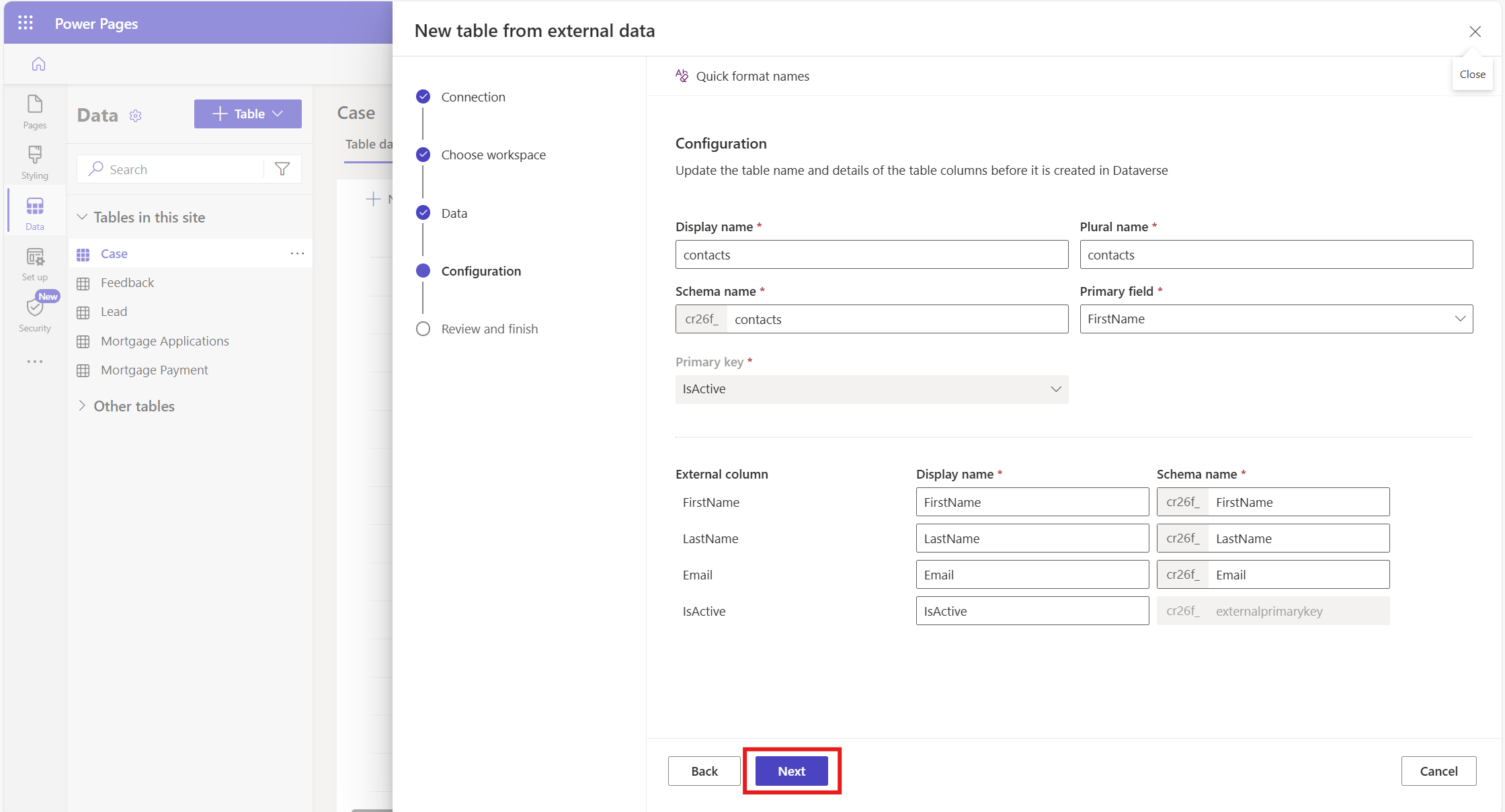
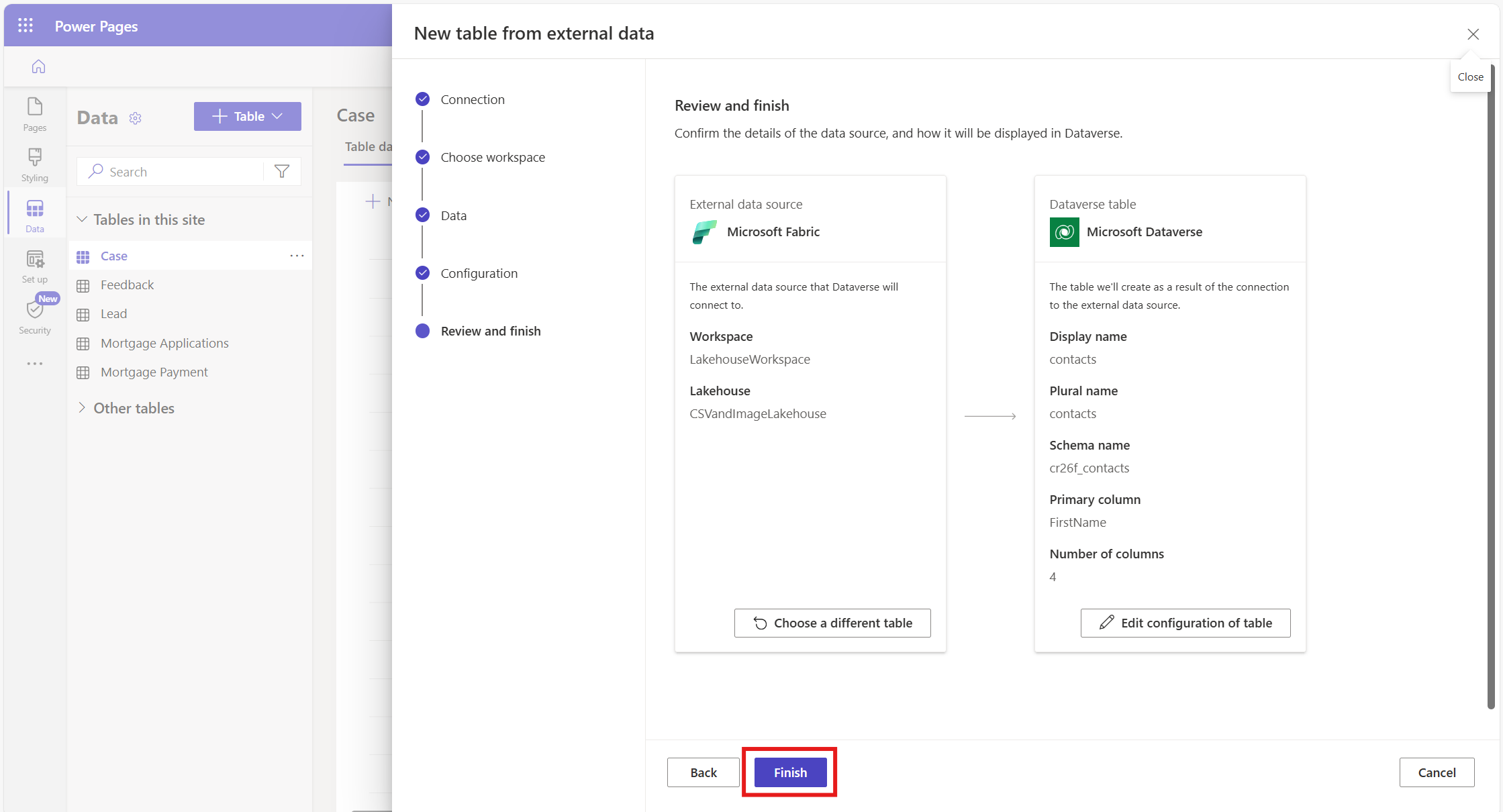
Check the configurations and click on Next.
Click Finish. Now the Microsoft Fabric table will be converted into a Dataverse table.
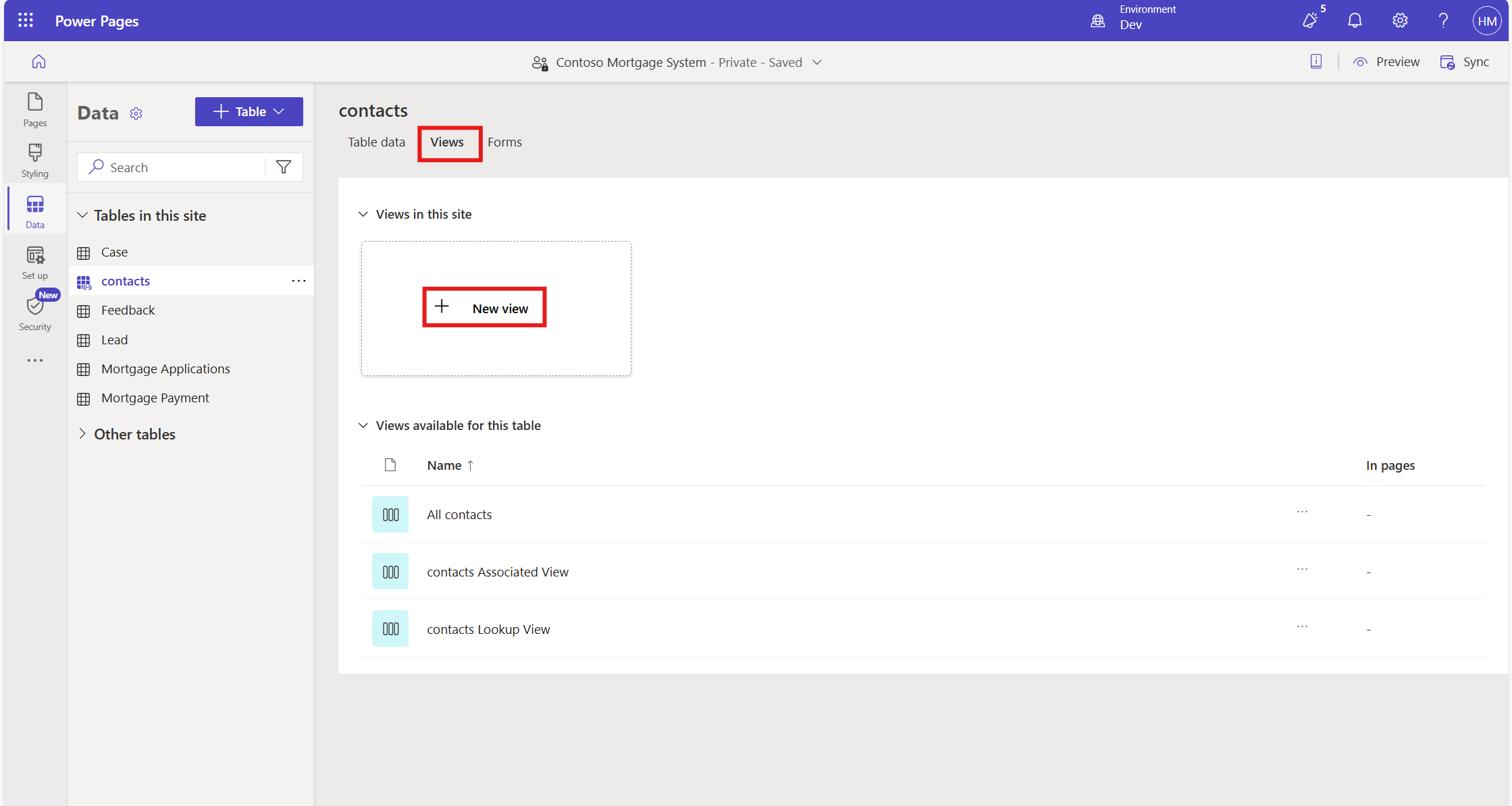
Navigate to Views and create a new view.
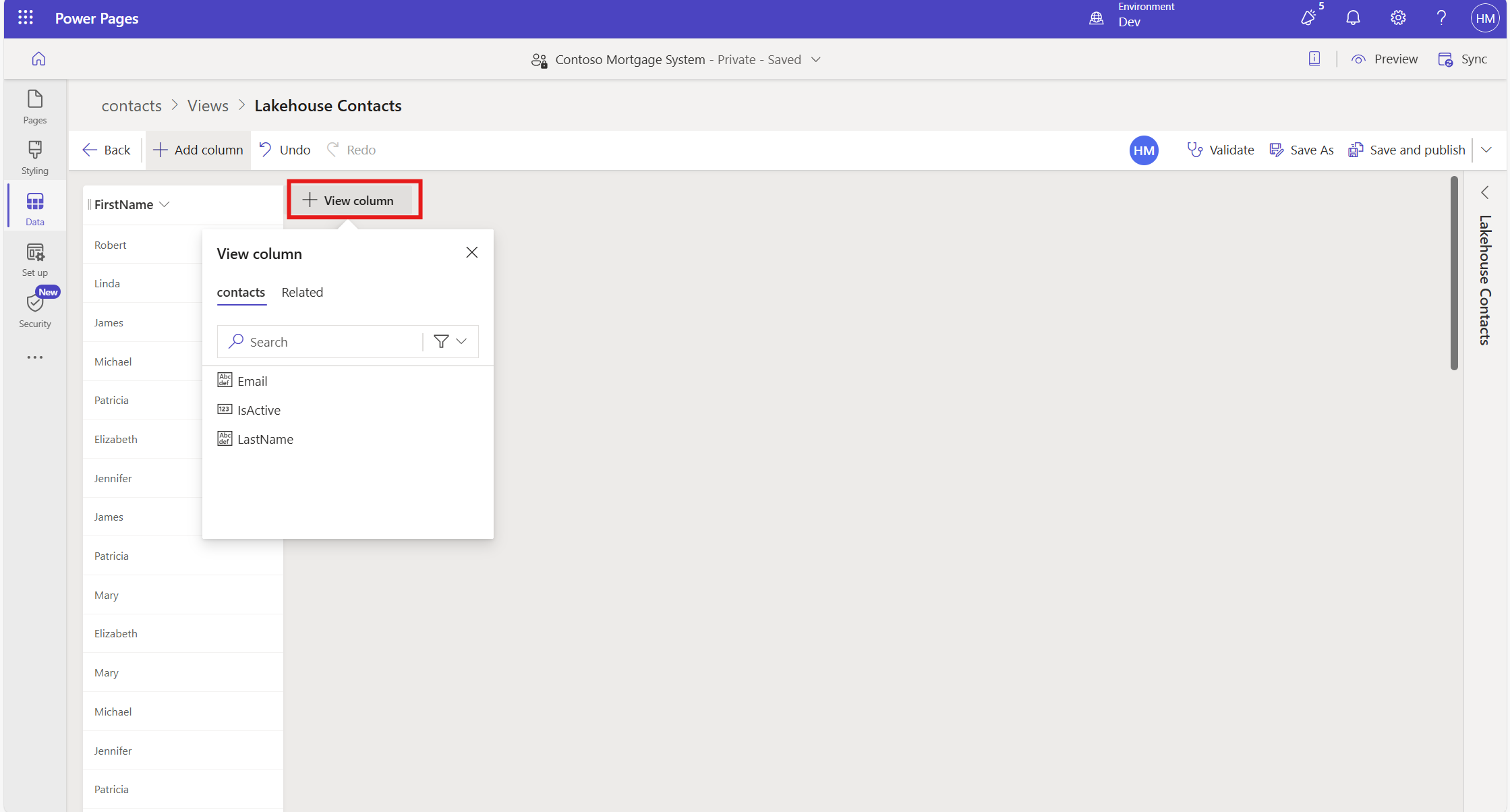
Click on the View column and add the required columns.
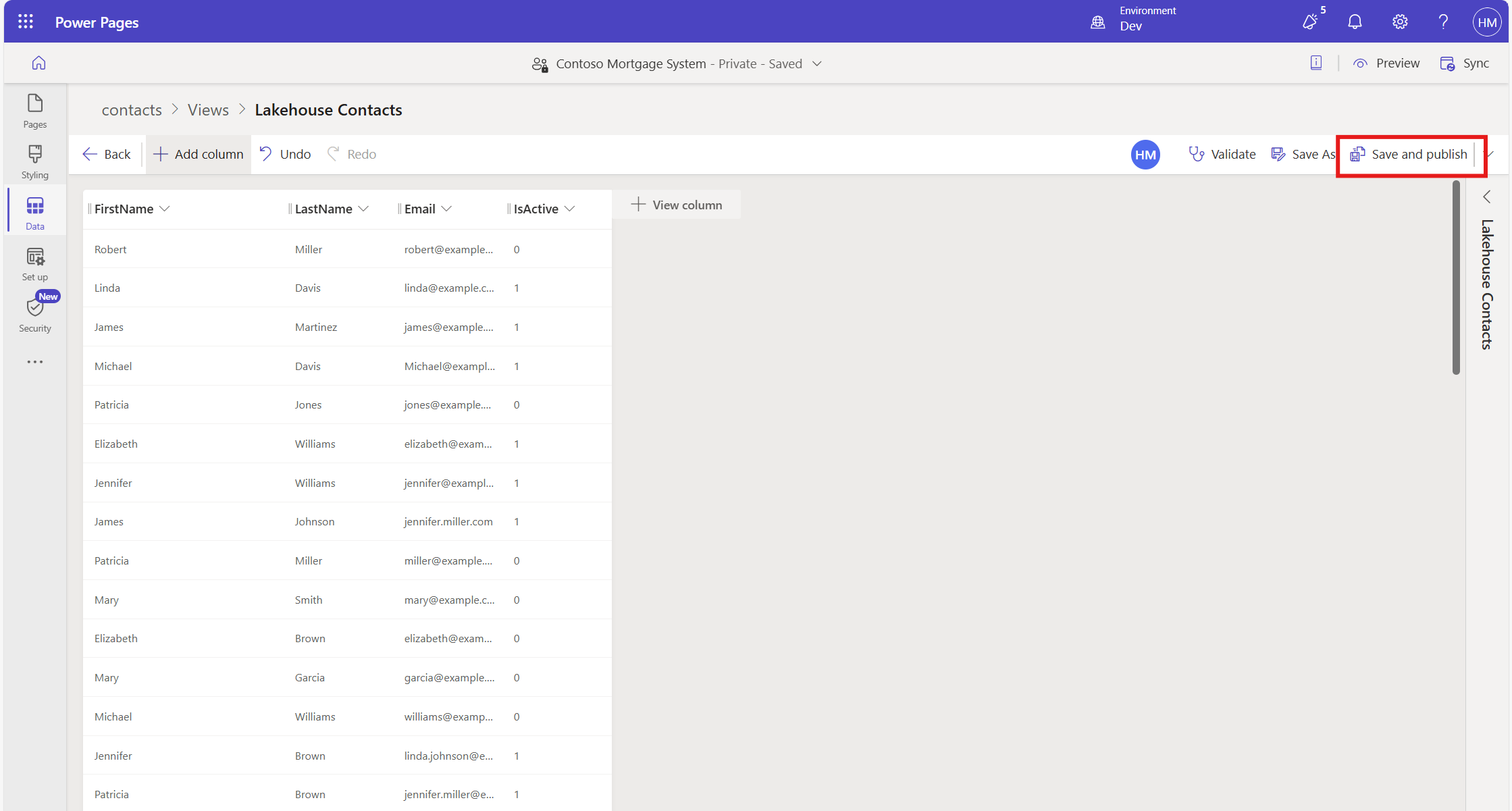
Click save and publish.
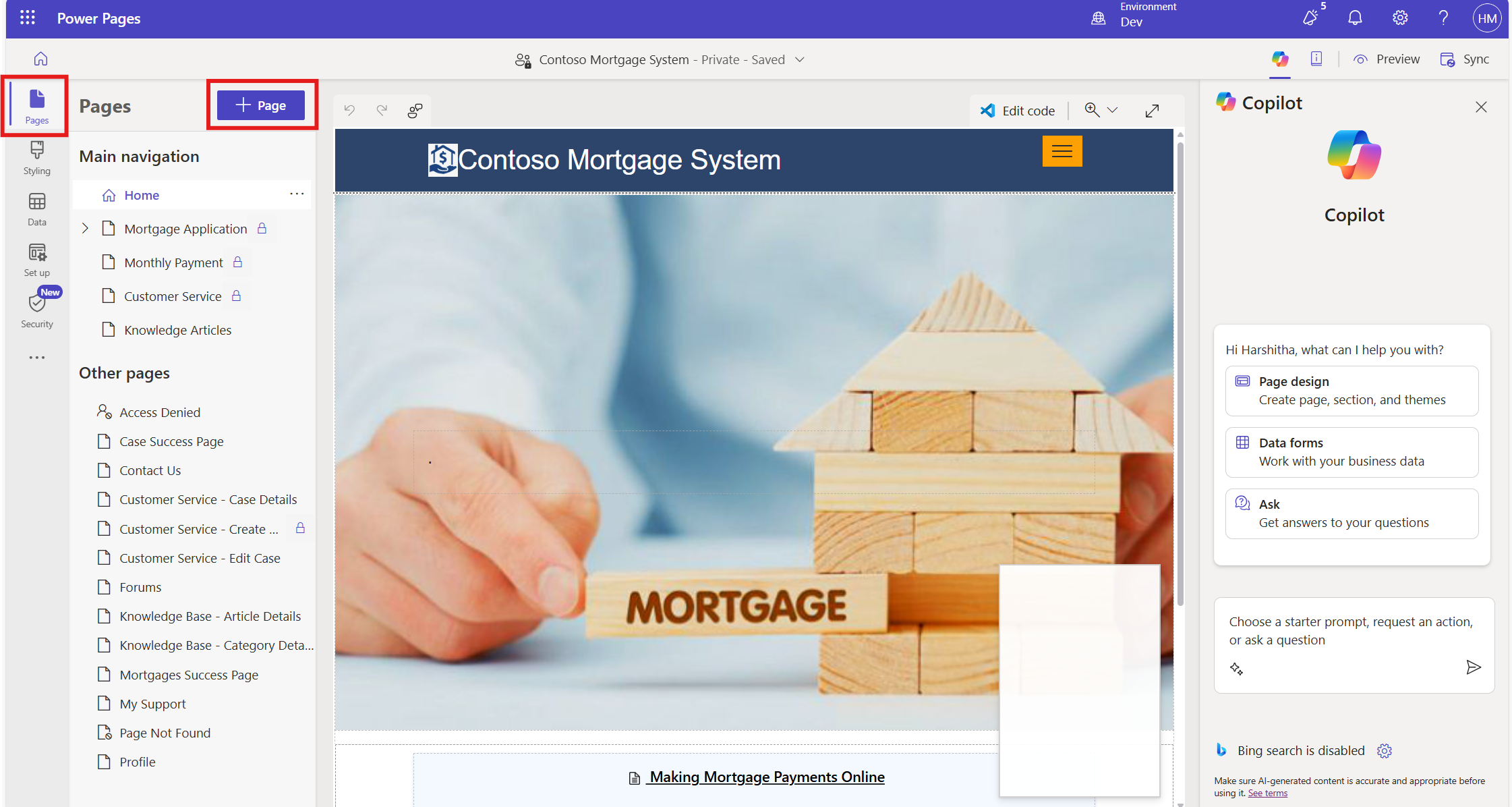
Navigate to Pages and add a page.
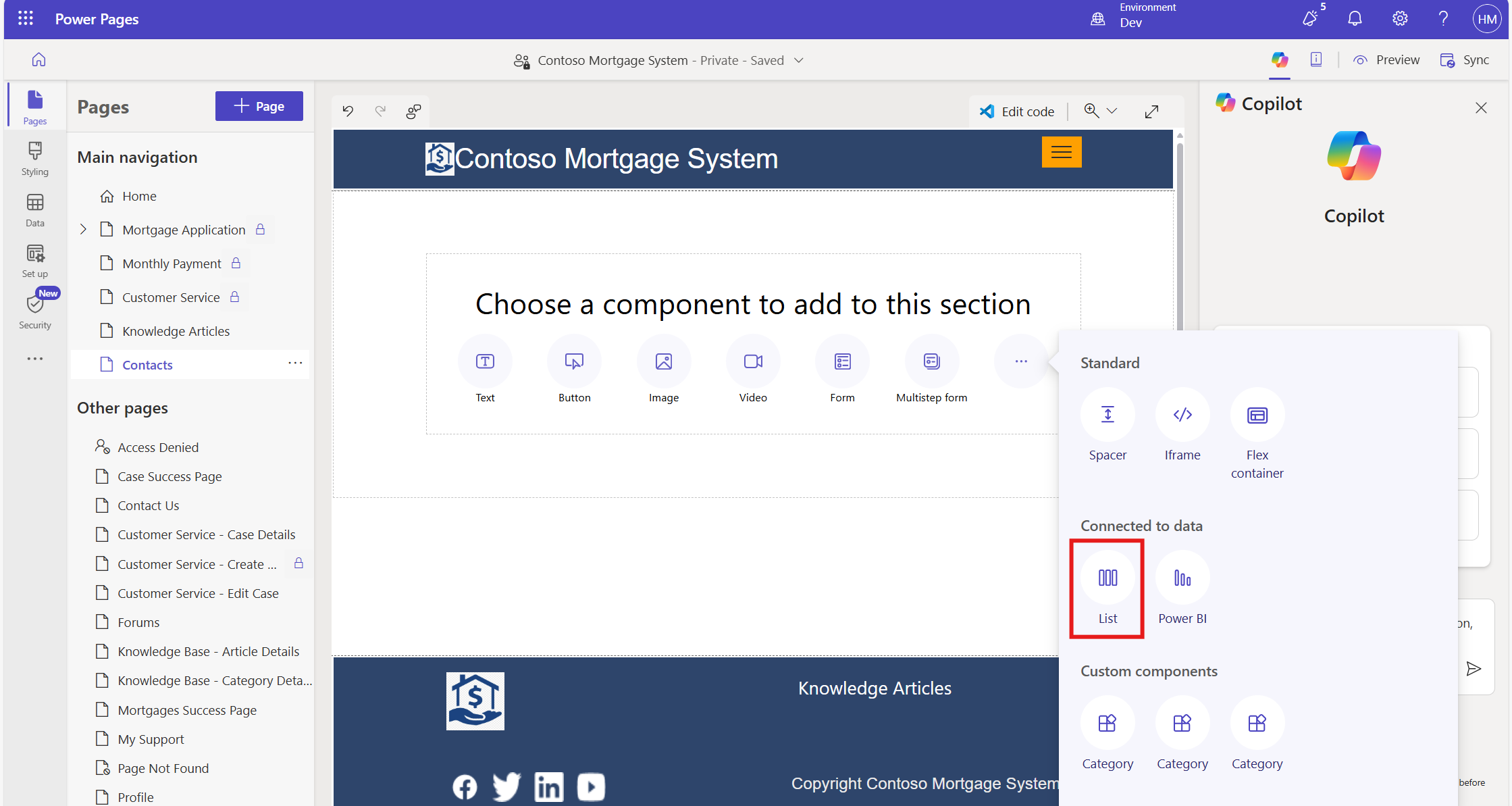
Select List as a component.
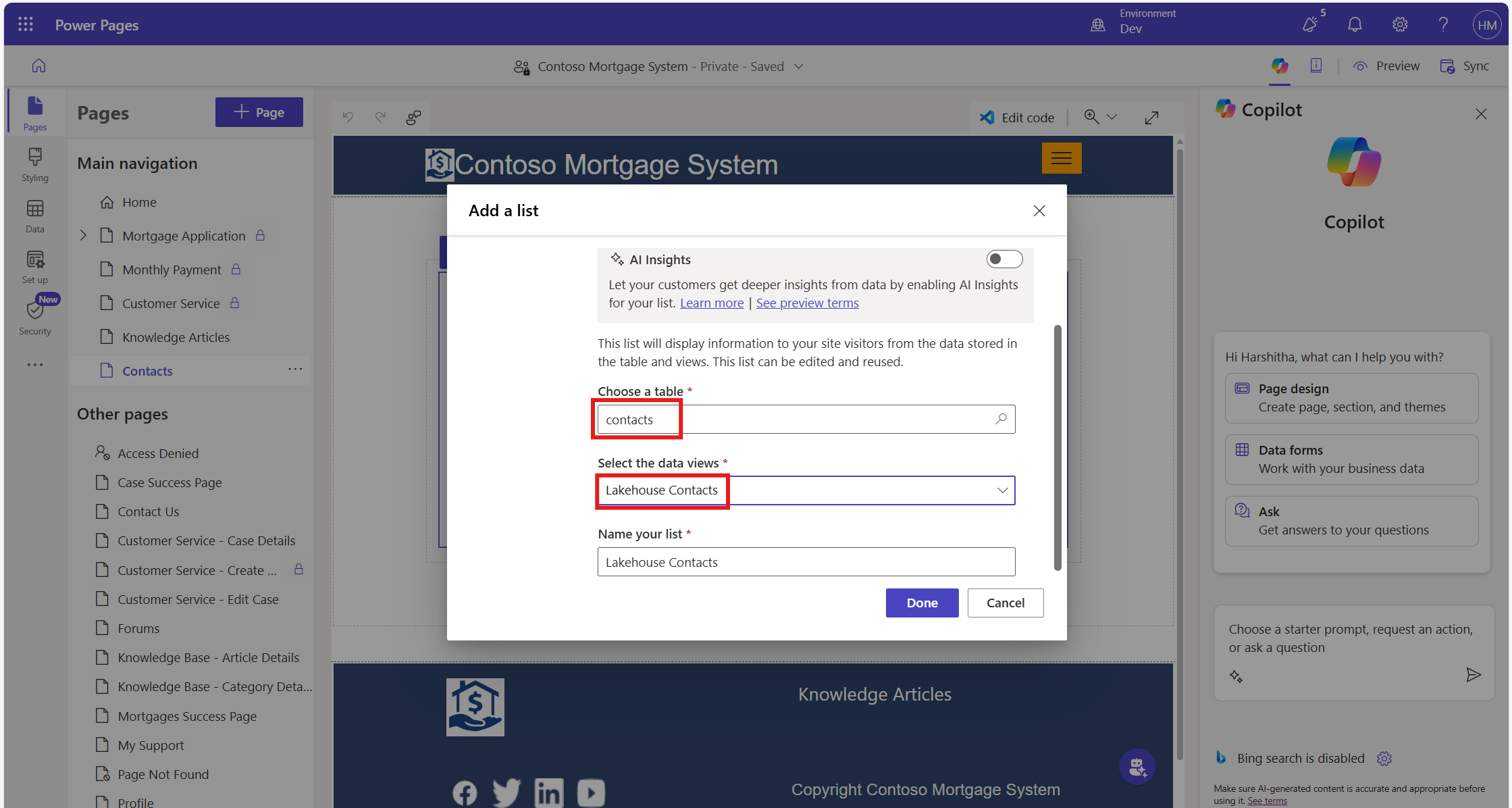
Choose the table and view that we have created.
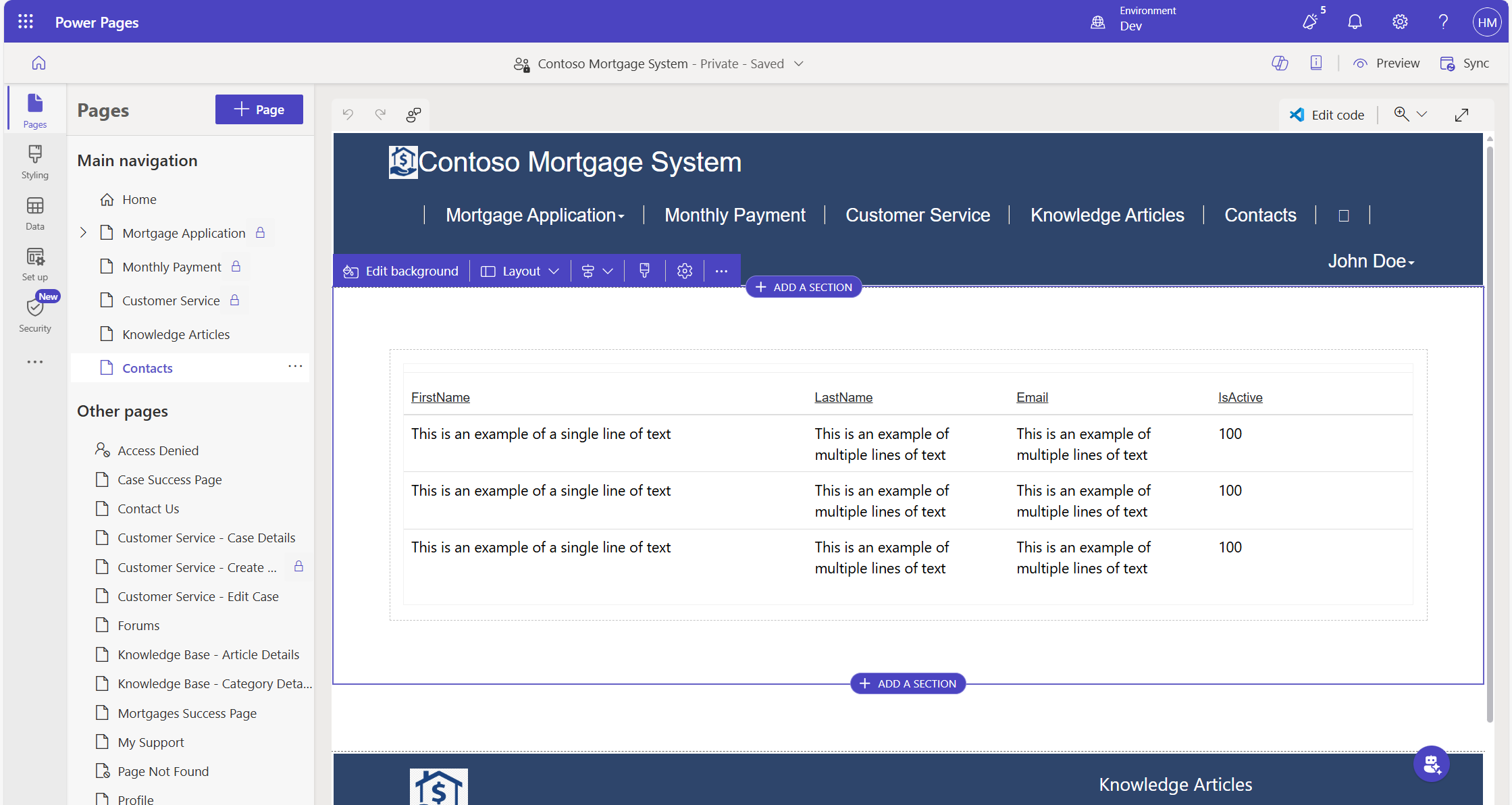
Now we can view the table in Power Pages.
Frequently Asked Questions (FAQs):
1. What is a Data Lakehouse?
A data lakehouse is a unified data platform that combines the benefits of data lakes and data warehouses. It enables you to store, manage, and analyze both structured data (e.g., tables) and unstructured data (e.g., images and videos) in a single repository.
2. Can I use Power BI Desktop to create a lakehouse instead of Power BI Service?
No, lakehouse creation is supported only through the Power BI Service. Power BI Desktop is primarily used for report creation and visualization but lacks lakehouse capabilities.
3. What are the limitations of converting lakehouse data into Dataverse tables?
Data Size: Dataverse has limits on record counts and storage. Extremely large datasets may require segmentation or alternative storage.
Complex Relationships: Dataverse does not automatically create complex relationships present in the lakehouse. These need to be configured manually.
4.Can I update my lakehouse data (CSV files) after integrating it with Power Pages?
Yes, you can upload new files or update existing ones in the lakehouse. However, for changes to reflect on Power Pages, ensure that the dataflow and Dataverse table are refreshed.
5.What happens if my Power BI and Power Apps resources are in different regions?
Cross-region integration between Power BI and Power Apps is not supported. You will encounter errors while connecting the lakehouse to Power Pages. Ensure both resources are created in the same region.