LogoLogo

Our Products

Metadata Browser

Edge Add-on

HTML To PDF Converter

Power Automate Connector

Data Mask for Dataverse

Dataverse App

Commission 365

Dynamics 365 App

AI Autocloser

Dataverse App

Flow Monitor

Power Automate App

ServicesAboutCareersBlogContact
Chat on Teams
Metadata BrowserHTML To PDF ConverterData Mask for DataverseCommission 365AI AutocloserFlow Monitor
ServicesAboutCareersBlogContactChat on Teams
HomeBlogHow to set up Web API in Power Pages?
How to set up Web API in Power Pages?

March 10, 2025
#Power Pages
Himanshu Kumar
How to set up Web API in Power Pages?

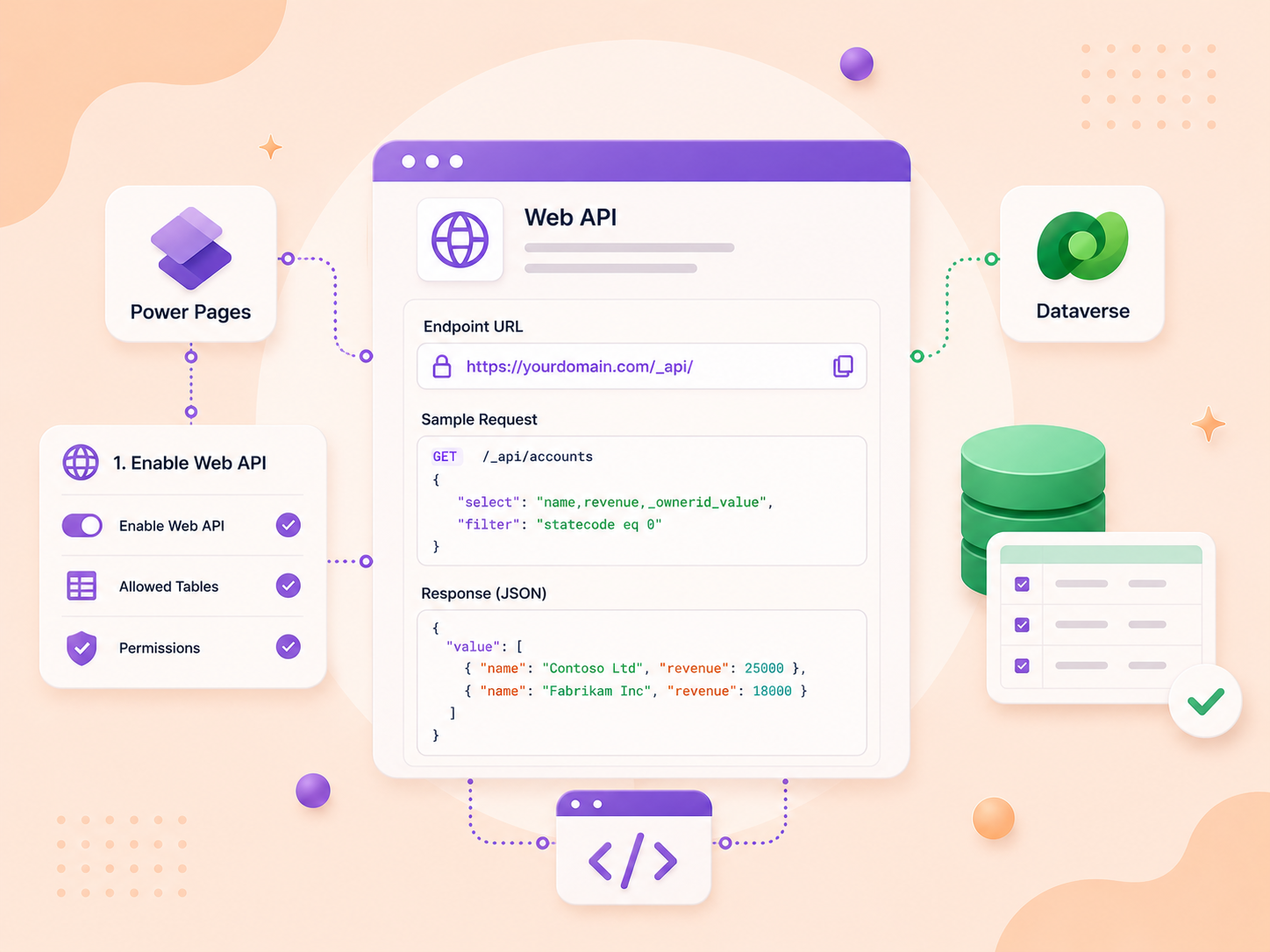
The Power Pages Web API is a great tool that makes portal functionality more powerful. It allows developers to interact with Dataverse tables easily, making data handling smooth and improving the user experience. Whether you need to fetch data, update records, or delete entries, the Web API helps you do it efficiently. 

In this guide, we will look at why the Web API is useful, go through the setup process, see some practical examples, and answer common questions to help you use it better 

Advantages of Using Power Pages Web API. 

1. Better User Experience: The Web API lets you create custom experiences like interactive forms and editable lists, making the portal more user-friendly. 

2. More Control and Security: Developers can choose which fields should be accessible through the Web API, ensuring better data protection. 

3. Easy Integration: While mainly used to improve portal experiences, the Web API can also connect with other systems. 

4. Faster Data Handling: It supports server-side caching, making subsequent API calls faster than initial ones. 

How to set up Web API in Power Pages. 

Step 1: Enable Web API for Your Page 

1. Open the Portal Management App. 

2. Go to Site Settings in the left pane. 
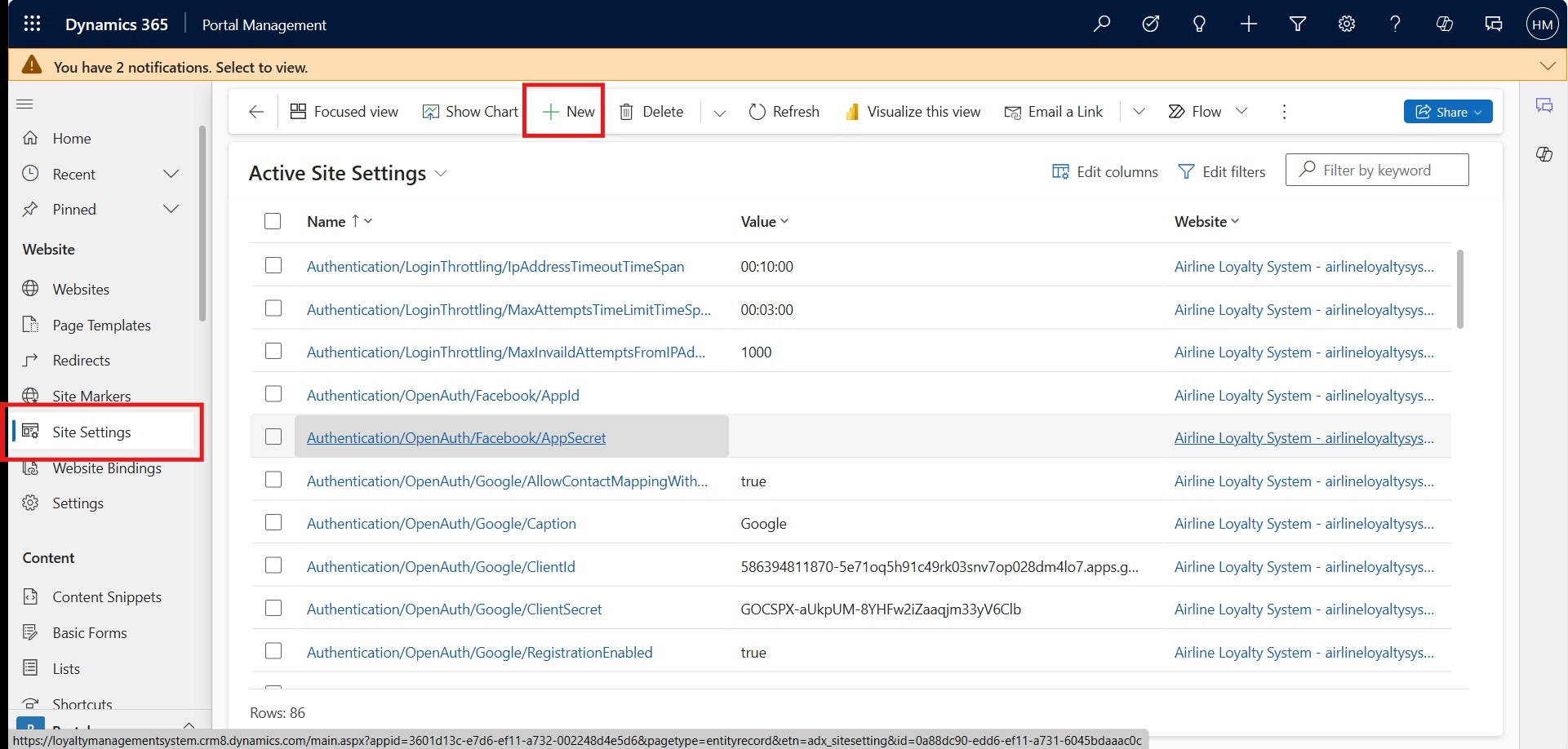
1

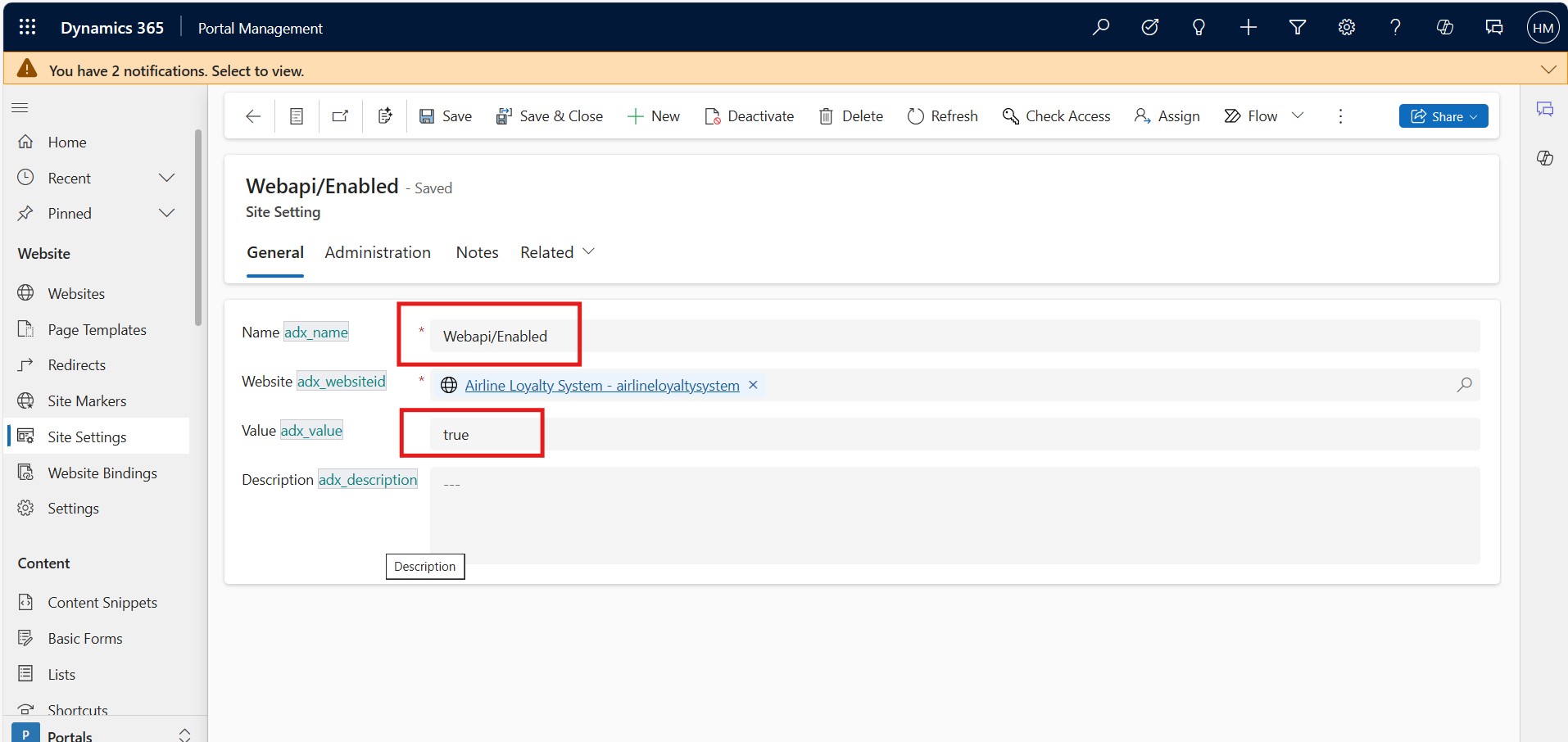
3. Add this site setting to enable the Web API: 

  • Name: Webapi/Enabled 

  • Value: true 

Back to all articles

More from the blog

Embed Model-Driven App Charts in Power Pages with Liquid

Automating Dataverse Record Creation with Custom Forms in Power Pages

Power Pages- Retrieve Data from Dataverse using Power FX

Use governance controls to disable anonymous access in Power Pages

Using Liquid Code in Power Pages for Dynamic Functionality

Building a Lakehouse for Data Ingestion and Integrating with Power Apps

Custom Filters and Search in Power Pages

Custom Sign-Out Redirects in Power Pages

Need help with your business solution?

Our team can help you implement the right solution for your organization.

Get in touch
LogoLogo

Ex-Microsoft experts helping businesses get more from their Dynamics 365 and Power Platform investments.

Products

2

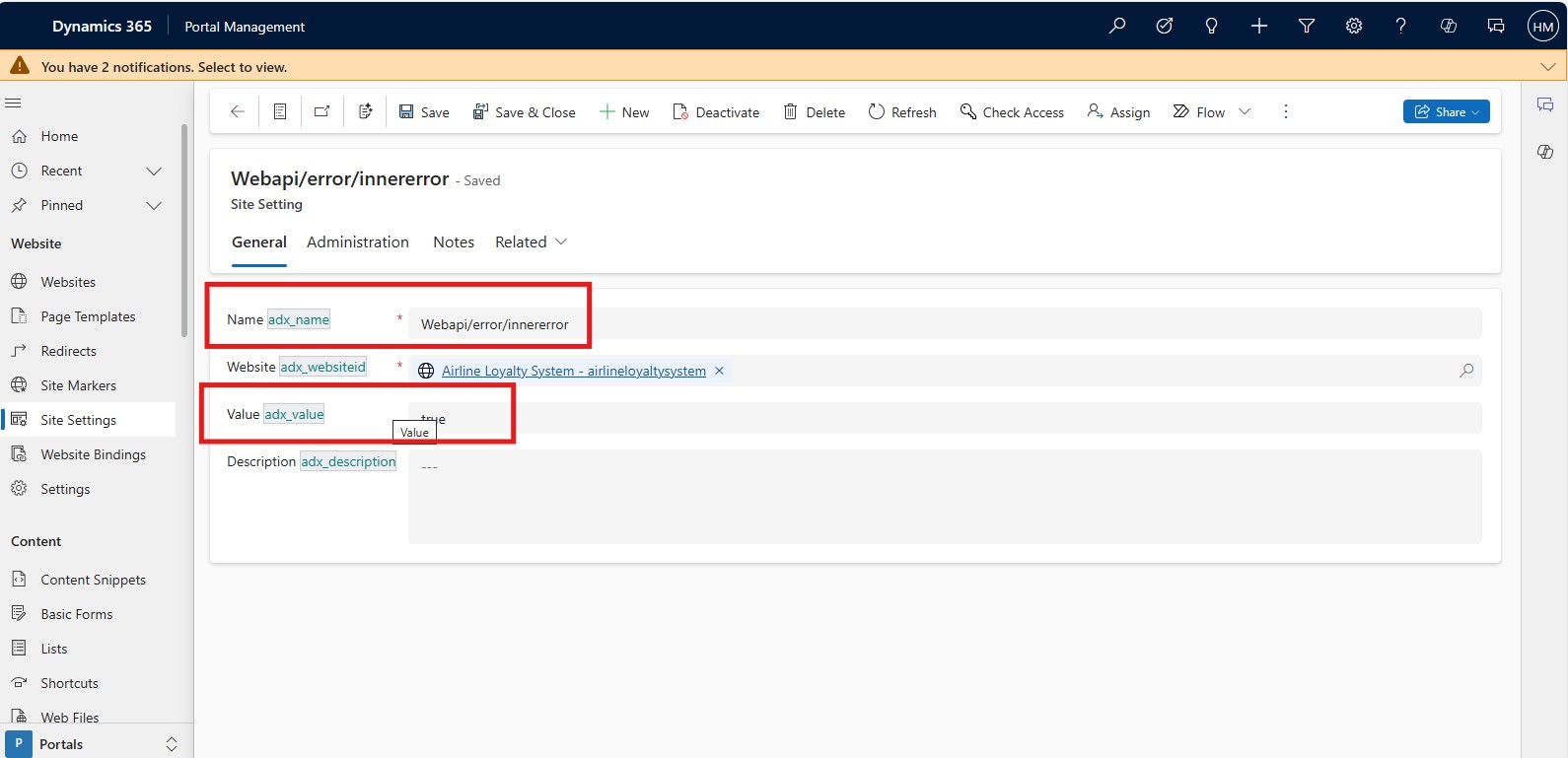
4. If you want to enable Web API error logging, add this site setting as well: 

  • Name: Webapi/error/innererror 

  • Value: true 

3

Step 2: Enable Web API for a Table  

1. Open the Portal Management App. 

2. Go to Site Settings in the left pane. 

3. Create a new site setting to enable the Web API for a specific table (e.g., contacts). Use this format: 

  • Name: Webapi/table_logical_name/enabled 

  • Value: true 

  • Example: If enabling it for the "contact" table, use Webapi/contact/enabled 

    4

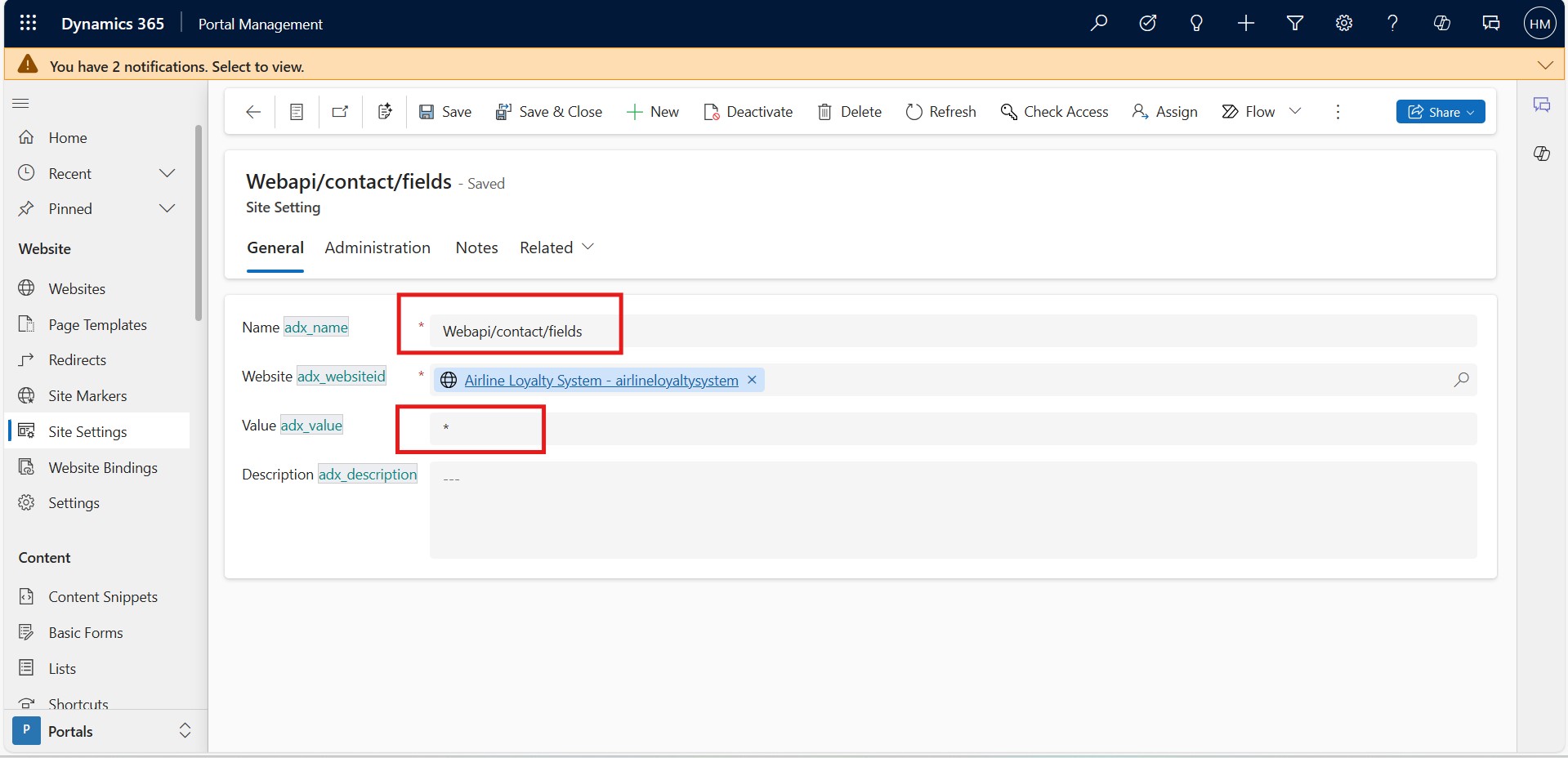
4. Define which fields can be modified using the Web API  

Name: Webapi/table_logical_name/fields 

Value: List of fields separated by commas (e.g., firstname,emailaddress1) or use * to allow all fields. 

5

Step 3: Set Up Table Permissions 

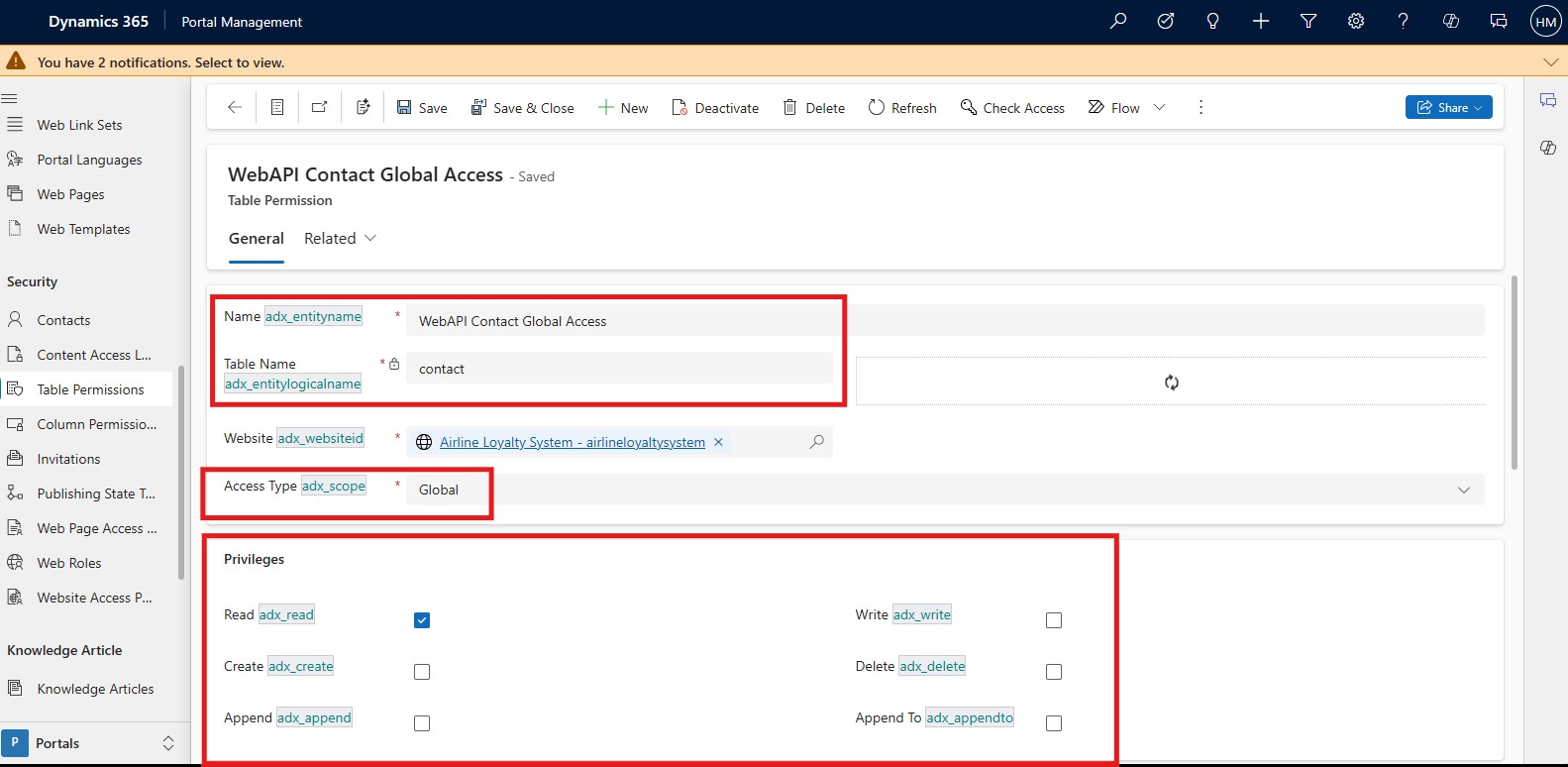
1. Create a table permission for the same table to allow API access. 

2. Fill in the required details, like Access Type, Privileges, and Web Roles as per your needs. 

6

Step 4: Configure Web API Safe AJAX Wrapper 

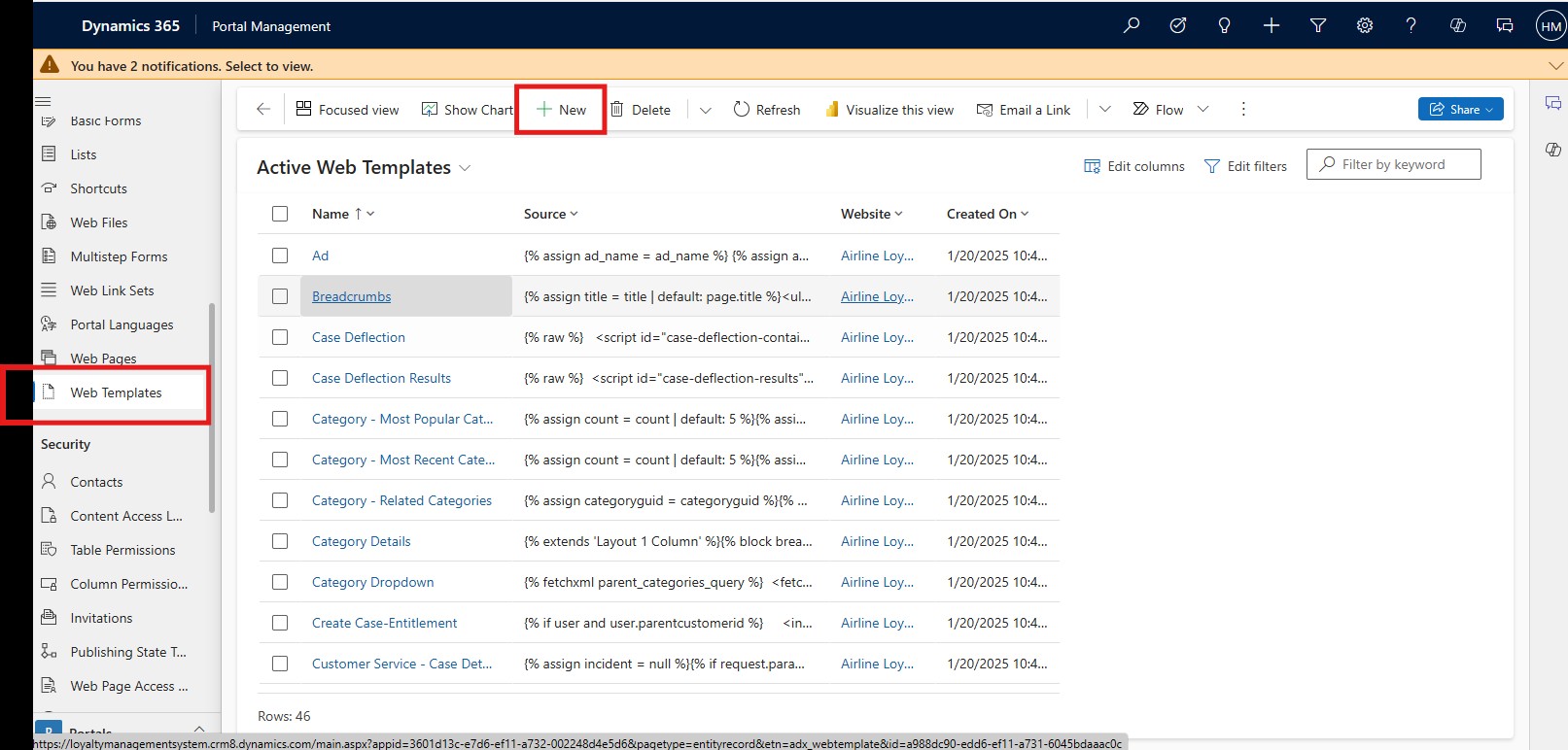
1. Open the Portal Management App and go to Web Templates under the Content section.

7

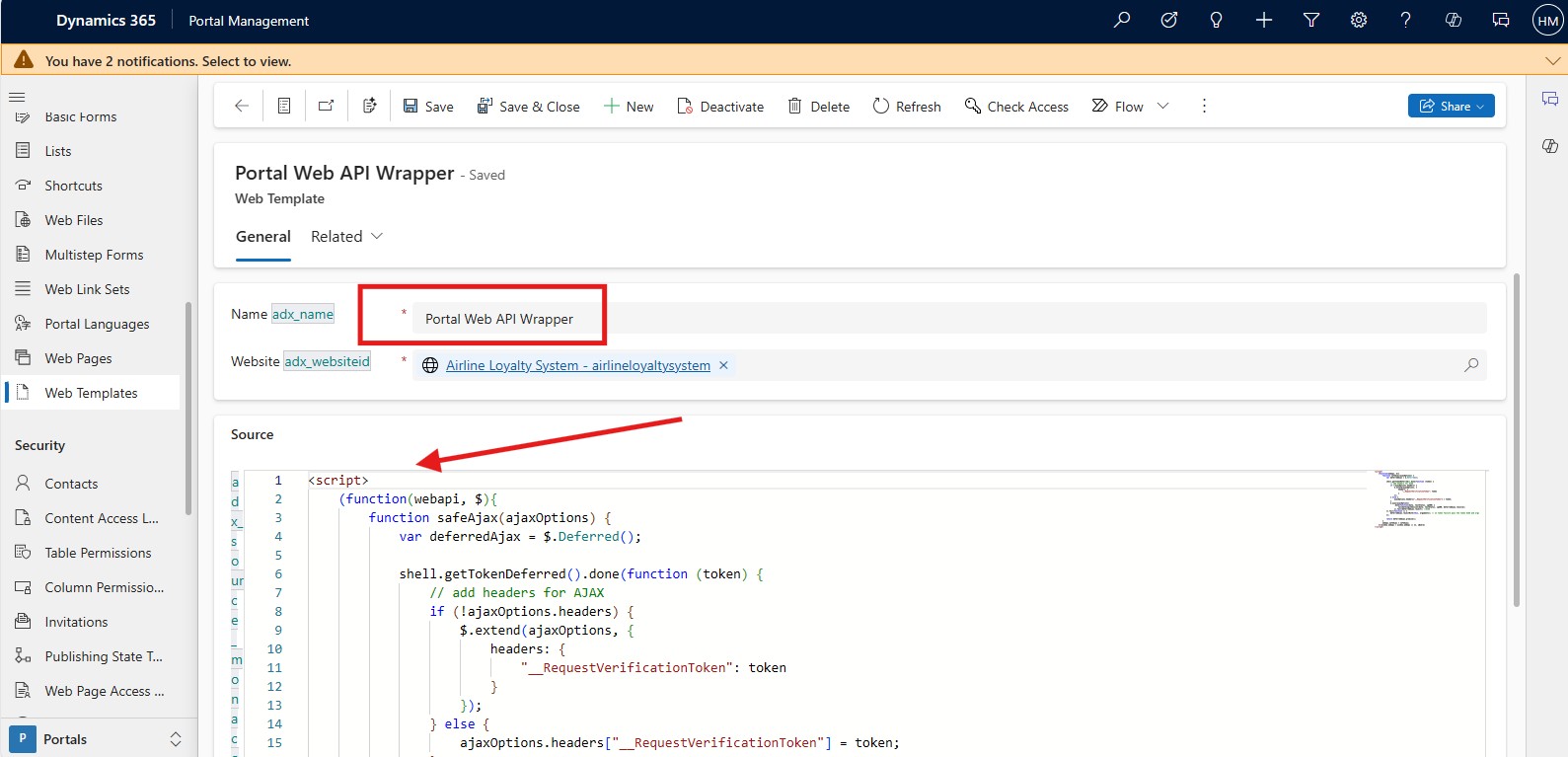
2. Click New and select the website where you want to create the template. Name it something like "Portal Web API Wrapper."

8

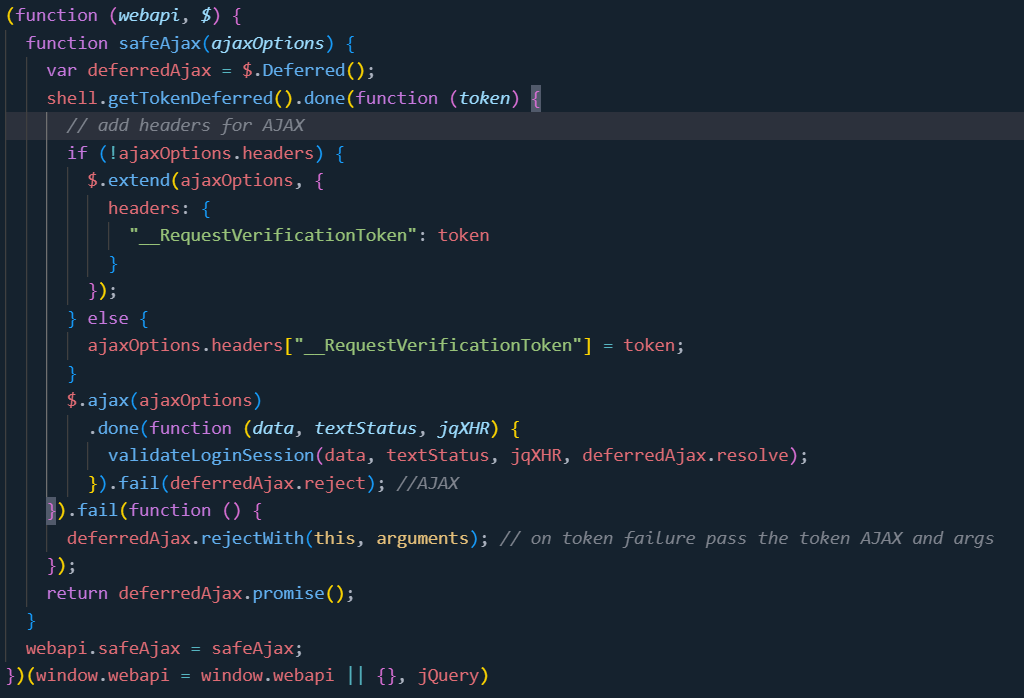
3. Paste the following AJAX wrapper function in the Source field of the template. This helps with authentication and token management for API calls. Wrap this under the script tag before saving.

9

4. Include Wrapper into your HTML: Wherever you plan to use the Web API, include the wrapper function by adding {% include 'Portal Web API Wrapper' %} before making any API calls. 

Frequently Asked Questions 
1. What is the main use of the Power Pages Web API? 

It allows you to perform CRUD operations on Dataverse tables directly from Power Pages, making data management and user experience better.

2. What HTTP methods are supported by the Web API? 

 The Web API supports GET, POST, PUT, and DELETE HTTP methods for reading, creating, updating, and deleting records, respectively. 

3. Can I use the Web API for configuration tables? 

No, the Web API is limited to data-related tables like accounts, contacts, and custom tables. It does not support configuration tables such as adx_contentsnippet, adx_entityform, or adx_entitylist.  

4. Is Web API operations case-sensitive? 

Yes, Web API operations are case-sensitive. Make sure table names and field names exactly match what is in Dataverse. 

Metadata Browser
  • HTML To PDF Converter
  • Data Mask for Dataverse
  • Commission 365
  • AI Autocloser
  • Flow Monitor
  • Services

    • D365 Marketing
    • D365 Sales
    • D365 Customer Service
    • D365 Field Service

    Company

    • About Us
    • Blog
    • Contact
    • Careers

    Copyright ©2026 Pascalcase Software Private Limited. All rights reserved.

    Privacy PolicyTerms of Service