Custom Filters and Search in Power Pages

Introduction:
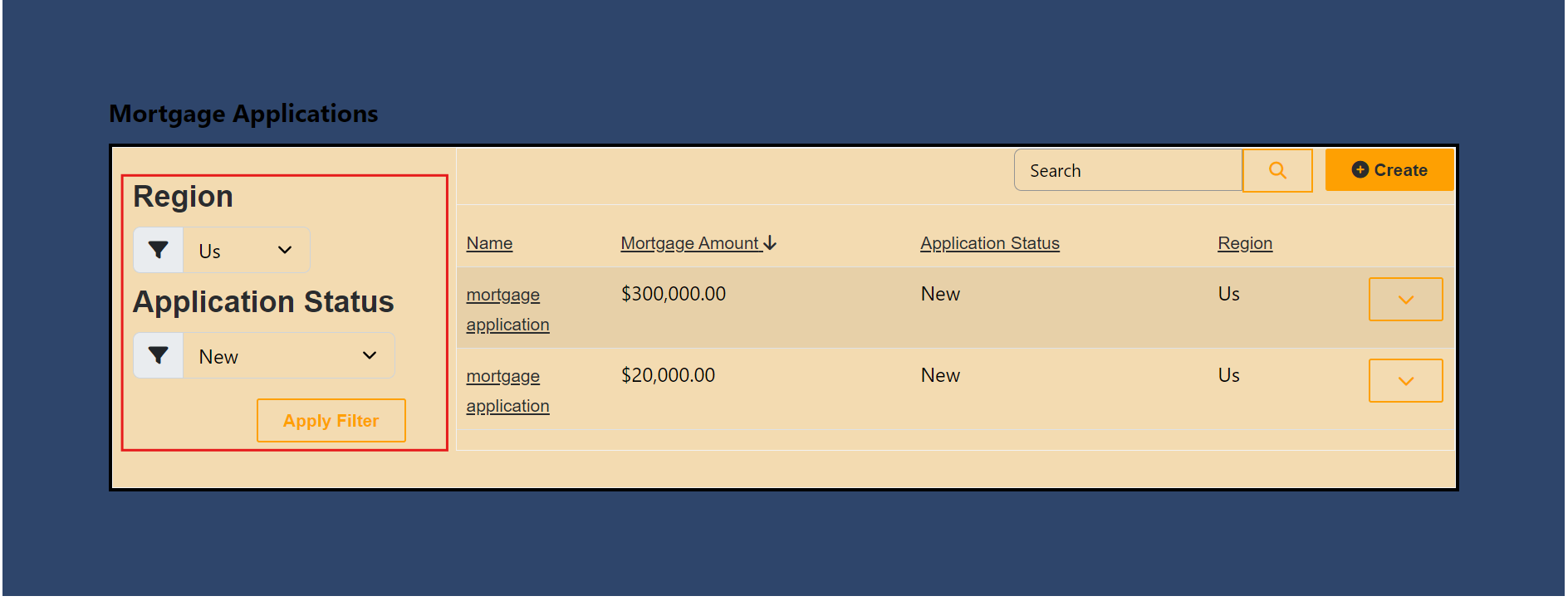
Custom filters in Power Pages are a powerful tool that enhance functionality and improve user experience. They allow users to filter attributes based on their specific requirements, significantly reducing the effort needed to search for items within lists. By enabling filtering based on one or more criteria, custom filters support compound filtering, offering users a more dynamic and precise way to locate and manage user’s data.
In this blog, we’ll explore step-by-step process on how to add custom filters and search to Power Pages, making it easier to manage and find data.
Step By Step Guide:
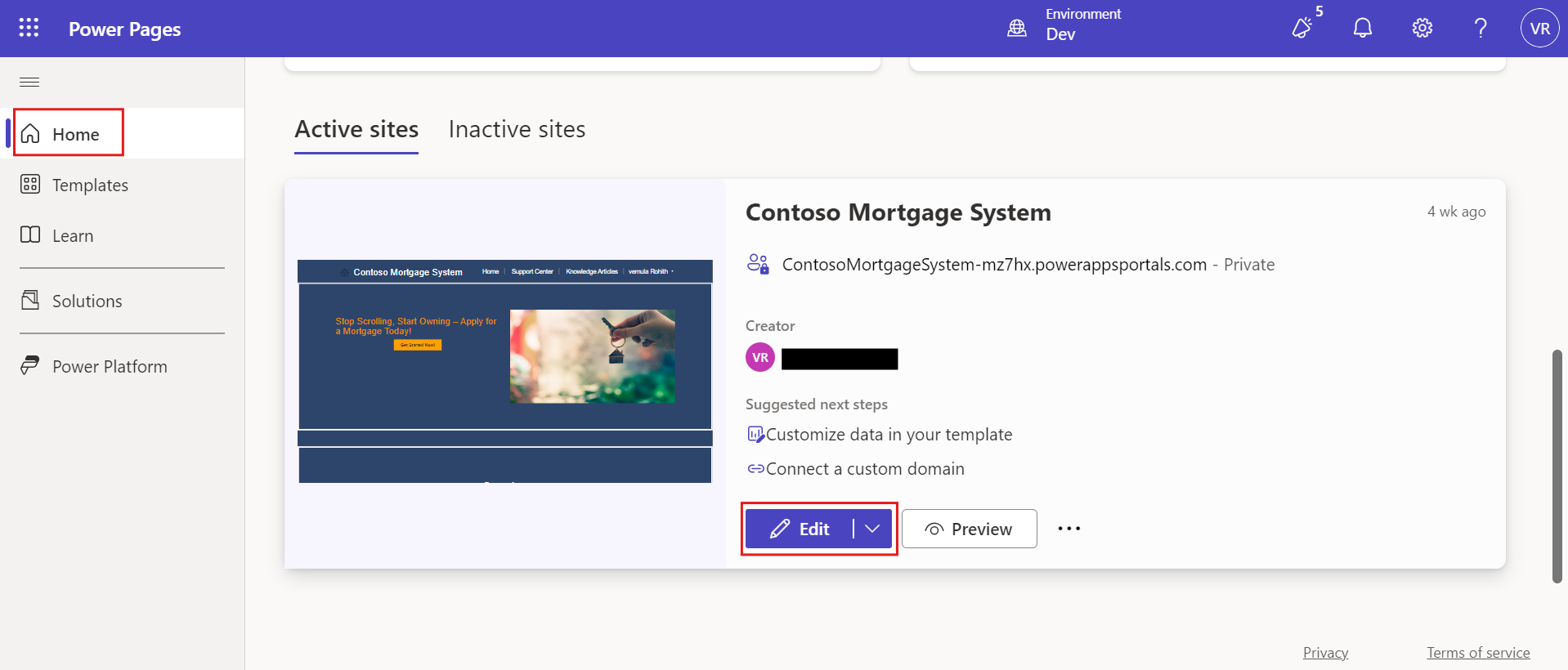
Open Power Pages and log in to your account. On the homepage, navigate to the list of all available sites, select the one you want to modify, and click Edit.
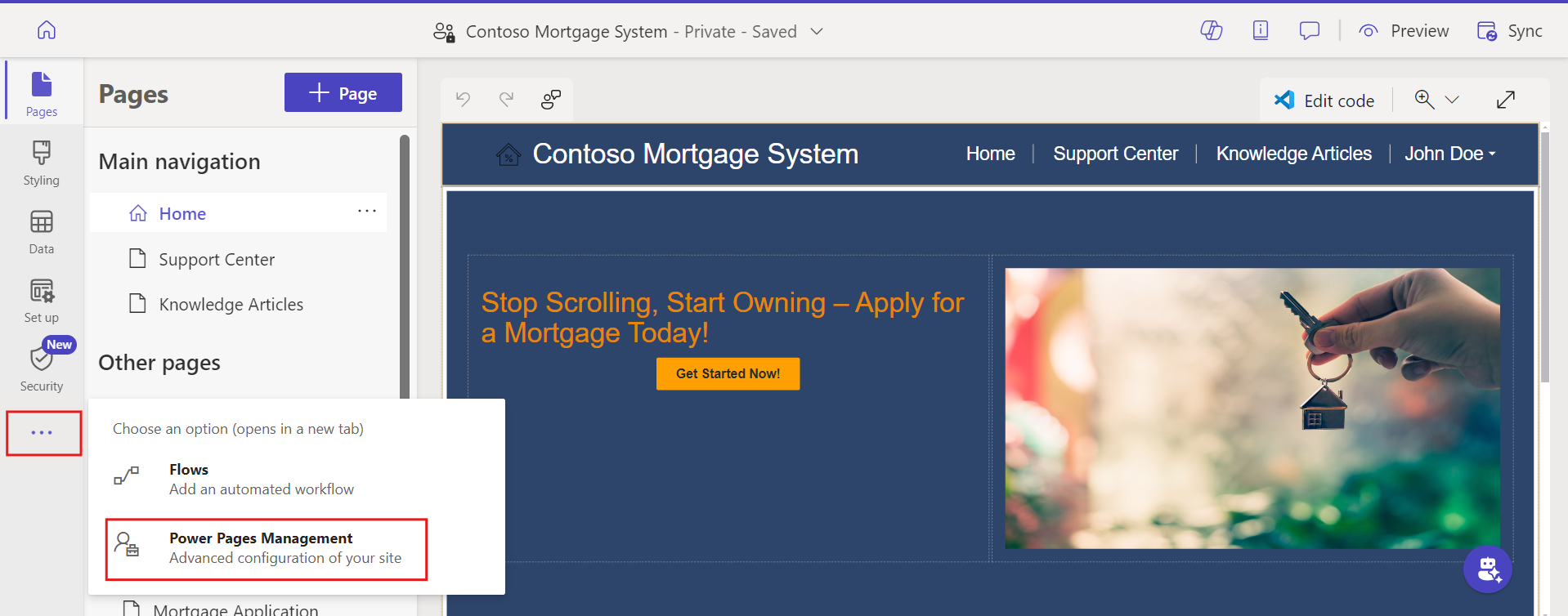
Navigate to your Power Pages site. Click on the three dots in the left navigation menu and select Power Pages Management.
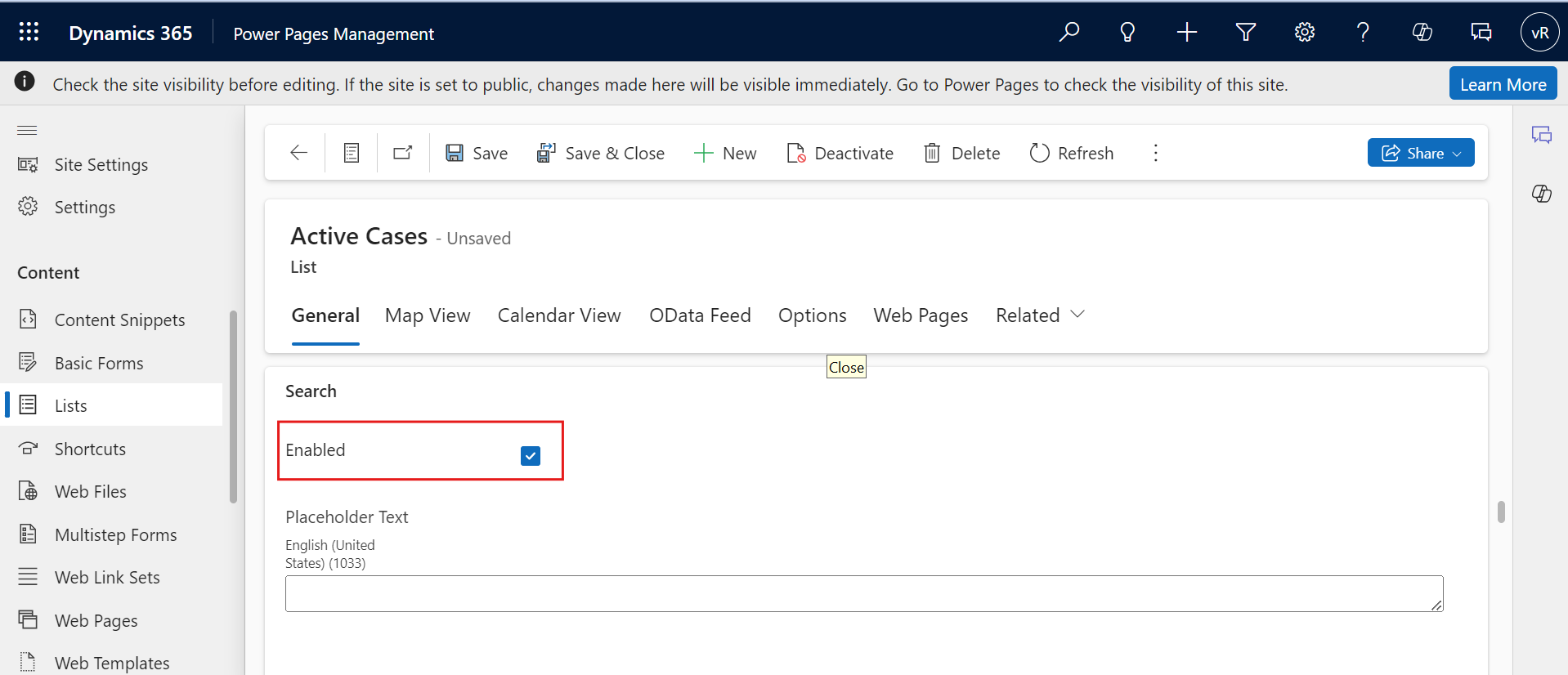
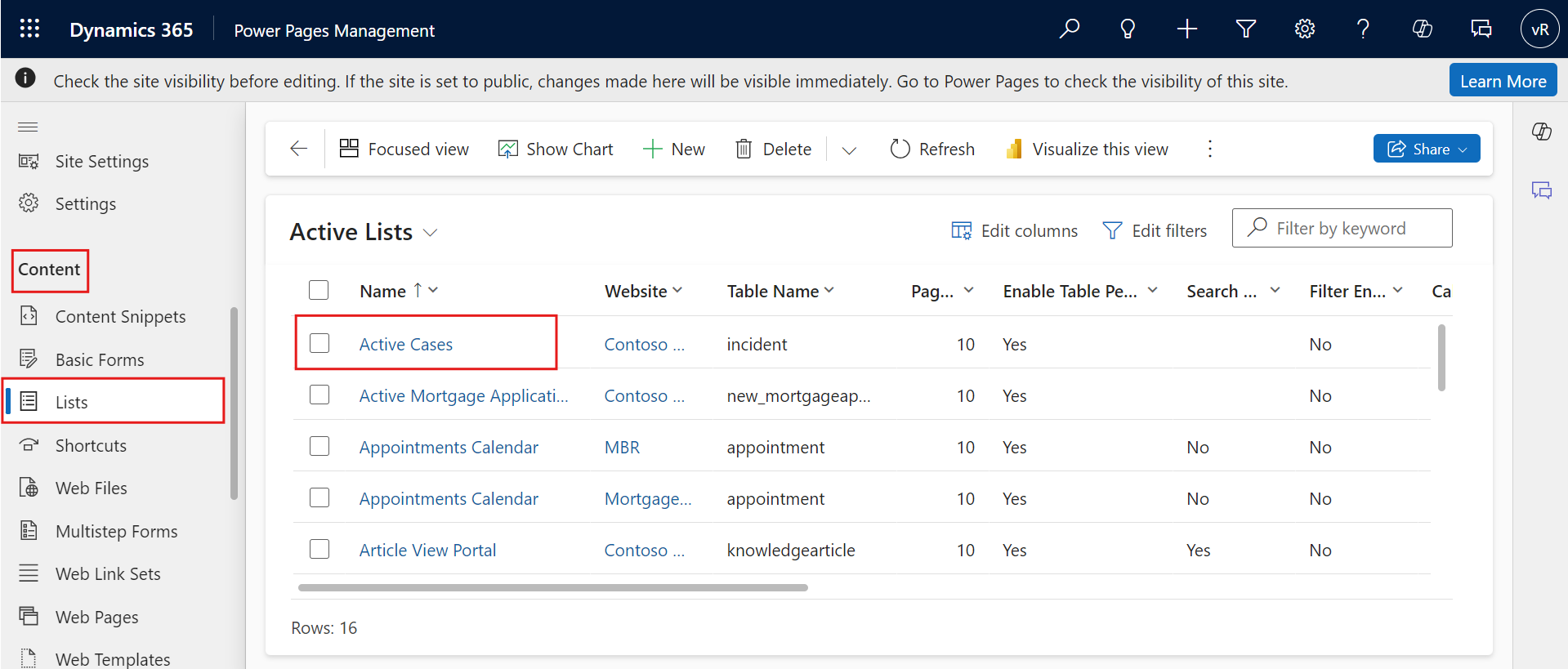
In the Power Pages Management page, go to Content and click on Lists. Find and select the list you want to configure with filters.
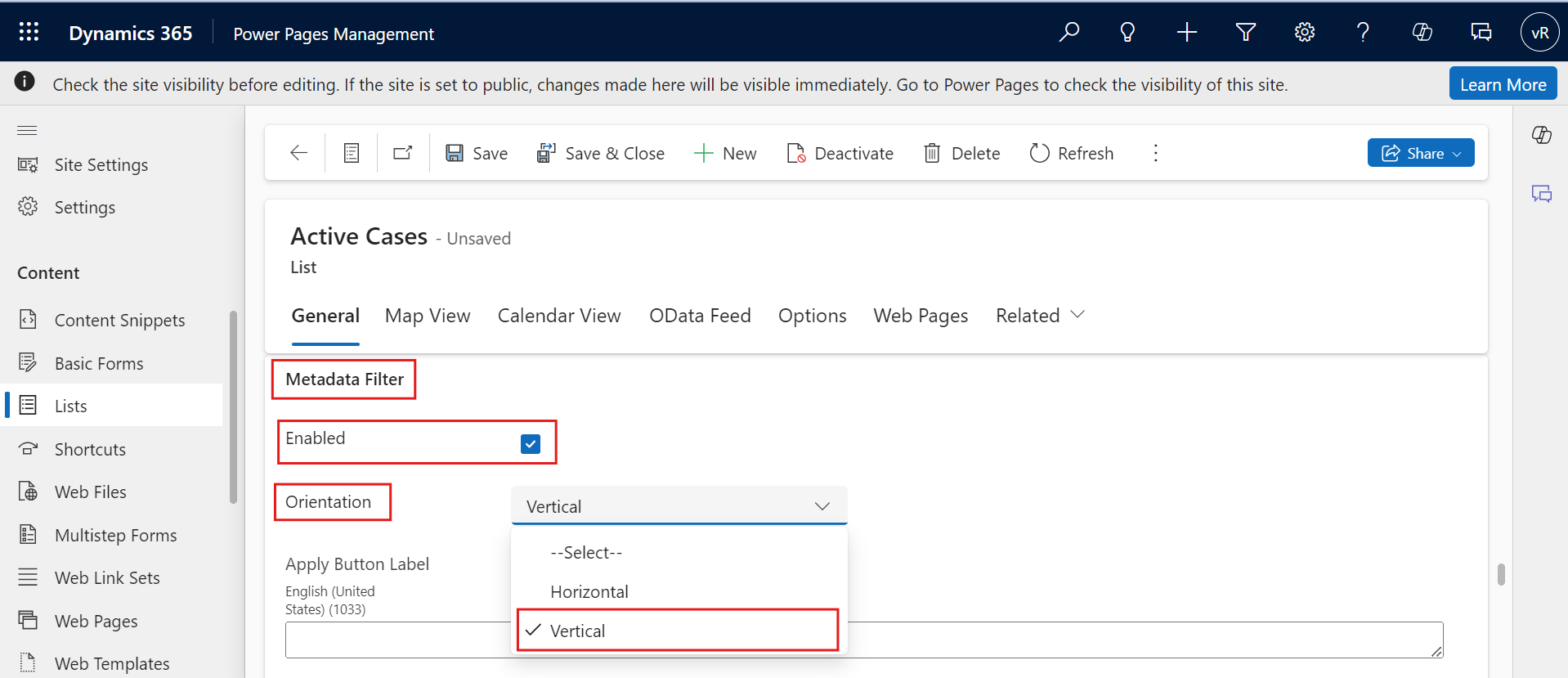
Open the selected list and go to the General tab. Locate the Metadata Filter option, check the Enabled box, and choose the desired filter orientation (horizontal or vertical).