LogoLogo

Our Products

Metadata Browser

Edge Add-on

HTML To PDF Converter

Power Automate Connector

Data Mask for Dataverse

Dataverse App

Commission 365

Dynamics 365 App

AI Autocloser

Dataverse App

Flow Monitor

Power Automate App

ServicesAboutCareersBlogContact
Chat on Teams
Metadata BrowserHTML To PDF ConverterData Mask for DataverseCommission 365AI AutocloserFlow Monitor
ServicesAboutCareersBlogContactChat on Teams
HomeBlogUse governance controls to disable anonymous access in Power Pages
Use governance controls to disable anonymous access in Power Pages

February 26, 2025
#Power Pages
Ushaswi Gurrampati
Use governance controls to disable anonymous access in Power Pages

Power Pages, a powerful platform within the Microsoft Power Platform ecosystem, allows businesses to build external-facing websites integrated with Dataverse and other Microsoft services. While the platform offers flexibility in user authentication, one crucial aspect of security is managing anonymous access.

Understanding Anonymous Access

Anonymous access refers to the ability of users to view or interact with a Power Pages site without signing in. By default, Power Pages can be configured to allow public access to certain pages or data without requiring authentication. This feature is useful for publicly available content such as informational pages, FAQs, or marketing material. However, when dealing with sensitive business data, allowing unauthenticated users to access content can pose a significant security risk.

Why is disabling anonymous access important?

Enhances Security: Prevents unauthorized access to sensitive business data.

Ensures Compliance: Helps meet regulatory standards like GDPR and HIPAA.

Reduces Cyber Risks: Protects against data breaches and unauthorized modifications.

Prerequisites:

Access to power platform admin center.

Step-By-Step Guide:

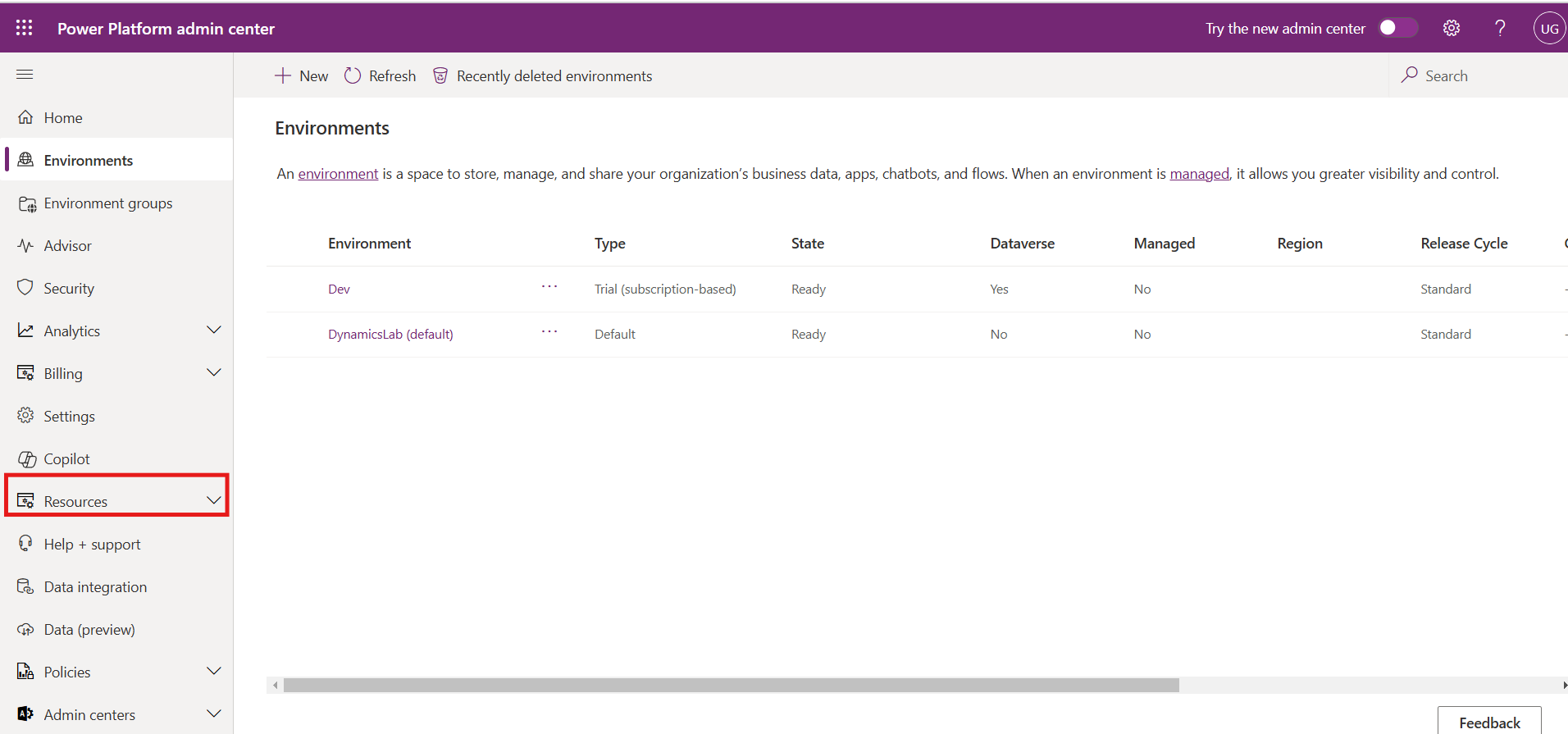
Open the Power Platform Admin Center   https://admin.powerplatform.microsoft.com and select the environment where your Power Pages site is hosted.

Navigate to the Resources section in the left panel to access the available resources for your environment.
1

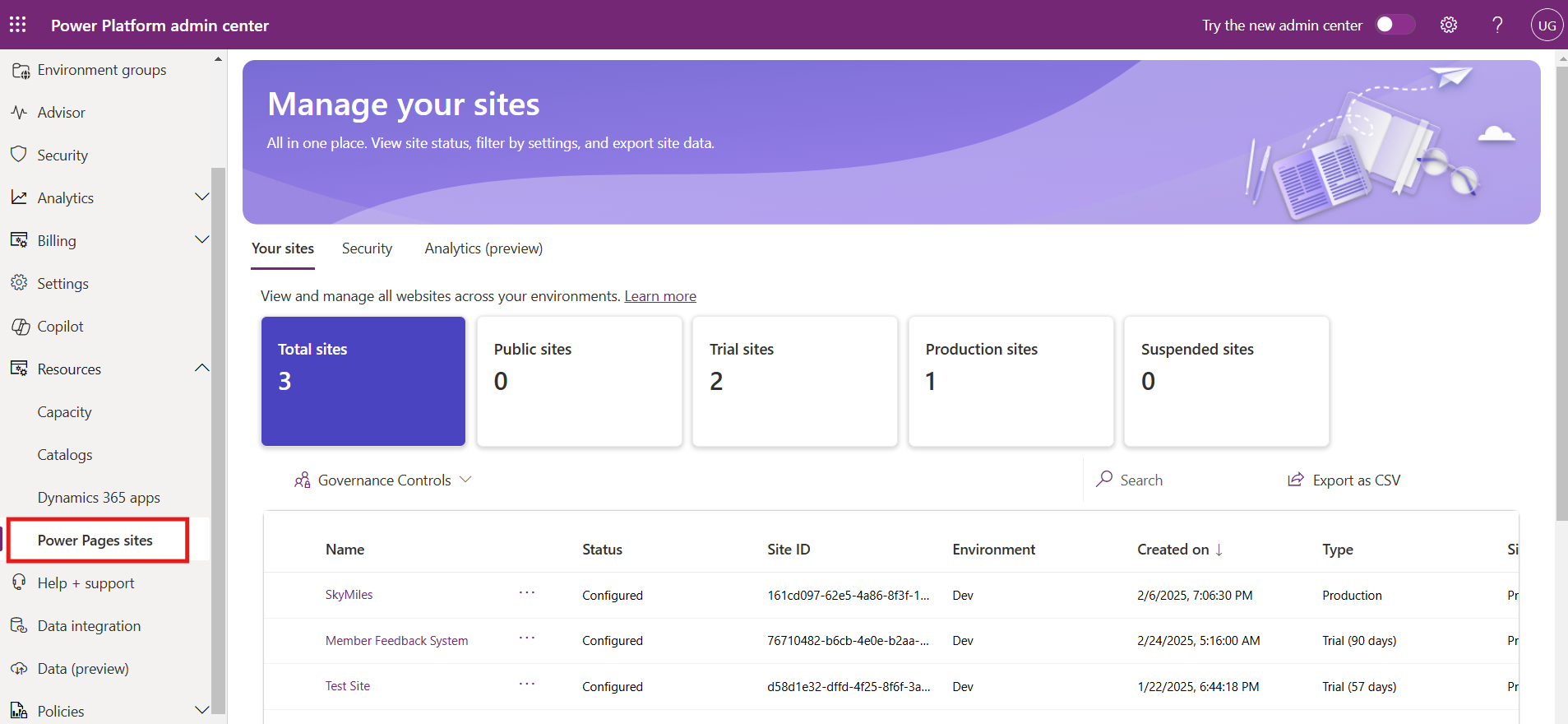
Click on Power Pages sites and select the specific site you want to configure for security settings.
Back to all articles

More from the blog

Embed Model-Driven App Charts in Power Pages with Liquid

Automating Dataverse Record Creation with Custom Forms in Power Pages

How to set up Web API in Power Pages?

Power Pages- Retrieve Data from Dataverse using Power FX

Using Liquid Code in Power Pages for Dynamic Functionality

Building a Lakehouse for Data Ingestion and Integrating with Power Apps

Custom Filters and Search in Power Pages

Custom Sign-Out Redirects in Power Pages

Need help with your business solution?

Our team can help you implement the right solution for your organization.

Get in touch
LogoLogo

Ex-Microsoft experts helping businesses get more from their Dynamics 365 and Power Platform investments.

Products

2

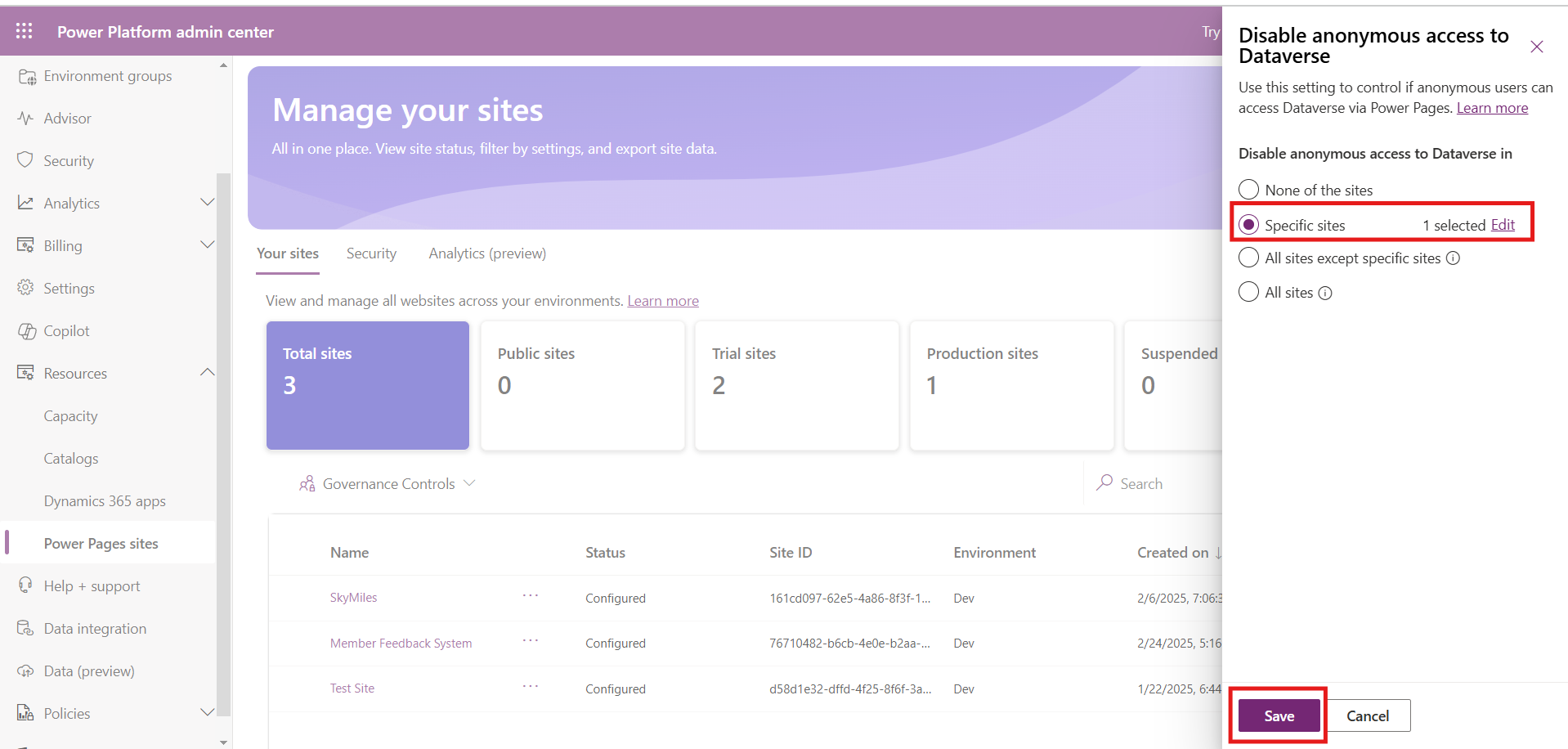
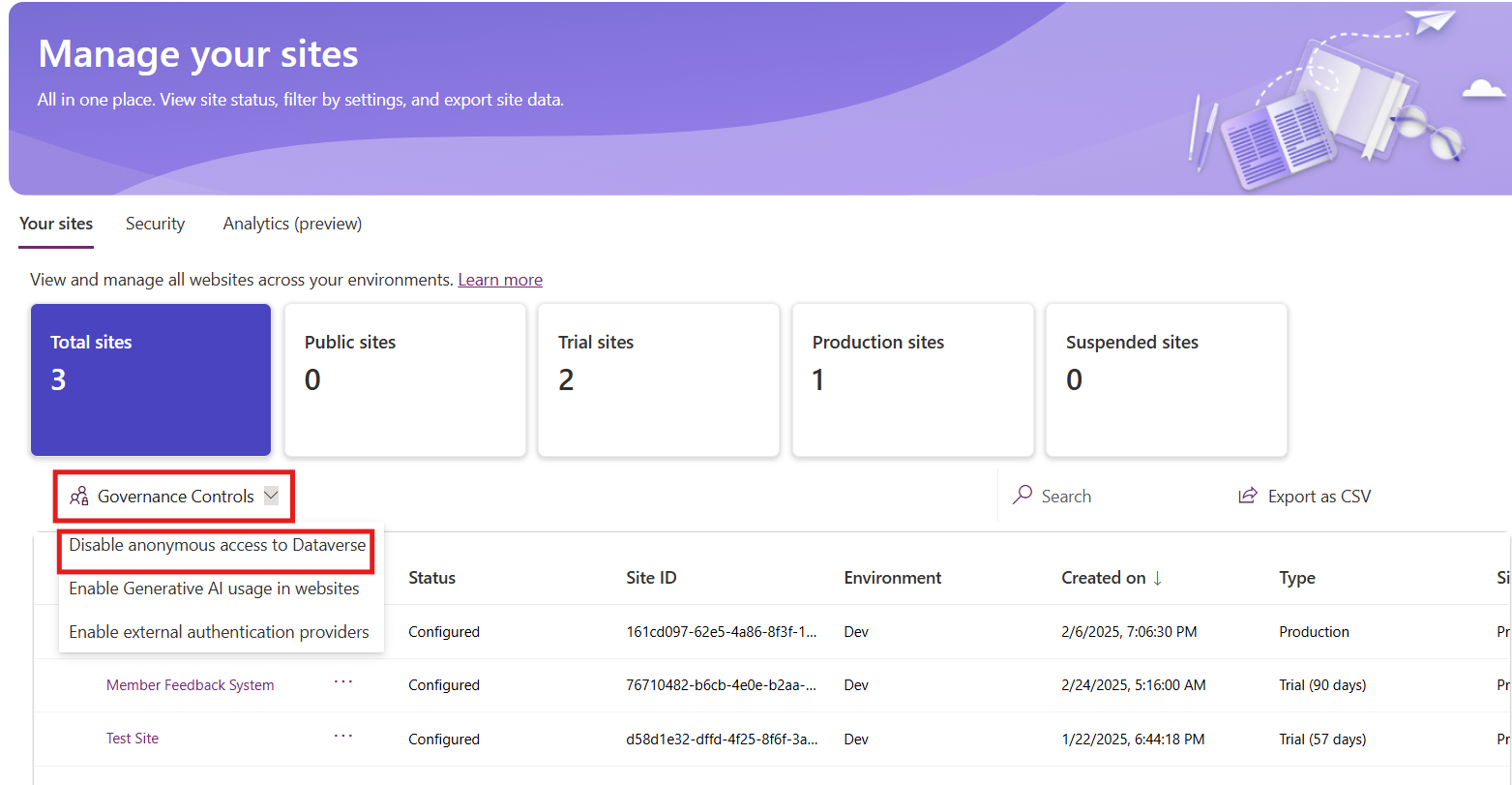
Open the Your Sites section and select Governance Controls and select Disable anonymous access to Dataverse option to disable access.

3

A side panel will appear, displaying various options to configure access settings for the site.

4

None of the sites: Keep anonymous access enabled for all sites without any restrictions (default setting).

Specific sites: Choose particular sites where anonymous access should be disabled while allowing it for others.

All sites except specific sites: Block anonymous access for all sites except the ones explicitly permitted.

All sites: Disable anonymous access across all Power Pages sites to enforce strict authentication requirements.

Choose the appropriate settings based on your requirements and select specific sites if needed.  

Click OK and Save to apply the changes, after which a confirmation message will appear indicating a successful update.

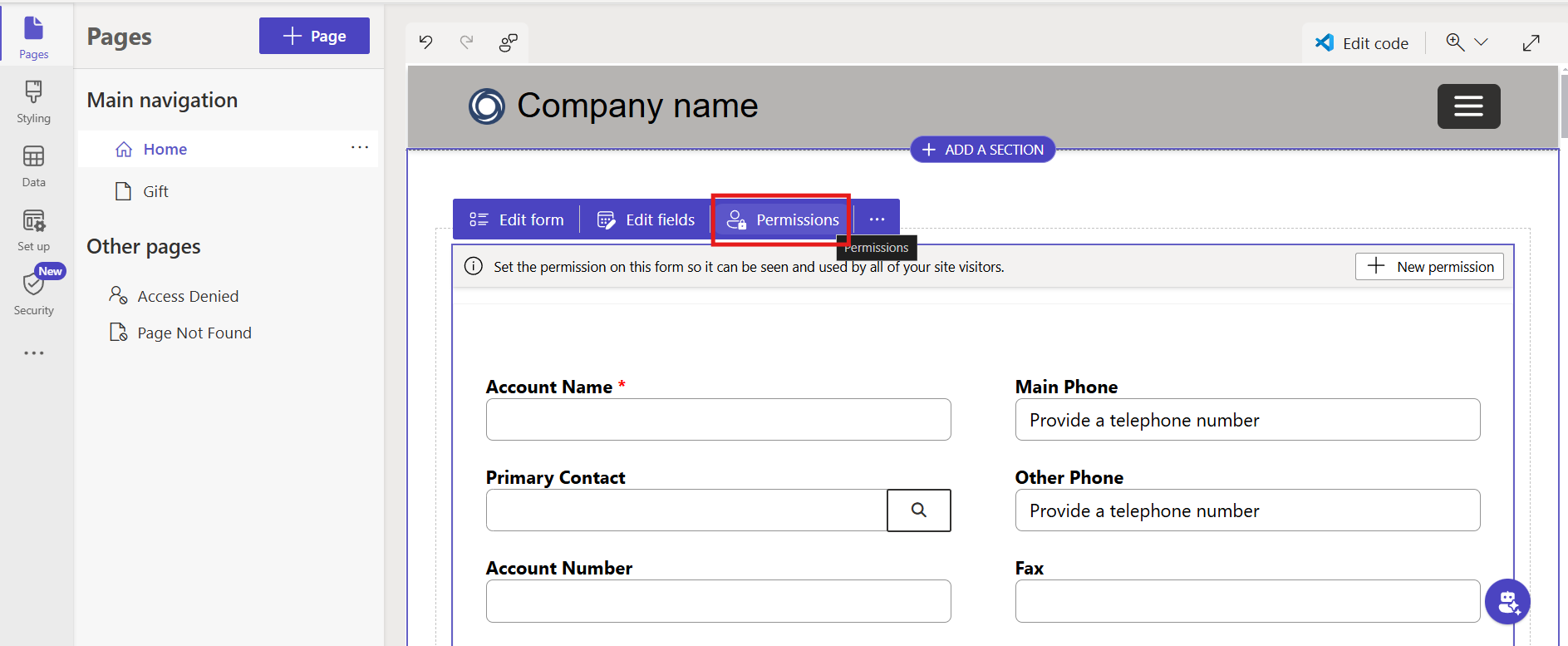
After saving the changes, navigate to Power Pages, open the website, and access the Permissions section to review the applied settings.

5

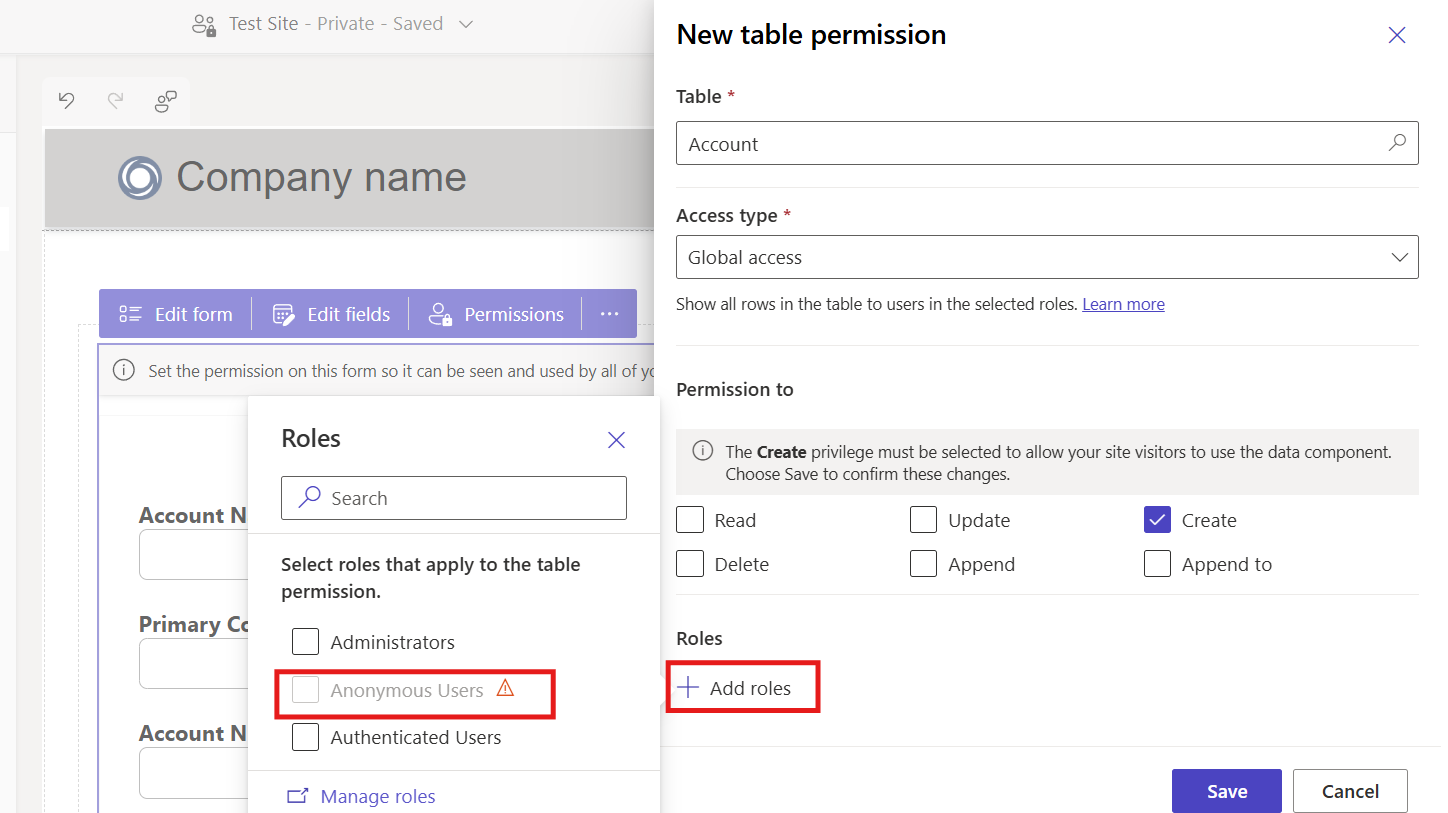
You will see that the Anonymous Users role has been deactivated in the Permissions section.

6

Governance Controls in Power Pages help manage site security by restricting anonymous access. They allow organizations to enforce authentication, safeguarding sensitive data and ensuring compliance. With these controls, access can be customized for all sites or specific ones based on requirements.

Frequently Asked Questions (FAQs):
1. What is anonymous access in Power Pages?

Anonymous access allows users to view and interact with a Power Pages site without requiring authentication.

2. Why should I disable anonymous access in Power Pages? 

Disabling anonymous access enhances security, protects sensitive data, and ensures compliance with industry regulations.

3. Can I restrict anonymous access for specific sites only?

Yes, Governance Controls allow you to disable anonymous access for all sites, specific sites, or all except selected ones.

4. What happens after disabling anonymous access?

Once disabled, only authenticated users will be able to access the site, and the Anonymous Users role will no longer be active in the Permissions section.

Metadata Browser
  • HTML To PDF Converter
  • Data Mask for Dataverse
  • Commission 365
  • AI Autocloser
  • Flow Monitor
  • Services

    • D365 Marketing
    • D365 Sales
    • D365 Customer Service
    • D365 Field Service

    Company

    • About Us
    • Blog
    • Contact
    • Careers

    Copyright ©2026 Pascalcase Software Private Limited. All rights reserved.

    Privacy PolicyTerms of Service