Automating Social Media Content Posting with Power Automate
November 17, 2024
#Power Automate
Sri Charan
In this blog, we will explore the domain of social media automation through the use of Power Automate. Our focus will be on developing a robust and efficient workflow that facilitates the automatic posting of content to selected social media platforms, thereby conserving valuable time and effort. We will guide you through each stage of the process, from establishing triggers to customizing the content of your posts.
Step-by-Step Guide:
In this example, we will demonstrate the automation of posts on Twitter and LinkedIn utilizing a list contained in an Excel spreadsheet stored in SharePoint.
Set Up Your Content Source
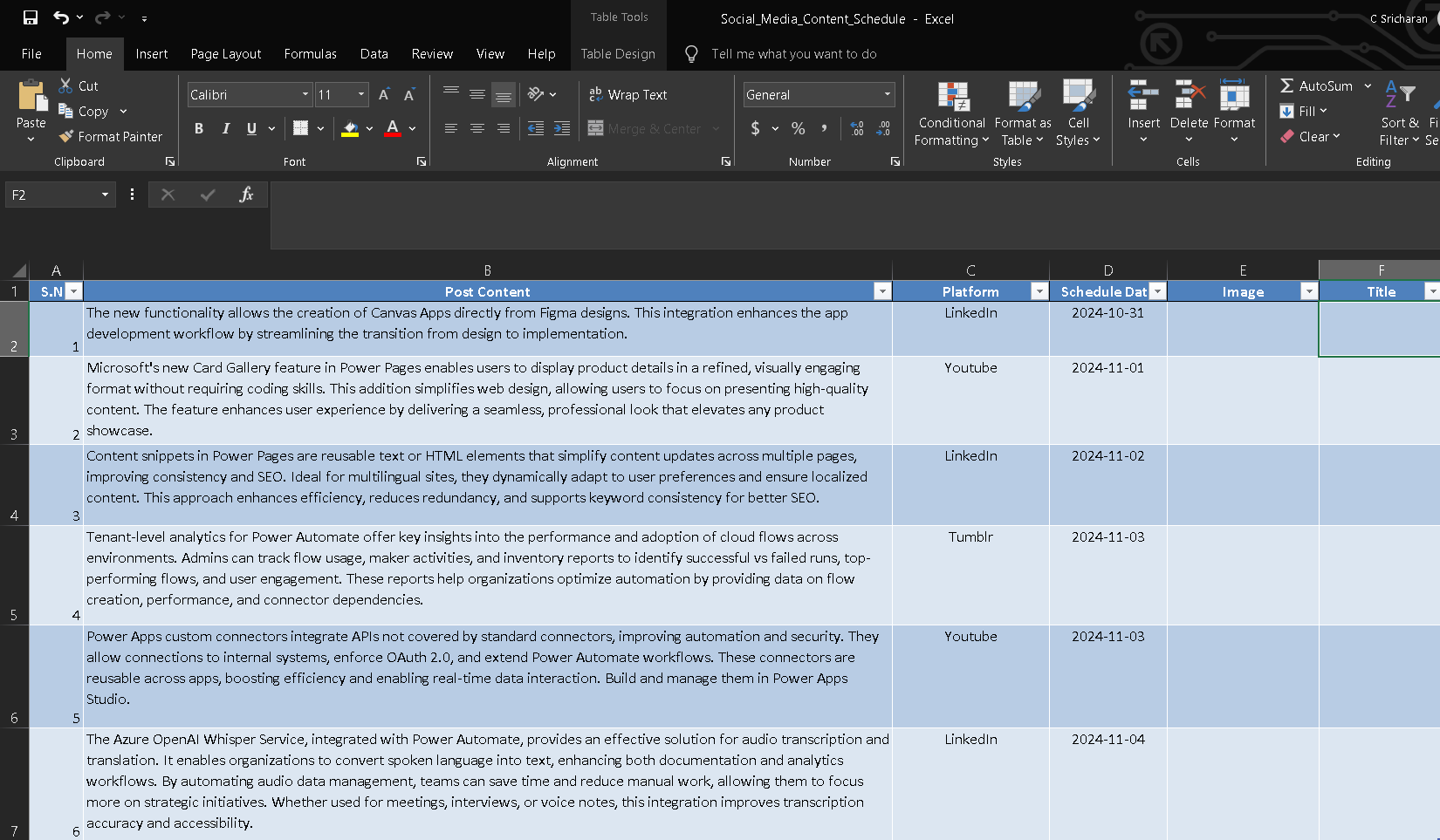
1. Create an Excel file with columns such as Title, Post Content, Platform, Schedule Date, and Image per your requirements.
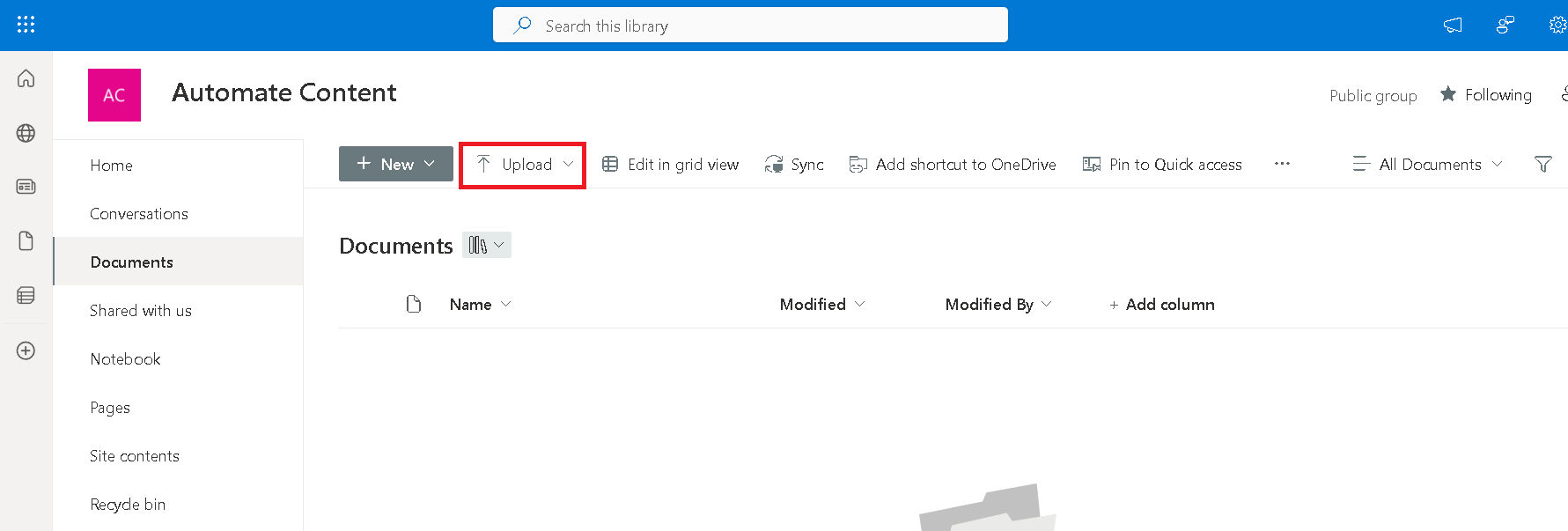
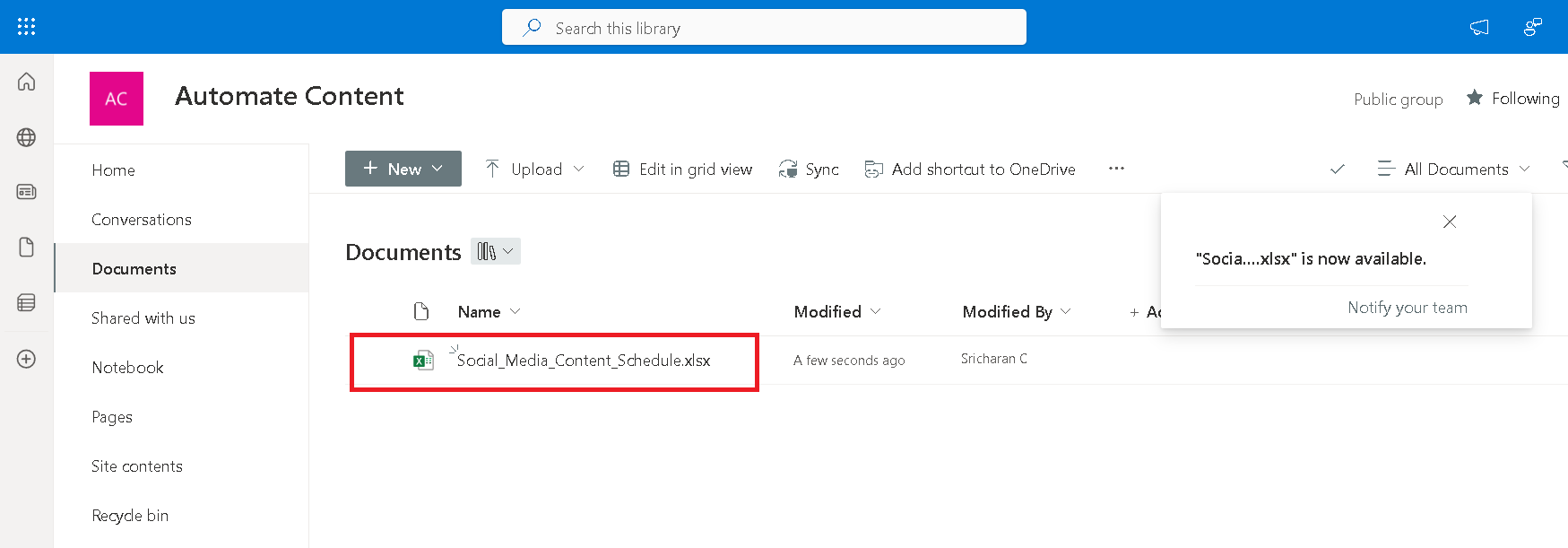
2. Save the Excel file to SharePoint so Power Automate can access it.
Create a Flow in Power Automate
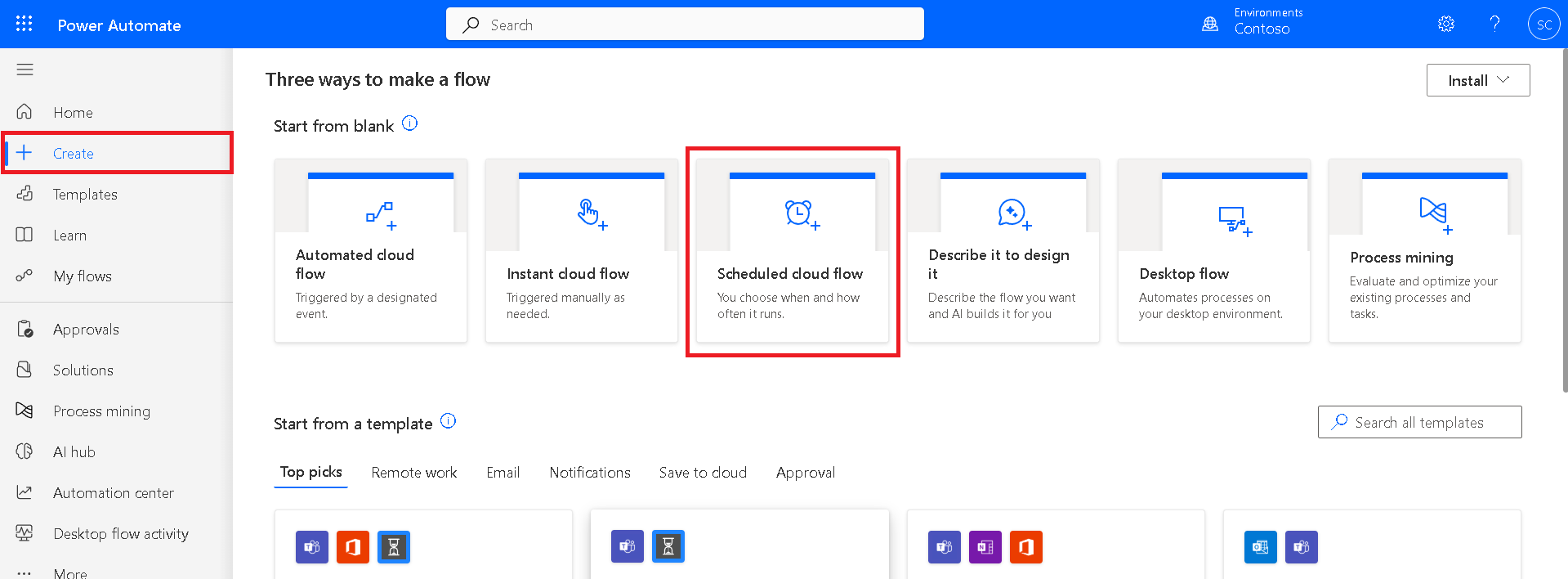
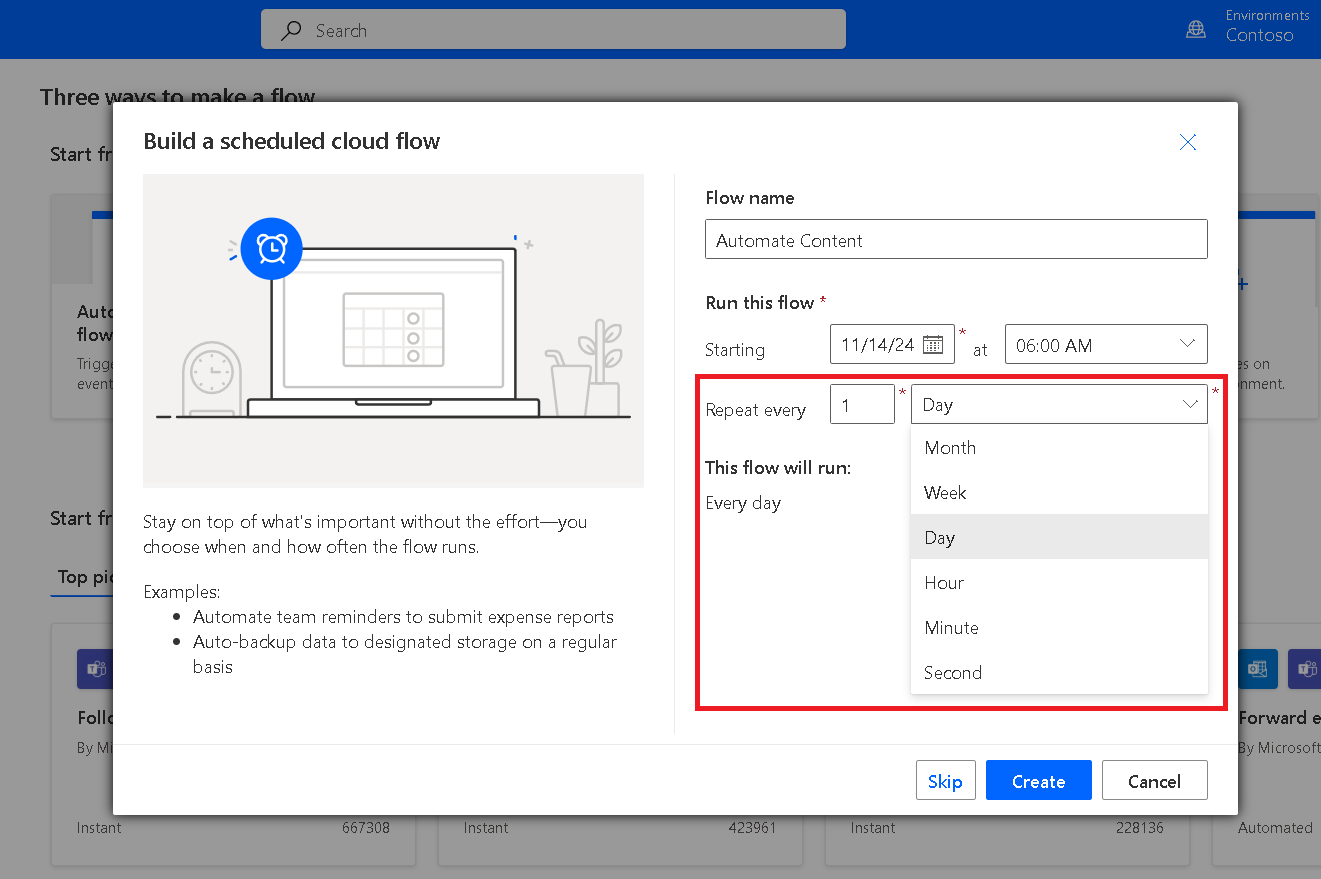
1. Open Power Automate, click on 'Create', and then select 'Scheduled Flow'.
2. Set the frequency (e.g., Daily, Weekly) depending on how often you want the posts to be published.
Need help with your business solution?
Our team can help you implement the right solution for your organization.
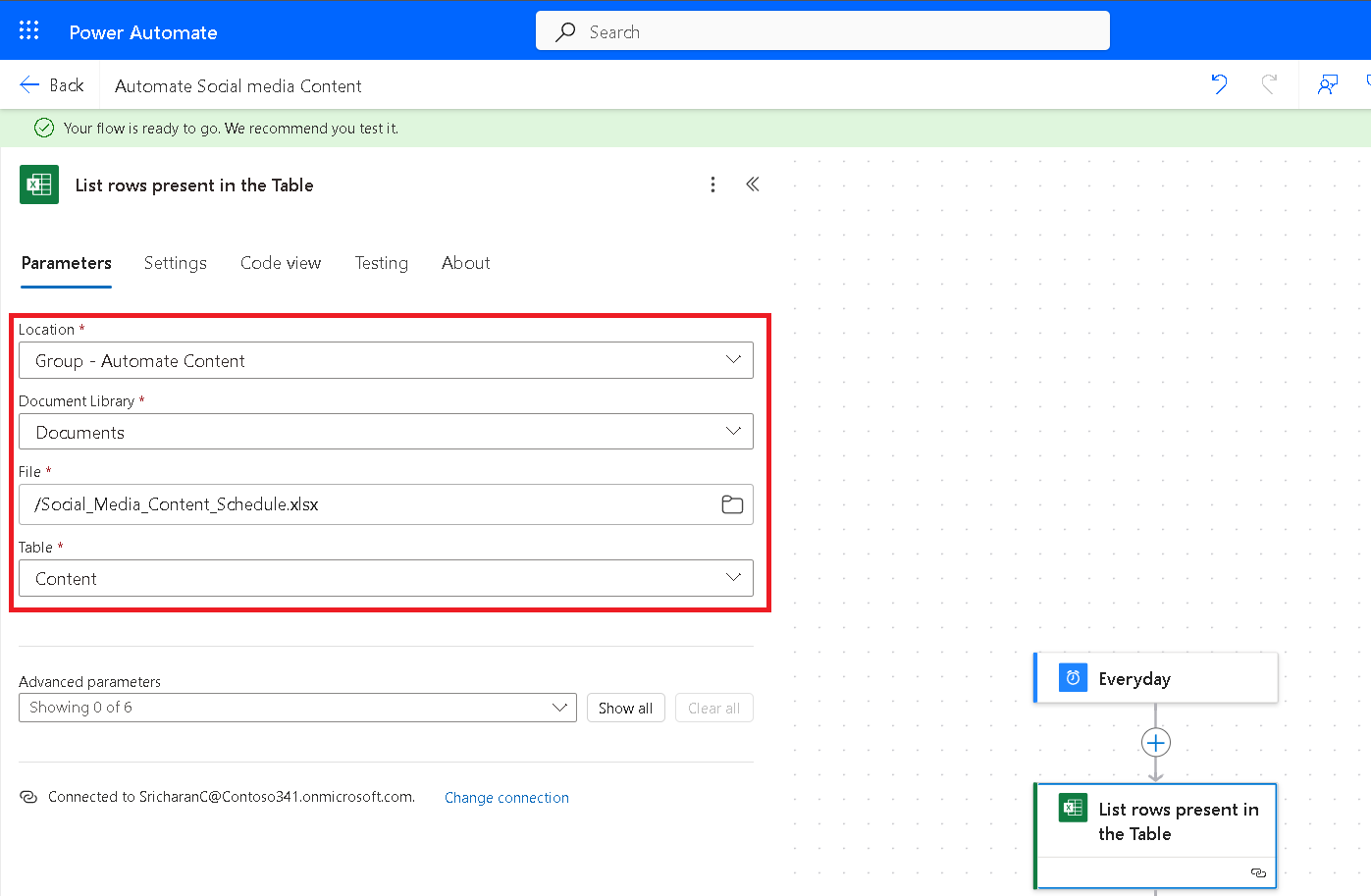
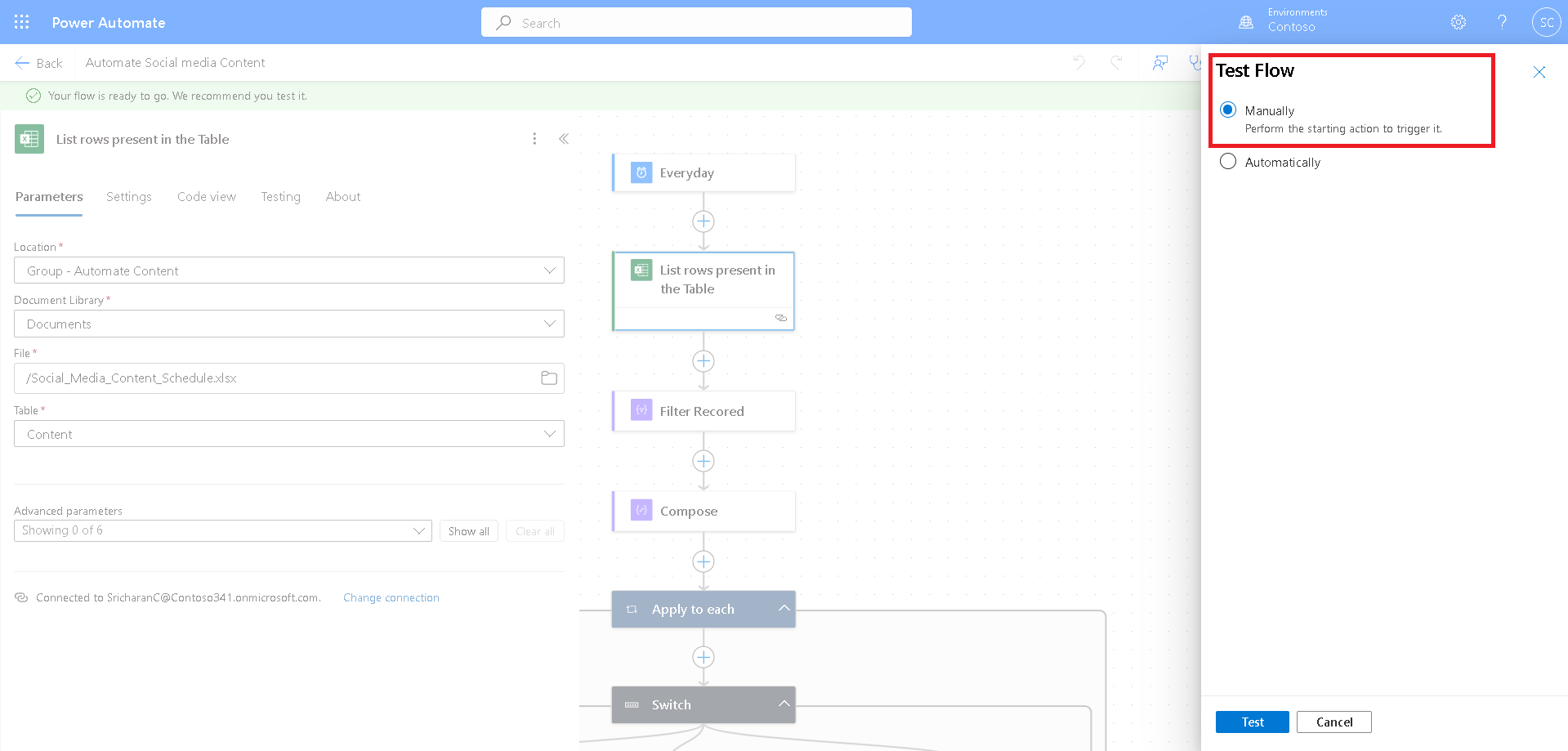
1. Add a New Step and search for Excel, Select List rows present in a table and configure it:
Choose Location.
Select Document Library (where your Excel file is stored).
Pick your File and Table.
Filter for Today’s Posts
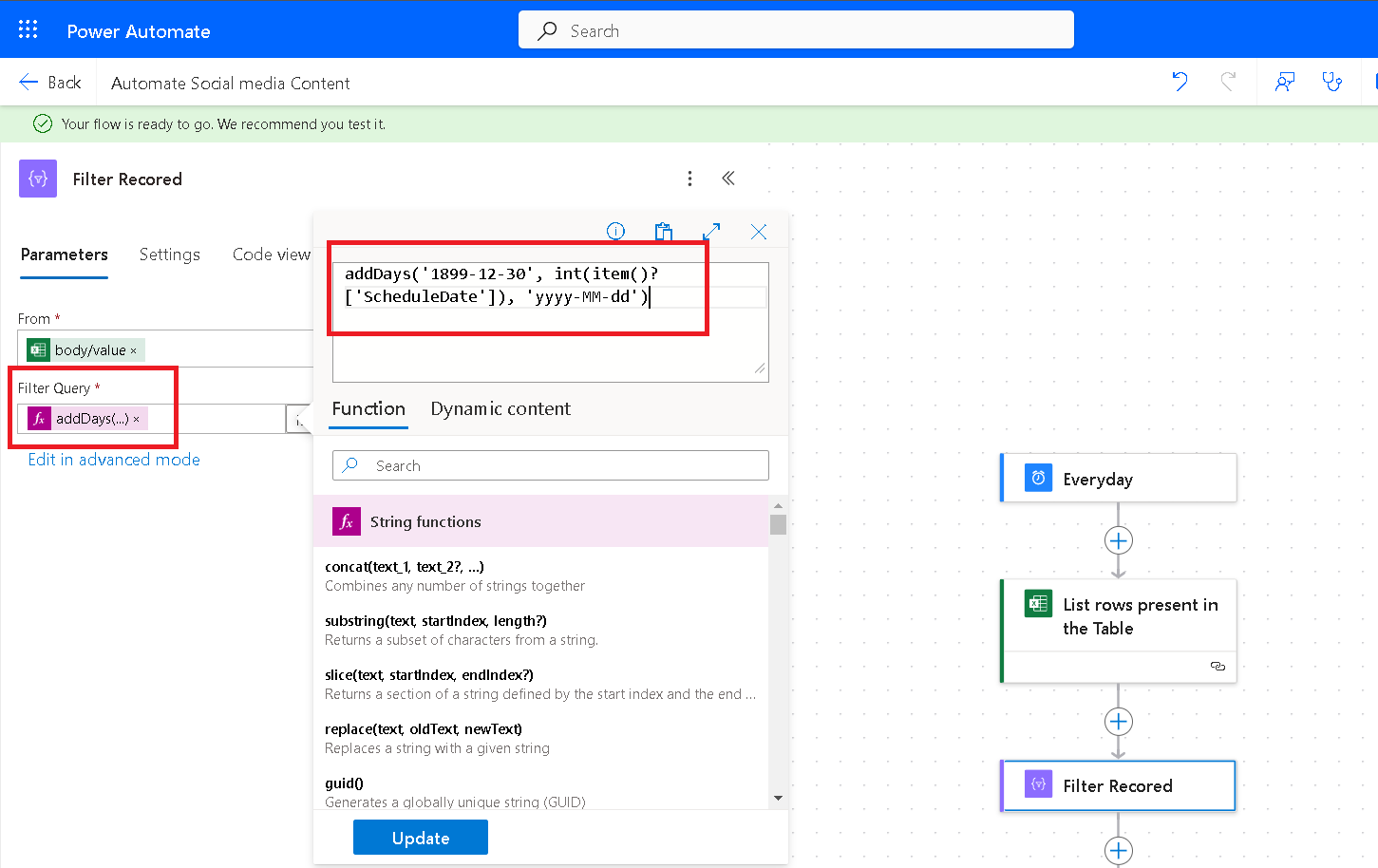
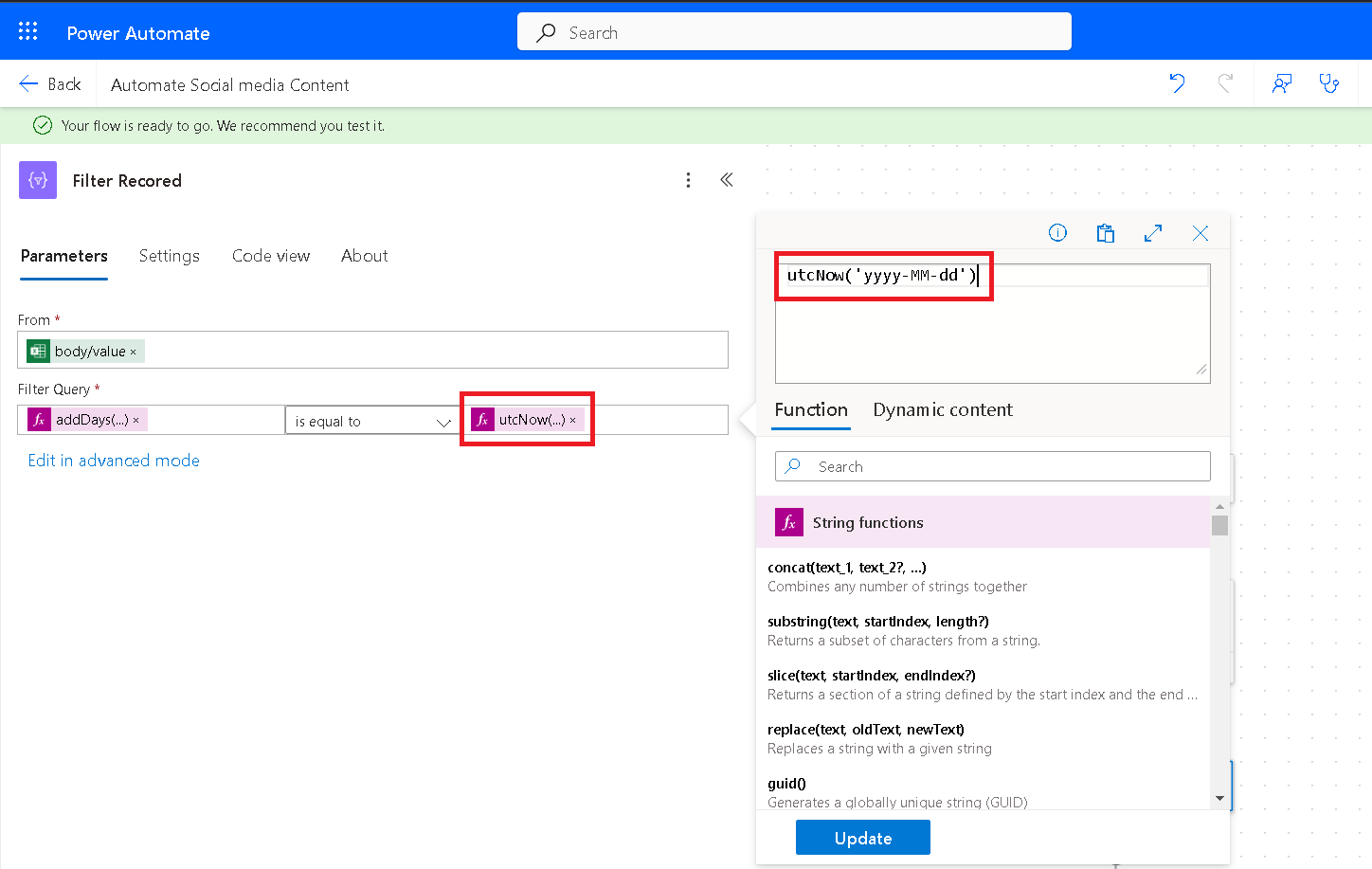
1. Add a Filter Array step to filter rows based on today’s date.
This expression converts date serial numbers from Excel into readable dates by adding them to a base date (1899-12-30), making it possible to perform accurate date-based comparisons and filtering in Power Automate flows.
This expression retrieves the current date in Coordinated Universal Time (UTC) and formats it as a string, which is useful for date-based comparisons and filtering in Power Automate.
Add the Switch Action
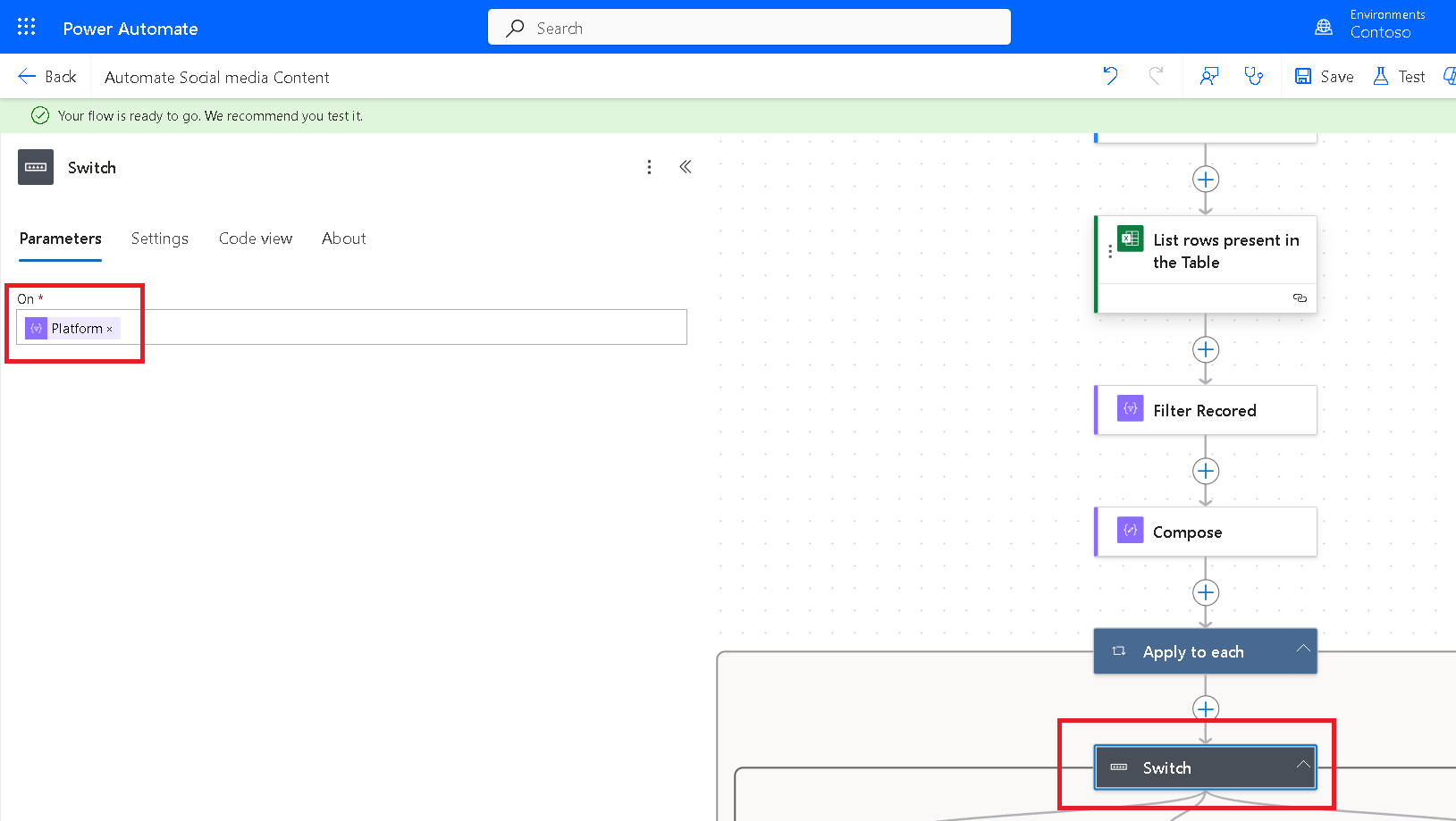
1. After filtering for today’s posts, add a Switch action.
2. In the On field, set it to the column in your Excel file where the platform (e.g., "Twitter", "LinkedIn") is specified.
Configure Each Case in the Switch
1. Add a Case for each platform (e.g., "Twitter" and "LinkedIn").
Case 1: LinkedIn
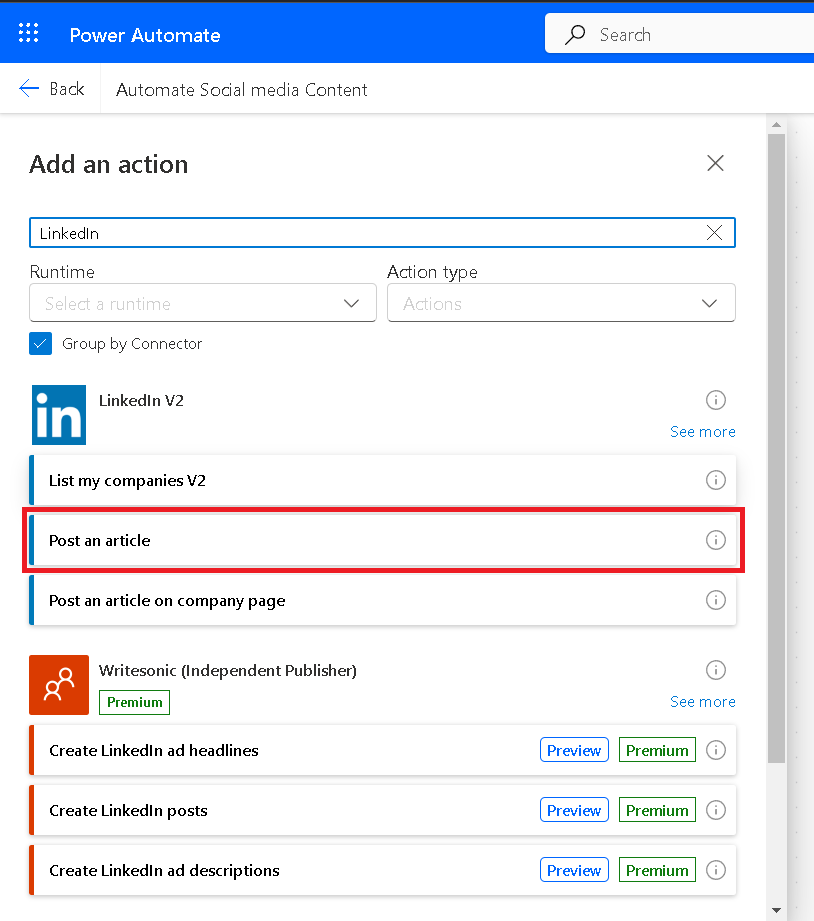
Inside the LinkedIn case, add a Share an article or URL action.
In the Comment field, select Post Content from the Excel data.
Add a URL if each post includes a link to share.
Case 2: Twitter
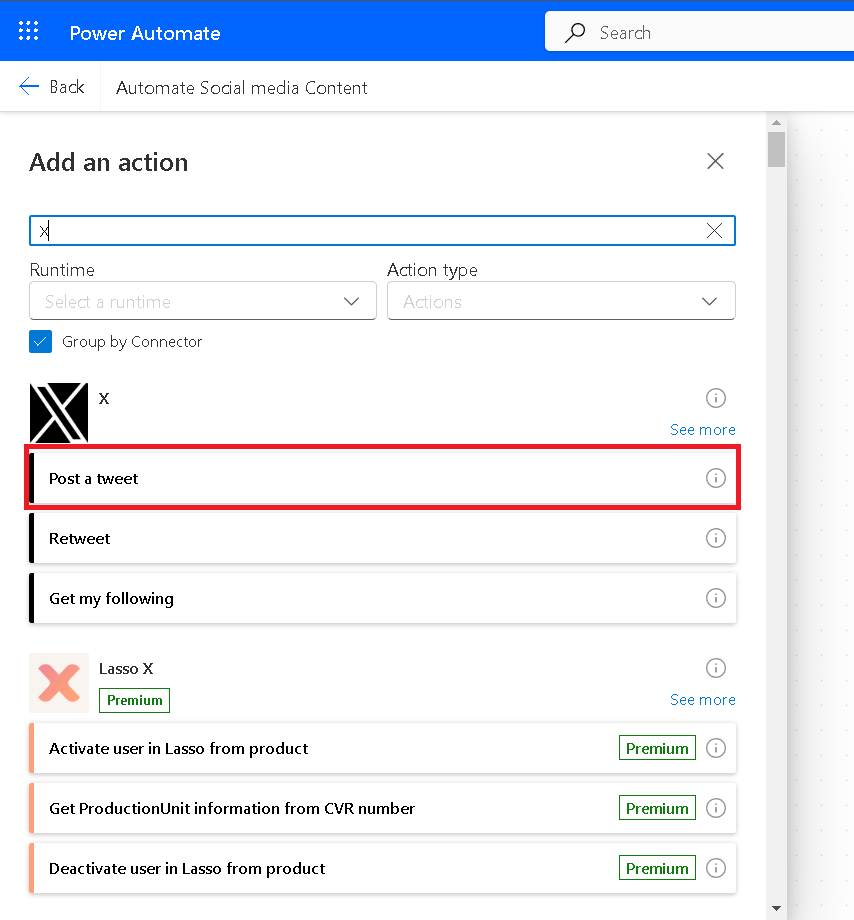
Inside the Twitter case, add a Post a tweet action.
In the Tweet text field, select the Post Content from your Excel data.
Handle Any Other Platforms or Default
If you have more platforms, continue adding cases.
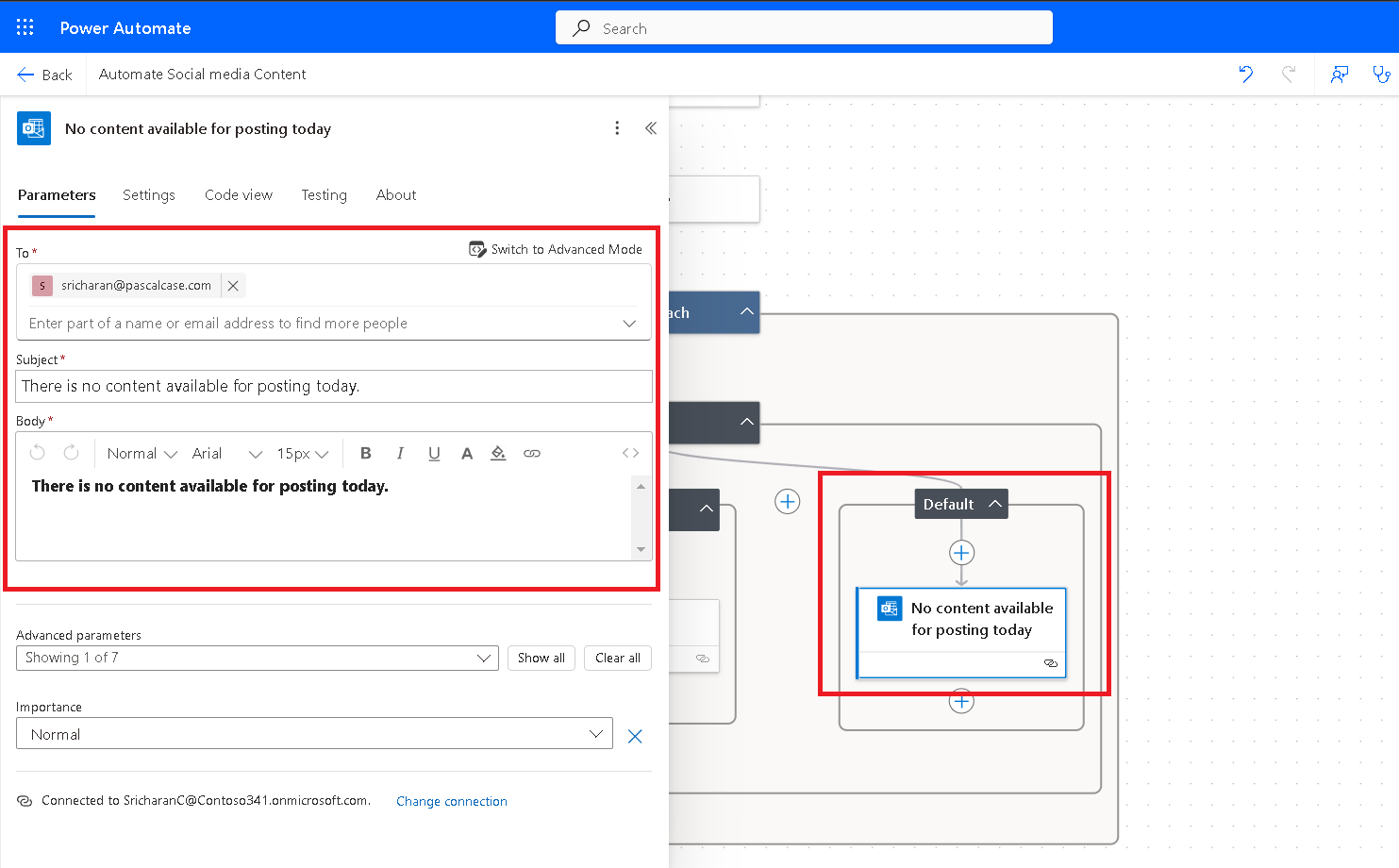
For posts that don’t match any specified platform, you can add a Default case to log an error, ignore it, or send you an alert.
Using Switch can simplify flows with multiple similar conditions, making it easy to expand to additional platforms in the future.
Test and Save
Test the flow manually to verify that each case posts correctly to the right platform.
Save the flow, and it will automatically publish posts based on the schedule and platform specified.
In conclusion, automating social media content with Power Automate streamlines your posting process, saving time and effort while maintaining consistency. By following the outlined steps, you can create efficient workflows tailored to your needs, ensuring your social media presence remains active and engaging without the manual hassle.
Frequently Asked Questions (FAQs):
1. What is a Power Automate?
Power Automate is a cloud-based automation tool that simplifies complex tasks. It automates repetitive processes, saving time and effort.
2. How can Power Automate help with social media?
Power Automate automates social media tasks like scheduling posts, sharing content across platforms, and analyzing performance. This frees up time for strategic planning and creative content.
3. Is Power Automate user-friendly?
Yes, Power Automate is user-friendly with a drag-and-drop interface. No coding knowledge is required. You can easily create workflows to automate your social media tasks.
4. How can I ensure effective automated social media posts?
To ensure effective automated posts, focus on high-quality content, platform-specific best practices, A/B testing, and consistent monitoring and analysis.