Process Mining is a technique that allows organizations to analyse, visualize, and optimize their business processes based on event logs and historical data. Power Automate, part of Microsoft's Power Platform, enables the automation of workflows, and when combined with Process Mining capabilities, it can help you gain valuable insights into your workflows to improve efficiency.
In this blog, we will walk you through how to work with Process Mining in Power Automate, how to connect data and map processes,
Getting Started with Process Mining in Power Automate
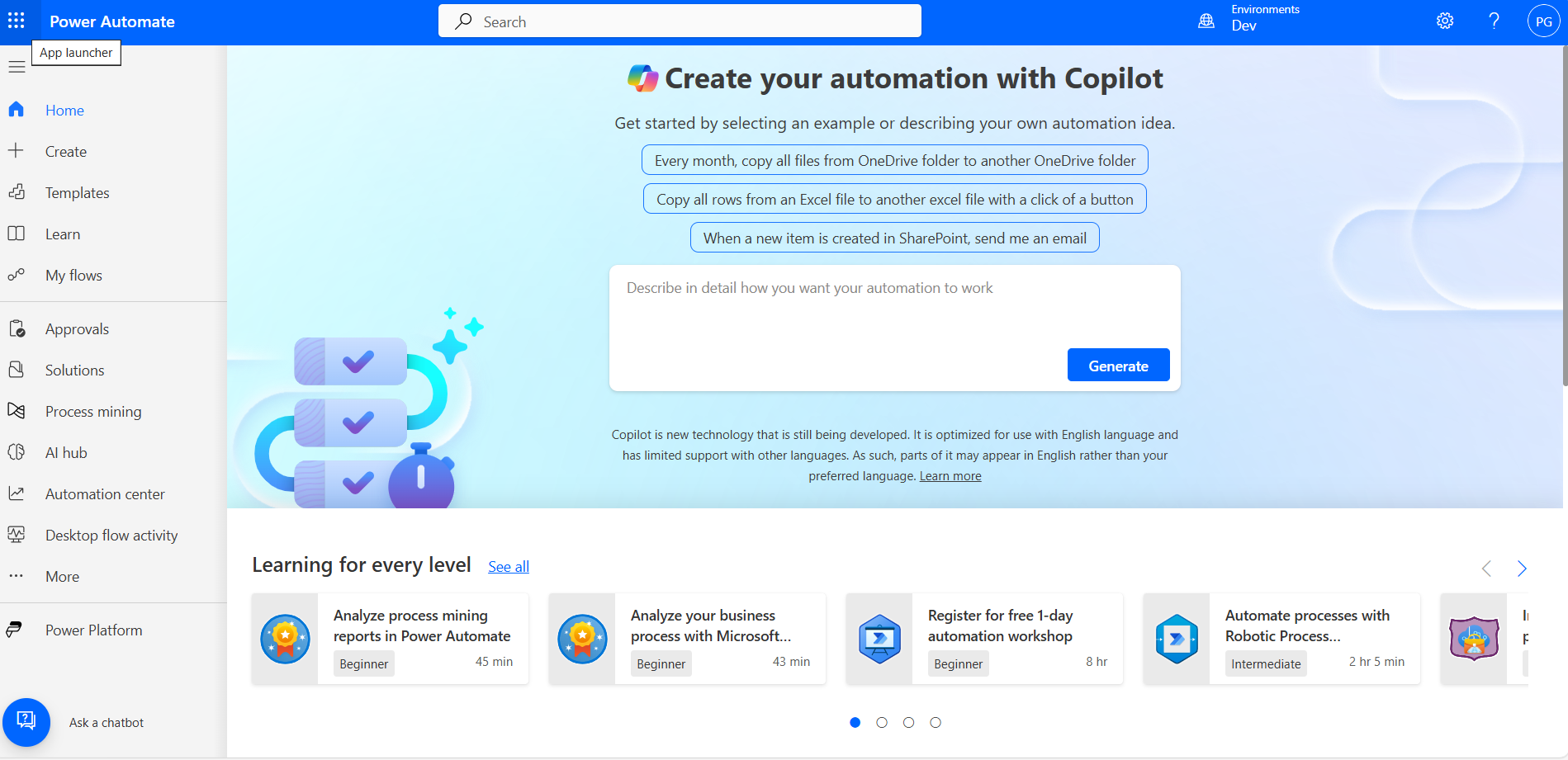
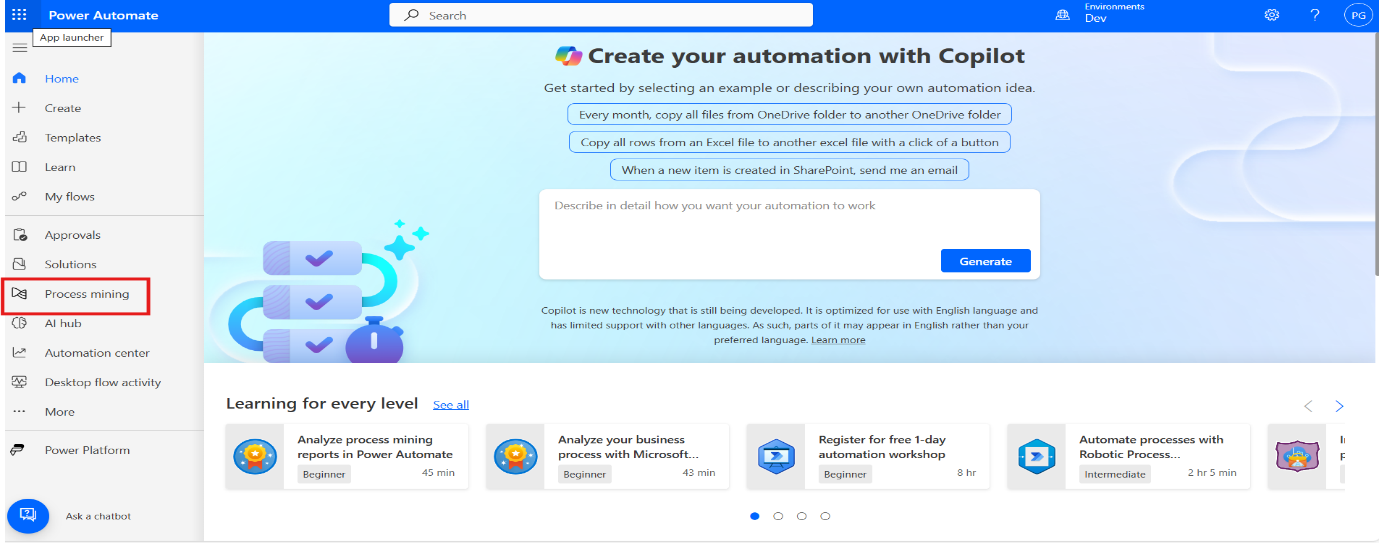
On the left side navigation, look for Process Mining and click on it.
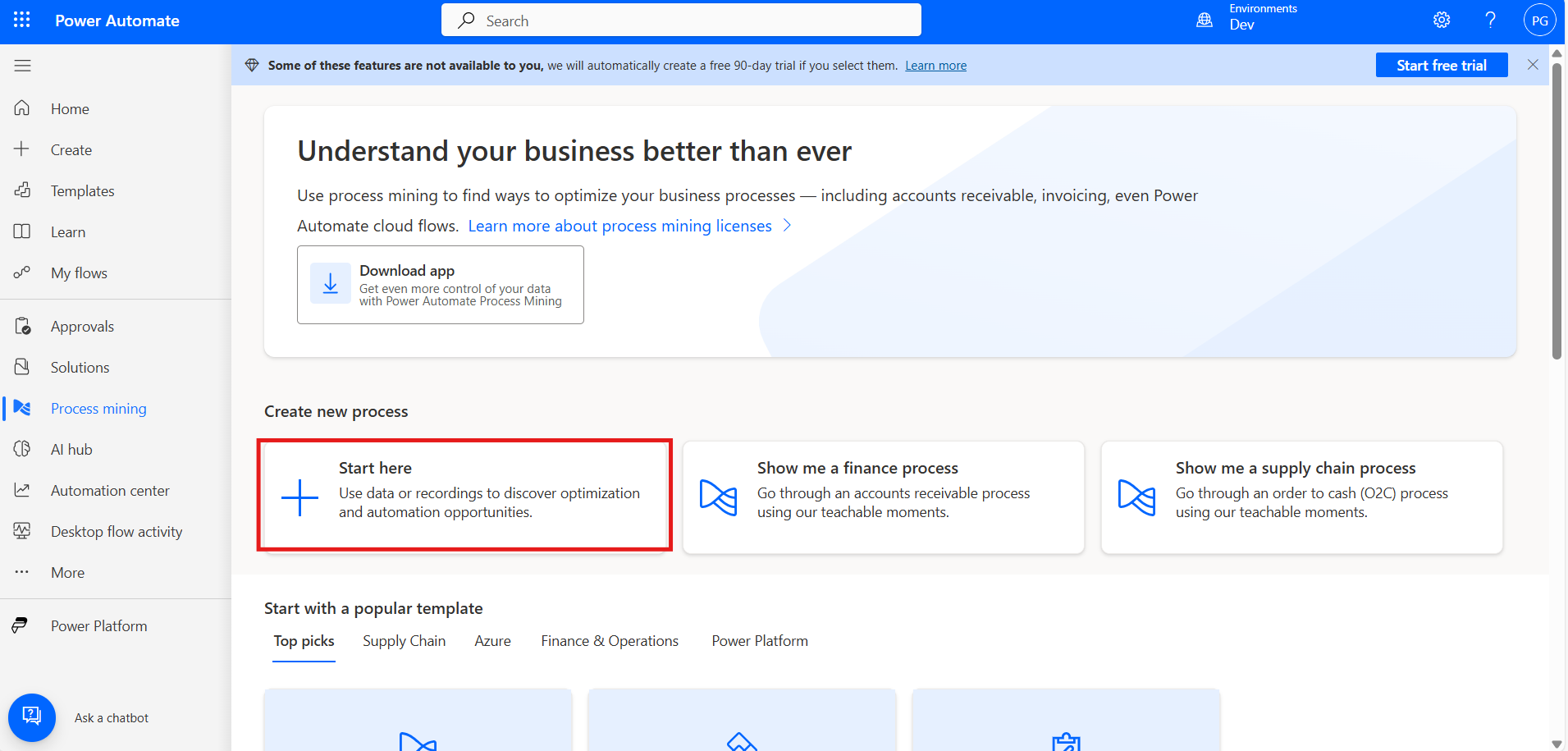
When you’re on the Process Mining screen, Under the Create New Process section, you'll see a button that says, "Start here." Go ahead and click that to begin setting up your process.
If you already have a process, you can add data by selecting Add Recordings to Existing Process.
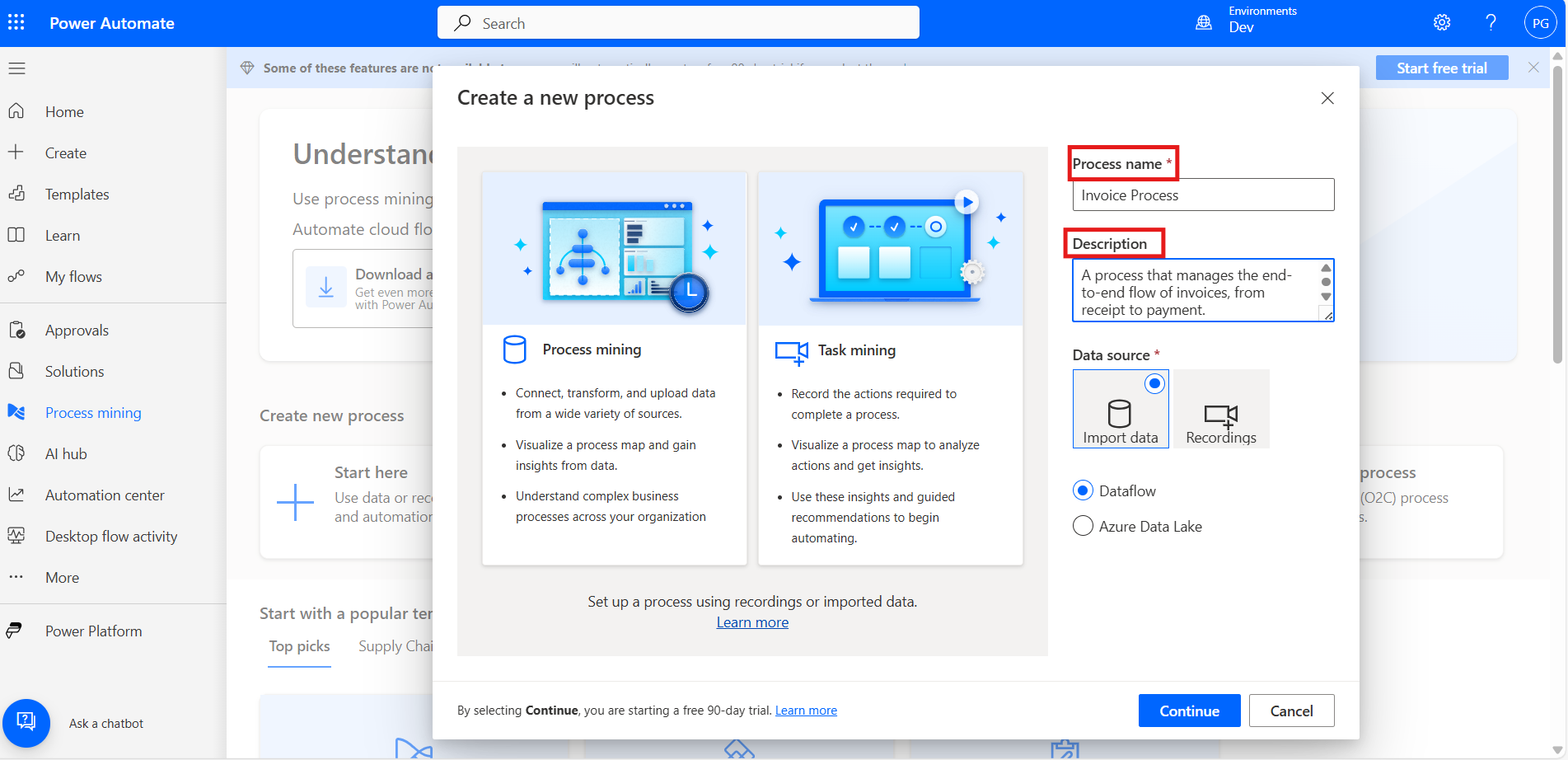
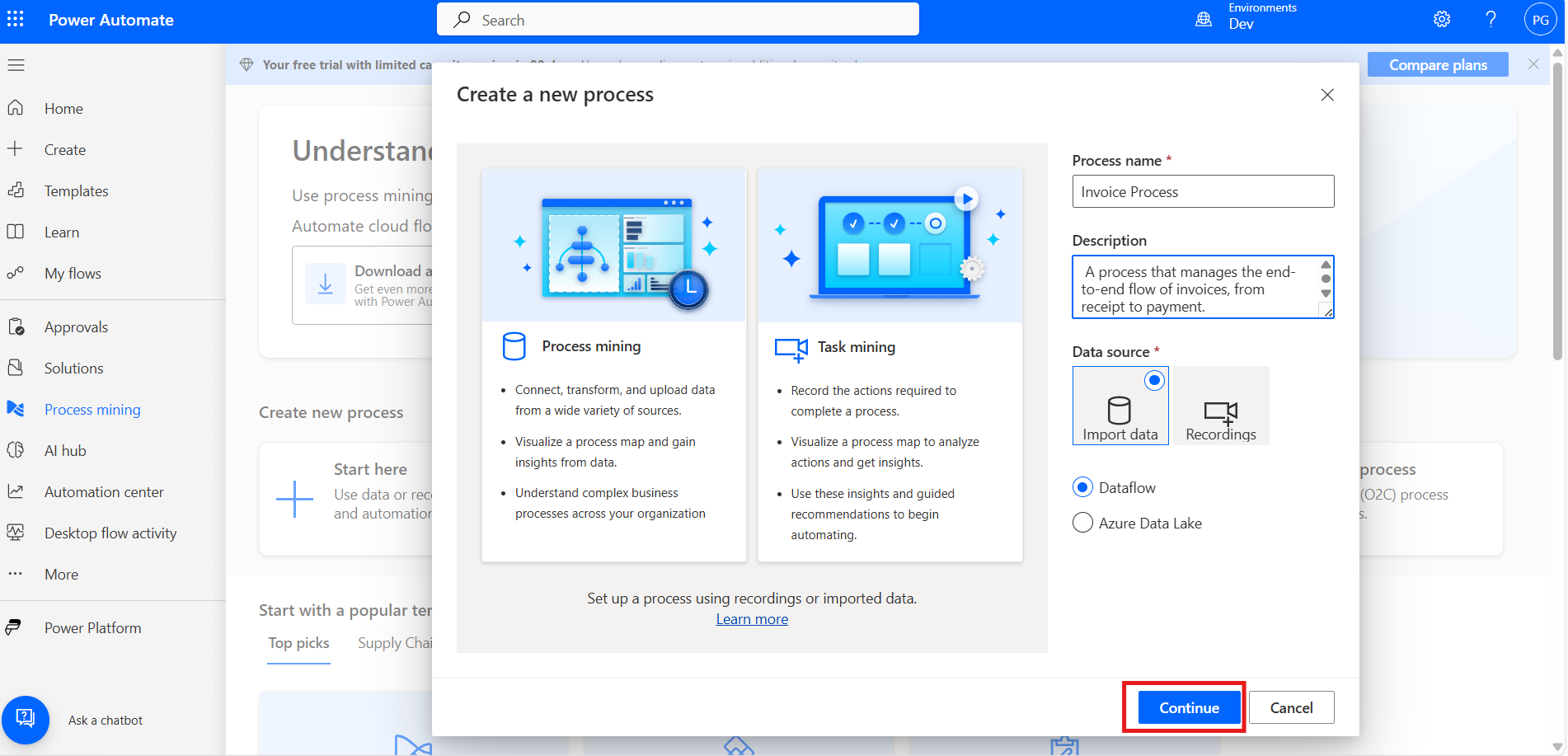
As you create a new process, give it a clear process name and a brief description to easily identify it later.
Now, click on the 'Continue' button below.
Need help with your business solution?
Our team can help you implement the right solution for your organization.
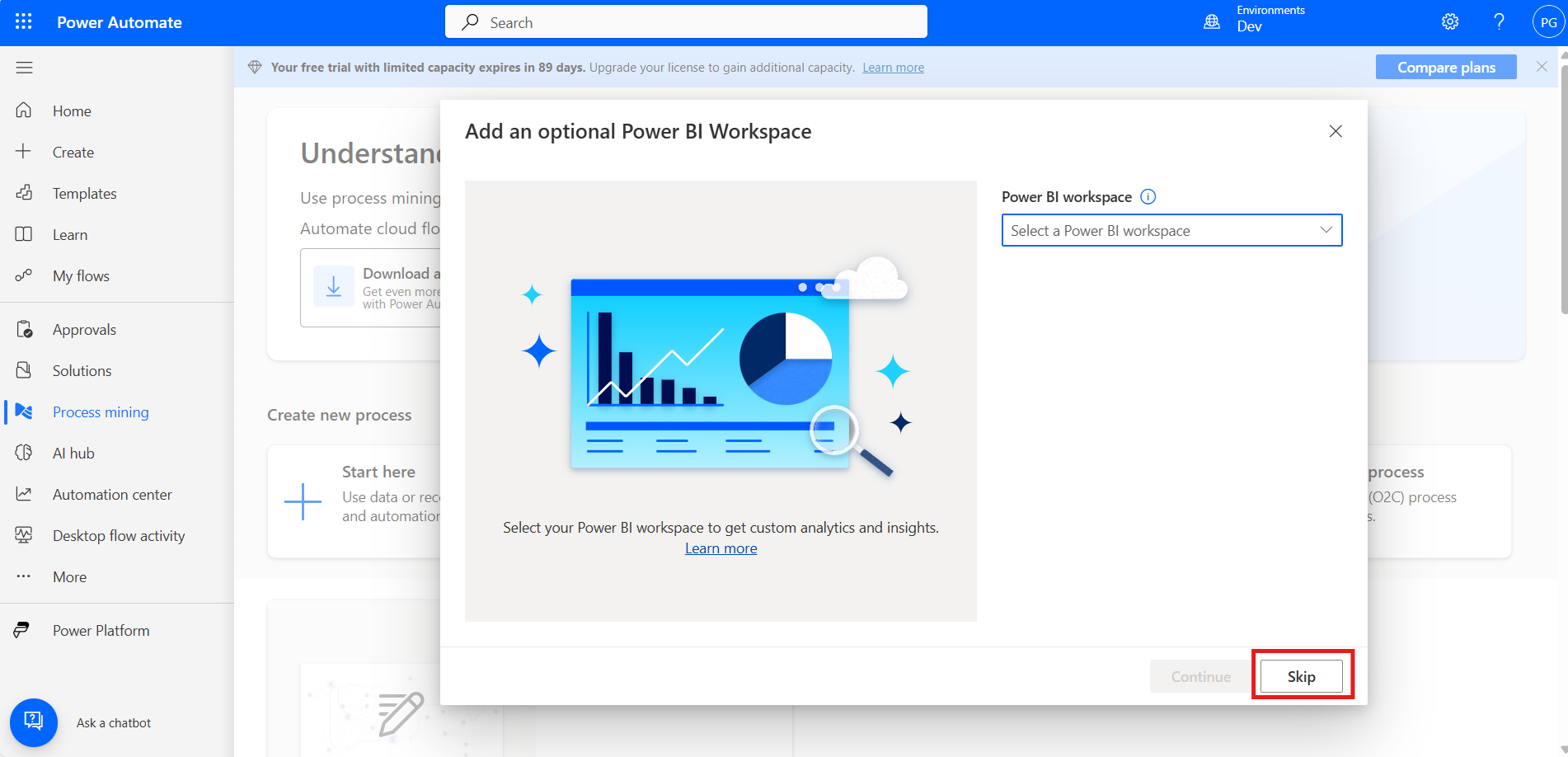
If you have any associated Power BI workspace, you can add it; otherwise, just click on the 'Skip' button below.
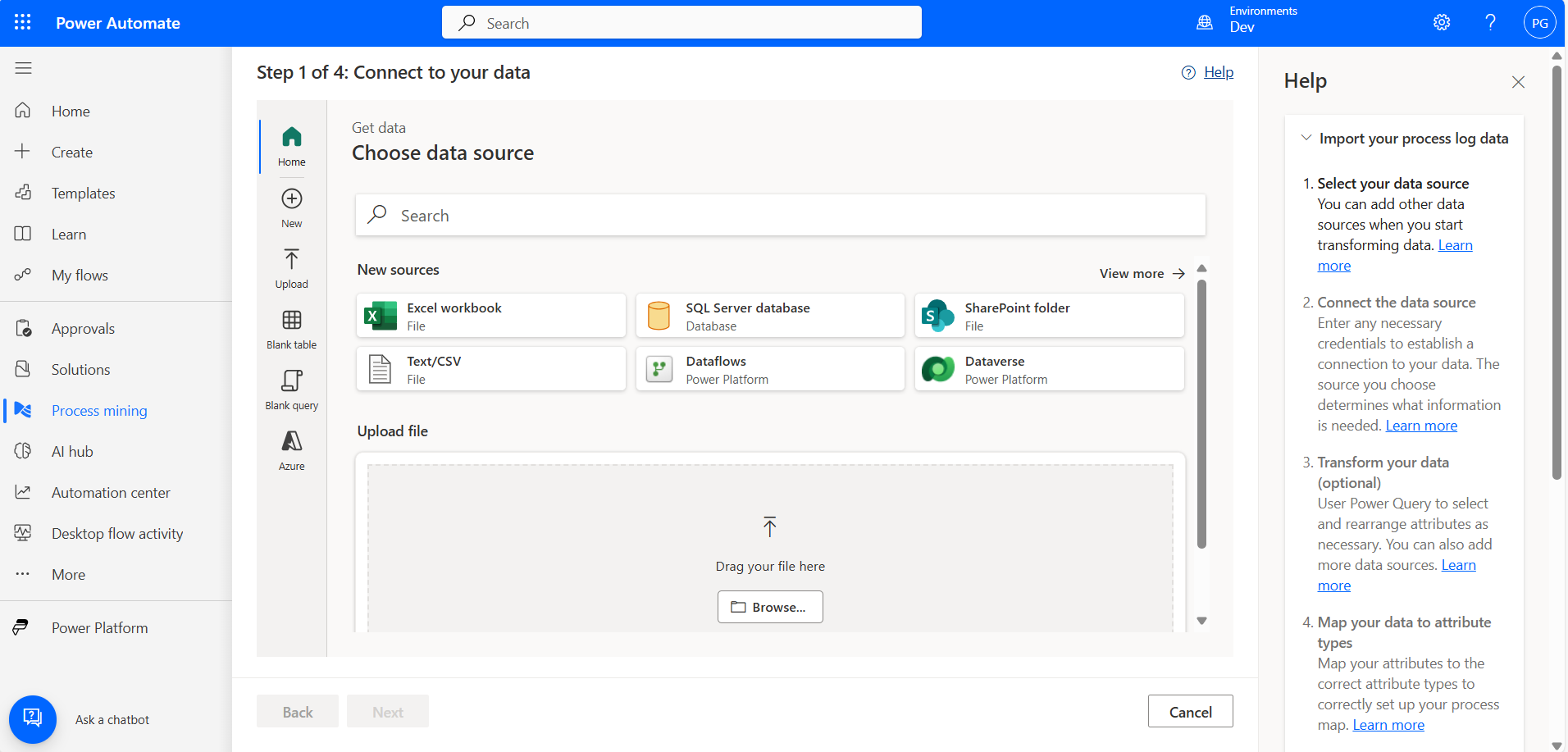
Connect to your data and choose a data source below, such as Excel, CSV, SQL, SharePoint, etc.
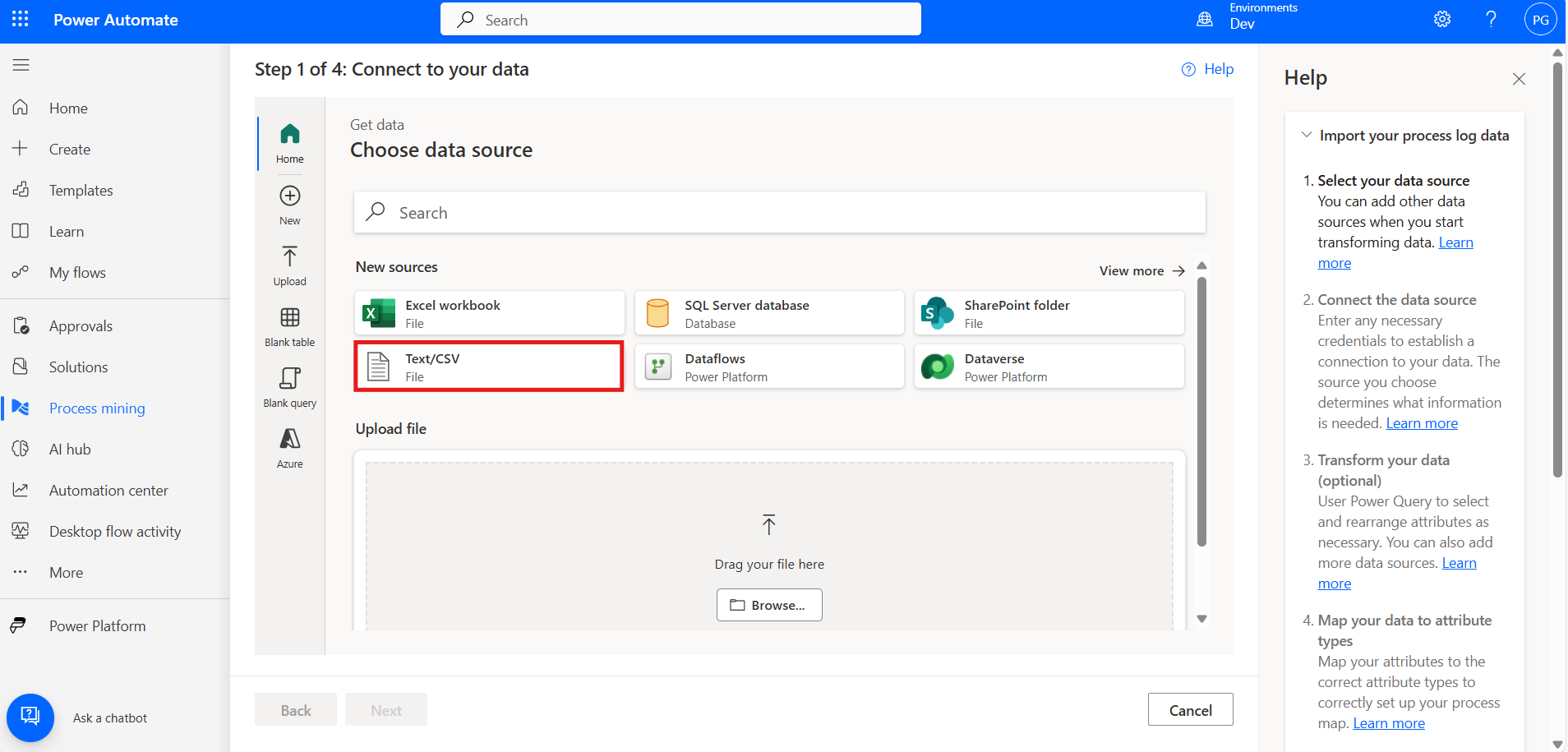
Choose the type of data source you want to connect to (e.g., CSV, SQL, SharePoint, etc.).
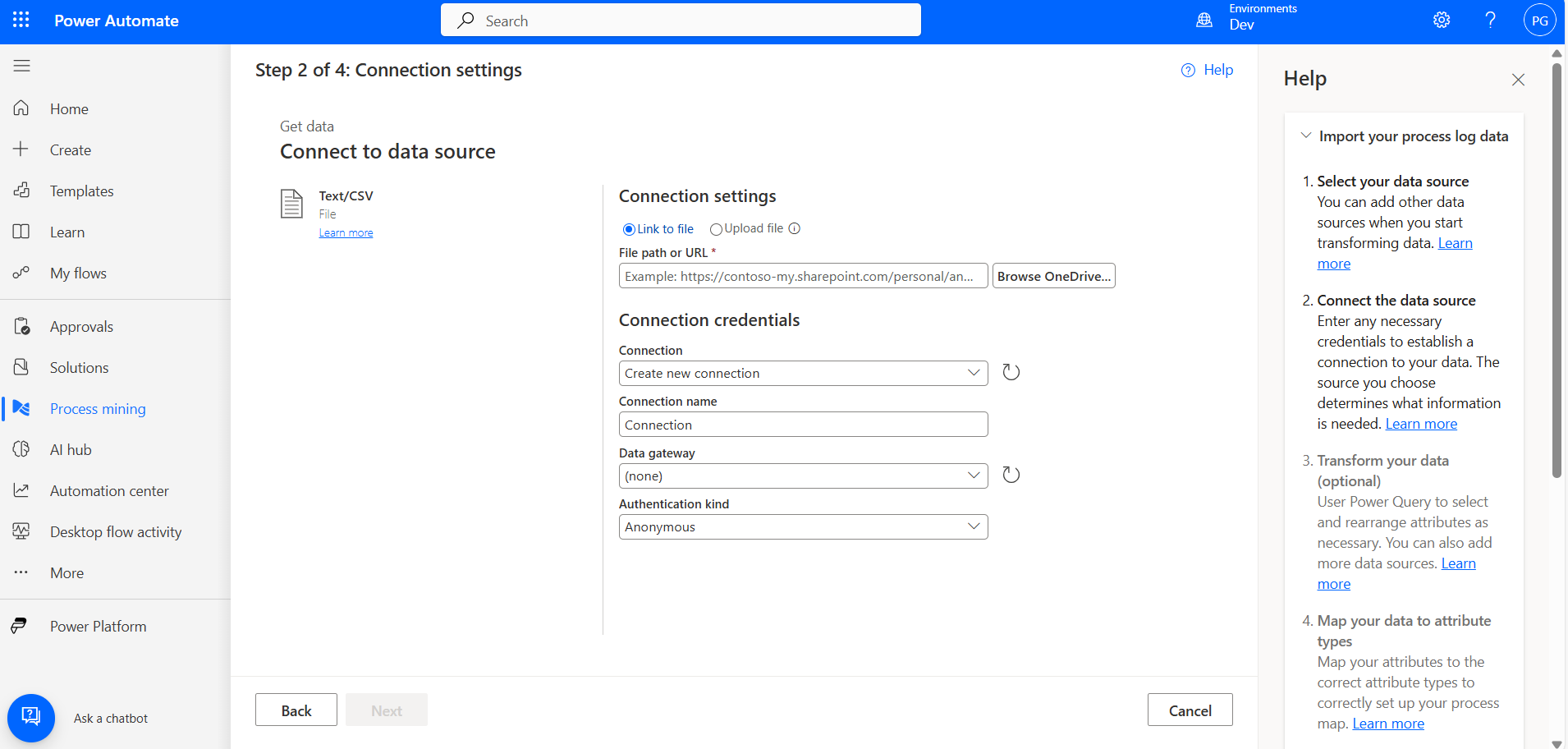
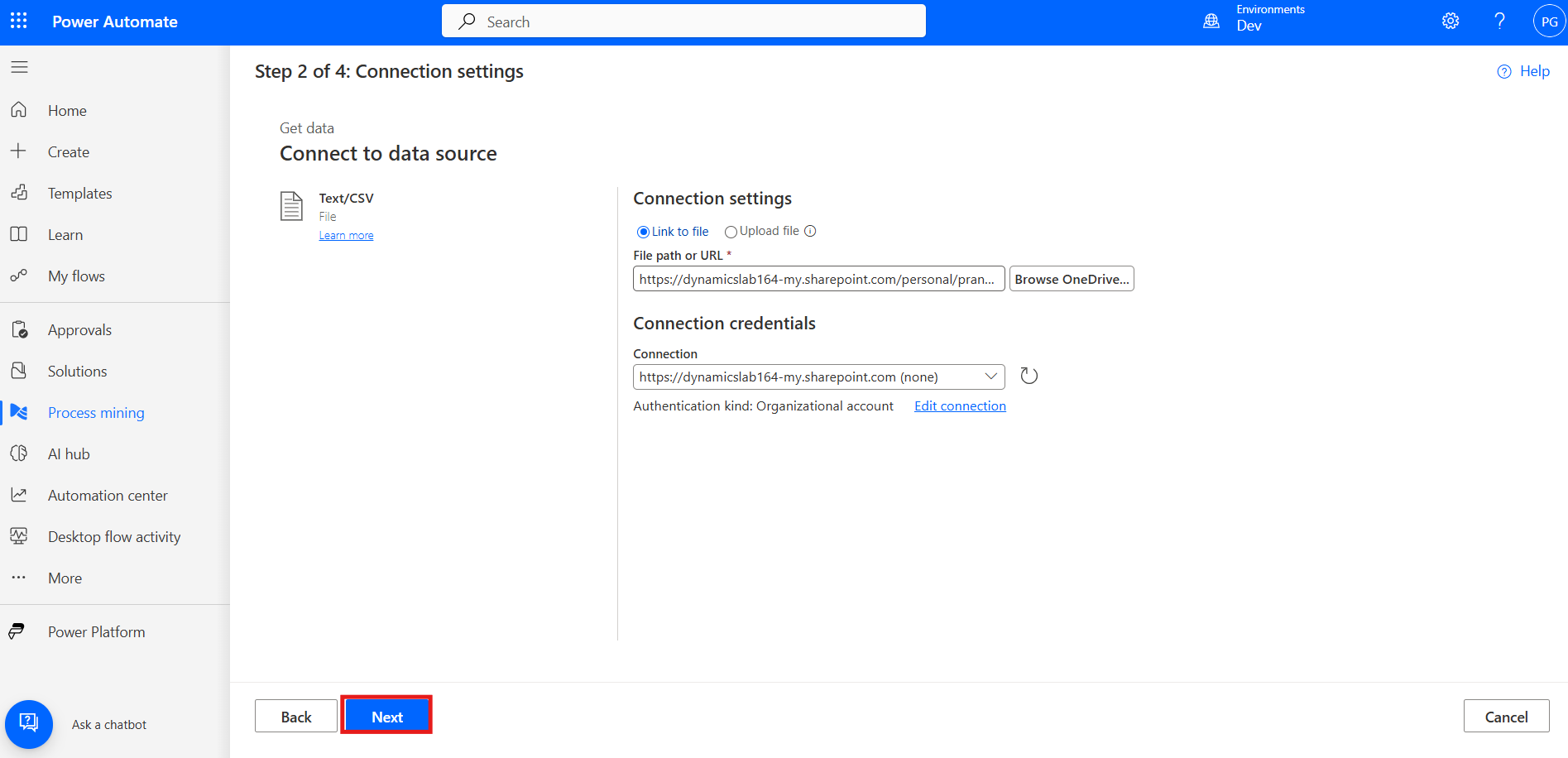
You will be presented with an option to upload your CSV file or link to a file stored in cloud storage (like OneDrive or SharePoint).
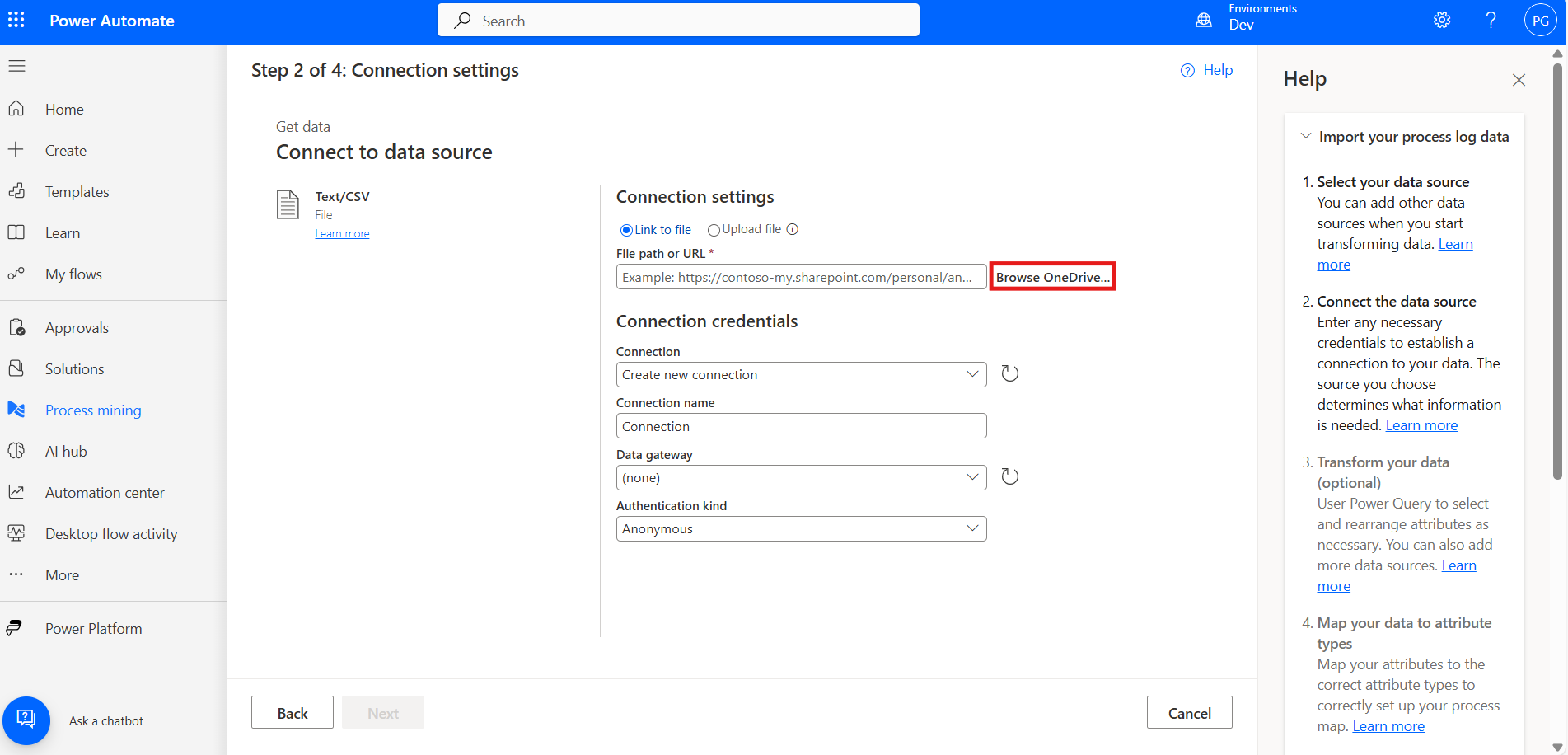
Next, you’ll see a 'Browse OneDrive' button.
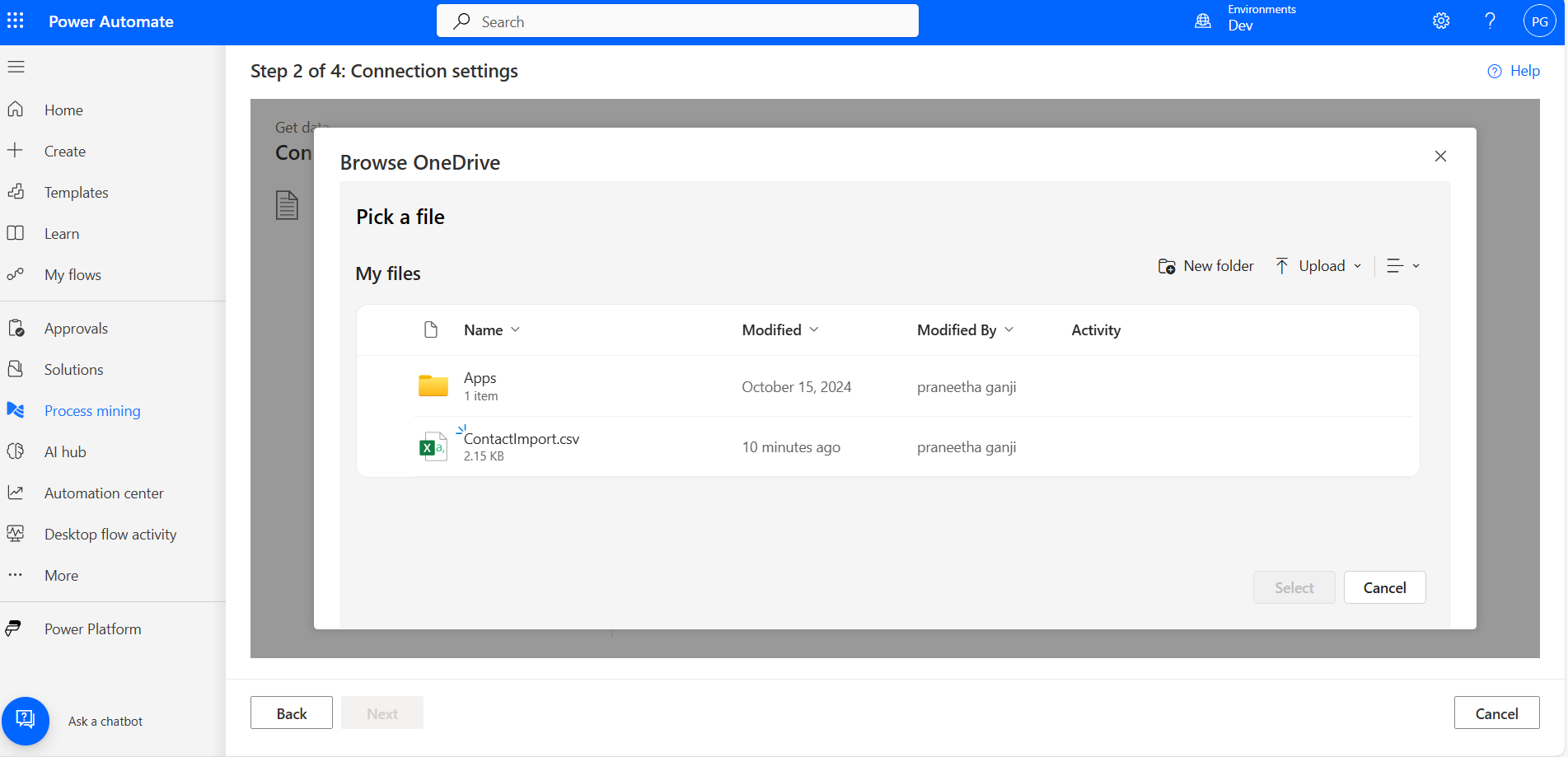
Click on it to open a file picker dialog from your OneDrive.
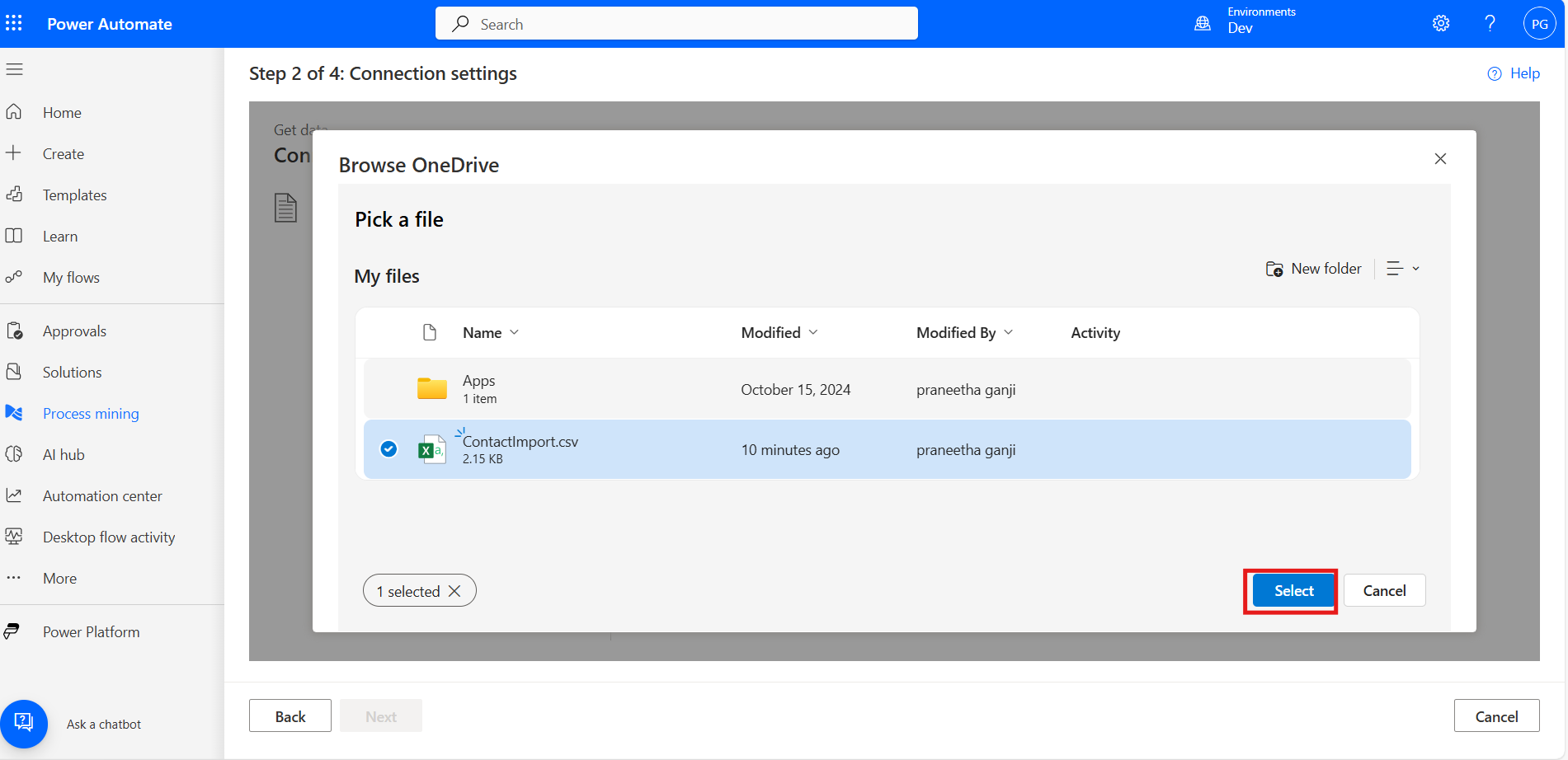
Navigate to the folder where your CSV file is saved in OneDrive. Select the CSV file you want to upload or link to and click on the 'Select' button.
After adding the appropriate file, click on the 'Next' button.
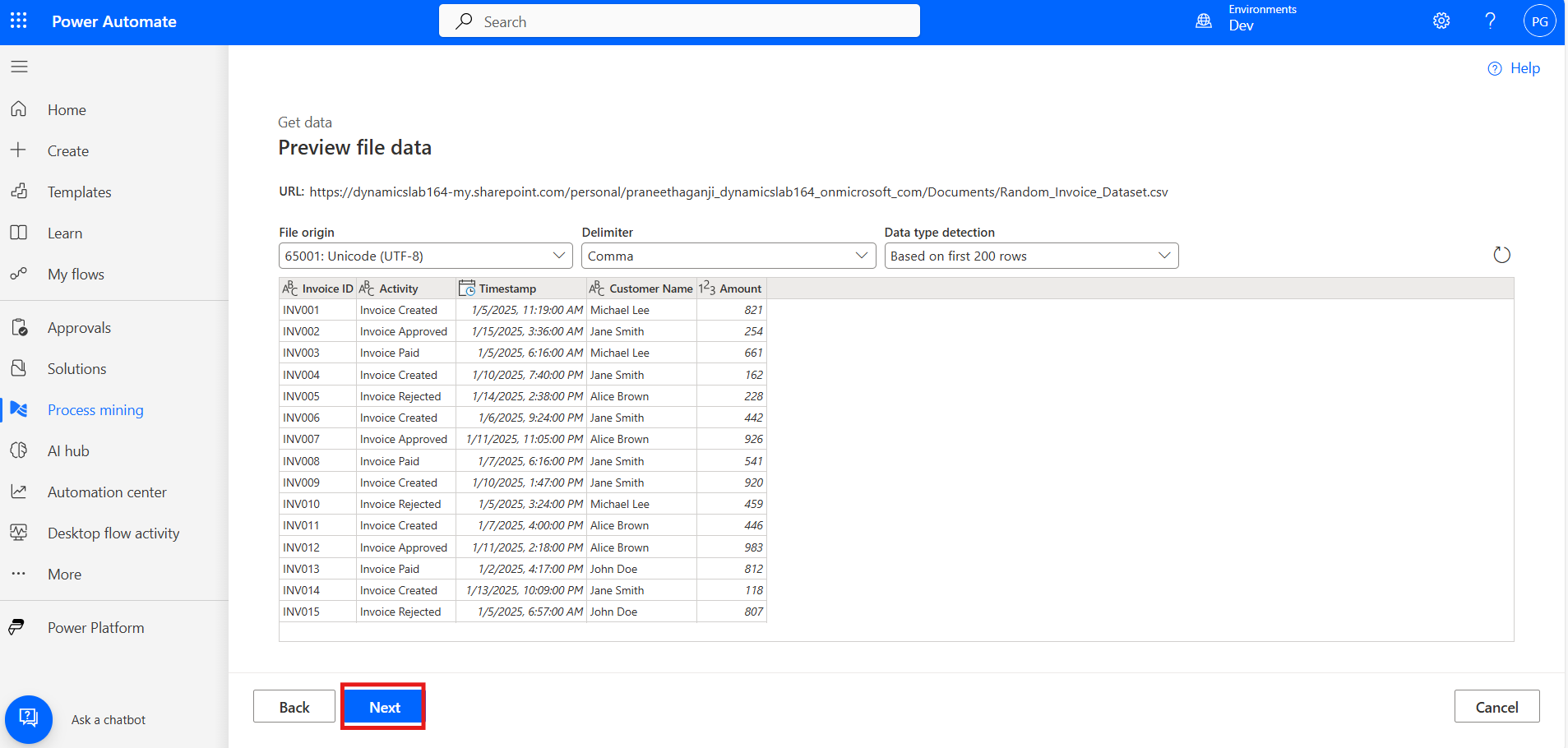
After clicking on the 'Next' button, you can preview the uploaded file. You can check the details to ensure everything is correct, then click on the 'Next' button.
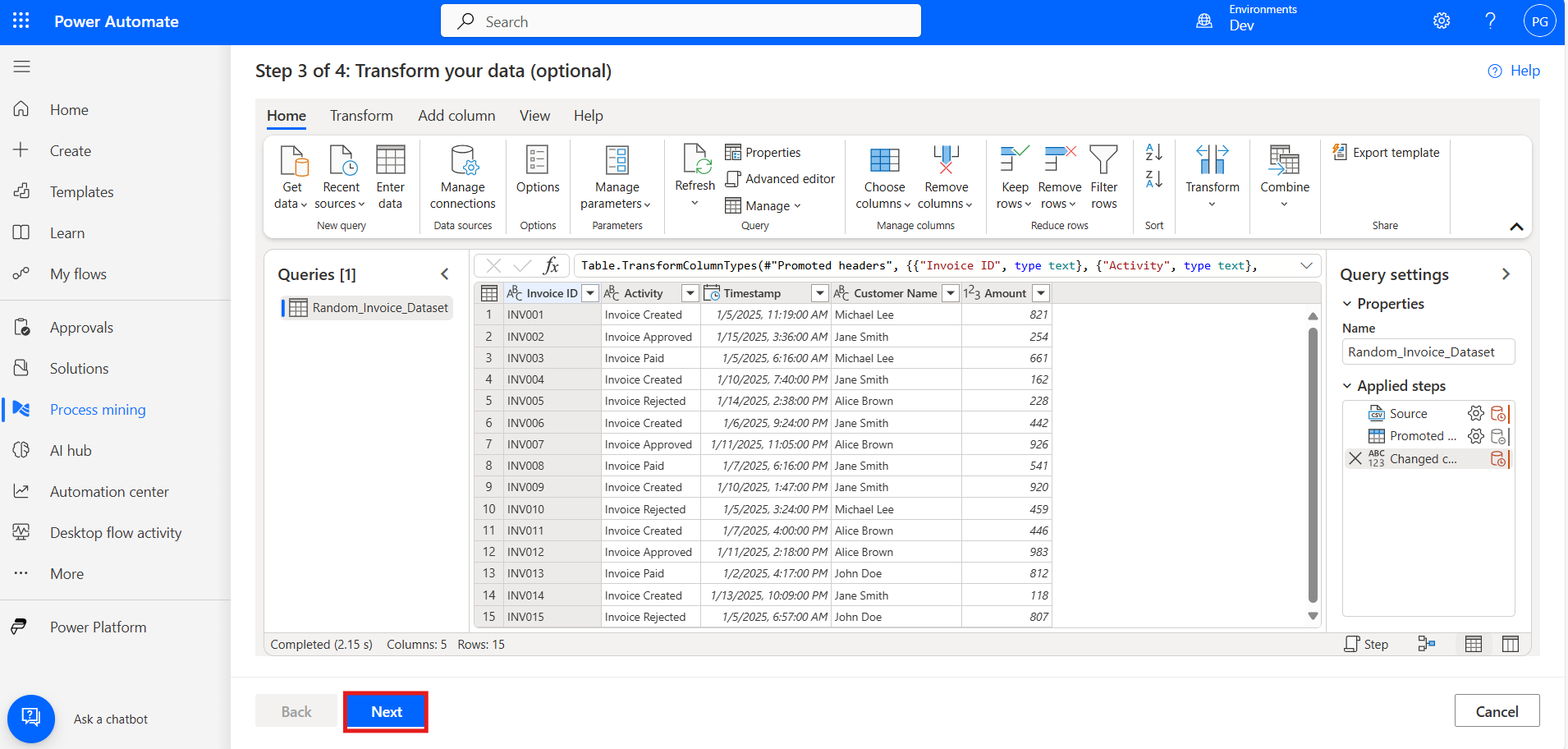
Now, you can transform the data by replacing content, adding new columns, and removing unnecessary columns. After all the changes are done, click on the 'Next' button.
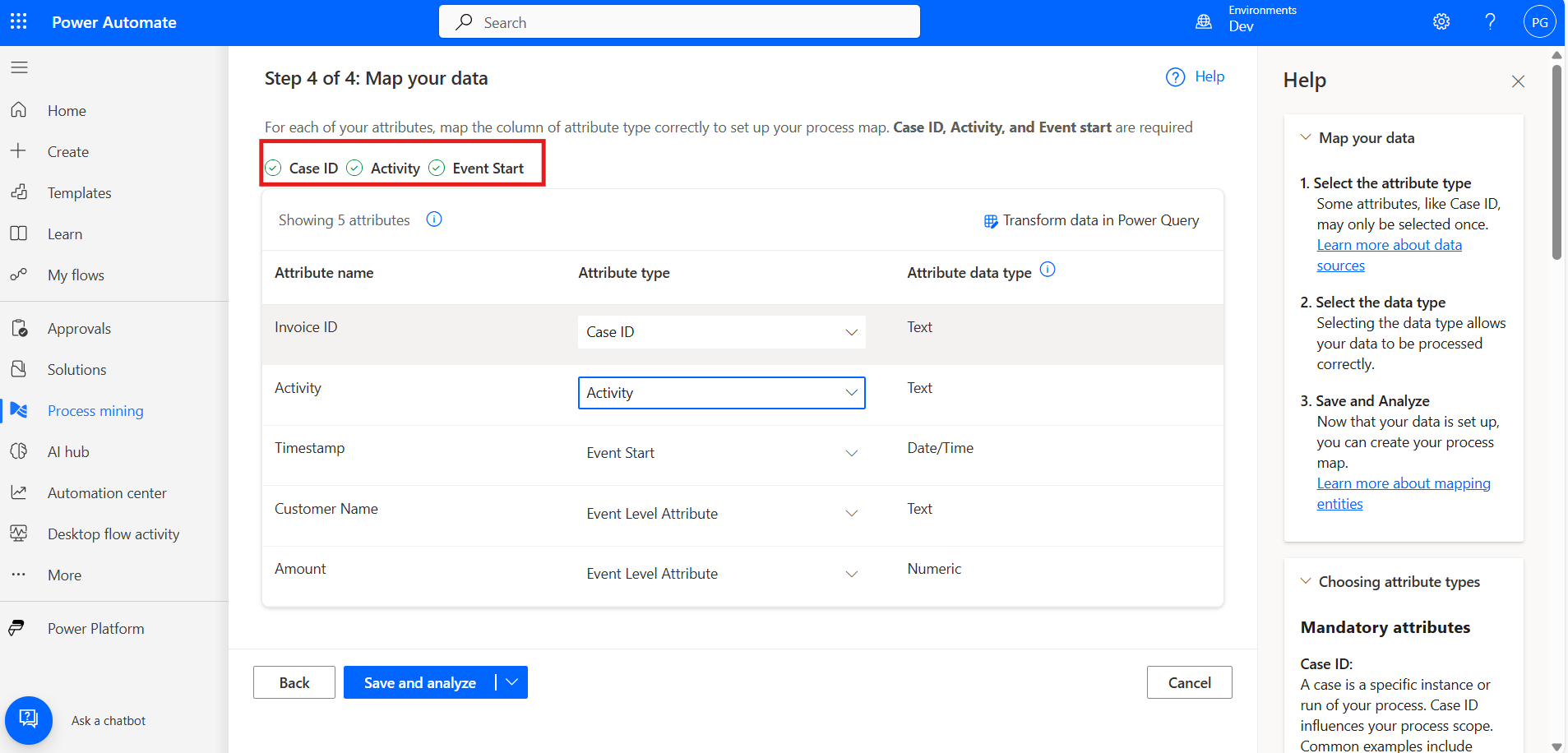
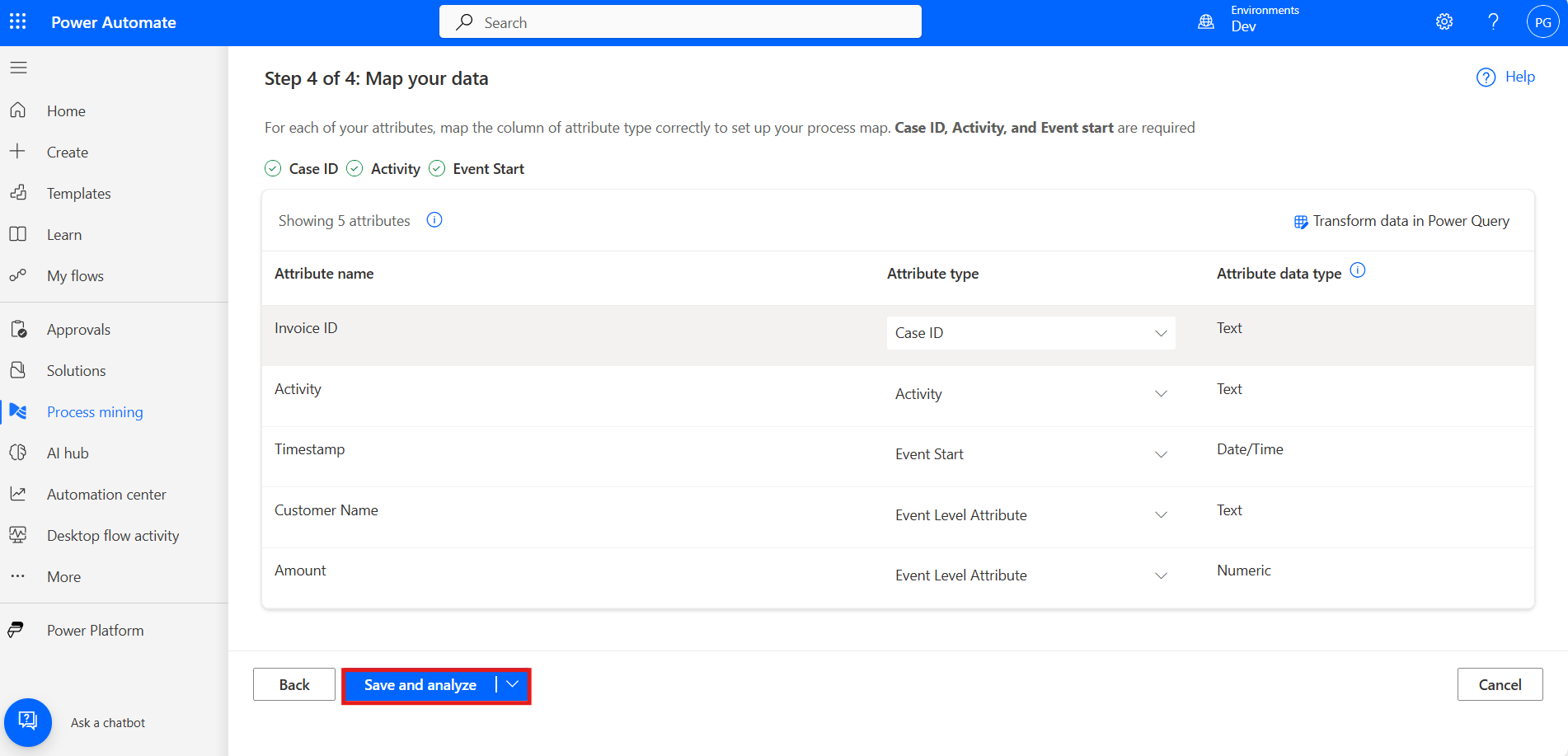
Now, map your dataset by assigning Case ID, Activity, and Event Start to their respective attributes to set up your process map.
After mapping the data to Case ID, Activity, and Start Date, save your changes and proceed to analyse the data by clicking the 'Save and Analyse' button.
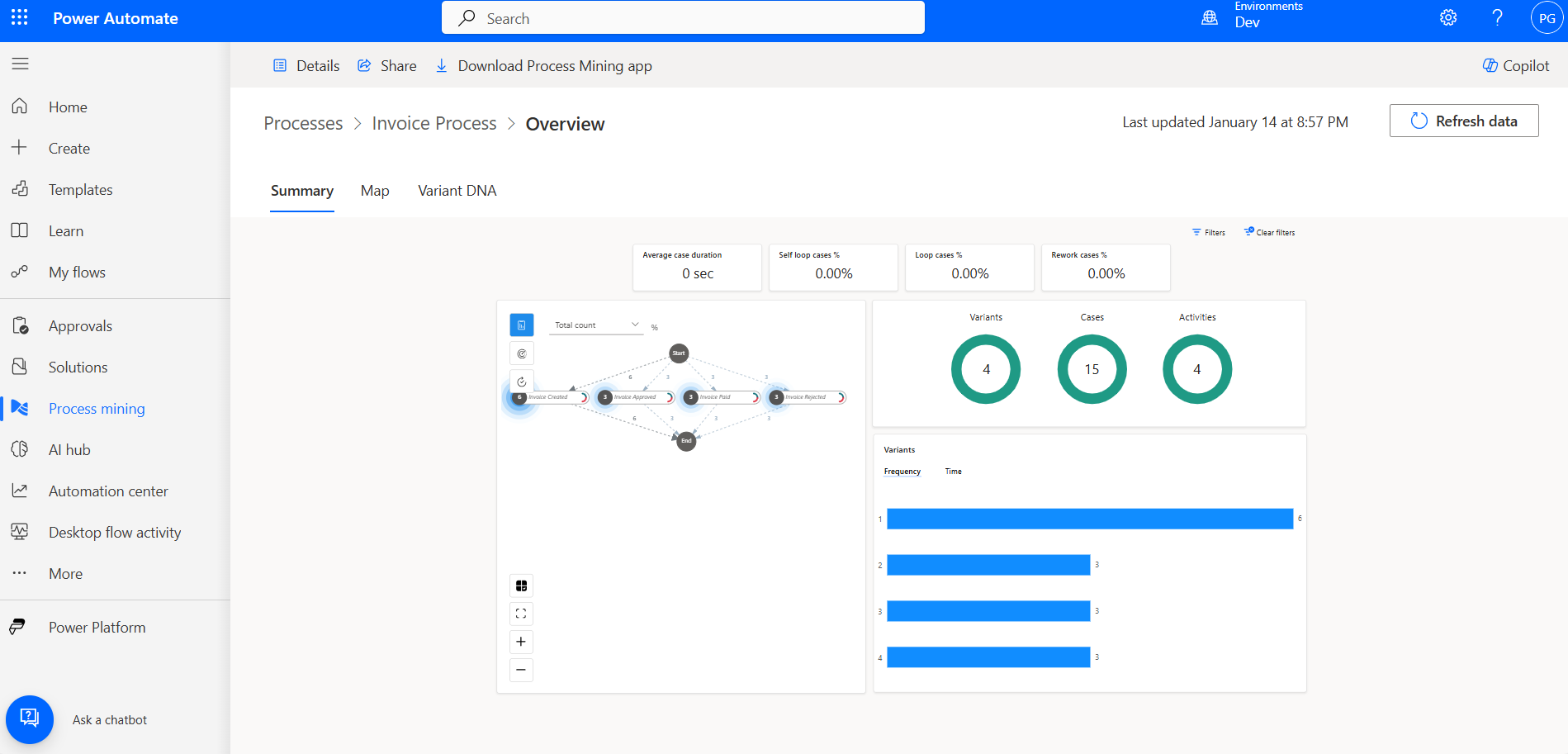
Now, you can view the summary of the report. Here, you can check the variants, cases, and activities.
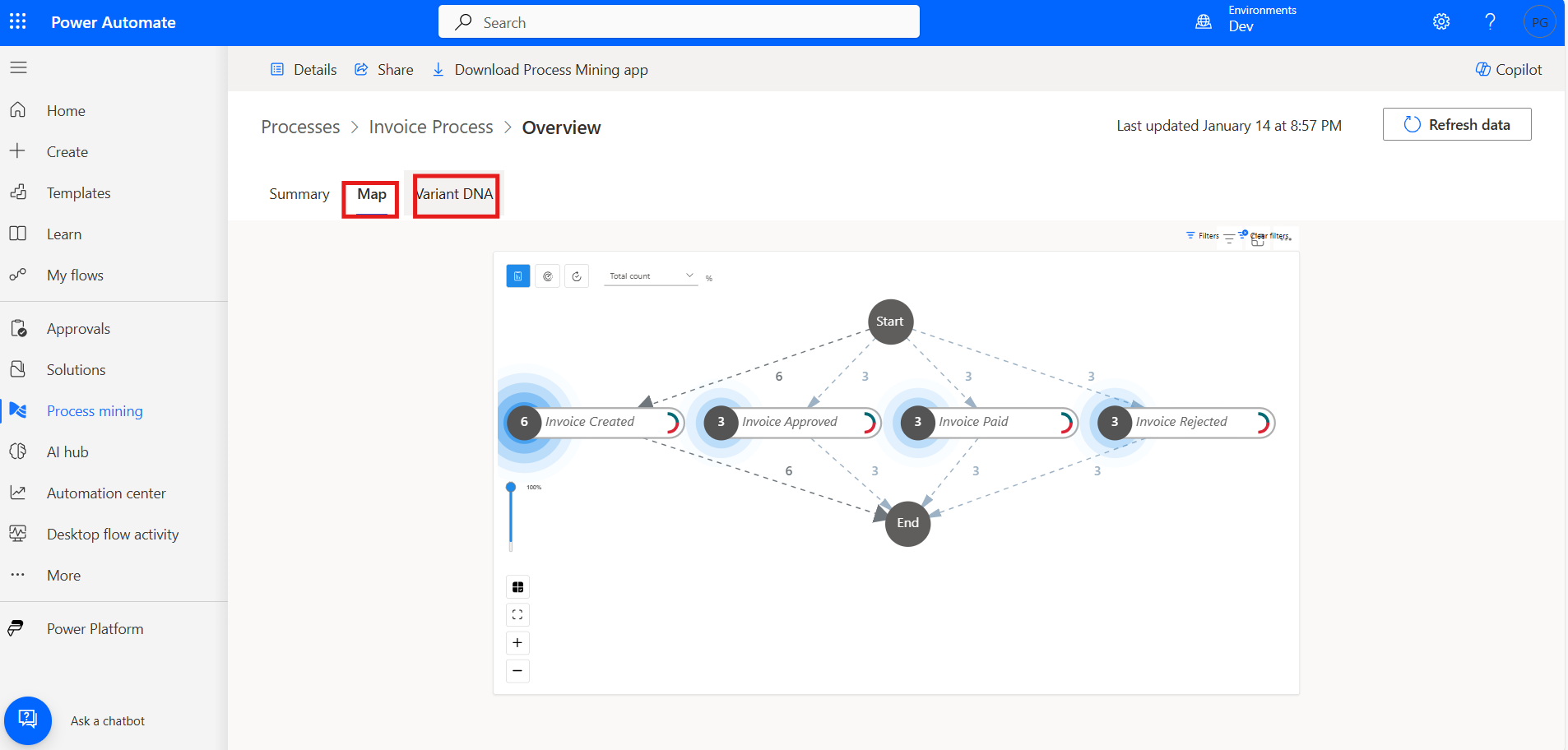
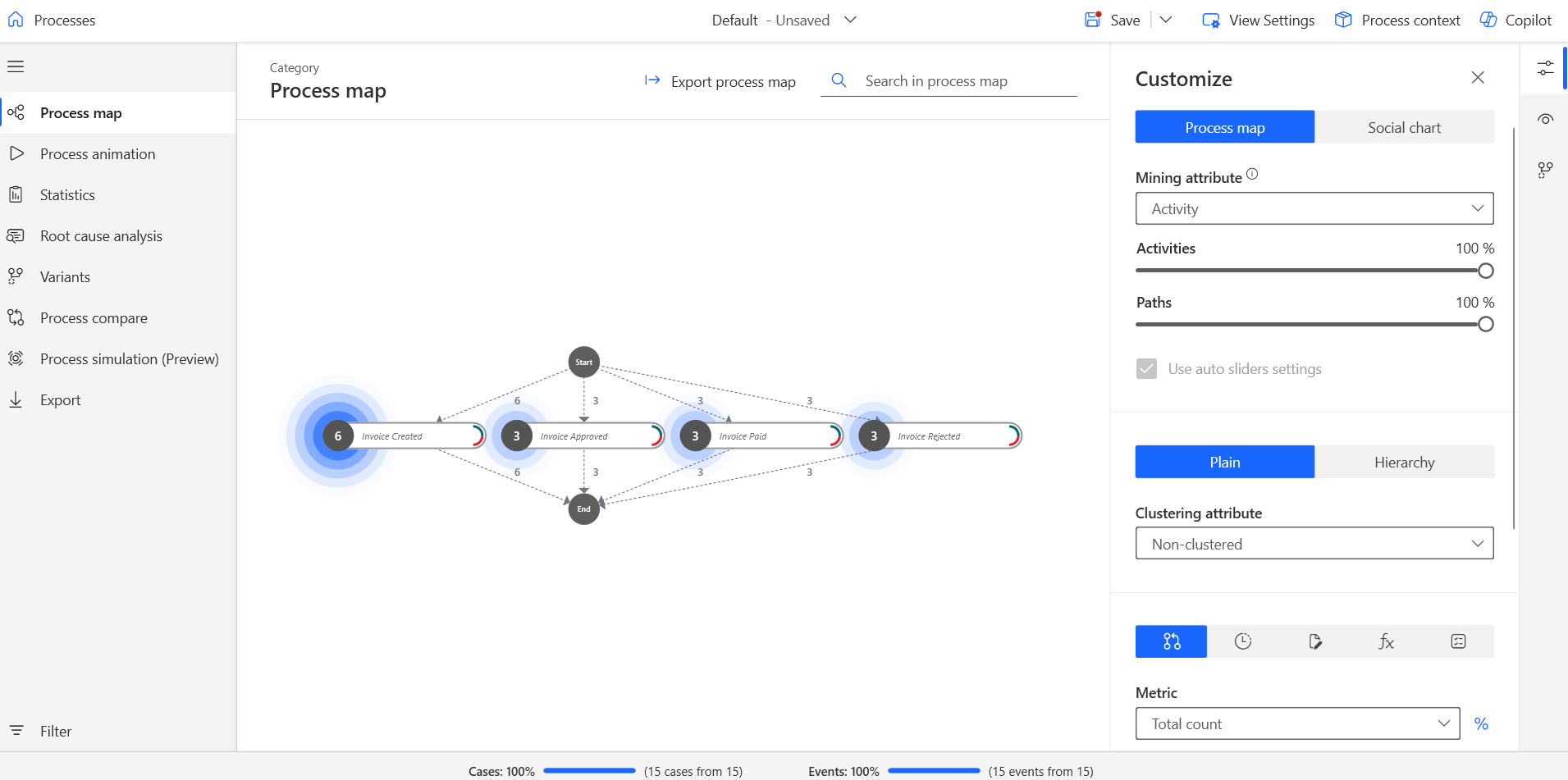
Here, you can check the process map and variants data.
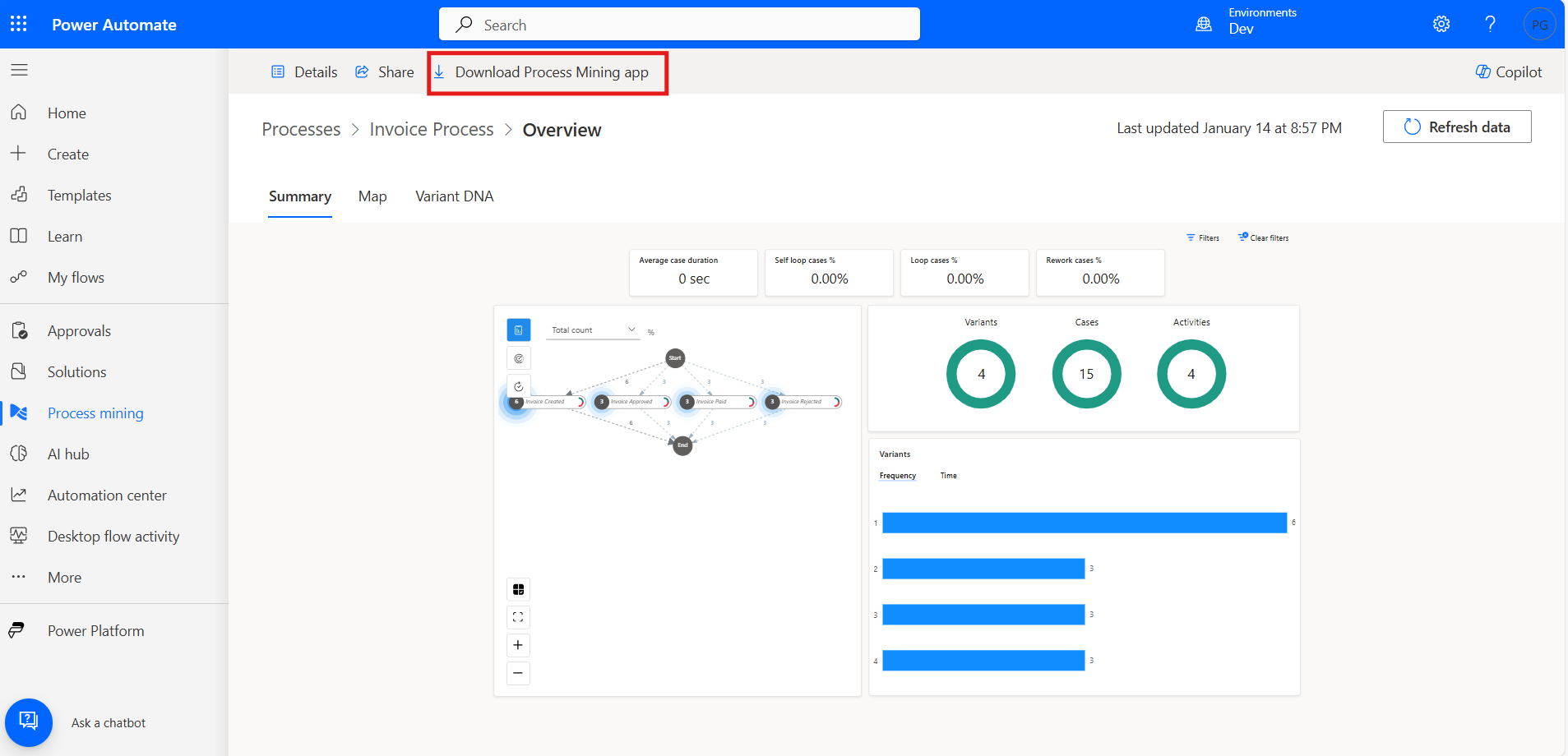
You can open this in the Process Mining app by downloading it from the top, logging in with your account, and opening your process.
You can customize the mapping from there in the Power Automate Process Mining app.
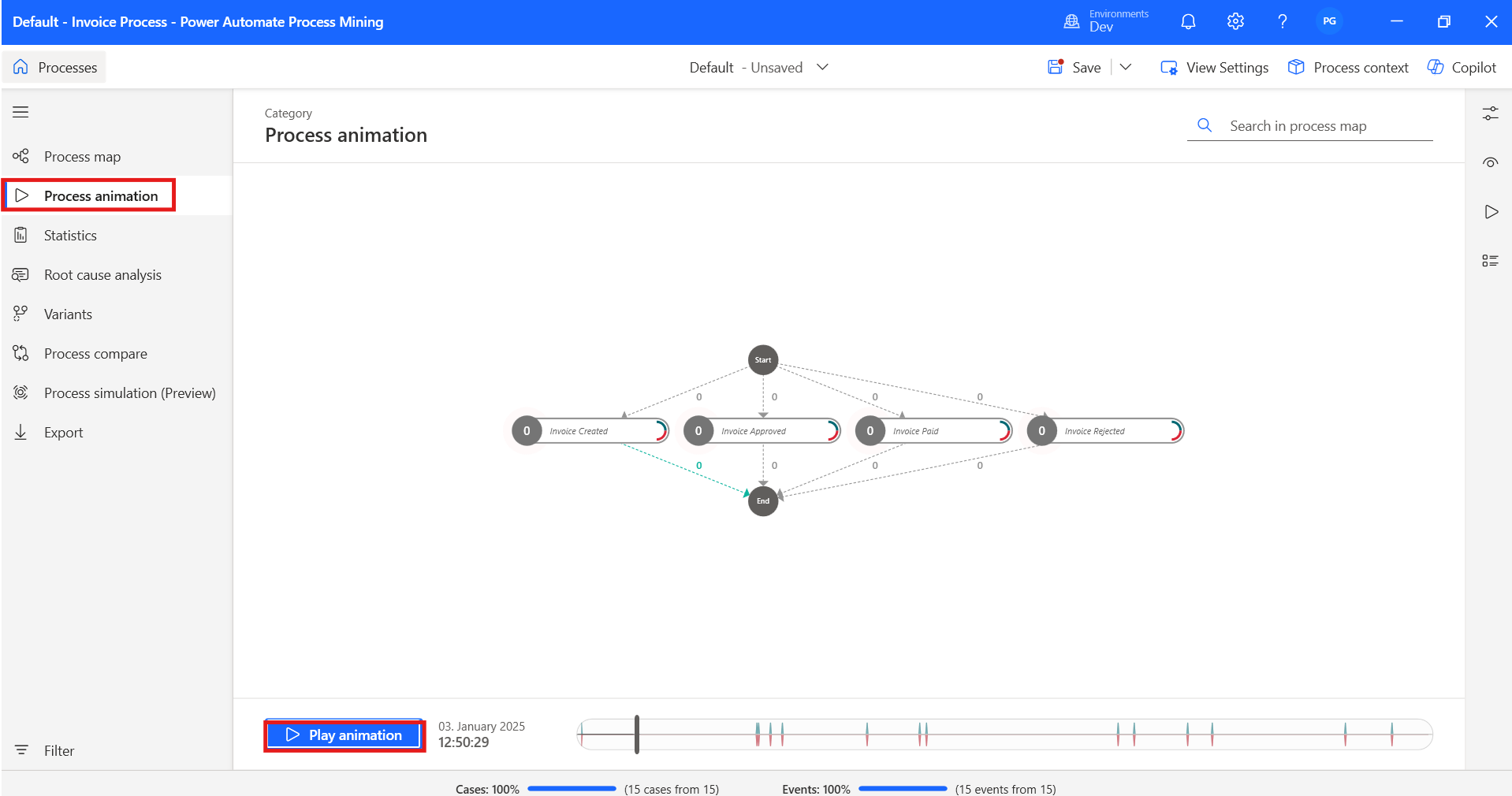
You can view the process animation for your workflow. Simply click the 'Play Animation' button to start the animation.
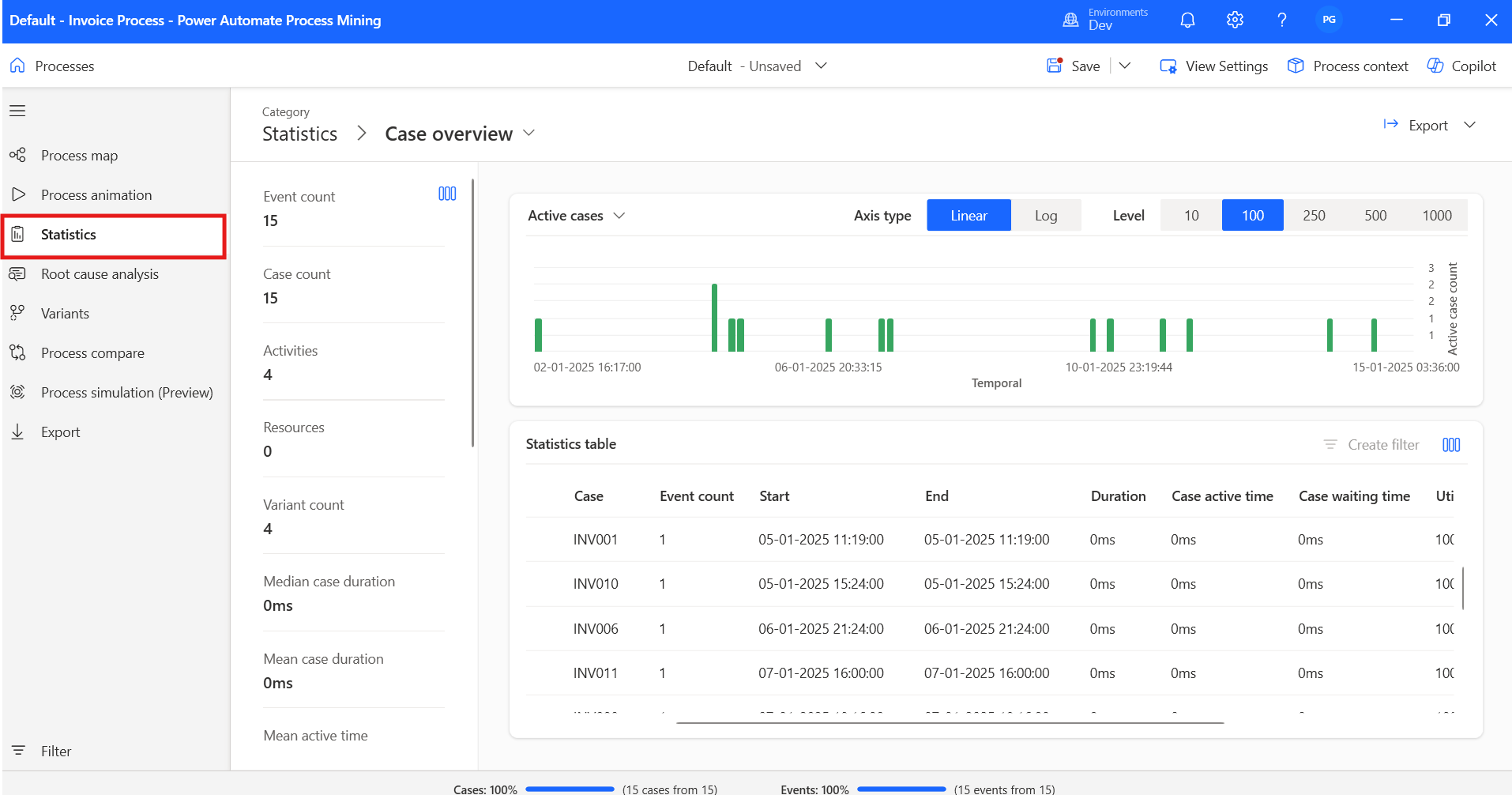
You can view statistics, including the case overview, active cases, case durations, and event count.
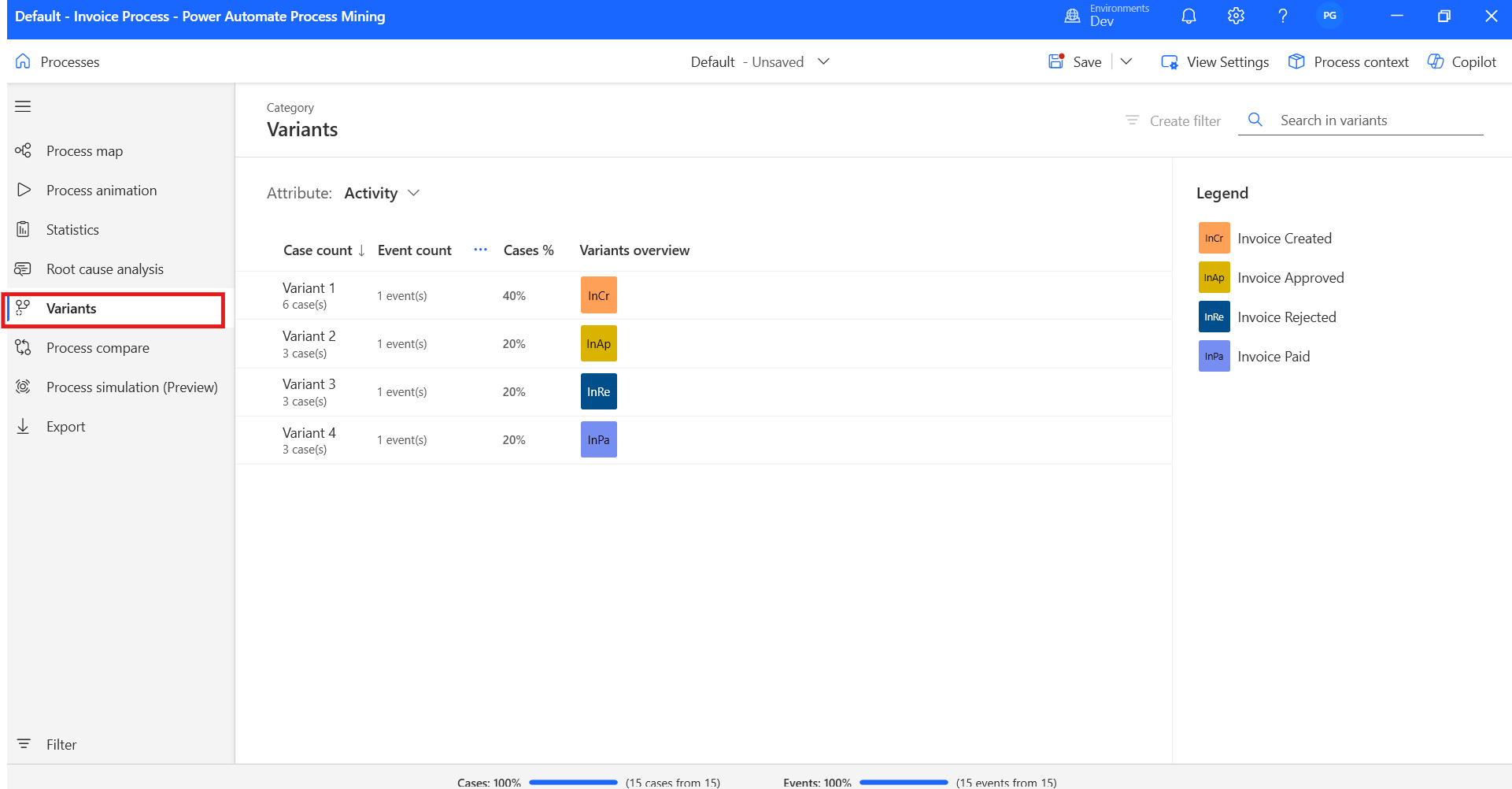
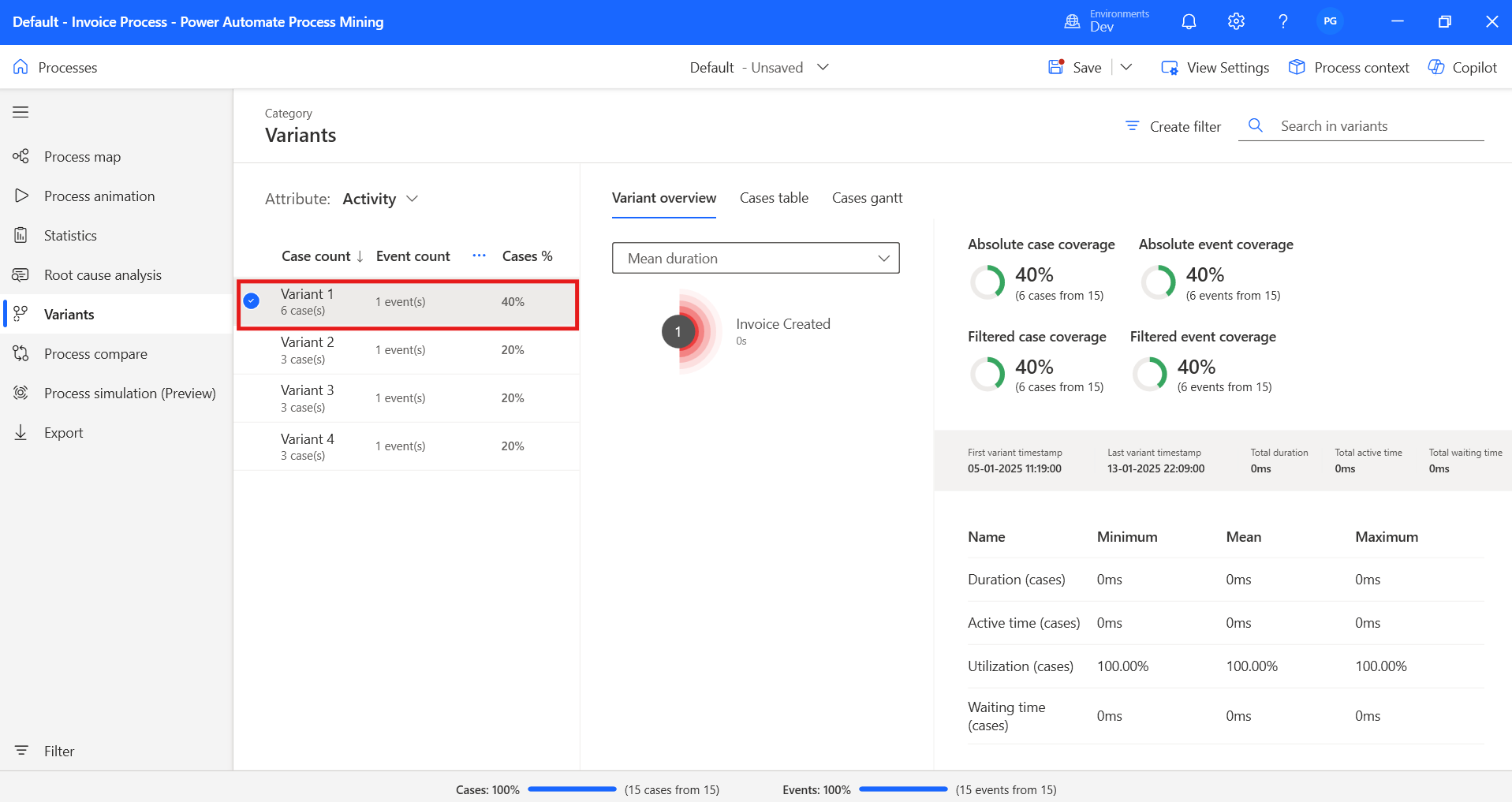
Here, you can check the variants of the process.
You can also view the variant overview by clicking on the appropriate variant data.
This is how Process Mining in Power Automate helps us visualize and analyze workflows, giving us valuable insights to optimize them. By mapping out processes and diving into data-driven metrics, businesses can consistently boost efficiency and streamline their operations.
Frequently Asked Questions:
1. What is Process Mining, and how does it work with Power Automate?
Process Mining is a technique that helps businesses analyse and optimize their workflows by examining event logs and historical data. When integrated with Power Automate, it allows you to visualize and automate your processes, offering insights that can improve efficiency and streamline operations.
2. How do I get started with Process Mining in Power Automate?
To get started, log in to Power Automate, navigate to the "Process Mining" section, and create a new process. From there, you can upload data from various sources (CSV, SQL, SharePoint, etc.), transform and map the data, and begin analysing your processes.
3. What types of data sources can I use for Process Mining in Power Automate?
You can connect to a variety of data sources including CSV, Excel, SQL, SharePoint, and other cloud storage options like OneDrive.
4. Can I customize my process mapping in Power Automate?
Yes, you can customize your process mapping in Power Automate by assigning the appropriate attributes, such as Case ID, Activity, and Event Start.