LogoLogo

Our Products

Metadata Browser

Edge Add-on

HTML To PDF Converter

Power Automate Connector

Data Mask for Dataverse

Dataverse App

Commission 365

Dynamics 365 App

AI Autocloser

Dataverse App

Flow Monitor

Power Automate App

ServicesAboutCareersBlogContact
Chat on Teams
Metadata BrowserHTML To PDF ConverterData Mask for DataverseCommission 365AI AutocloserFlow Monitor
ServicesAboutCareersBlogContactChat on Teams
HomeBlogUsing Power Fx to Customize Power Pages

Using Power Fx to Customize Power Pages

September 26, 2024
#Power Pages
Charvi Chitturi
Using Power Fx to Customize Power Pages

Power Pages is integral to the Microsoft Power Platform, designed to empower users to build, host, and manage secure, low-code websites. It allows organizations to create rich and interactive sites tailored for their customers, partners, or employees without extensive web development expertise.  

Within Power Pages, the Power Fx formula bar is a tool for writing and editing Power Fx expressions to control various page functionalities. Like the formula bar in Excel, instead of managing spreadsheet data, you handle elements of your web pages. These tasks might include displaying dynamic content, running validations, or calculating values. Let’s dive deeper into this with the help of an example. 

Scenario: Let's Create a welcome message on the website by showing the user's First name, Last name, and Email using Power FX formulas. 

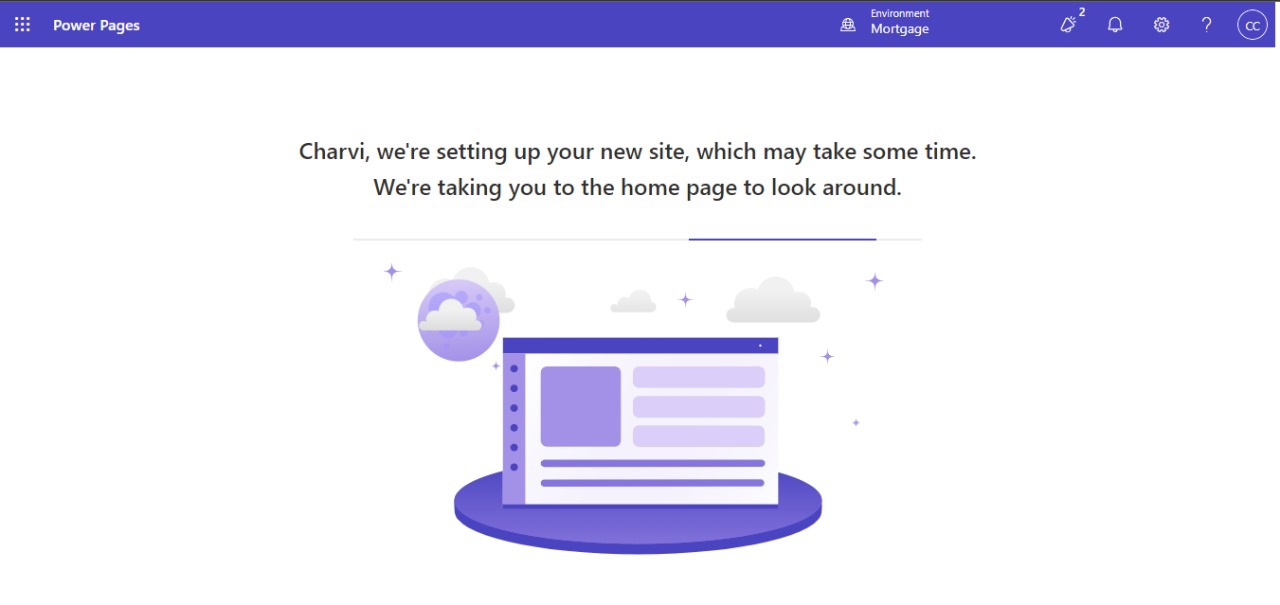
Firstly, sign in to Power Pages. 
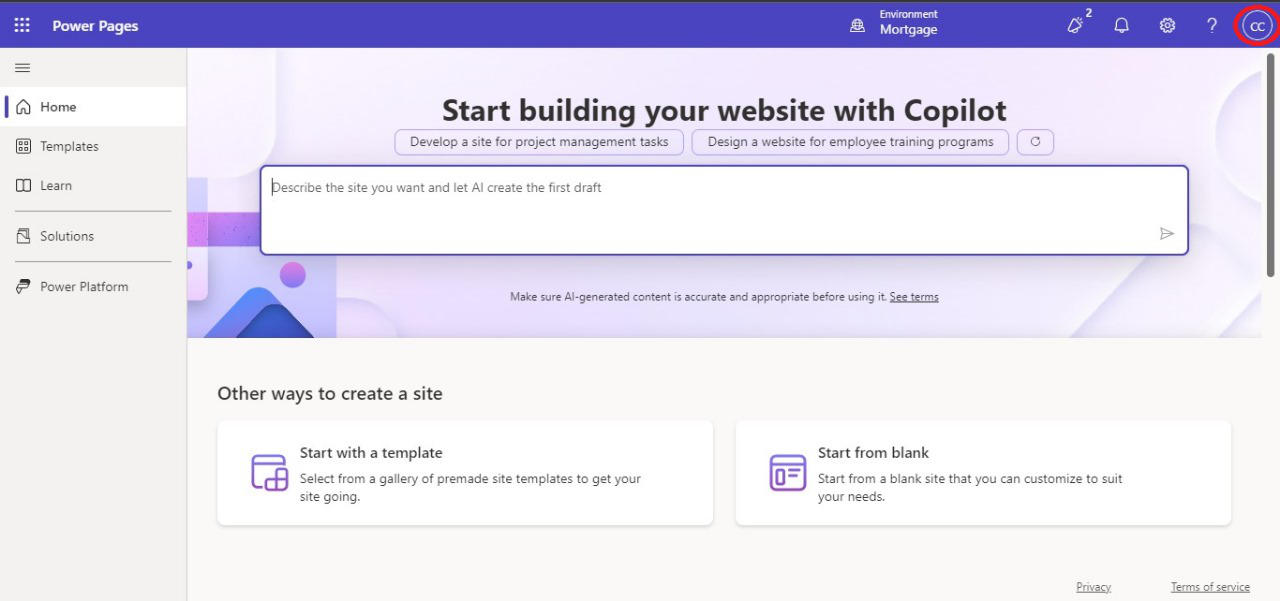
Using Power Fx to Customize Power Pages 01

We have two options for creating a website 

1. Start with a Template. 

2. Start from blank. 
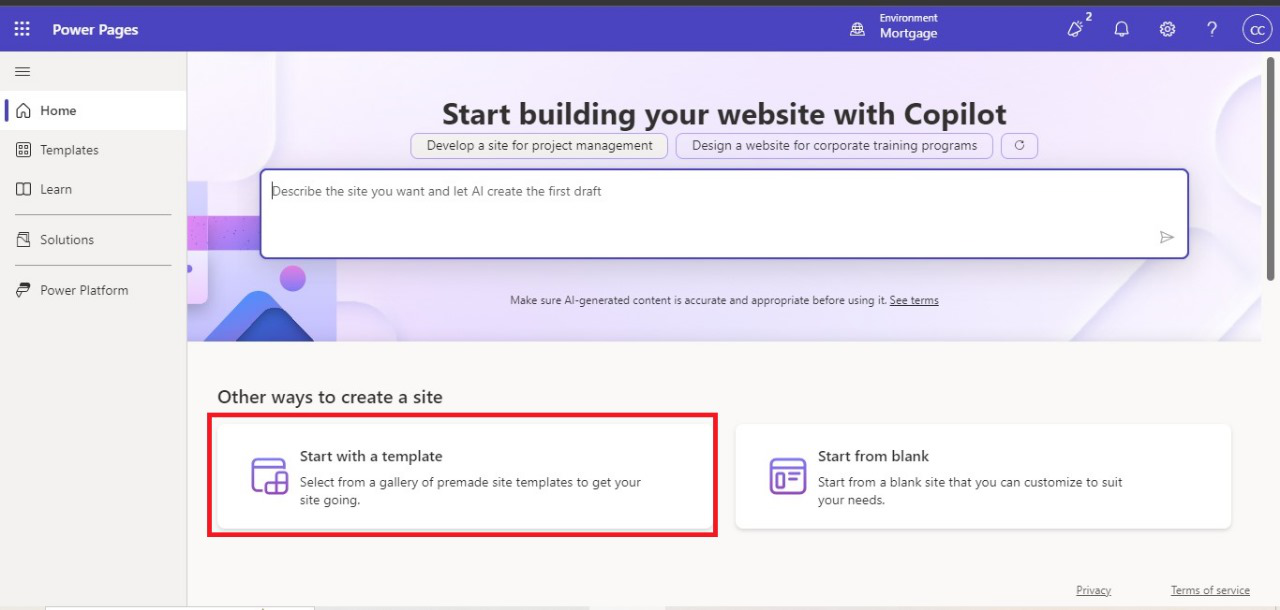
Using Power Fx to Customize Power Pages 02

Choose the template and Click on next. 
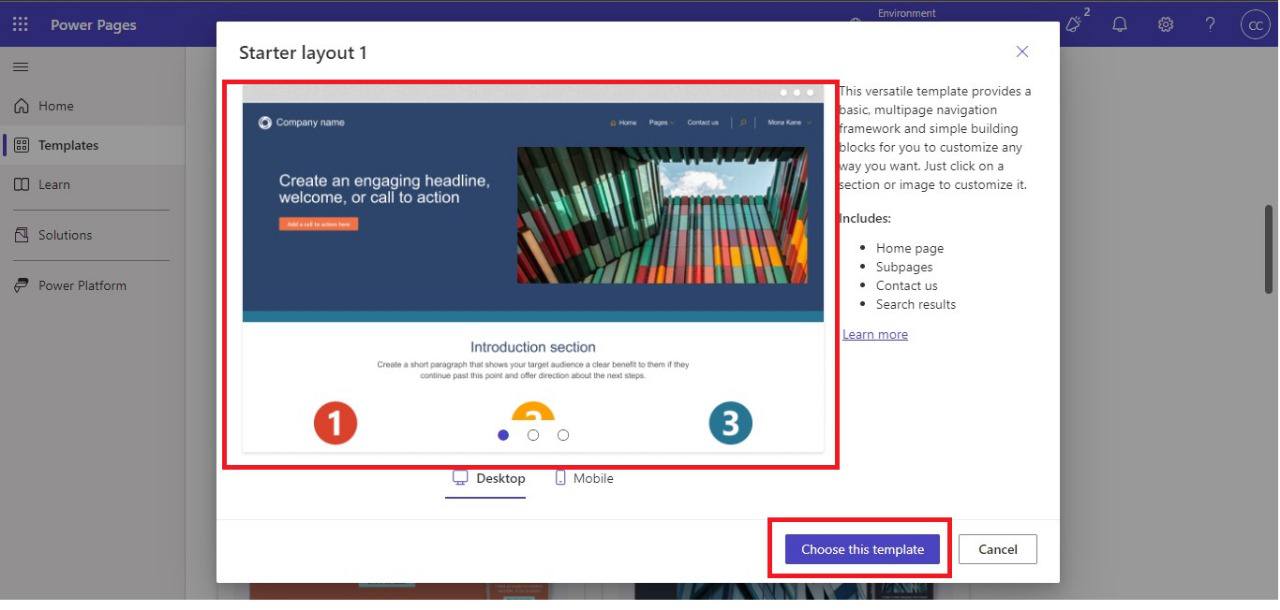
Using Power Fx to Customize Power Pages 03

Give your Site name, create a web address, and Click on Done. 
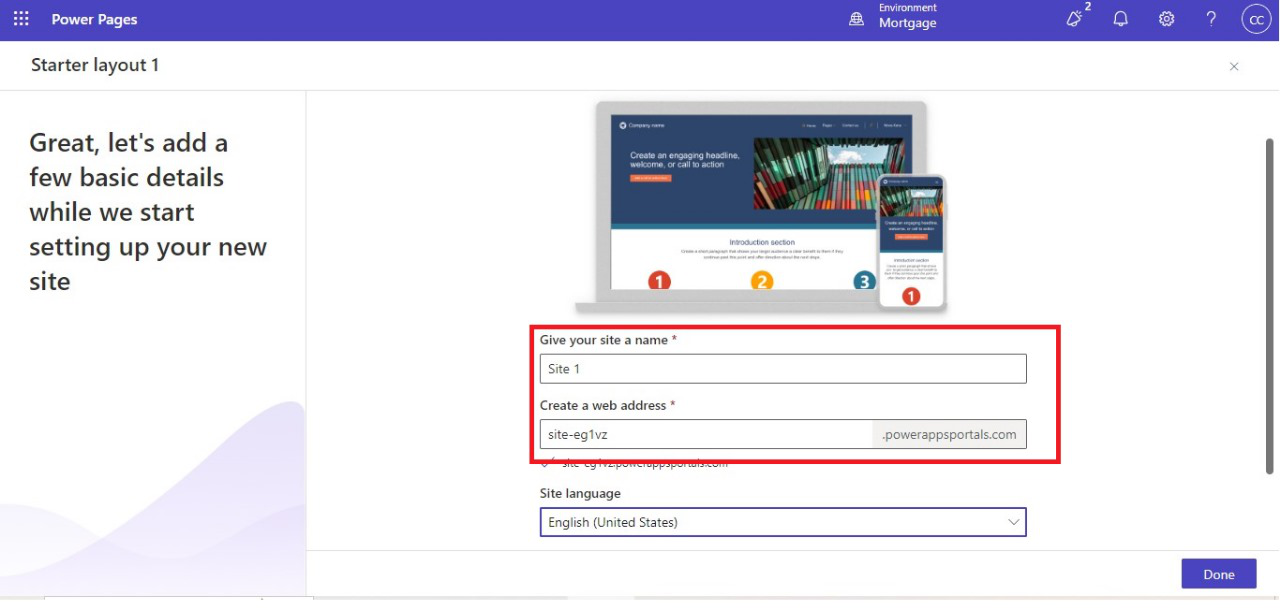
Using Power Fx to Customize Power Pages 04

Using Power Fx to Customize Power Pages 05
Back to all articles

More from the blog

Embed Model-Driven App Charts in Power Pages with Liquid

Automating Dataverse Record Creation with Custom Forms in Power Pages

How to set up Web API in Power Pages?

Power Pages- Retrieve Data from Dataverse using Power FX

Use governance controls to disable anonymous access in Power Pages

Using Liquid Code in Power Pages for Dynamic Functionality

Building a Lakehouse for Data Ingestion and Integrating with Power Apps

Custom Filters and Search in Power Pages

Need help with your business solution?

Our team can help you implement the right solution for your organization.

Get in touch
LogoLogo

Ex-Microsoft experts helping businesses get more from their Dynamics 365 and Power Platform investments.

Products

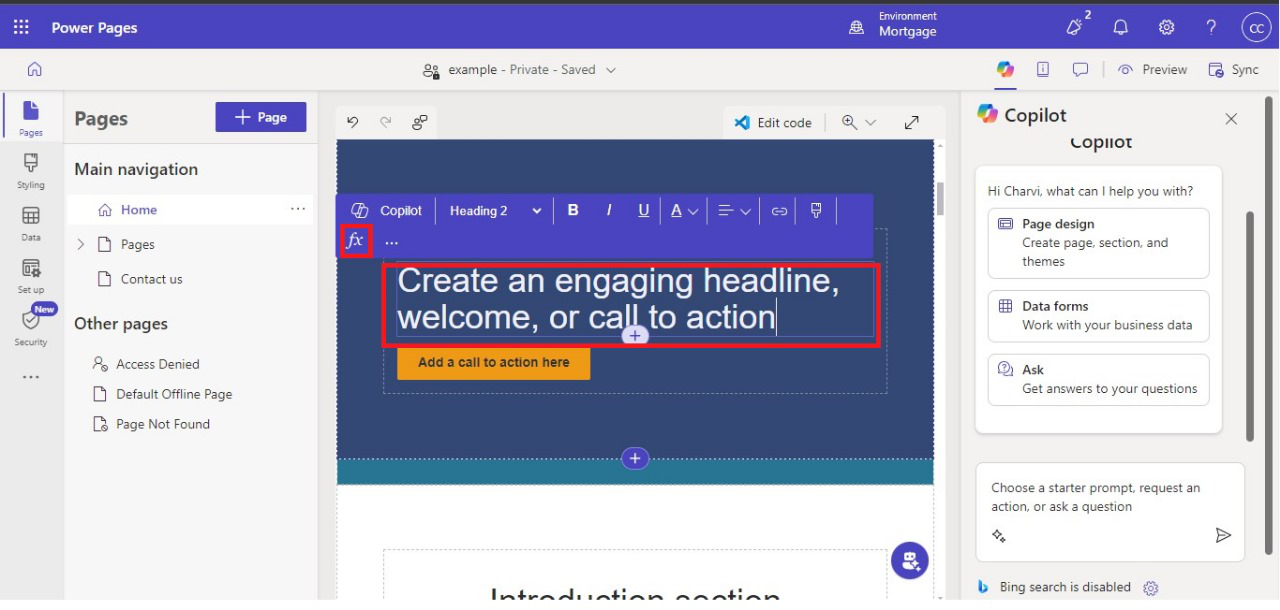
Click on the text and use Power FX. 

Using Power Fx to Customize Power Pages 06

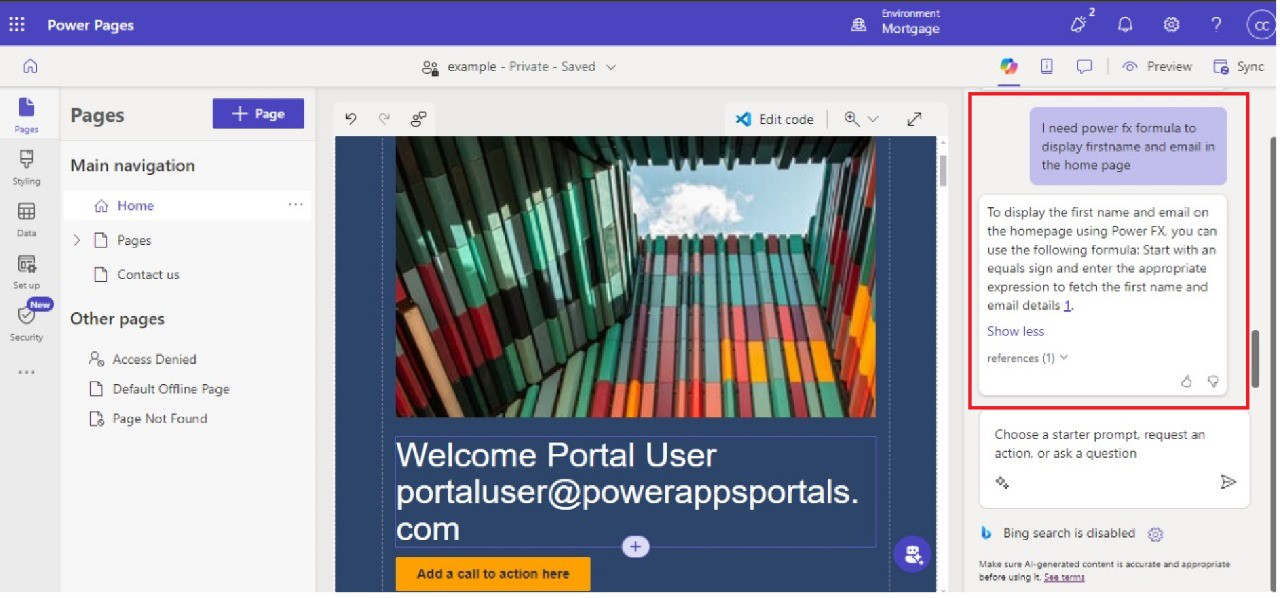
Use Copilot AI to generate the Power Fx formula. 

Using Power Fx to Customize Power Pages 07

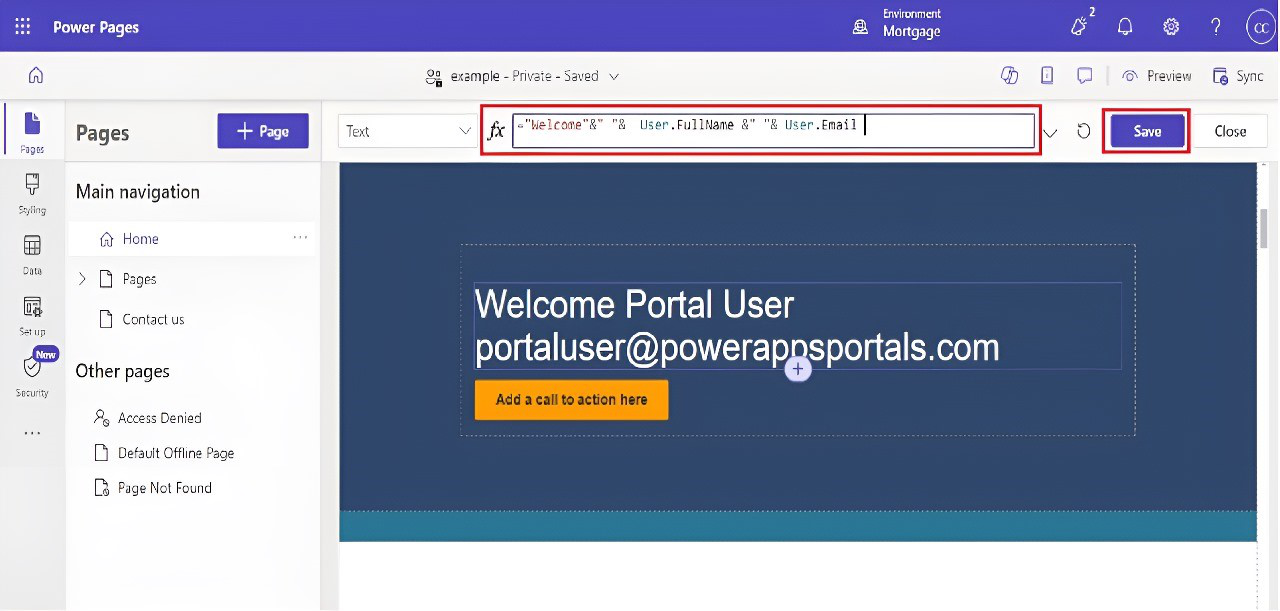
Write the Power Fx formula and save it. 

Using Power Fx to Customize Power Pages 08

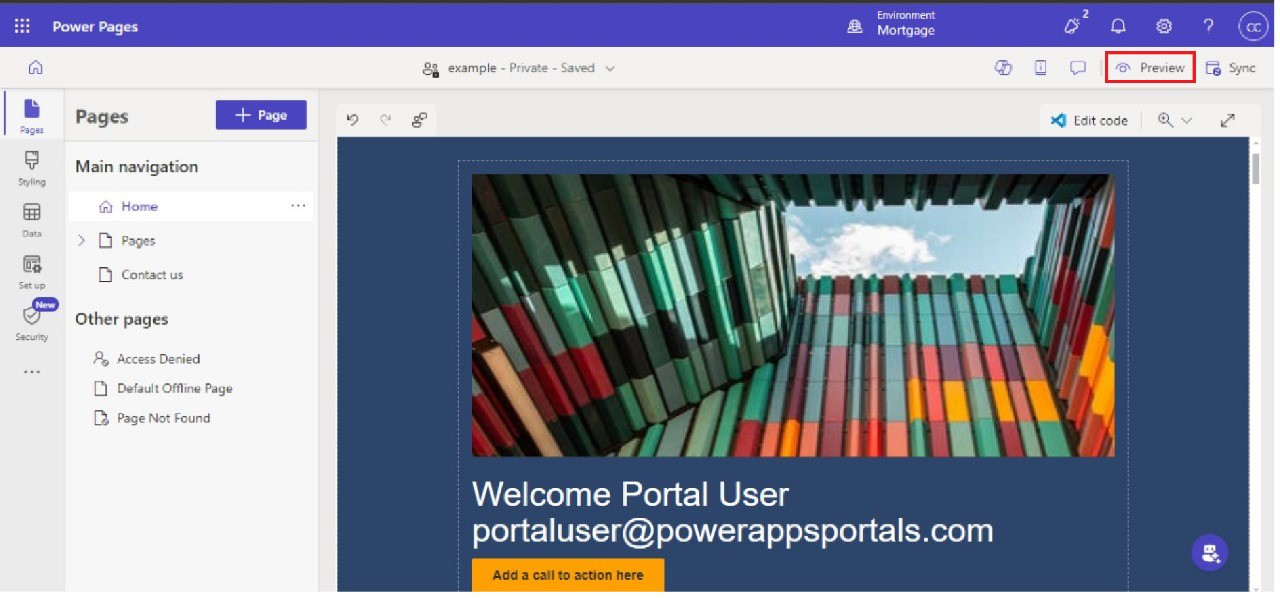
Click on preview. 

Using Power Fx to Customize Power Pages 09

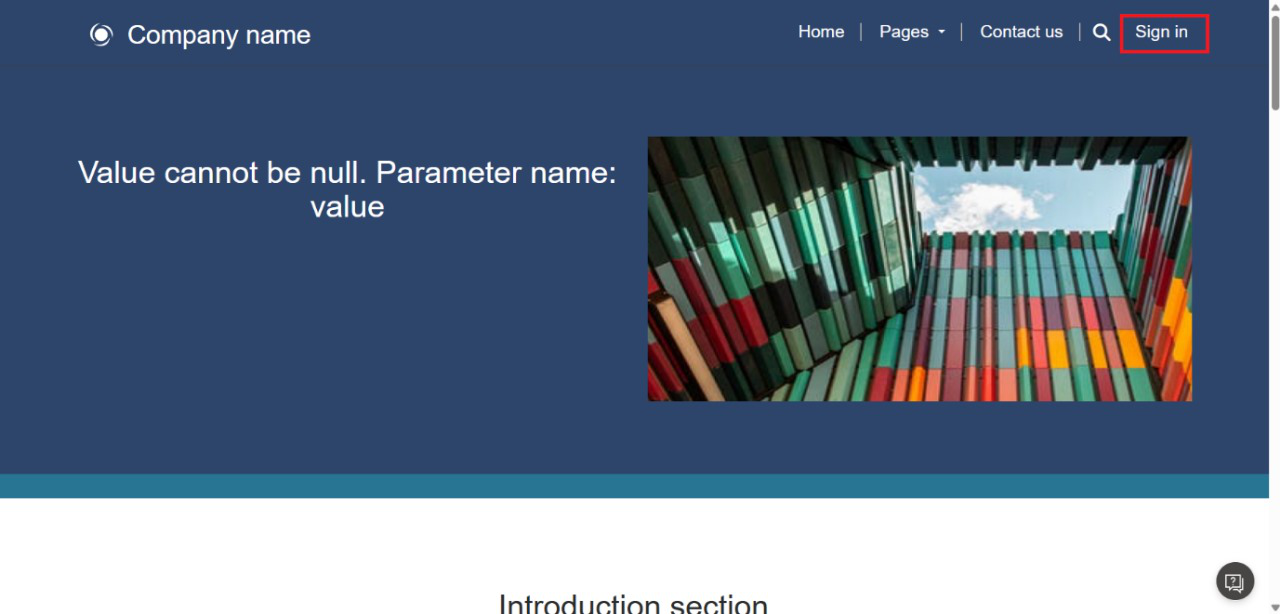
Sign in to the website to view the welcome message. 

Using Power Fx to Customize Power Pages 10

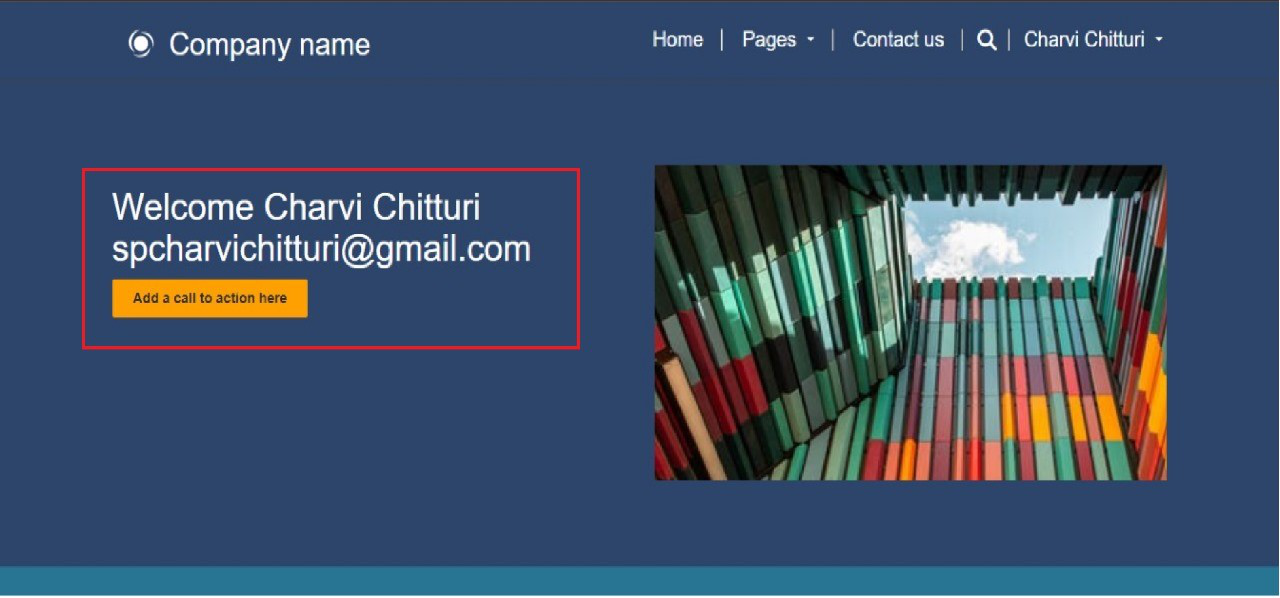
Once you sign in, we can view the welcome message on the web page. 

Using Power Fx to Customize Power Pages 11

The Power Fx formula bar in Power Pages provides a user-friendly and powerful method to customize web pages without requiring extensive technical knowledge. Utilizing simple, Excel-like formulas, allows you to integrate dynamic content, tailor user experiences, and enable real-time interactivity with ease. With this feature, you can create more responsive and engaging websites, making it a valuable tool for both developers and non-developers within the Microsoft Power Platform. 

Frequently Asked Questions (FAQs): 
1. Do I need programming knowledge to use Power Fx in Power Pages? 

No, Power Fx is a low-code language, making it easy to learn, especially if you’re familiar with Excel formulas. It’s designed for users without extensive programming experience. 

2. What functionality can I create using Power Fx in Power Pages? 

With Power Fx, you can implement dynamic behaviours like displaying conditional content, validating user inputs, calculating values, and modifying visual elements based on user actions, among other features. 

3. How can I test the formulas I write in Power Fx? 

You can test your Power Fx formulas in real time using the Preview option in Power Pages. This allows you to interact with the page as a user and thoroughly test your changes. 

4. How do I save and apply changes made with the Power Fx formula bar? 

Once you've entered your formula, save it by clicking the Save button. After reviewing the behaviour, publish your site to make the changes live. 

5. Can Power Fx formulas be reused across multiple pages or elements? 

Yes, Power Fx formulas can be reused across different pages or applied to multiple elements on the same page, ensuring consistency and efficiency in your site’s functionality. 

Metadata Browser
  • HTML To PDF Converter
  • Data Mask for Dataverse
  • Commission 365
  • AI Autocloser
  • Flow Monitor
  • Services

    • D365 Marketing
    • D365 Sales
    • D365 Customer Service
    • D365 Field Service

    Company

    • About Us
    • Blog
    • Contact
    • Careers

    Copyright ©2026 Pascalcase Software Private Limited. All rights reserved.

    Privacy PolicyTerms of Service