Adding Real-Time Translation to Your App with Microsoft Translator
July 15, 2024
#Power Apps
Mahith Reddy
Microsoft Translator is a powerful tool that enables users to translate messages into the recipient's chosen language. By leveraging Microsoft Translator, businesses and individuals can globalize their interactions by translating text and speech across multiple languages. Let's understand better with the help of a scenario.
Scenario: Adding Microsoft Translator to your app.
In this blog, we will integrate Microsoft Translator into a Power Apps canvas app to provide real-time text and speech translation features. We will create an app that translates user input into your desired language by adding a text input for user entries and a label to display translated text.
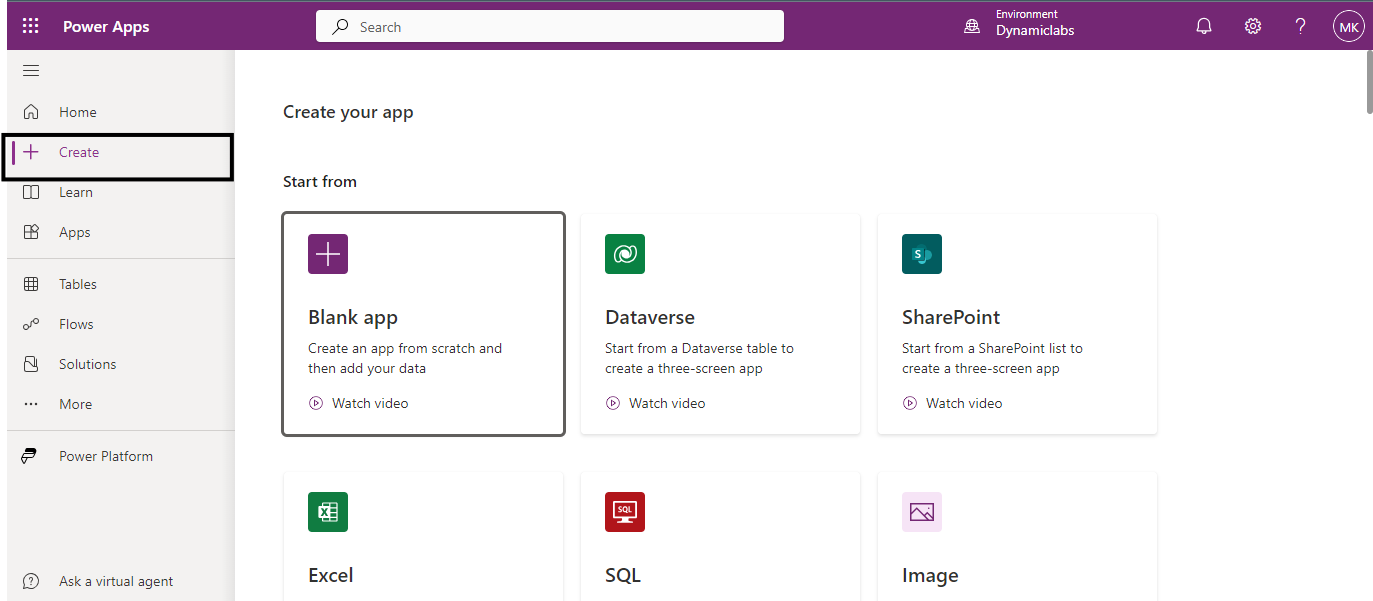
Firstly, sign in to Power Apps.
Click on Create on the Home page.
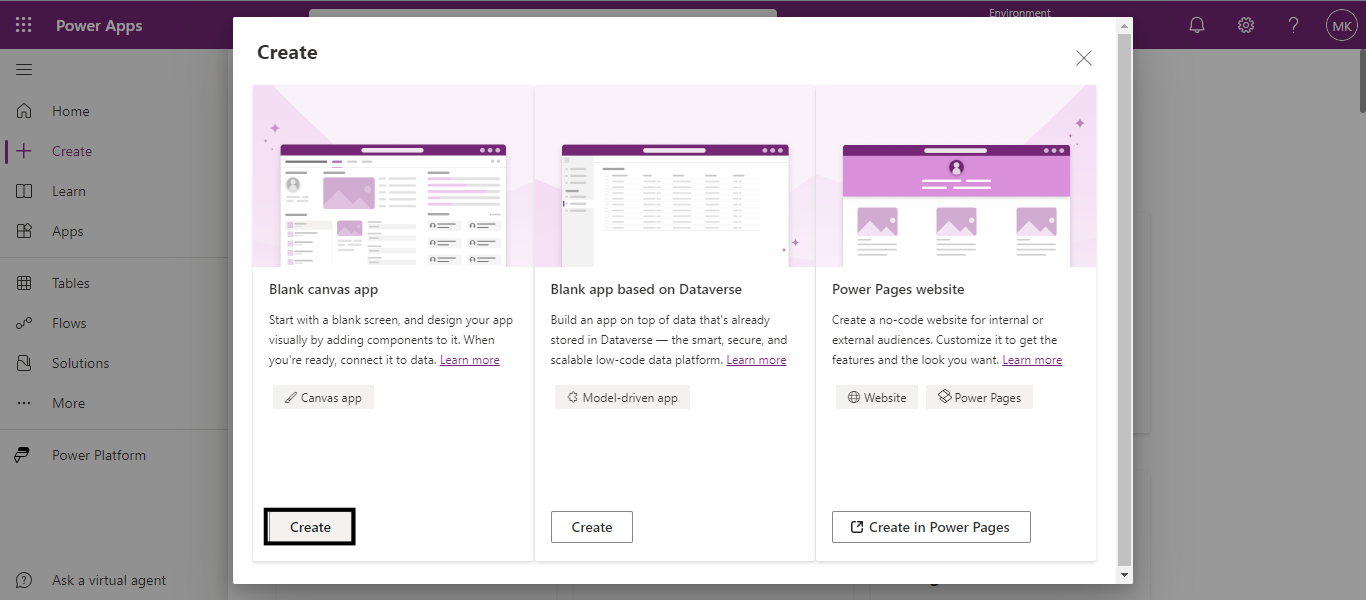
Select the Blank app.
Click on the Create button under the Blank Canvas App.
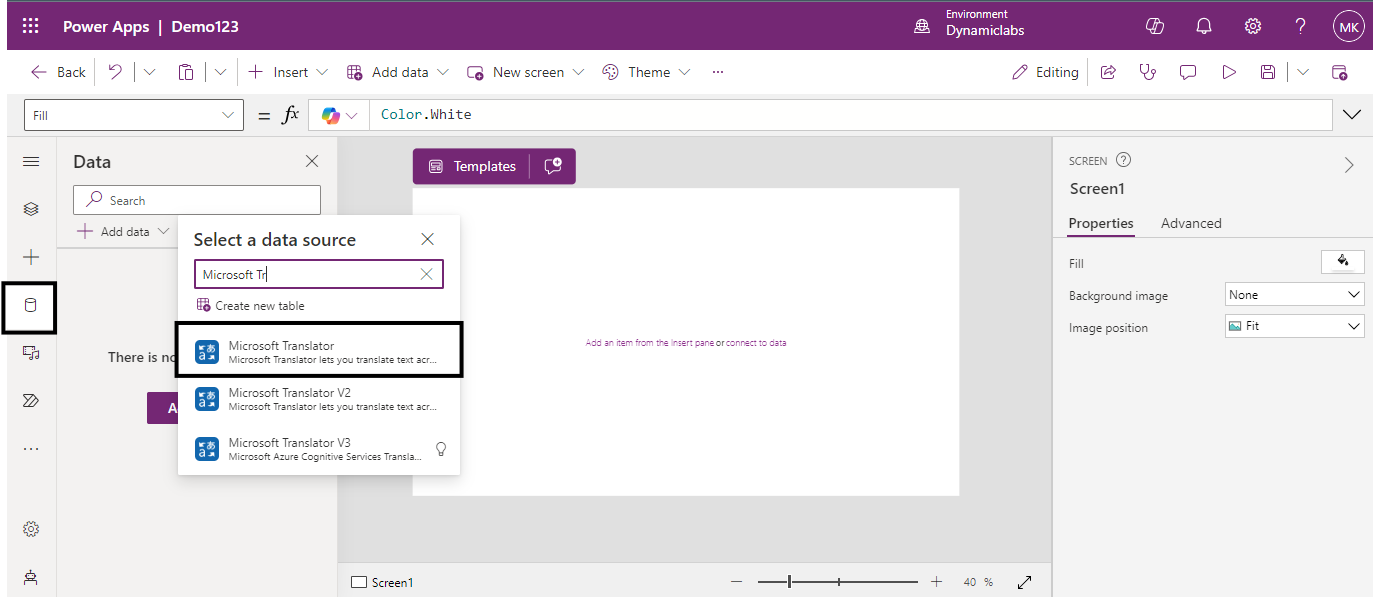
Now, select the data tab on the left-side pane and search for “Microsoft Translator”. Select the translator as the data source.
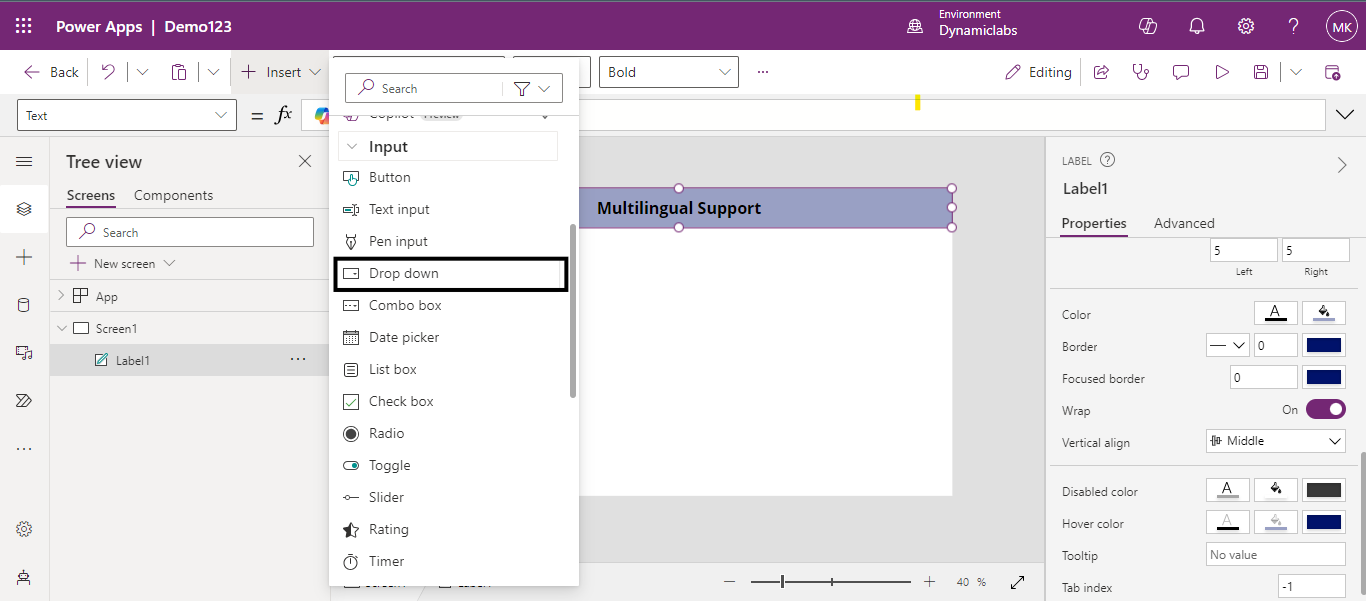
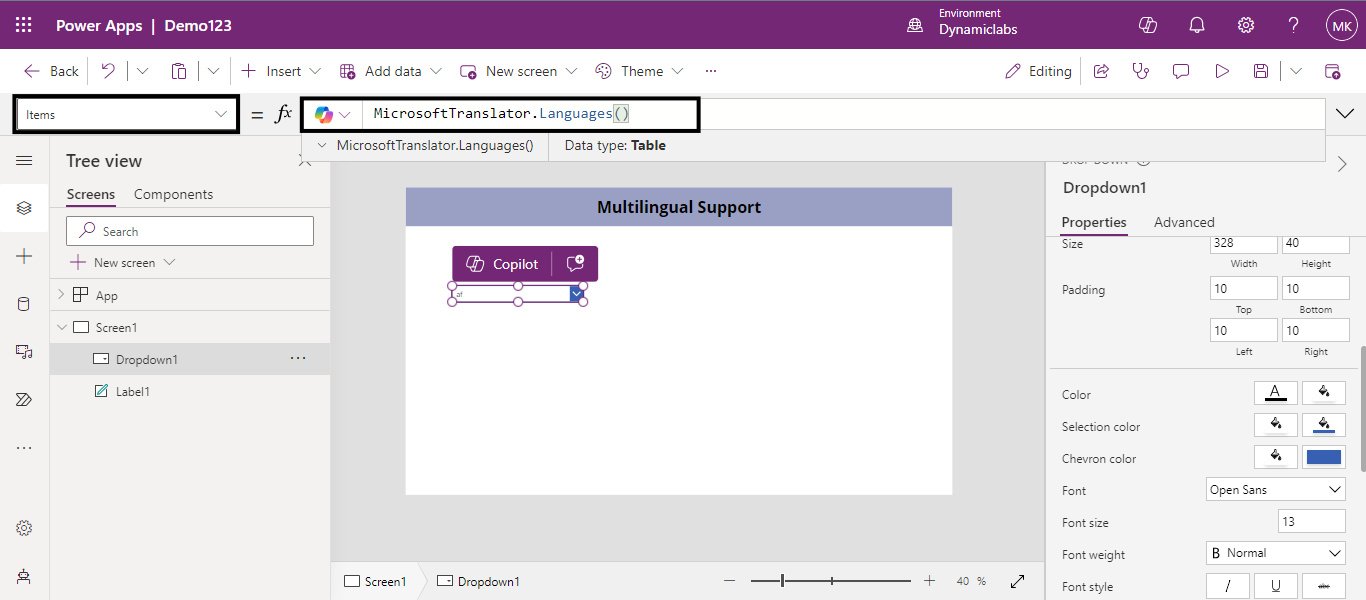
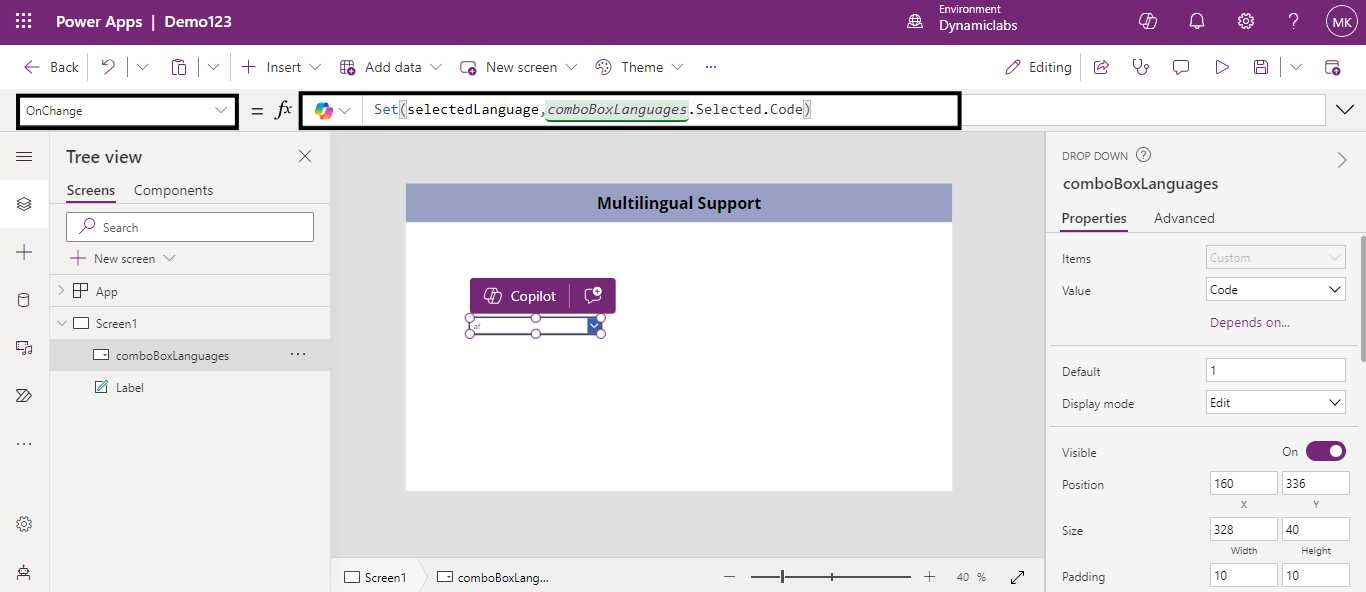
Add a drop-down from the insert menu and rename it as per your preference. This drop-down helps you to choose a language for translation.
Set the Items property of the drop-down to the following formula:
Need help with your business solution?
Our team can help you implement the right solution for your organization.
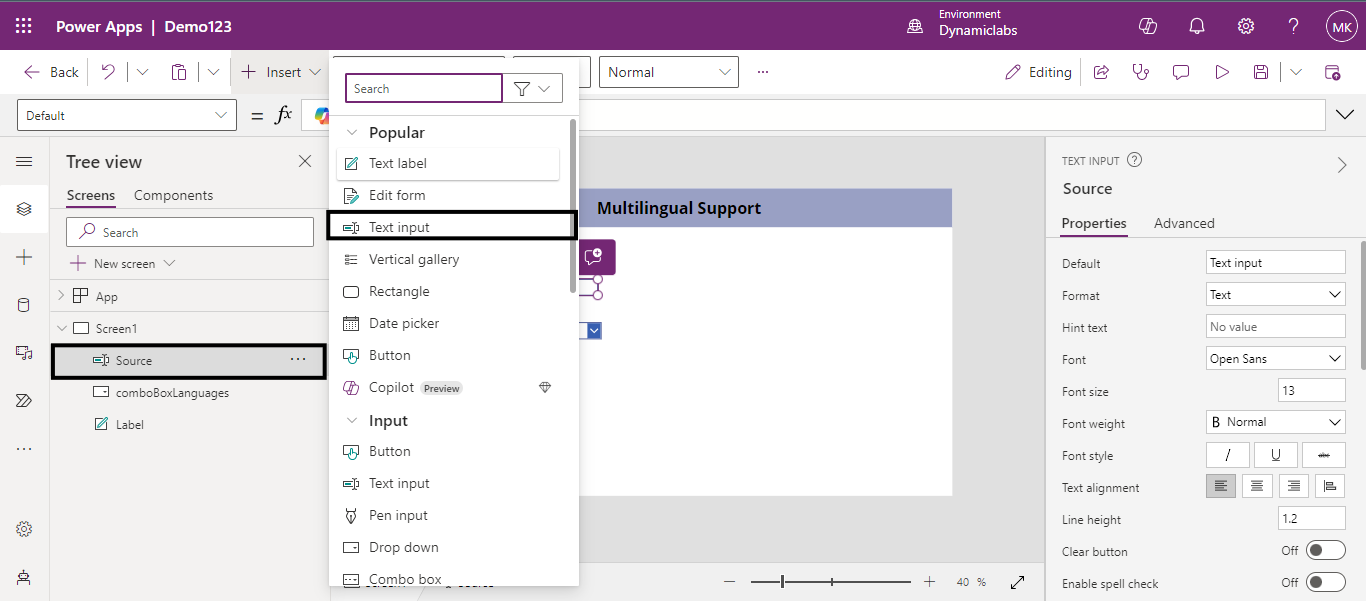
Next, add a Text input control from the insert menu and rename it as ‘Source’. This text label helps us to enter the text that needs to be translated into another language.
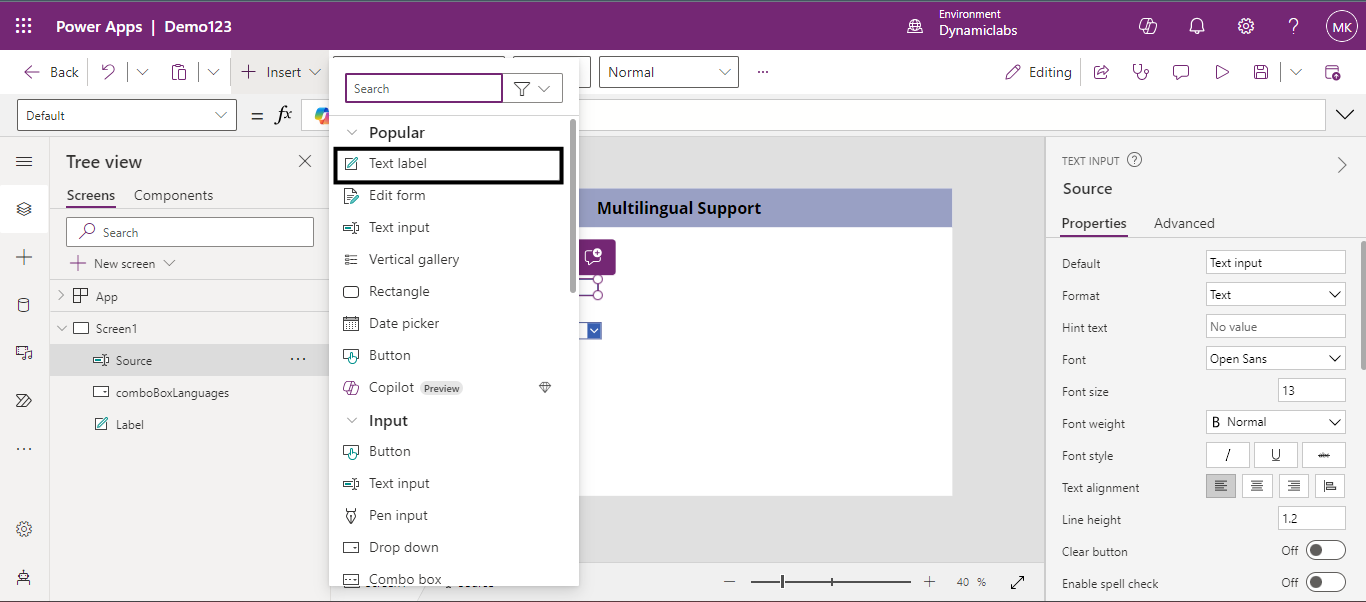
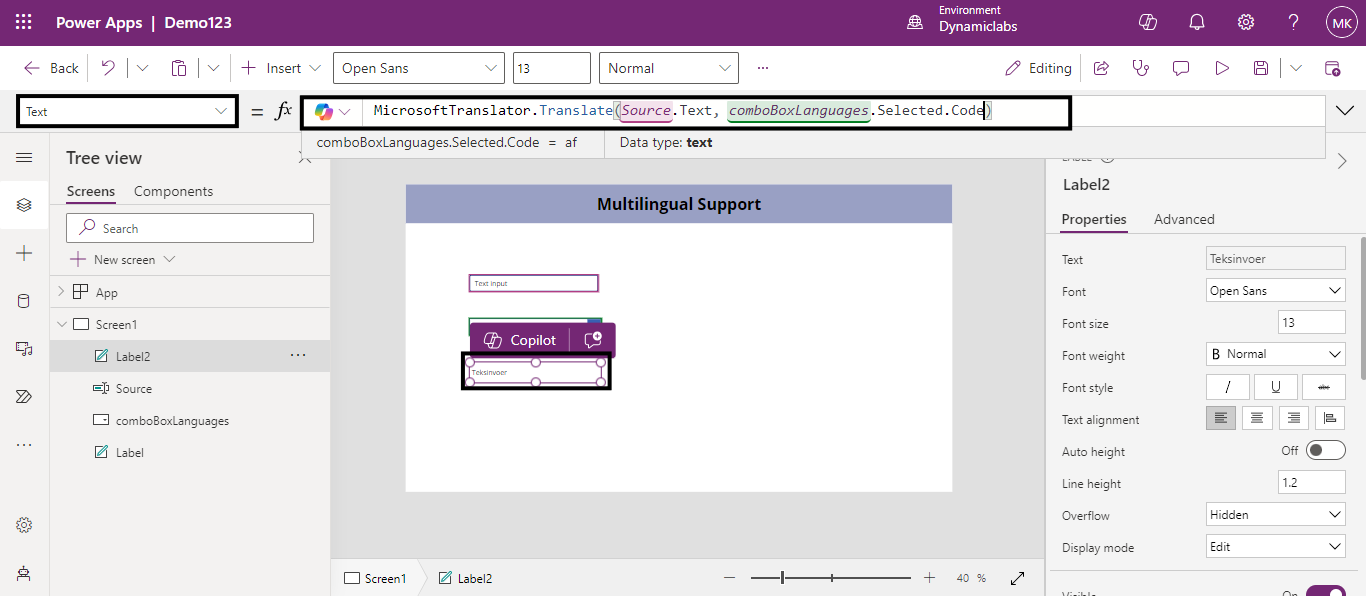
Add another Text label control from the insert menu which helps us display the translated data that we have entered in the source.
Set the Text property of the Text label to the following formula:
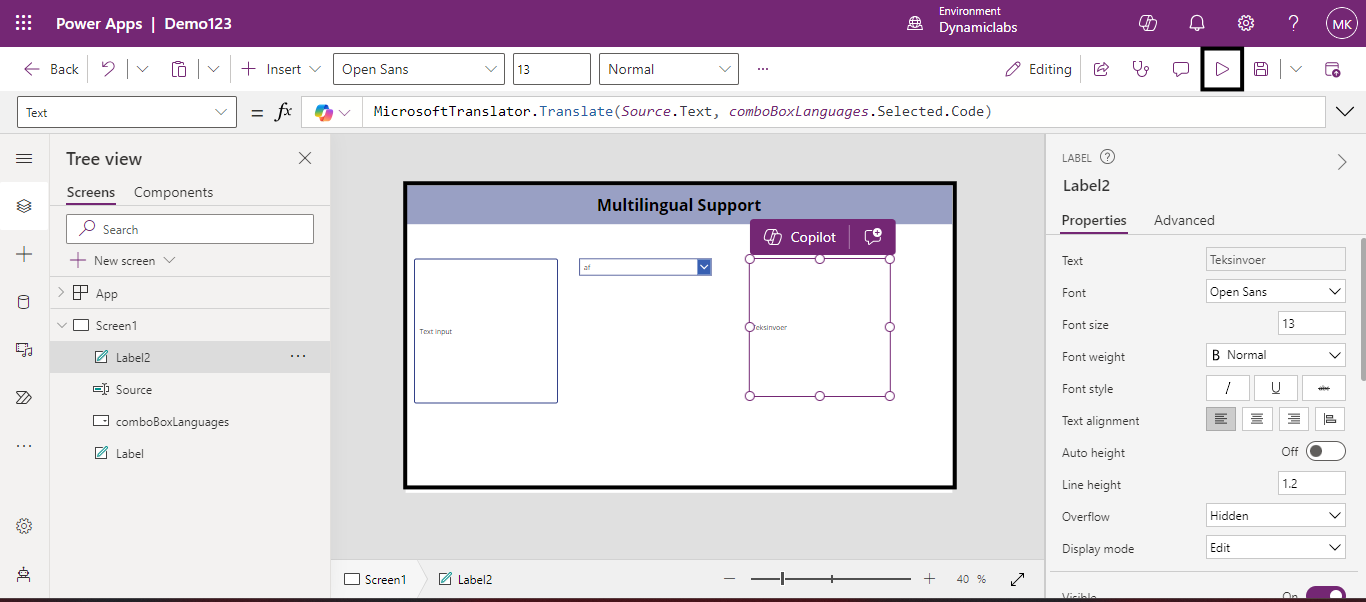
Rearrange the controls for a neat look and select the play icon to preview the app.
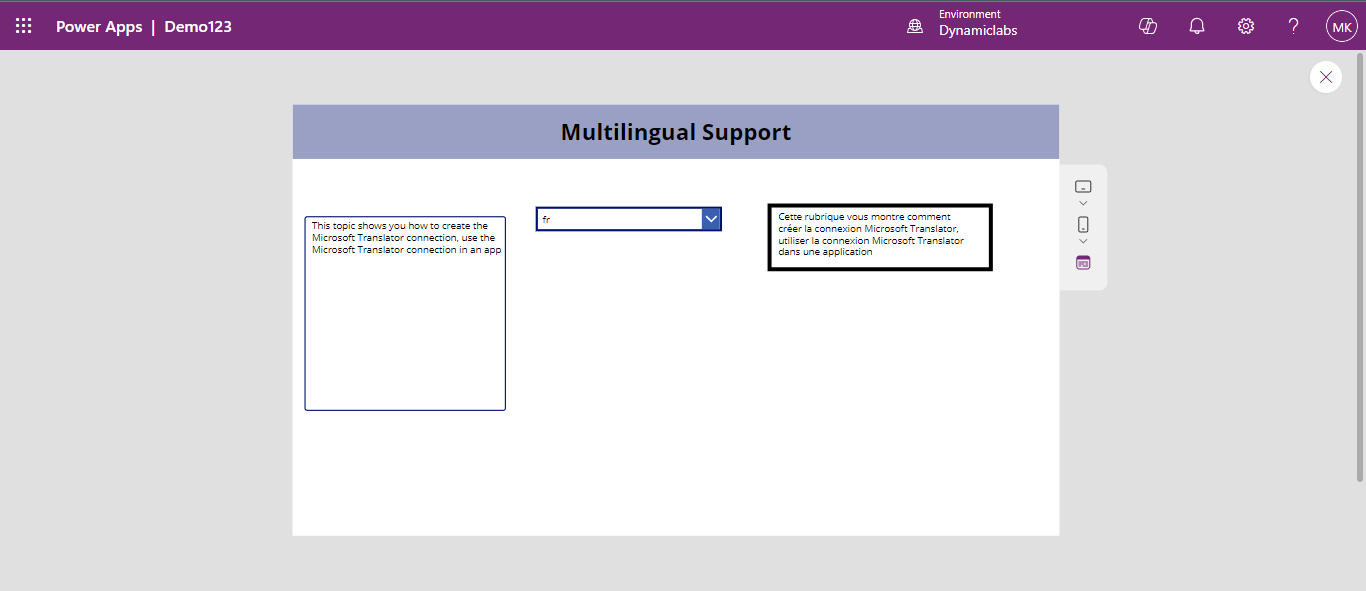
Enter some text into the Source text input field and choose a language from the drop-down menu. I have selected French (fr). The text will be translated into French in real time, allowing you to see the translation instantly.
Implementing Speech translation:
Speech translation enables you to convert written text into spoken words in different languages, enhancing accessibility and communication. Follow the steps below to set up speech translation in your app.
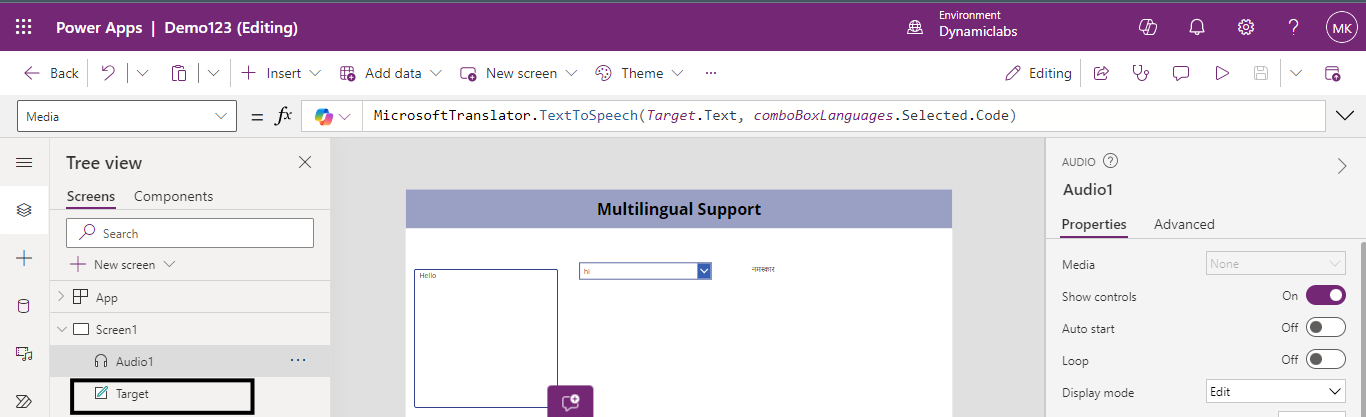
Change the label to "Target" to clearly indicate the translated text section.
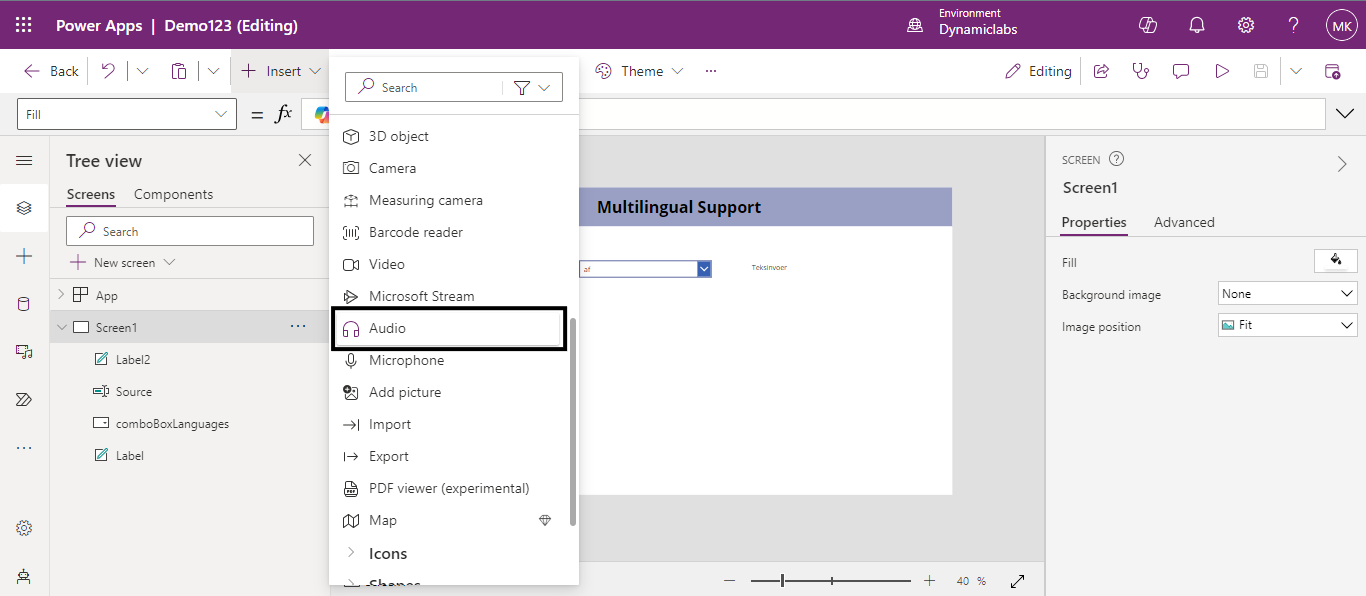
Add an audiocontrol from the insert menu.
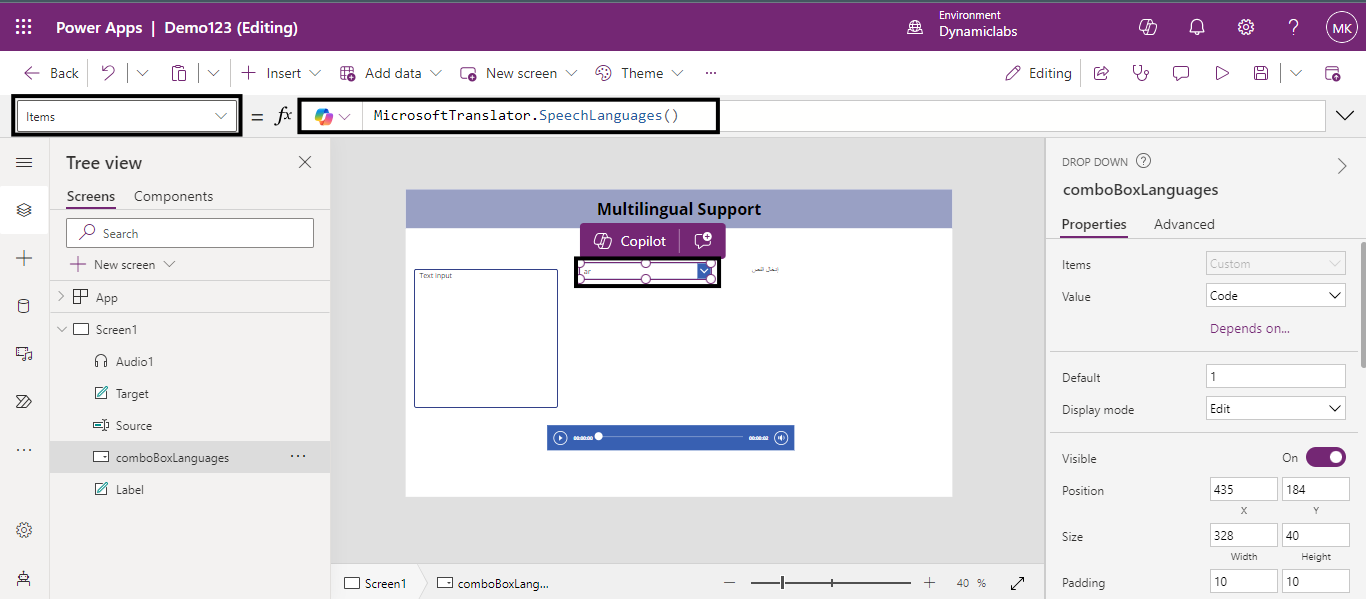
Set the Items property of the drop-down list to the following formula:
MicrosoftTranslator.SpeechLanguages()
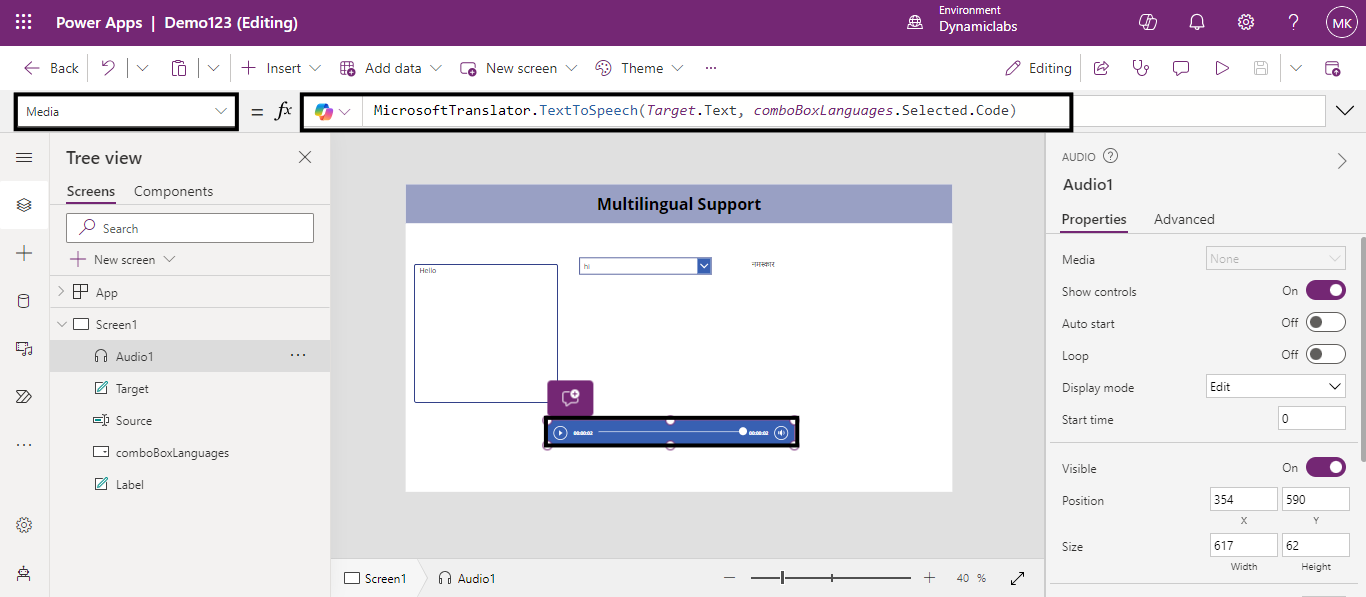
Set the Media property of the audio control to the following formula:
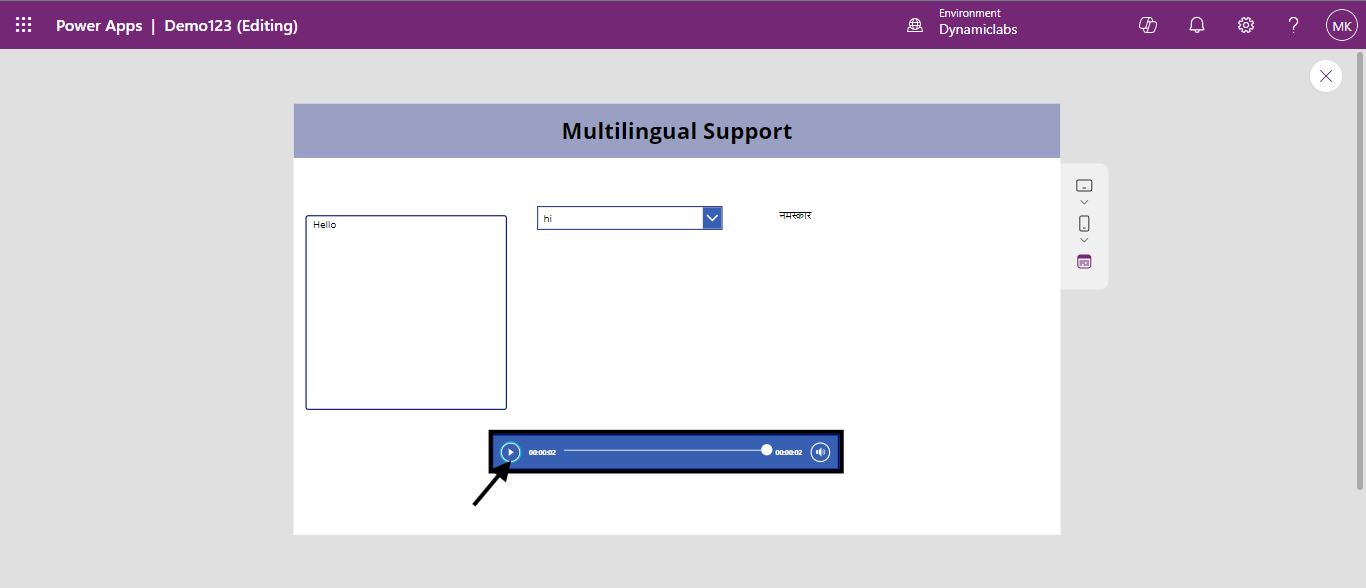
Select the Preview button. Type some text into Source, select a language in the drop-down, and then select the play button in the audio control.
The app plays an audio version of the text that you entered in the language you chose.
By integrating Microsoft Translator into your app, you can easily translate and vocalize text in multiple languages, enhancing communication and accessibility for a global audience. This guide helps you set up basic translation and speech features in a Power Apps canvas app, providing a foundation for more advanced functionalities.
FAQs
1. How can I integrate Microsoft Translator into my Power Apps canvas app?
You can integrate Microsoft Translator by adding it as a data source in your app, creating input controls for text, and using the provided formulas to display translated text and speech.
2. Can I translate both text and speech using Microsoft Translator in my app?
Yes, you can translate both text and speech. You can display translated text on a label and play audio translations using an audio control.
3. Is Microsoft Translator available for all languages?
Microsoft Translator supports a wide range of languages for both text and speech translation, but the availability of specific languages may vary. Check the Microsoft Translator documentation for a complete list of supported languages.