Build Your Personal Copilot with Microsoft Copilot Studio
May 08, 2024
#Copilot
Mahith Reddy
Introduction:
Businesses do better when they listen to their customers and make them feel heard. When they ask for feedback through surveys or other ways, it shows they care about what customers think. This makes customers happier and more likely to stick with the company.
Microsoft Copilot Studio is changing how businesses engage with customers by using advanced AI. It is a graphical low-code tool for creating and maintaining copilots.
What is a Copilot?
A copilot is an AI-powered interface with conversational capabilities using natural language. It helps in engaging with employees and customers in different languages across many different mobile apps, websites, Microsoft Teams, or any channel supported by Azure Bot Service.
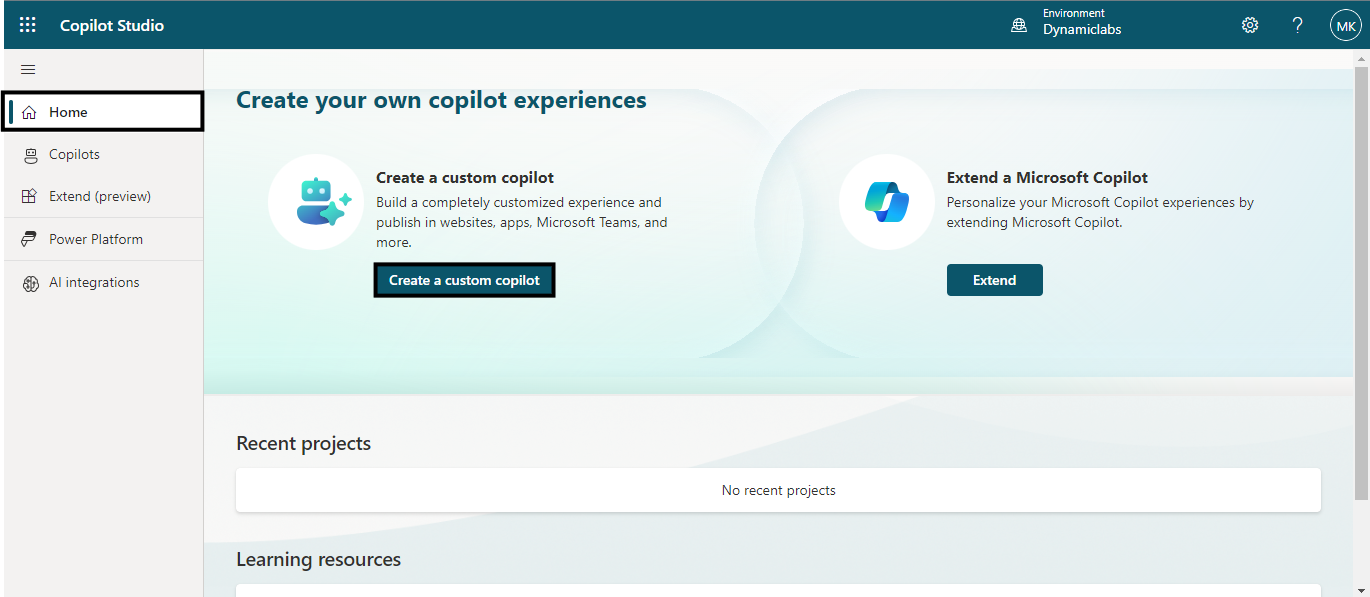
On reaching the Home page, click on Create a Custom Copilot.
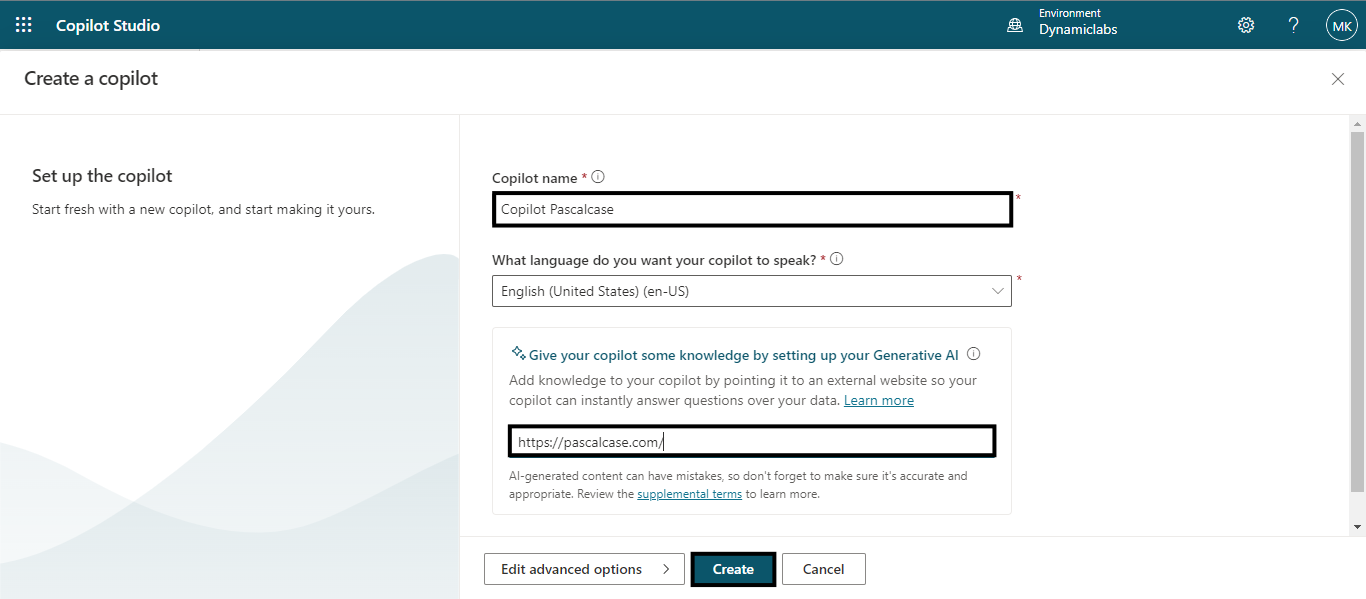
Now, enter a name for the copilot, select the language you want your copilot to speak, and to add knowledge, we'll provide it with access to an external website where it can gather information to answer questions. Here's an example link that I provided https://pascalcase.com/
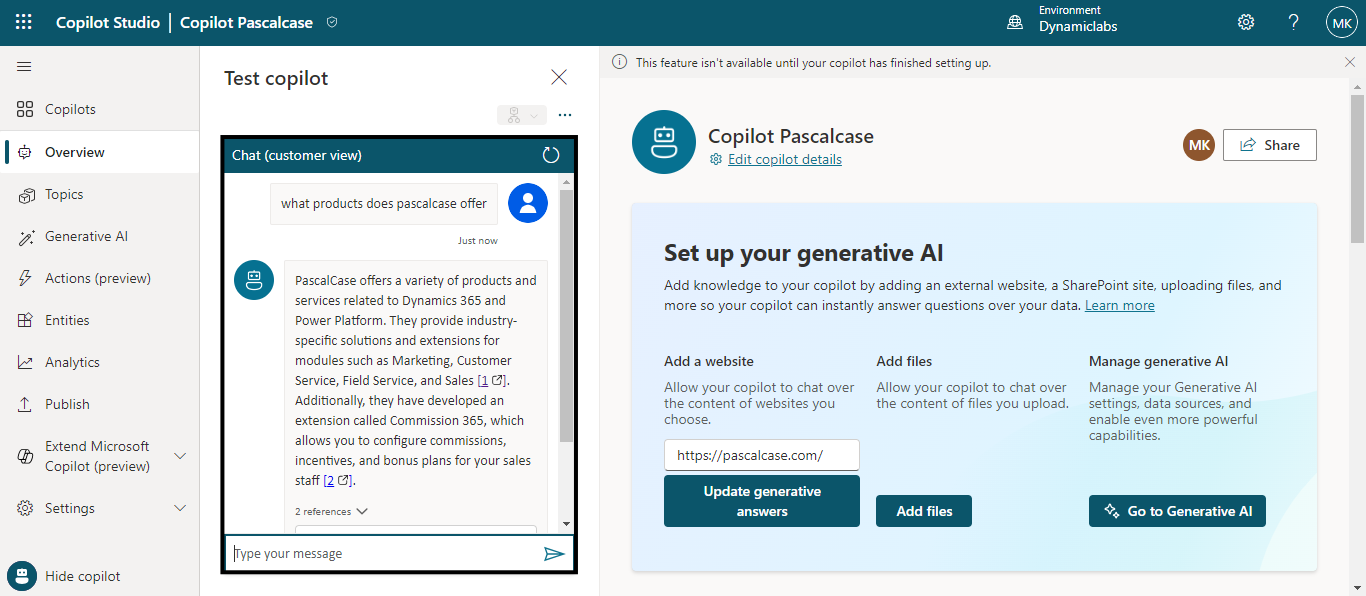
Here in, the Overview section , you can test and edit details of the copilot that we have created.
Need help with your business solution?
Our team can help you implement the right solution for your organization.
In Copilot Studio, a topic is a part of a conversation between the user and Copilot. It contains different steps called nodes, which determine what happens in the conversation. Topics often have trigger phrases, which are words or questions customers might use related to a specific issue. These trigger phrases help Copilot know when to engage on that topic.
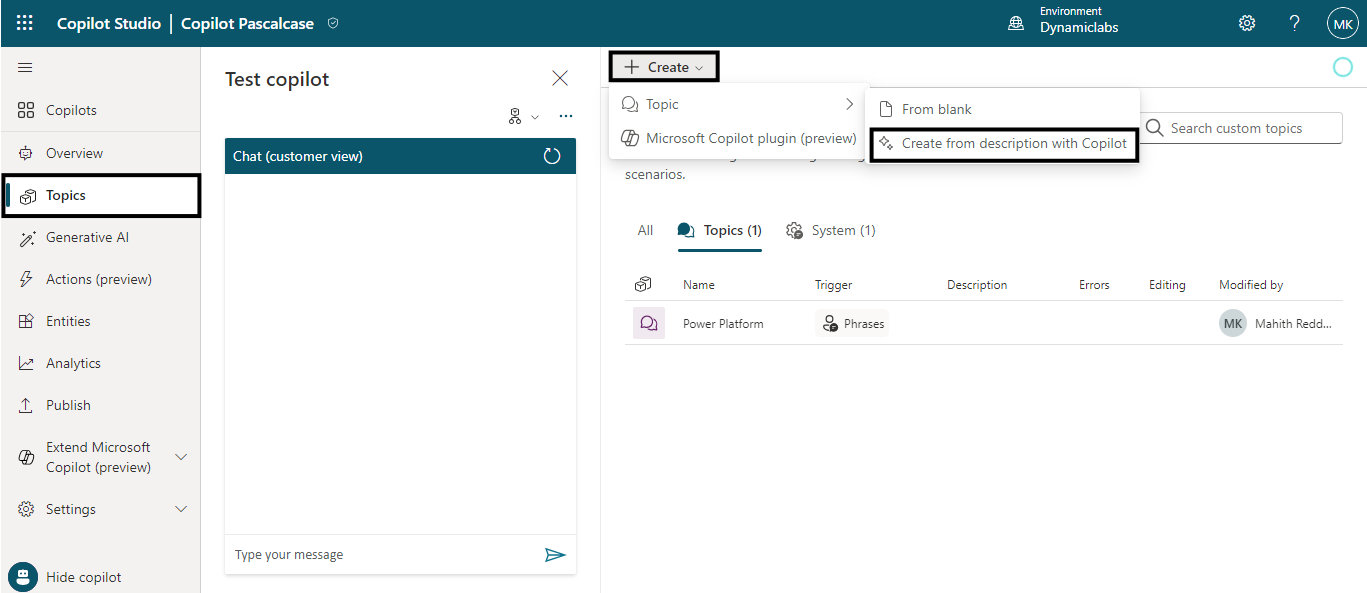
To create a topic, click on Create and select Topic then choose Create from description with copilot.
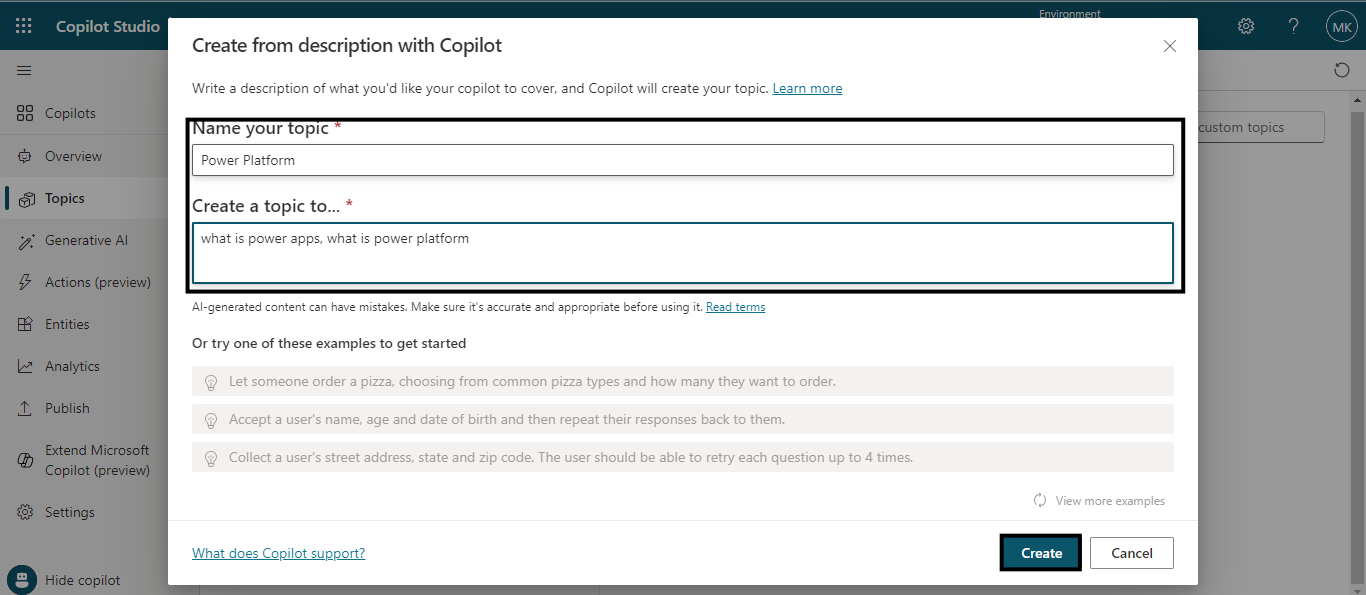
Now name the topic and enter the topics you want the copilot to cover, click Create.
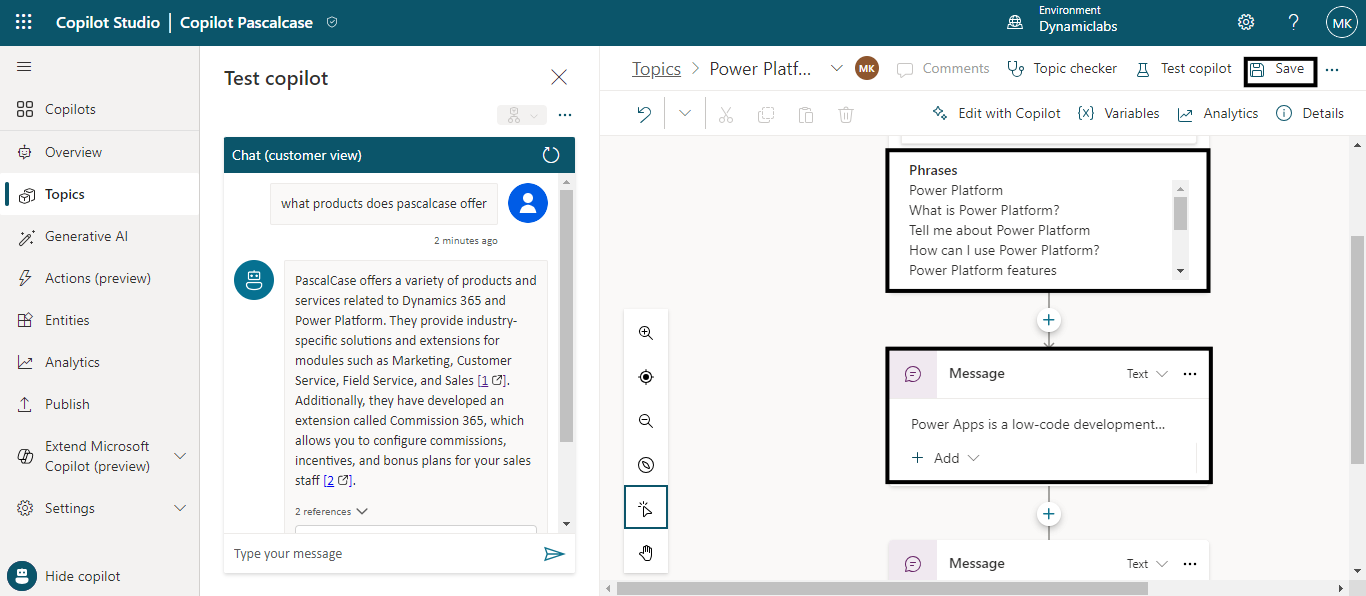
You can see a set of trigger phrases are created based on the topic. When a user enters any of these phrases, the Copilot responds with the corresponding message or answer.
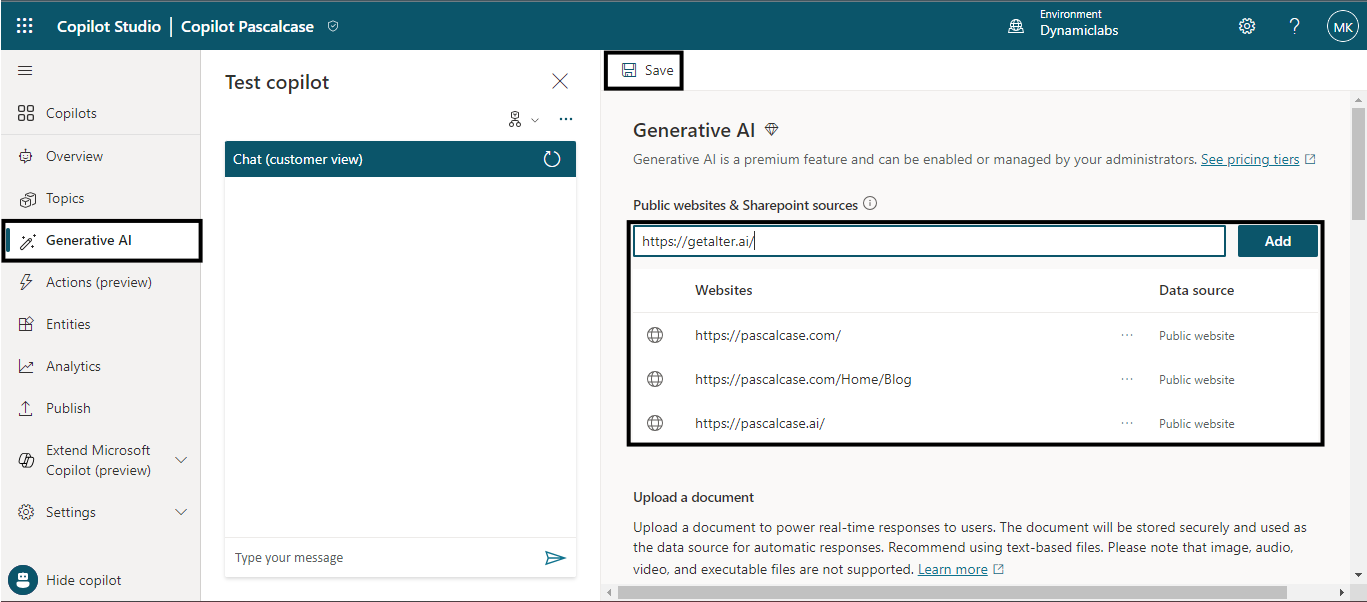
Next, select the Generative AI section. In this section, you can add up to 4 public websites or SharePoint sources and upload any content documents. This helps the copilot to gain more knowledge to answer questions.
After adding the resources Save the changes.
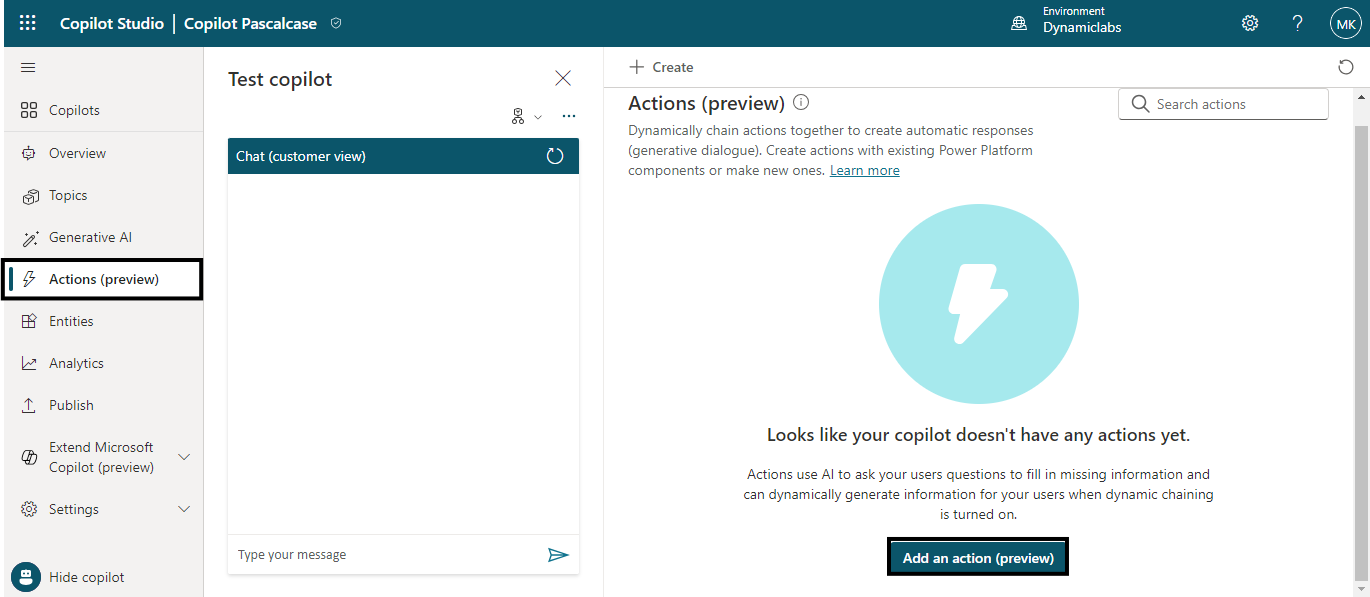
Navigate to the Actions section. Actions (preview feature) enable the copilot to interact with enterprise APIs, external data, flows, and many more.
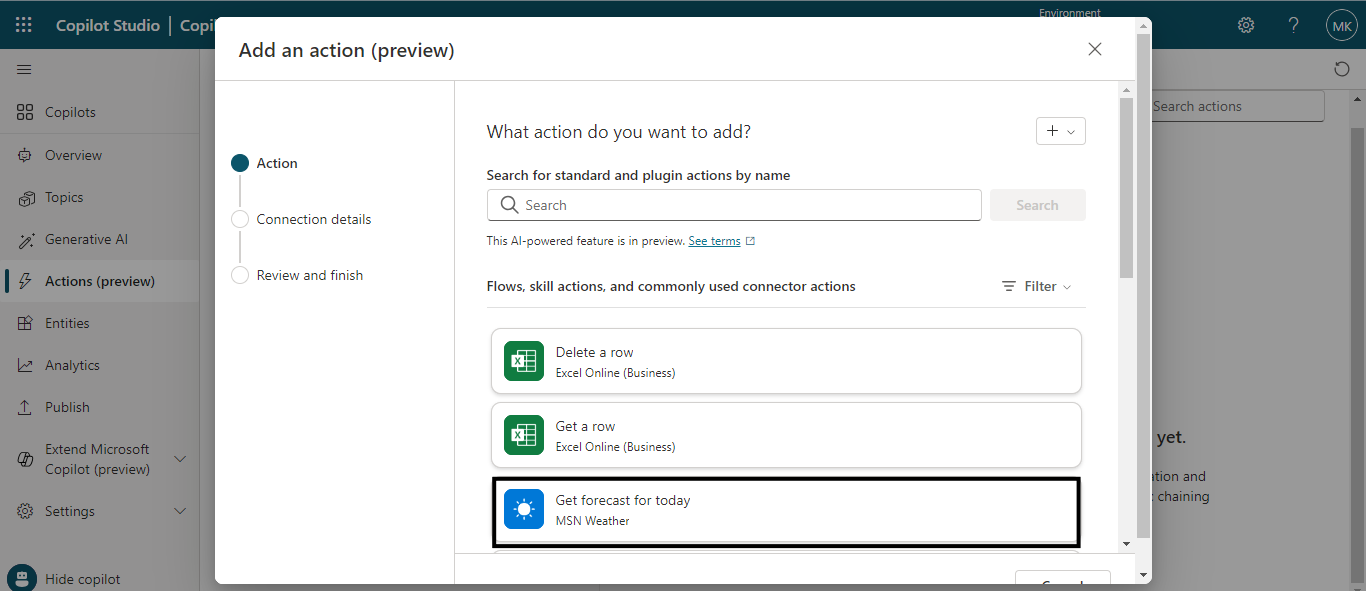
To create an Action, select Add an action.
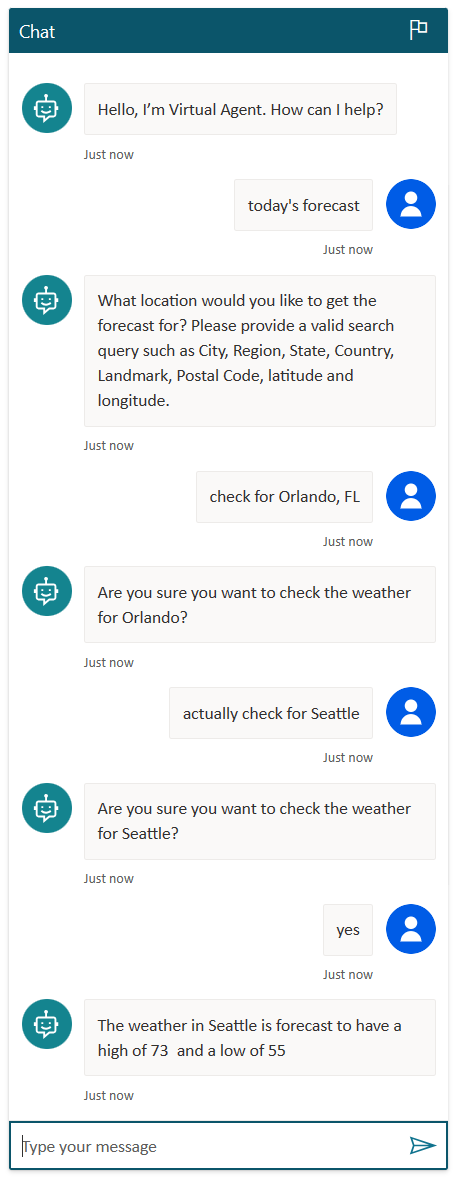
Here, I am selecting Get forecast for today.
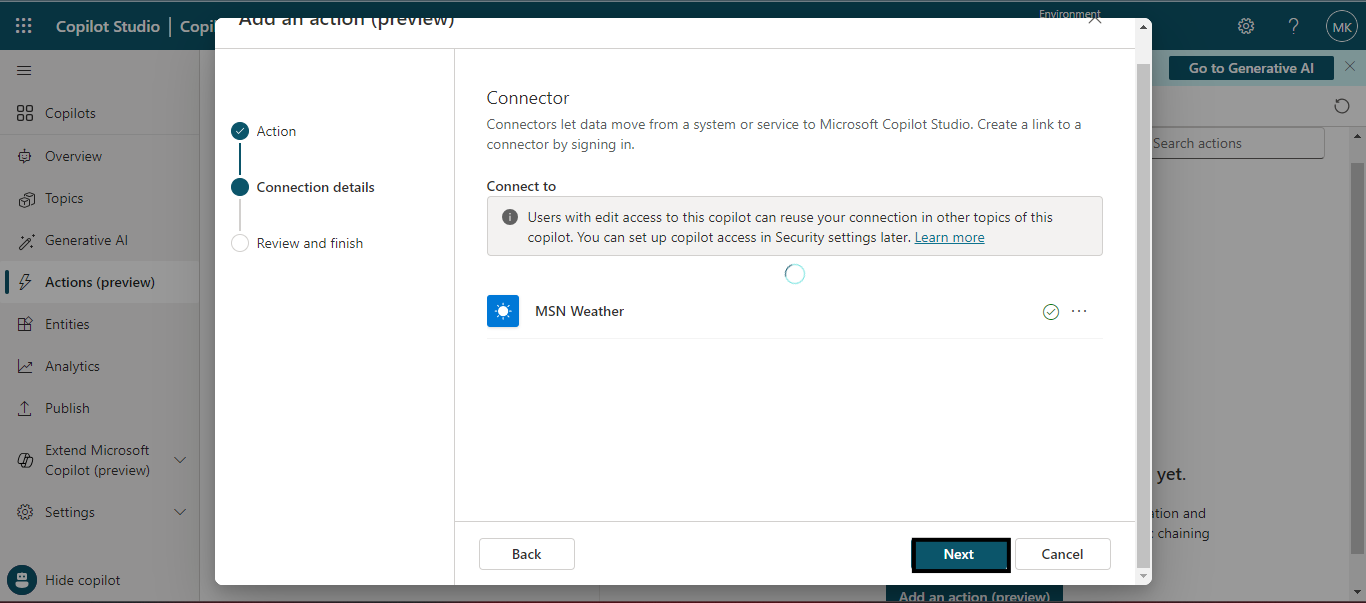
Check the connection details and click Next.
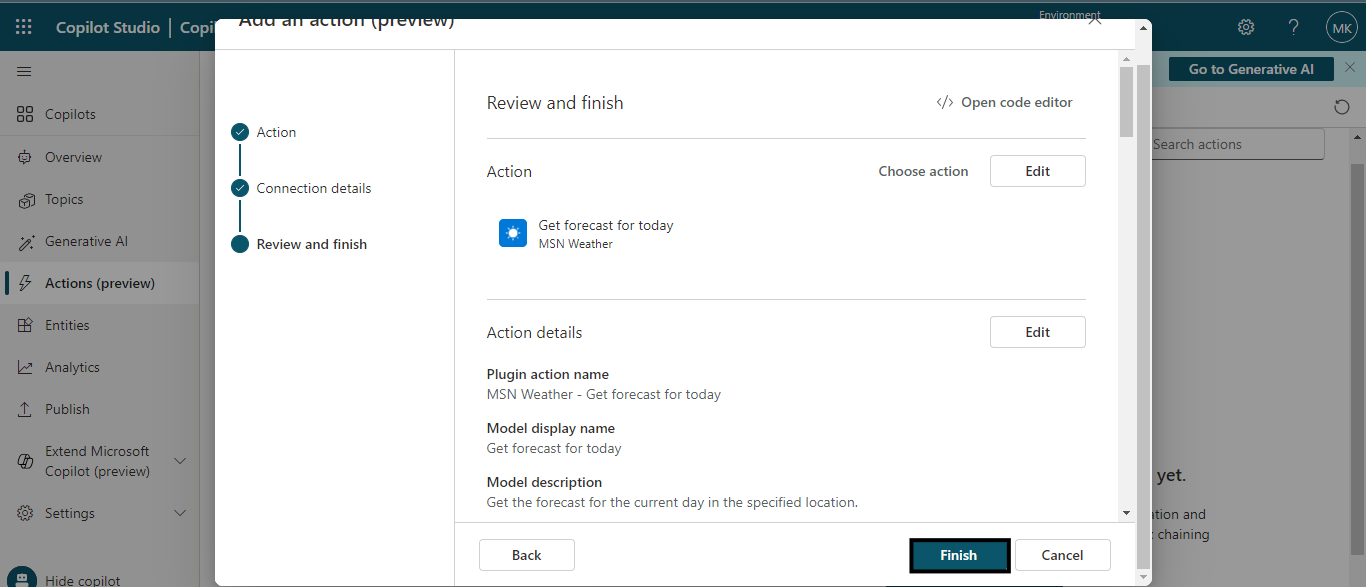
Configure your action if needed and click on Finish after reviewing.
Test the copilot to check if the action is working properly or not.
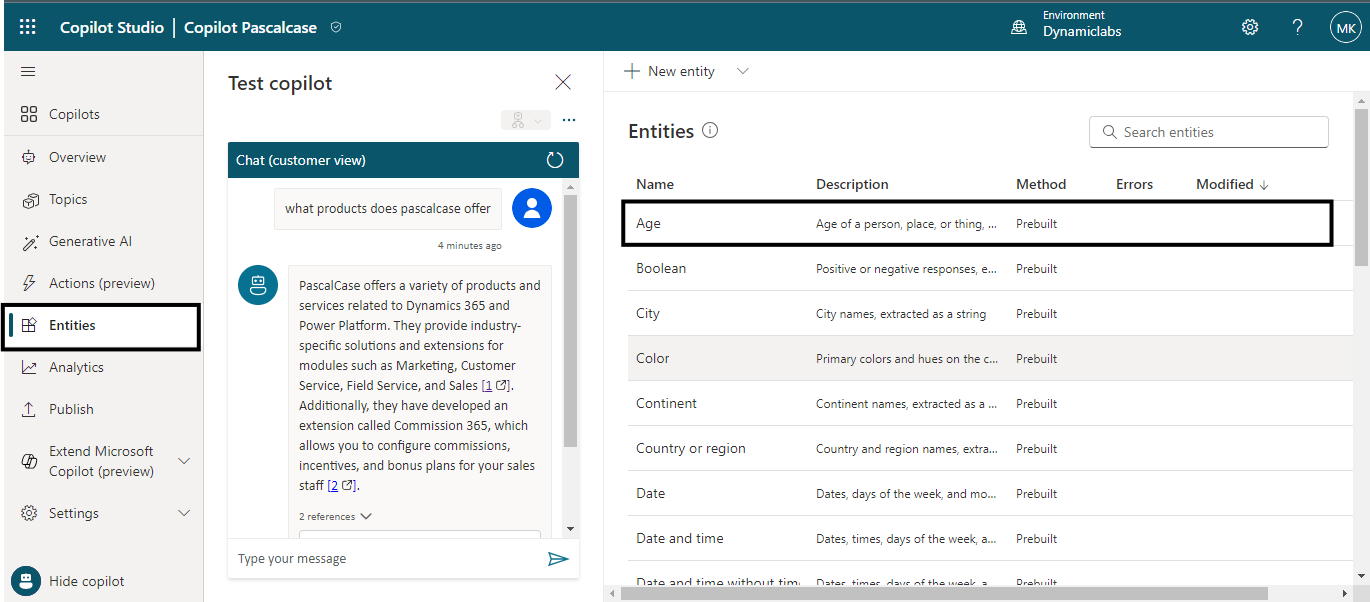
Now, in the navigation pane, select Entities. You will see a lot of pre-built entities.
An entity is like a piece of information that represents a real-world subject, like a phone number, city, or person's name. With entities, Copilot can understand important details from what a user says and remember them for later.
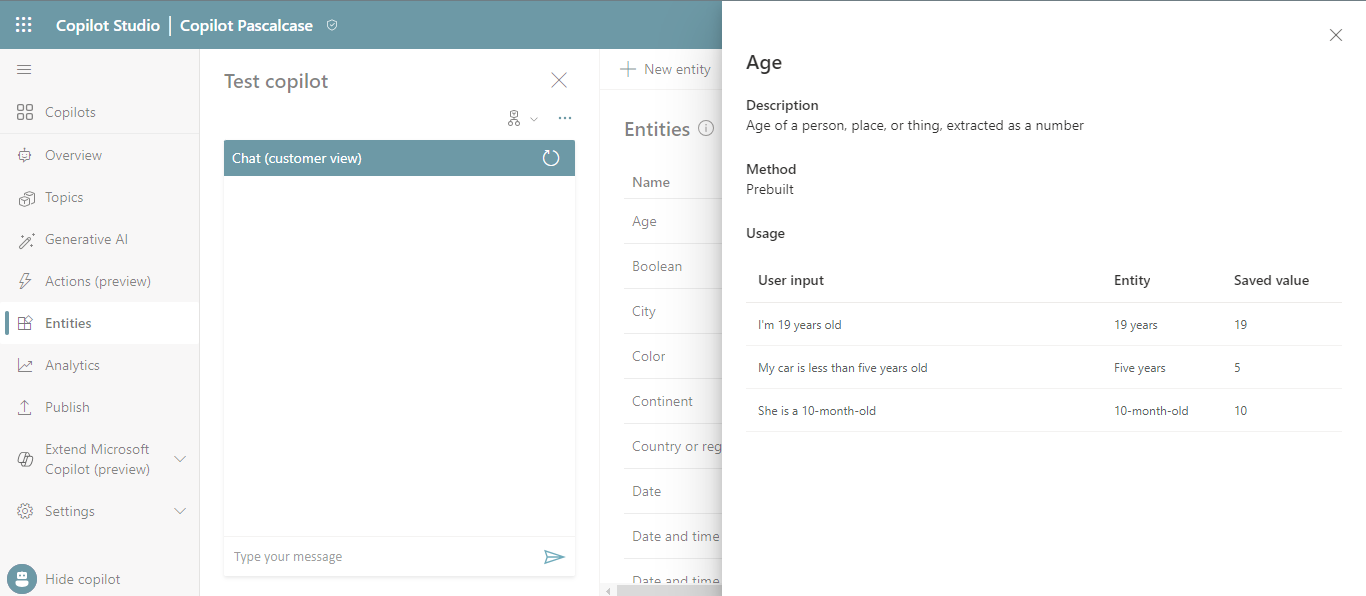
Select the Age entity, which will open the details pane for the entity.
For example, when a user inputs " I'm 19 years old", using this age entity the copilot knows the "19 years" represents the age type of information. When the copilot extracts this entity and saves it to a variable, it will save "19" as a number even though the surrounding information was text.
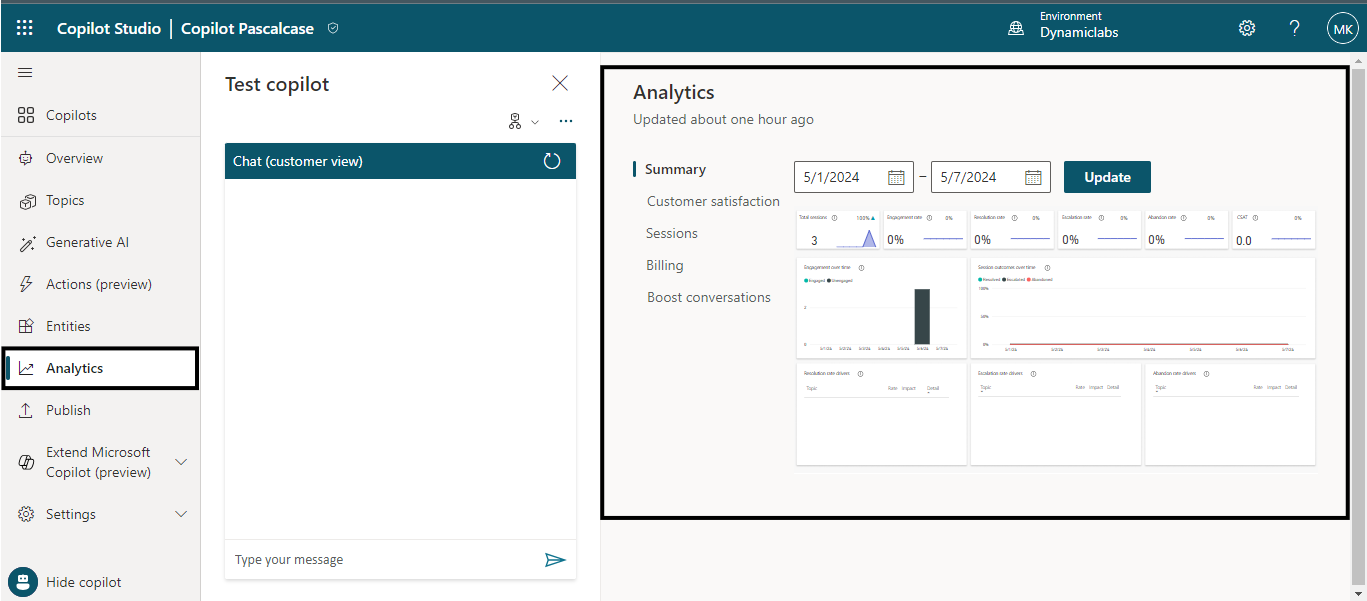
Now, let’s select the Analytics section. This section provides a data analysis report based on user interactions with copilot. It provides details about customer satisfaction, sessions, engagement rate, and many more.
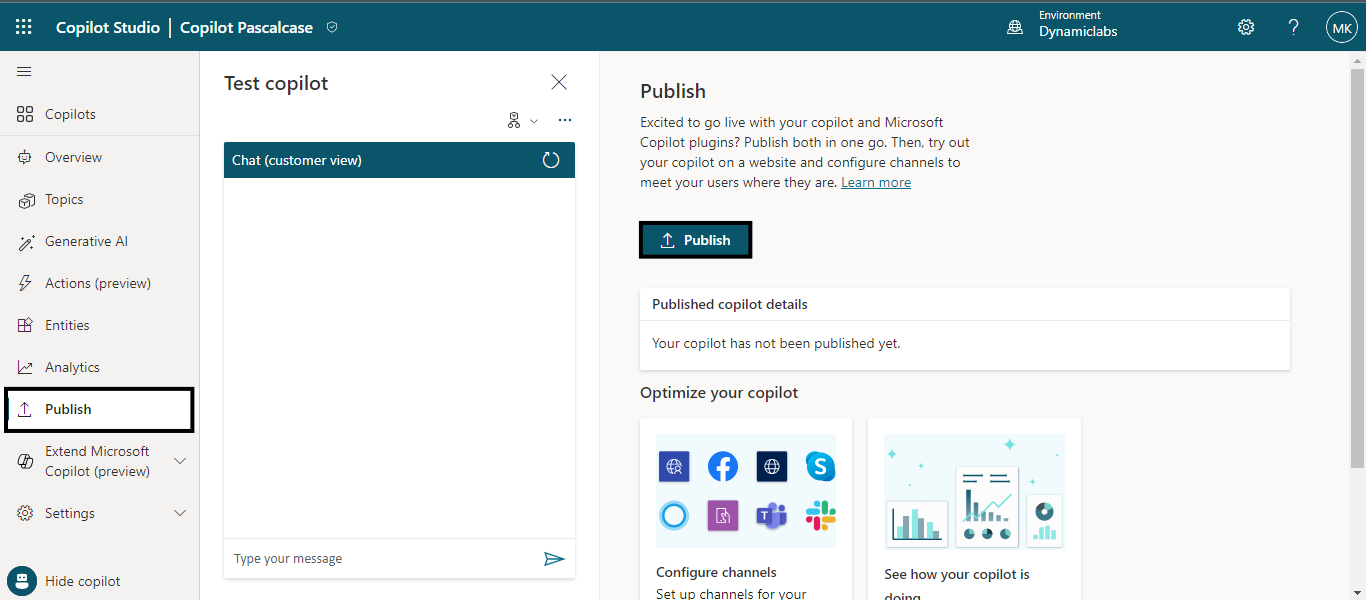
Lastly, after all your configurations go to the Publish section for publishing the copilot. You can integrate the copilot you made on different channels like Microsoft Teams, Websites, Mobile App, Facebook, and Azure Bot Service channels including Skype, Cortana, Slack, Telegram, etc.
In a nutshell, Microsoft Copilot Studio is like a friendly helper for businesses to chat with customers. It uses clever AI to understand what customers say and respond nicely. With features like learning from websites and connecting to other tools, it helps businesses make customers happy and stay connected with them easily.