Visualising Data Models in Power Apps with Copilot in an ERD View
September 25, 2024
#Copilot
Saketh Reddy
When creating business applications with power apps, a platform that day by day is enhanced with more features and tools that help to generate more powerful applications, bringing us to create complex data models that contain several related tables. In this blog, I will tell you about the functionality of working with complex data models in a related entity view with the help of Copilot.
Copilot—an AI-driven tool in the Power Platform ecosystem designed to assist with everything from writing code to developing applications, and yes, even creating complex data models. Copilot not only simplifies the process but also empowers users with intelligent suggestions, allowing for faster, more accurate modelling. One of the most significant advantages of Copilot is its ability to help generate and refine data models using Entity Relationship Diagrams (ERDs).
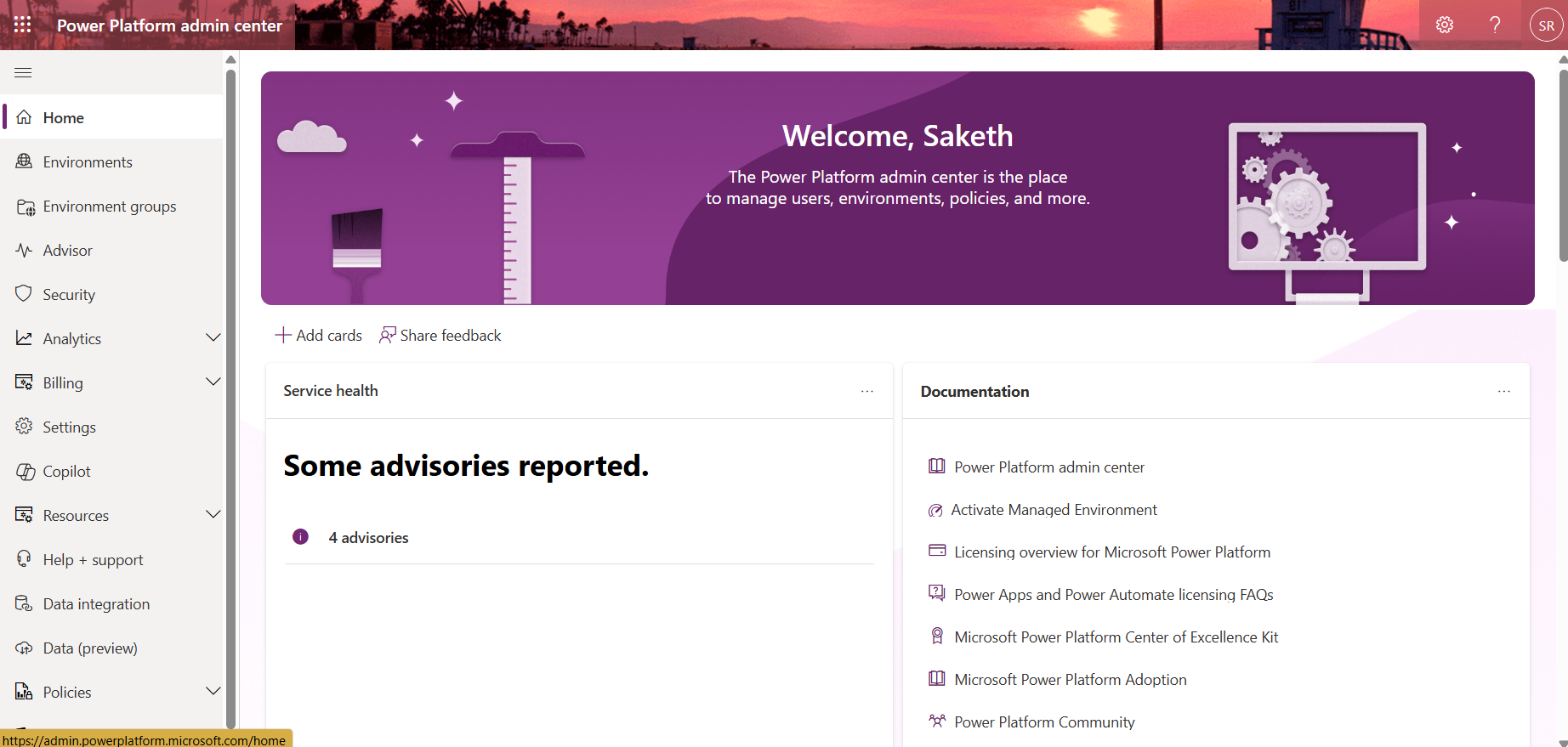
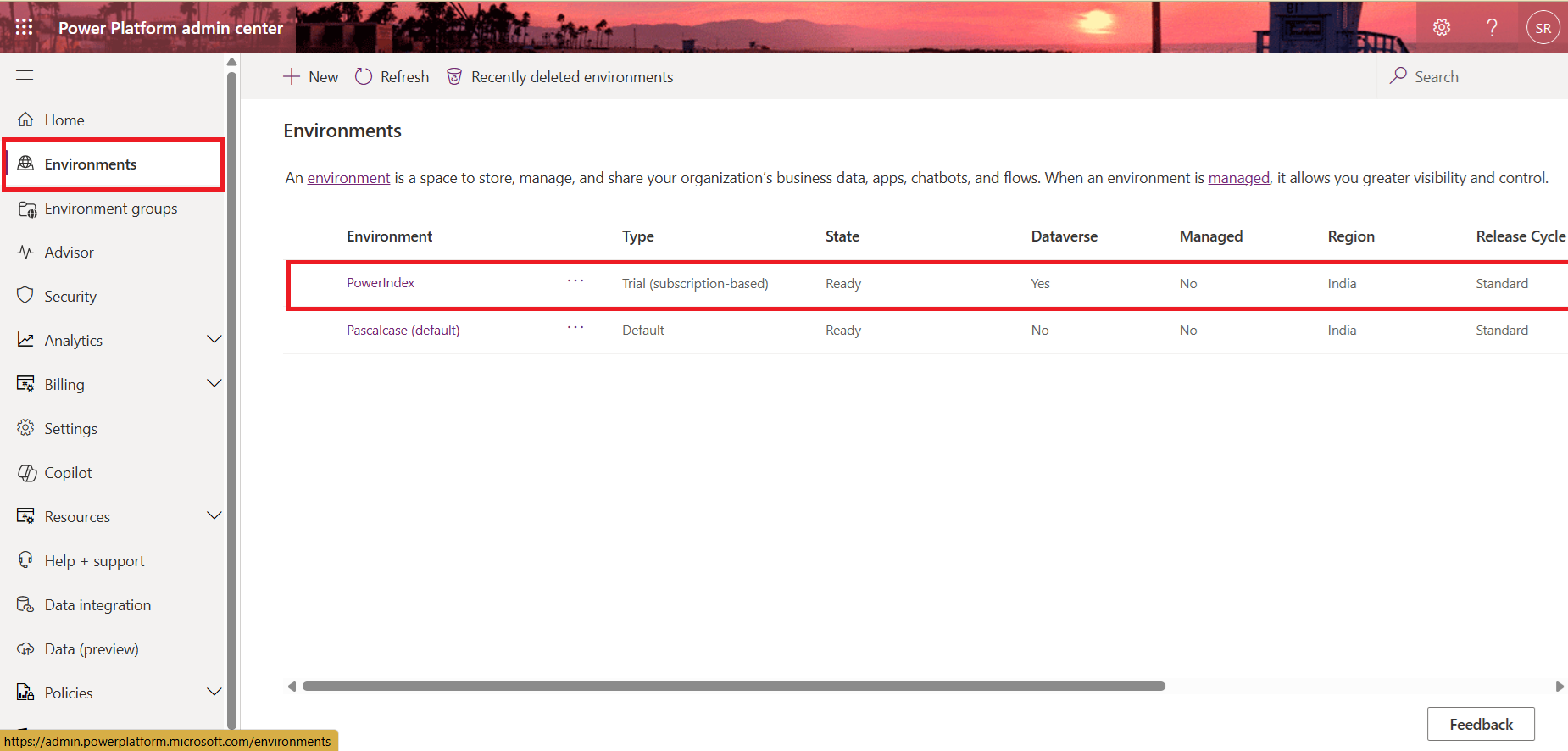
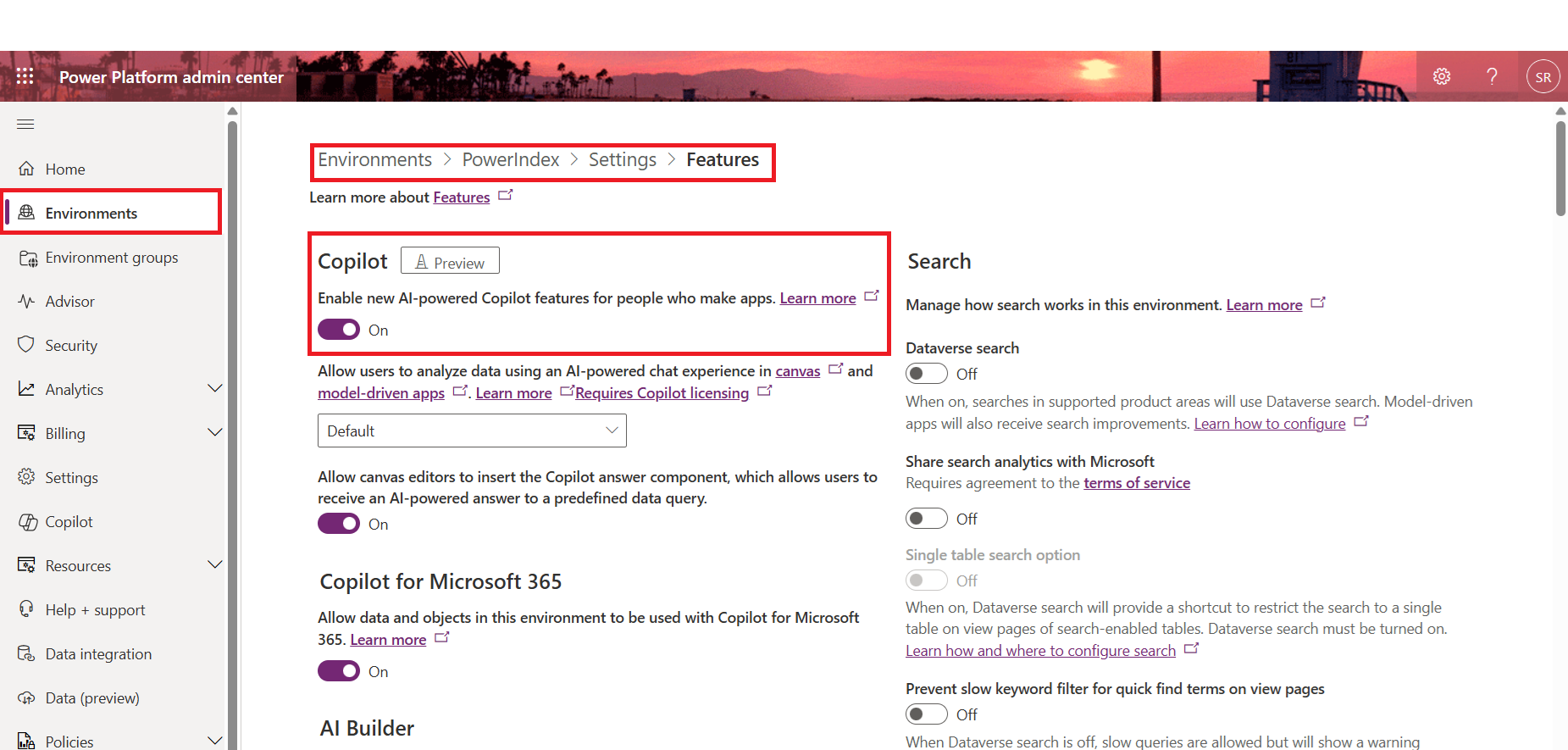
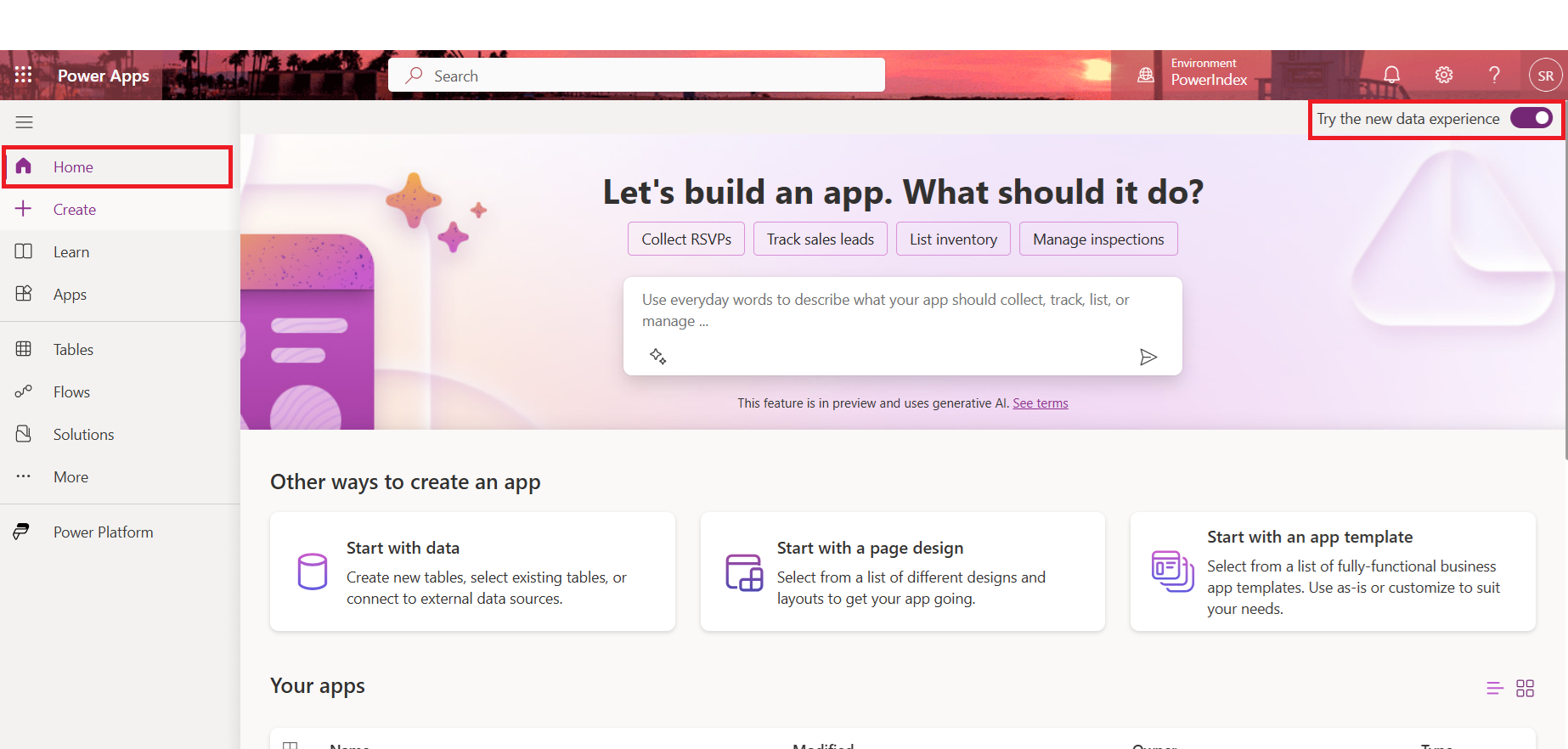
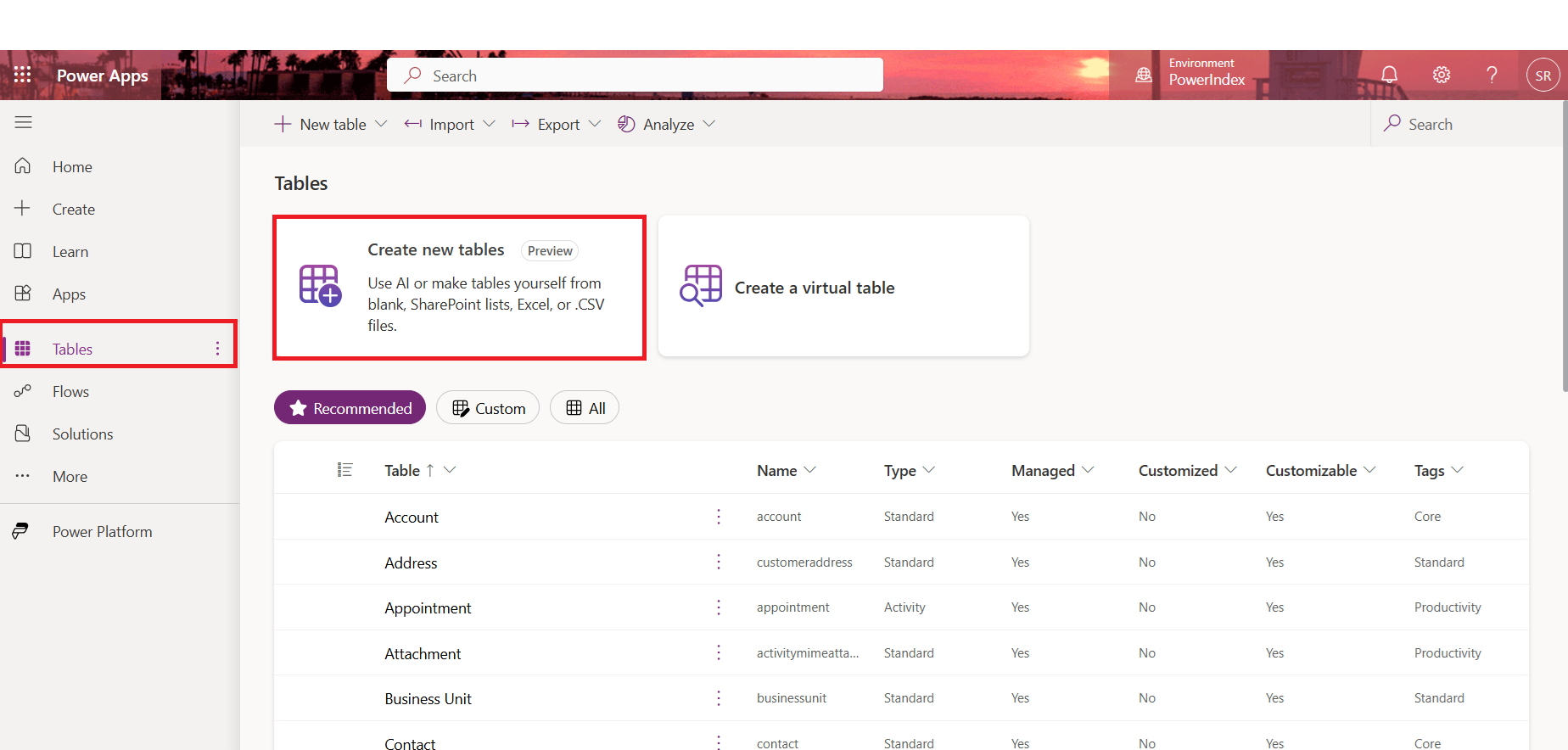
Steps to Create and set up the new tables in ERD view:
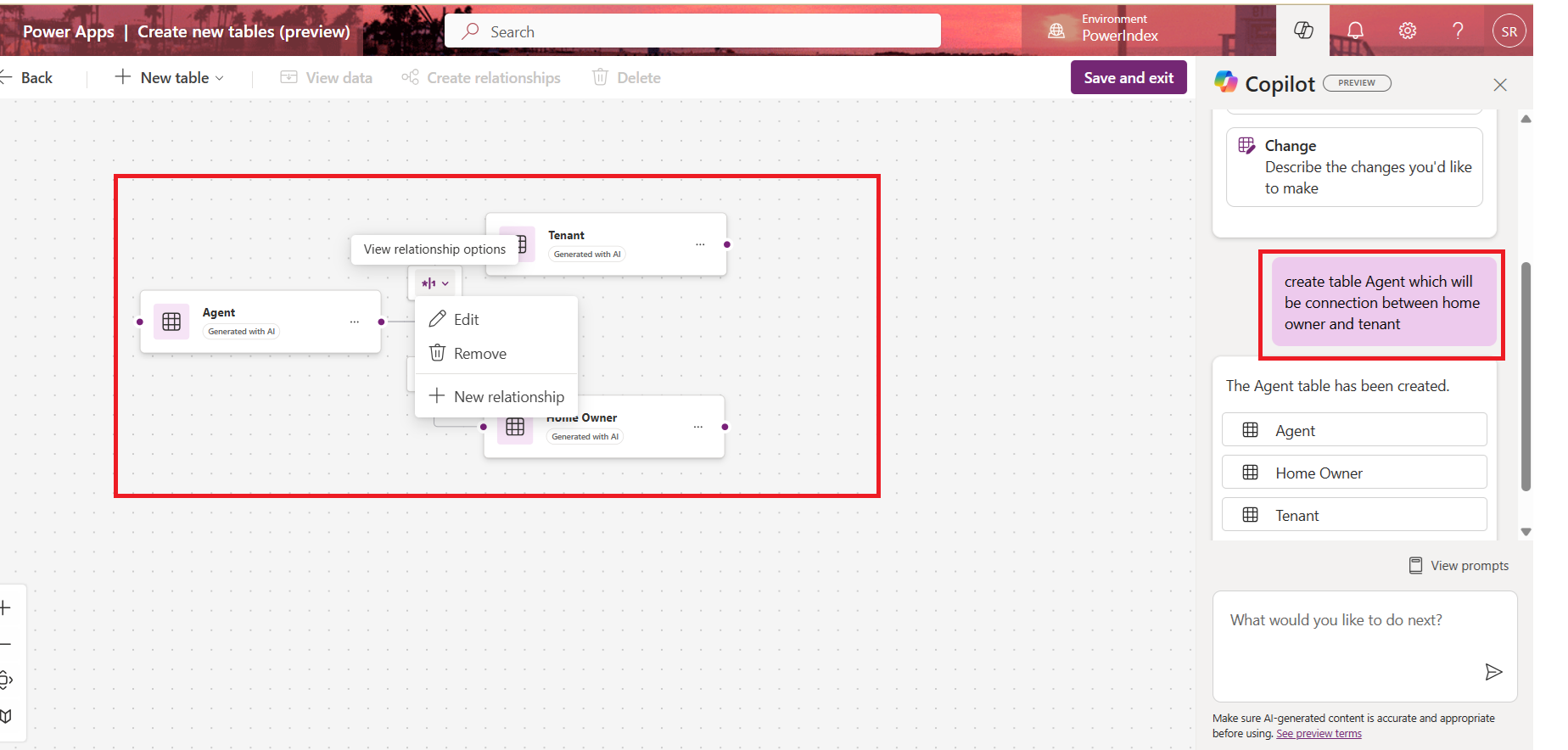
You can create tables by describing them to Copilot. Copilot will generate one or multiple tables with relationships based on your instructions.
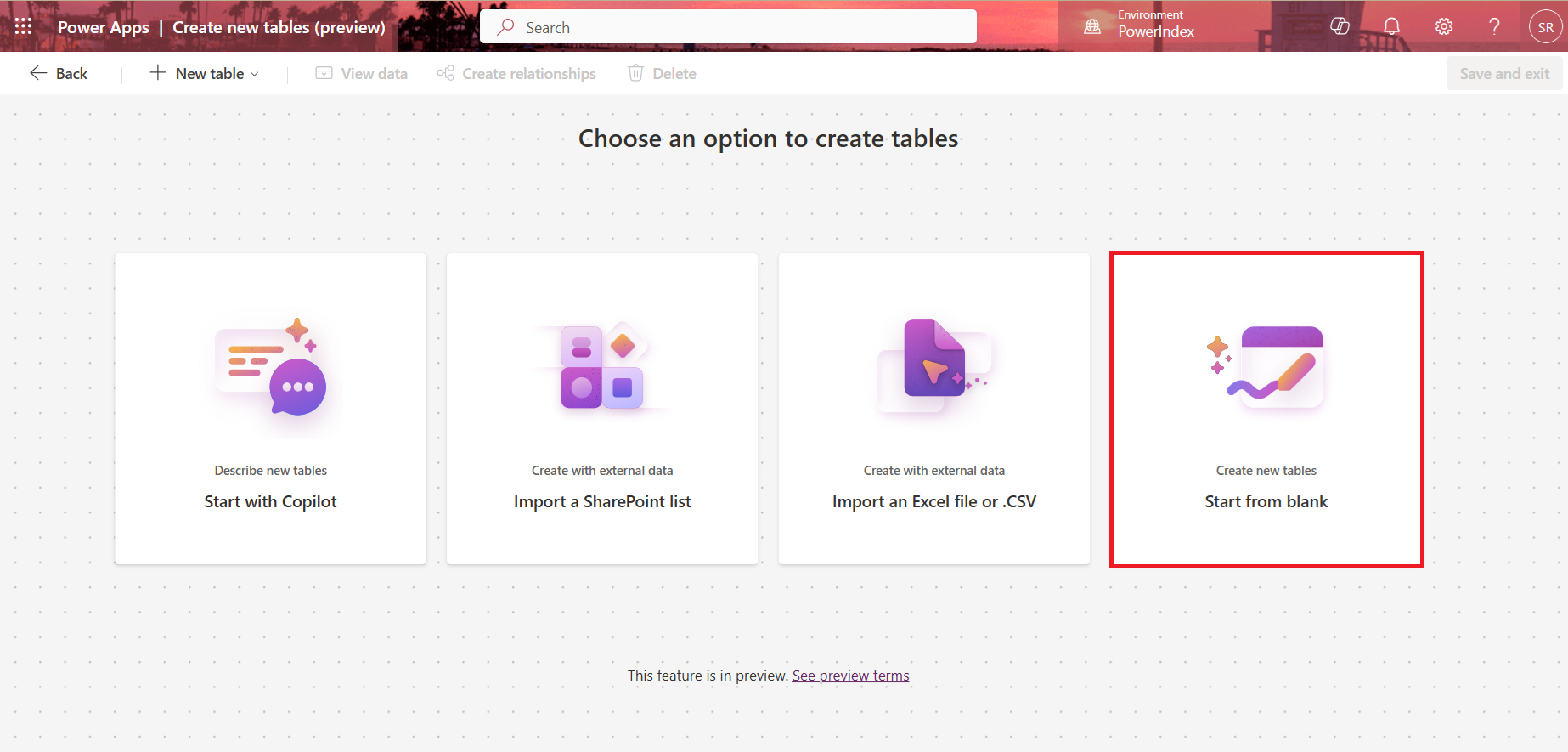
Select from blank.
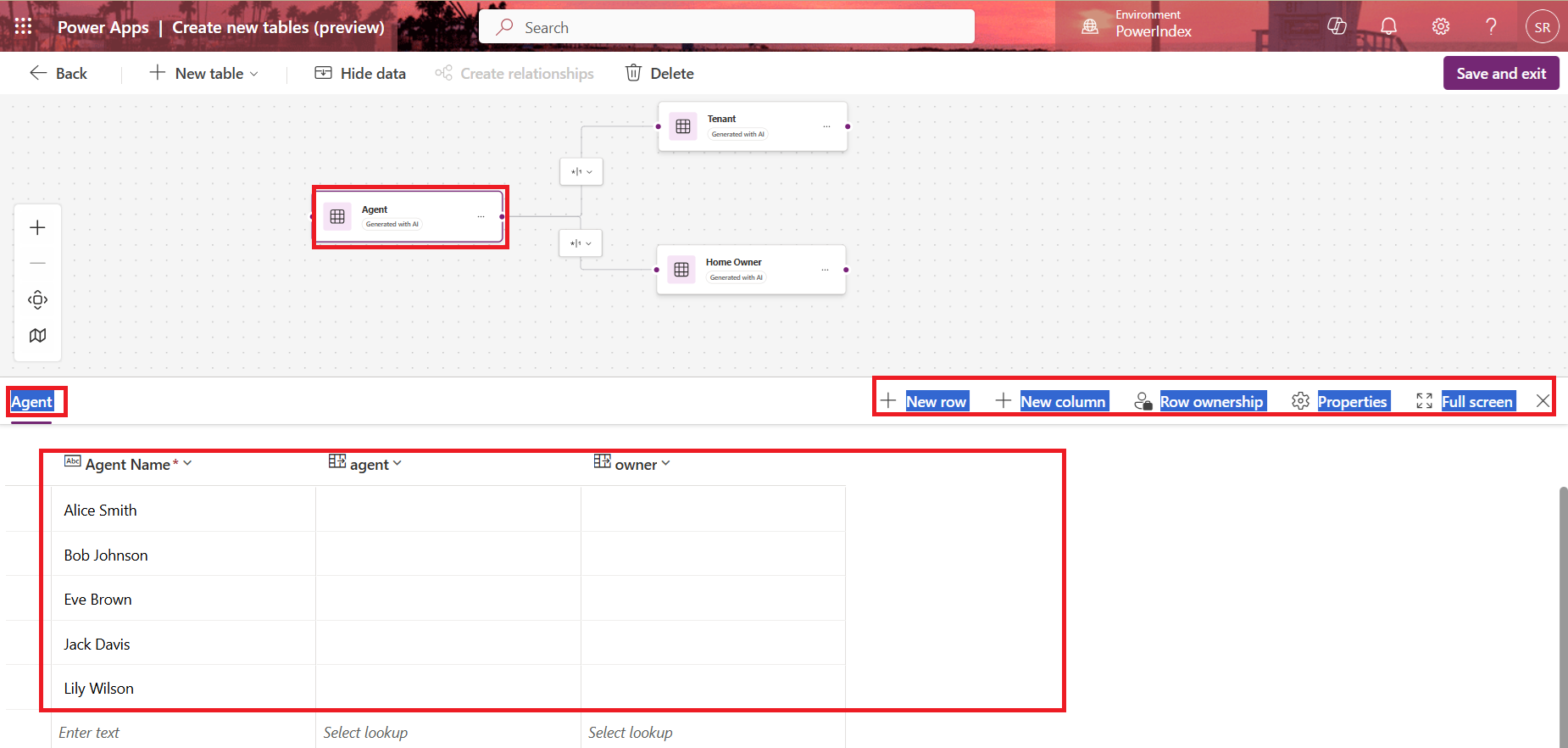
Use copilot assistance to create the tables. Here creating the Agent, Tenant and House Owner tables using Copilot.
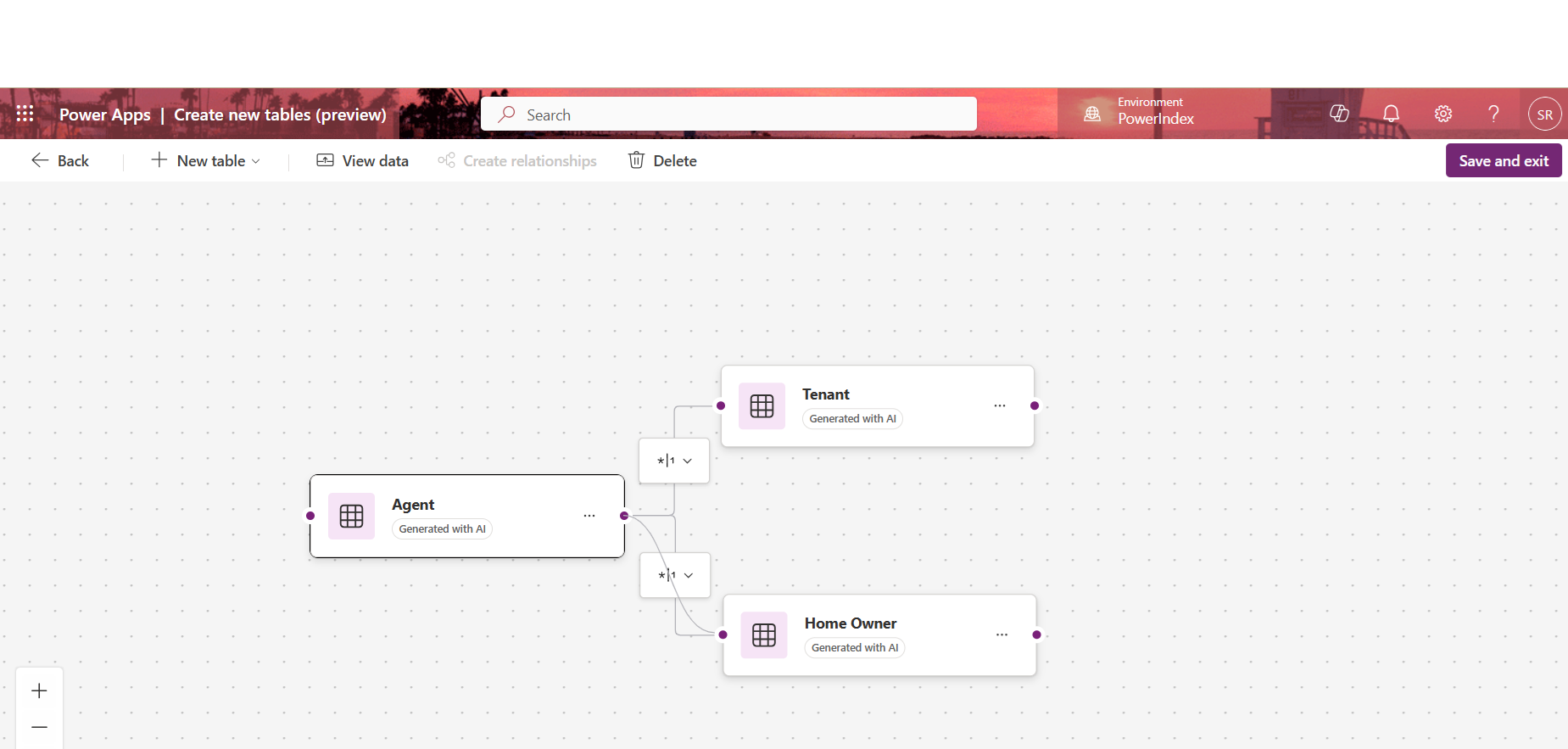
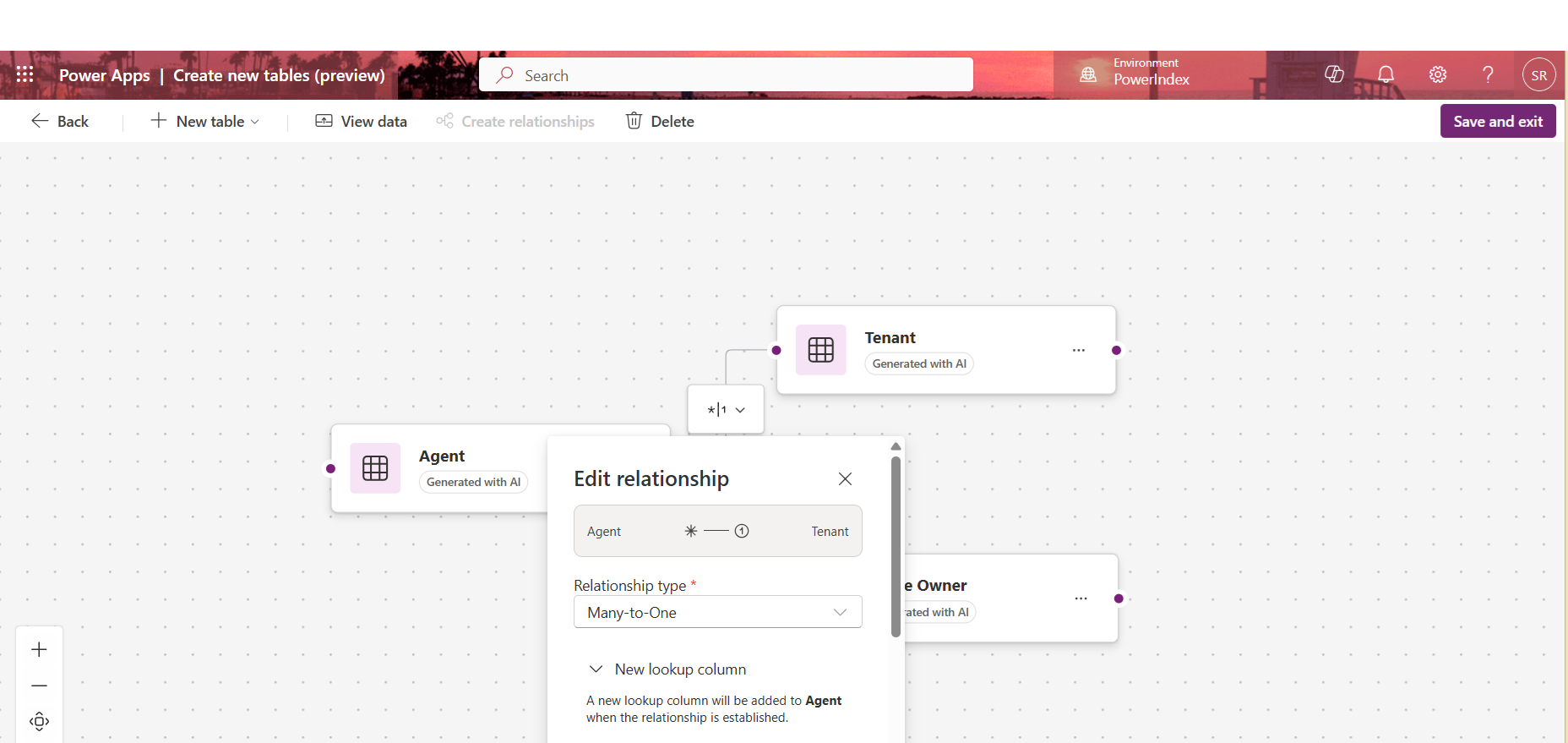
You can create relationships between tables in ERD by drag and drop.
Select the Relationship type and set the display name.
Edit table properties with the Data drawer.
Integrating Copilot with the ERD view for data models revolutionizes database design and management for developers and data professionals alike. This integration automates table creation and manipulation, offers contextual assistance, and provides a seamless drag-and-drop interface, significantly boosting productivity and ensuring precision in data handling.
Frequently Asked Questions (FAQs):
1. Can I customize the ERD generated by Copilot?
Yes, the ERD generated by Copilot can be customized. You can adjust entities, relationships, and attributes, and add or remove elements as per your requirements. Copilot provides an interactive way to visualize and modify data models, making the process user-friendly.
2. Does Copilot support all data sources when generating ERDs?
Copilot supports data sources within Power Apps and Dataverse. If your entities are stored in these systems, Copilot can visualize them in an ERD. If you're using external data sources, you'll need to integrate them into Power Apps or Dataverse for Copilot to visualize them.
3. How does Copilot handle complex relationships between entities?
Copilot can help you visualize complex relationships such as one-to-many, many-to-one, and many-to-many. It uses AI to map out these relationships clearly in the ERD and offers suggestions to optimize the data model structure.
4. Can I export the ERD generated by Copilot?
Currently, Power Apps does not natively support exporting ERDs as files. However, you can take screenshots or use external tools to document the visual ERD. Power Apps regularly updates its features, so this capability might be added in the future.