Connecting to Azure OpenAI Whisper Service in Power Automate
October 14, 2024
# Power Automate
Charvi Chitturi
What is Azure OpenAI Whisper Service?
The Azure OpenAI Whisper Service is a speech recognition model designed to transcribe and translate audio. It's part of the Azure OpenAI suite and can be integrated with automation tools like Power Automate. This service helps automate tasks such as converting spoken language into text, which can then be used for documentation, analytics, or translation purposes. To use it, you typically set up the Whisper deployment in Azure and configure automation workflows to handle the transcription process efficiently.
The blog post explains how to integrate Azure OpenAI Whisper Service with Power Automate for audio transcription and translation. It provides step-by-step instructions for setting up an Azure OpenAI Service, creating a Whisper deployment, and configuring an HTTP flow in Power Automate to send audio files for transcription.
Create Azure OpenAI Service:
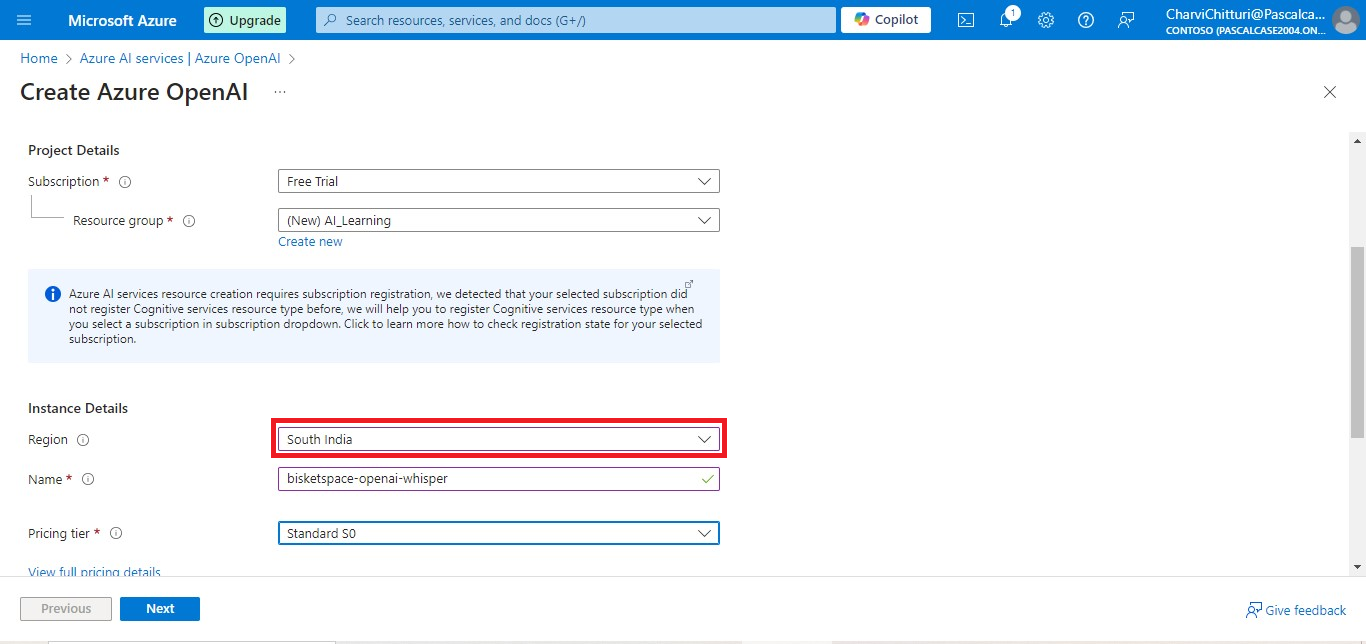
Select your subscription and resource group, and make sure to pick a region that supports the service.
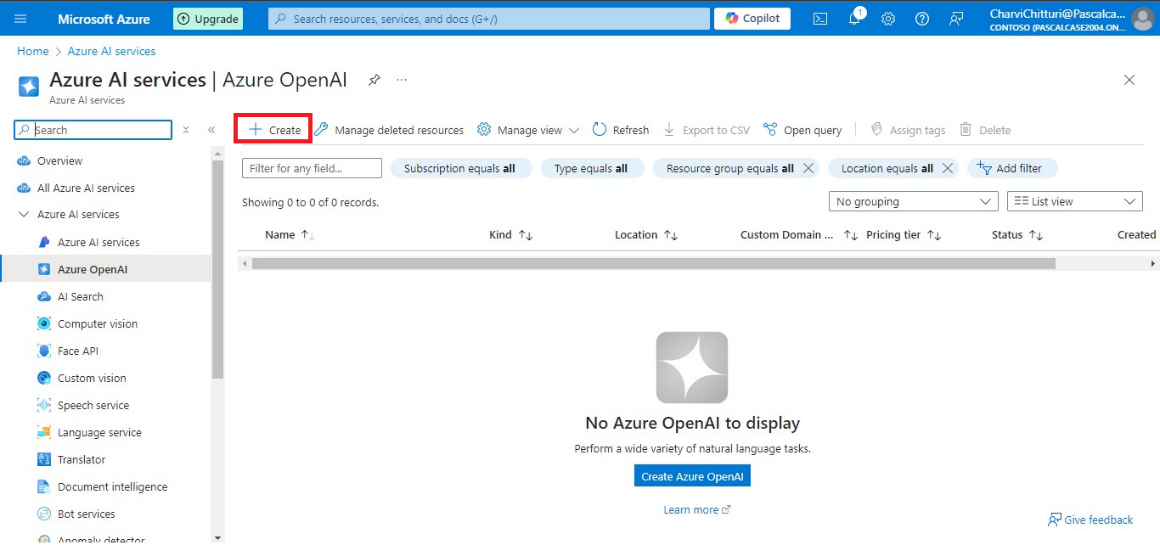
Open the Azure portal, then create a new OpenAI service and click on "Create”.
Use the following settings, choosing South India as it is the nearest regional location for my needs. Once you've configured everything, click "Review + Create" and wait for the deployment to finish.
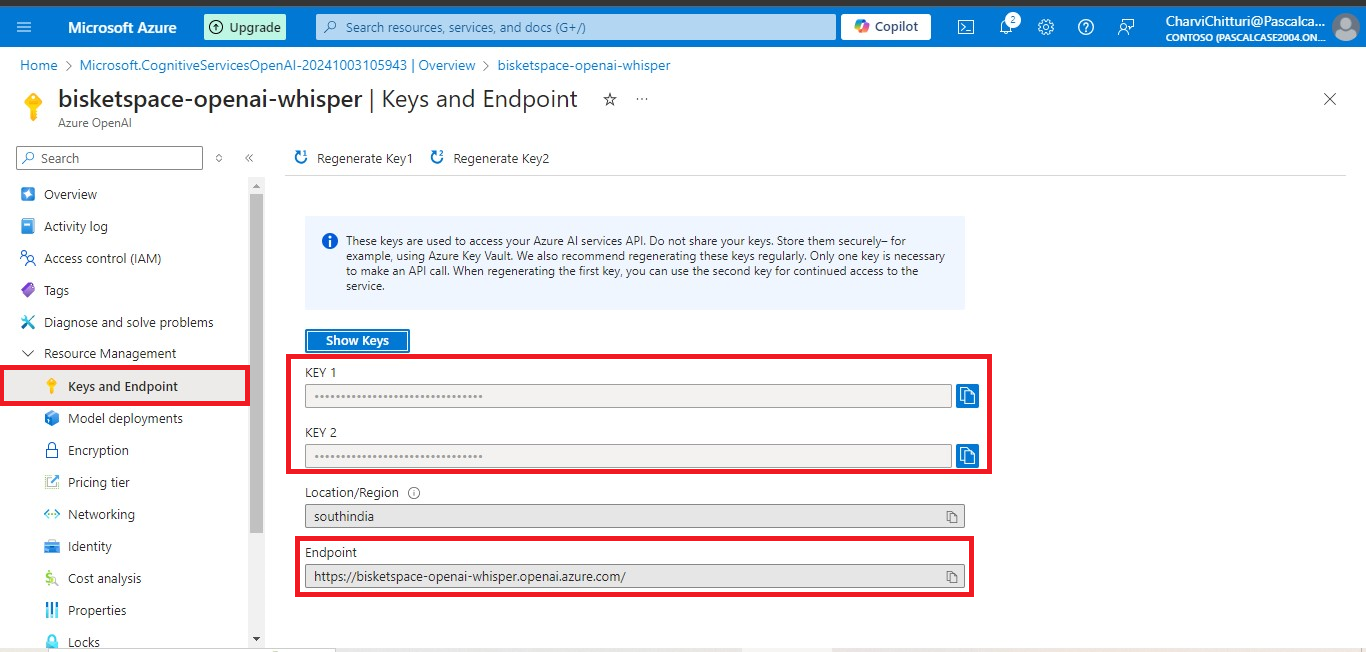
Copy a Key and the Endpoint URL
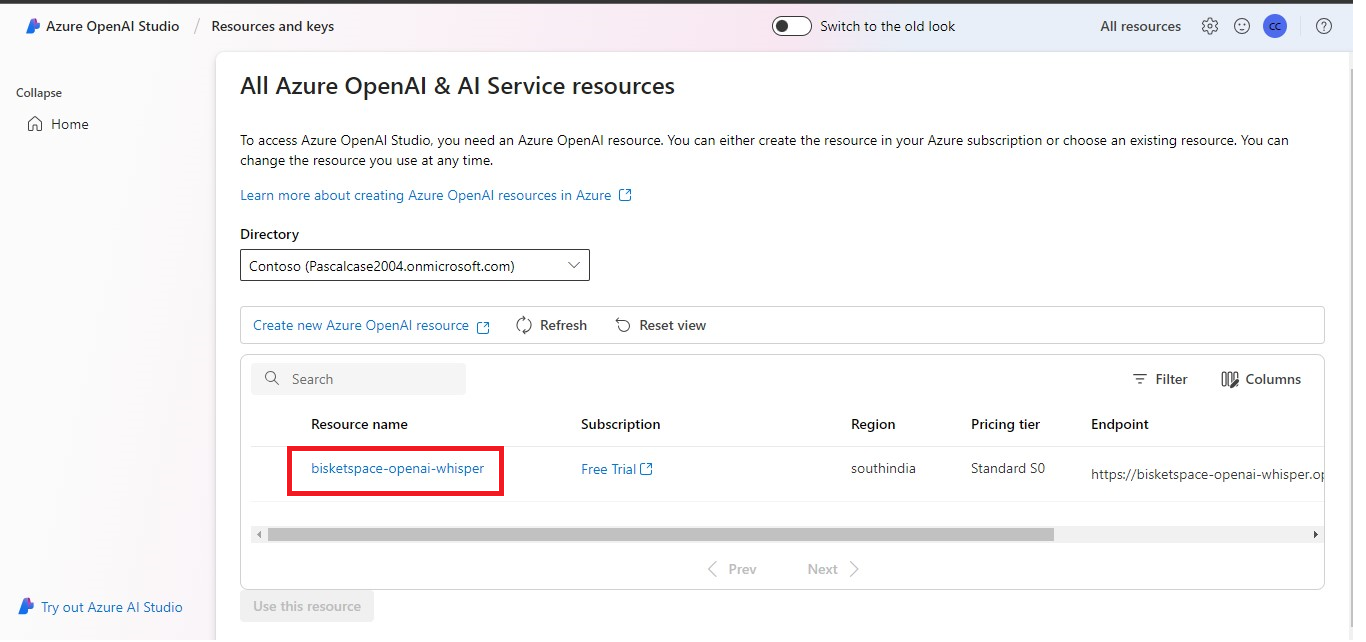
After the resource is created, navigate to the resource section, select the specific resource you just created, and then go to the "Keys and Endpoint" section.
Create a Whisper Deployment
Need help with your business solution?
Our team can help you implement the right solution for your organization.
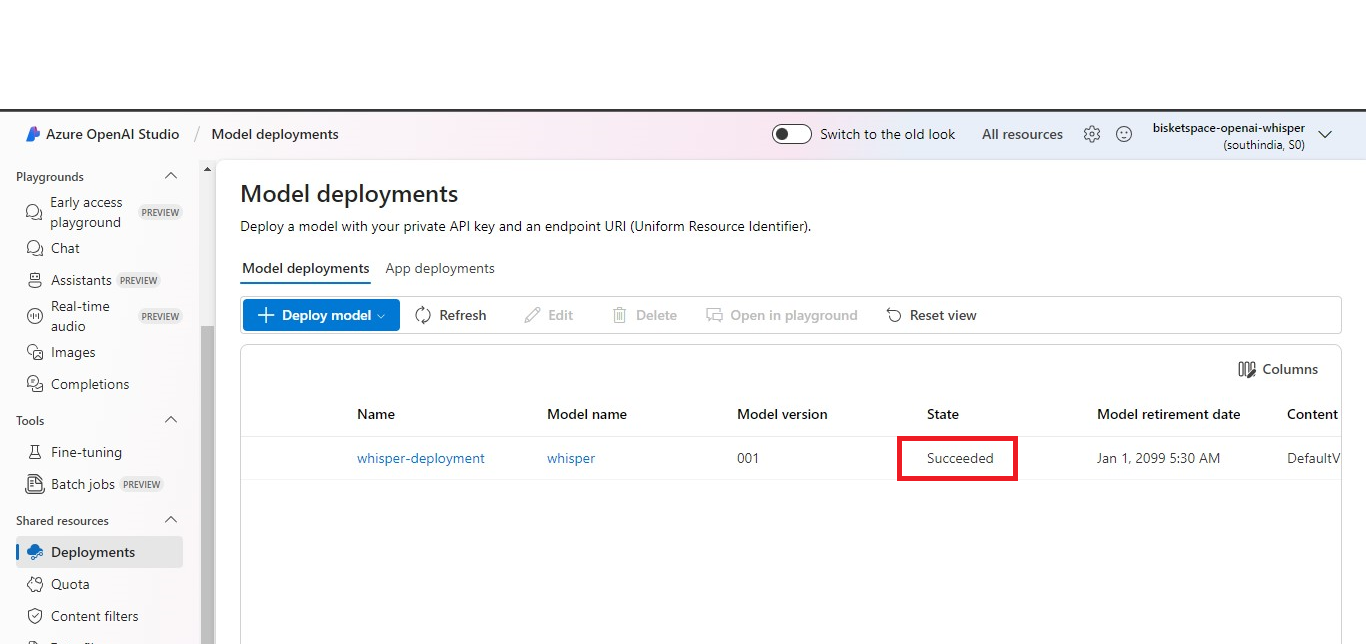
After setting up your Azure OpenAI service, the next step is to create a Whisper deployment. This deployment serves as your dedicated instance for managing audio transcriptions and translations.
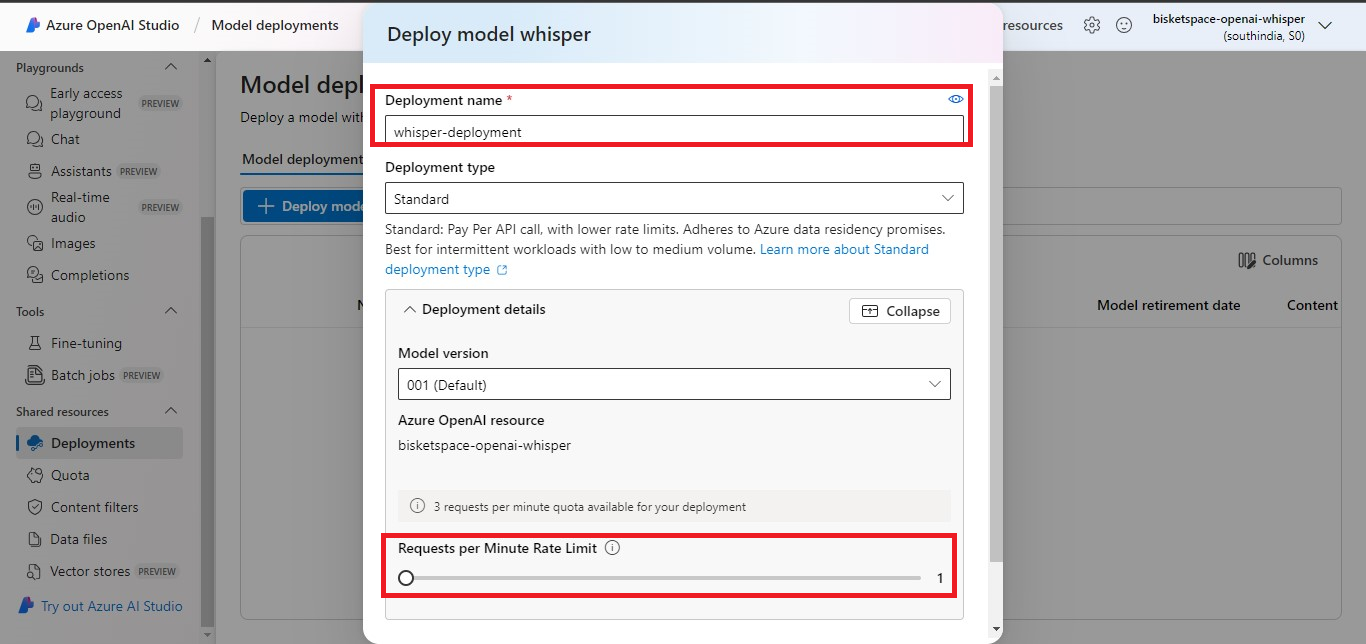
Click on "Deployments," then choose "Create a new deployment."
Put the following settings for the deployment then click Create.
Create an HTTP Flow in Power Automate
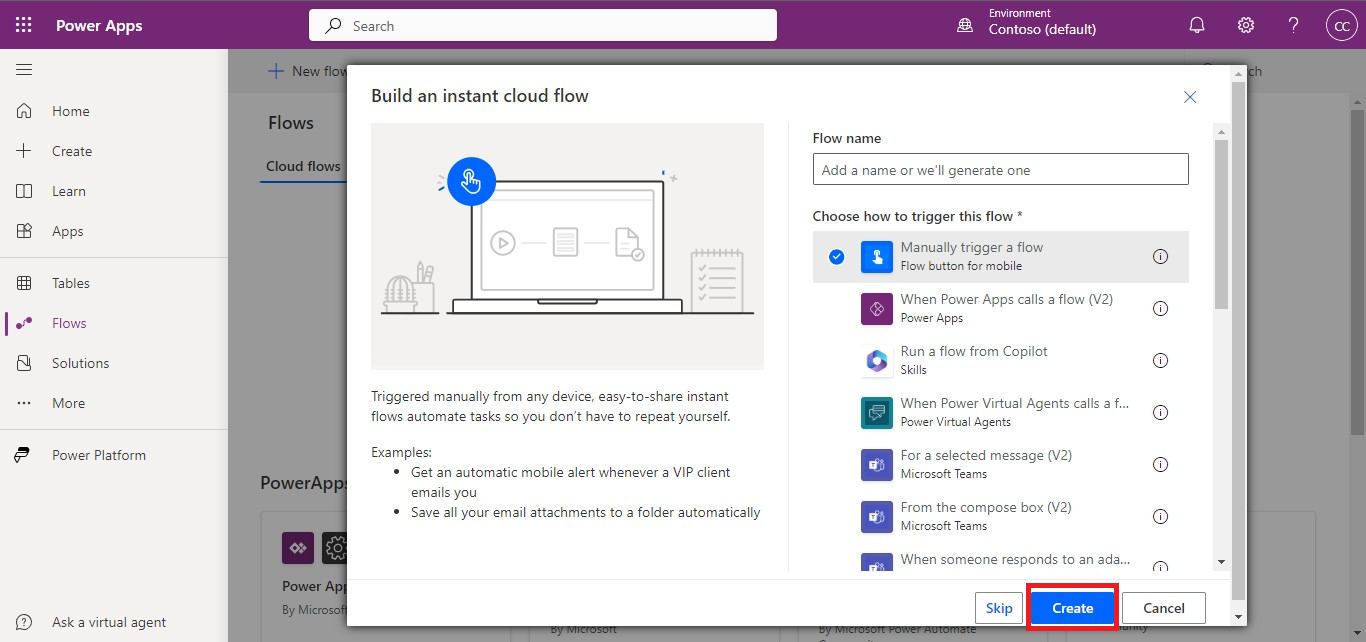
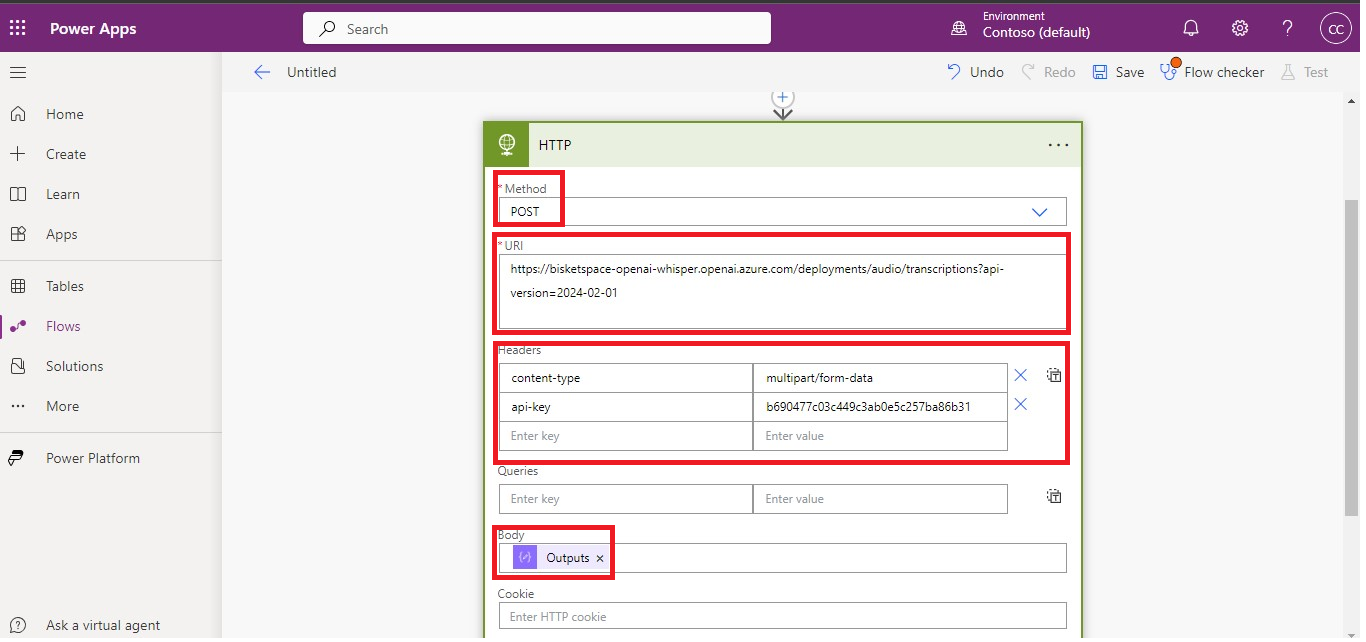
Open Power Automate and create a new flow that uses the HTTP request trigger. Set it up to connect to your Whisper deployment, which will handle sending audio files to the Whisper service and retrieving the transcriptions.
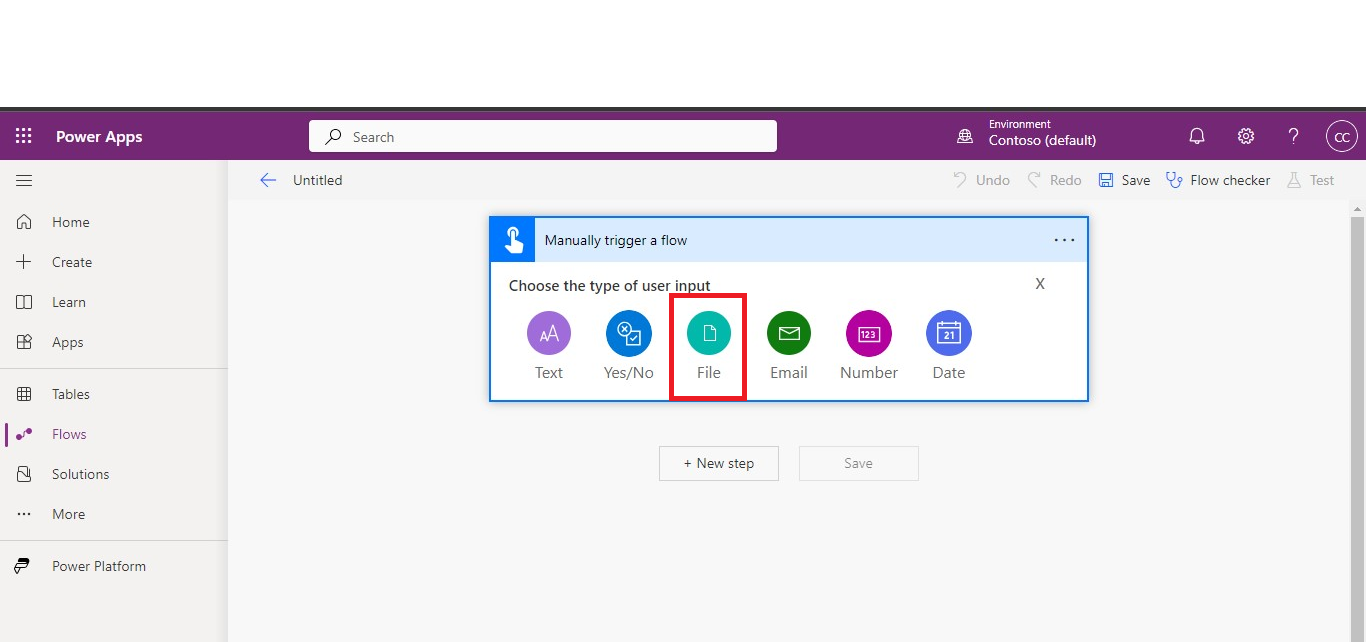
Create a manually triggered flow.
Add File input to the trigger.
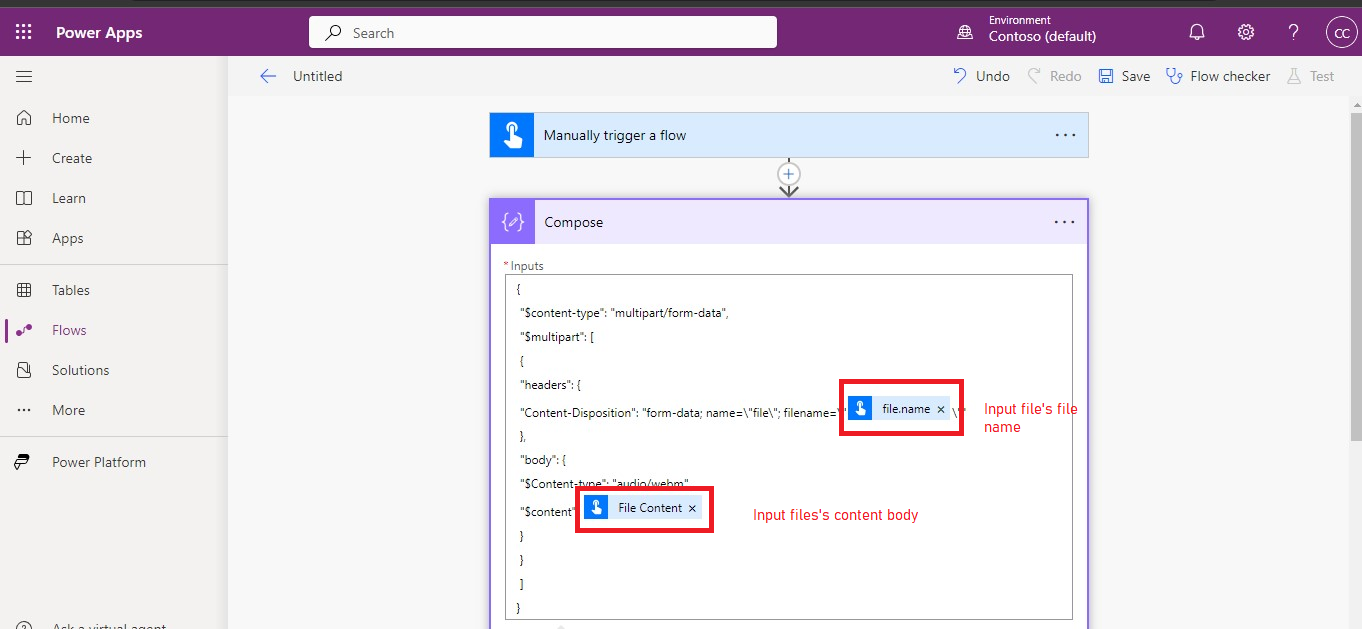
Add a Compose action and replace the following placeholder with the input file's filename and content bytes.
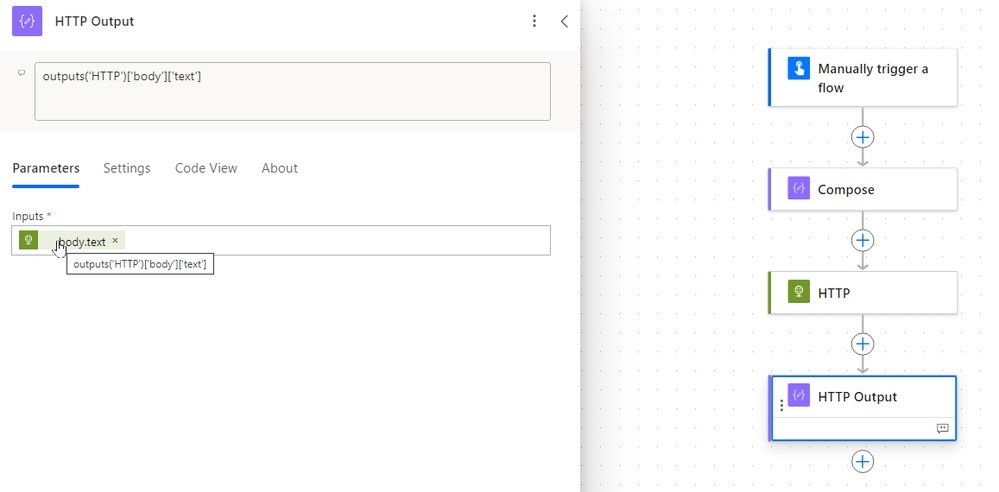
Optional: Add another Compose action to display the result.
outputs('HTTP')['body']['text']
To sum up, integrating Azure OpenAI Whisper Service with Power Automate streamlines the transcription and translation of audio files. By creating a Whisper deployment and setting up Power Automate flows using HTTP triggers, you can automate the management and transcription of audio data efficiently. This solution is highly adaptable, making it suitable for tasks like speech-to-text, document creation, and translation.
Frequently Asked Questions (FAQs):
1.What is Azure OpenAI Whisper Service?
It's a speech recognition model that transcribes and translates audio, integrated with Azure services for automation tasks like transcription.
2.How do I create the Azure OpenAI Service?
Search for "Azure OpenAI Service" in the Azure portal, select your subscription and resource group, and create it in a supported region.
3.What is a Whisper deployment?
It's a dedicated instance in Azure OpenAI for handling audio transcriptions and translations.
4.How do I create a Whisper deployment?
In the OpenAI portal, navigate to "Deployments" and create a new deployment for your transcription needs.
5.How do I connect Power Automate to Whisper?
Create a flow in Power Automate with an HTTP request trigger to connect to the Whisper service for sending and transcribing audio files.
6.What file formats does Whisper support?
Whisper handles audio formats like WebM for transcription.