Debug a model-driven app with Power Apps Monitor
As businesses rely more on Power Apps model-driven applications to boost efficiency, keeping them running smoothly is essential. As these apps become more complex, real-time monitoring of their performance becomes even more important. Power Apps Monitor is a helpful tool that provides insights into app performance, user activity, and key events.
In this blog, we'll explore how Power Apps Monitor helps improve model-driven applications and how it can be used to diagnose and fix problems effectively.
What is Power Apps Monitor?
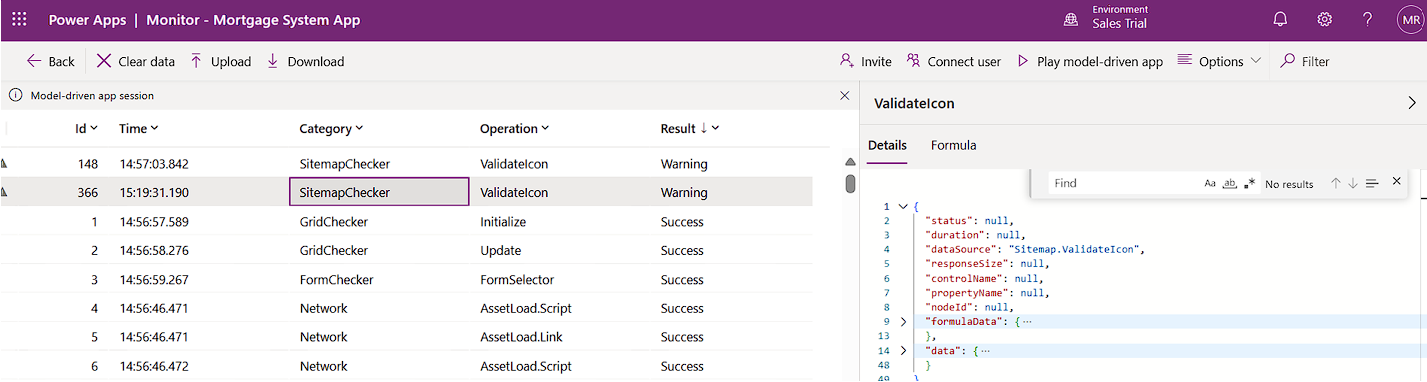
Power Apps Monitor is an inbuilt tool for debugging and analysing app behaviour and performance within model-driven app. It helps app makers, developers, and administrators track key metrics like load times, API requests, and performance bottlenecks in real time. This comprehensive view aids in identifying areas where apps may need optimization, ensuring a seamless user experience.
Key Features of Power Apps Monitor
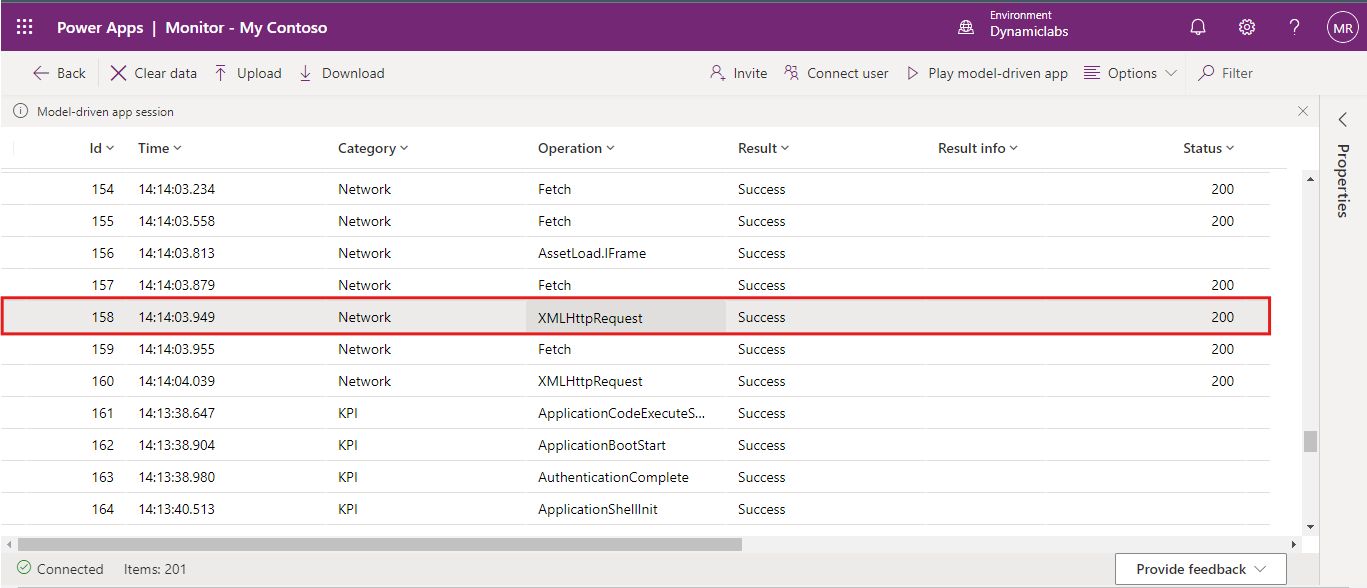
1. Live Tracing: Power Apps Monitor captures user interactions, providing a trace of app events and the flow of actions. For example, if an app is slow to load a page, you can view all actions triggered by the user and identify the cause of the delay.
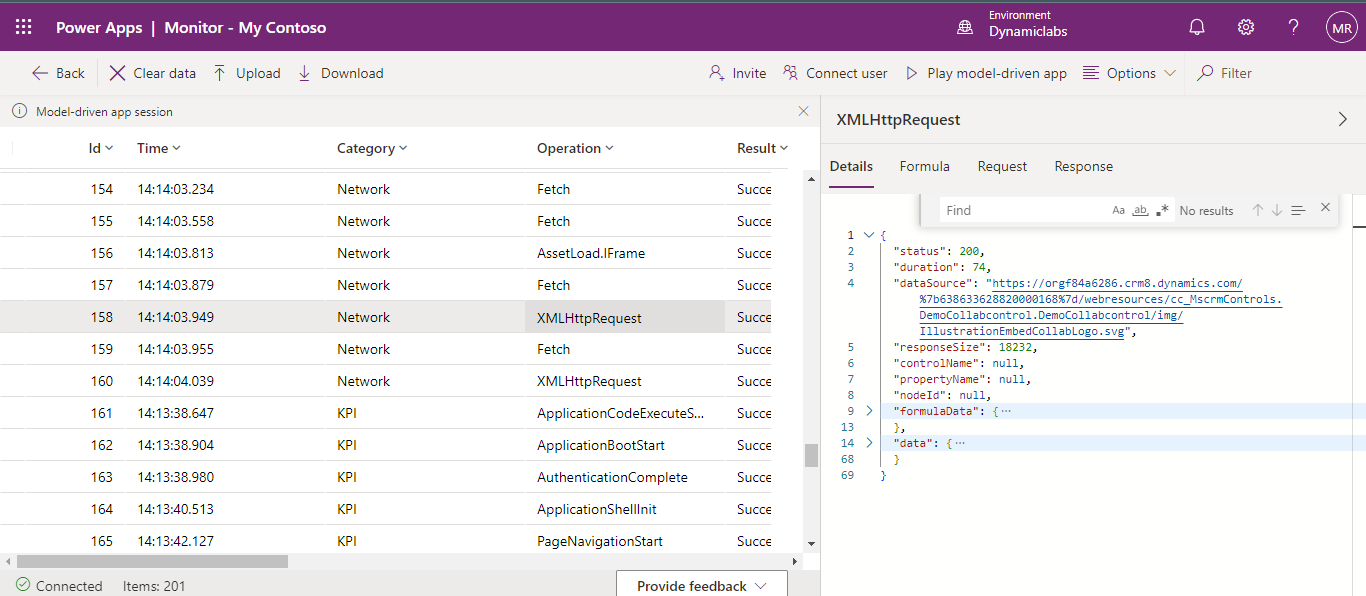
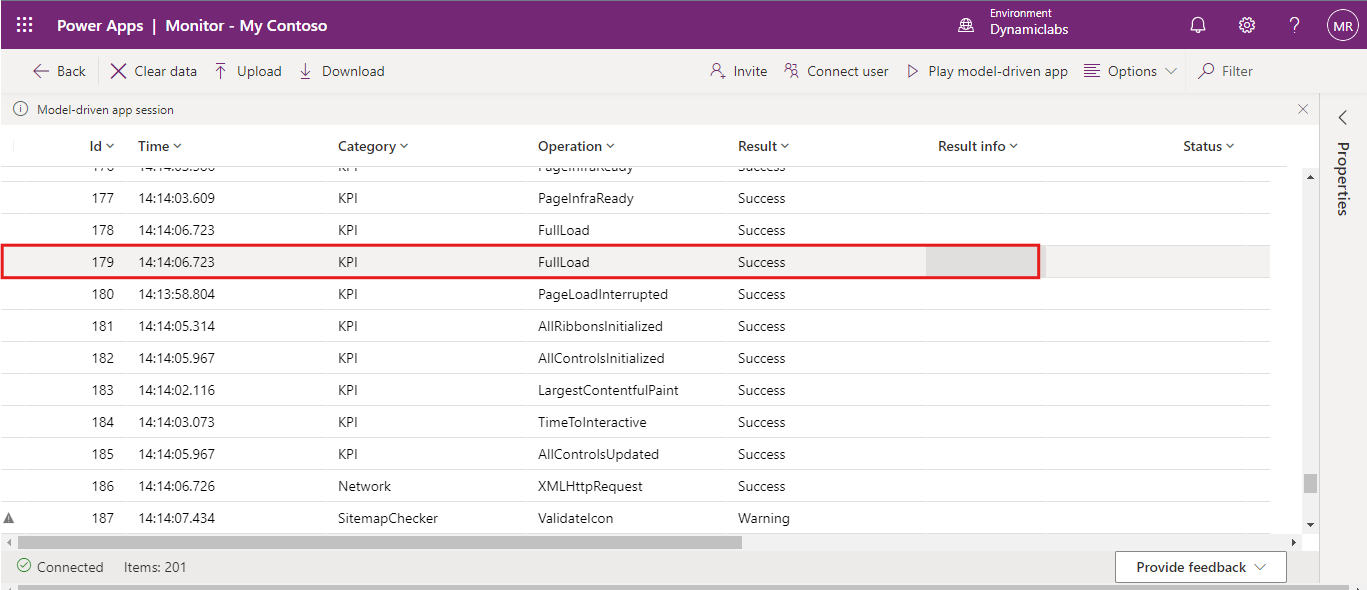
2. Event Logs: With detailed logs of events such as form loads, data fetches, and API calls, Power Apps Monitor helps you track down errors and slow processes, enabling timely fixes.
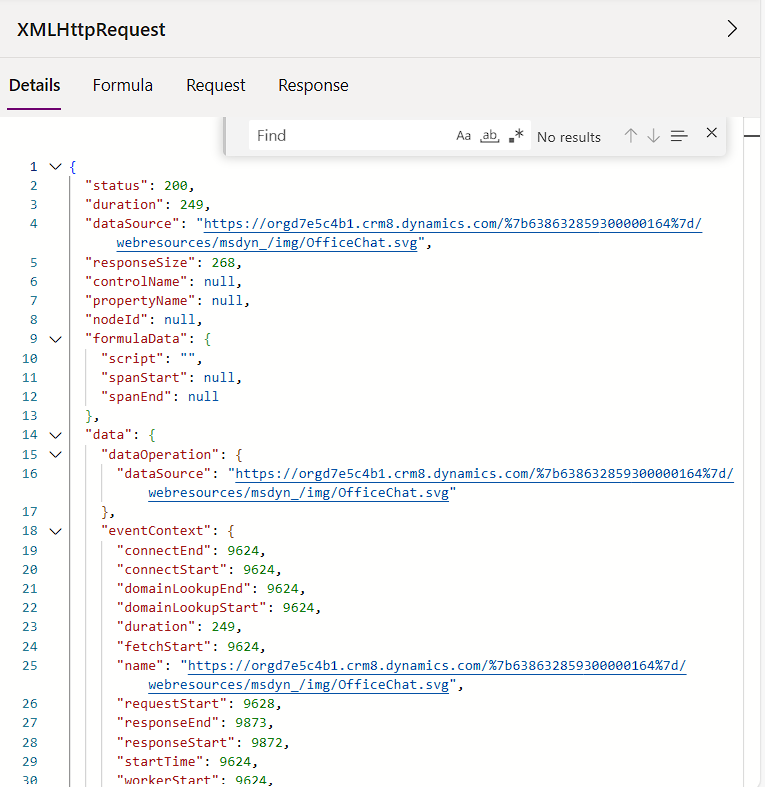
3. API and Network Monitoring: Monitor API calls and network requests within your app. The tool shows request timings, response codes, and payloads, helping diagnose issues with third-party integrations or system backends.
4. App Diagnostics: It offers detailed information on app session details, user behaviour, and system events, helping to maintain app quality and responsiveness.
5. Filtering & Search Capabilities: Power Apps Monitor allows you to filter and search for specific events or errors, making it easier to focus on high-priority issues.
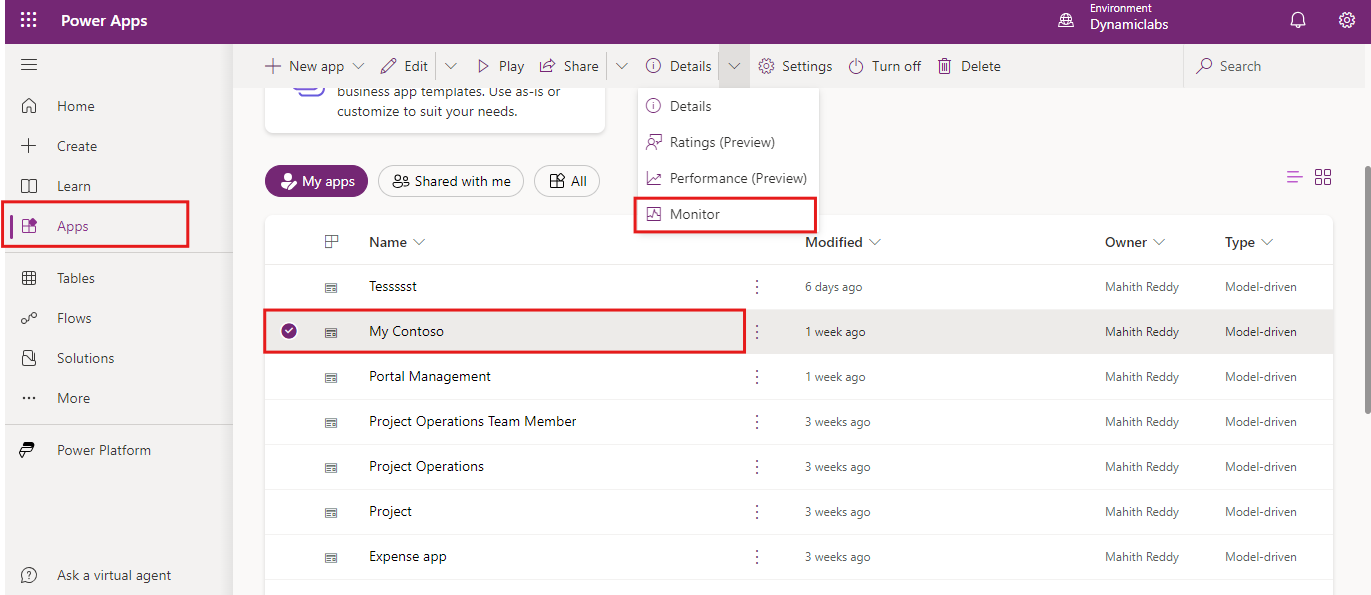
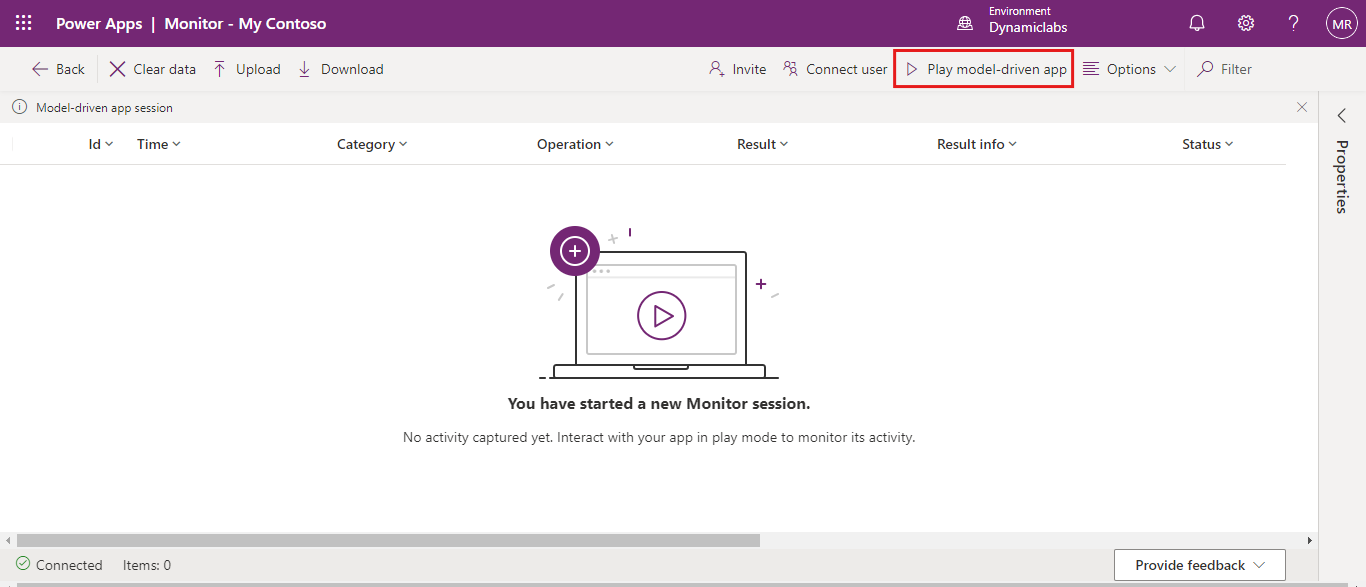
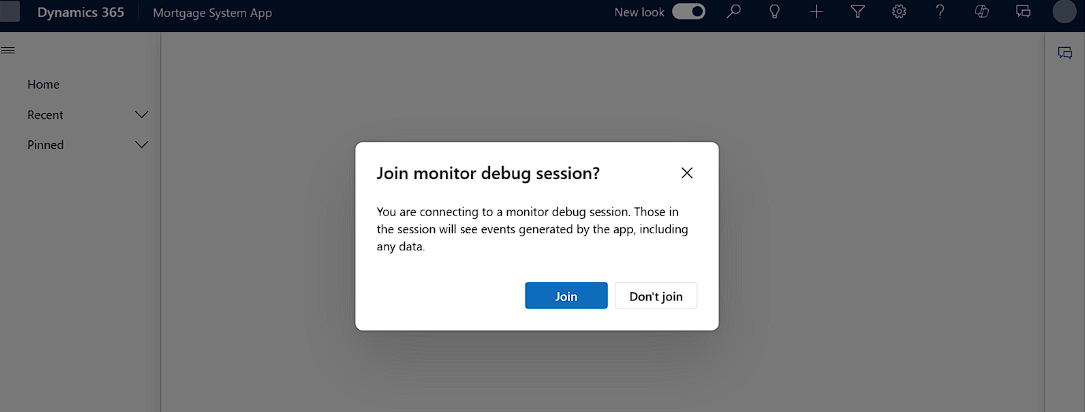
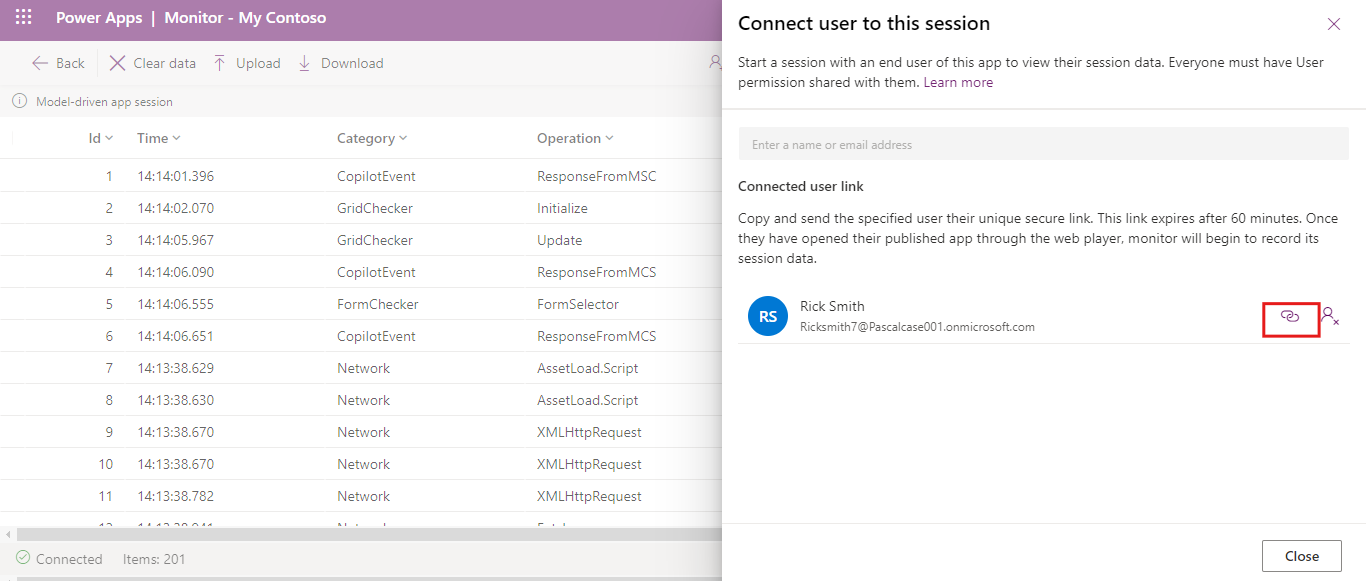
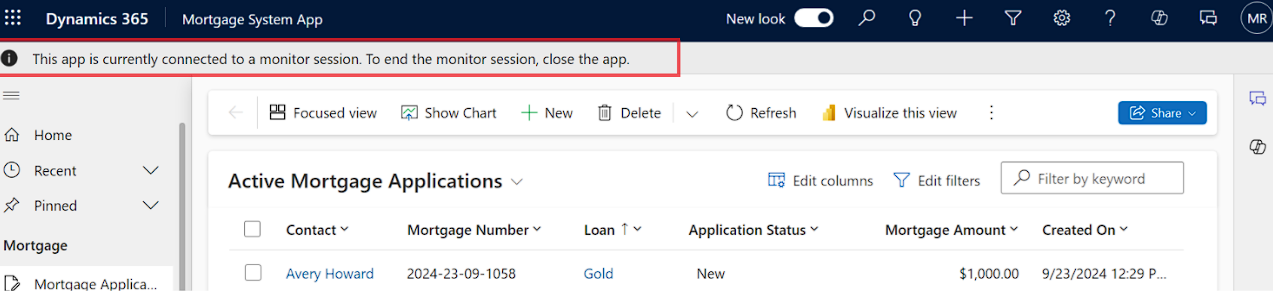
Steps to use Monitor to diagnose a model-driven app:
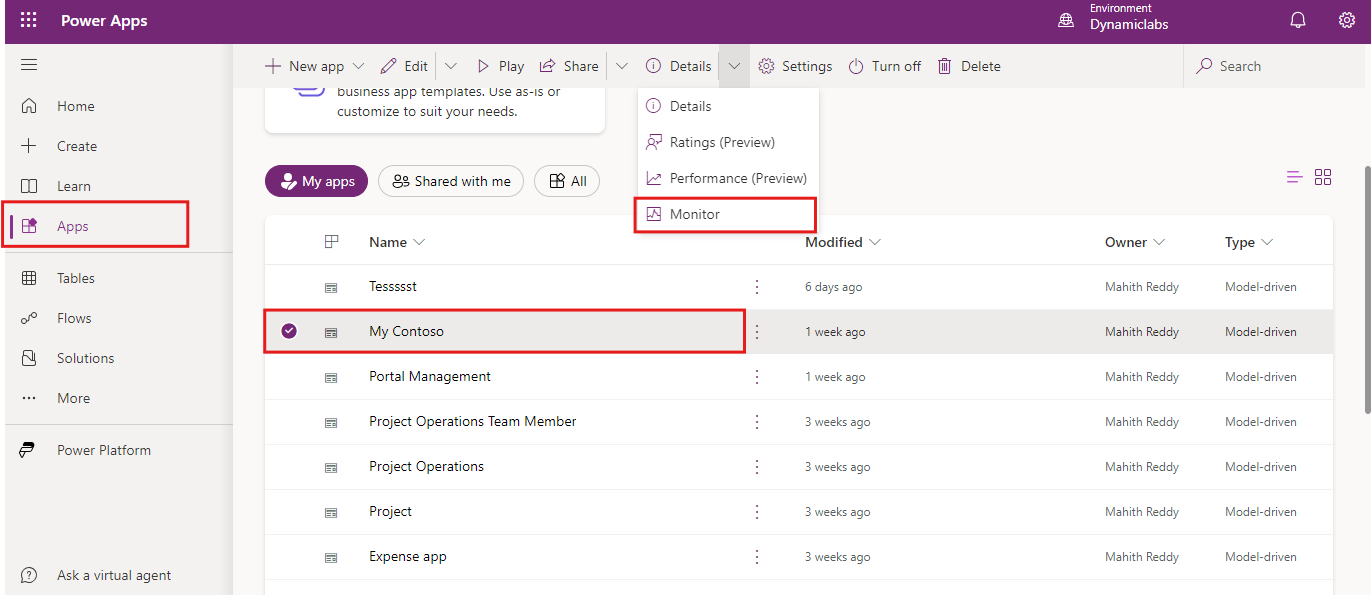
Sign into Power Apps, and then select from the left navigation pane.