LogoLogo

Our Products

Metadata Browser

Edge Add-on

HTML To PDF Converter

Power Automate Connector

Data Mask for Dataverse

Dataverse App

Commission 365

Dynamics 365 App

AI Autocloser

Dataverse App

Flow Monitor

Power Automate App

ServicesAboutCareersBlogContact
Chat on Teams
Metadata BrowserHTML To PDF ConverterData Mask for DataverseCommission 365AI AutocloserFlow Monitor
ServicesAboutCareersBlogContactChat on Teams
HomeBlogHow to build an offline canvas app?
How to build an offline canvas app?

April 25, 2024
#Canvas app
Mahith Reddy
How to build an offline canvas app?

Canvas apps empower users, even those without coding experience, to craft dynamic applications using Microsoft Power Apps. What's even more remarkable is the ability to use these apps on mobile devices without an internet connection. All the necessary data for the app is stored directly on your device. Any edits you make will be synced with the app server once your device reconnects to the internet. 

Let’s get started!! 

Begin by logging in to your Power Apps account, if you don't have an account create one. 

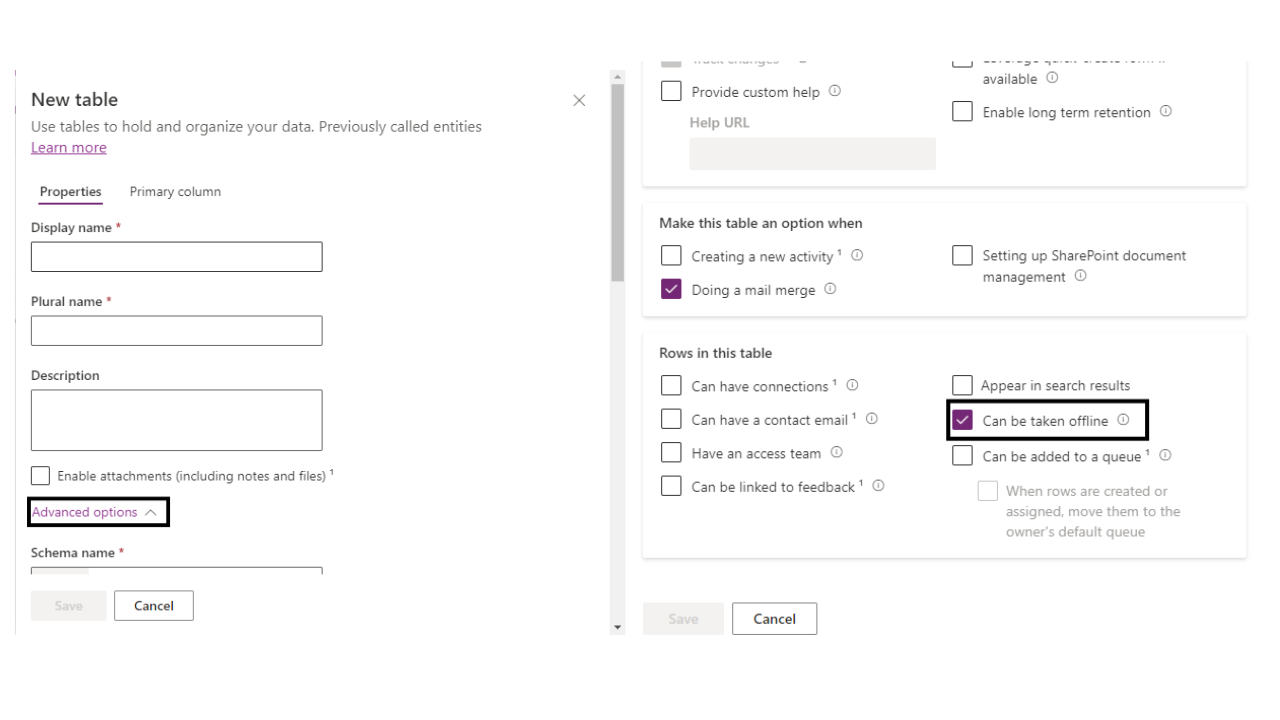
Navigate to the Tables section and create a new table. Ensure to enable the 'Can be taken offline' option under advanced settings. 
How to build an offline canvas app?

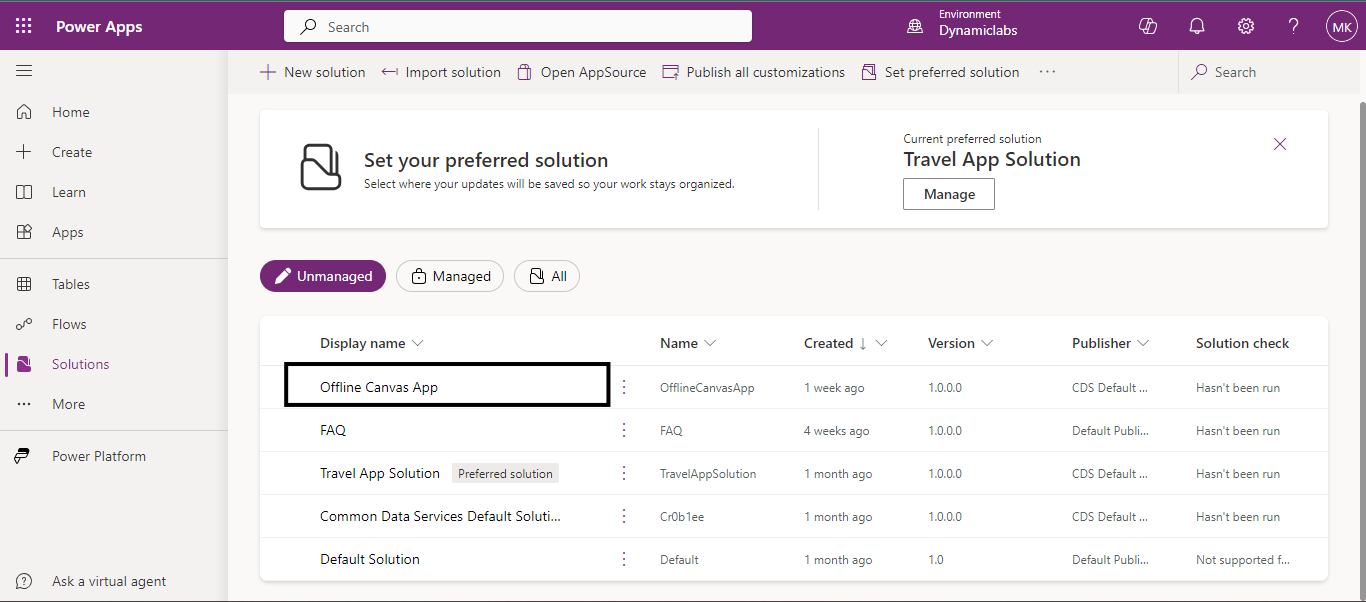
Create a new solution.

How to build an offline canvas app.2

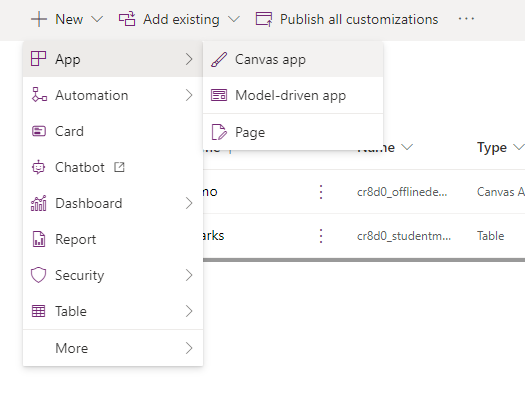
And in that solution, click on ‘New’ to create a new canvas app.
How to build an offline canvas app? 3

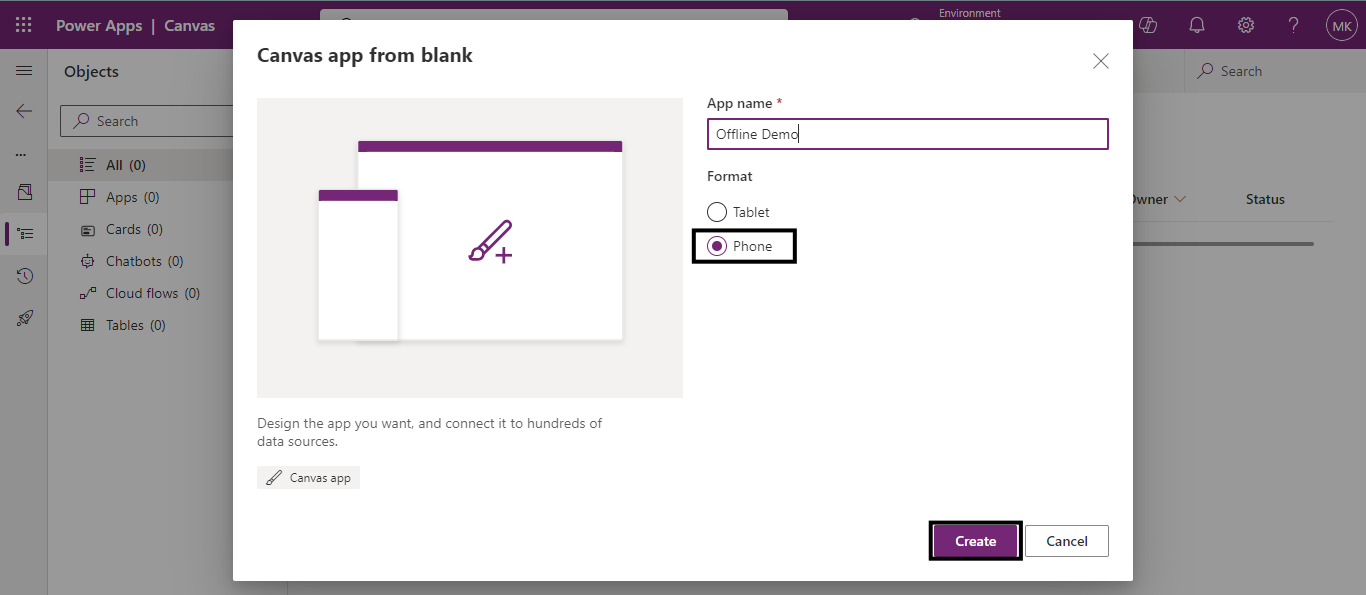
Name your canvas app, select the Phone format because we are creating an offline app for phone format and click on create to proceed.
How to build an offline canvas app? 04

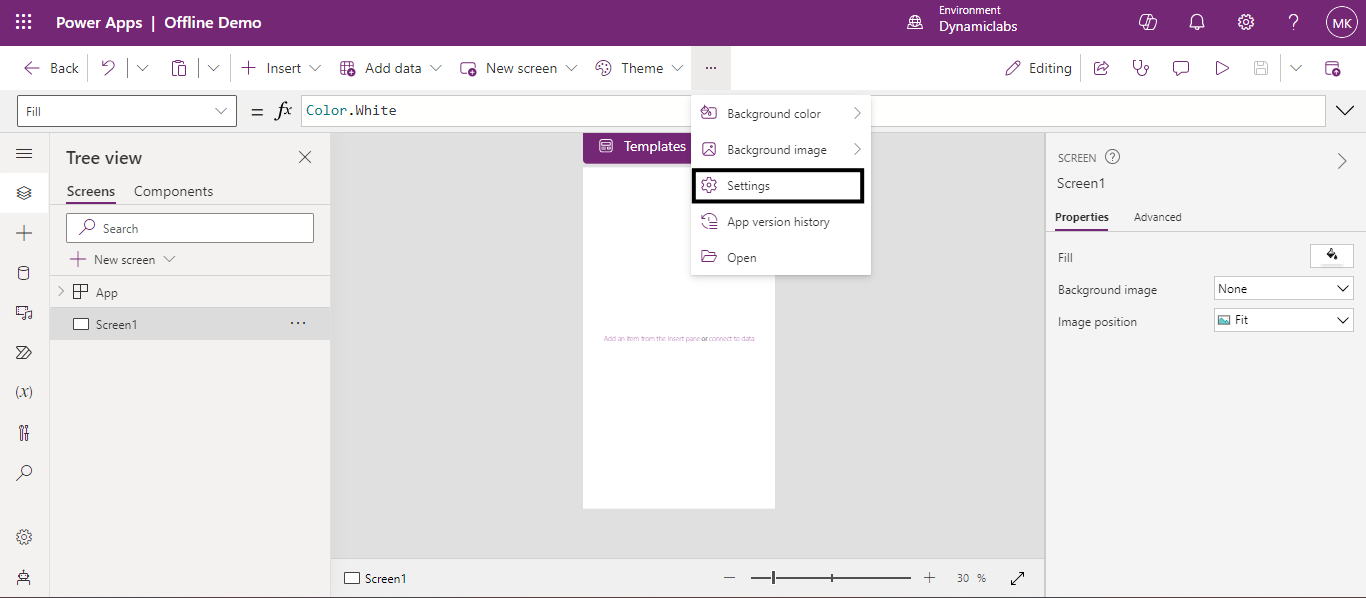
Once the canvas app is created, access its settings by clicking on the ellipsis icon. 
Create a new solution 05

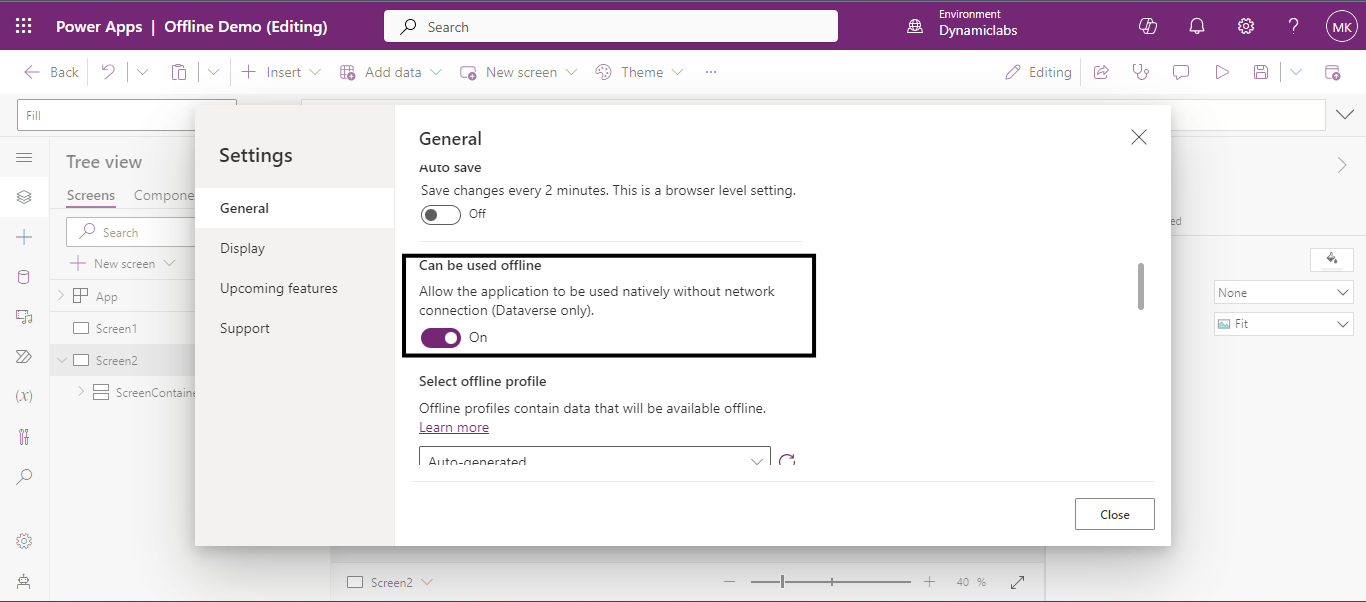
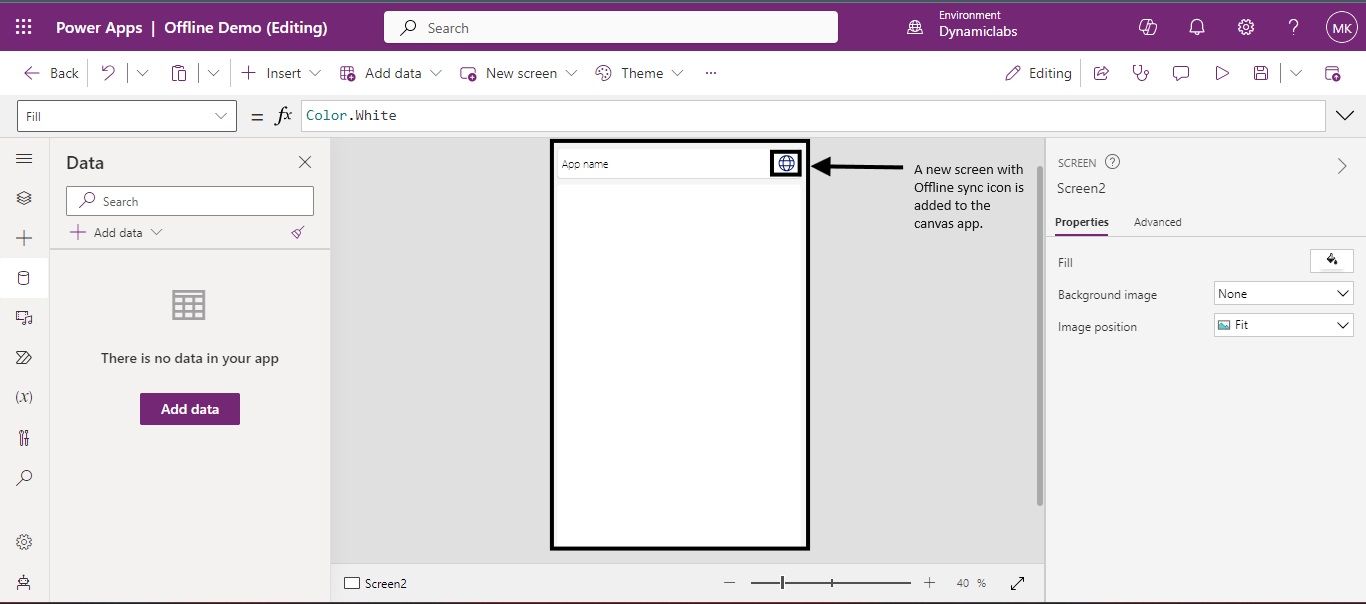
Navigate to the General tab and toggle the 'Can be used Offline' setting to enable offline usage. This setting not only allows native offline functionality but also adds a new screen for your offline app.
Back to all articles

More from the blog

Generate Temporary Download URLs in Dynamics 365 Using GetFileSasUrl

Enable Audio Playback in Dynamics 365 Contact Forms Using JavaScript

Integrating Your Copilot Agent with Teams

Adding Generative AI to your Cloud Flows with AI Prompts

How to Generate Early Bound Classes in Dataverse with XrmToolBox

Email Smarter in Outlook with Sales Copilot and Power Apps Integration

How to Populate Choice Fields Using Power Apps Dataflows

How to Populate Dataverse Lookup Fields Using Power Apps Dataflows

Need help with your business solution?

Our team can help you implement the right solution for your organization.

Get in touch
LogoLogo

Ex-Microsoft experts helping businesses get more from their Dynamics 365 and Power Platform investments.

Products

How to build an offline canvas app? 06

Delete the default screen added during app creation because a new screen compatible with offline functionality is added.

How to build an offline canvas app? 08

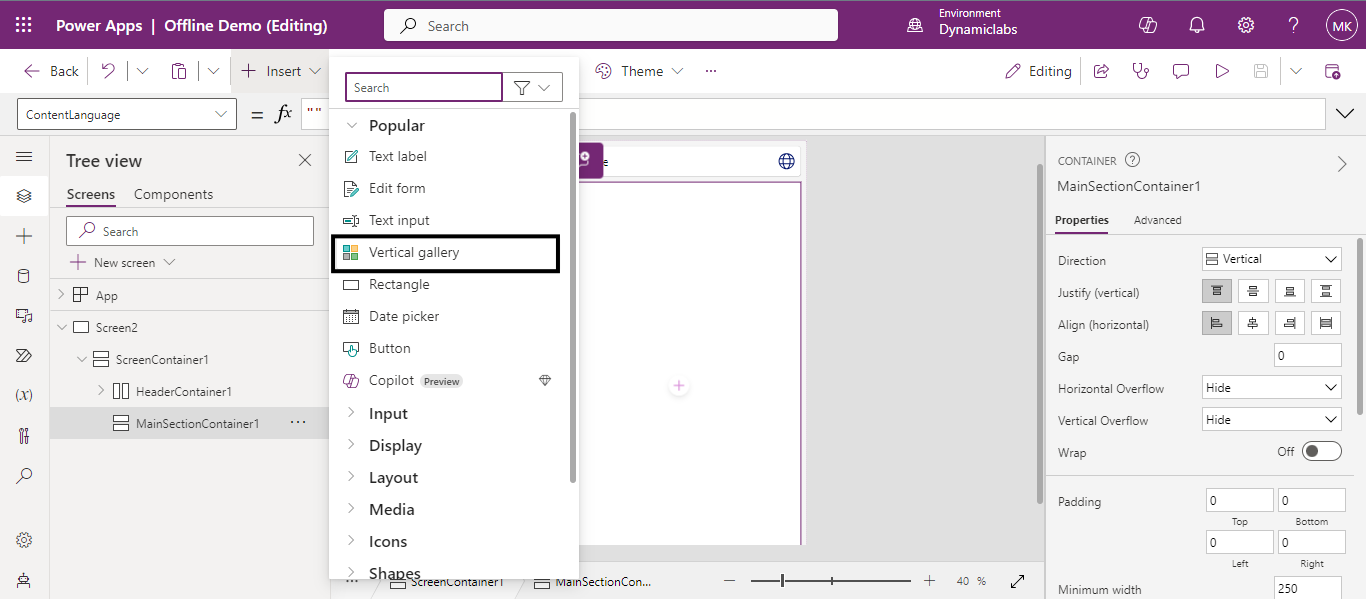
Add a vertical gallery from the Insert dropdown menu. 

How to build an offline canvas app? 09

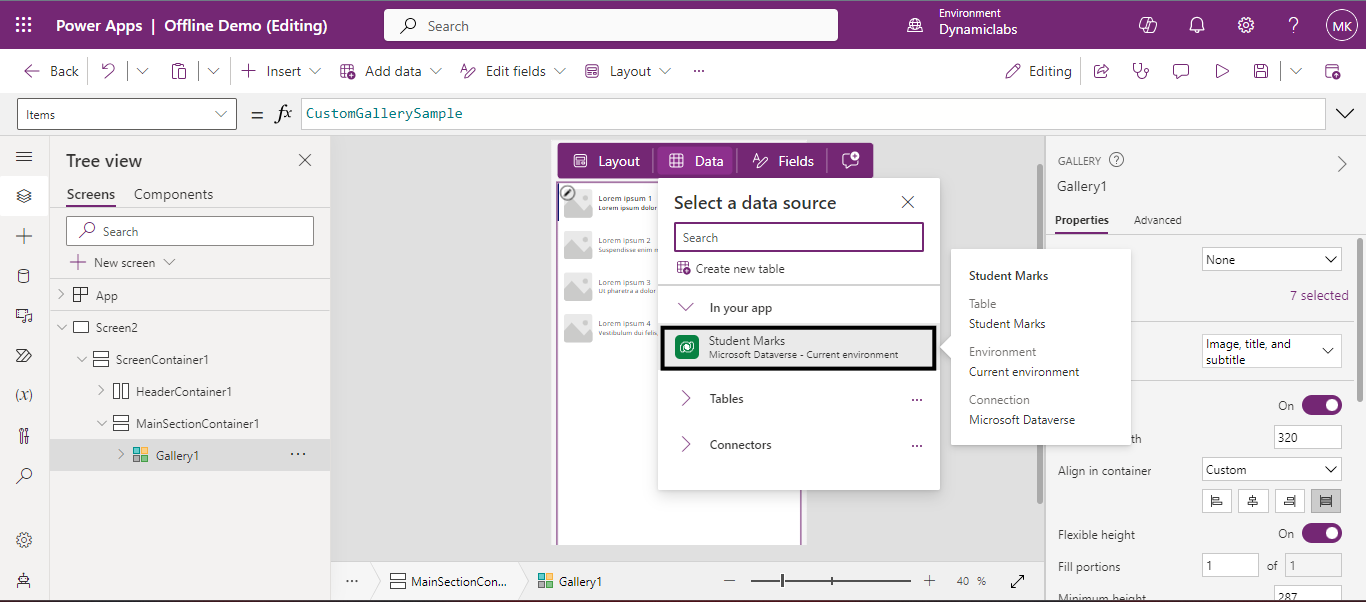
After the gallery is added, select the data source or table that can be used offline as instructed previously. 

Create a new solution 09

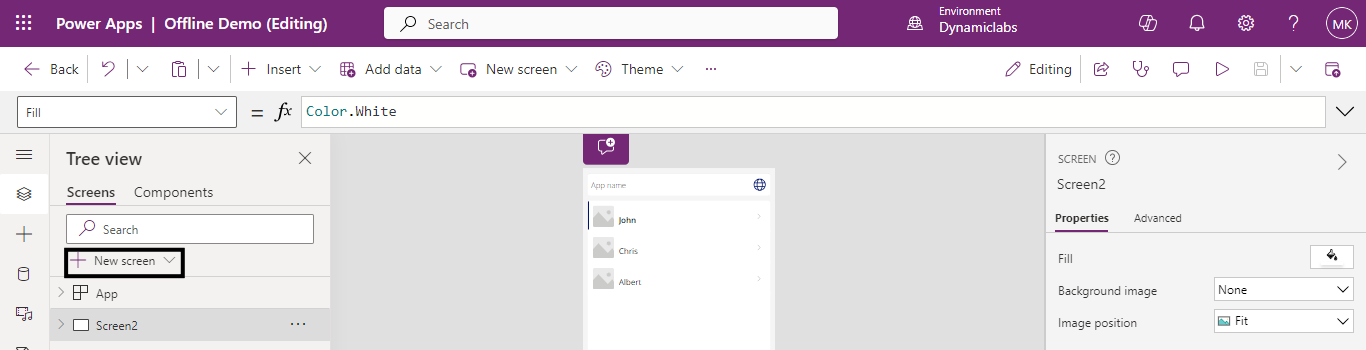
After adding the data source to the gallery, create another screen by clicking the new screen button. This new screen will enable us to view the selected records from the gallery.

How to build an offline canvas app? 10

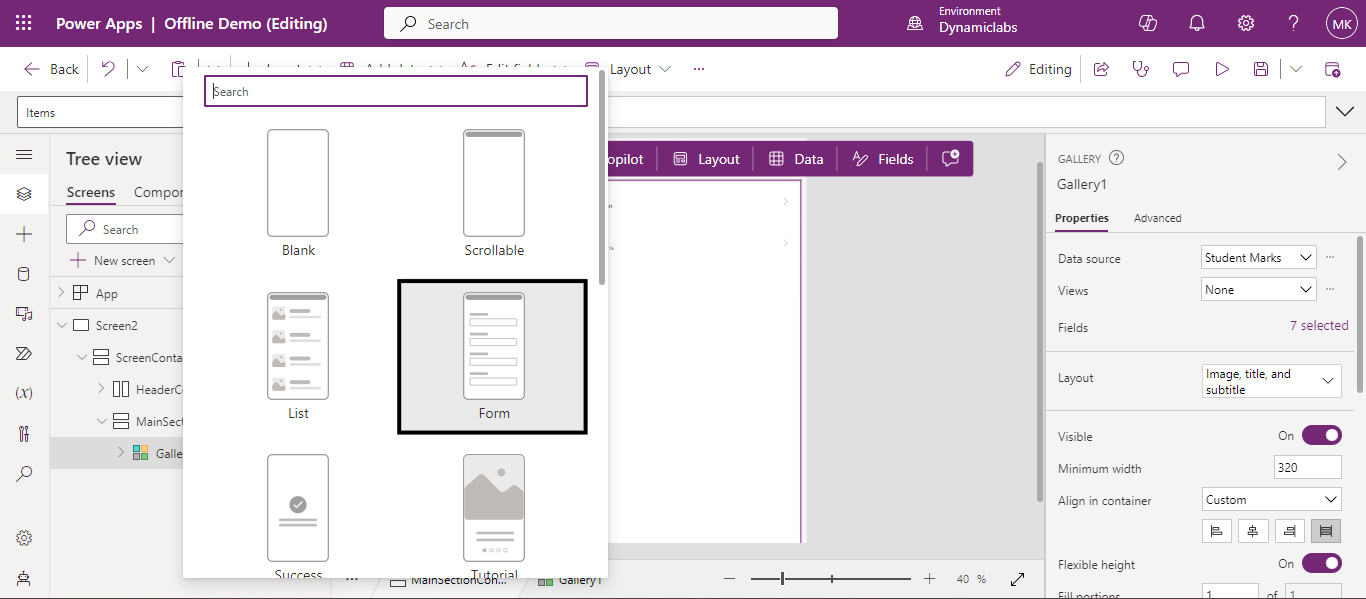
From the New-Screen drop-down select Form screen.

How to build an offline canvas app? 11

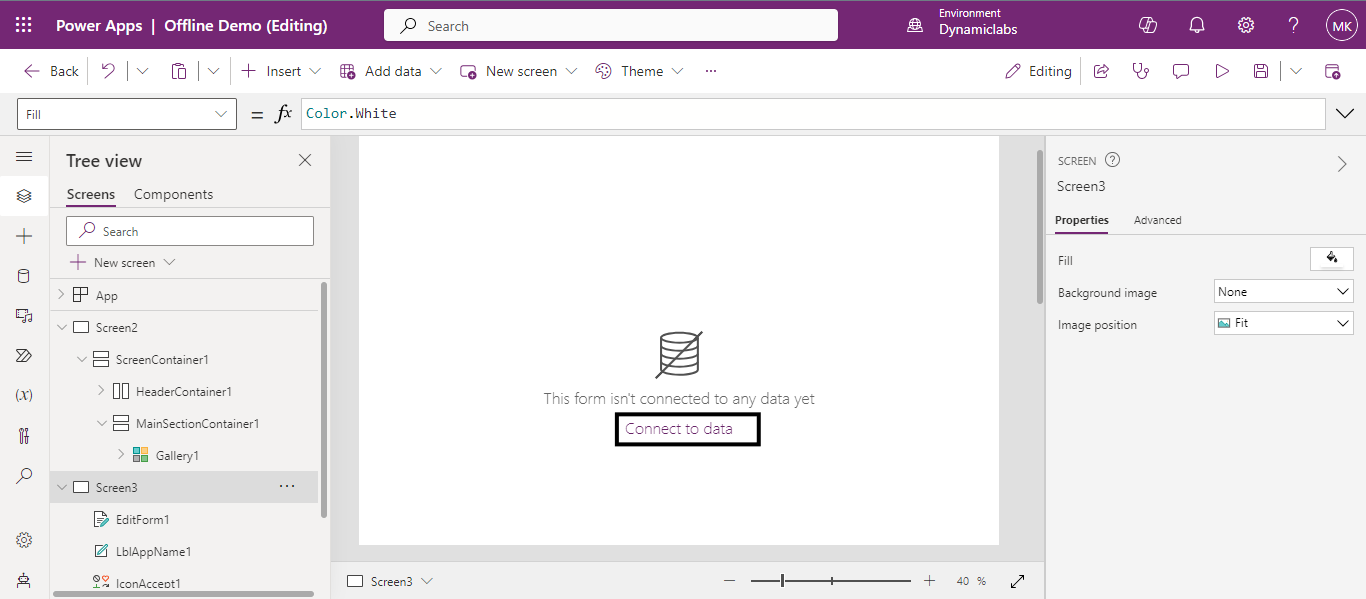
Now that the new form screen is added, we must connect it to the data source to fetch the columns. To do that click on connect data on the screen.

How to build an offline canvas app? 12

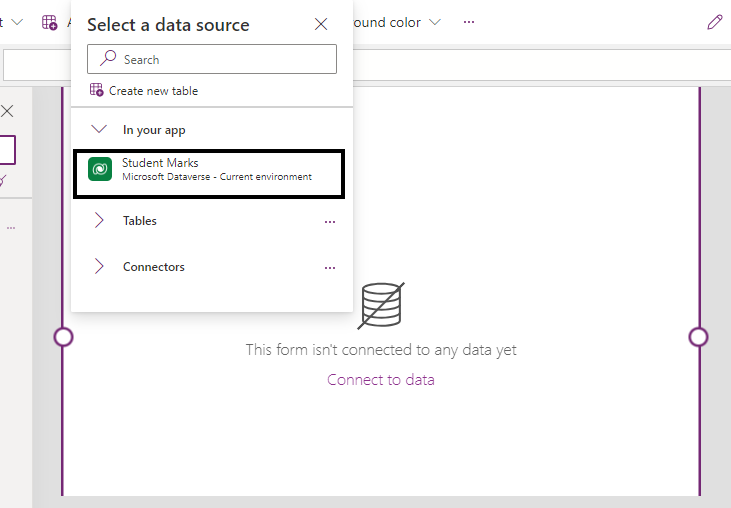
Connect the form screen to the same data source used for the gallery. 

How to build an offline canvas app? 13

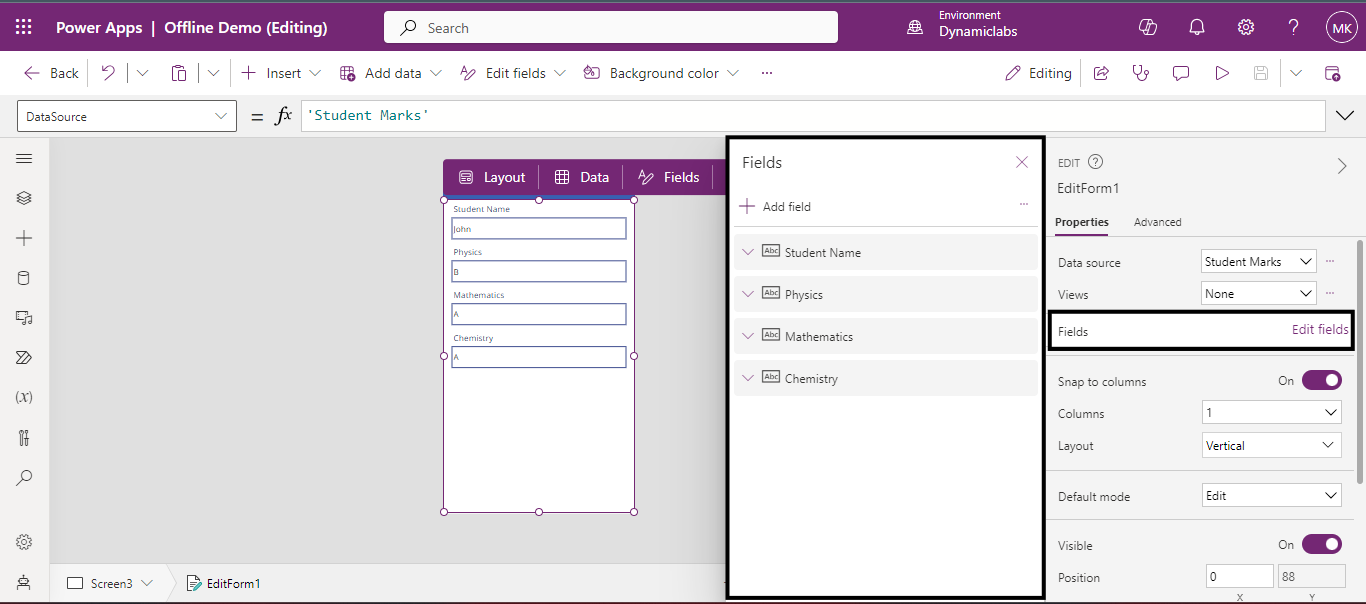
Customize the form fields by selecting the Edit fields from the properties panel. 

How to build an offline canvas app? 14

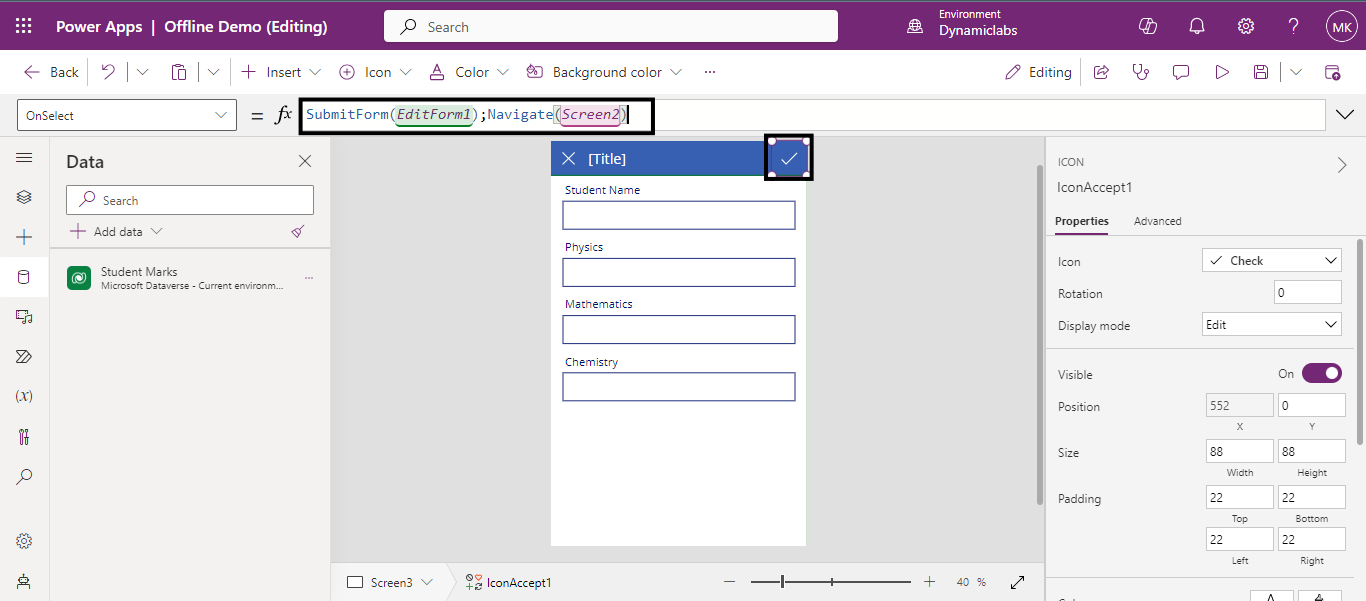
Now select the checkmark (✔) icon from the screen and write a formula on its Onselect property, so that it saves the form data and returns to previous screen.

How to build an offline canvas app? 15

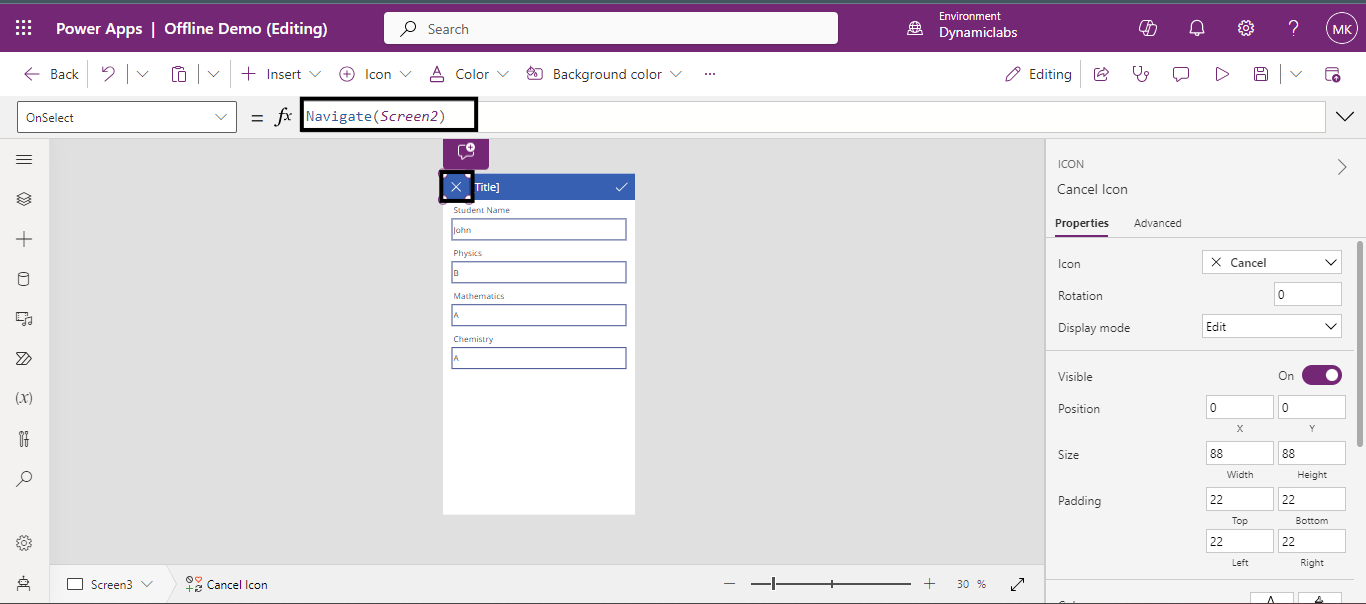
Select the Cancel (X) icon from the screen and write a formula on its Onselect property, so that when we click it cancels and navigates to previous screen. 

How to build an offline canvas app? 16

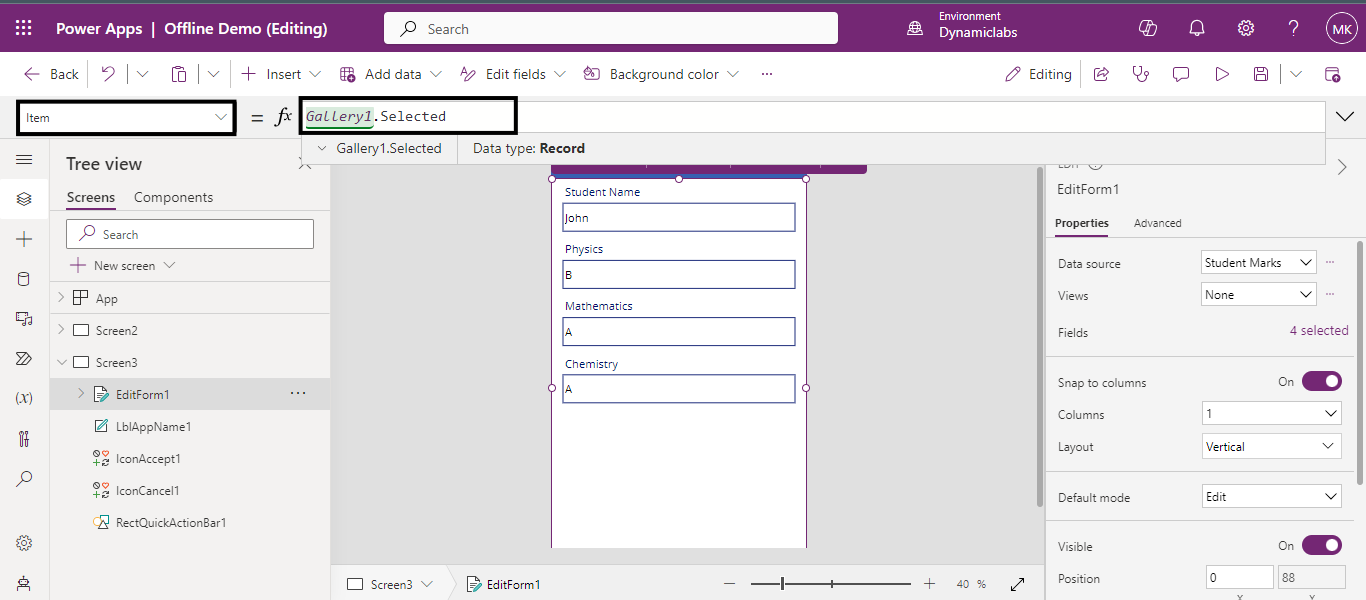
Now click on the drop-down list from the top left-side of the screen and select “Item” property of the form. Write  galleryname.Selected formula in formula box, because This property allows you to access the data of the selected item within the gallery. You can use it to display details of the selected item or perform actions based on its data.

How to build an offline canvas app? 17

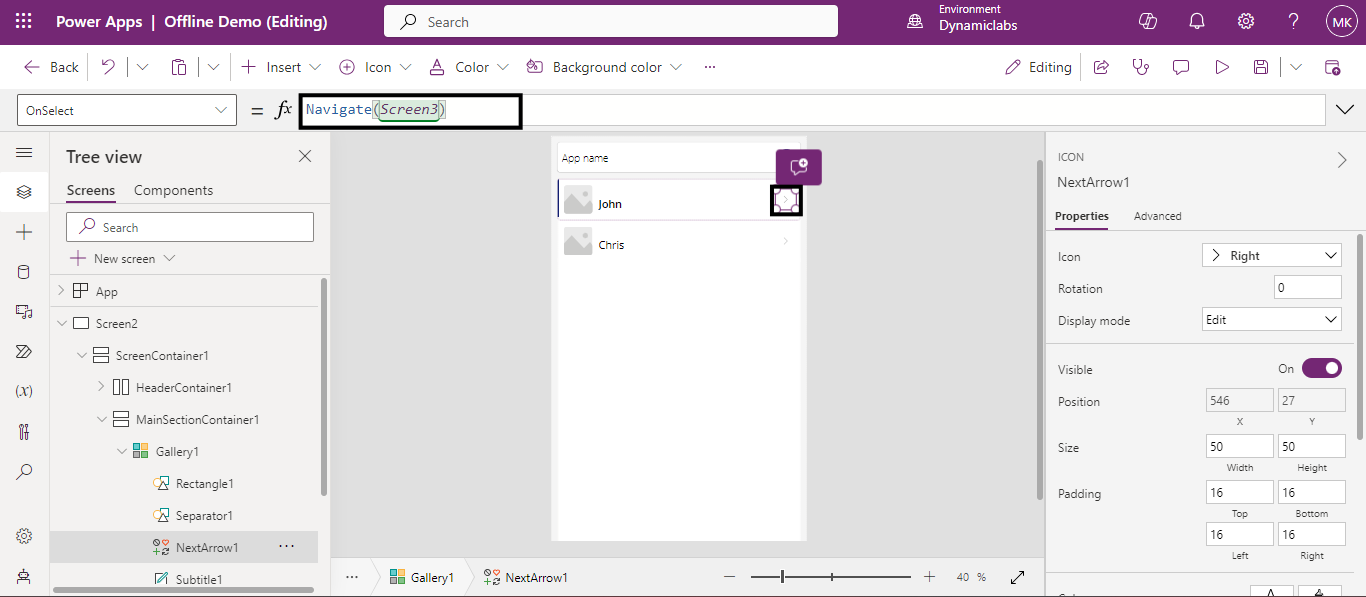
Now go to the gallery in the previous screen and click on the Next Arrow (>) and write a navigation function in the formula box so that it navigates to the next screen when clicked. 

How to build an offline canvas app? 18

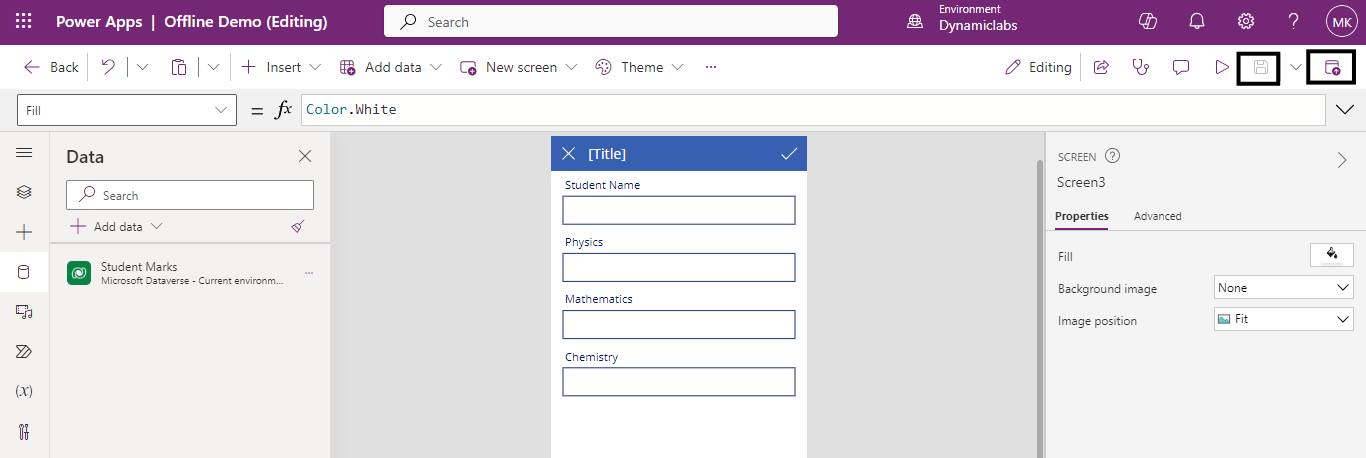
Finally, save and publish the app. 

How to build an offline canvas app? 19

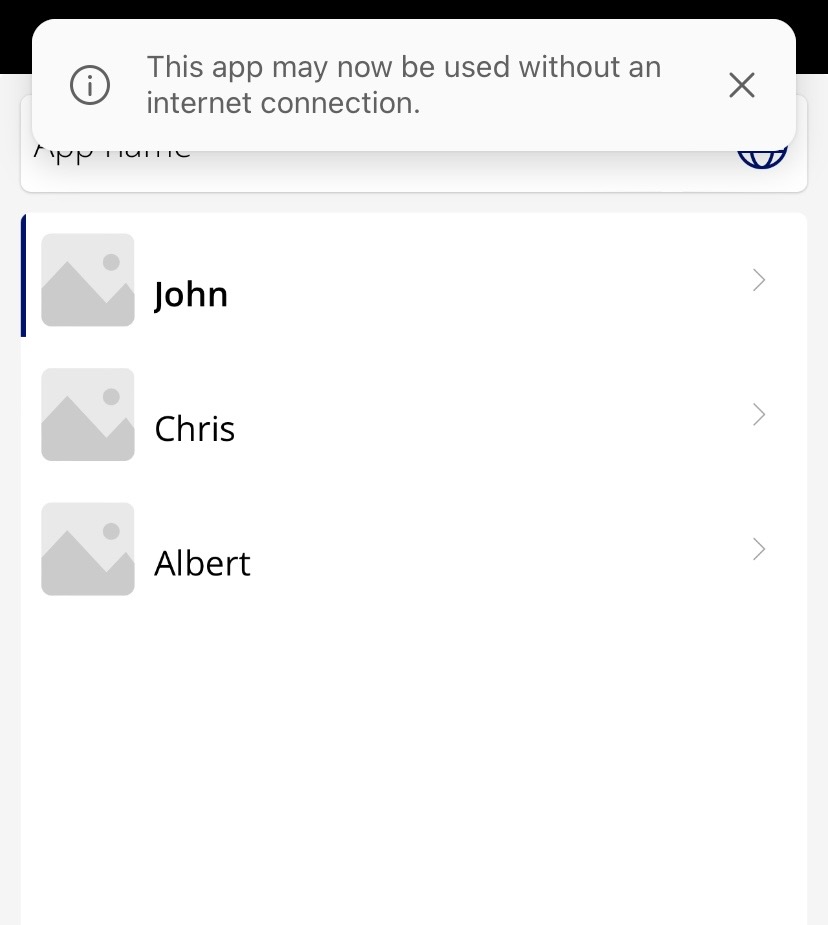
To test the app, Open the app using Power Apps Mobile on a mobile device that's connected to the Internet. Existing records appear in the gallery, and the status shows Connected. 

Verify offline functionality by disconnecting the device from the internet and ensuring that data can still be modified and saved. The status label shows that the app is Offline. 

How to build an offline canvas app? 20

Now you can modify and save data without internet connection. 

With the ability to seamlessly work with Dataverse data online or offline, your canvas app offers flexibility and accessibility wherever you are. By following these steps, you've unlocked the power of offline functionality, allowing users to stay productive regardless of internet connectivity. 


Metadata Browser
  • HTML To PDF Converter
  • Data Mask for Dataverse
  • Commission 365
  • AI Autocloser
  • Flow Monitor
  • Services

    • D365 Marketing
    • D365 Sales
    • D365 Customer Service
    • D365 Field Service

    Company

    • About Us
    • Blog
    • Contact
    • Careers

    Copyright ©2026 Pascalcase Software Private Limited. All rights reserved.

    Privacy PolicyTerms of Service