LogoLogo

Our Products

Metadata Browser

Edge Add-on

HTML To PDF Converter

Power Automate Connector

Data Mask for Dataverse

Dataverse App

Commission 365

Dynamics 365 App

AI Autocloser

Dataverse App

Flow Monitor

Power Automate App

ServicesAboutCareersBlogContact
Chat on Teams
Metadata BrowserHTML To PDF ConverterData Mask for DataverseCommission 365AI AutocloserFlow Monitor
ServicesAboutCareersBlogContactChat on Teams
HomeBlogHow to Install Catalog Manager in Power Apps?

How to Install Catalog Manager in Power Apps?

October 15, 2024
#Power Apps
Soumya Das
How to Install Catalog Manager in Power Apps?

Microsoft has introduced Catalog Manager as a new feature within Power Apps, designed to streamline the management of data assets across various apps and environments. This addition comes when organizations focus on better organizing and accessing data, ensuring that relevant information is readily available for decision-making and development purposes.

Catalog Manager allows users to register, discover, and manage the metadata of data entities stored within Microsoft Dataverse. It creates a central hub where app makers and other stakeholders can efficiently access and track their data assets. This tool supports data organization and fosters transparency and collaboration by improving how data is shared and accessed across multiple teams.

The Catalog Process in Power Apps follows a clear workflow designed to streamline how data assets are managed, discovered, and used. This process ensures that data assets go through proper registration and approval before they become accessible across environments. Here’s a breakdown of the steps involved:
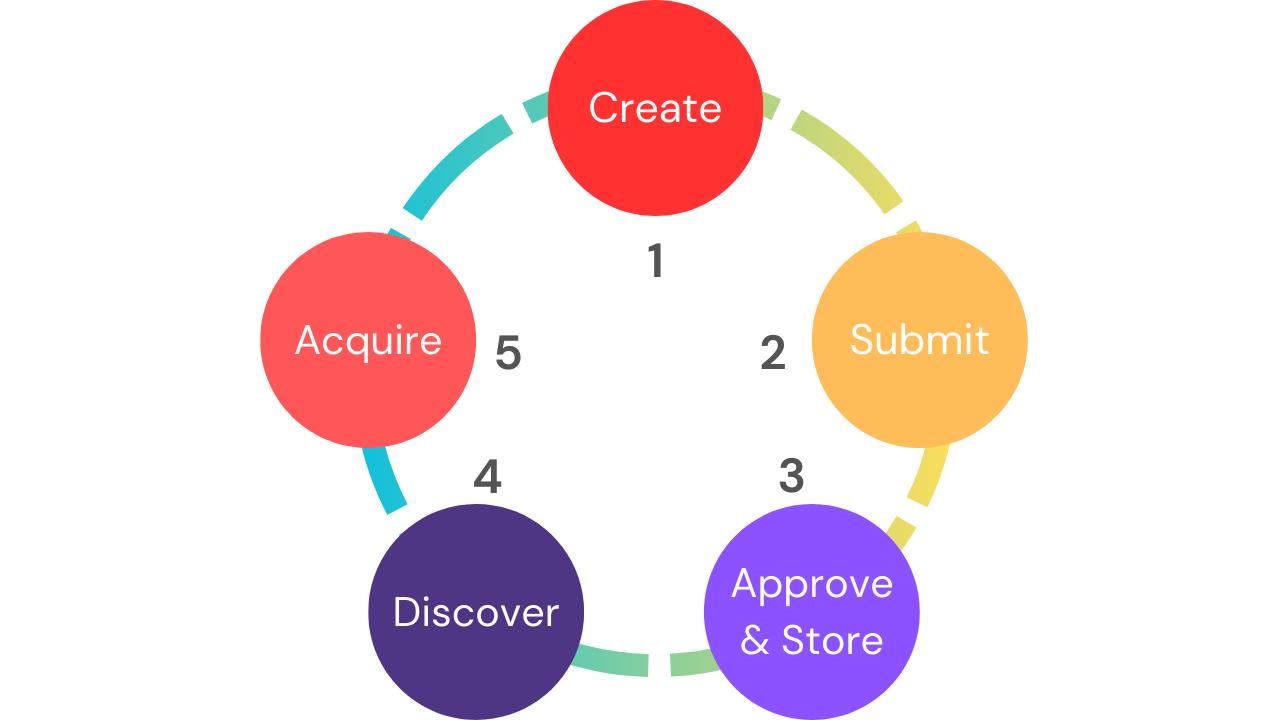
How to Install Catalog Manager in Power Apps 01

Create:

Start by creating a data asset, like a table or entity, in Microsoft Dataverse. This asset contains valuable metadata that will be used in apps and workflows.

Submit:

After creation, submit the asset to the catalog for registration. This formal step ensures it's tracked and ready for review.

Approve & Store:

Catalog managers review the asset for accuracy. Once approved, it’s categorized and stored in the catalog, ensuring data quality and governance.

Discover:

Approved assets are now discoverable by teams across environments. Users can easily search for relevant assets, promoting collaboration and avoiding duplicated work.

Acquire:

When a user finds what they need, they can quickly acquire the data asset and integrate it into their app or workflow, saving time and boosting productivity.
Back to all articles

More from the blog

Creating and managing topics in Copilot Studio with Power Apps integration

Automate Image Data Extraction Using Power Apps and AI

Creating a Loading Animation in Power Apps

Creating Virtual Tables in Power Apps using Share Point Connector

Creating an App from Figma in Power Apps

How to Create Custom Connectors in Power Apps?

Implementing Catalog Manager: A Step-by-Step Guide in Power Apps

Building Progressive Web Apps with Power Apps

Need help with your business solution?

Our team can help you implement the right solution for your organization.

Get in touch
LogoLogo

Ex-Microsoft experts helping businesses get more from their Dynamics 365 and Power Platform investments.

Products

Steps to install it:

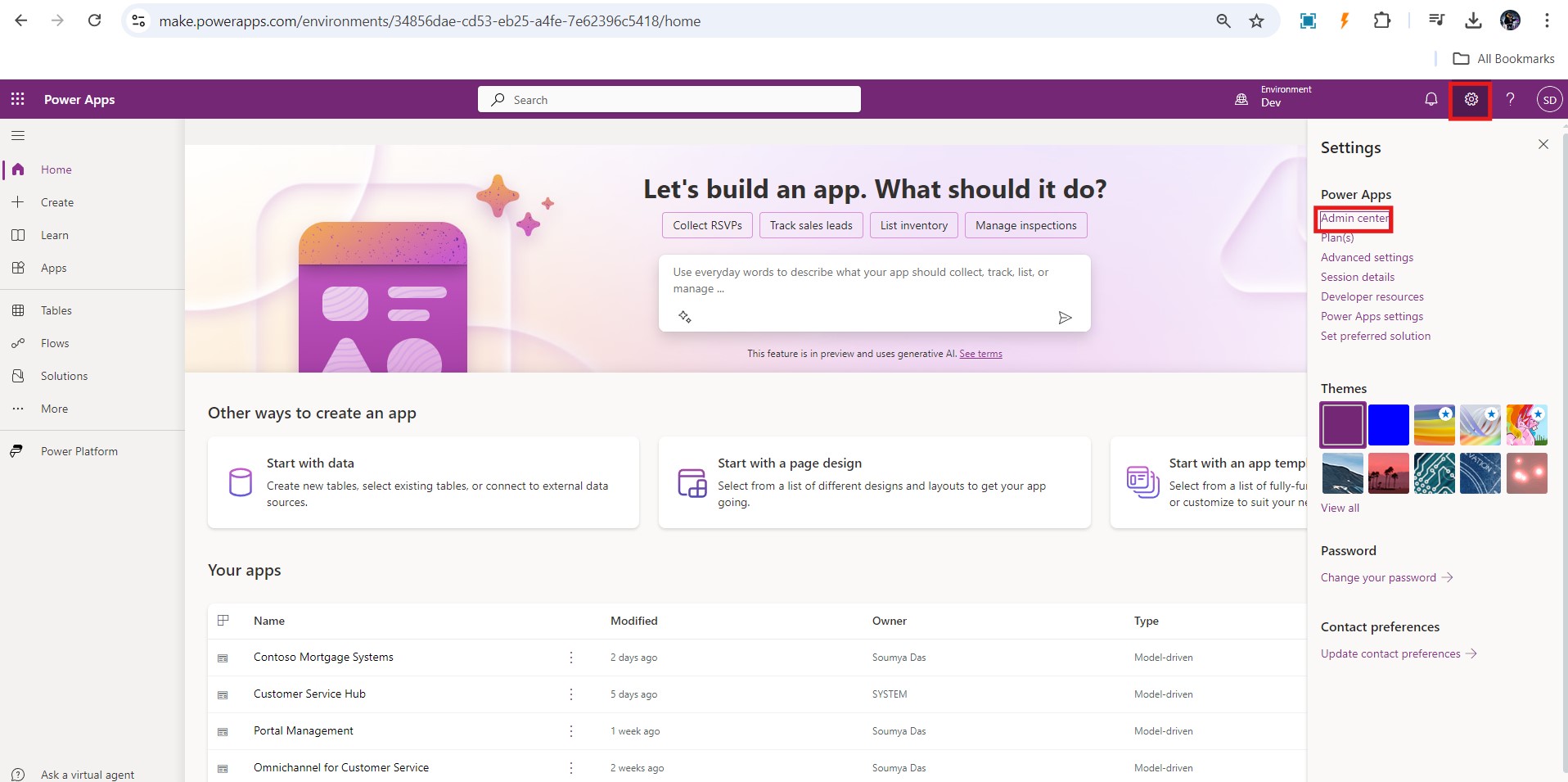
1. Go to make.powerapps.com

2. Click on the gear icon at the top right and click on Admin Center (You can alternatively go to Power Platform Admin center directly by avoiding first two steps)

How to Install Catalog Manager in Power Apps 02

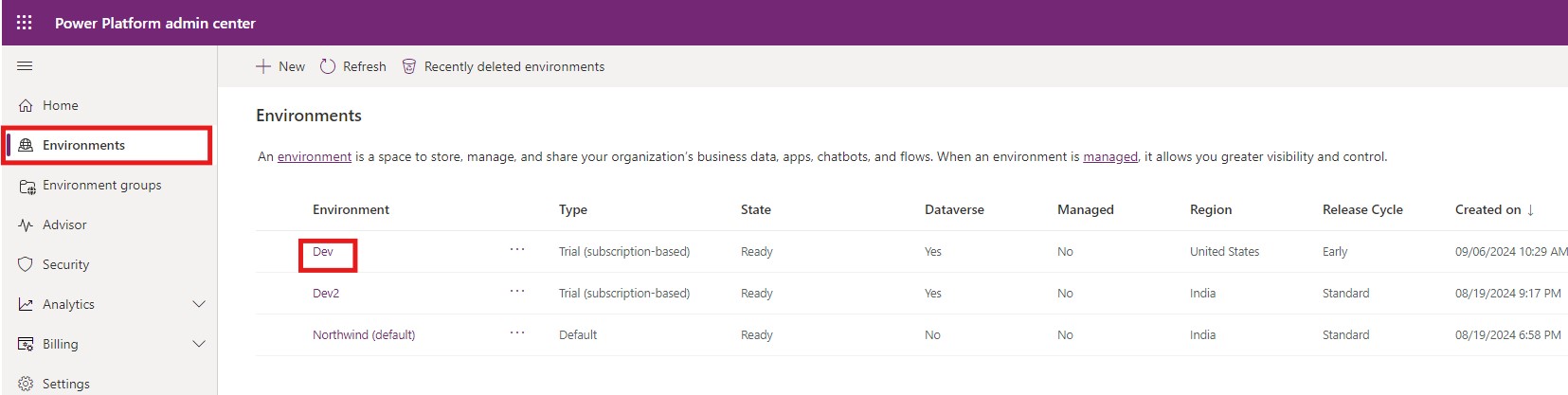
3. Go to Environments and select your environment.

How to Install Catalog Manager in Power Apps 03

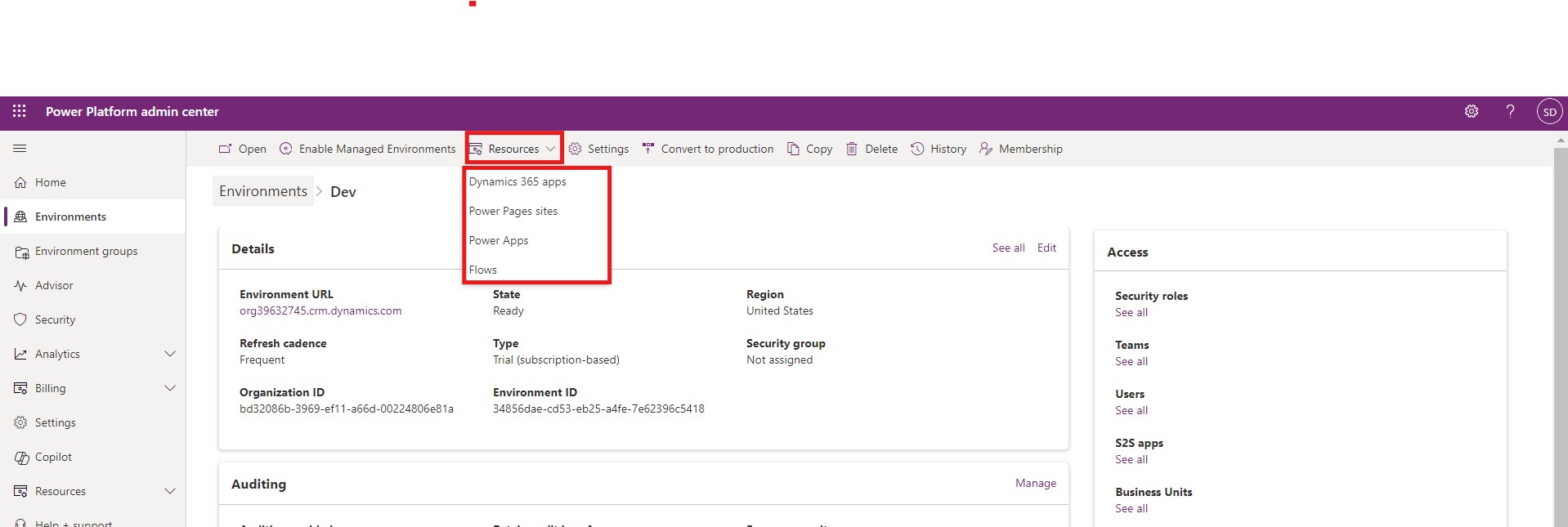
4. Expand resources and click on Dynamics 365 apps.

How to Install Catalog Manager in Power Apps 04

5. Open AppSource and search for Catalog Manager.

How to Install Catalog Manager in Power Apps 05

Note: In case you cannot preview Catalog Manager, you can directly click on the link here to access it directly.

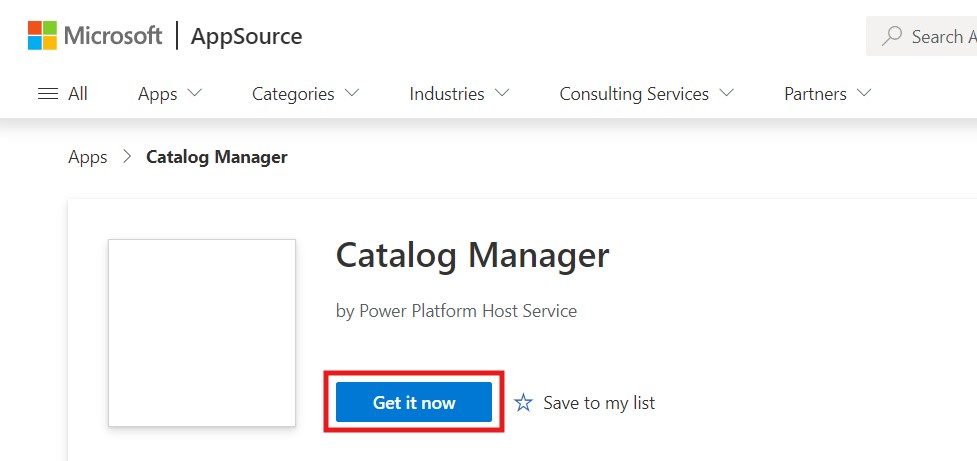
6. Click on Get it now

How to Install Catalog Manager in Power Apps 06

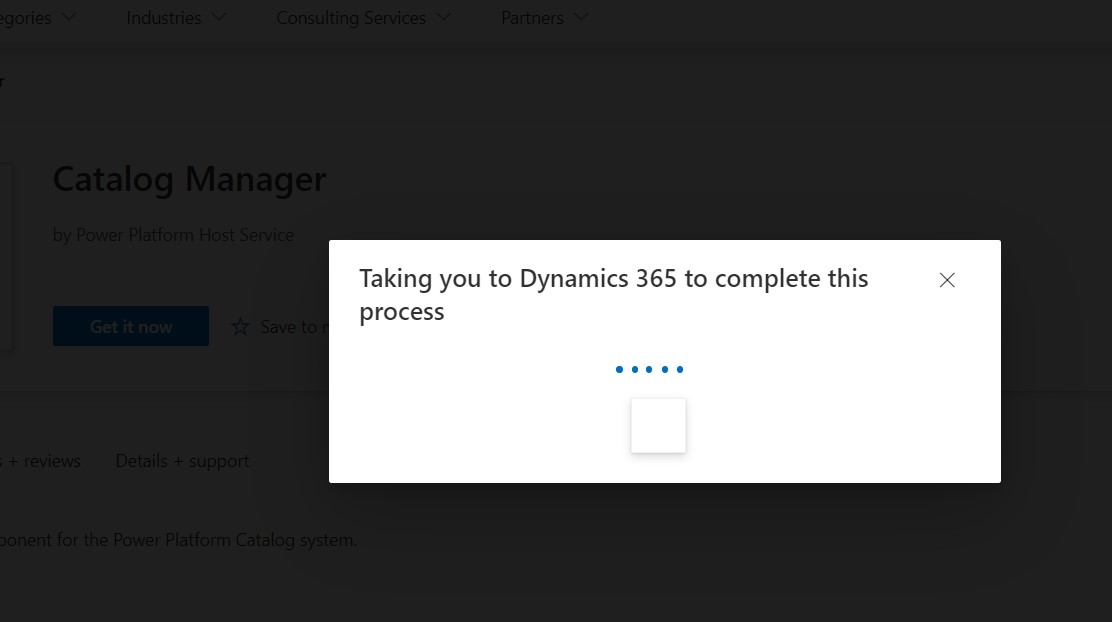
7. It will redirect you to your environment.

How to Install Catalog Manager in Power Apps 07

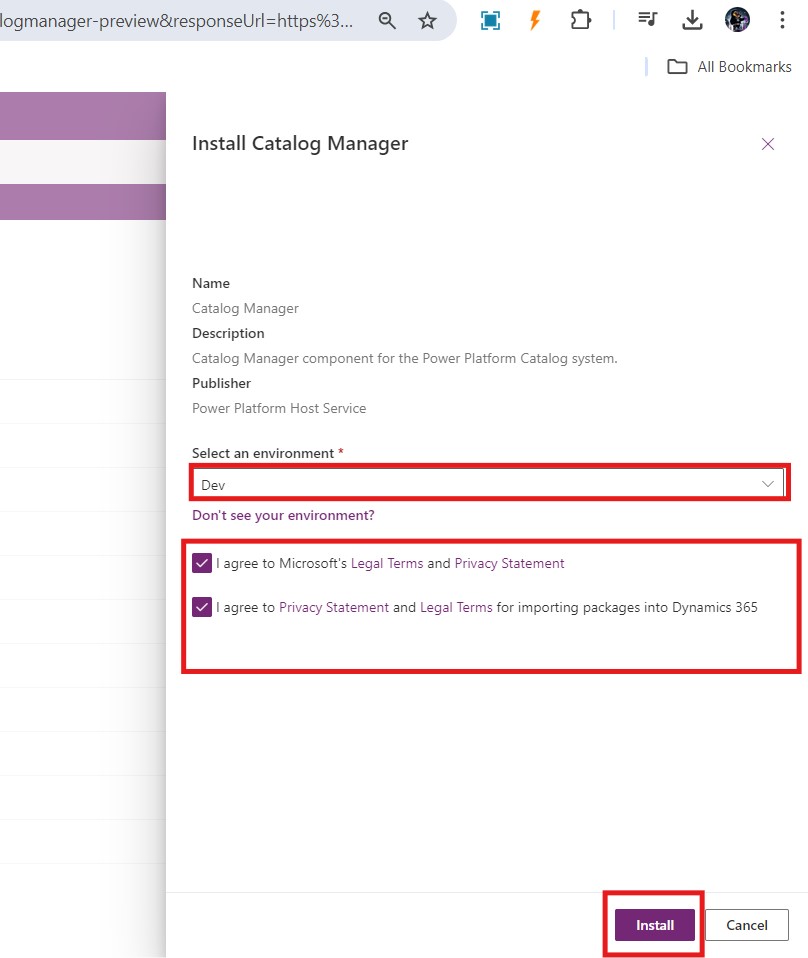
8. Select your environment, accept the terms and click on Install.

How to Install Catalog Manager in Power Apps 08

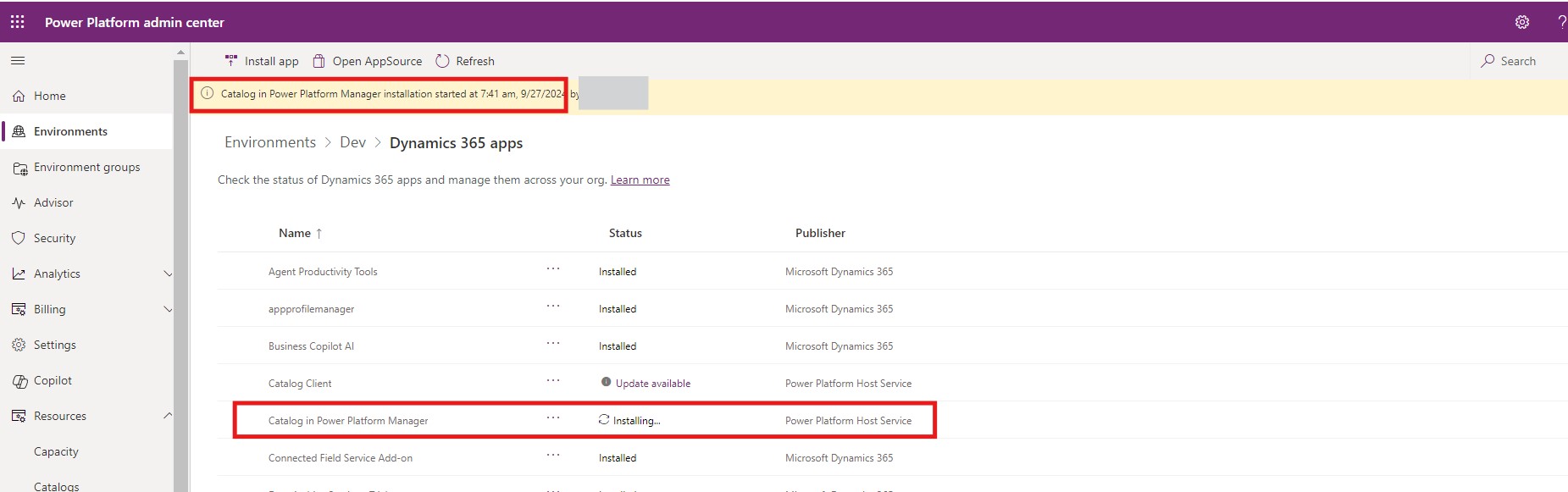
9. Once done, you will see a message for Catalog in Power Platform Manager installation.

How to Install Catalog Manager in Power Apps 09

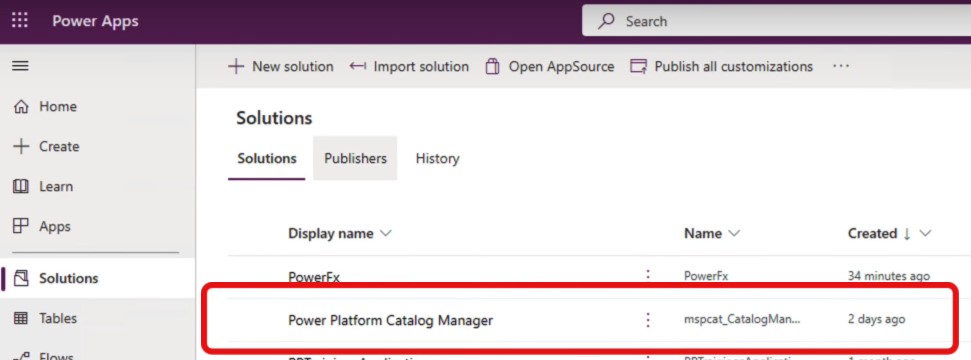
10. After successful installation you can find the Catalog Manager in make.powerapps.com

How to Install Catalog Manager in Power Apps 10

How will it benefit?

Terminology Clarity: Catalog Manager simplifies data management by organizing all metadata—like tables, fields, and relationships—into a single, clear collection. This makes navigating complex datasets much easier for users, especially across multiple environments.

Catalog Basics: The catalog provides structure to data assets, helping teams easily find, track, and manage their data. Whether it’s monitoring data connections or organizing tables, it keeps everything in one place, even when data is spread across various apps.

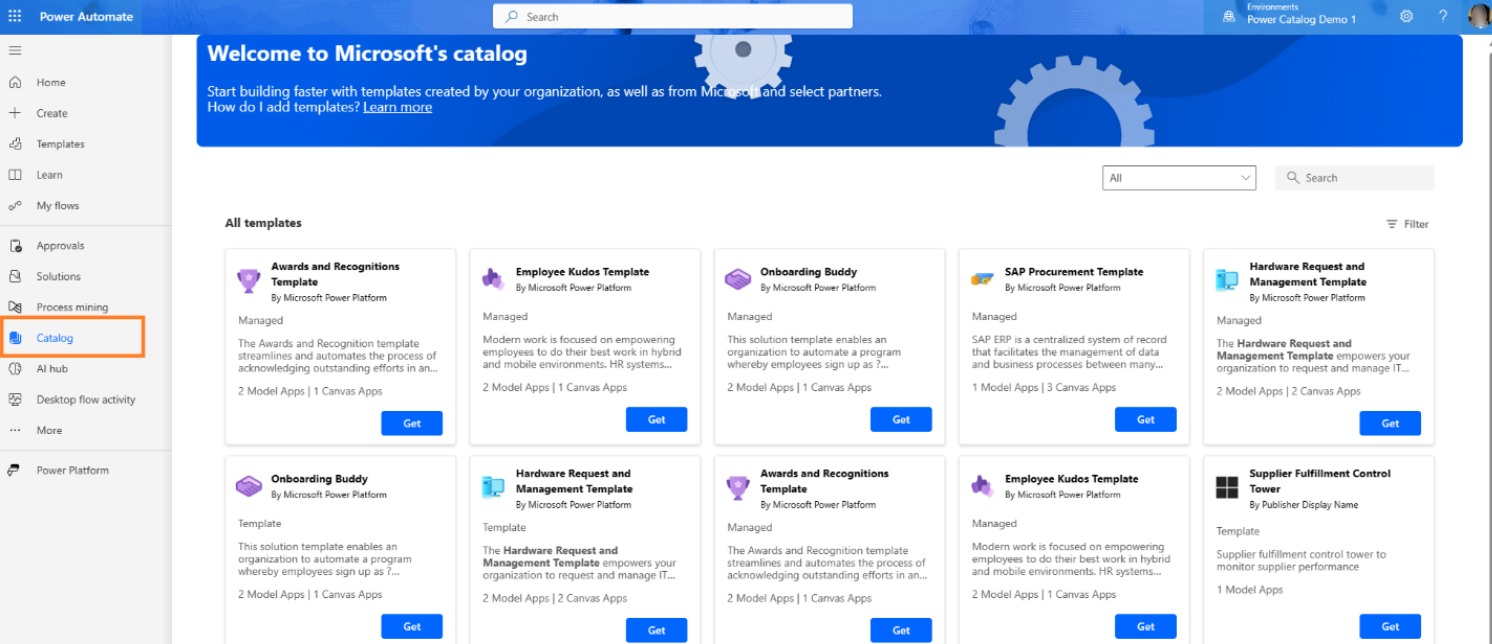
How to Install Catalog Manager in Power Apps 11

Discovery: Discovery lets users search and find data assets across environments, improving collaboration. Teams can see what's already available, avoiding duplication and saving time on recreating data that already exists.

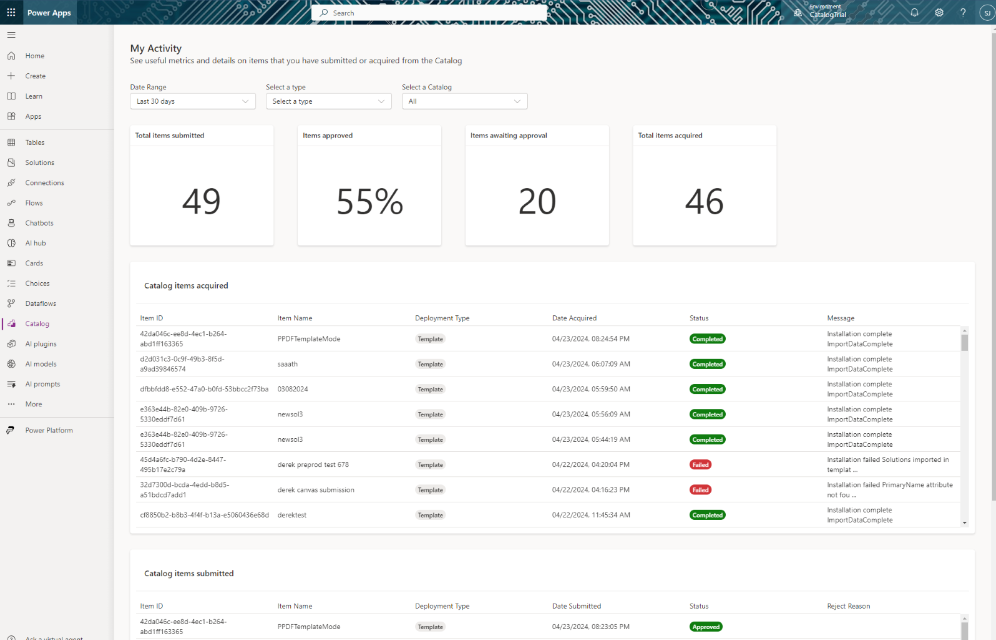
My Activity: This feature gives users a personal dashboard to track their catalog interactions—what assets they've accessed or modified—offering a clear overview of their activities and keeping data engagement organized.

How to Install Catalog Manager in Power Apps 12

Once you’ve completed the installation process, you can follow the guidelines mentioned here for setting up the Catalog Manager and implementing it effectively.

Frequently Asked Questions (FAQs):
1. What is the primary purpose of Catalog Manager?

Catalog Manager serves as a centralized hub for managing metadata related to data assets within Microsoft Dataverse, making it easier for users to discover, organize, and track their data.

2. How does Catalog Manager improve data discovery?

It enables users to easily search for and locate data assets across different environments, promoting collaboration and ensuring that teams can efficiently find the resources they need.

3. Can I access the catalog from different environments?

Yes, Catalog Manager allows users to manage and view data assets across multiple environments, ensuring a cohesive data management experience.

4. What information can I track in the "My Activity" feature?

"My Activity" provides a personalized overview of your interactions with the catalog, including the data assets you've accessed and any modifications you've made.

5. Who can utilize Catalog Manager?

Catalog Manager is designed for app makers, data administrators, and other team members involved in data management within Microsoft Dataverse, facilitating better organization and access to data assets.

Metadata Browser
  • HTML To PDF Converter
  • Data Mask for Dataverse
  • Commission 365
  • AI Autocloser
  • Flow Monitor
  • Services

    • D365 Marketing
    • D365 Sales
    • D365 Customer Service
    • D365 Field Service

    Company

    • About Us
    • Blog
    • Contact
    • Careers

    Copyright ©2026 Pascalcase Software Private Limited. All rights reserved.

    Privacy PolicyTerms of Service