Migrating Data from Dynamics 365 Business Central to Dynamics 365 Sales and Microsoft Dataverse
November 12, 2024
#Dynamics 365
Soumya Das
Businesses often use various tools to manage several aspects of their operations. Microsoft Dynamics 365 Business Central (BC) is a powerful ERP solution, while Dynamics 365 Sales is a specialized CRM system. Integrating these two solutions under Dynamics 365 Business Central Sales allows for a seamless data flow across departments, fostering collaboration, improving customer satisfaction, and enhances data accuracy.
Here are some prerequisites you need to follow before (you can skip these steps if you already have an active account):
You need to have your Business Central account active. In case you do not have it, follow the following steps to activate:
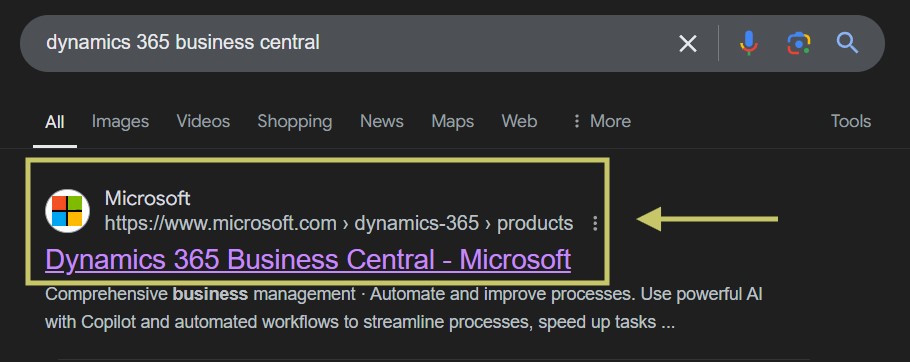
Search for “Dynamics 365 Business Central” on your browser and click on the first official link from Microsoft, as shown in the figure below.
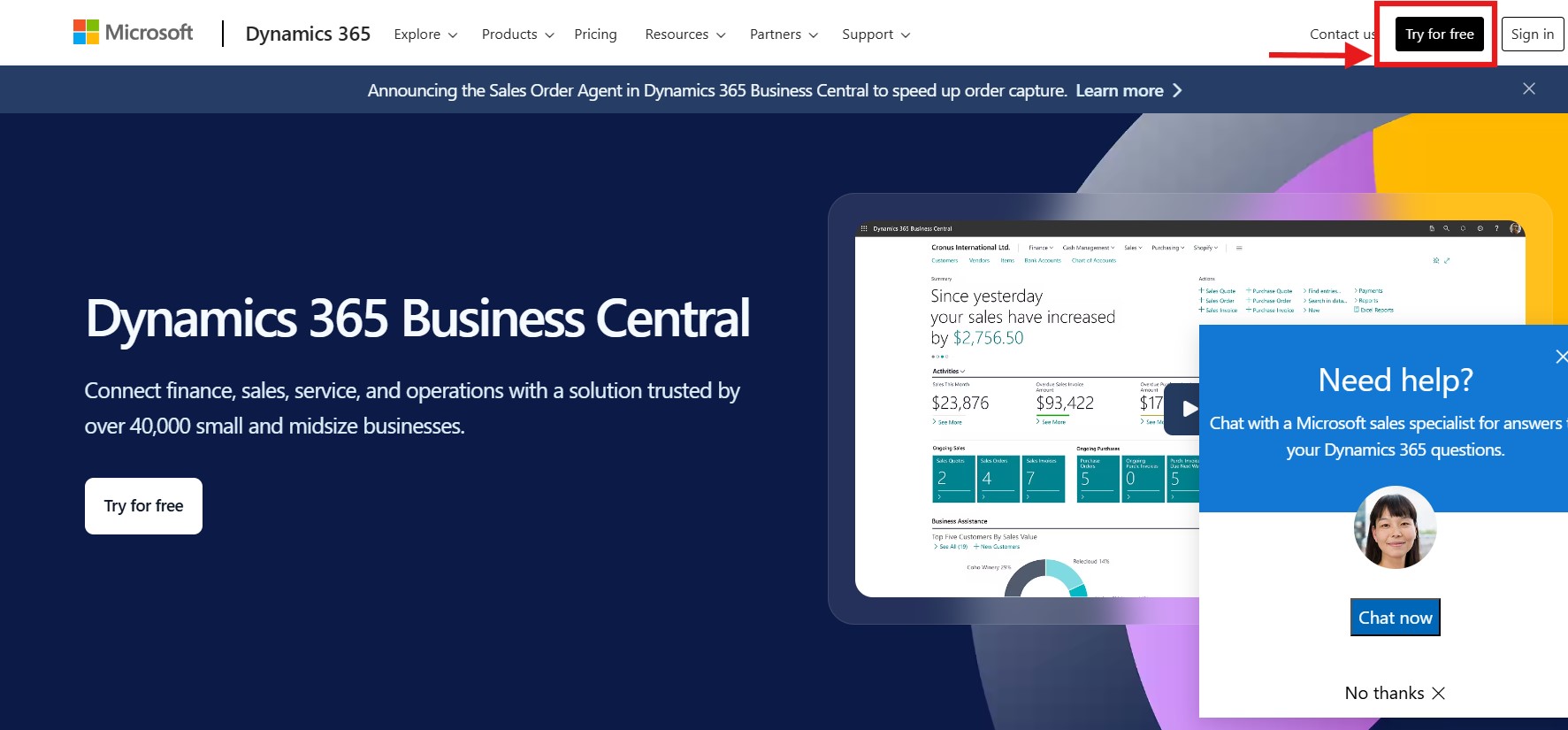
If you already have an account, you can sign in and skip the next step or click on Try for Free (for now) at the top right and use it.
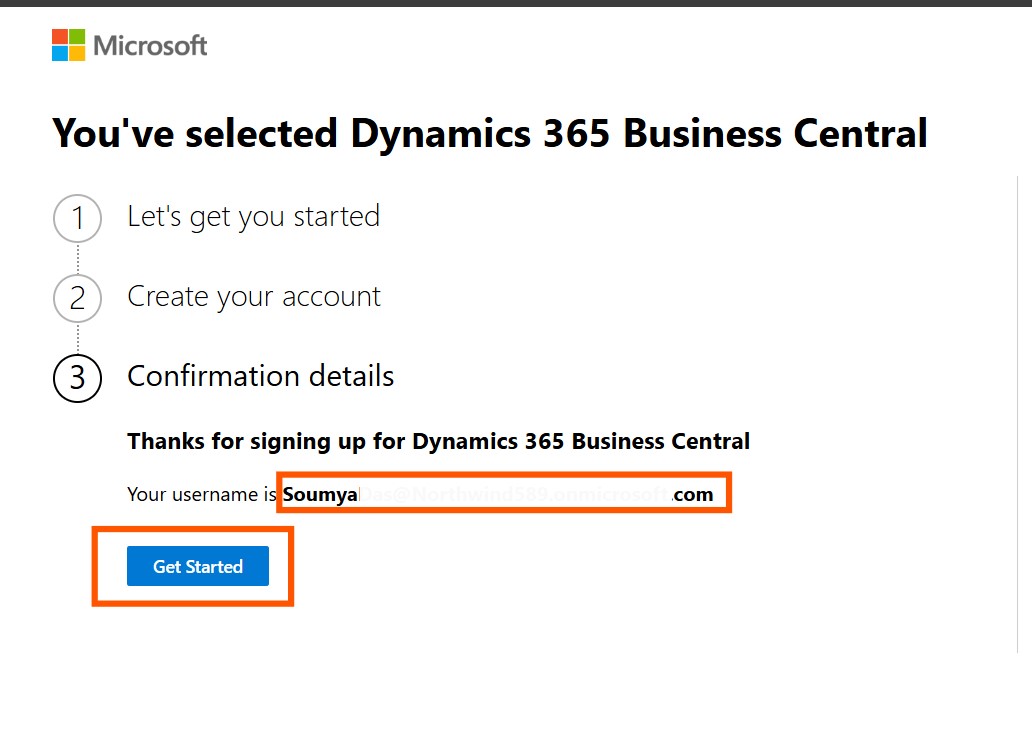
Follow the instructions and click on Get Started.
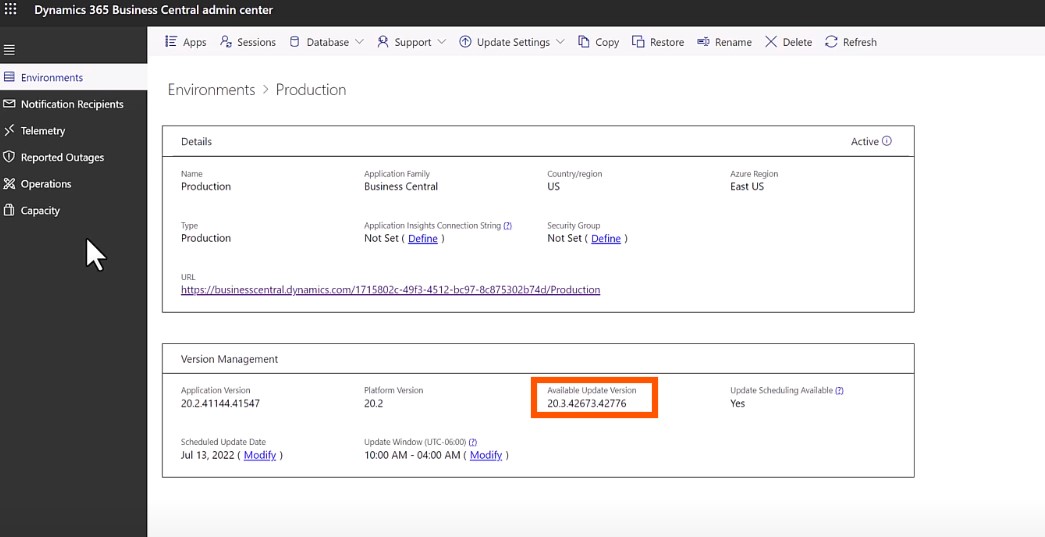
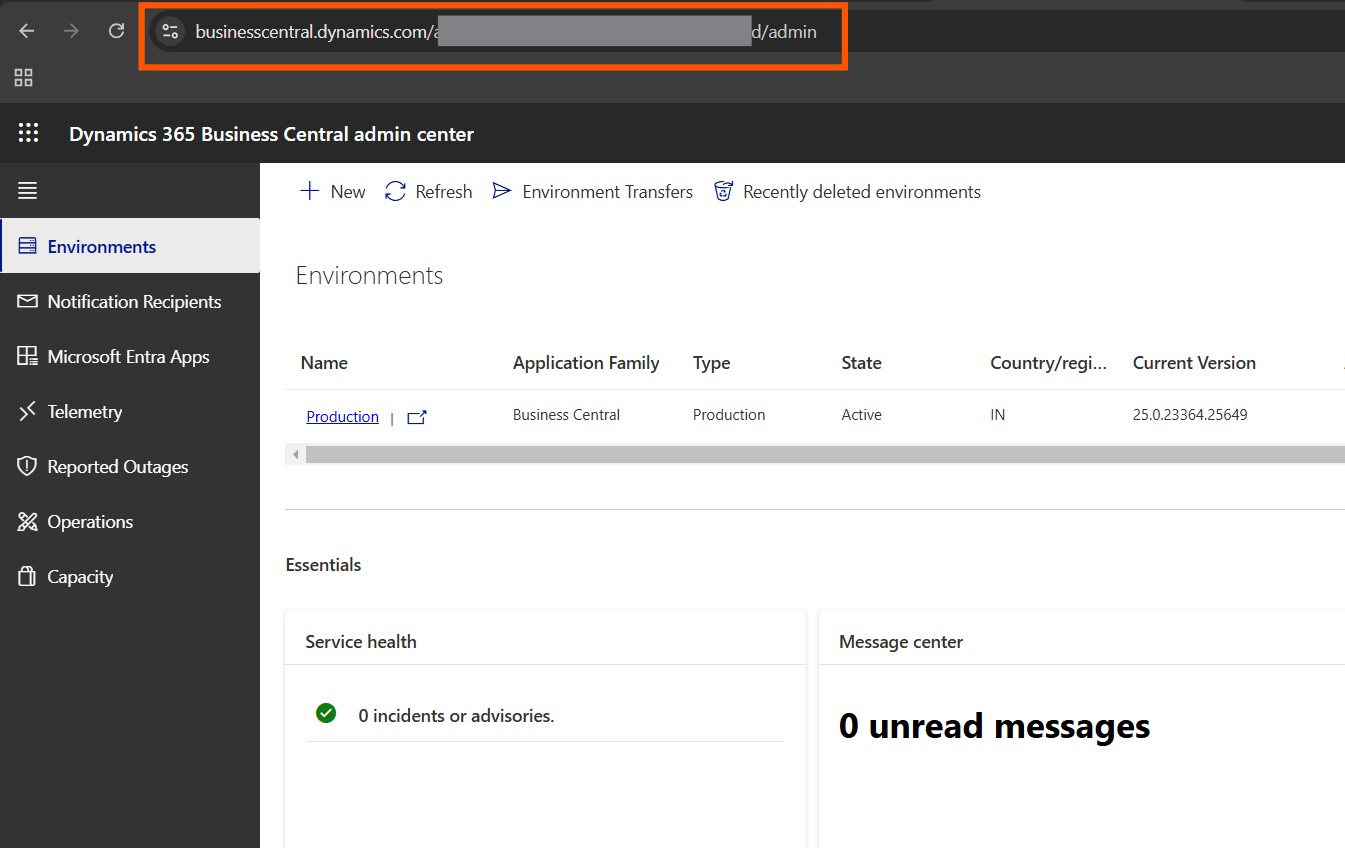
Always use the latest version of Business Central.
Need help with your business solution?
Our team can help you implement the right solution for your organization.
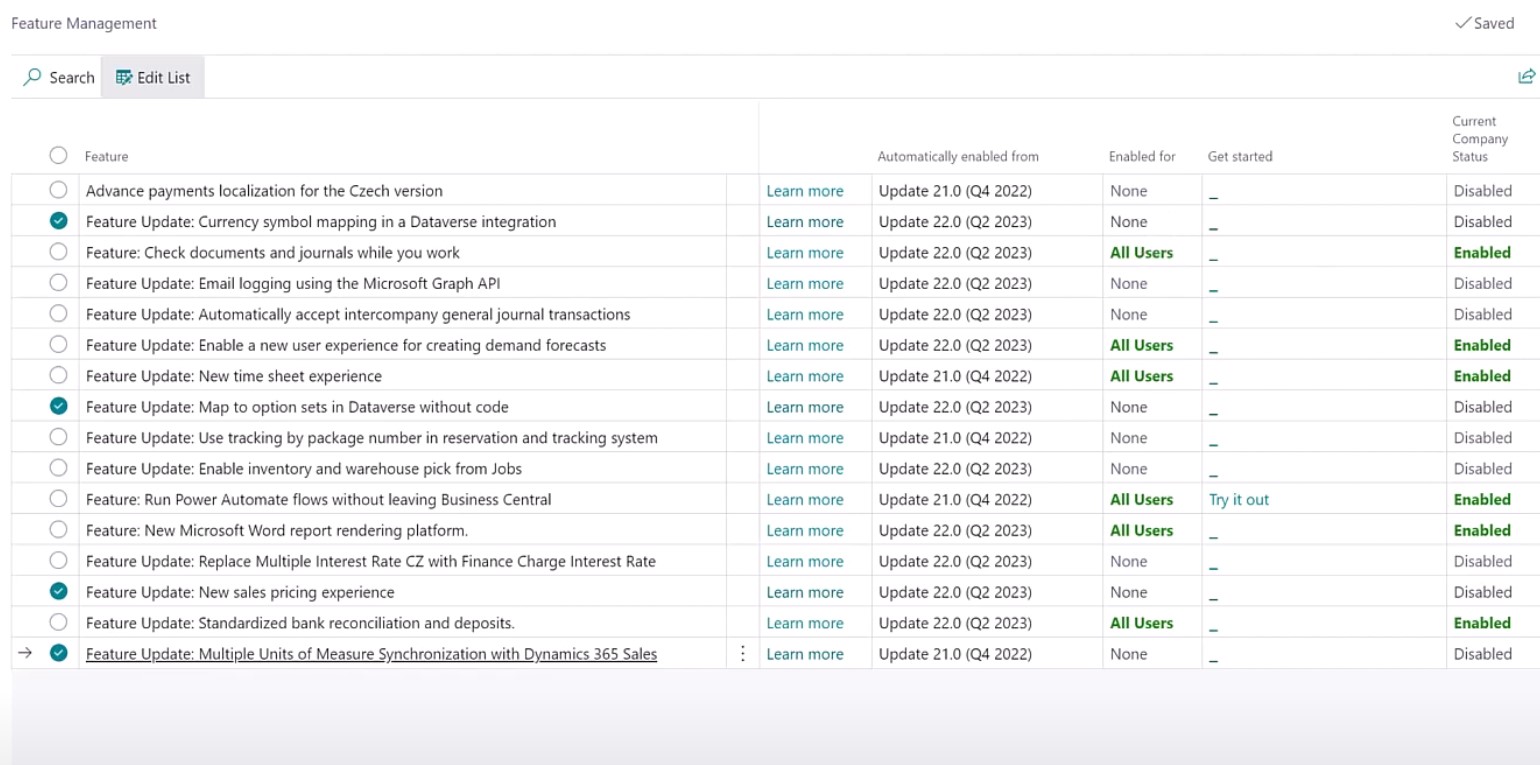
Enable the features in the Feature Management as shown in the image below:
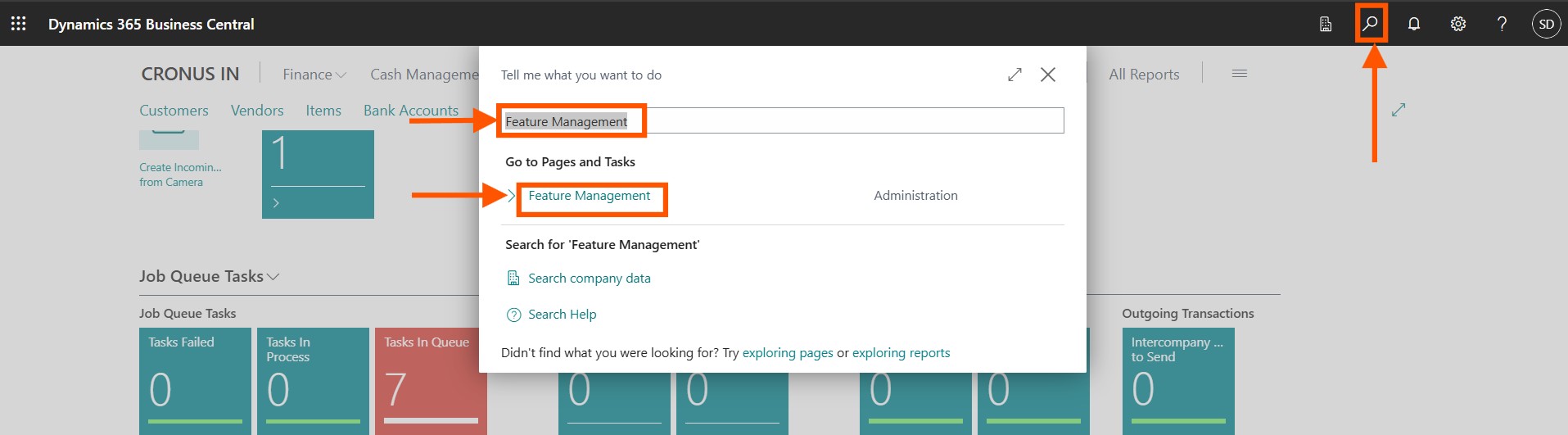
You will be able to find Feature Management by searching in the search
Integrating Business Central:
Integrating Business Central with Dynamics 365 Sales is a two-step process. First, you set up a Dataverse Connection - Test the Connection and Run Full Synchronization followed by Dynamics 365 Sales Connection - Test the Connection and Run Full Synchronization.
Integrating Business Central with Dataverse:
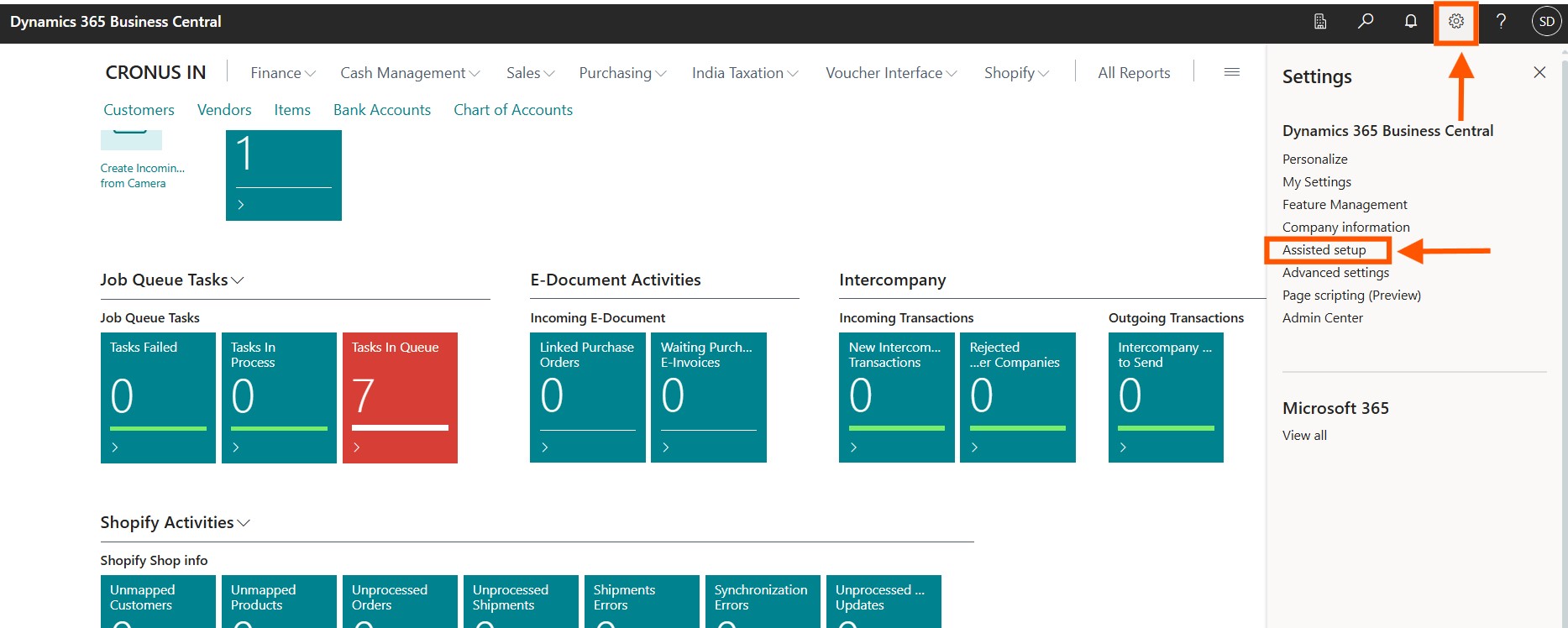
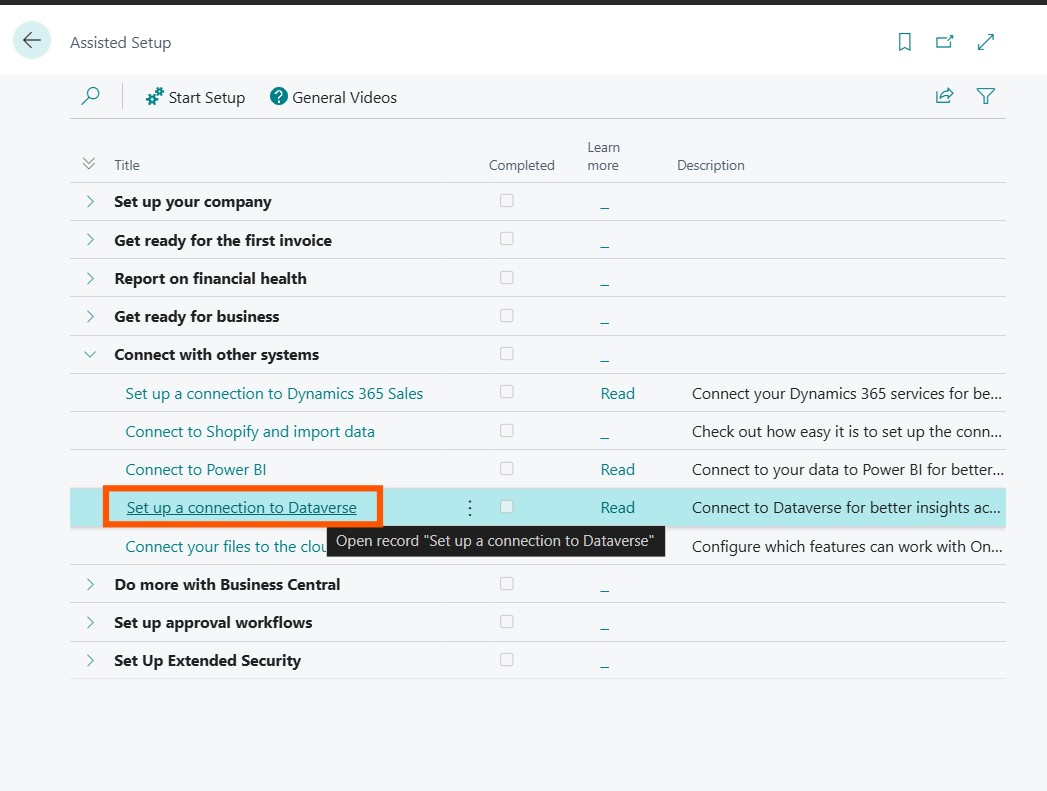
Go to Settings (top-right in Business Central) and select Assisted Setup.
Select Set up a connection to Dataverse.
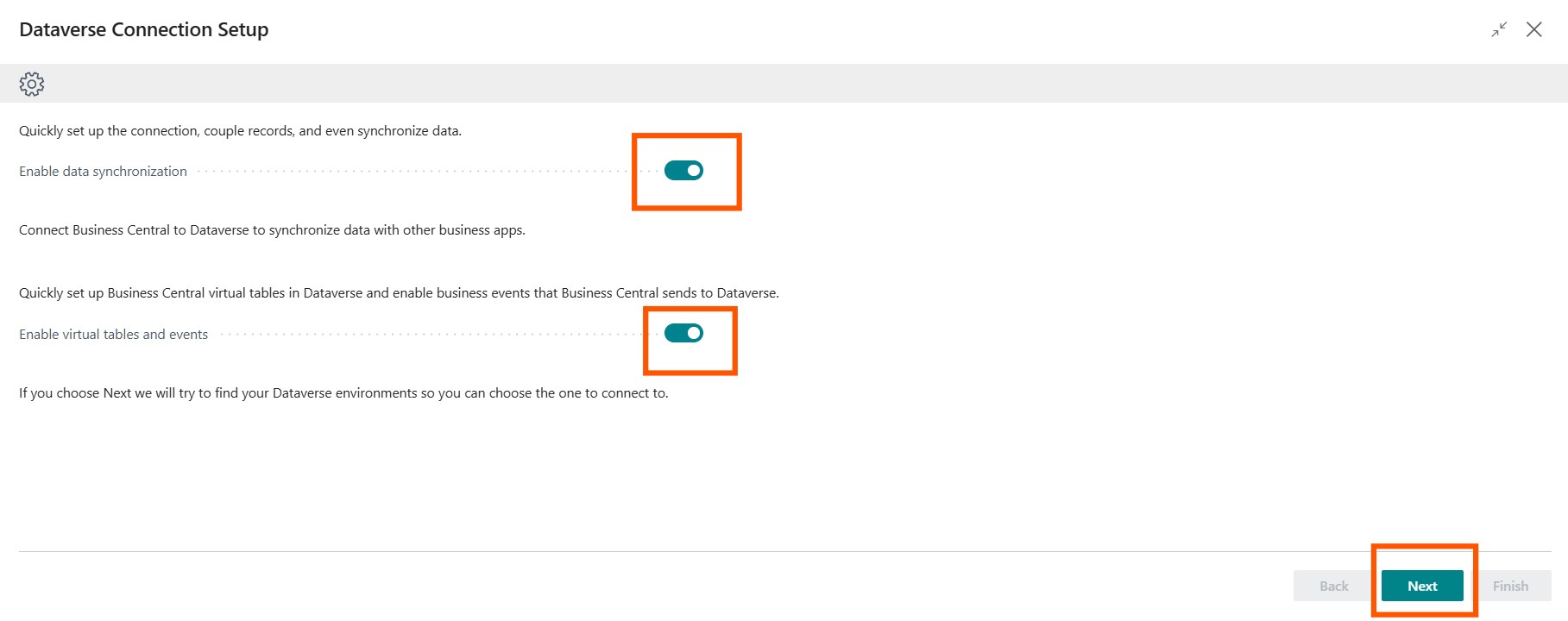
Enable data synchronization, tables, and events, then proceed by clicking Next.
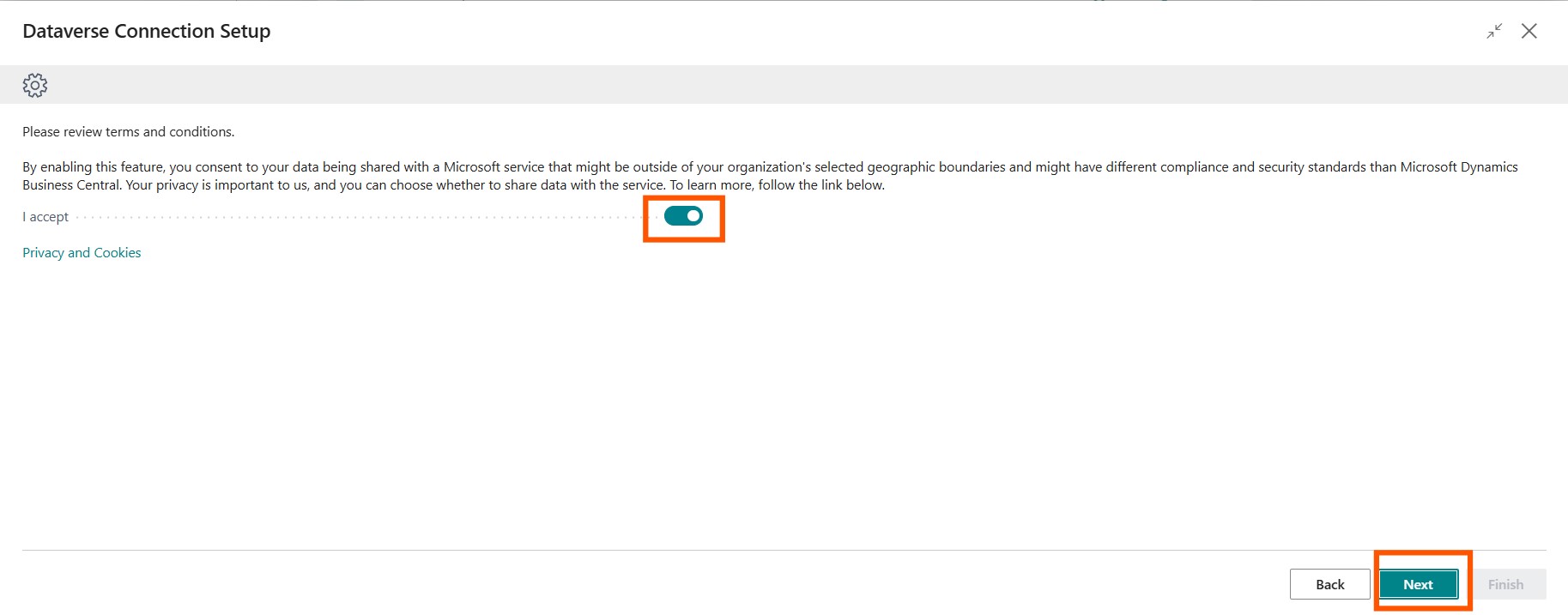
Accept the terms and click on Next.
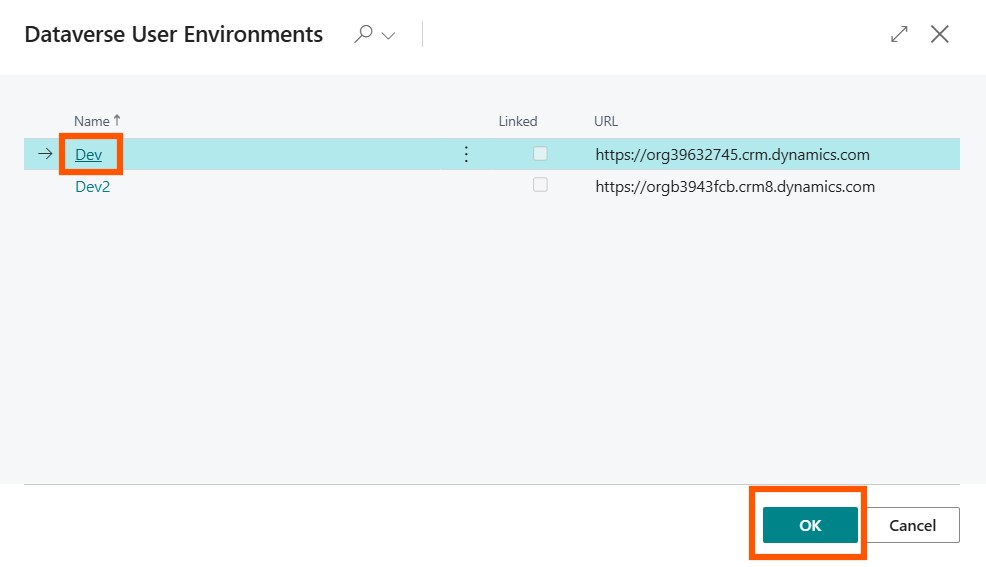
Choose your environment and click on OK.
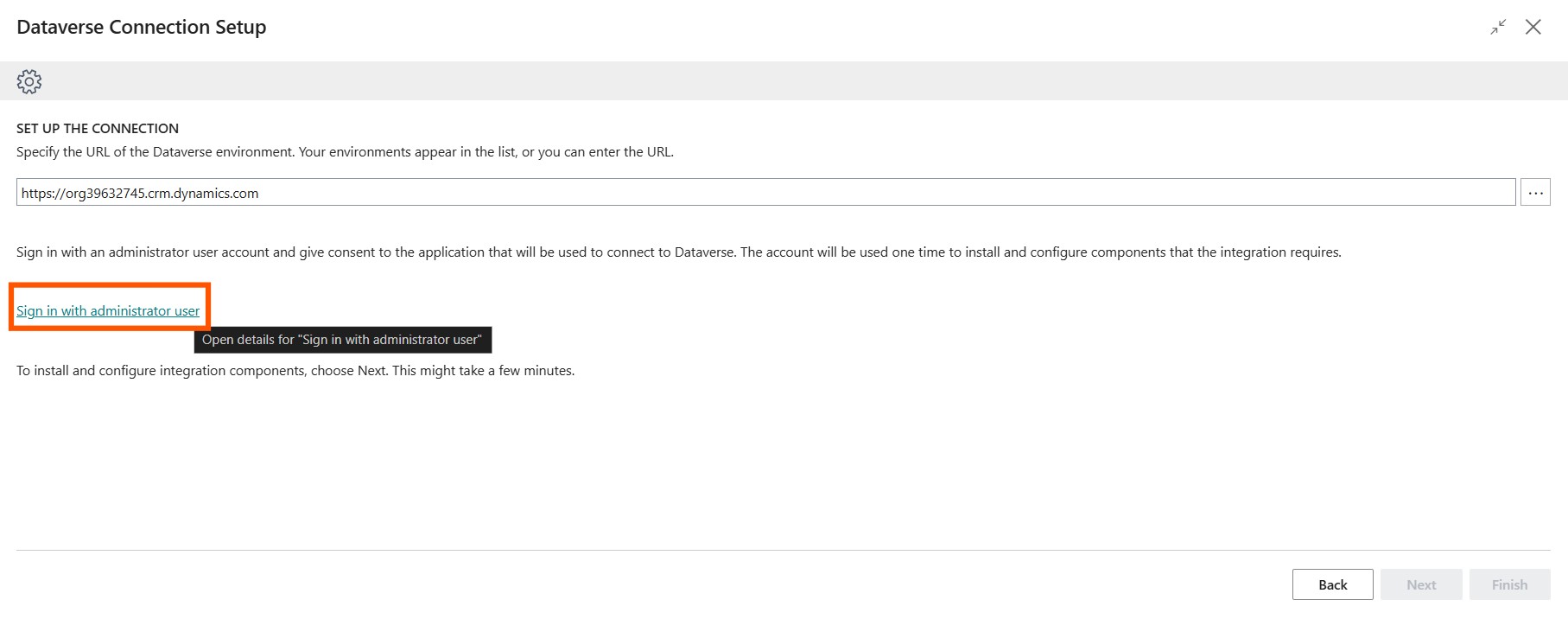
Sign in with the administrator user.
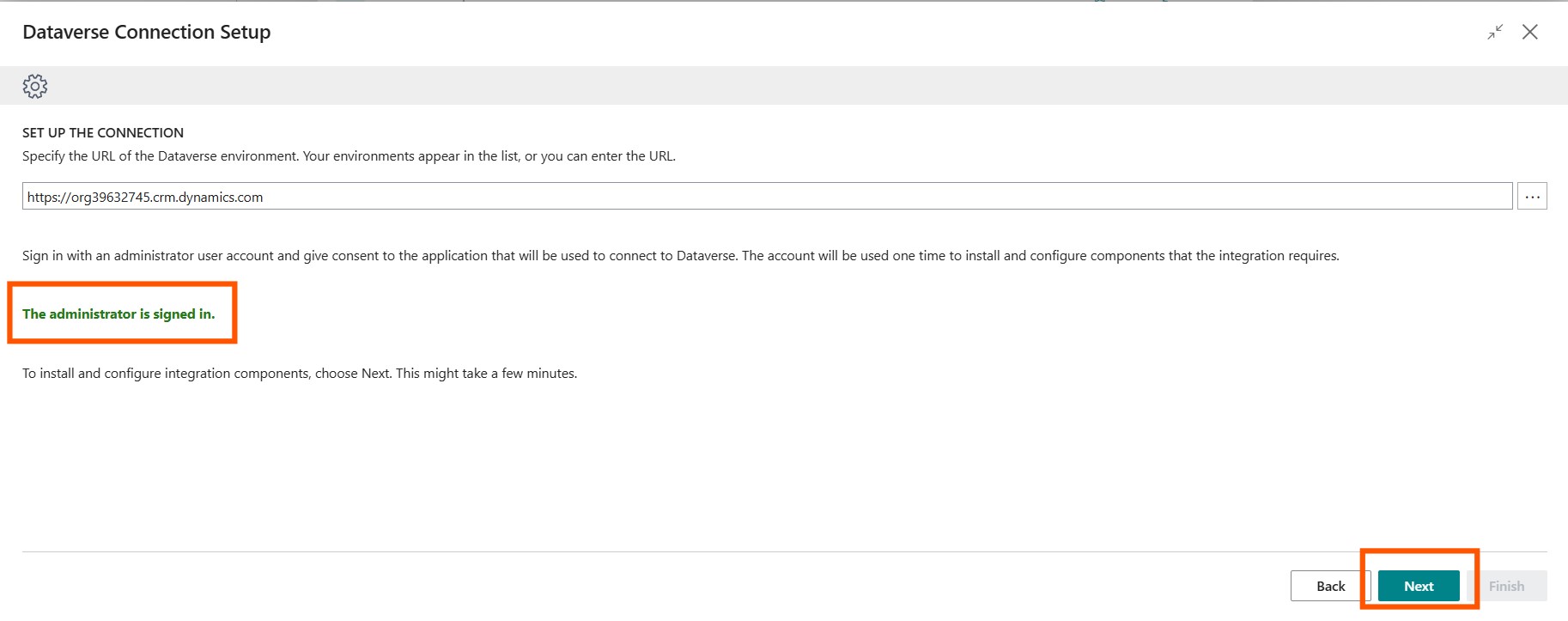
Once signed in, click on Next and then it will take a few moments to get things ready.
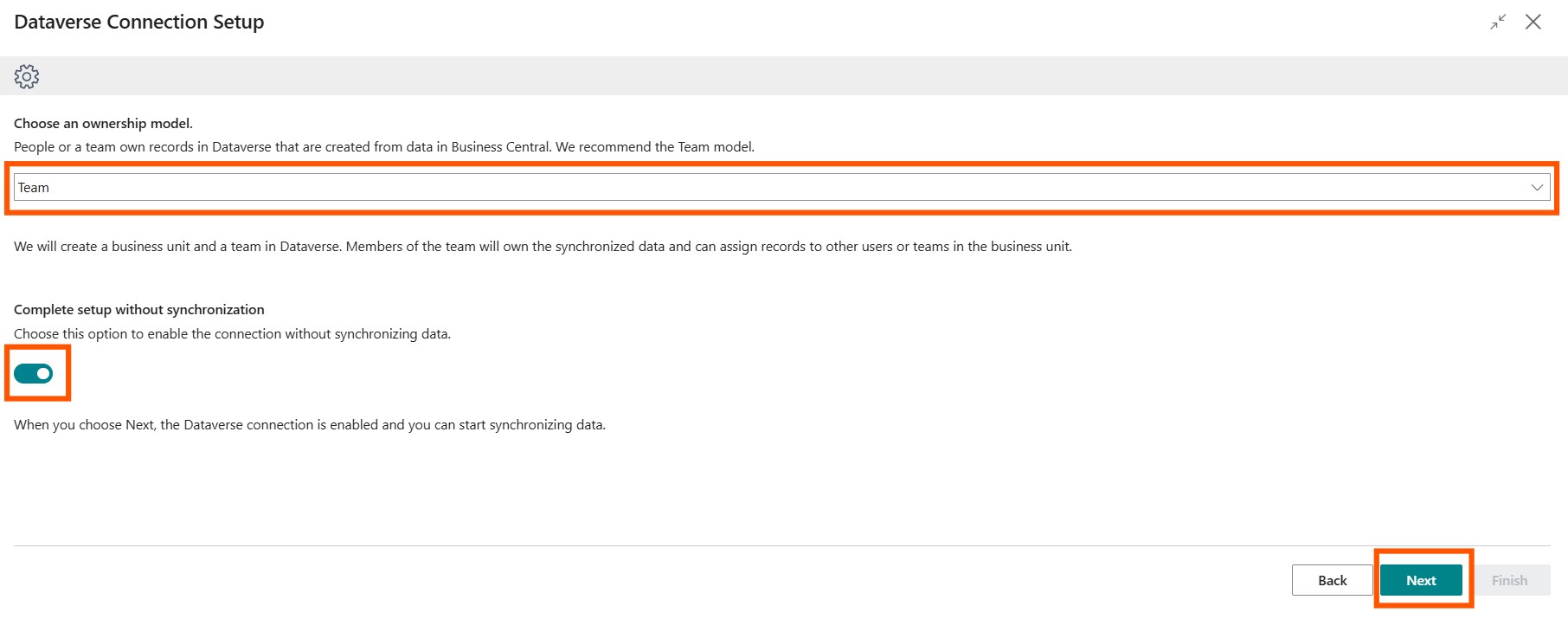
Choose Ownership, enable setup without synchronization, and click on Next.
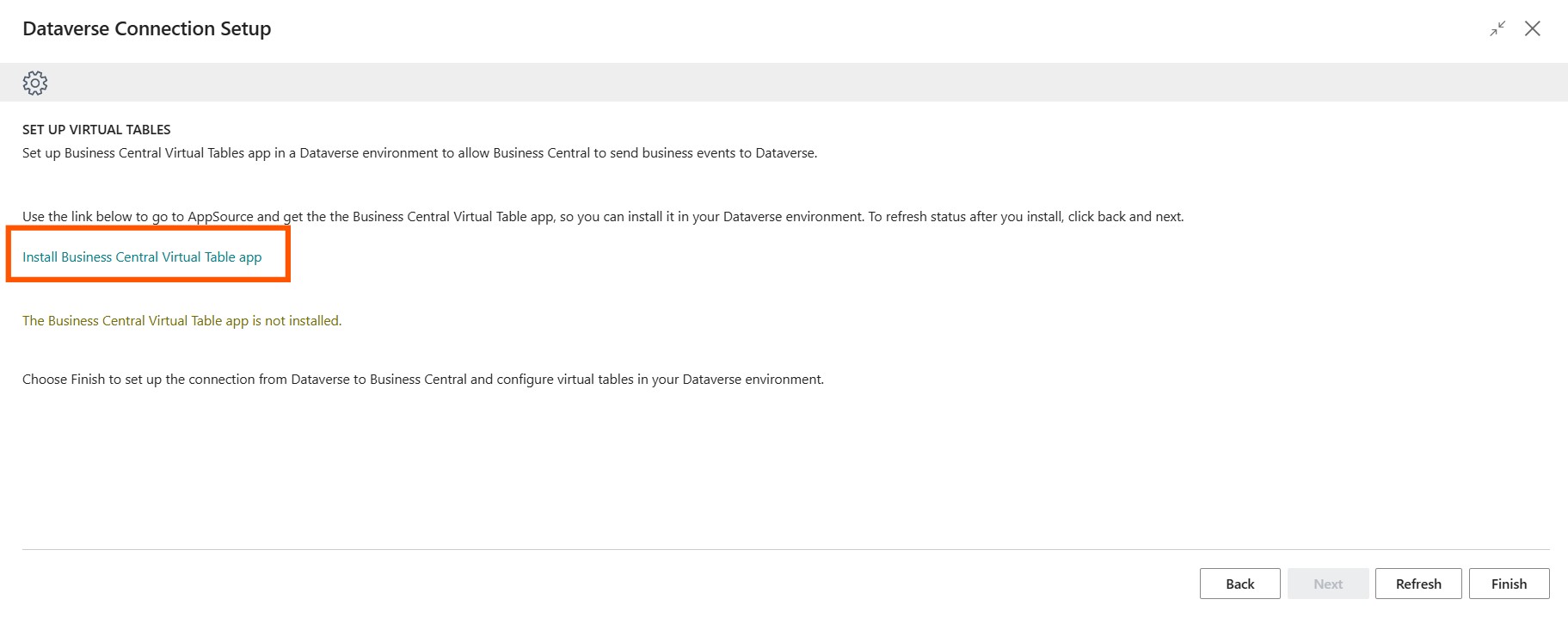
If you have not installed the Business Central Virtual Table app, you can do so now by following the wizard. Once you have done so, click on Refresh orgo back and click on Next.
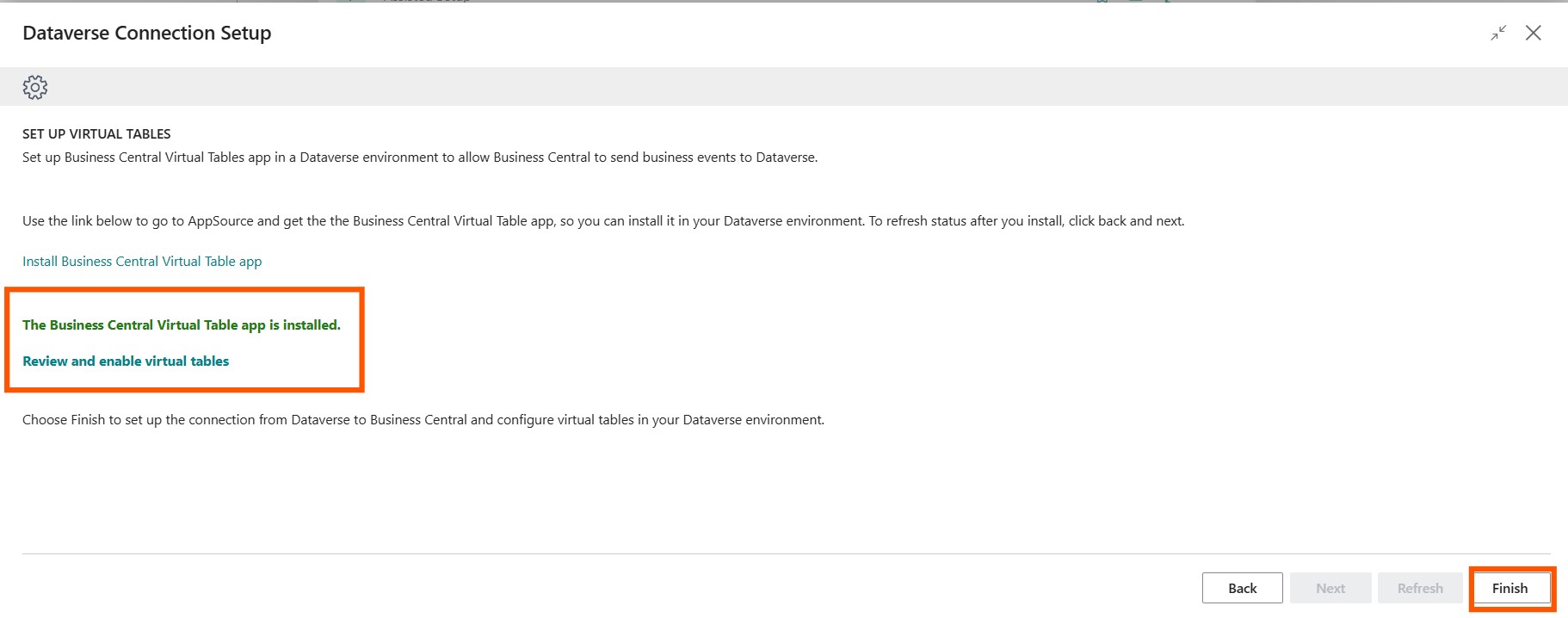
If it is already installed, you will find the app installed message. Click on Finish.
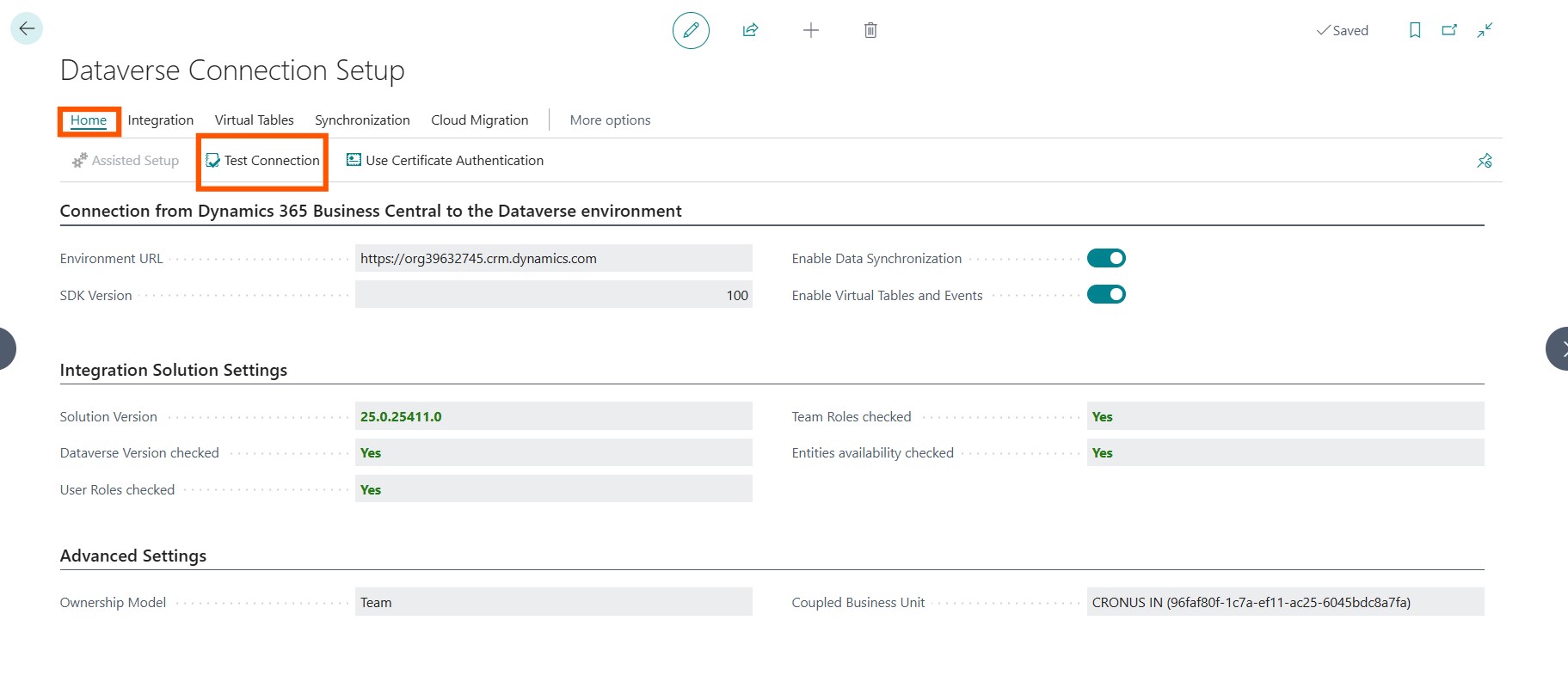
Go to the Home ribbon and click on Test Connection.
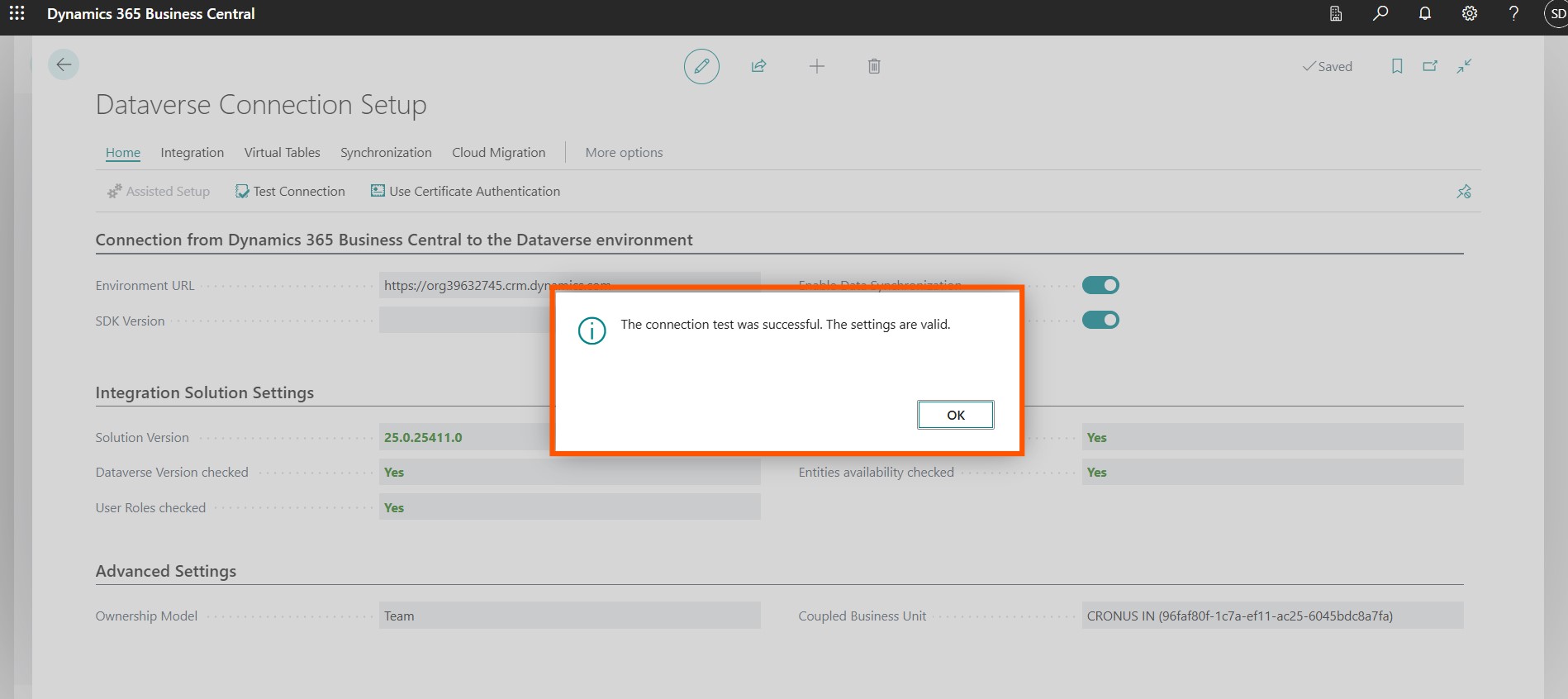
A confirmation message will be displayed when the test is successful.
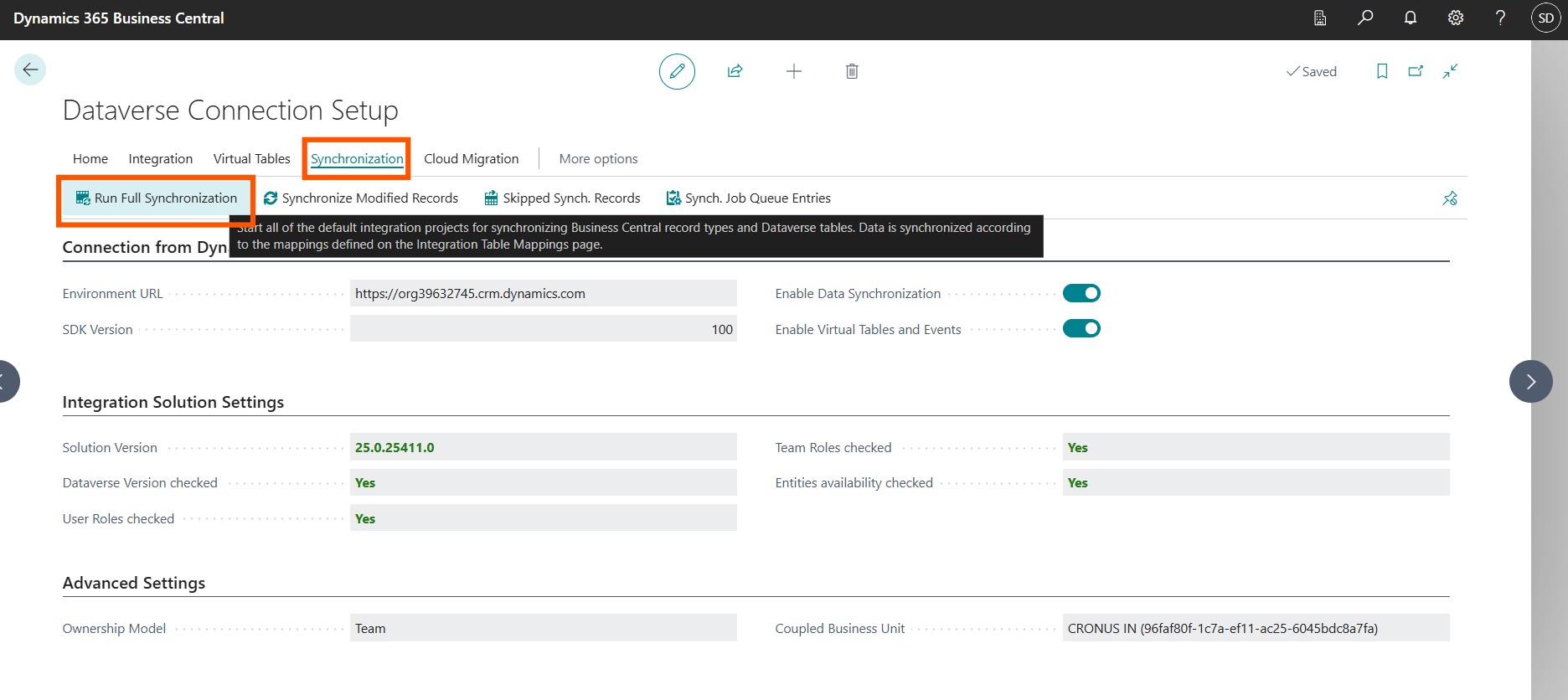
Finally, Go to Synchronization and Run Full Synchronization.
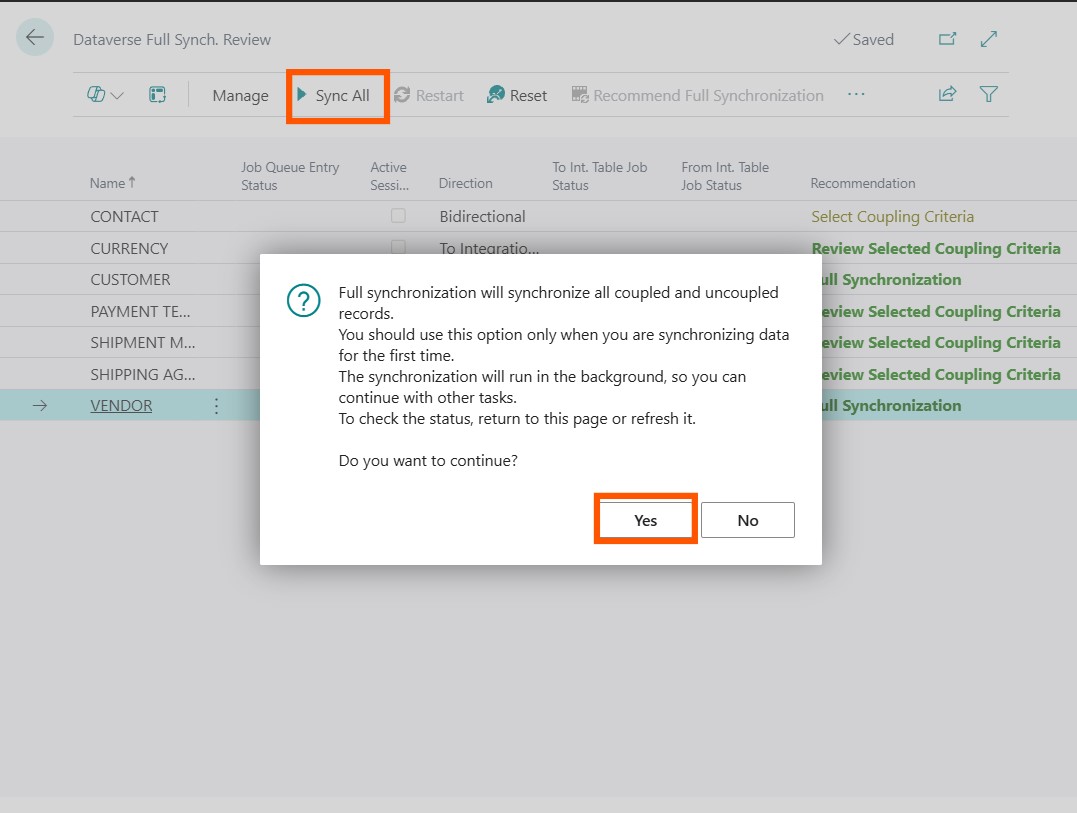
Either click on Sync All or click on run manual synchronizations:
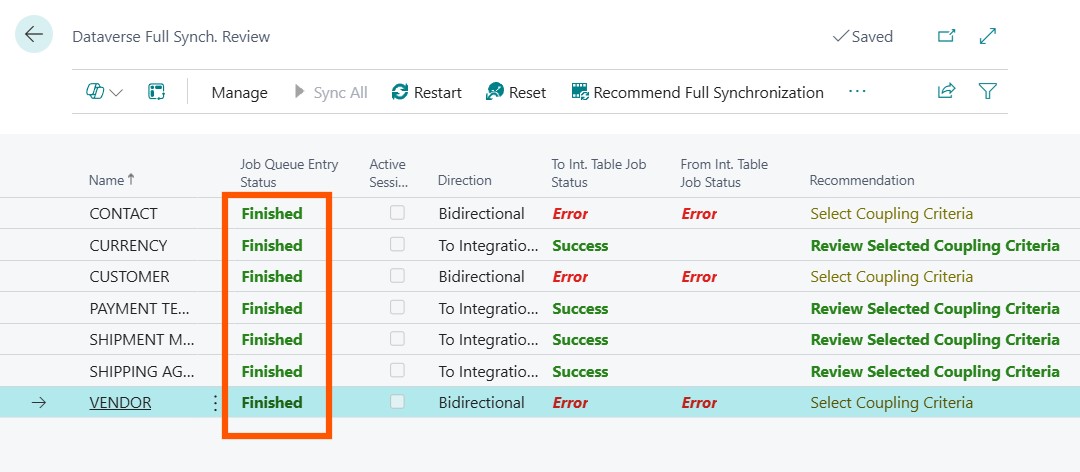
Once completed, you should see a Success message for all:
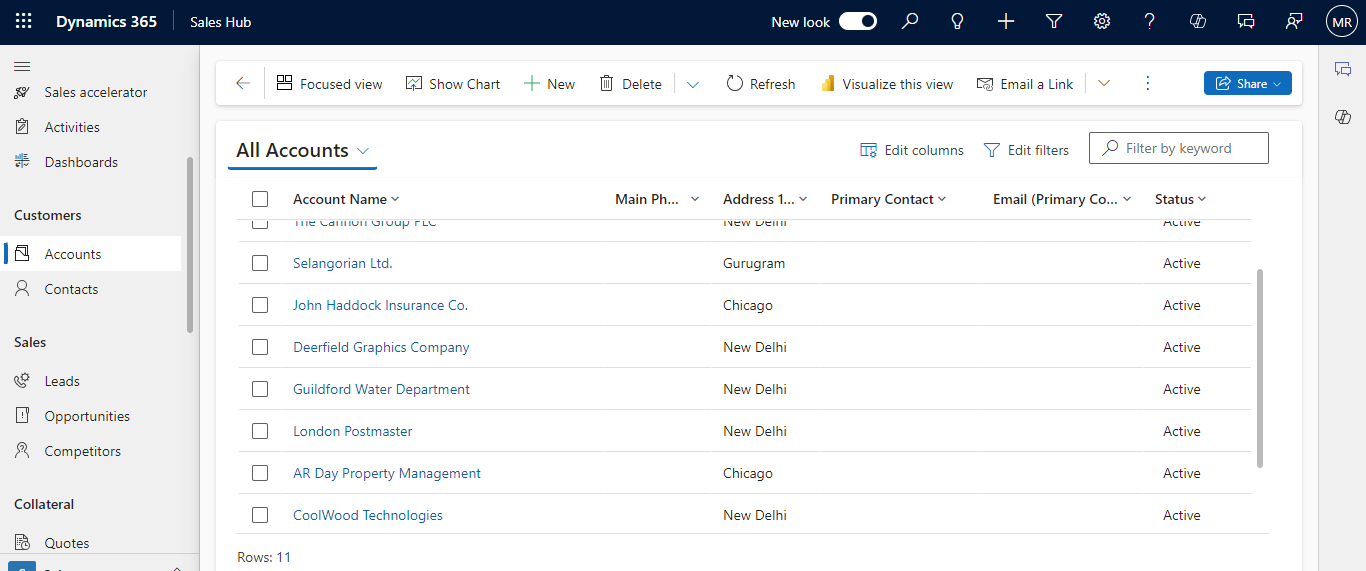
The same will be reflected on your Sales Hub which you can access at make.poweraps.com/environments.
Integrating Business Central with Dynamics 365 Sales:
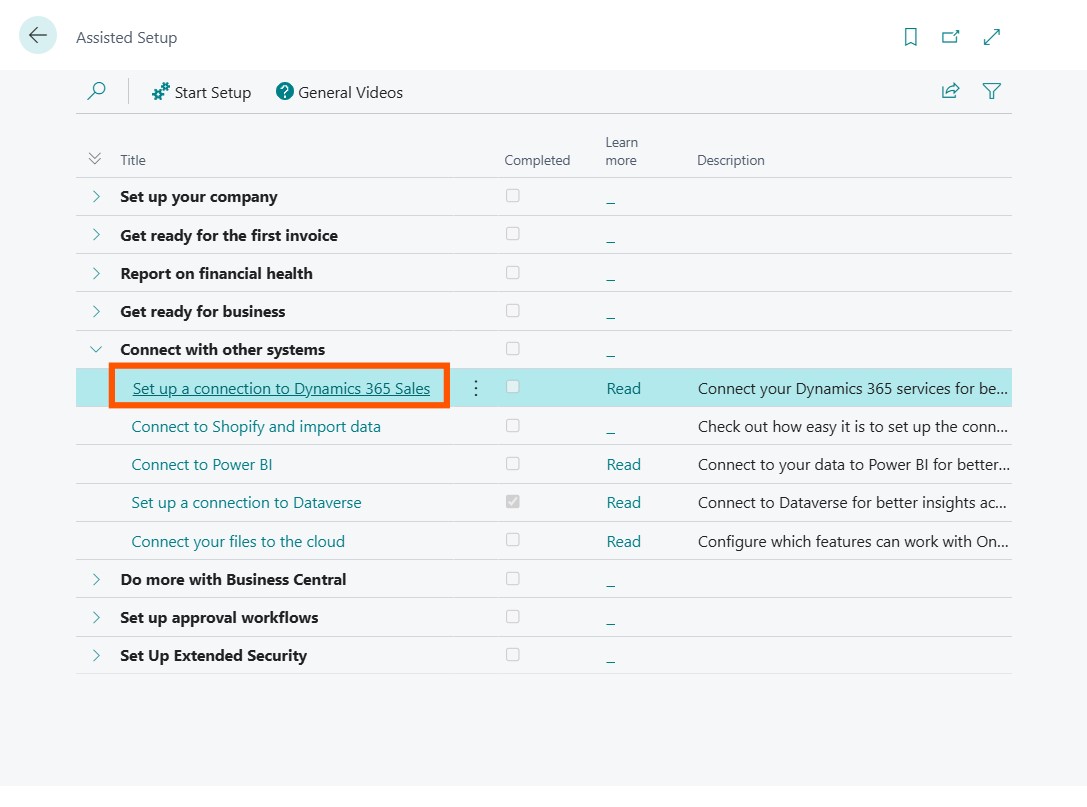
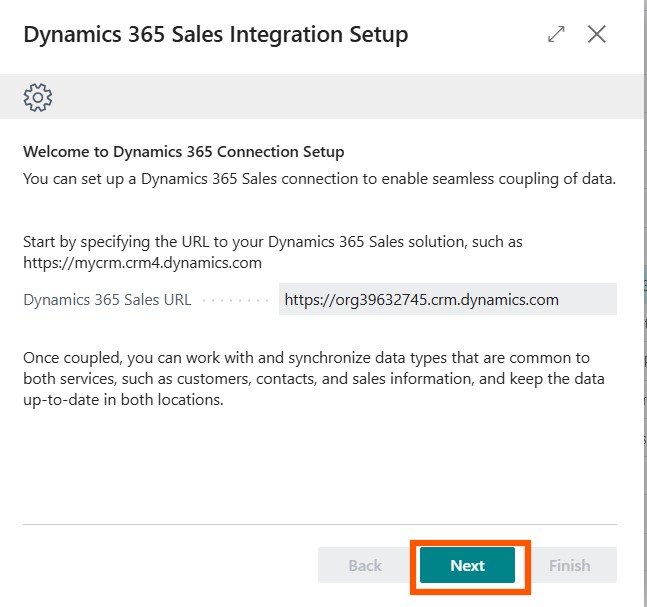
Return to Assisted Setup (from the steps shown above) and select Set up a connection to Dynamics 365 Sales.
Click on Next.
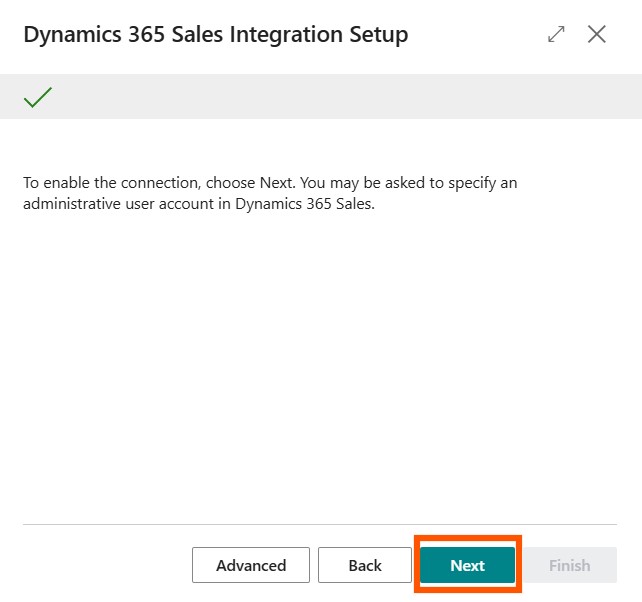
Enable the connection by clicking on Next once more.
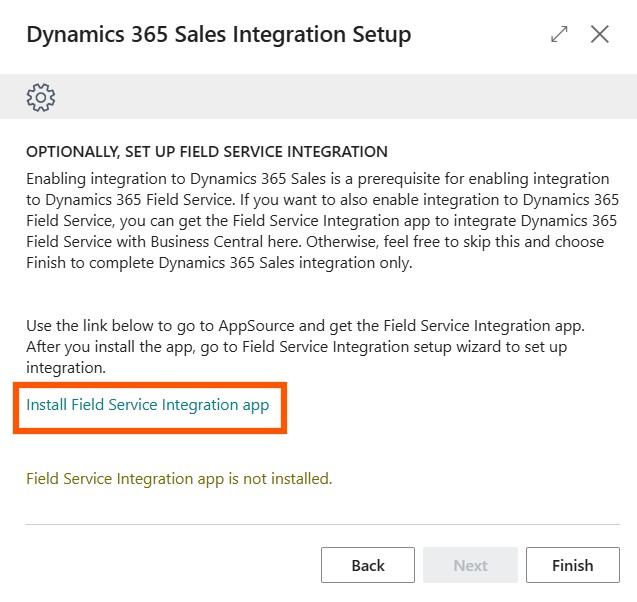
Install the Field Service Integration App if you have not installed it already (the installation of this extension is completely optional).
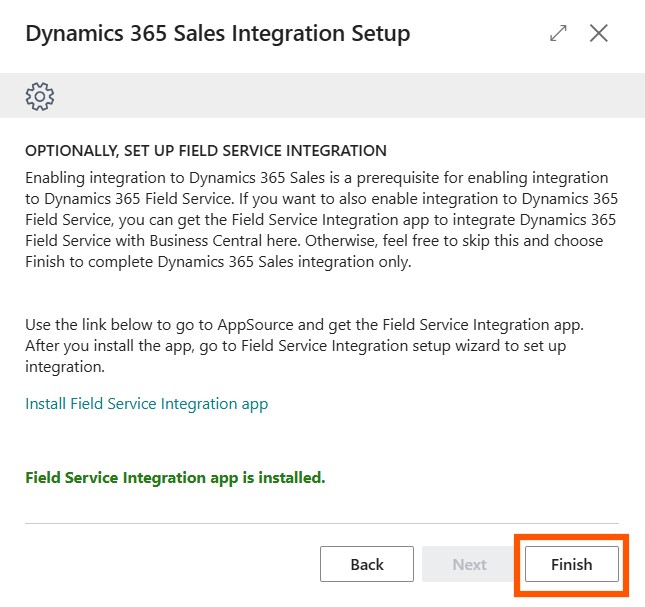
Once done, click on Finish.
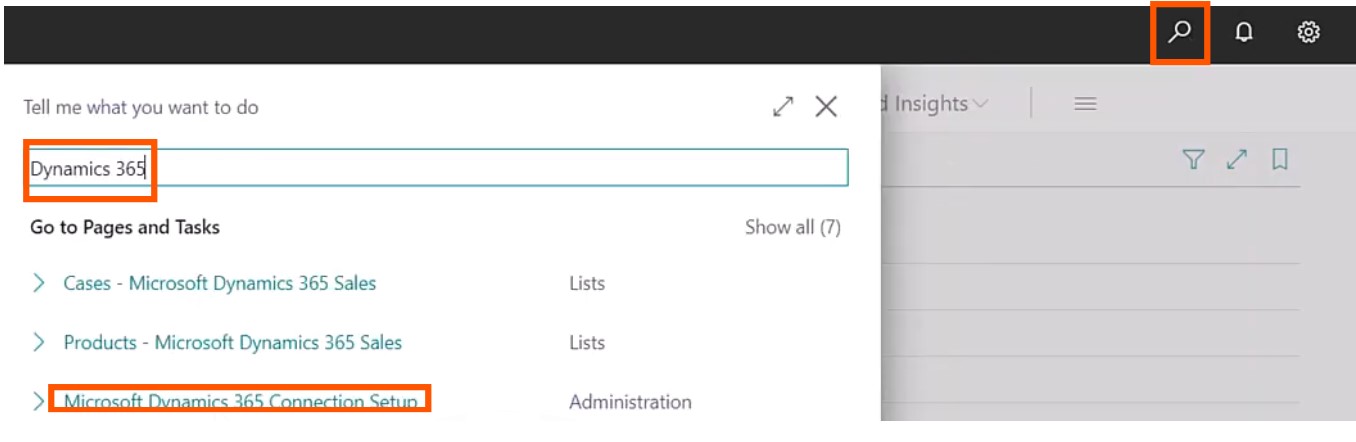
On the homepage, search for Dynamics 365 Connection Setup and test the connection. Synchronize data, and the integration is complete.
Integrating Dynamics 365 Business Central with Dynamics 365 Sales offers numerous benefits, including improved data consistency, streamlined workflows, and enhanced collaboration across teams. This integration empowers businesses to manage customer relationships more effectively, providing a solid foundation for scaling operations and improving customer satisfaction.
Frequently Asked Questions (FAQs):
1. What are the main benefits of integrating Business Central with Dynamics 365 Sales?
Integrating Dynamics 365 Business Central Sales with Dynamics 365 Sales allows for seamless data flow across departments, enhancing collaboration, data accuracy, and overall customer satisfaction.
2. Is Microsoft Dataverse essential for integrating Business Central with Dynamics 365 Sales?
Yes, Dataverse is required for data synchronization between Dynamics 365 Business Central Sales and Dynamics 365 Sales, ensuring seamless data exchange and connection.
3. How often should I synchronize data between Business Central and Dynamics 365 Sales?
Synchronization should be run initially and can then be scheduled periodically based on business needs, especially if frequent data updates occur.
4. Can I test the connection between Business Central and Dynamics 365 Sales?
Yes, both systems allow connection tests through their setup pages to ensure that the integration is properly configured and operational.
5. What should I do if the synchronization process fails?
If synchronization fails, check network connectivity, verify permissions, and ensure that both environments are up-to-date. Re-run the sync process after troubleshooting.
6. How does integrating Business Central with Dynamics 365 Sales improve data accuracy across departments?
Integration significantly improves data accuracy by eliminating manual data entry and reducing errors. This shared, accurate data foundation helps departments collaborate effectively and make informed decisions.