LogoLogo

Our Products

Metadata Browser

Edge Add-on

HTML To PDF Converter

Power Automate Connector

Data Mask for Dataverse

Dataverse App

Commission 365

Dynamics 365 App

AI Autocloser

Dataverse App

Flow Monitor

Power Automate App

ServicesAboutCareersBlogContact
Chat on Teams
Metadata BrowserHTML To PDF ConverterData Mask for DataverseCommission 365AI AutocloserFlow Monitor
ServicesAboutCareersBlogContactChat on Teams
HomeBlogPipelines in Power Platform
Pipelines in Power Platform

May 06, 2024
#Power Platform
Likitha Chirumalla
Pipelines in Power Platform

Introduction:

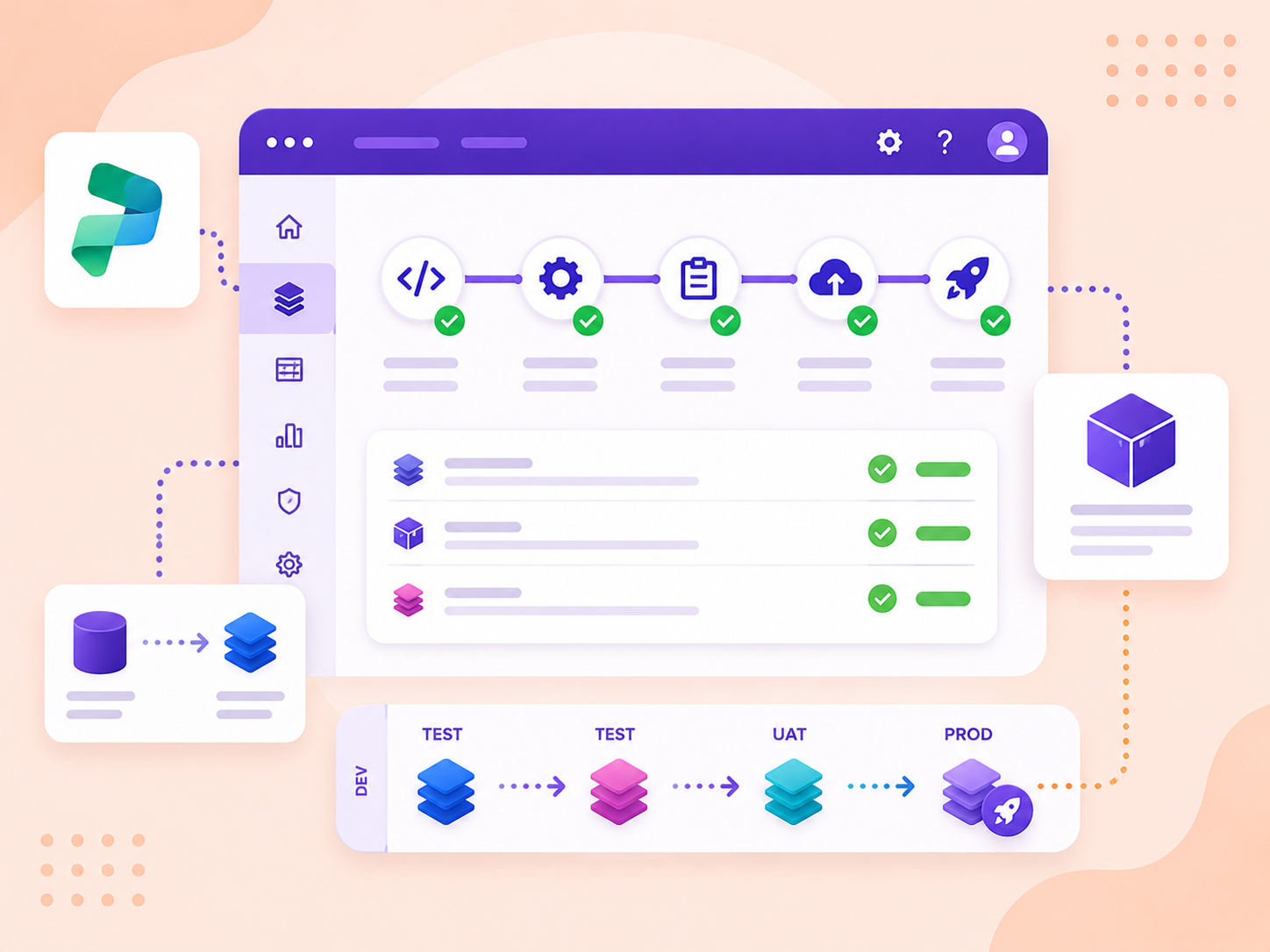
  • Pipelines within the Power Platform are designed to offer automation Continuous Integration and Continuous Deployment (CI/CD) capabilities. Using pipelines, admins can easily configure automated deployment pipelines in minutes rather than days or weeks.

  • Once configured, developers can initiate the deployment with a few clicks. No prior knowledge of ALM (Application lifecycle management) is required.

  • Solution deployments are pre-validated against the target environment. For example: any missing dependencies or other issues detected before the deployment.

  • There is no need to connect to multiple environments, export solutions, download, import, etc.

Environments For Pipelines:

  • Host Environment: This environment is the storage and management location for all pipeline configurations, security settings, and run history.

  • As this is the control center for all deployment activities, keeping this as a dedicated production environment is recommended.

  • Deleting the host environment deletes all pipelines and runs data.

  • Development Environment: All development activities will take place in this environment.

  • QA environment: A QA environment is a dedicated space for testing and validating changes to apps, flows, and other solutions built on the Power Platform.

  • Production environment: The production environment in the Power Platform is where organizations run their core operations and rely on solutions to drive business processes, make data-driven decisions, and deliver value to customers and stakeholders.
:

Back to all articles

More from the blog

Generate Temporary Download URLs in Dynamics 365 Using GetFileSasUrl

Enable Audio Playback in Dynamics 365 Contact Forms Using JavaScript

Integrating Your Copilot Agent with Teams

Adding Generative AI to your Cloud Flows with AI Prompts

How to Generate Early Bound Classes in Dataverse with XrmToolBox

Email Smarter in Outlook with Sales Copilot and Power Apps Integration

How to Populate Choice Fields Using Power Apps Dataflows

How to Populate Dataverse Lookup Fields Using Power Apps Dataflows

Need help with your business solution?

Our team can help you implement the right solution for your organization.

Get in touch
LogoLogo

Ex-Microsoft experts helping businesses get more from their Dynamics 365 and Power Platform investments.

Products

Set up Power Platform Pipelines

You can navigate to the Power Platform Admin Centre and navigate to environments.(https://admin.powerplatform.microsoft.com/environments)

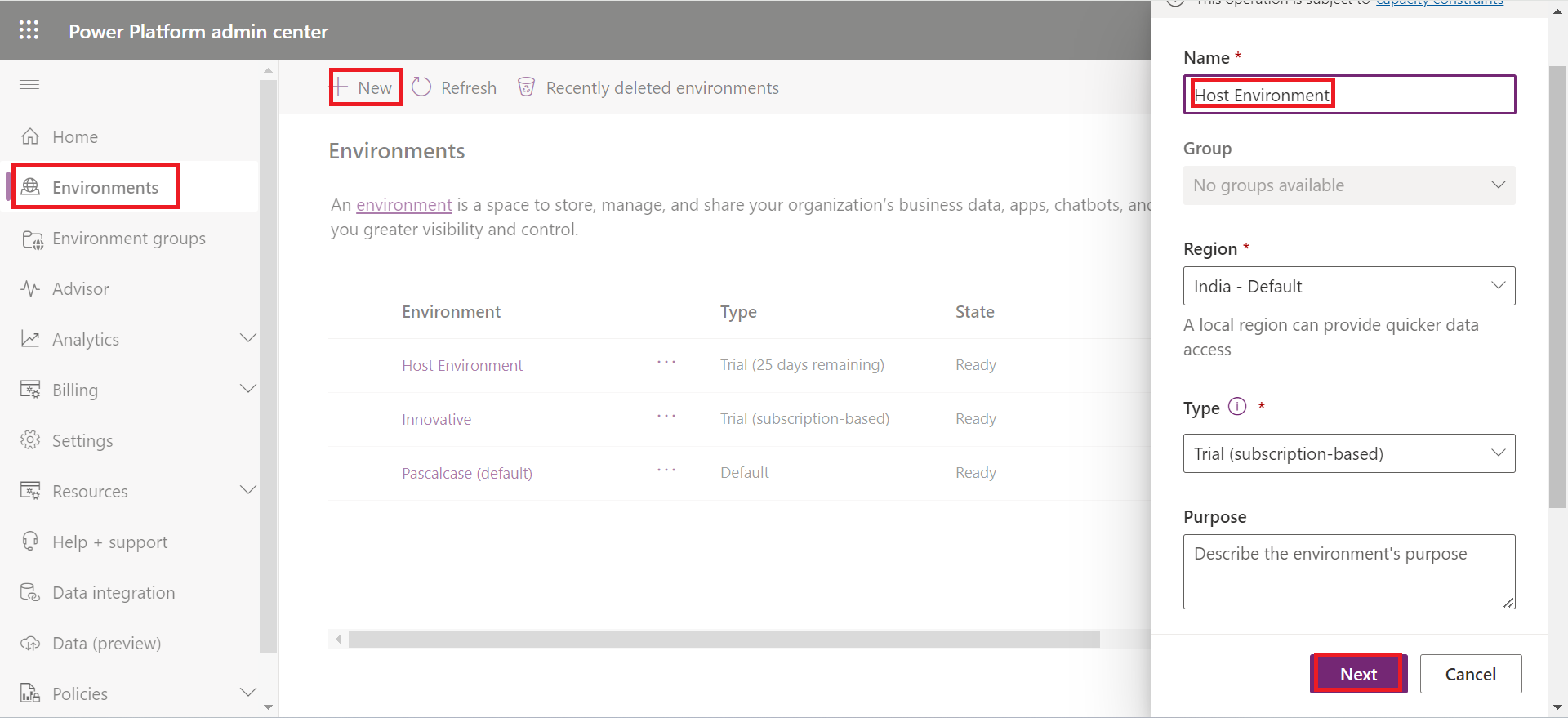
Create the Host Environment

Settings > admin center > environment > new

Pipelines in Power Platform 01

Step 1: Install the pipeline application for your host environment:

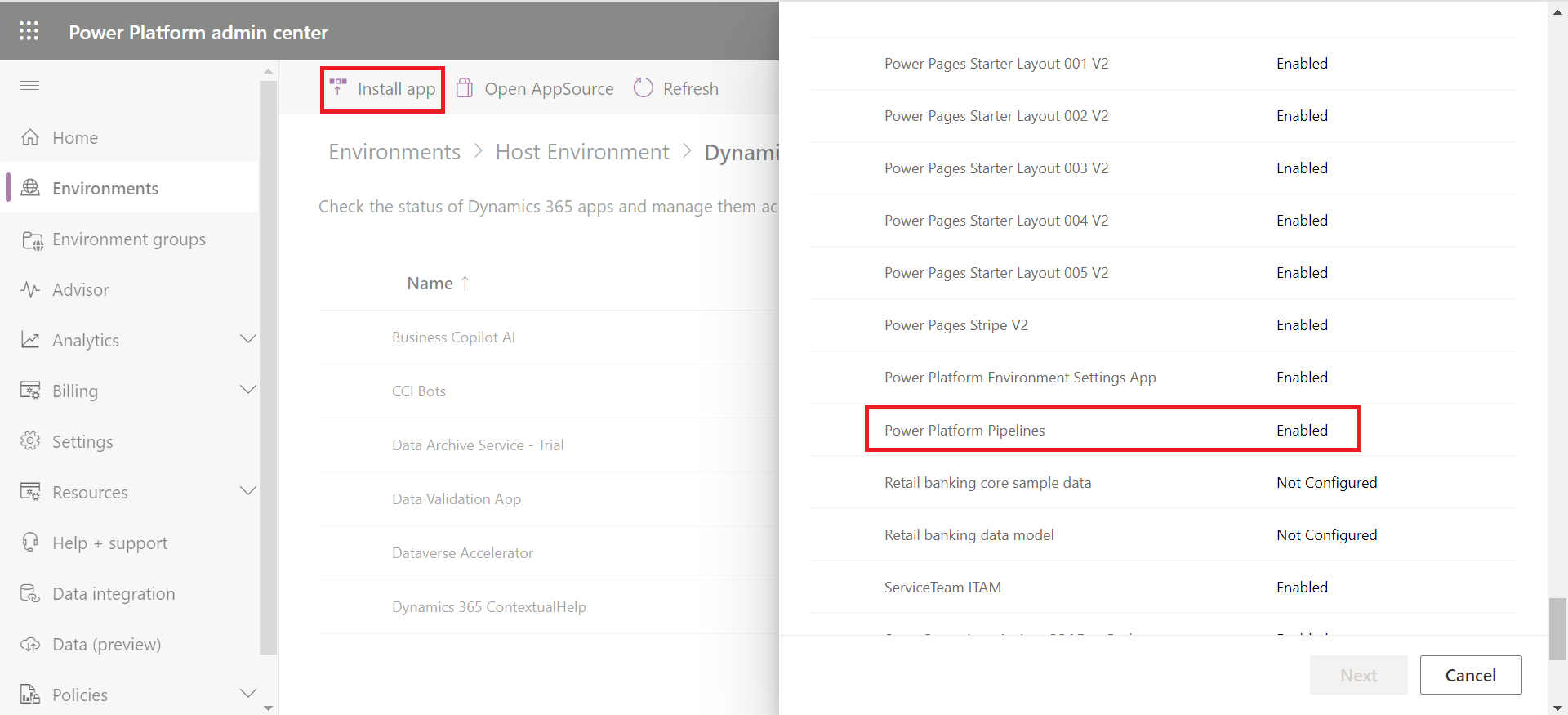
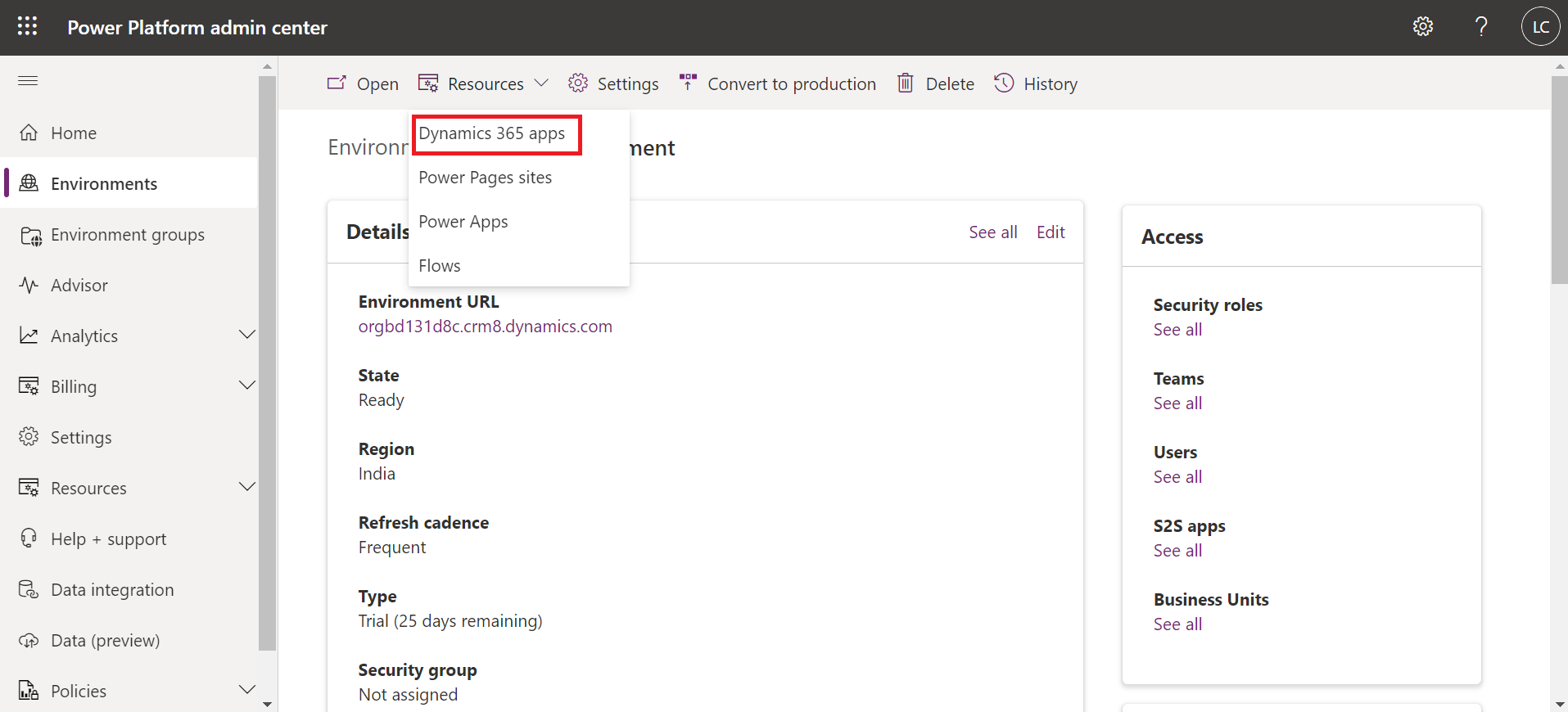
Choose a Host Environment designated to store all essential data for Pipelines. Then, navigate to its Dynamics 365 Apps section under Resources to install Power Platform Pipelines into that environment.

Pipelines in Power Platform 02

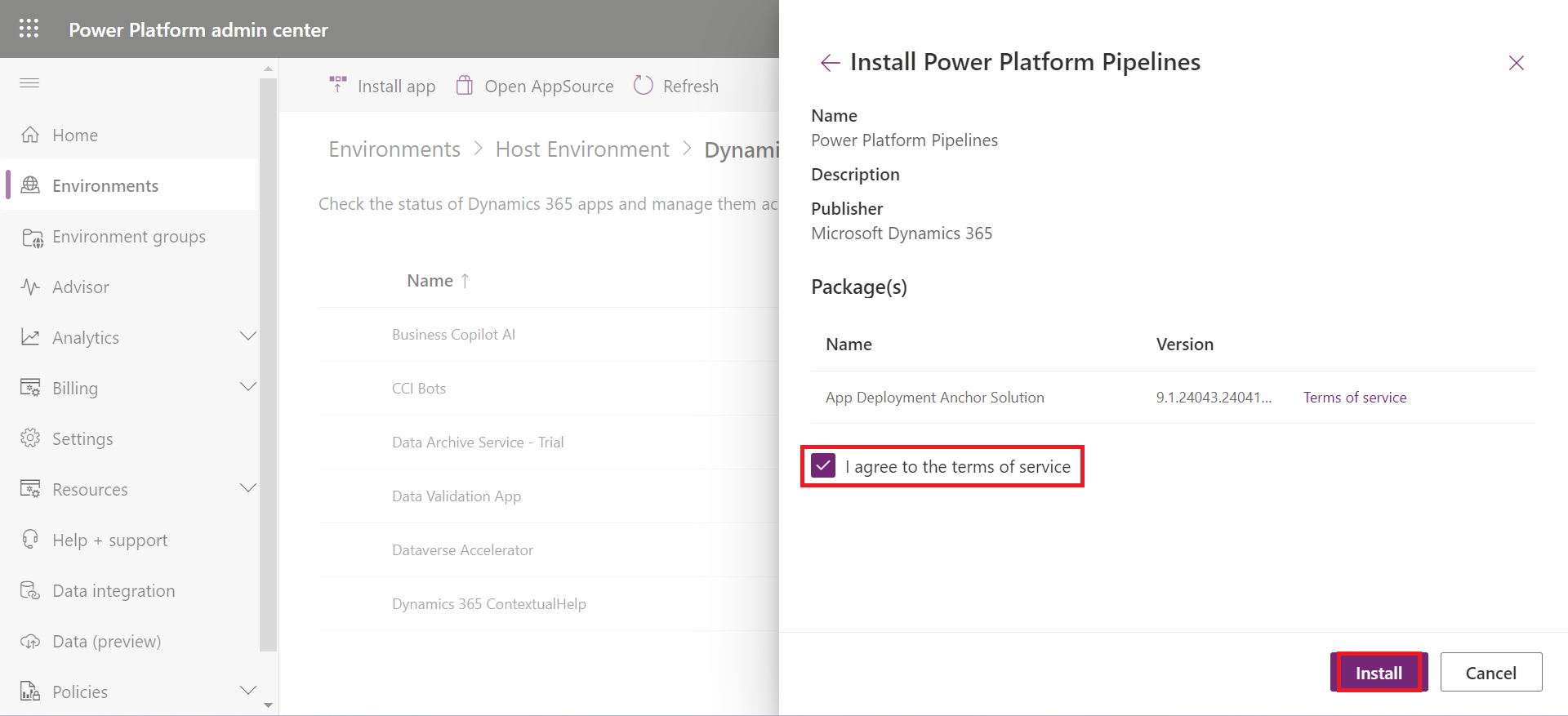
Once you are in, click on the Install app and search for Power Platform Pipelines.

Pipelines in Power Platform 03
Pipelines in Power Platform 04

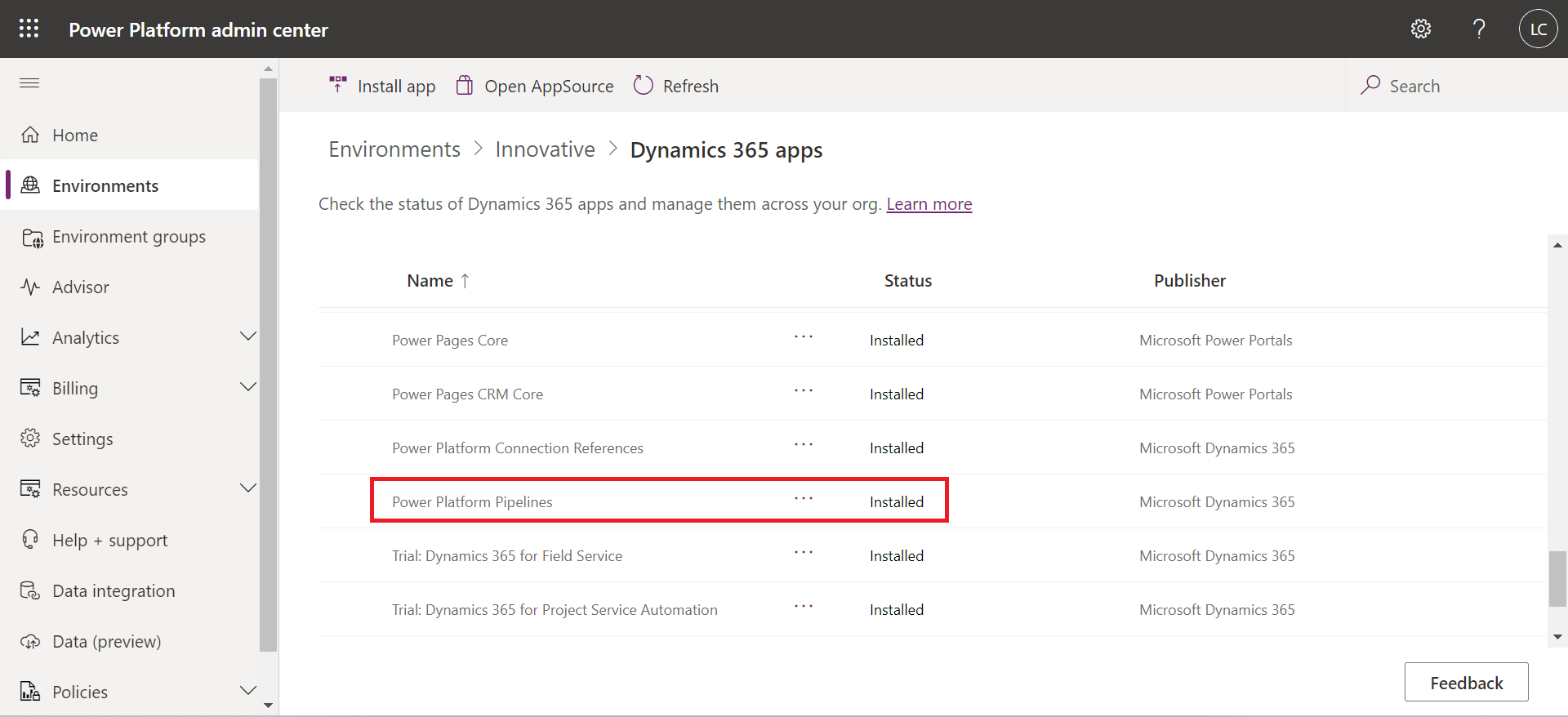
You can see the power platform pipeline installed. It is a kind of model-driven app. From this application, we will set up the entire pipeline.

Pipelines in Power Platform 05

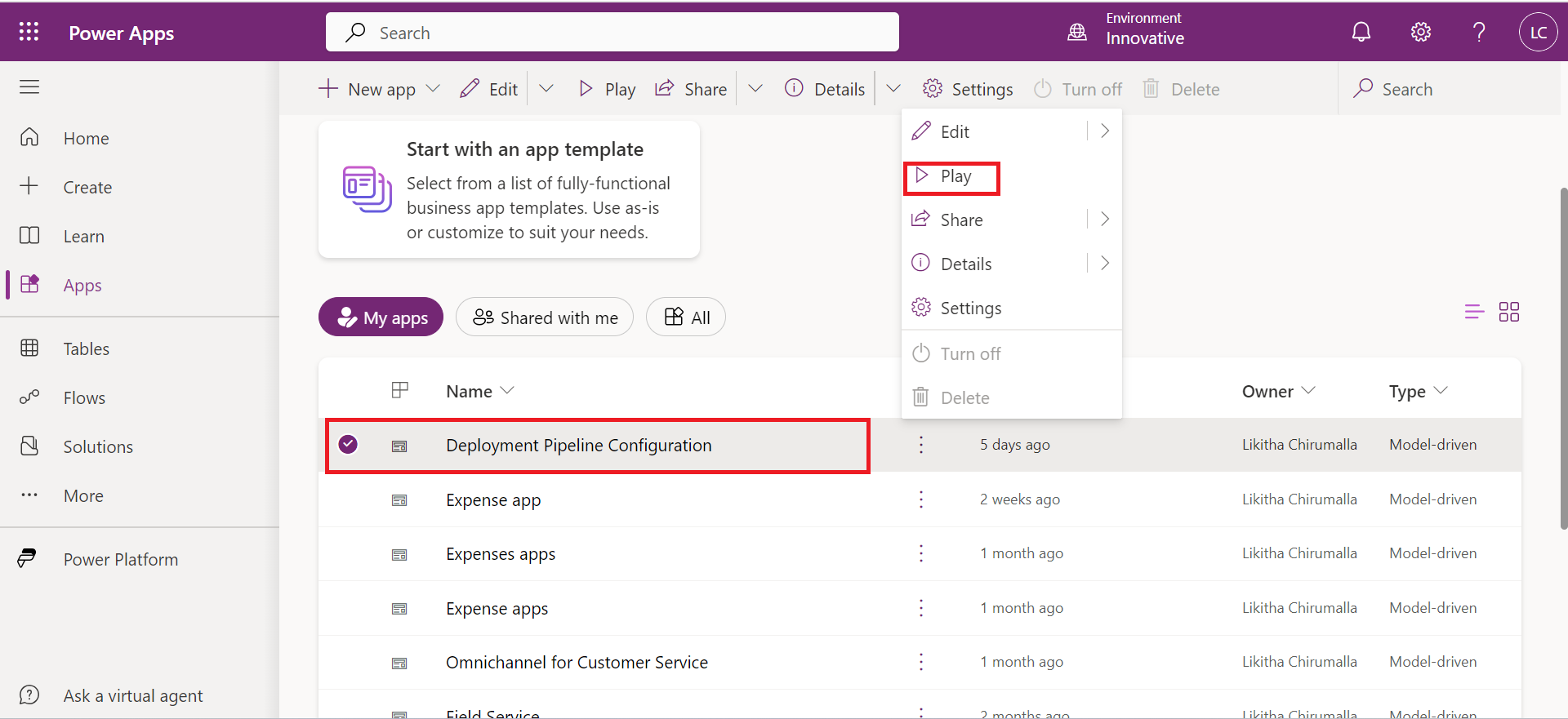
Once installed, go to Power Apps (https://make.powerapps.com/) and select the Host environment in which you have installed Power Platform Pipelines. Then go to Apps, and you will find the Deployment Pipeline Configuration App. Play that app!

Pipelines in Power Platform 06

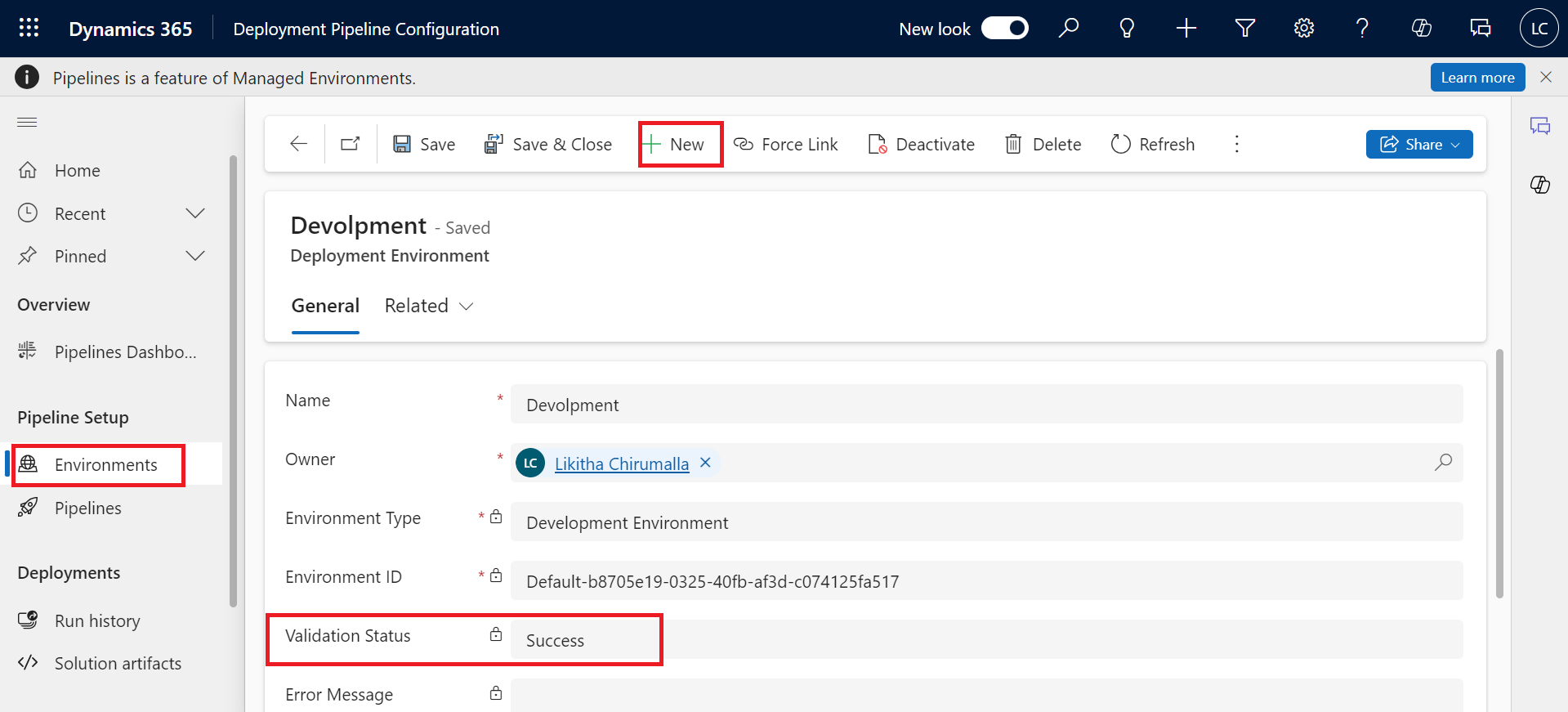
Step 2: Add Deployment Environments:

We have to add environments here.

Pipelines in Power Platform 07

For the Development Environment, choose the environment type as the development environment. For the rest environments select the target environment. You can find the Environment ID in the Power Platform Admin Center. (https://admin.powerplatform.microsoft.com/environments).

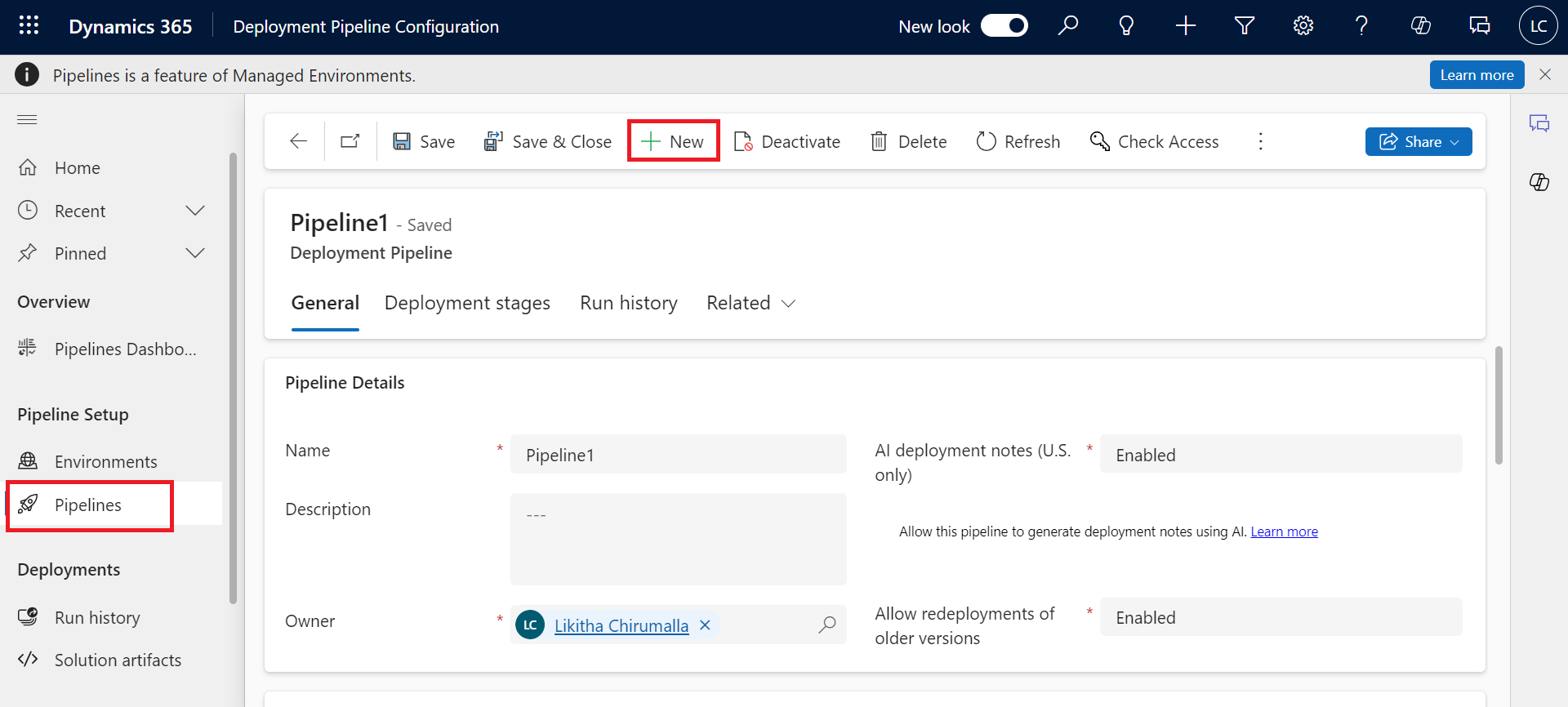
Step 3: Create a Pipeline and add a development environment:

Pipelines in Power Platform 08

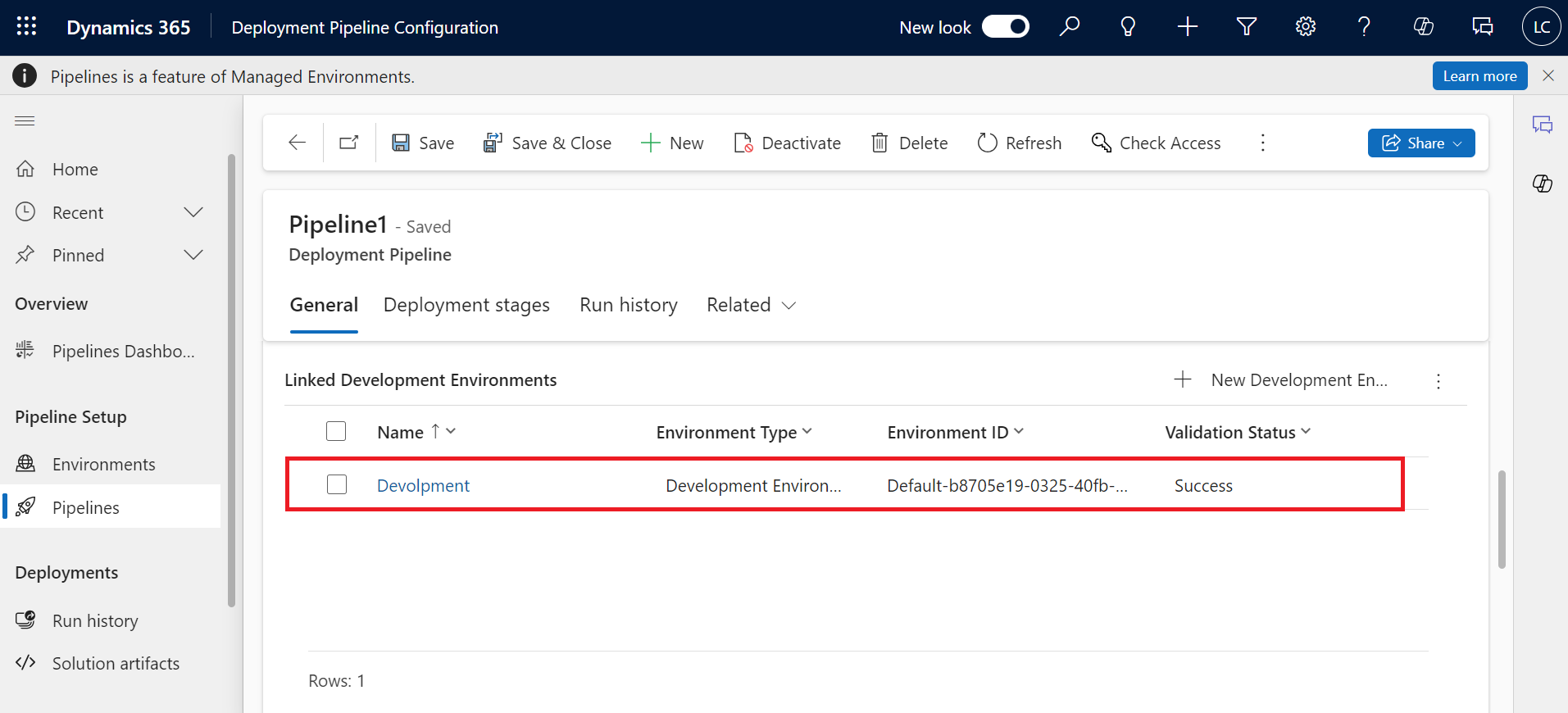
After saving, we noticed that the grid got edited. You can see linked Development Environments and Deployment stages.

Pipelines in Power Platform 09
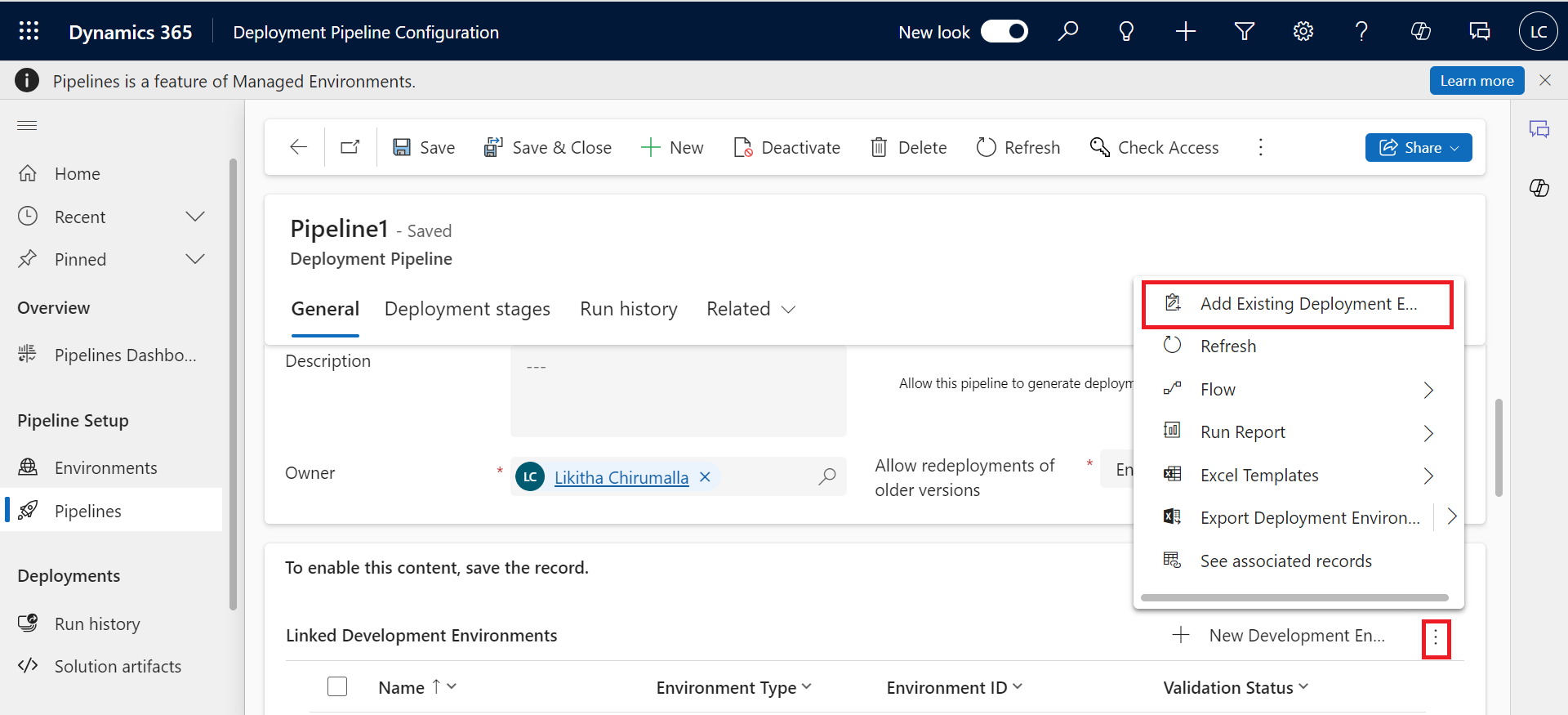
Pipelines in Power Platform 10

Since we've already added a Development Environment, select Add existing environment.

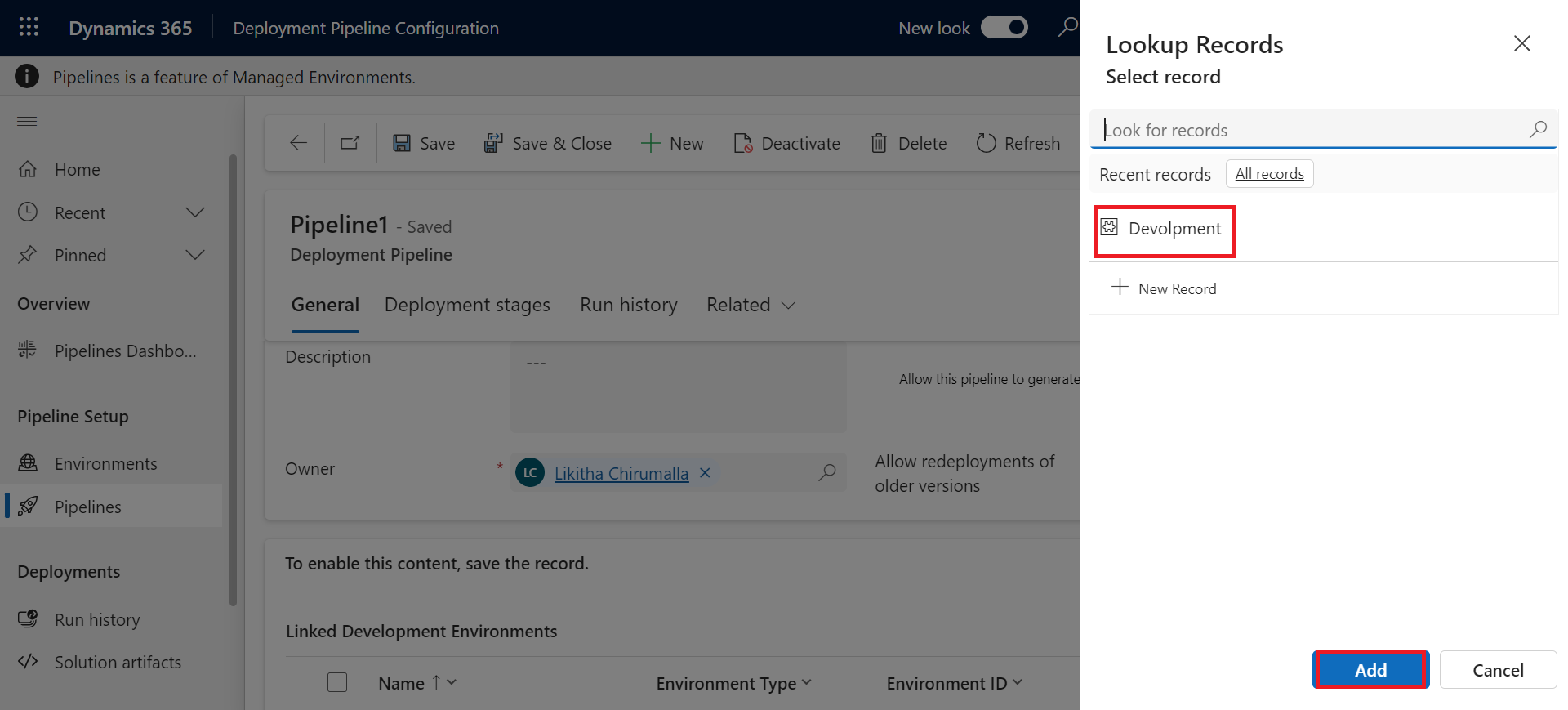
Pipelines in Power Platform 11
Pipelines in Power Platform 12

The development environment has been added.

Pipelines in Power Platform 13

At this point, your Pipeline is all set to Run.

Metadata Browser
  • HTML To PDF Converter
  • Data Mask for Dataverse
  • Commission 365
  • AI Autocloser
  • Flow Monitor
  • Services

    • D365 Marketing
    • D365 Sales
    • D365 Customer Service
    • D365 Field Service

    Company

    • About Us
    • Blog
    • Contact
    • Careers

    Copyright ©2026 Pascalcase Software Private Limited. All rights reserved.

    Privacy PolicyTerms of Service