LogoLogo

Our Products

Metadata Browser

Edge Add-on

HTML To PDF Converter

Power Automate Connector

Data Mask for Dataverse

Dataverse App

Commission 365

Dynamics 365 App

AI Autocloser

Dataverse App

Flow Monitor

Power Automate App

ServicesAboutCareersBlogContact
Chat on Teams
Metadata BrowserHTML To PDF ConverterData Mask for DataverseCommission 365AI AutocloserFlow Monitor
ServicesAboutCareersBlogContactChat on Teams
HomeBlogText Recognizer Component in Power Apps

Text Recognizer Component in Power Apps

July 31, 2024
#Power Apps
Mahith Reddy
Text Recognizer Component in Power Apps

The text recognizer in Power Apps is an AI-powered tool that uses Optical Character Recognition (OCR) technology to read and extract text from images. This functionality can be seamlessly integrated into custom apps, allowing users to automate data entry and capture information from various sources such as documents, signs, or handwritten notes. 

In this blog, we’ll walk you through creating a Power App that allows students to upload images of the classroom board and automatically save the notes. 

Scenario 

A student wants to simplify their note-taking process. Instead of writing down notes from the classroom board daily, they can use a Power App to take a picture of the board, extract the text, and save the notes digitally for easy access and organization. 

So, we will create a canvas app that recognizes text from the classroom board, or any other image uploaded and save the notes for easy access. 

Firstly, log in to power apps. 

Create a table and the required columns: 
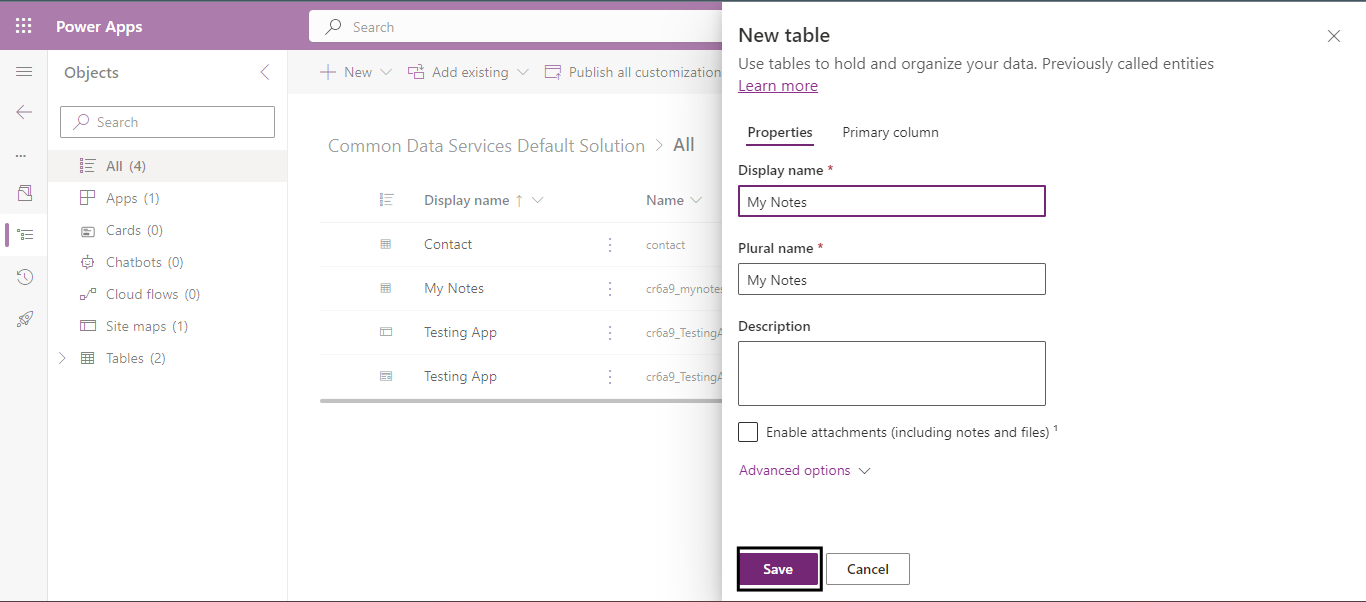
TEXT RECOGNIZER COMPONENT IN POWER APPS 01

Click Save and create the following columns: 

- Lecture Date: Data type - Date 

- Notes: Data type - Text 
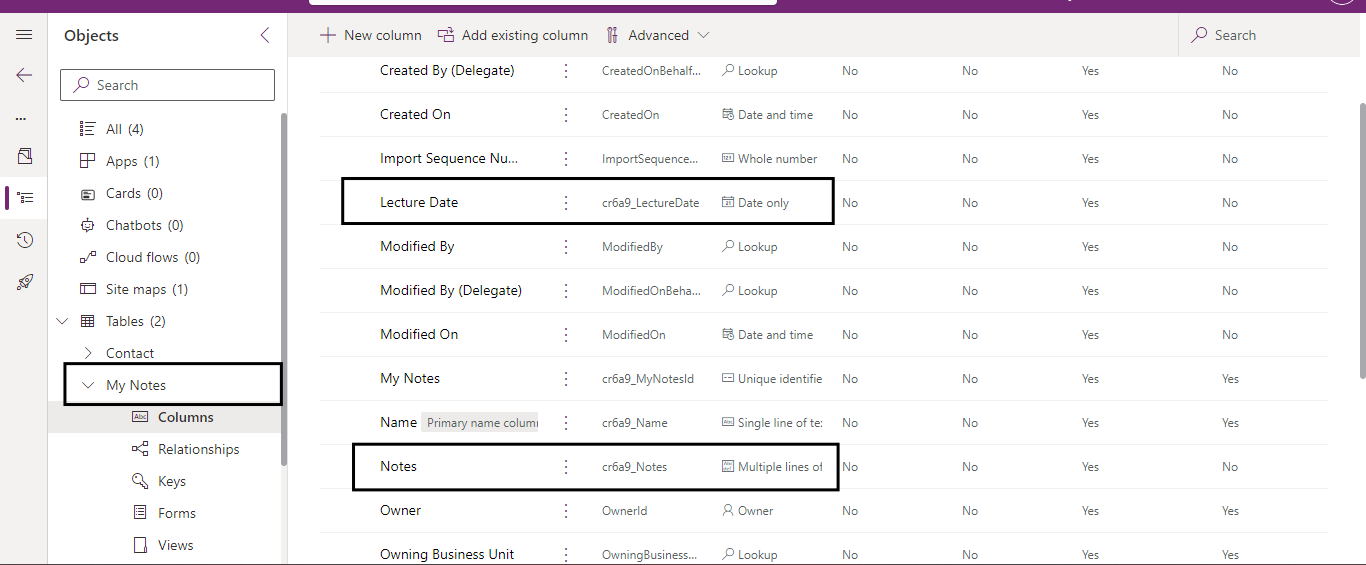
TEXT RECOGNIZER COMPONENT IN POWER APPS 02

Next, create a new Canvas app from blank. 
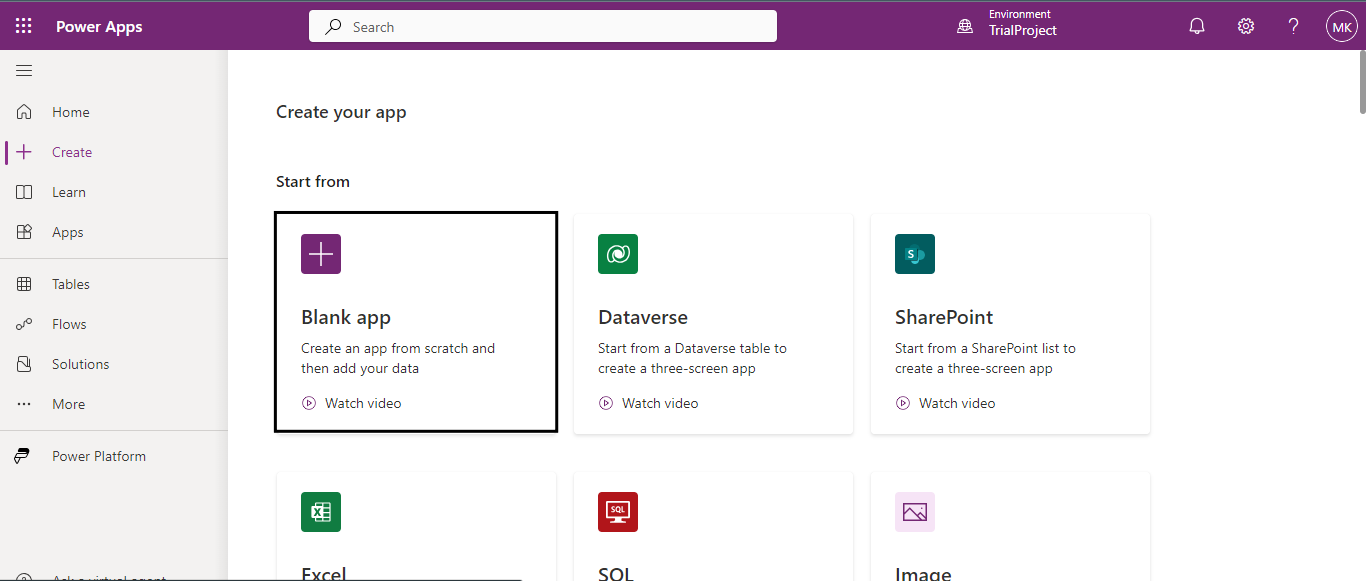
TEXT RECOGNIZER COMPONENT IN POWER APPS 03

Click on the +Insert button and select Edit form input from the Insert section. 
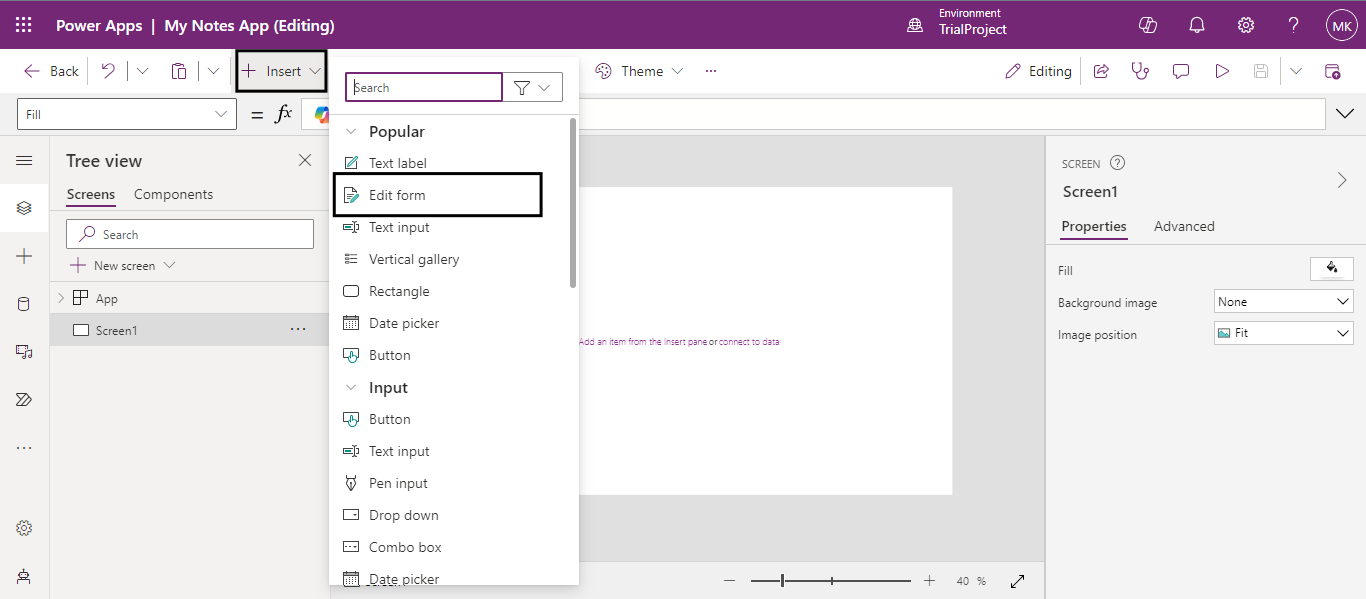
TEXT RECOGNIZER COMPONENT IN POWER APPS 04

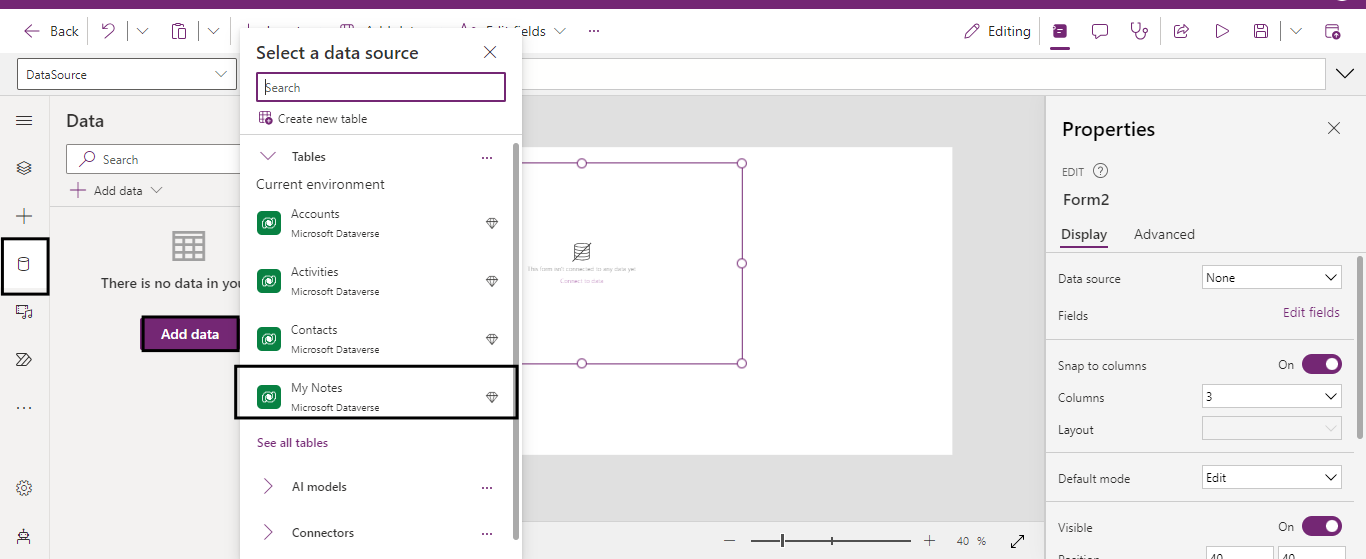
After the form is added to the screen,connect the form it a data source. 
Back to all articles

More from the blog

Creating and managing topics in Copilot Studio with Power Apps integration

Automate Image Data Extraction Using Power Apps and AI

Creating a Loading Animation in Power Apps

Creating Virtual Tables in Power Apps using Share Point Connector

Creating an App from Figma in Power Apps

How to Create Custom Connectors in Power Apps?

Implementing Catalog Manager: A Step-by-Step Guide in Power Apps

How to Install Catalog Manager in Power Apps?

Need help with your business solution?

Our team can help you implement the right solution for your organization.

Get in touch
LogoLogo

Ex-Microsoft experts helping businesses get more from their Dynamics 365 and Power Platform investments.

Products

Click on the database icon on the left-side menu to add data and select the table as data source. 

TEXT RECOGNIZER COMPONENT IN POWER APPS 05

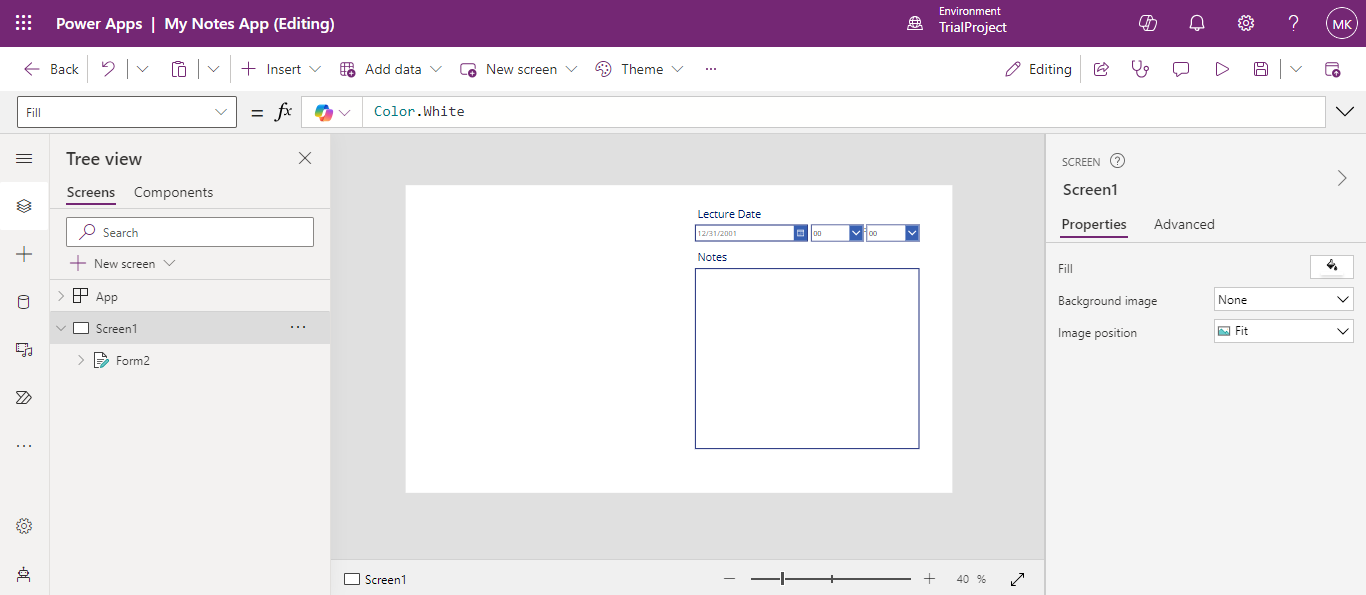
This is how the form will look on the app screen. 

TEXT RECOGNIZER COMPONENT IN POWER APPS 06

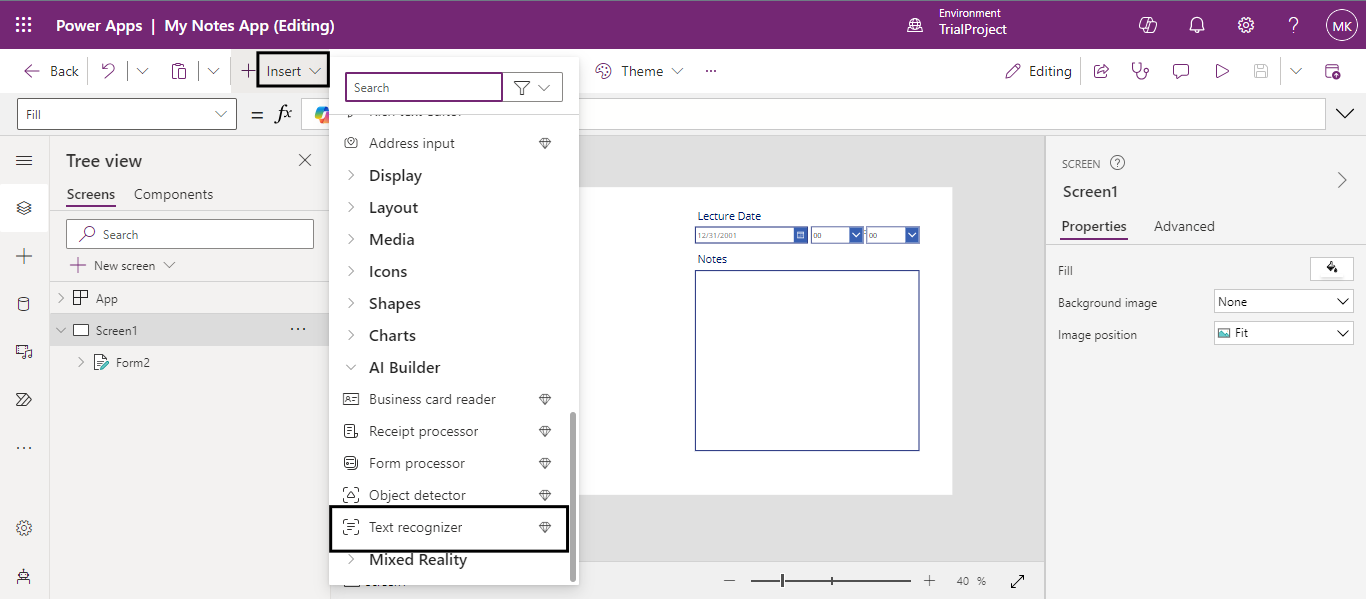
Now click on Insert and select the AI builder component ‘Text recognizer’  

TEXT RECOGNIZER COMPONENT IN POWER APPS 07

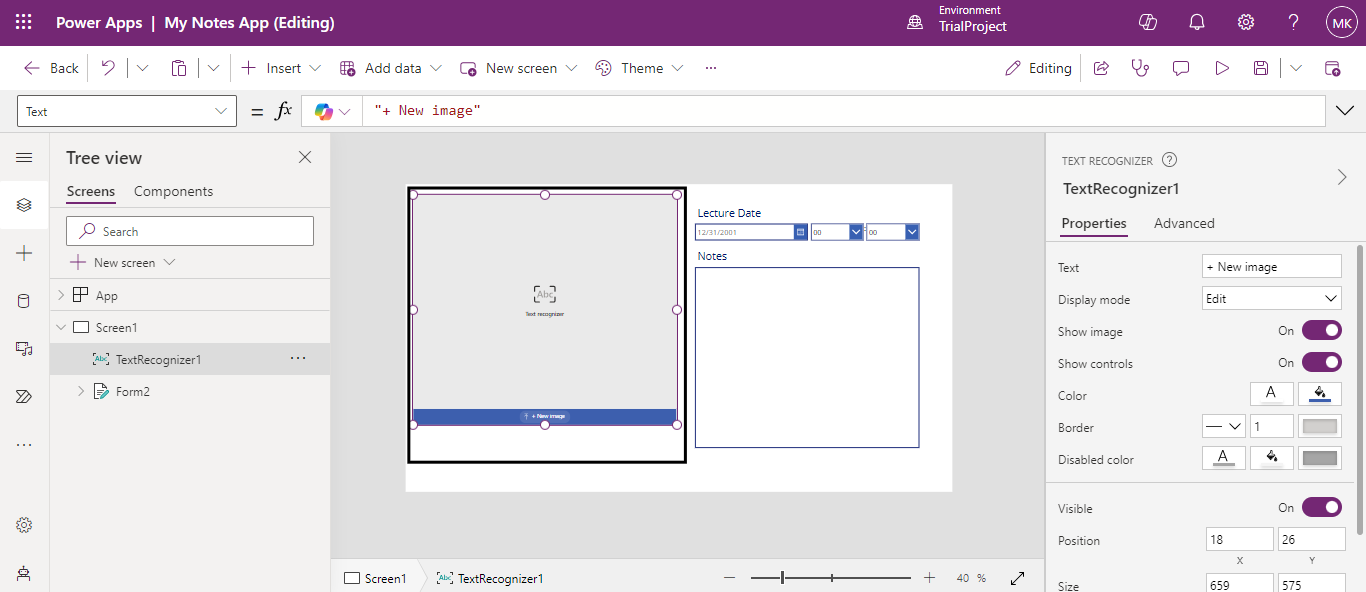
Add the component to the screen and resize it for a neat look. 

TEXT RECOGNIZER COMPONENT IN POWER APPS 08

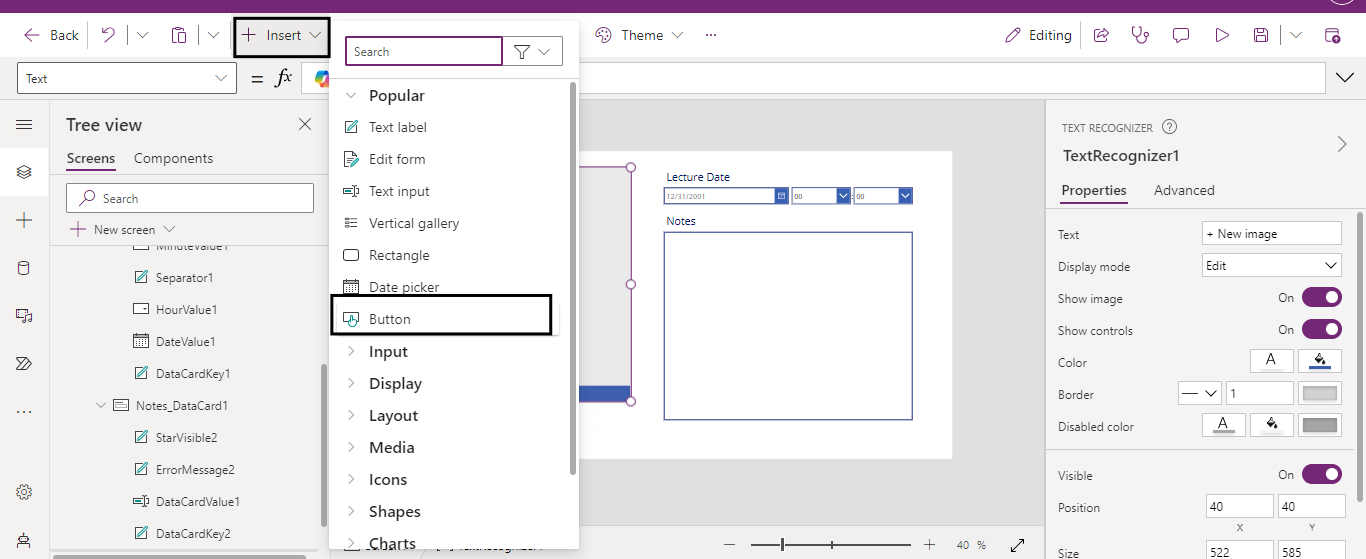
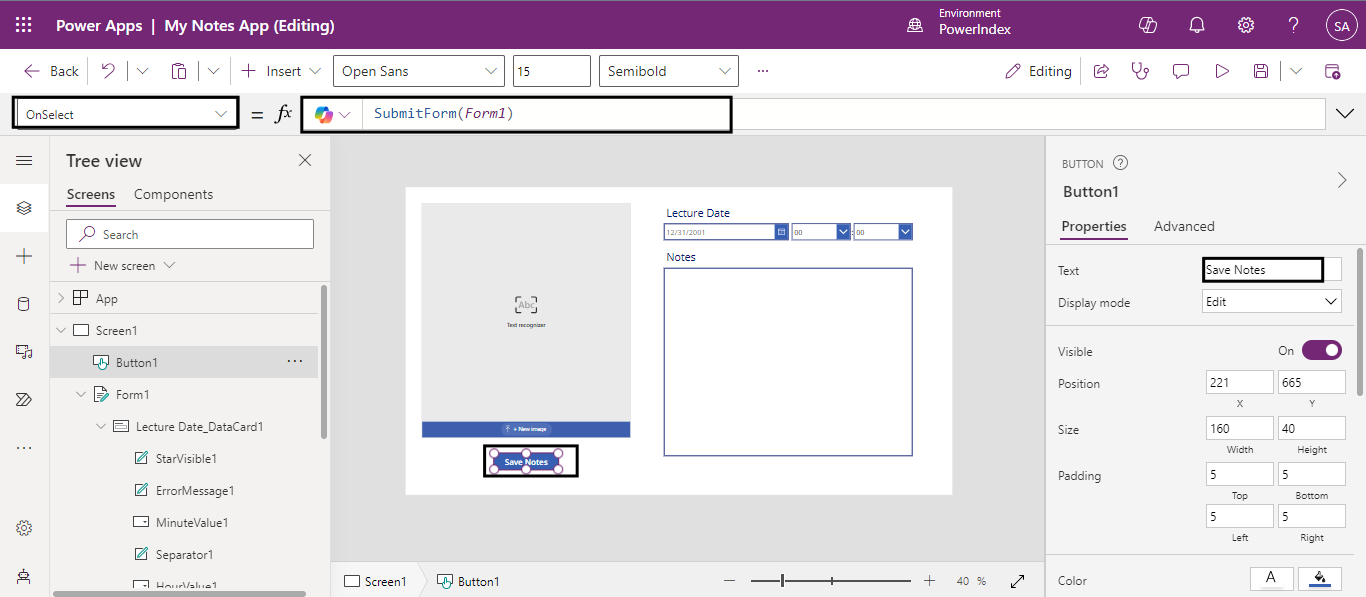
Add a button to the screen by selecting the Button option from insert menu.

TEXT RECOGNIZER COMPONENT IN POWER APPS 09

Label the button as ‘Save Notes’. Configure the button’s OnSelect property to ‘SubmitForm(form_name)’ to save the form data to the data source when the button is clicked. 

TEXT RECOGNIZER COMPONENT IN POWER APPS 10

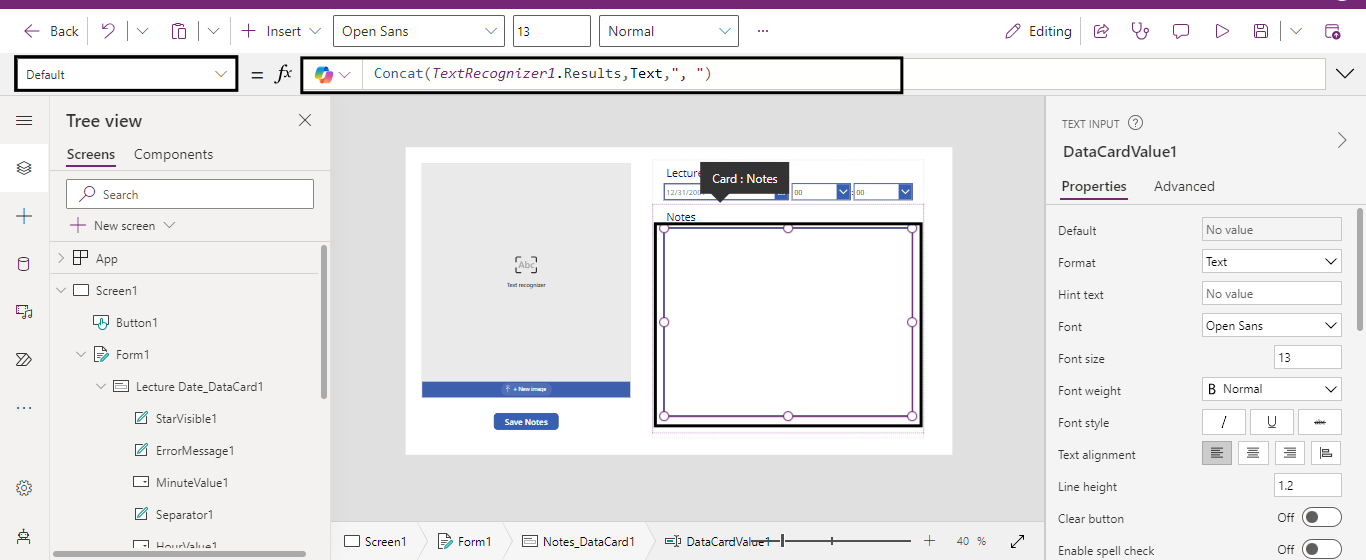
On the Default property of our ‘Notes’ text label, use the formula:  

Concat(TextRecognizer_name.Results,Text,”,”)  This formula displays the extracted text from the text recognizer on the text label and separates information by a comma i.e ‘,’.  

TEXT RECOGNIZER COMPONENT IN POWER APPS 11

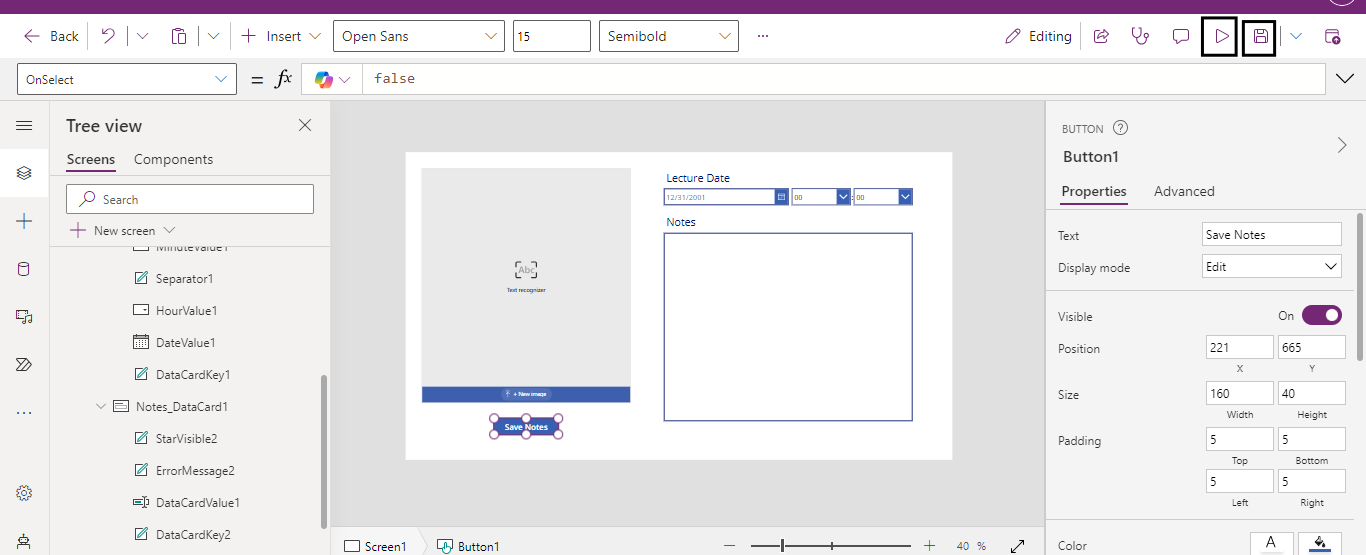
Save the app and play it. 

TEXT RECOGNIZER COMPONENT IN POWER APPS 12

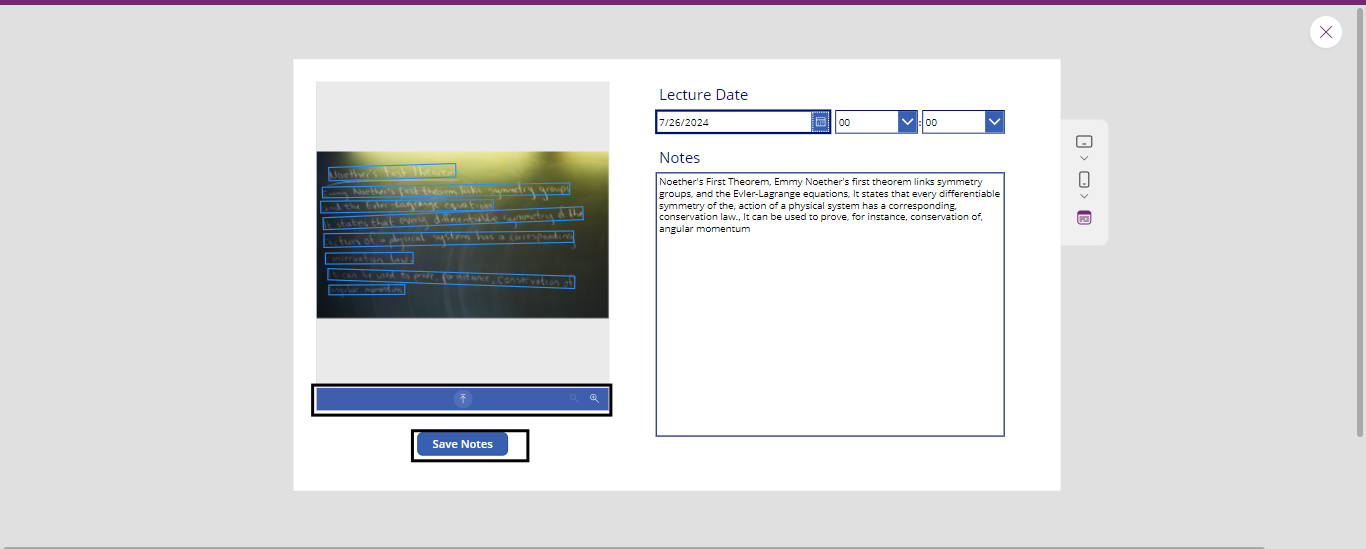
Select the Date of the Lecture and upload the picture of the classroom board. The extracted text is displayed on the text label. 

And Click Save Notes. 

TEXT RECOGNIZER COMPONENT IN POWER APPS 13

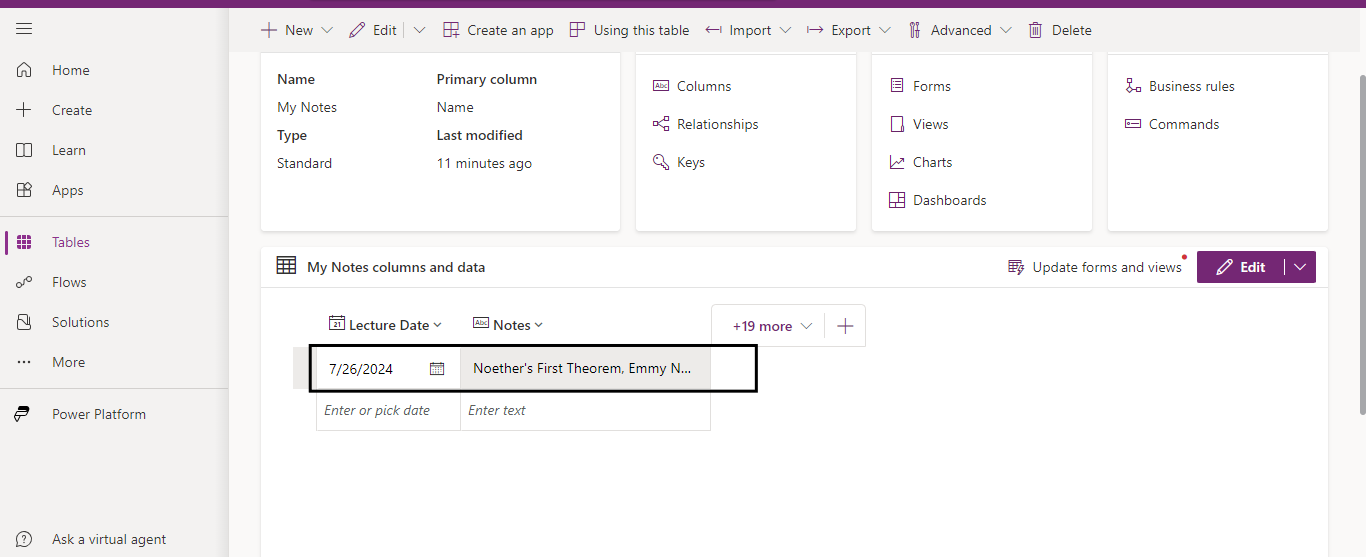
Navigate to the table and you can see the saved notes with the lecture date. 

TEXT RECOGNIZER COMPONENT IN POWER APPS 14

By using the text recognizer component in Power Apps, students can capture and save notes from the classroom board. This not only saves time but also ensures that notes are organized and easily accessible for future reference. Additionally, this component can be used for other use cases such as scanning business cards, digitizing documents, and managing inventory, making it a versatile tool for various needs. 

Frequently Asked Questions (FAQs):
1. Can I use this app for handwritten notes? 

Yes, the text recognizer component can extract text from handwritten notes as well as printed text, although the accuracy may vary depending on the handwriting clarity. 

2. What other data sources can I use? 

You can save the extracted notes to various data sources like SharePoint, Excel, OneDrive, or SQL databases, depending on your preference and requirements. 

3. How accurate is the text recognizer? 

The text recognizer's accuracy depends on the image's quality and text's clarity. Proper lighting and high-resolution images can improve recognition accuracy. 

4. Is this app accessible on mobile devices? 

Yes, the Canvas app can be designed to be mobile-friendly, allowing you to capture and save notes using your smartphone or tablet. 

Metadata Browser
  • HTML To PDF Converter
  • Data Mask for Dataverse
  • Commission 365
  • AI Autocloser
  • Flow Monitor
  • Services

    • D365 Marketing
    • D365 Sales
    • D365 Customer Service
    • D365 Field Service

    Company

    • About Us
    • Blog
    • Contact
    • Careers

    Copyright ©2026 Pascalcase Software Private Limited. All rights reserved.

    Privacy PolicyTerms of Service