Understanding and Using Polymorphic Lookups in Dynamics 365 with XrmToolBox
December 16, 2024
#Dynamics 365
Harshitha Madem
What are Polymorphic lookups?
Polymorphic lookups are a type of field in Microsoft Dataverse that allow a single lookup to reference multiple tables. These lookups simplify data models by eliminating the need for multiple individual lookups for each related table and support dynamic relationships by allowing users to associate records with different types of related entities.
In this blog, we’ll explore how to set up and manage a polymorphic lookup in a Contact table using XrmToolBox.
Scenario: Creating a Polymorphic Lookup in Contact Entity.
Let’s consider a scenario where we want to relate a Contact with multiple types of entities, such as Expense Request, Campaign, Task. Instead of creating separate fields for each type of entity, we will configure a polymorphic lookup in the Contact table.
Prerequisites
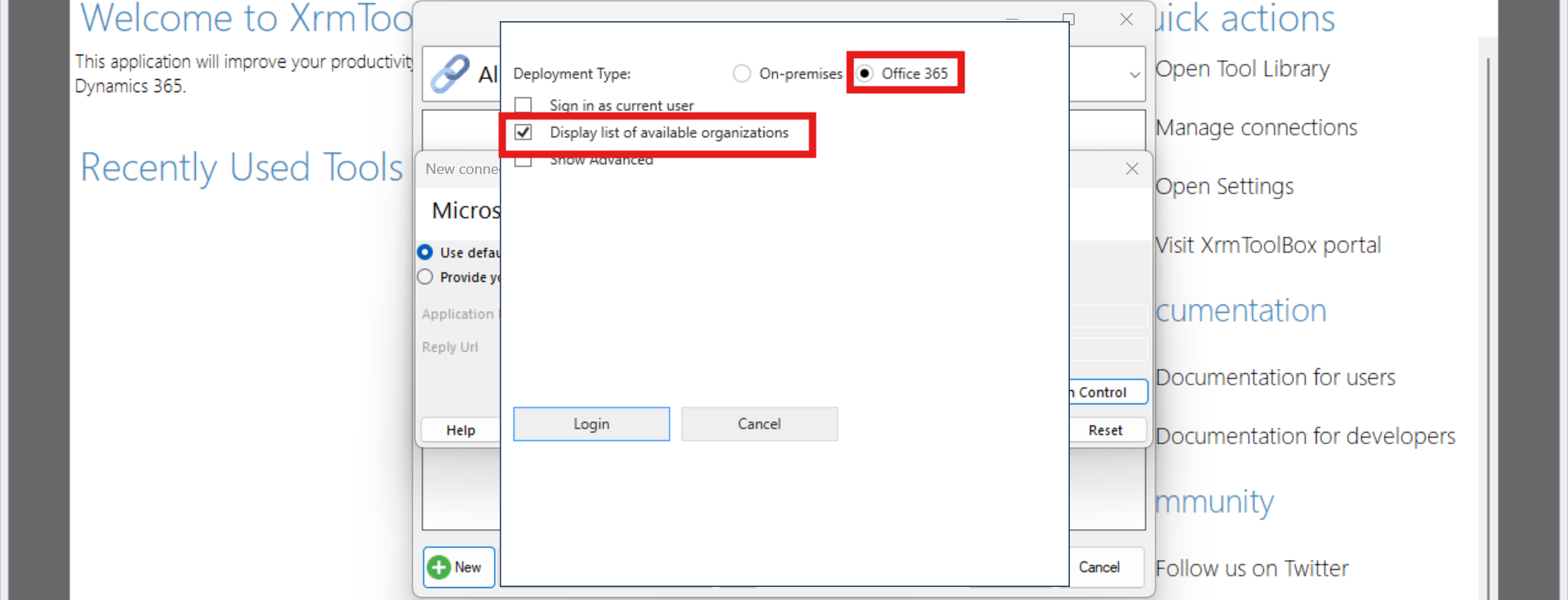
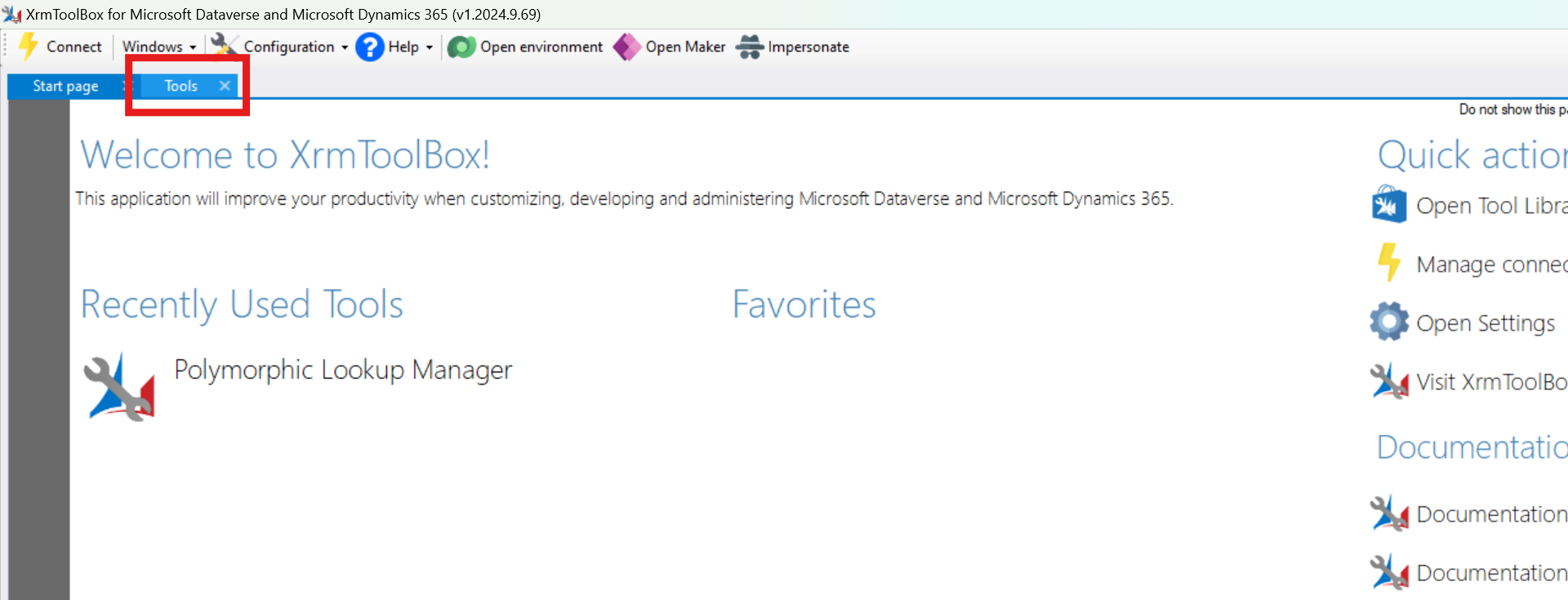
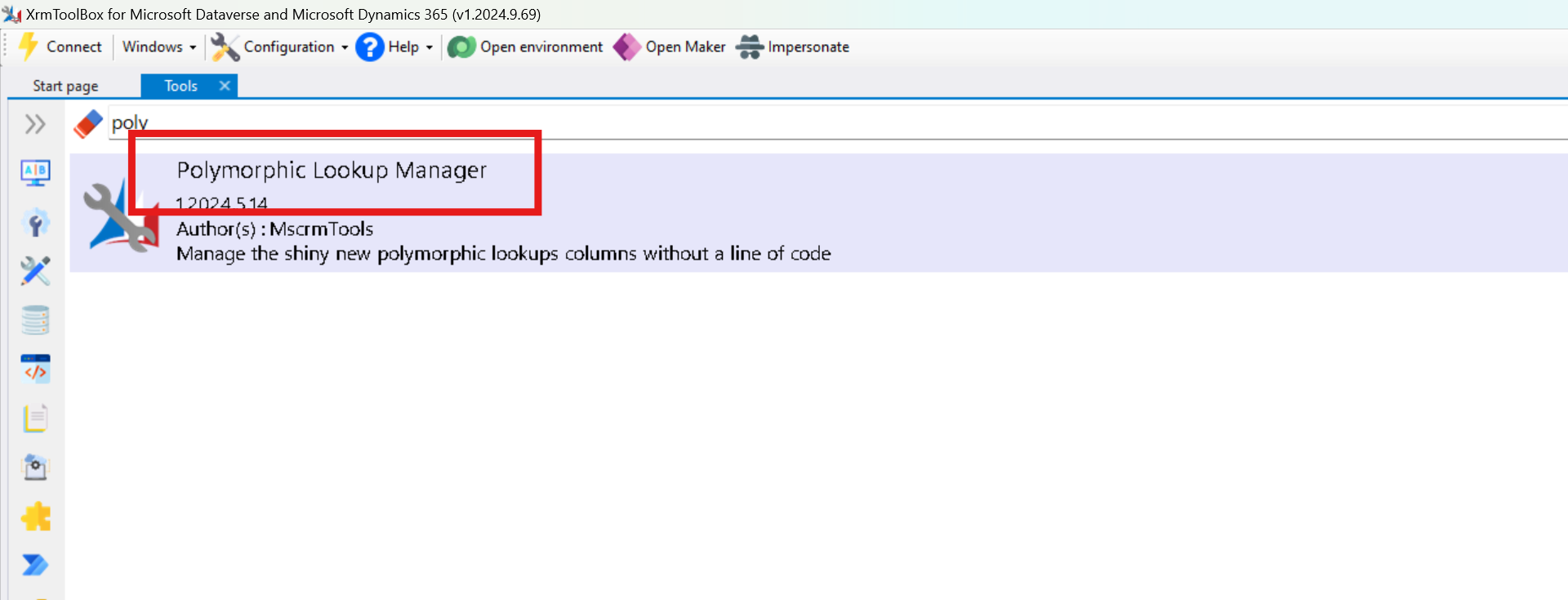
The Dataverse environment should be set up with all the required tables.(Contact, Expense Request, Campaign, Task)
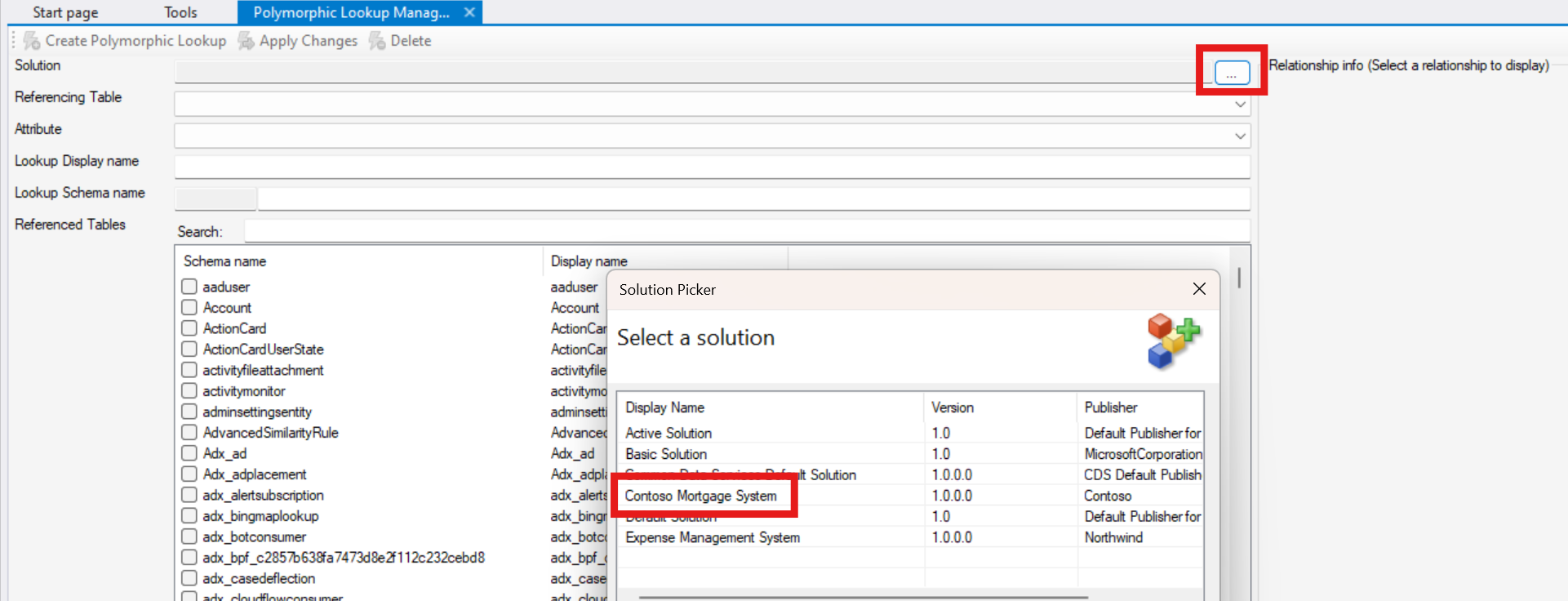
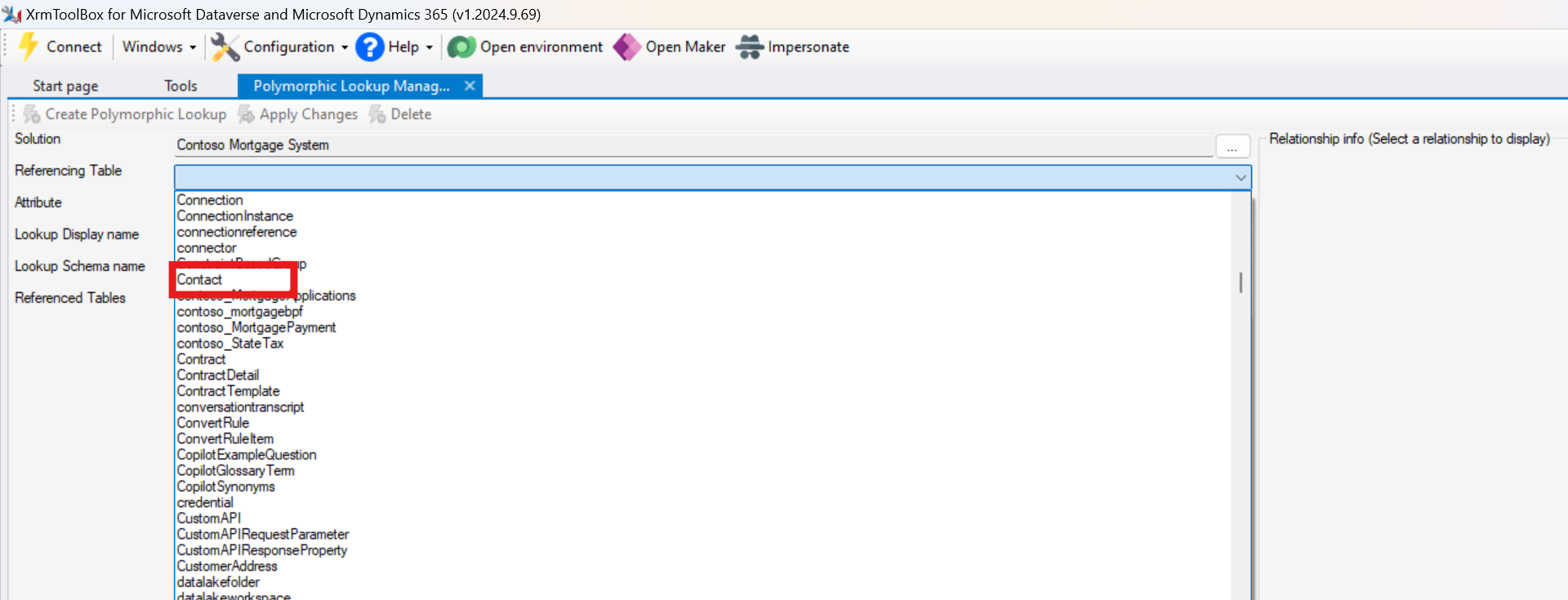
Select the appropriate Solution that contains the Contact table.
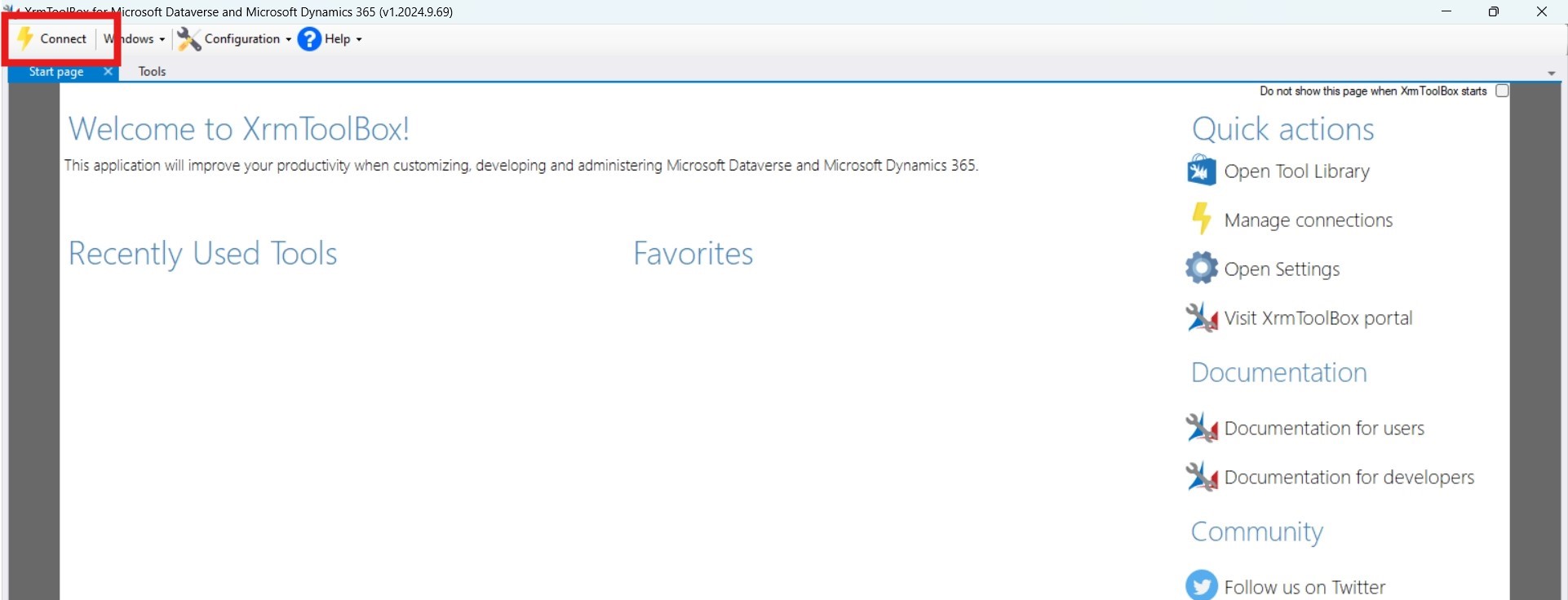
Choose the Referencing Table as Contact from the dropdown.
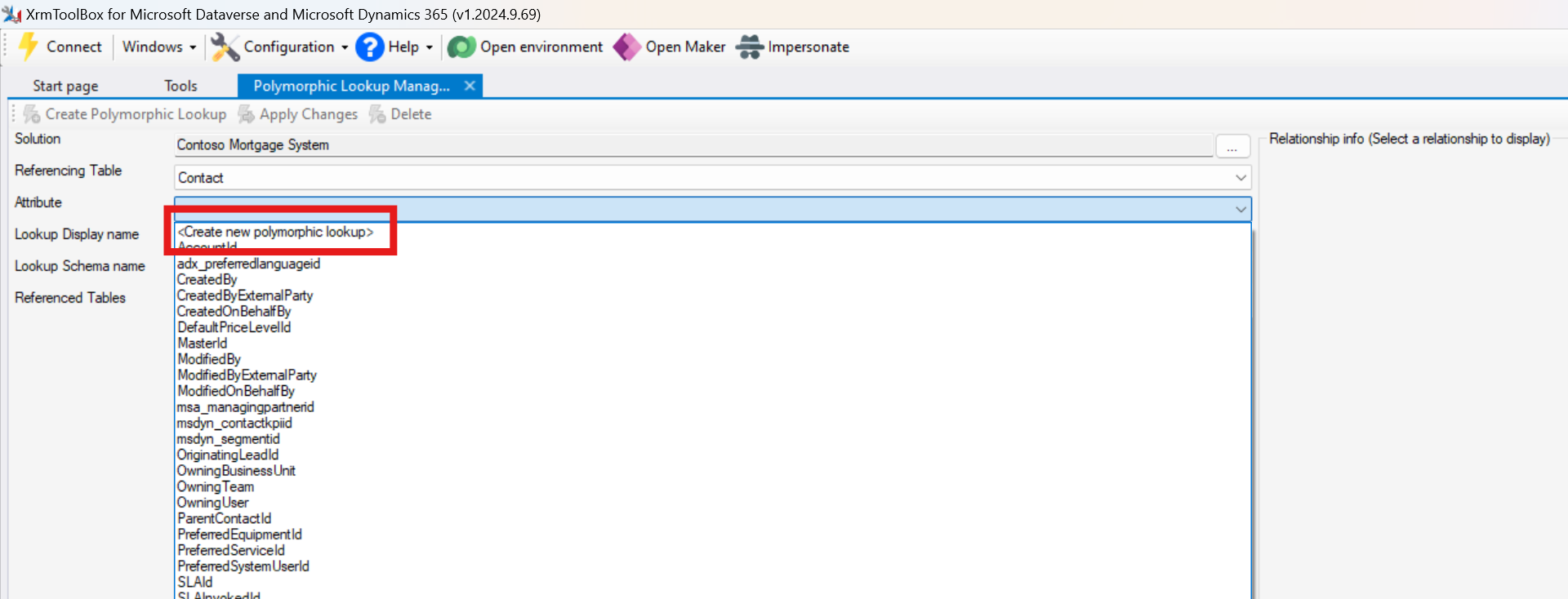
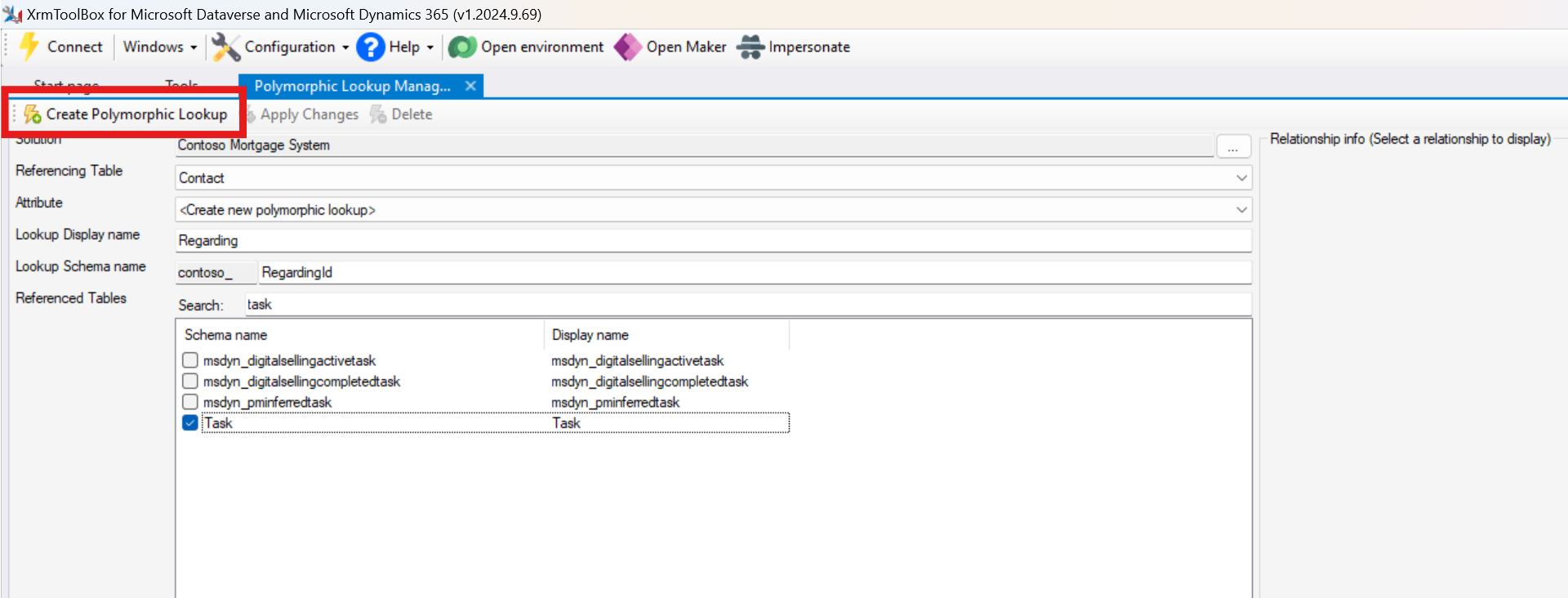
For Attribute, click on Create new polymorphic lookup and provide the suitable Lookup Display Name.
Select Expense Request, Campaign, and Task as the Referenced Tables.
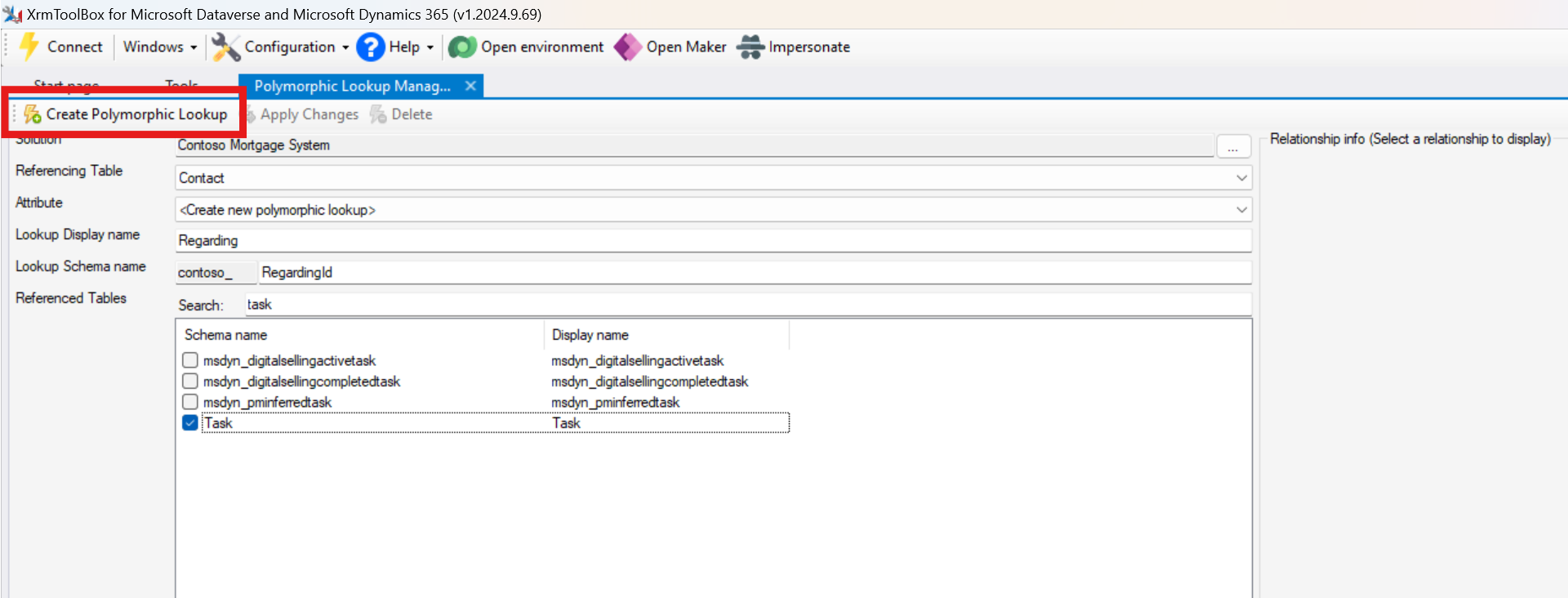
Step 4: Click on Create Polymorphic Lookup to create the new lookup field in Dataverse.
Step 5: Configure the Main Form in Contact Entity
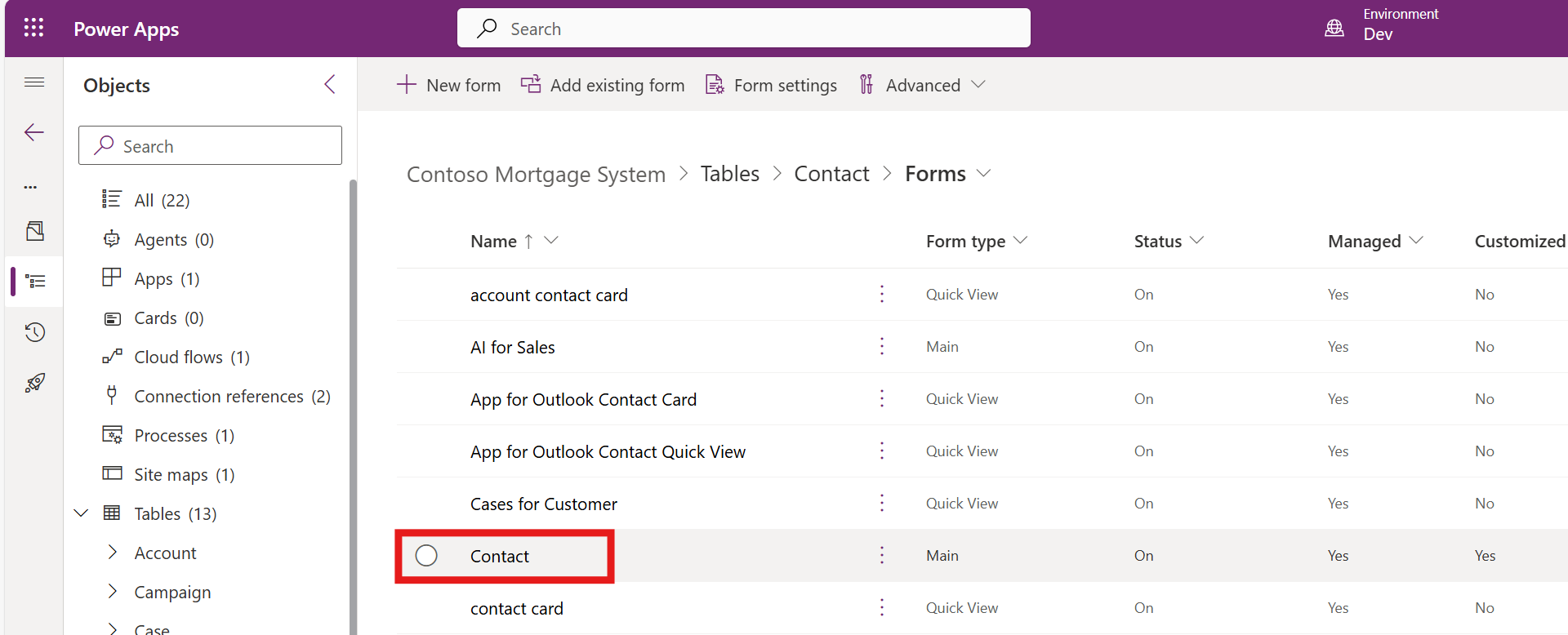
Go to the Power Apps Maker Portal and open the Main Form in the Contact entity of the respective solution.
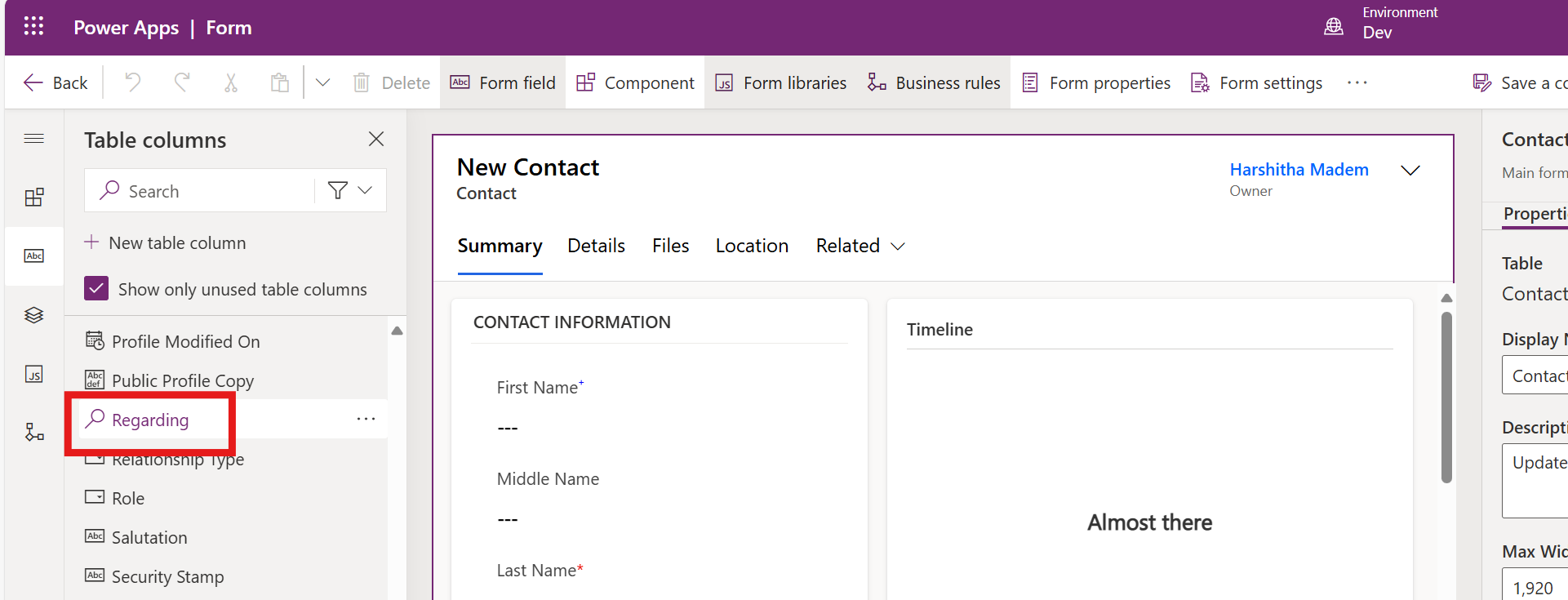
Add the Lookup Attribute that was created in XrmToolBox. In this case, the attribute name is Regarding.
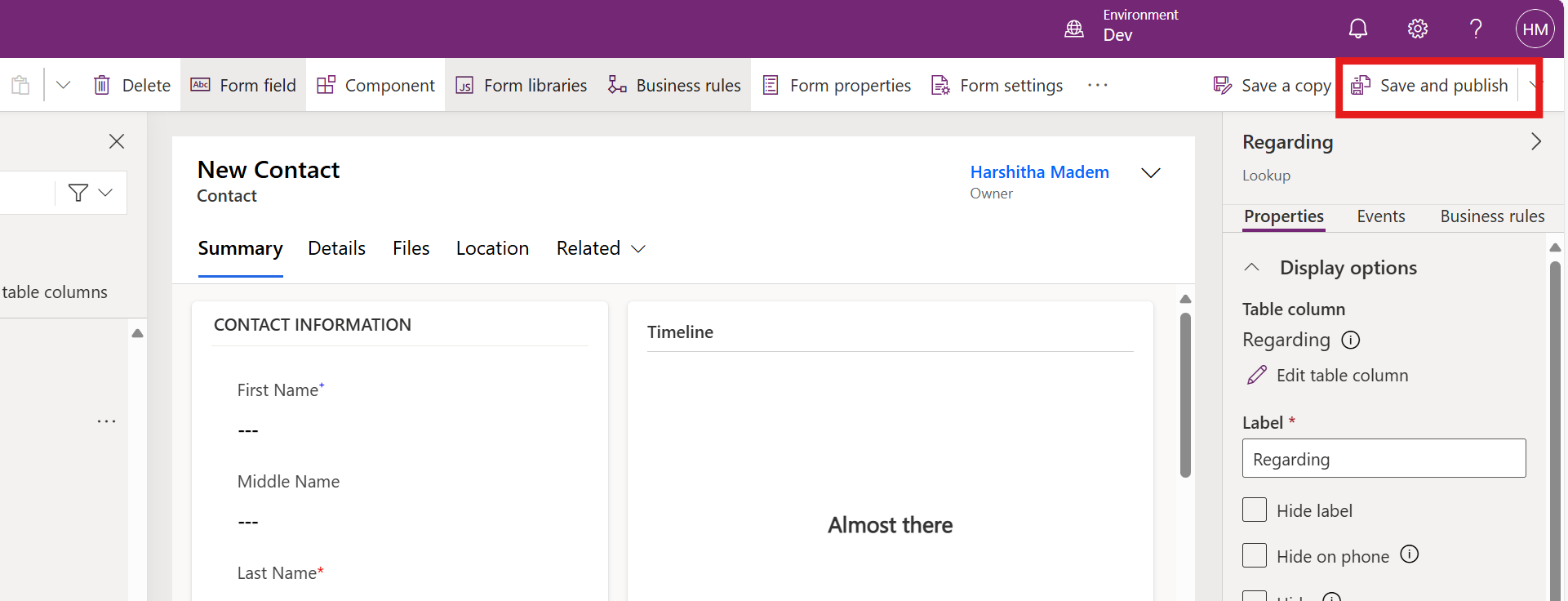
Click on Saveand Publish to save the changes.
Step 6: Test the Polymorphic Lookup
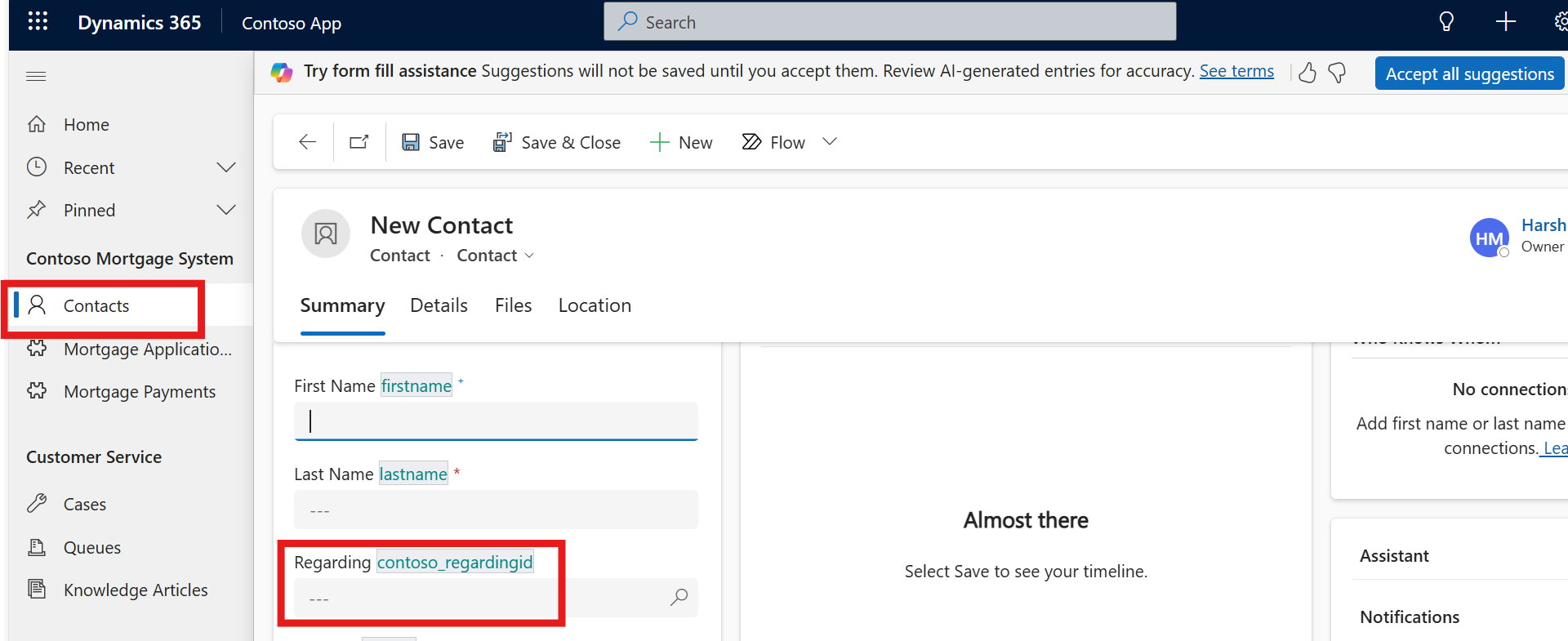
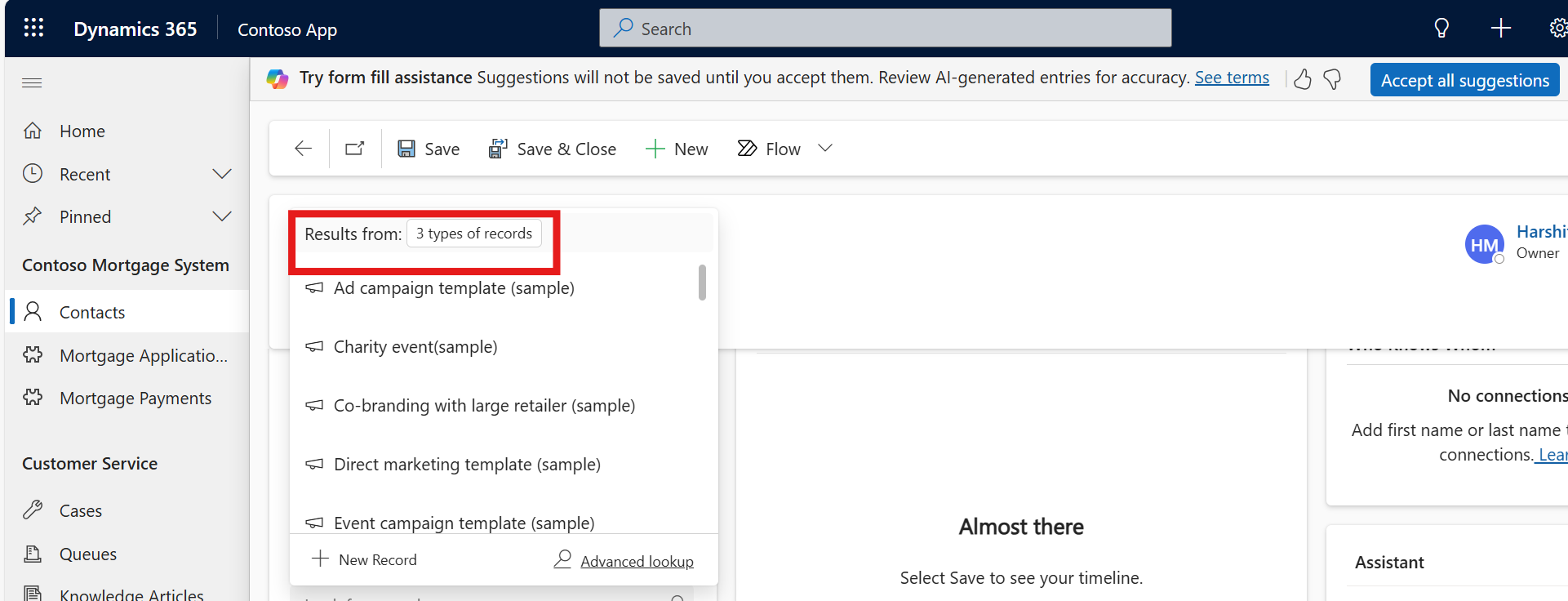
Open the User Interface in Dynamics 365 and navigate to the Contact table to find the newly created Regarding lookup field.
Click on the Regarding field to select a related record.
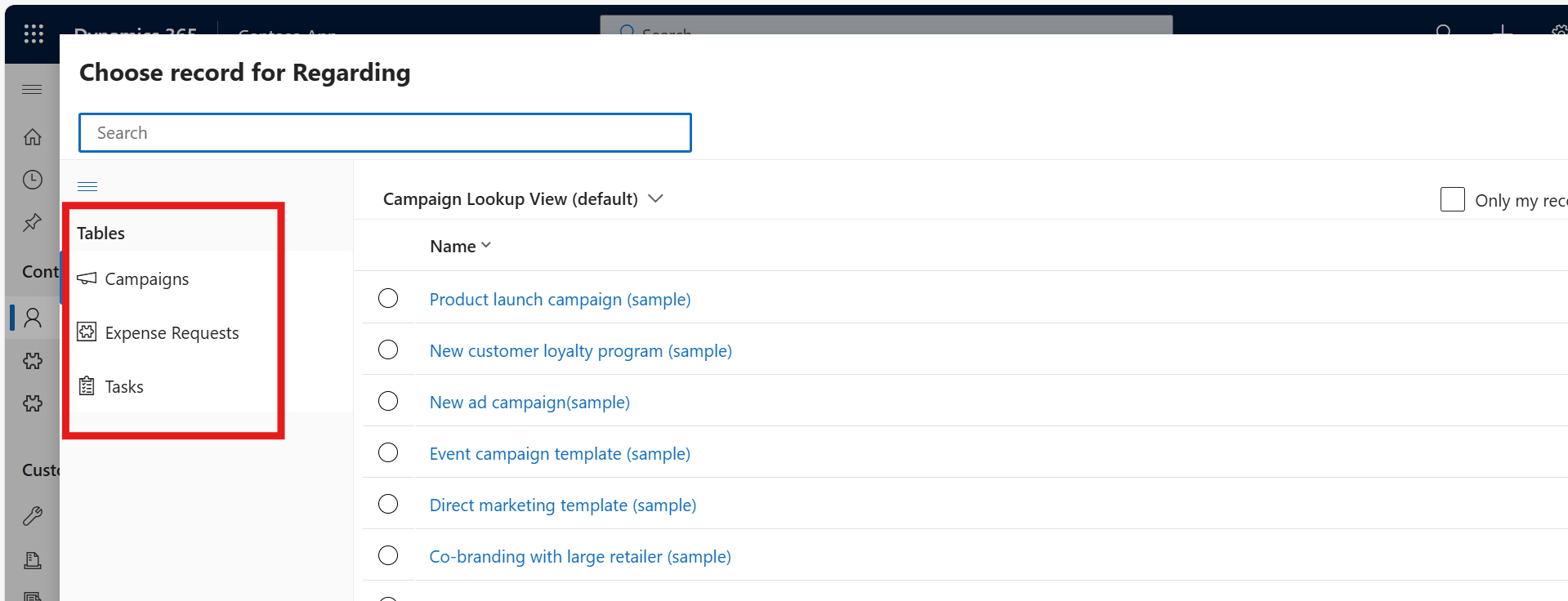
You can now see the records of all three types of entities (Expense Request, Campaign, and Task).
Click on Advanced Lookup to see the records in detail.
Limitations of Polymorphic Lookups
While polymorphic lookups are highly flexible and useful, they come with certain limitations that may affect their use in some scenarios:
Performance Concerns: When dealing with large datasets, querying or filtering data across multiple entities can impact system performance.
Limited Customizations: Polymorphic lookups have restricted options for custom filtering or conditional logic directly in the Power Apps Maker Portal.
Unsupported in Older Tools: Some older tools or custom integrations may not fully support polymorphic lookups, creating compatibility issues.
Frequently Asked Questions (FAQs):
1. Can I control which entities are available in a polymorphic lookup at runtime?
Yes, you can control which entities are available for selection in a polymorphic lookup field at runtime. This is typically done through JavaScript or Power Automate. By applying custom filtering logic, you can restrict the lookup options based on business rules or user roles.
2. Can I add more tables to an existing polymorphic lookup?
Yes, you can update the lookup field’s settings in the Power Apps Maker Portal. change its answer
3. Do polymorphic lookups support cascading actions (like delete or update)?
Yes, polymorphic lookups support cascading actions. When a related record is deleted or updated, the changes can cascade to the associated records, maintaining data integrity across related entities.
4. Are polymorphic lookups available in all areas of Dynamics 365, such as views, reports, and dashboards?
Polymorphic lookups are available in most areas of Dynamics 365, including views, reports, and dashboards. In views, the lookup field will display the related records from multiple tables. In reports, you can pull in data from the related entities, but the complexity of the polymorphic lookup may require additional filtering or customization to ensure accurate reporting. Dashboards can also utilize polymorphic lookups, but the design may need adjustments to handle the dynamic nature of the field.