Use Power Apps to query data in Azure Data Explorer
October 03, 2024
#Power Apps#Azure Data Explorer
Harika Guddeti
What is Azure Data Explorer?
Azure Data Explorer is a fully managed analytics service that allows for rapid analysis of large datasets in real-time. It helps users quickly detect patterns, trends, and anomalies, making it an effective tool for time-series analysis, log analysis, and other data-intensive tasks.
Connecting Azure Data Explorer to Power Apps allows you to build applications that can easily query data and provide rich visualizations, reports, and insights to end-users. By integrating these tools, you enable users across your organization to interact with data without needing to write complex queries or code.
Benefits:
No-code/Low-code querying: Users can query ADX data directly within Power Apps, eliminating the need for advanced coding skills.
Real-time data insights: Power Apps can provide up-to-date data insights powered by ADX’s fast querying capabilities.
Flexible data access: Build applications that allow users to query various datasets from different departments or functions.
In this blog, we'll explore how you can leverage Power Apps to query data in Azure Data Explorer, empowering your organization to make data-driven decisions with ease.
Setting up the Azure Data Explorer Connector in Power Apps
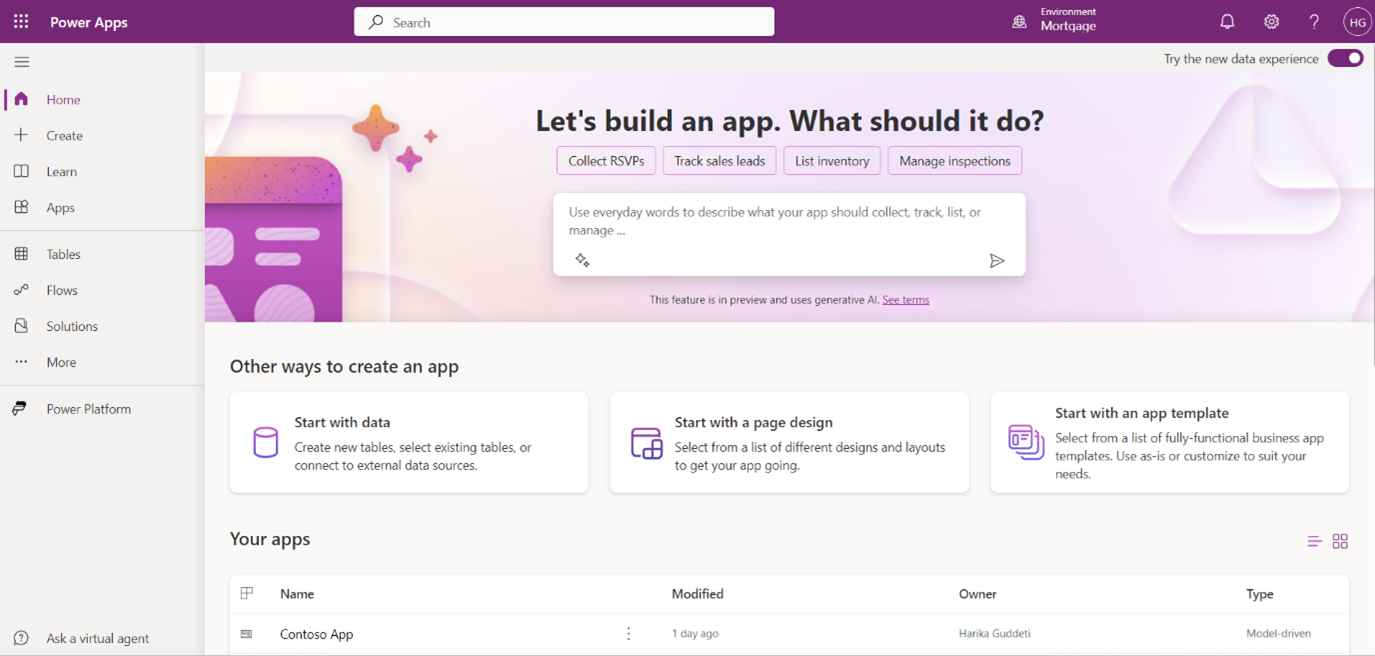
Firstly, go to Power Apps Studio and log in with your organizational account.
I will be using Azure Data Explorer to query sample data, specifically retrieving city names, within Power Apps. This integration will allow me to create an interactive application where users can select city names from a dropdown, leveraging real-time data insights for enhanced user experience.
Need help with your business solution?
Our team can help you implement the right solution for your organization.
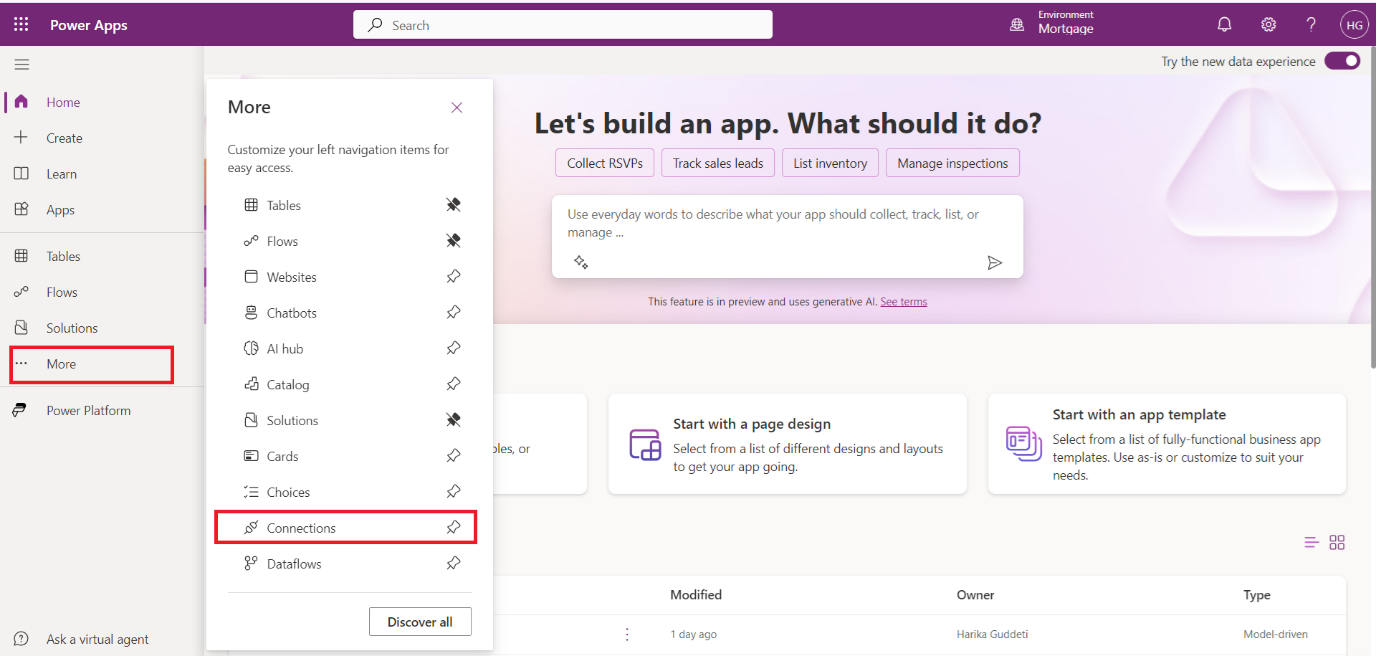
In the left pane of the dashboard, click on Connectors to view all available data connections.
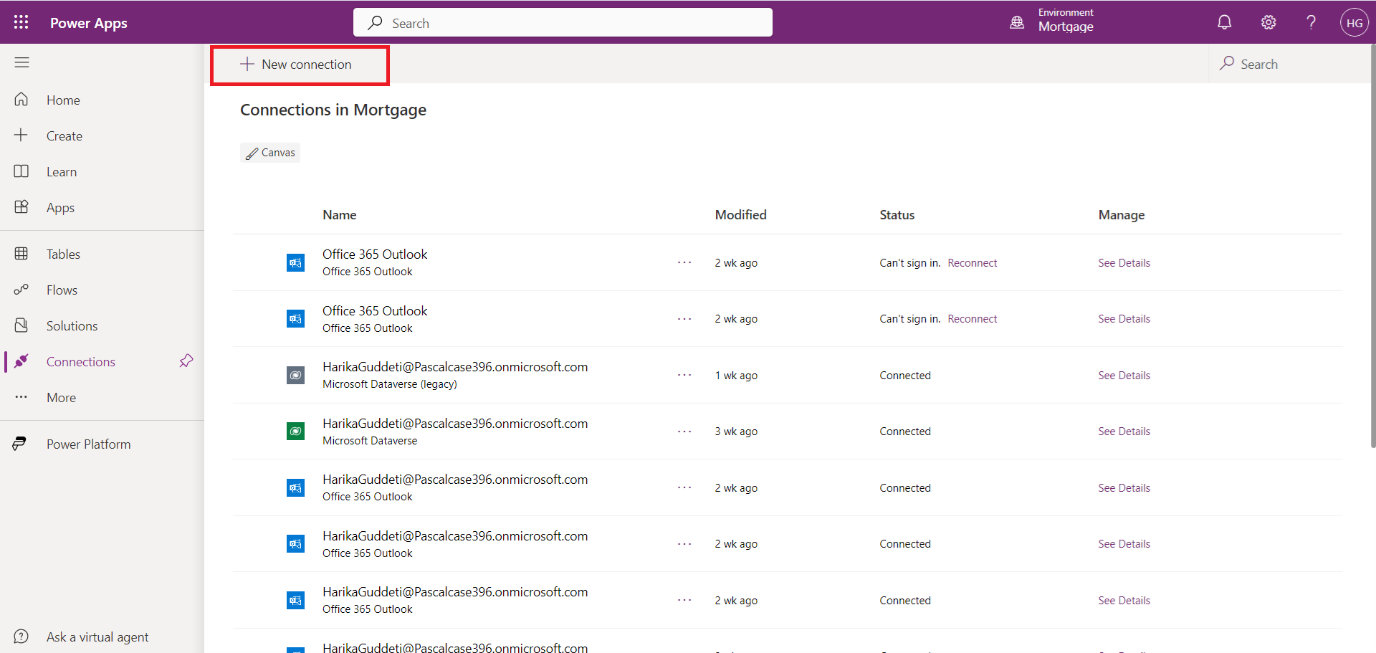
Click on New Connection.
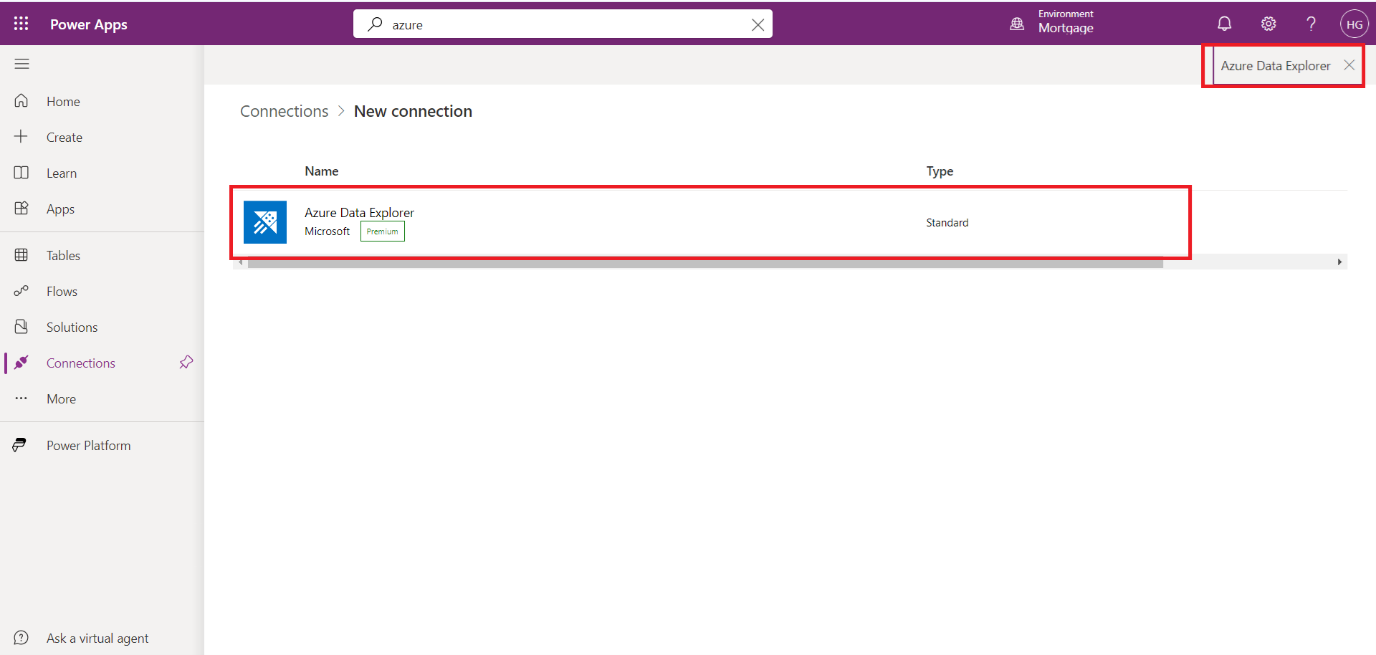
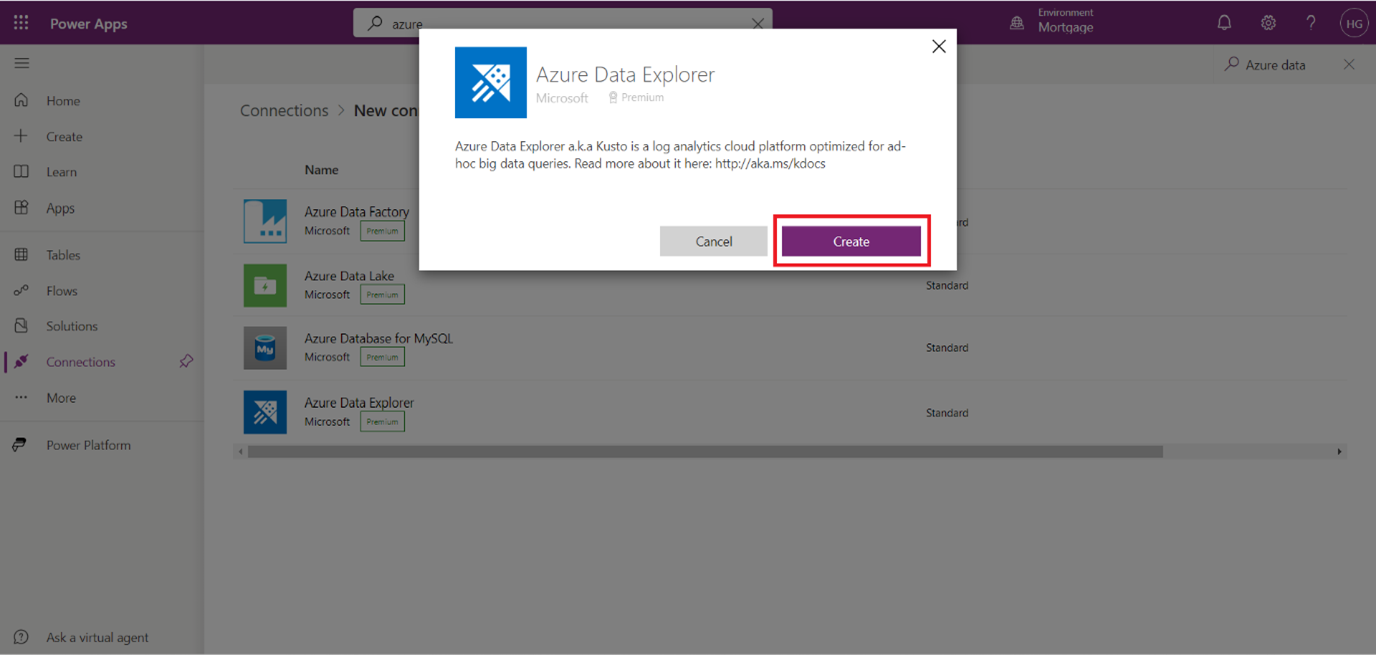
In the search bar, type Azure Data Explorer to find the connector.
Click on the Azure Data Explorer option from the list, then click Create to begin setting up the connection.
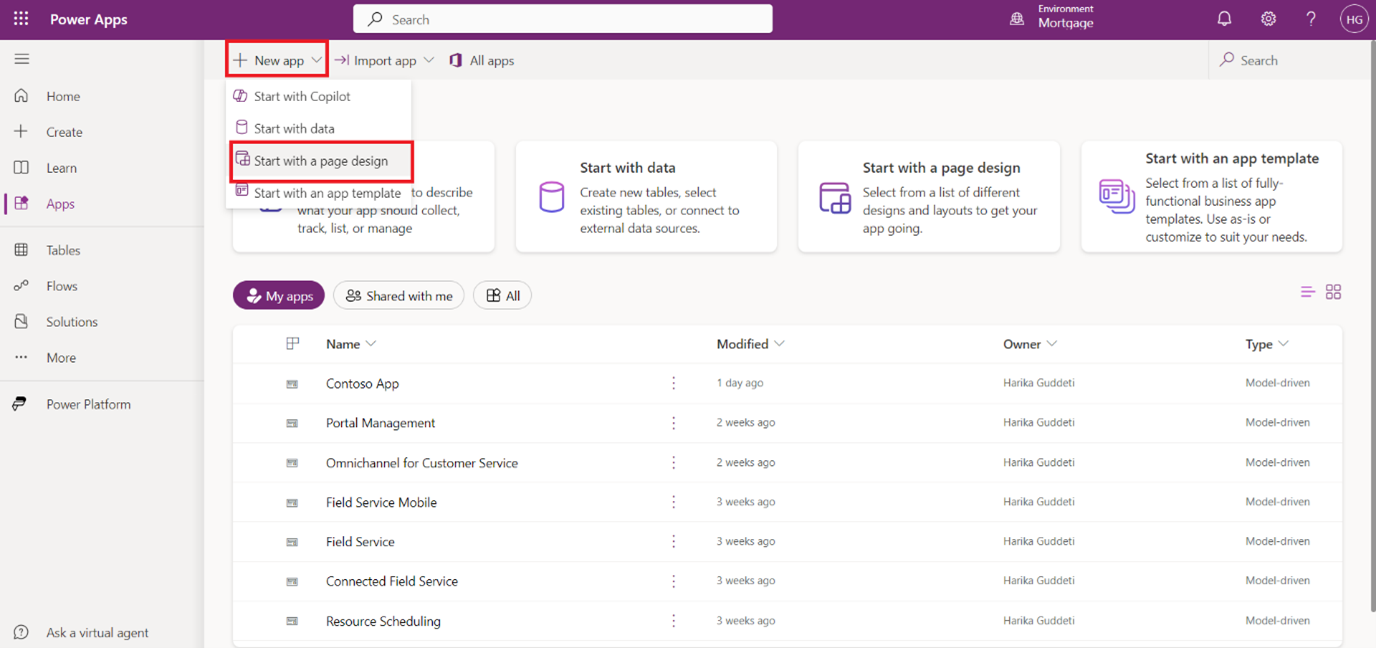
After creating the Azure Data Explorer connection, navigate to the Home tab in Power Apps Studio and create a new app with Start with a page design.
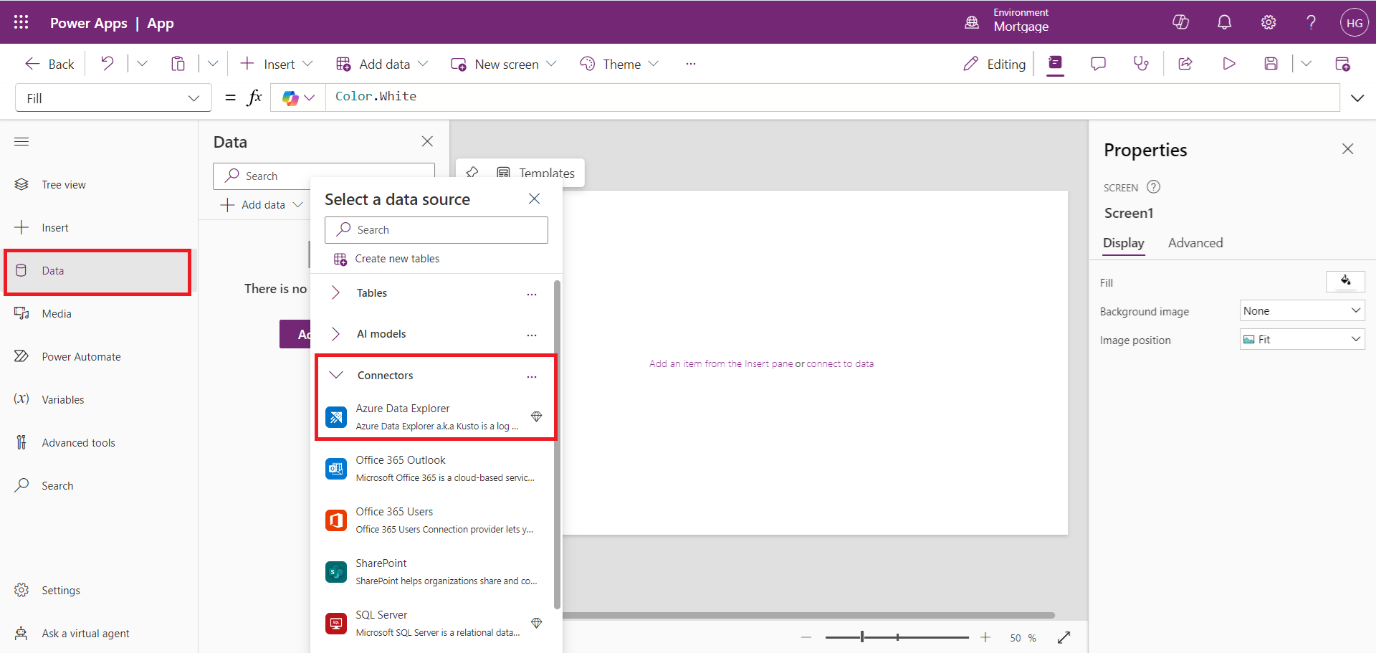
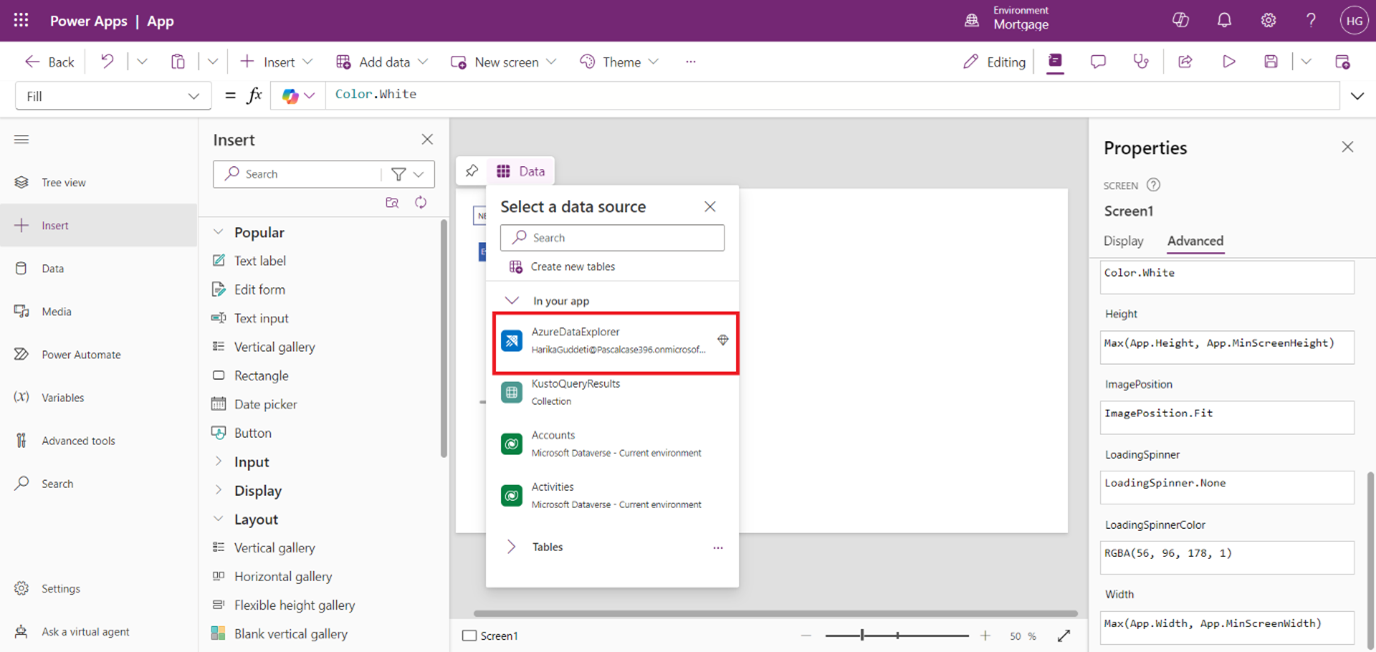
Click on the Data tab and select Add Data to include your Azure Data Explorer connection.
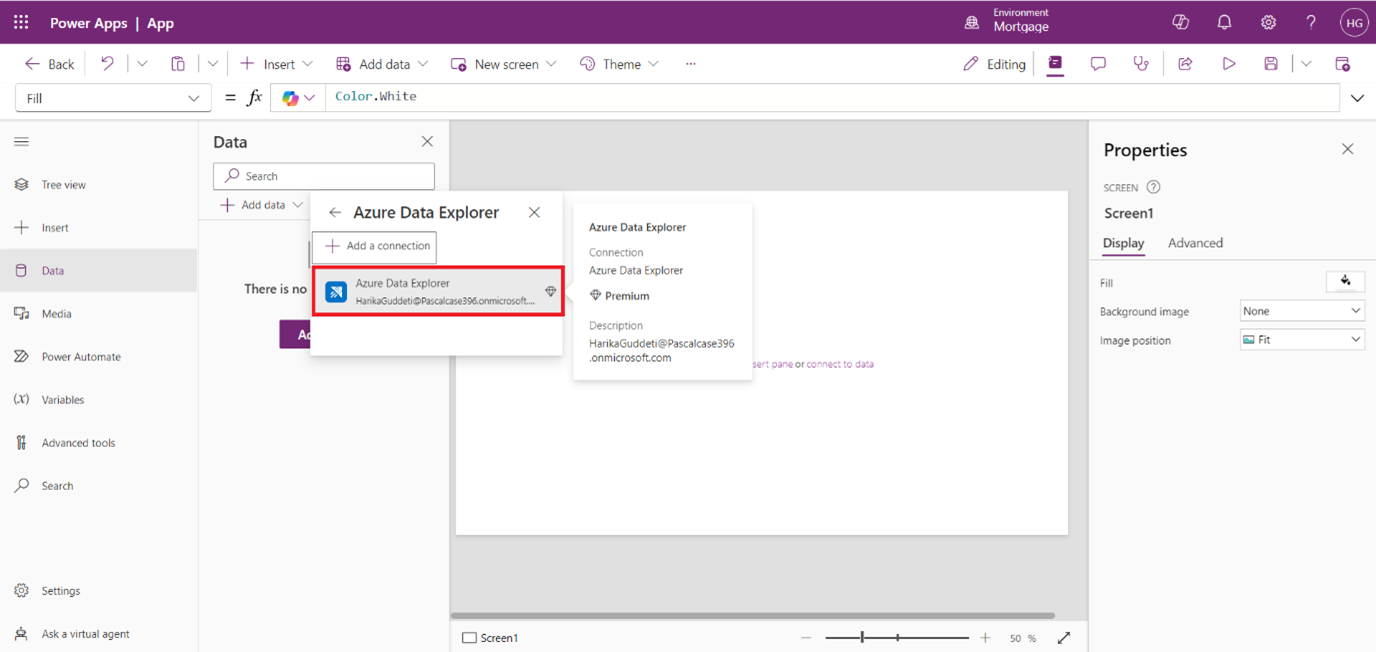
Select Connectors: In the data pane, choose Azure Data Explorer to add it as a data source.
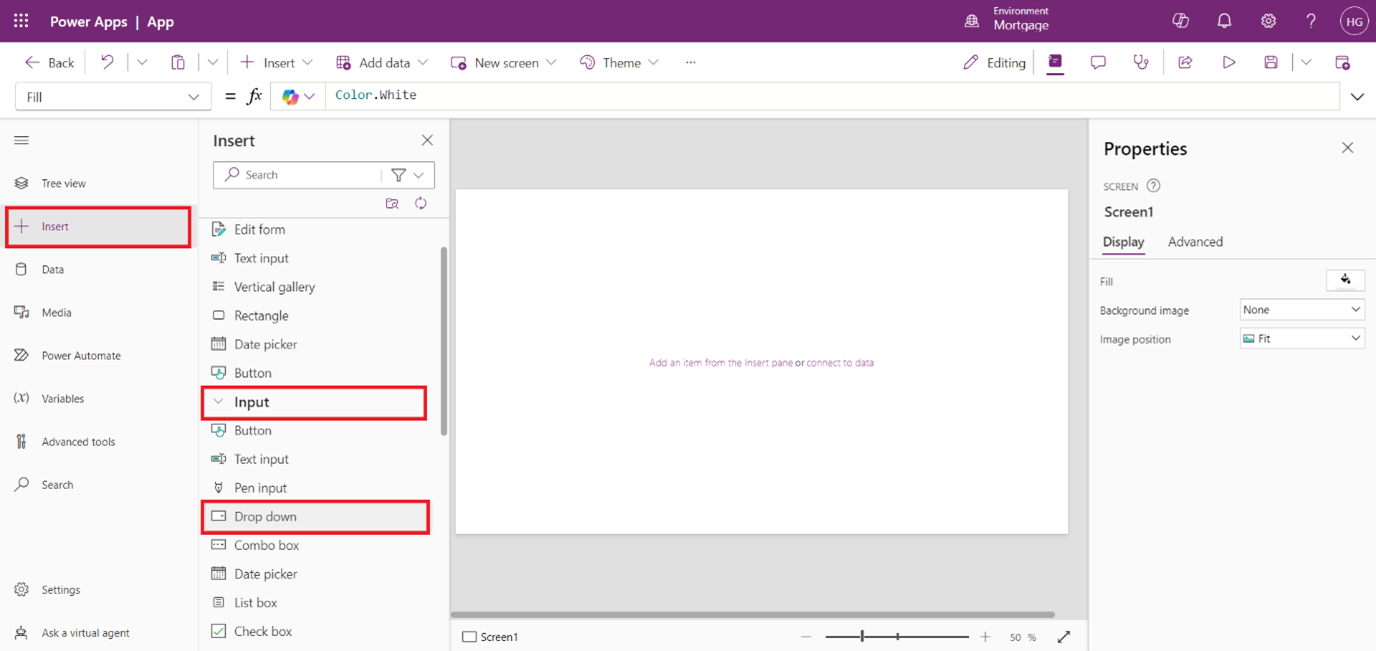
Click on Insert, then select Input and choose Dropdown to add the dropdown control to your canvas.
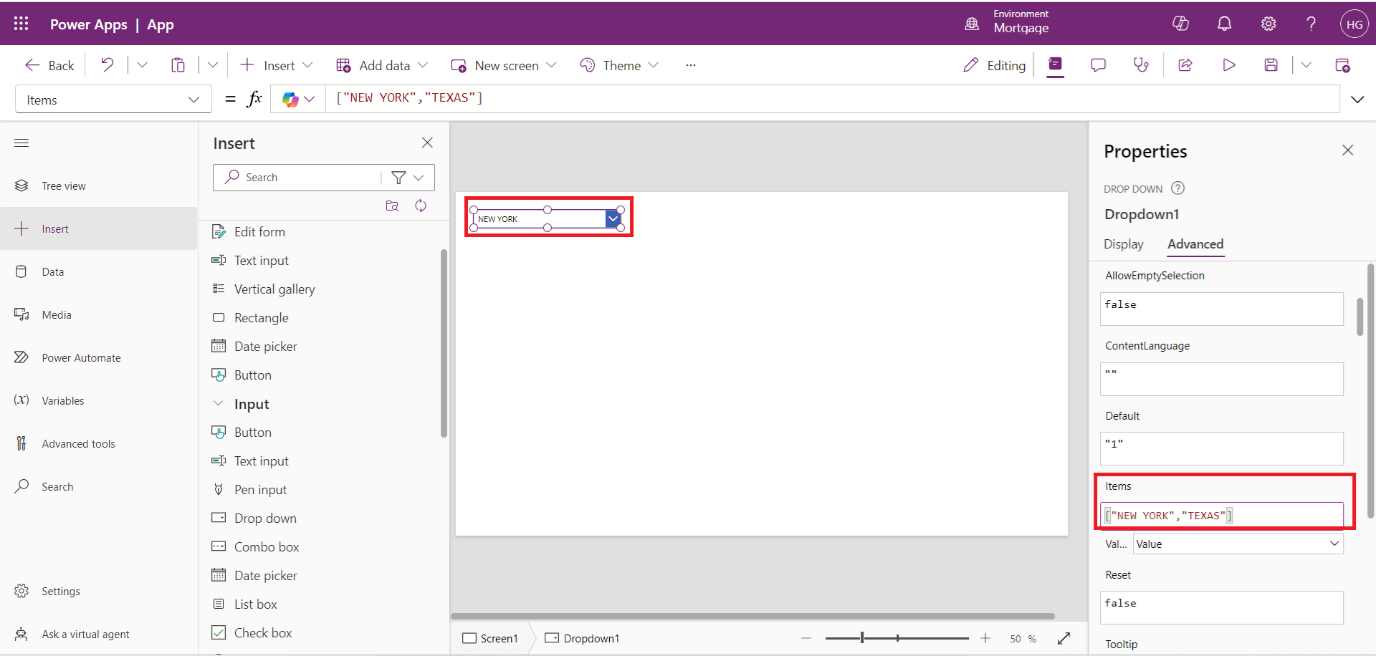
Select the dropdown, go to Advanced Settings, and set the Items property to your ADX query.
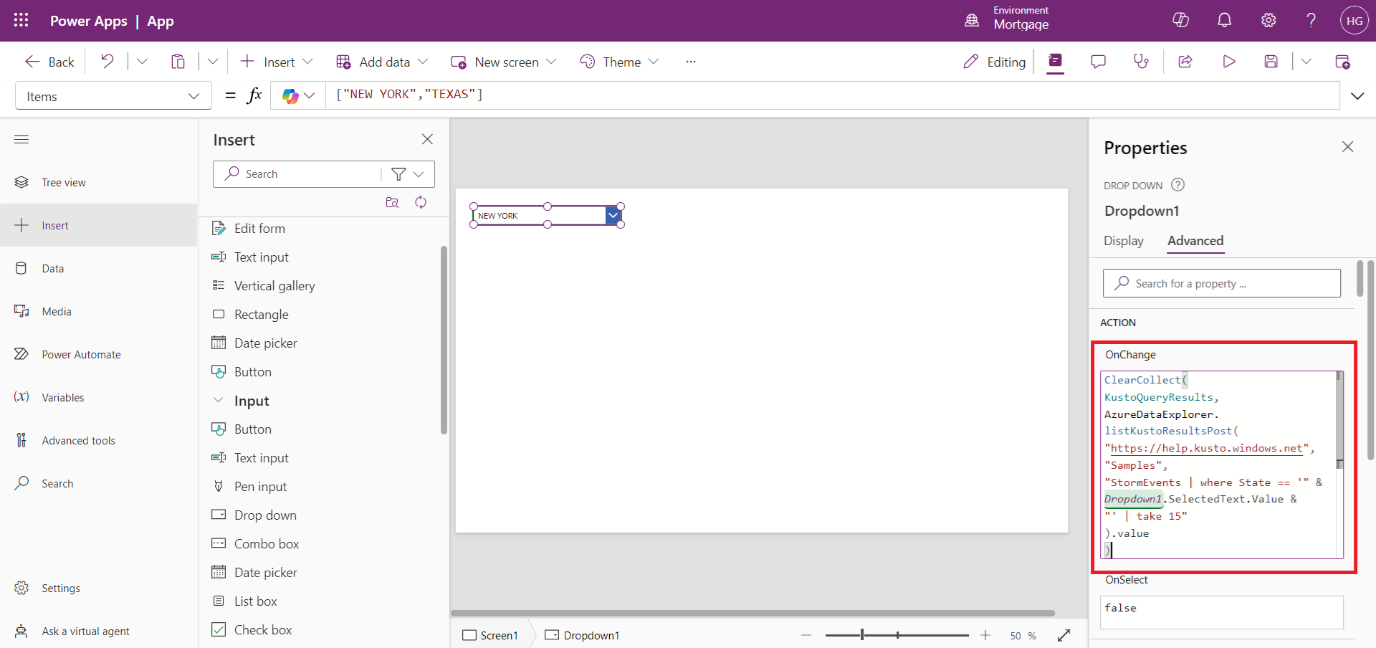
Add OnChange Function: In the dropdown’s OnChange property, add a function to handle selections.
Query :
ClearCollect(
KustoQueryResults,
AzureDataExplorer.listKustoResultsPost(
"https://help.kusto.windows.net",
"Samples",
"StormEvents | where State == '" & Dropdown1.SelectedText.Value & "' | take 15"
).value
)
This query clears and fills the KustoQueryResults collection with data from the StormEvents table in Azure Data Explorer. It filters the data based on the state selected in the dropdown (Dropdown1), retrieving up to 15 results.
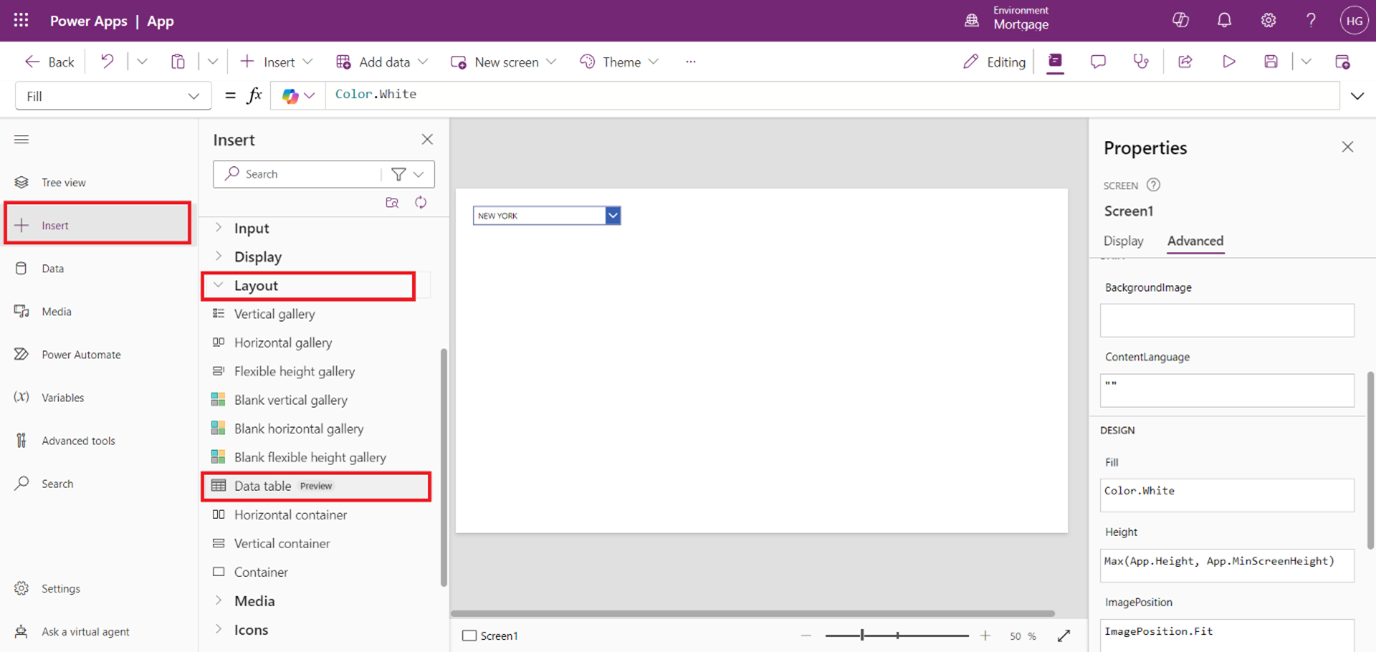
In the app editor, click on Insert, then select Layout and choose Data Table to add a data table to your canvas.
In the data table properties, select the Data Source and choose your Azure Data Explorer connection.
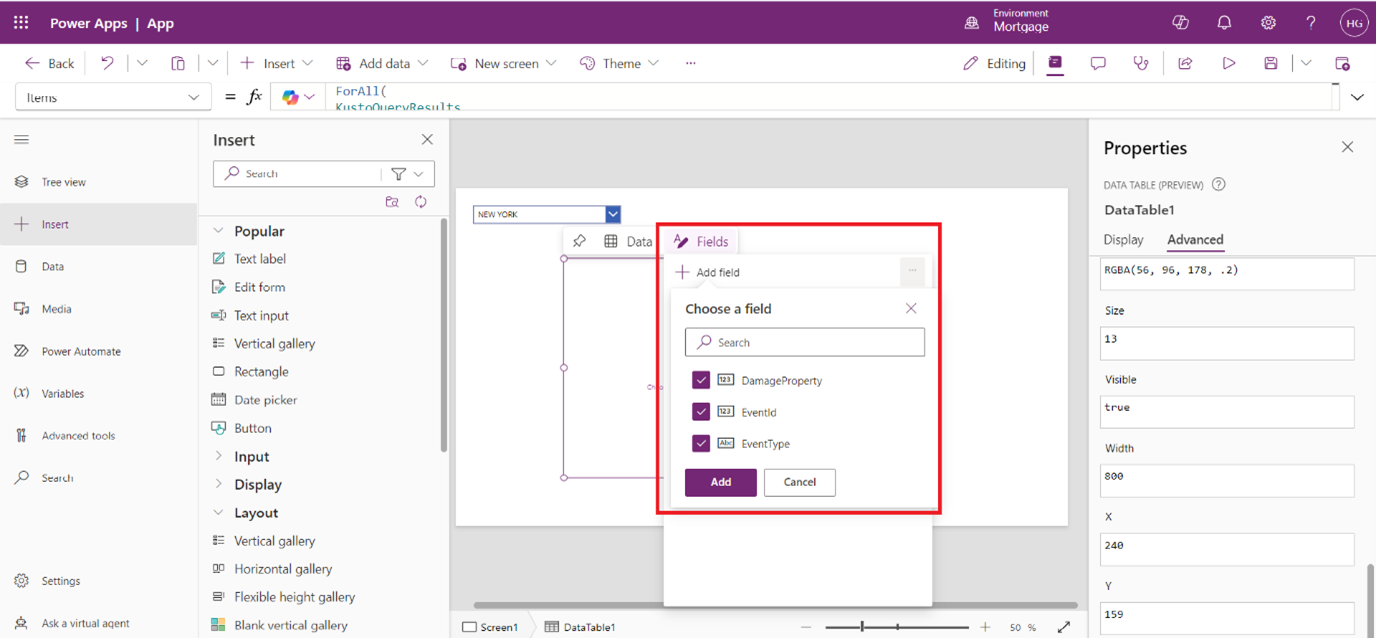
In the data table, select the Fields property and choose the fields you want to display from the Azure Data Explorer data source.
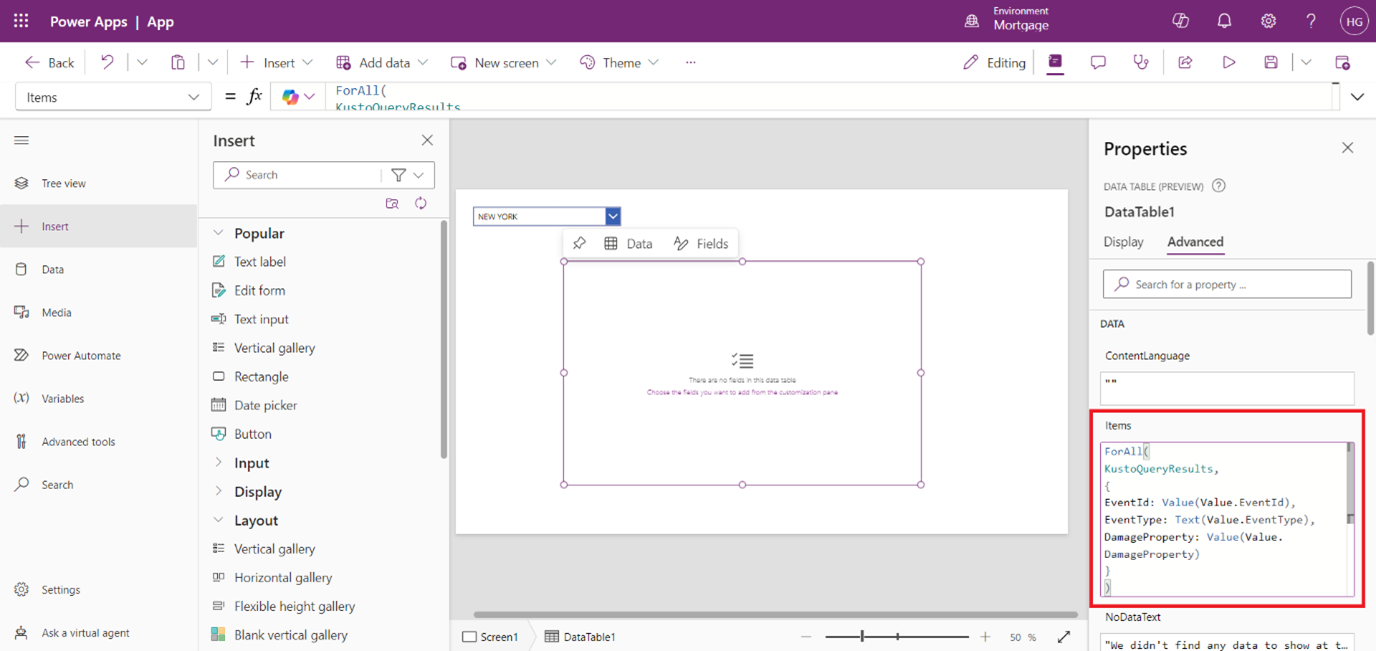
Go to Advanced Settings, and in the Items property, add the appropriate query to fetch data.
Query:
ForAll(
KustoQuery
{
EventId: Value(Value.EventId),
EventType: Text(Value.EventType),
DamageProperty: Value(Value.DamageProperty)
}
)
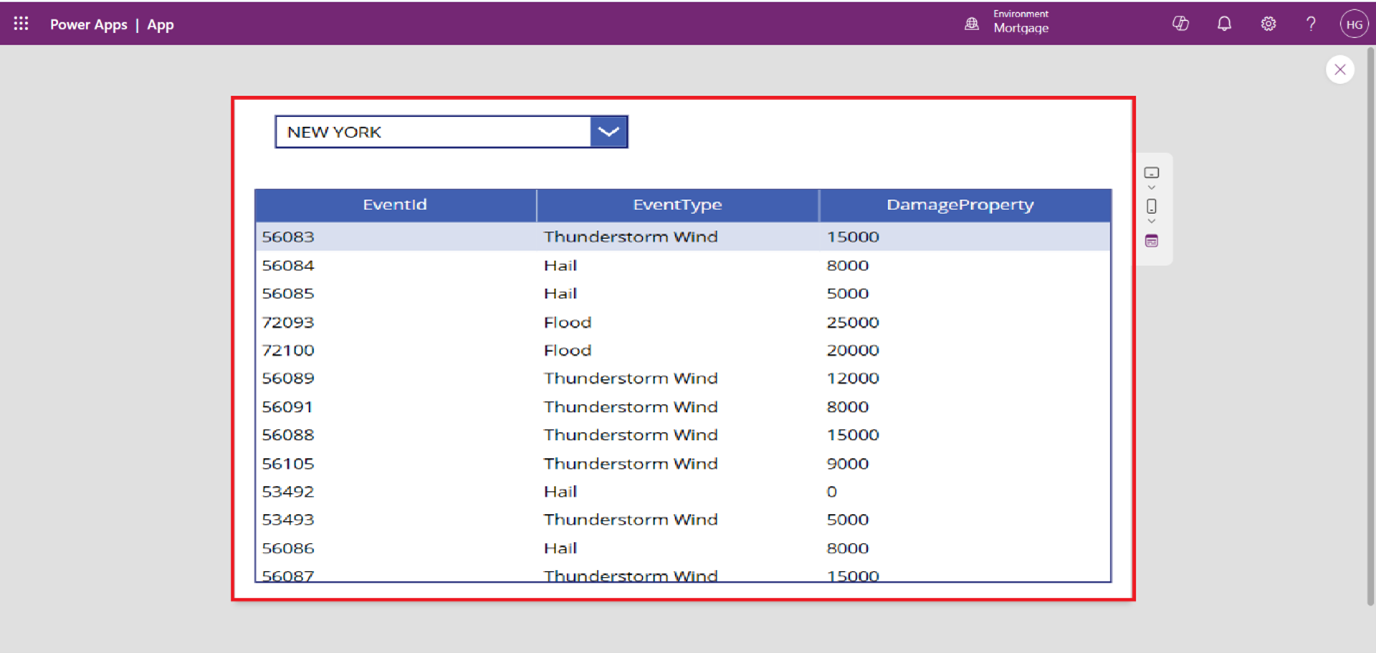
The query takes each record from the KustoQueryResults, extracts specific fields (EventId, EventType, and DamageProperty), converts them to the appropriate data types (numerical and text), and creates a new record for each entry in the results. This transformed data can then be used for further processing or display within the Power Apps application.
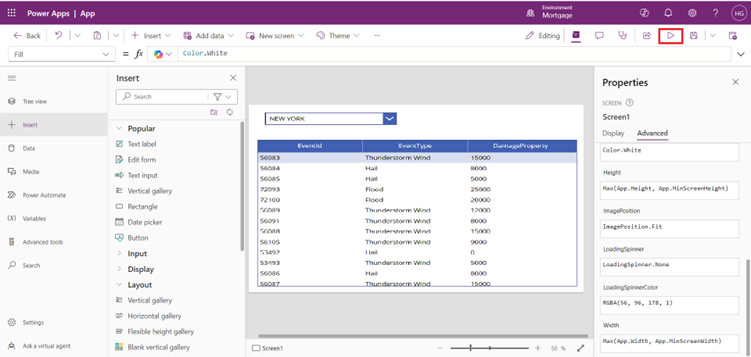
In the top right corner of Power Apps Studio, click on the Preview icon to run your app.
In Preview, you can see and interact with the dropdown and data table to verify their display and functionality.
In Conclusion By integrating Azure Data Explorer with Power Apps, you can create interactive applications that allow users to efficiently query and visualize data through dropdowns and data tables, enhancing data-driven decision-making within your organization.
Frequently Asked Questions (FAQs):
1. What is Azure Data Explorer?
Azure Data Explorer is a fast, fully managed analytics service for real-time data exploration and analysis.
2. How do I connect Power Apps to Azure Data Explorer?
You can connect Power Apps to Azure Data Explorer by creating a new connection in the Power Apps Studio under the Connectors section.
3. Can I use Kusto Query Language (KQL) in Power Apps?
Yes, you can use KQL to fetch and manipulate data from Azure Data Explorer within Power Apps.
4. How do I populate a dropdown with data from Azure Data Explorer?
You can populate a dropdown by setting its Items property to a query that retrieves data from Azure Data Explorer.
5. What is a Data Table in Power Apps?
A Data Table is a control that displays data in a tabular format, allowing users to view multiple records at once.
6. What are the benefits of using Azure Data Explorer with Power Apps?
It allows for no-code querying, real-time data insights, and the ability to build interactive applications for data visualization.