LogoLogo

Our Products

Metadata Browser

Edge Add-on

HTML To PDF Converter

Power Automate Connector

Data Mask for Dataverse

Dataverse App

Commission 365

Dynamics 365 App

AI Autocloser

Dataverse App

Flow Monitor

Power Automate App

ServicesAboutCareersBlogContact
Chat on Teams
Metadata BrowserHTML To PDF ConverterData Mask for DataverseCommission 365AI AutocloserFlow Monitor
ServicesAboutCareersBlogContactChat on Teams
HomeBlogVerify network capacity and throughput for clients in Microsoft Dynamics 365

Verify network capacity and throughput for clients in Microsoft Dynamics 365

January 22, 2024
#PowerApps #D365
Satish Reddy
Verify network capacity and throughput for clients in Microsoft Dynamics 365

Bandwidth and latency are the two primary components of a network that affect the performance of Dynamics 365 and Power Apps.

Bandwidth is the maximum rate of data transfer across a given path.

Latency is the total round trip time required for a data packet or a signal to travel from one point on a network to another.

One of the main causes of the poor performance of Dynamics 365 and Power Apps is the latency of the network over which the clients connect to the organization. The performance of Dynamics 365 and Power Apps can decrease if the latency is high.

How to check latency?

Dynamics 365 and Power Apps contain a diagnostic tool, which analyzes the connectivity of client-to-organization and generates a report.

Follow the below steps to run the Diagnostic tool:

Step1: Login to your Organization’s instance.

Step2: Enter the following URL into the browser by replacing 

myorg.crm.dynamics.com with your organization link.

https://myorg.crm.dynamics.com/tools/diagnostics/diag.aspx

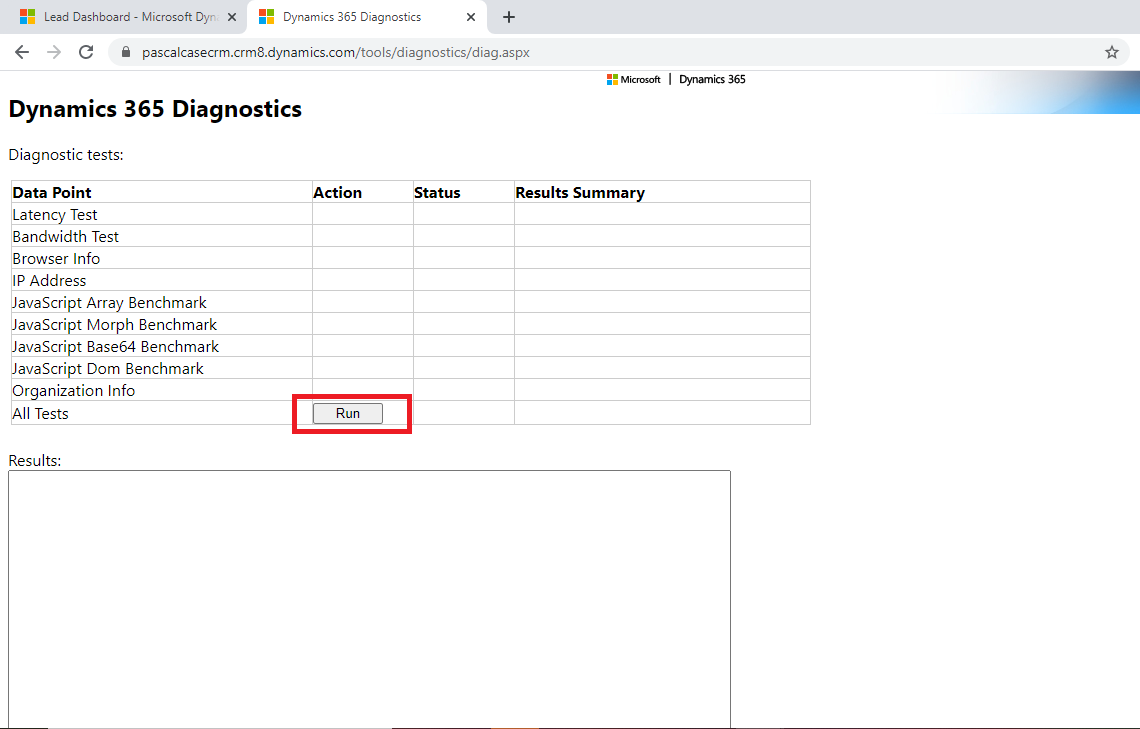
Step 3: Once you open the link, it displays a window as shown below.
Run 01

Now click on the button "Run".

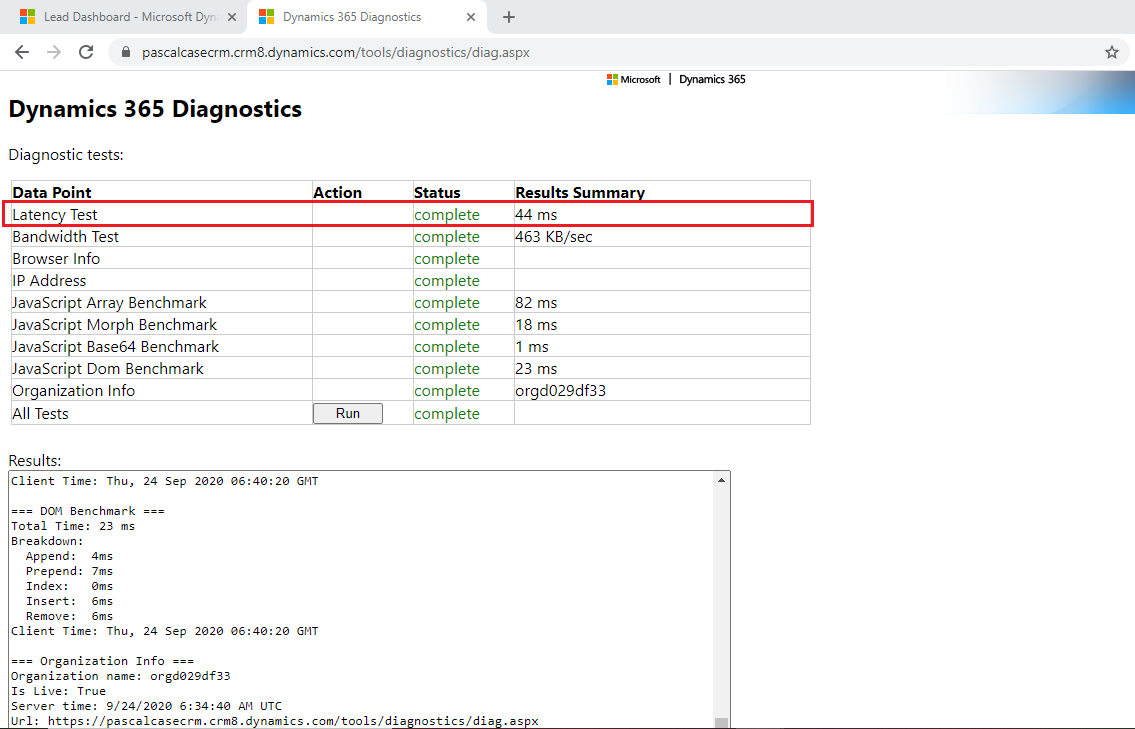
It will generate a report with analysis and benchmark information.
Need help with your business solution?

Our team can help you implement the right solution for your organization.

Get in touch
LogoLogo

Ex-Microsoft experts helping businesses get more from their Dynamics 365 and Power Platform investments.

Products

From the generated report, the Latency test value is most important. Generally, the lower the Latency test value, the better the performance will be. For the best performance, the value should be less than 150 ms(milliseconds).

Run 02

Back to all articles

More from the blog

Preferred Solution in Dynamics 365

Generate Temporary Download URLs in Dynamics 365 Using GetFileSasUrl

Enable Audio Playback in Dynamics 365 Contact Forms Using JavaScript

Integrating Your Copilot Agent with Teams

Adding Generative AI to your Cloud Flows with AI Prompts

How to Generate Early Bound Classes in Dataverse with XrmToolBox

Email Smarter in Outlook with Sales Copilot and Power Apps Integration

How to Populate Choice Fields Using Power Apps Dataflows

Metadata Browser
  • HTML To PDF Converter
  • Data Mask for Dataverse
  • Commission 365
  • AI Autocloser
  • Flow Monitor
  • Services

    • D365 Marketing
    • D365 Sales
    • D365 Customer Service
    • D365 Field Service

    Company

    • About Us
    • Blog
    • Contact
    • Careers

    Copyright ©2026 Pascalcase Software Private Limited. All rights reserved.

    Privacy PolicyTerms of Service