In real business scenarios, document signing should happen automatically without manual effort. Document signing is required to formally approve and validate agreements, making it a critical step in many business processes.
In this blog, we will automate the document signing process using Microsoft Power Automate and Docusign by creating an Automated Cloud Flow that sends documents for e-signature whenever a specific event occurs, such as when a record is created or updated.
Prerequisites:
A Docusign account
Microsoft Power Automate account with access to create cloud flows
Access to Microsoft Dataverse
Business Scenario:
In many organizations, agreements need to be sent to customers for approval when a record is created or updated. Manually sending documents and tracking signatures can be time-consuming and inefficient.
By using Power Automate with Docusign, documents can be automatically sent for e-signature, allowing customers to sign online while the business tracks the signing status in real time.
Step-By-Step Guide:
After signing into the Docusign account, the first step is to create a reusable template. Templates help standardize documents and make automation easier.
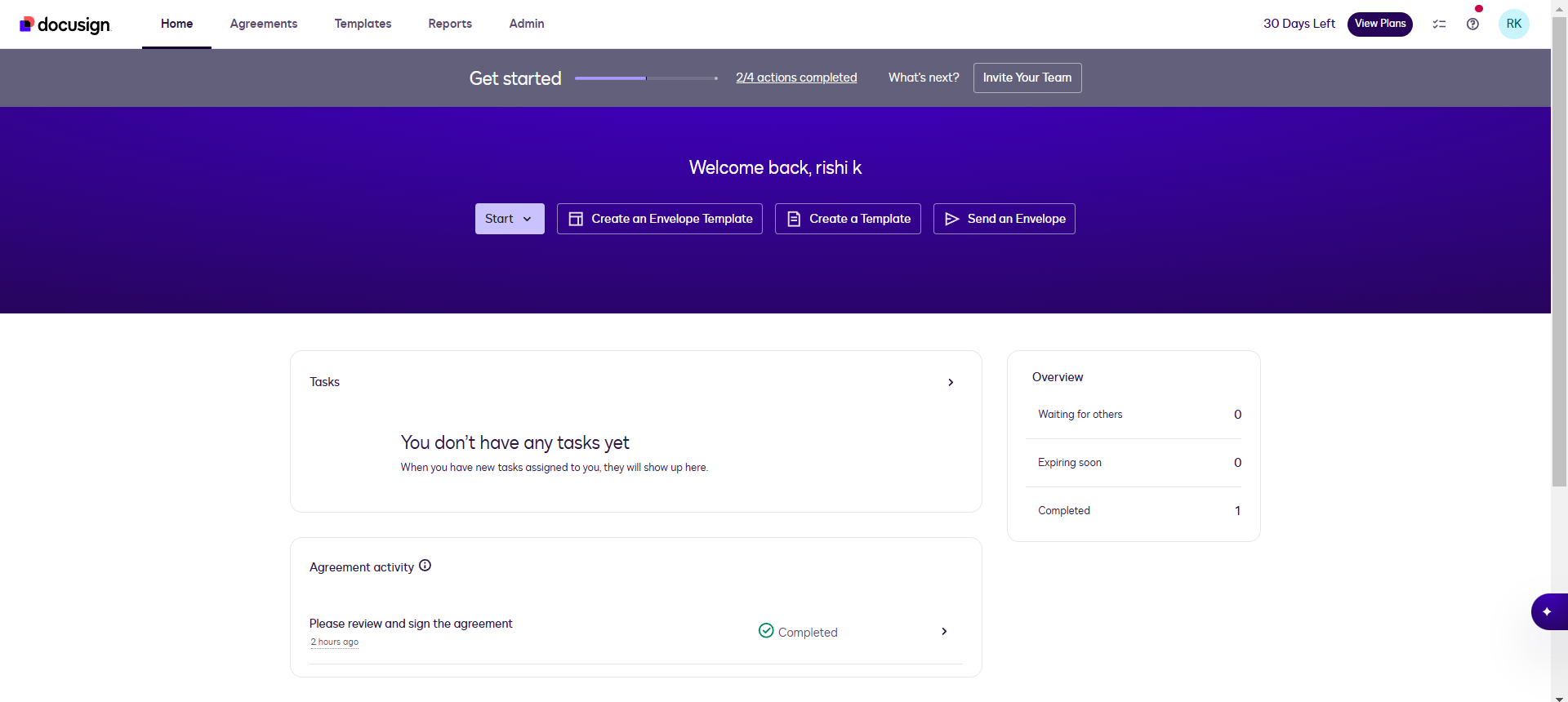
Navigate to Templates from the Docusign dashboard and click on Create a Template.
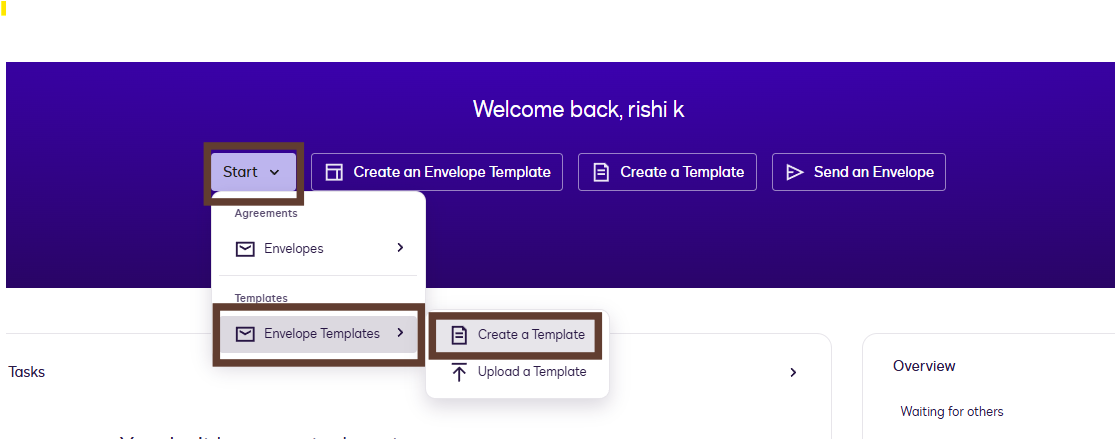
Enter a template name, description and upload the document that needs to be signed (PDF or Word file).
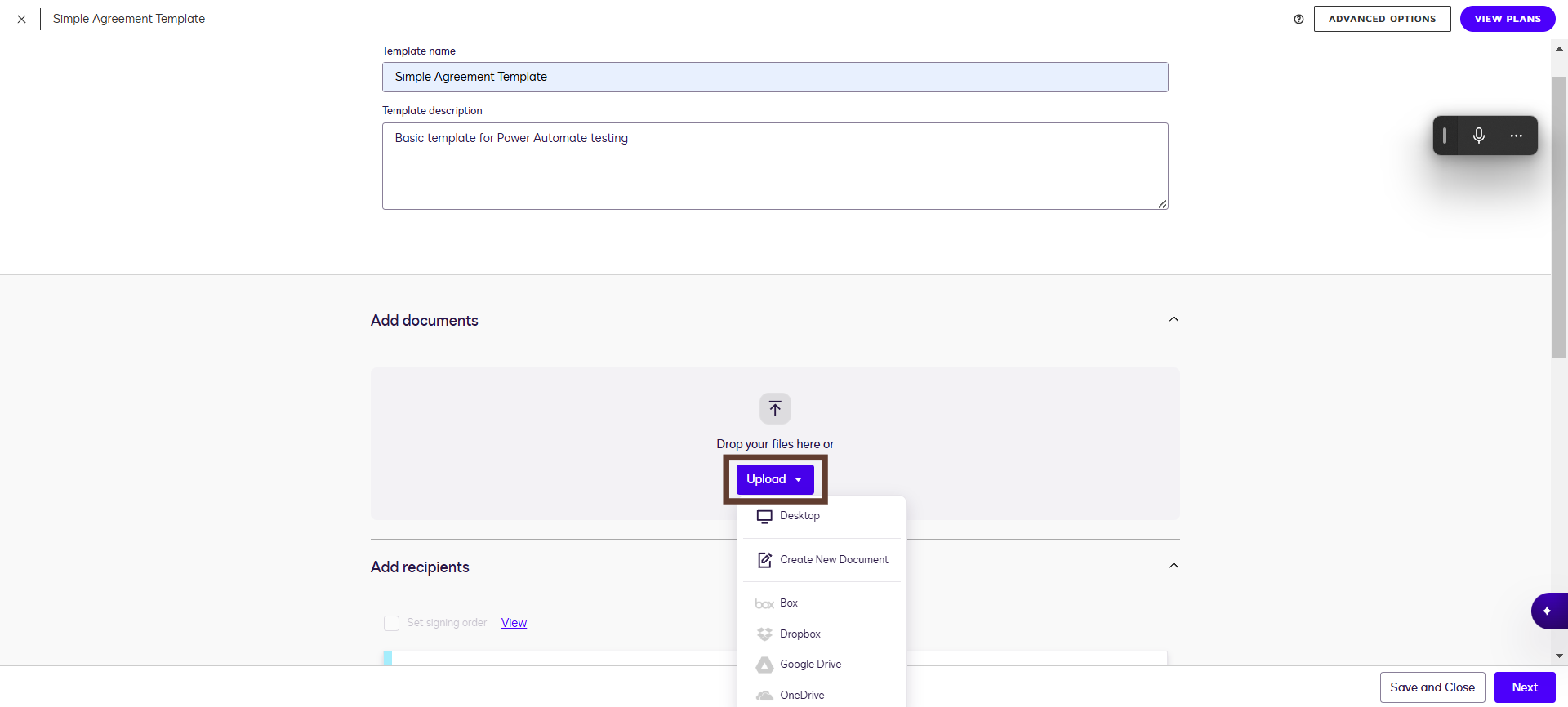
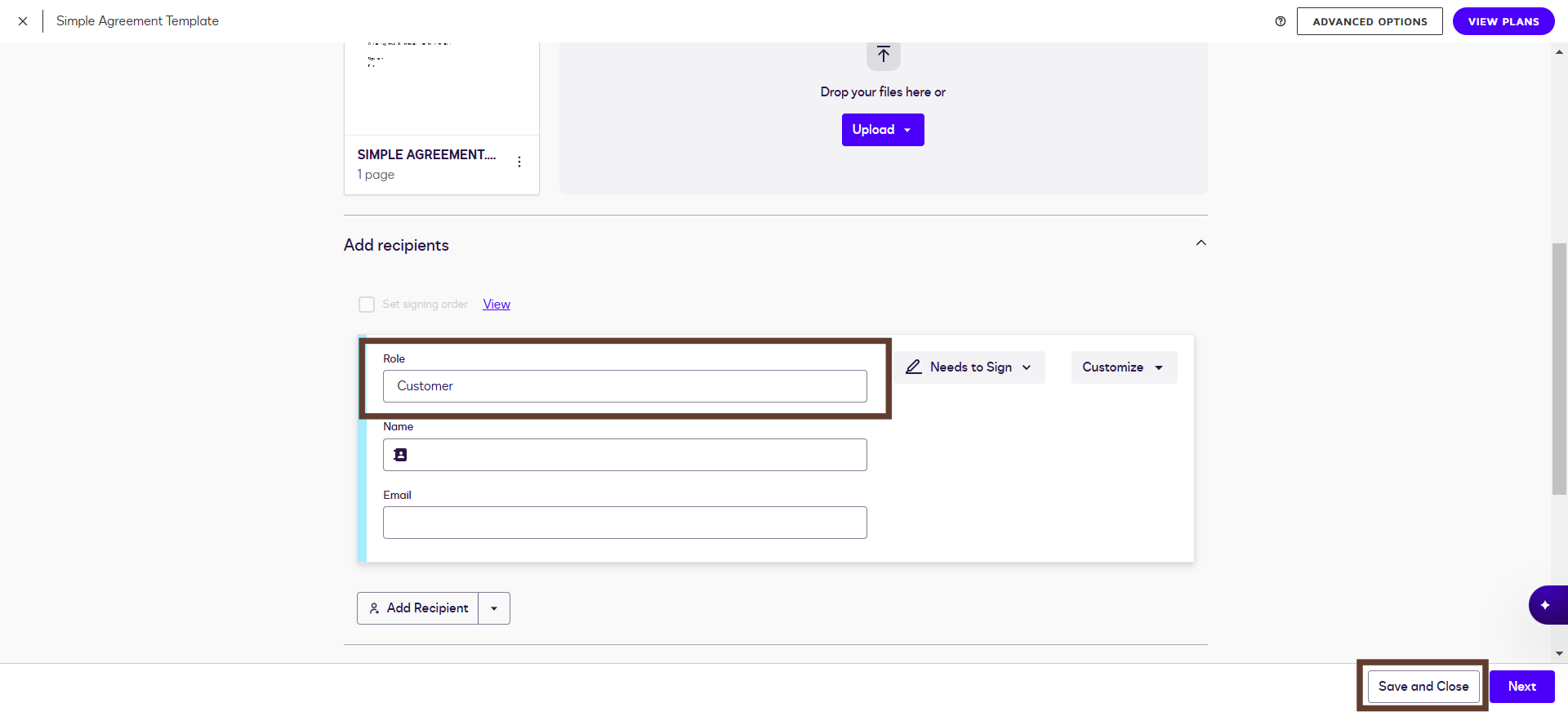
Add a Signer role (for example, Customer).
Leave the name and email fields empty so they can be populated later using Power Automate.
And click on Next to open the document editor.
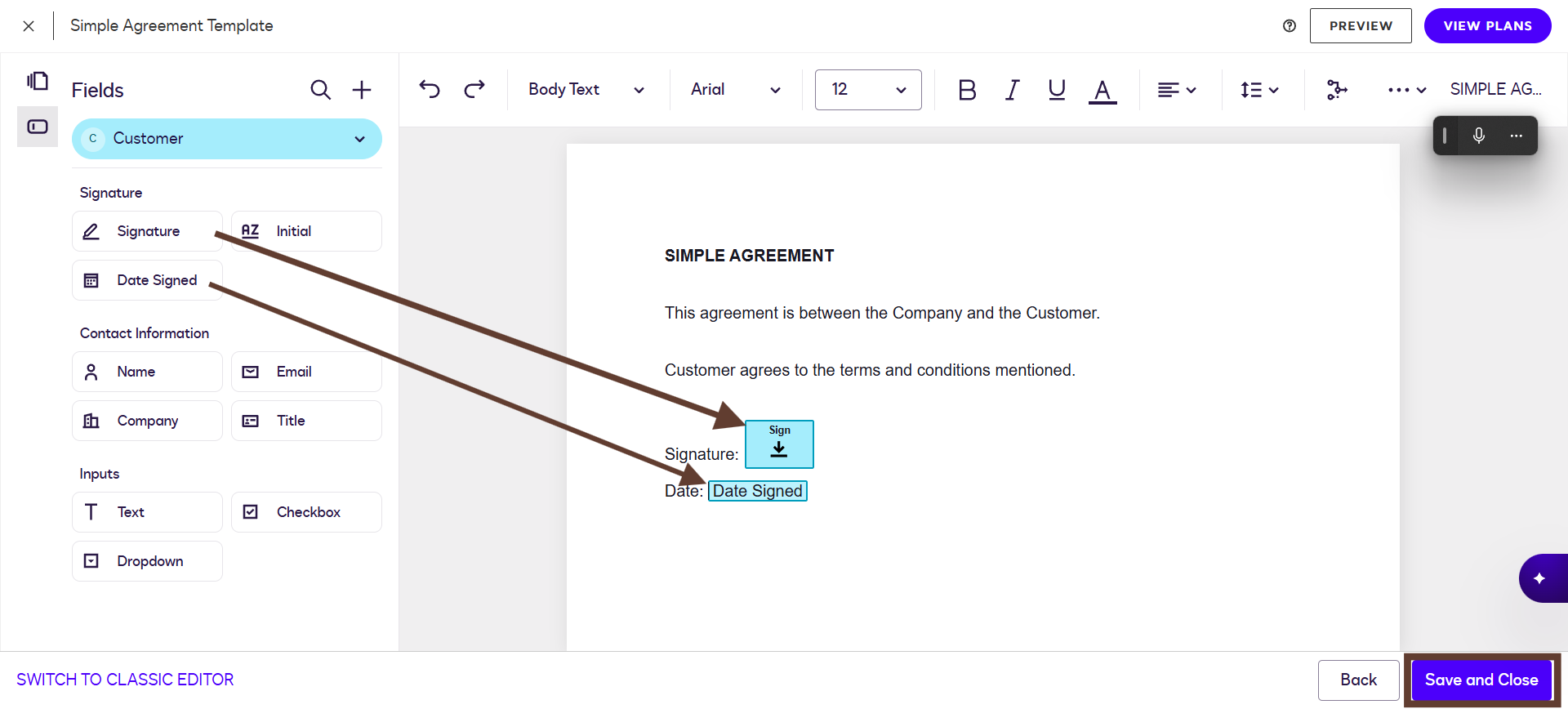
Drag and drop the Signature field and Date Signed onto the document.
Save and close the template.
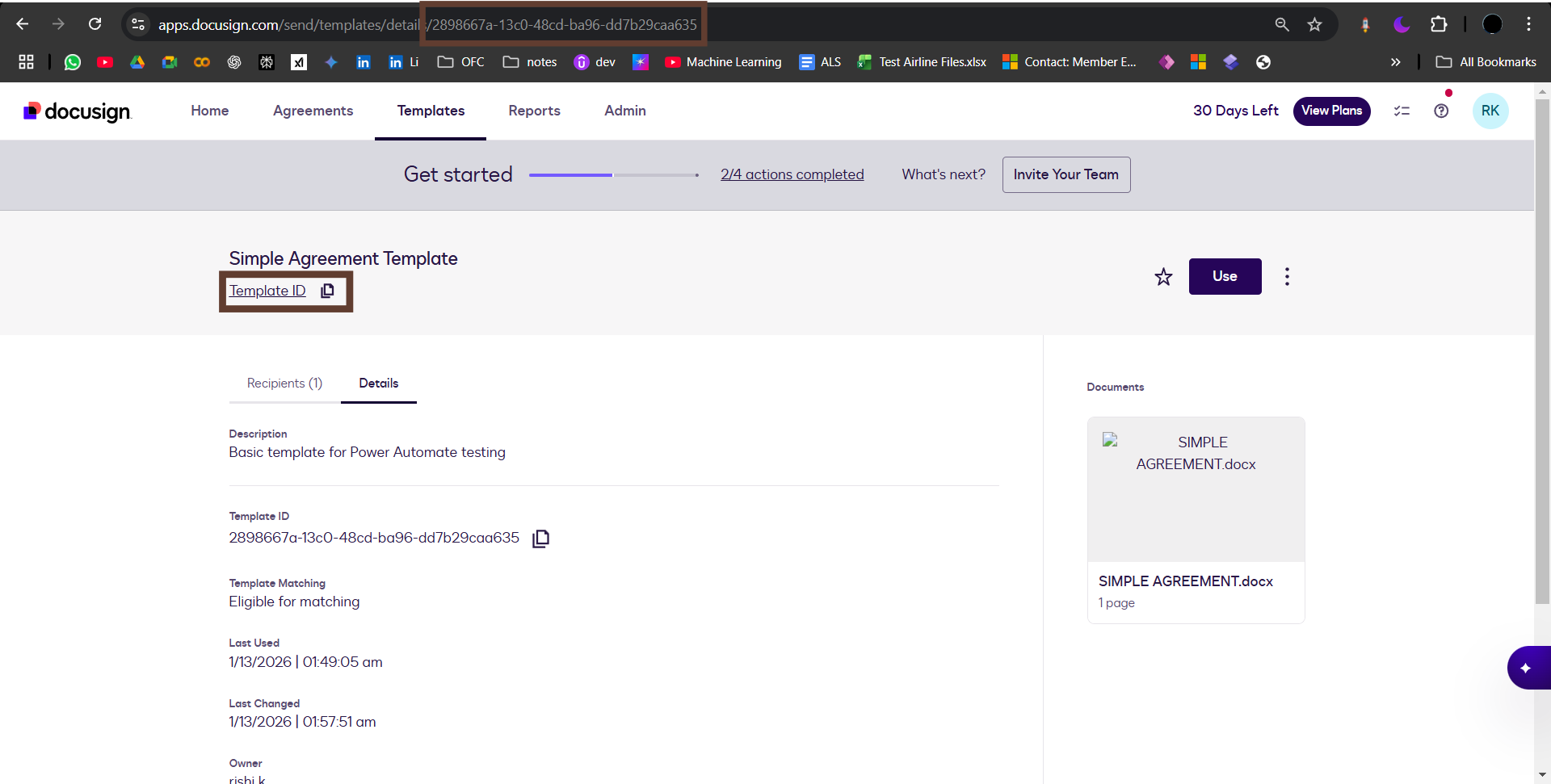
Go to Templates and select the created template and copy the ID by clicking on Template ID or from the URL, as it will be required in Power Automate.
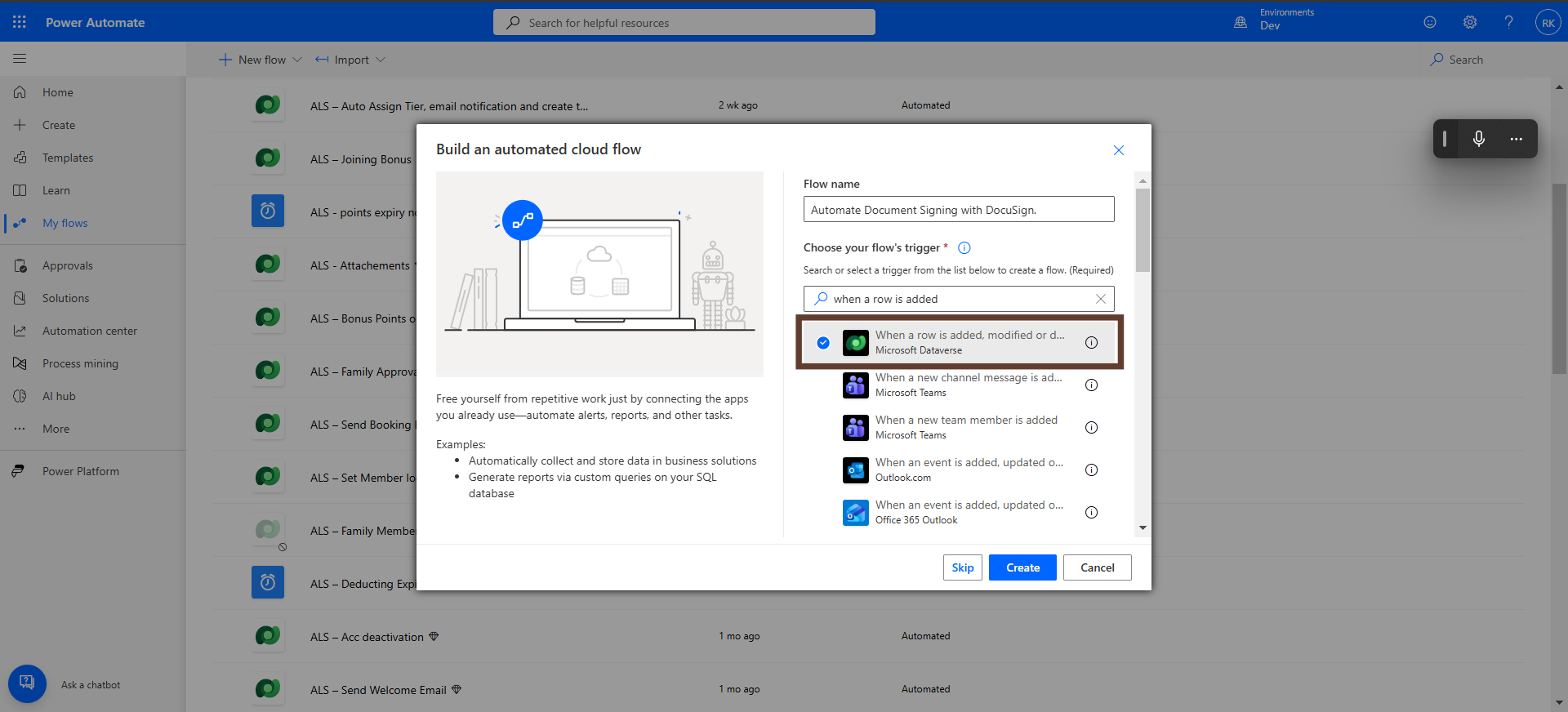
Once the Docusign template is ready, the next step is to create an automated workflow. Go to Power Automate. Click Create and select Automated cloud flow.
Give a flow name such as Automate Document Signing with Docusign.
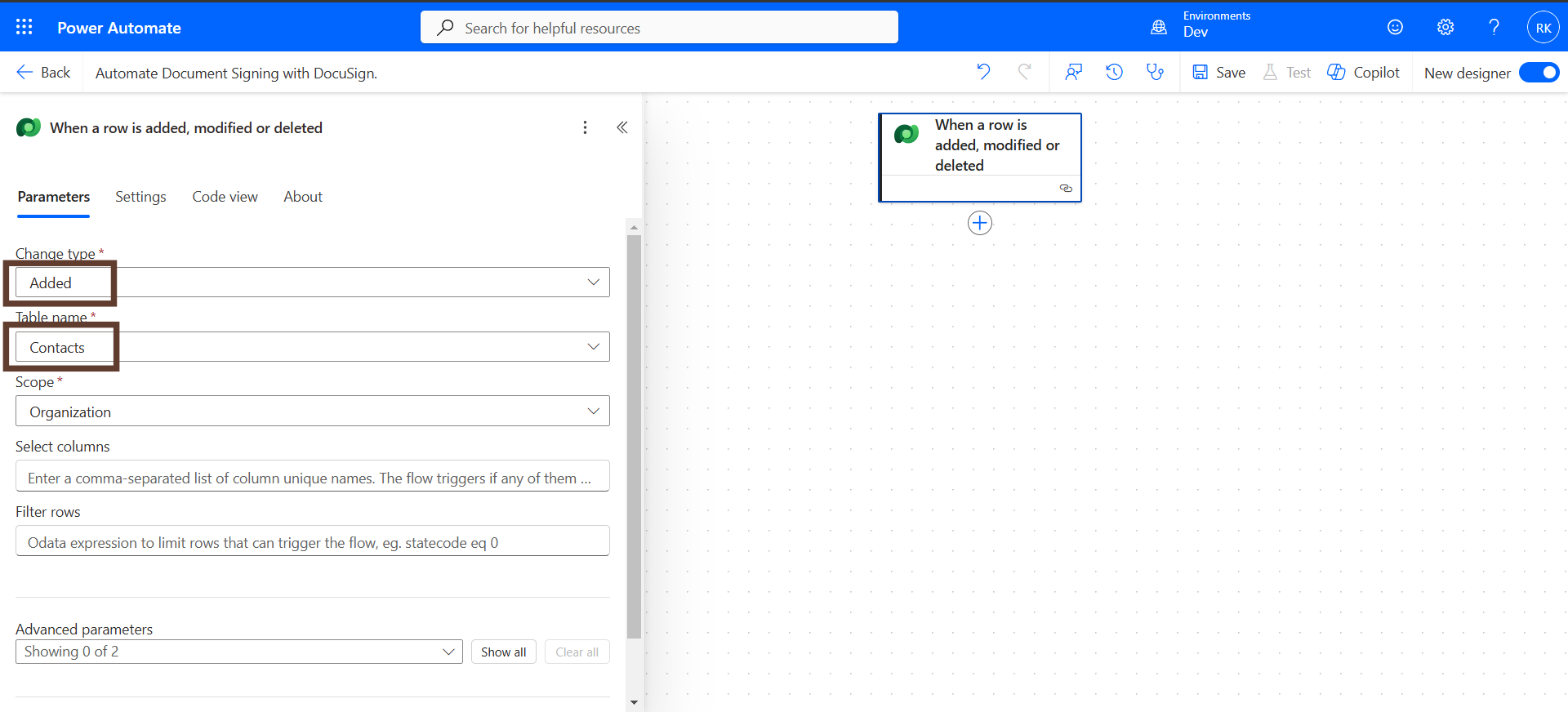
Choose a trigger - When a row is added or modified in Dataverse. Click Create.
Choose the Change type as Added and select your Entity.
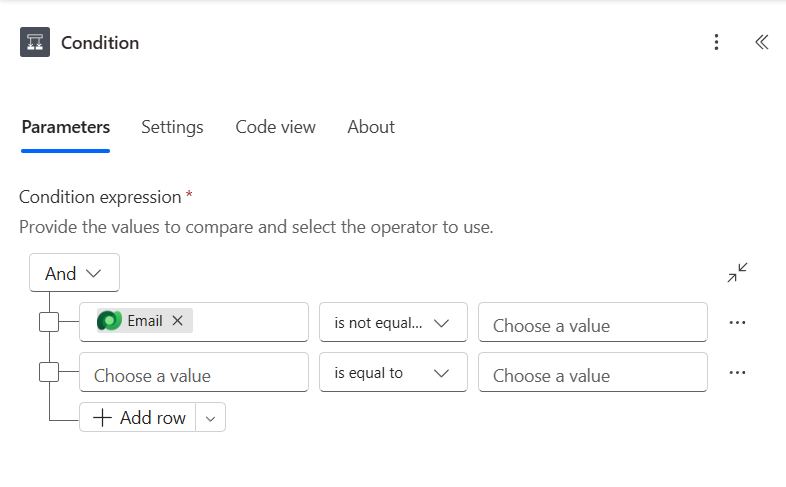
Add a condition to check if the record includes an email address.
Left value: email, Condition is not equal and Right value: Blank
This ensures documents are only sent when an email address exists.
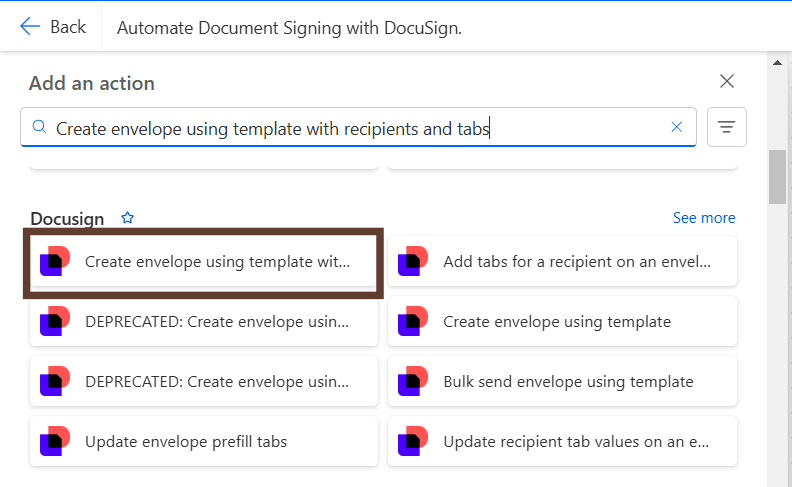
Add a new action and search for Create envelope using template with recipients and tabs from Docusign.
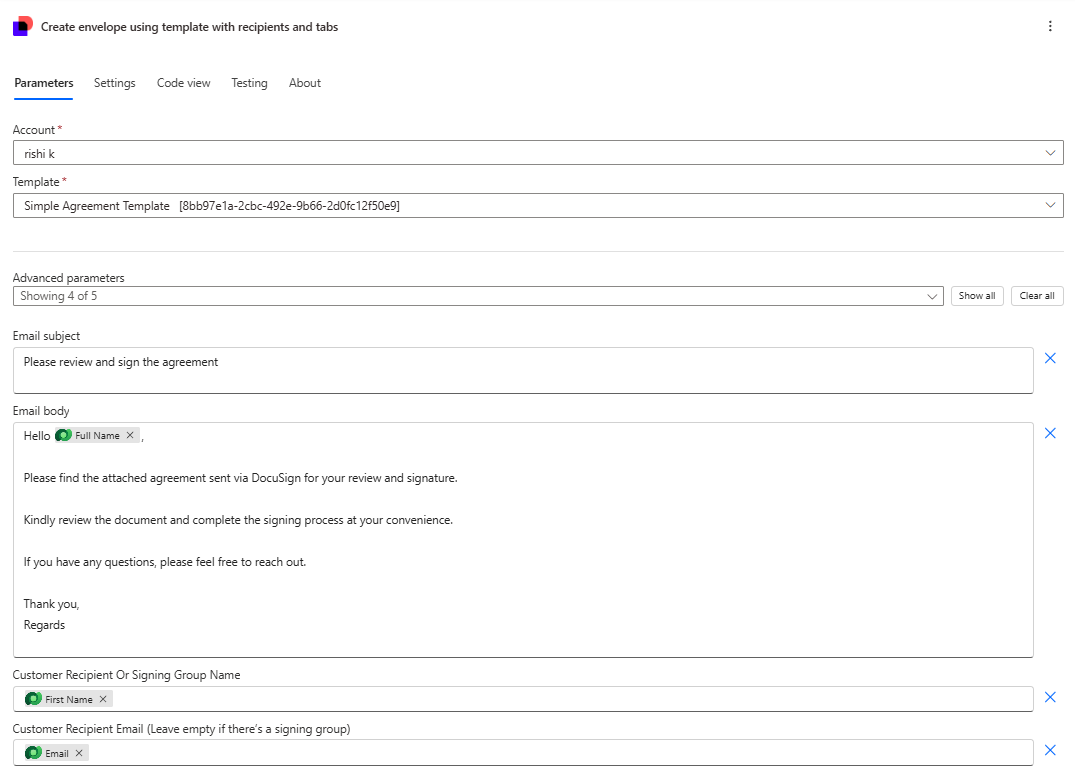
Sign in to Docusign when prompted and paste the Template ID created earlier
Select the Account and fill the email body
Map the recipient's name and email from the Dataverse record
Add another Docusign action and select Send envelope.
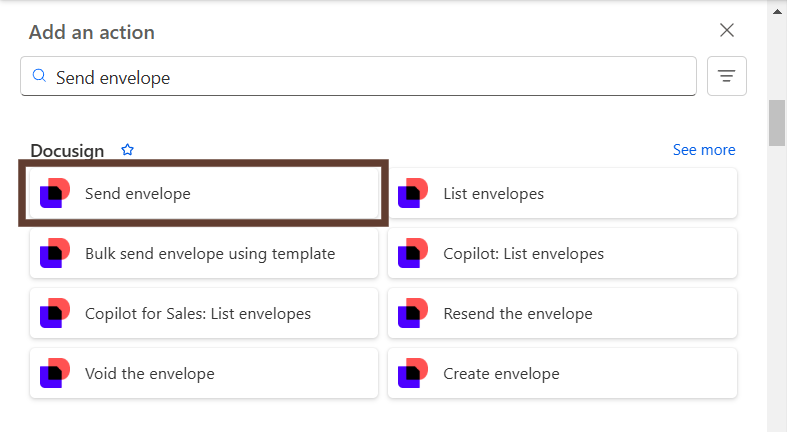
Select the Account and pass the Envelope ID from the previous step.
Save the flow and test it.
This action sends the document to the recipient for electronic signature
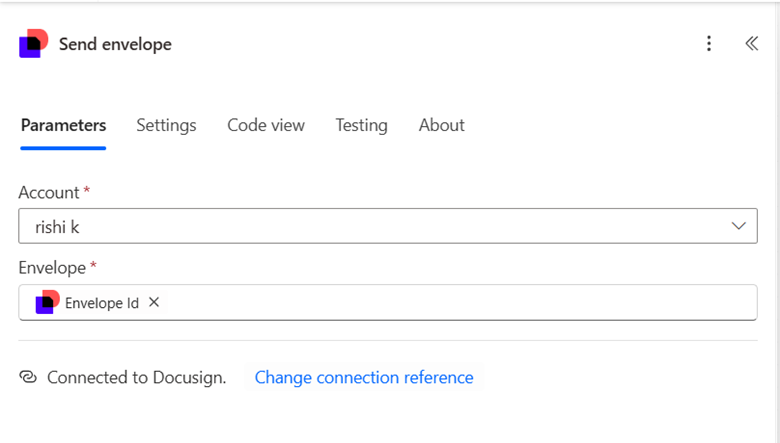
The signing status can be tracked from the Docusign dashboard.
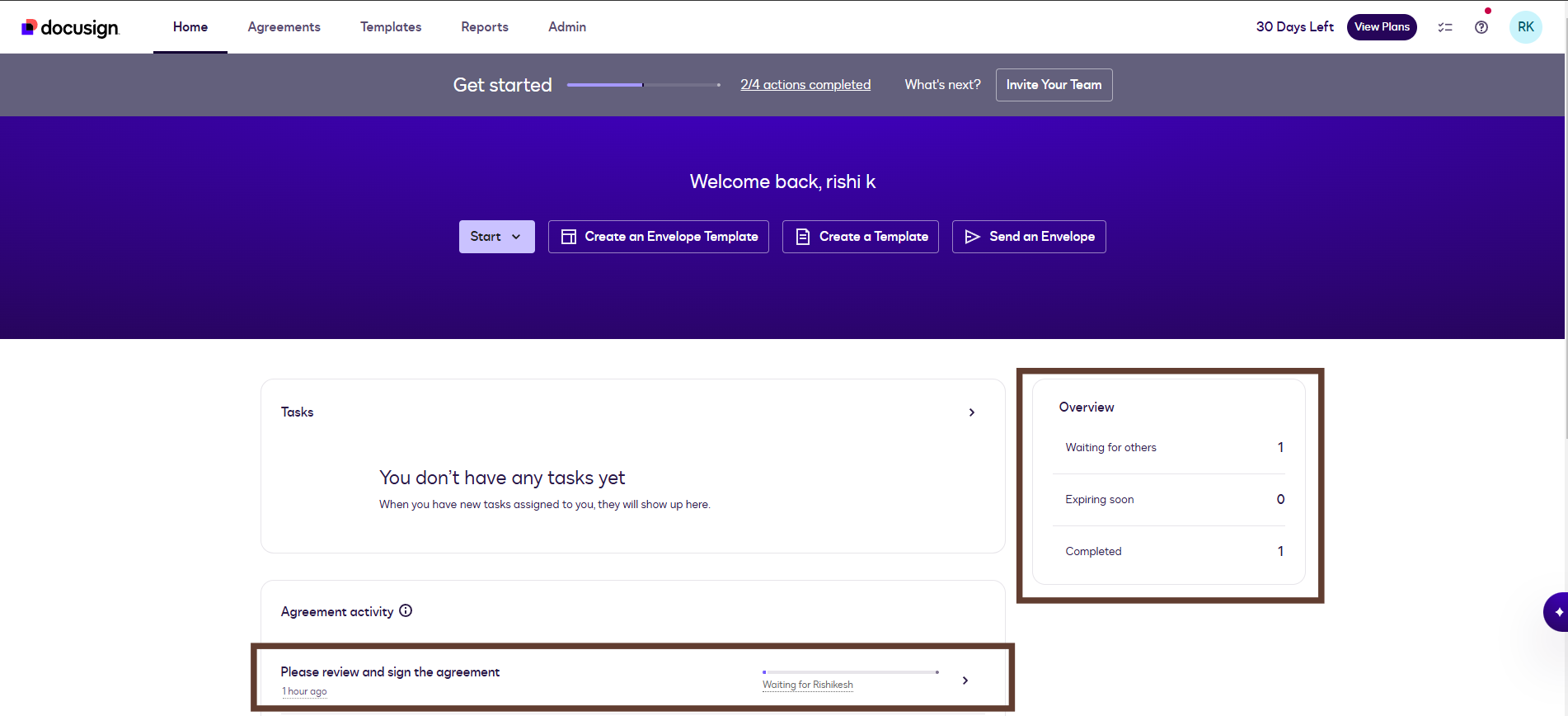
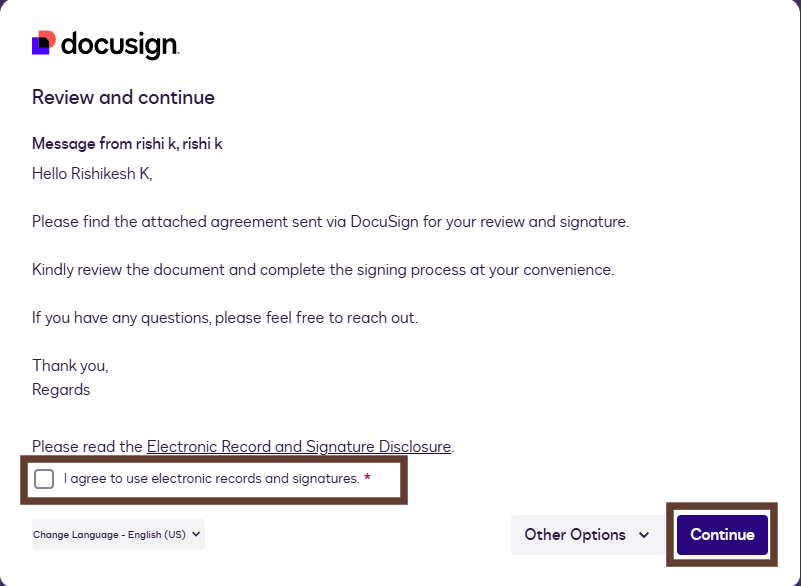
When the flow is triggered, the recipient receives a Docusign email. The user clicks the Review Document and signs the document electronically.
The user checks the consent box and clicks Continue. The user is then redirected to the agreement page to review and sign the document.
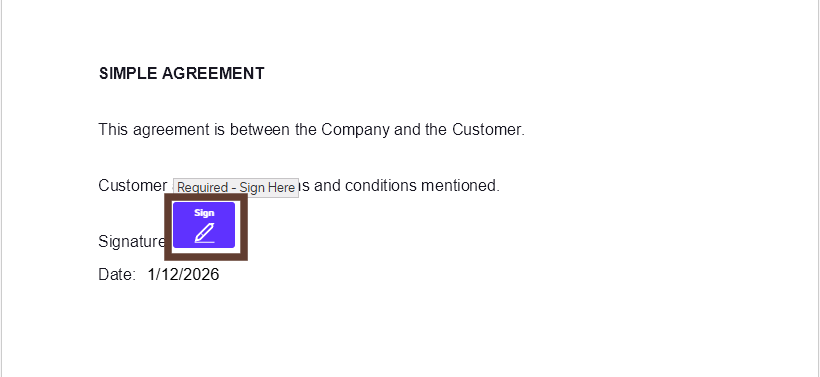
Then, the user is redirected to the signature page, where they can click the Sign button to sign the document.
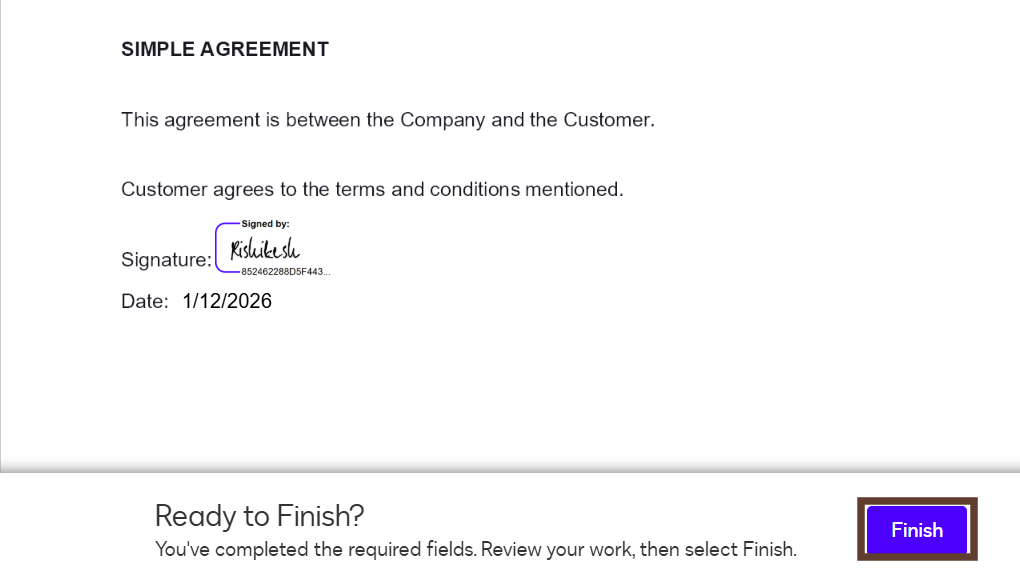
After signing the document, the user clicks Finish to complete the process.
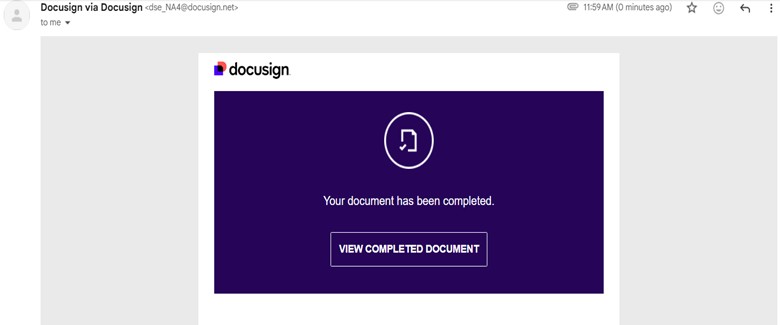
Once the User signs the document, an automatic confirmation email is sent to the administrator.
Manual document signing is no longer required. With this automation, clients can securely review and sign agreements from any device, while your team tracks every step from sent to signed in real time. All records are stored safely, ensuring a faster, smarter, and more reliable signing experience.
Frequently Asked Questions (FAQ)
1. What is Docusign?
Docusign is an electronic signature platform that allows users to review and sign documents online in a secure way.
2. Do I need a Docusign template to use this automation?
Yes. A Docusign template is required to define the document, signer roles, and signature fields before integrating with Power Automate.
3. Can users sign documents from mobile devices?
Yes. Docusign allows users to review and sign documents securely from any device, including mobile phones and tablets.
4. How can we track the document signing status?
The document signing status can be tracked directly from the Docusign dashboard, where you can view whether the document is sent, viewed, or signed.