
Business Scenario
Keeping your clients and team members updated isn’t always easy, especially when you’re working on many projects at once. Most of the time, we end up spending too much time going back and forth between different tools, trying to find the latest information in our CRM, and then copying it into emails.
This takes a lot of time, and there's always the risk of missing something or sending old information.
Now, with Copilot for Sales in Outlook, you can add CRM details to your emails quickly and easily—without leaving your inbox.
How It Works?
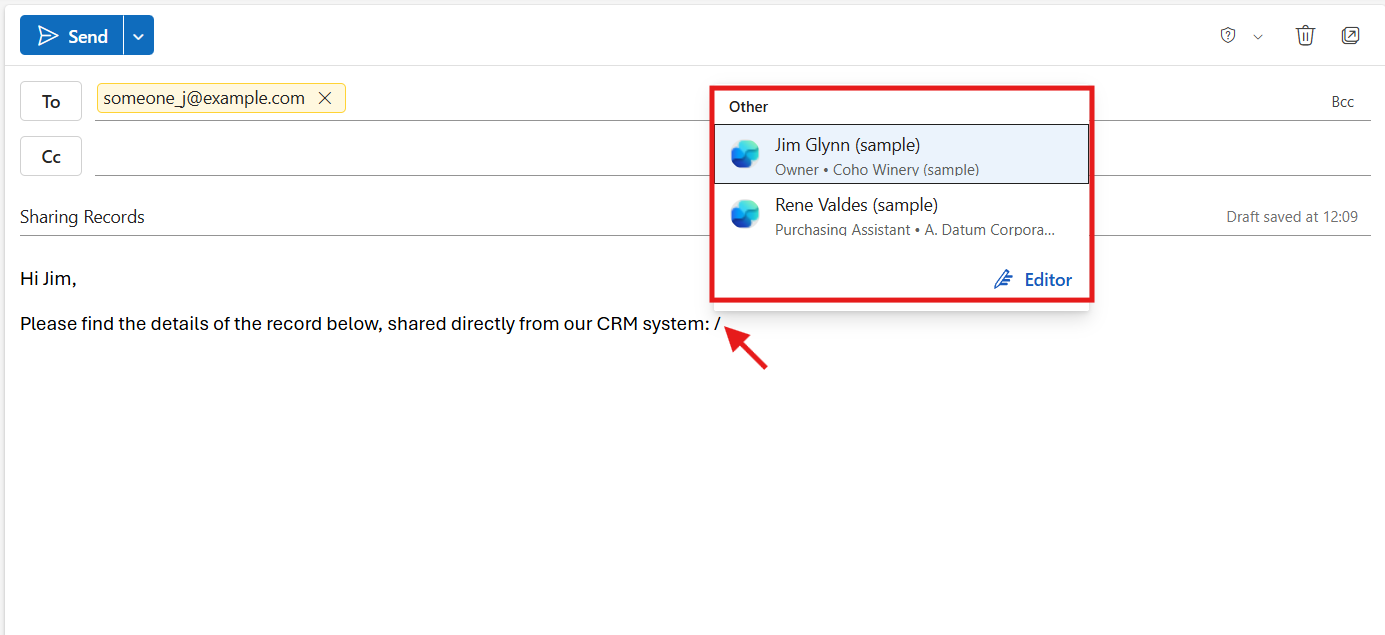
When you’re writing an email, just type a forward slash ( / ). Right away, Copilot suggests recent CRM records—like account details, deal status, or recent notes. You can choose what you need, and it will show up in your email as a neat card.
These cards look clean and professional, and the best part? They stay up to date on their own. So if someone views that email tomorrow, they’ll still see the latest information—without you needing to resend anything.
Step-By-Step Guide:
Open the Microsoft Admin Center https://admin.microsoft.com and select the billings.
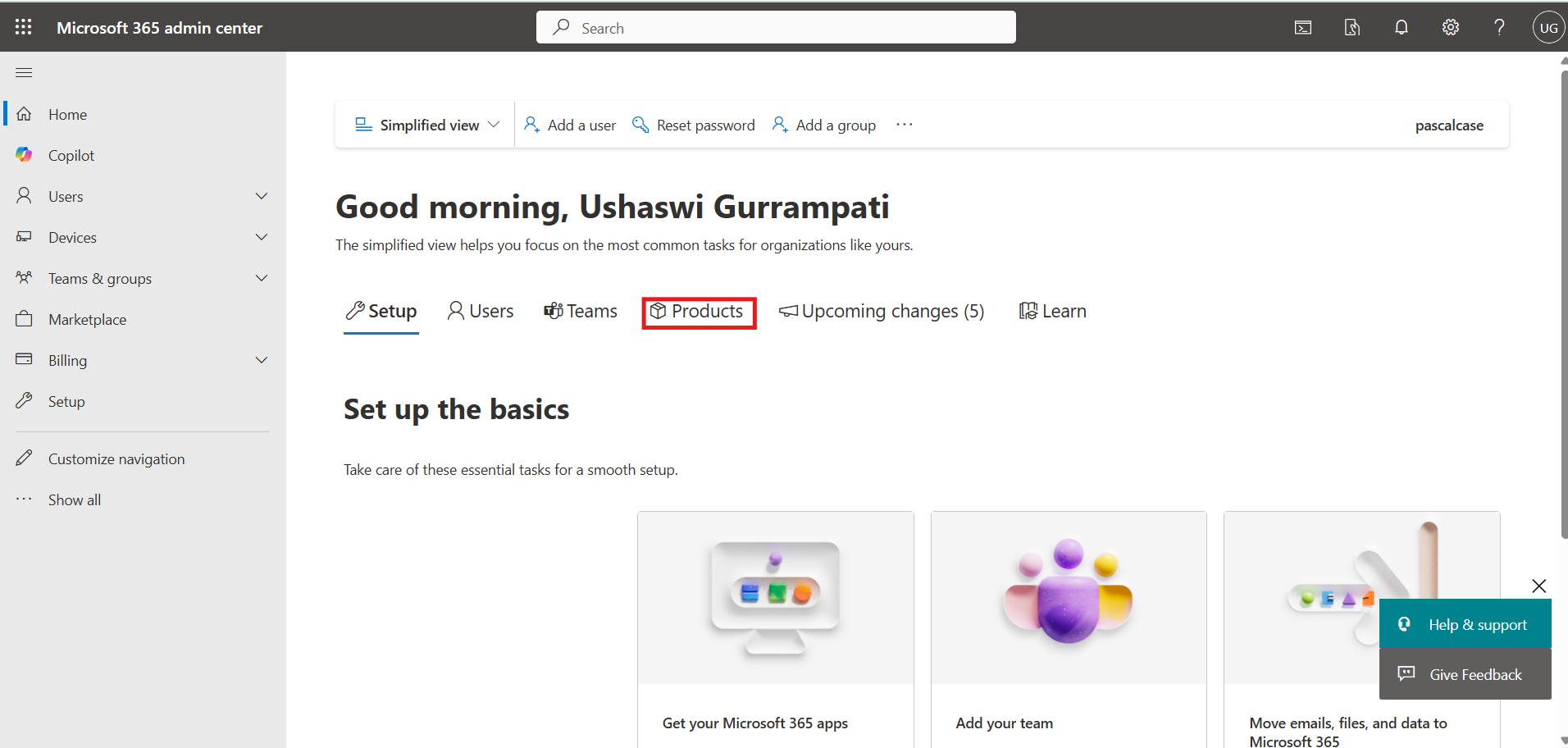
Navigate to the Products section in the left panel to buy the Sales Trial.
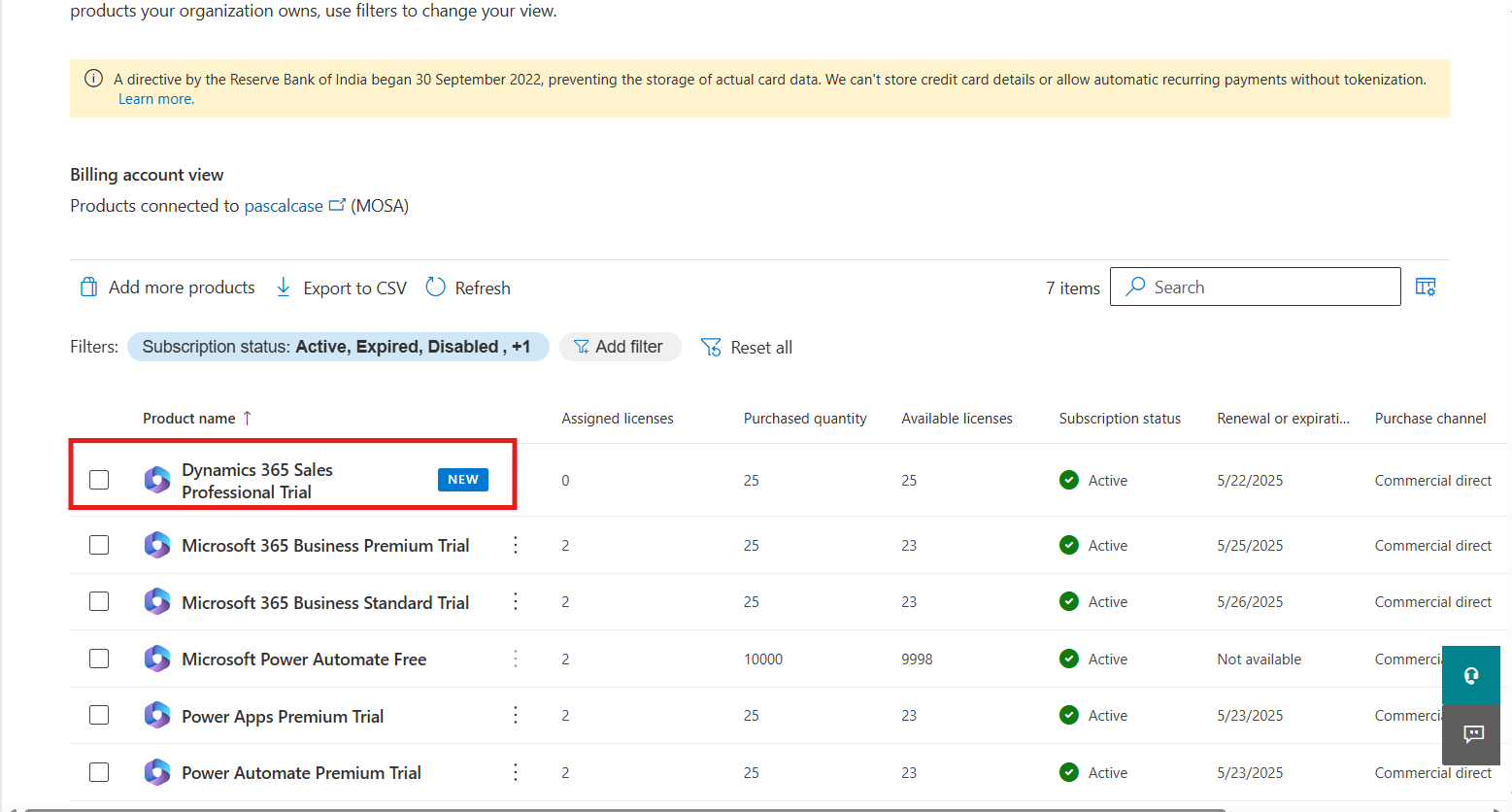
Search for Dynamics 365 Sales Professional Trial and start the free trial. This gives you access to Copilot for Sales app.
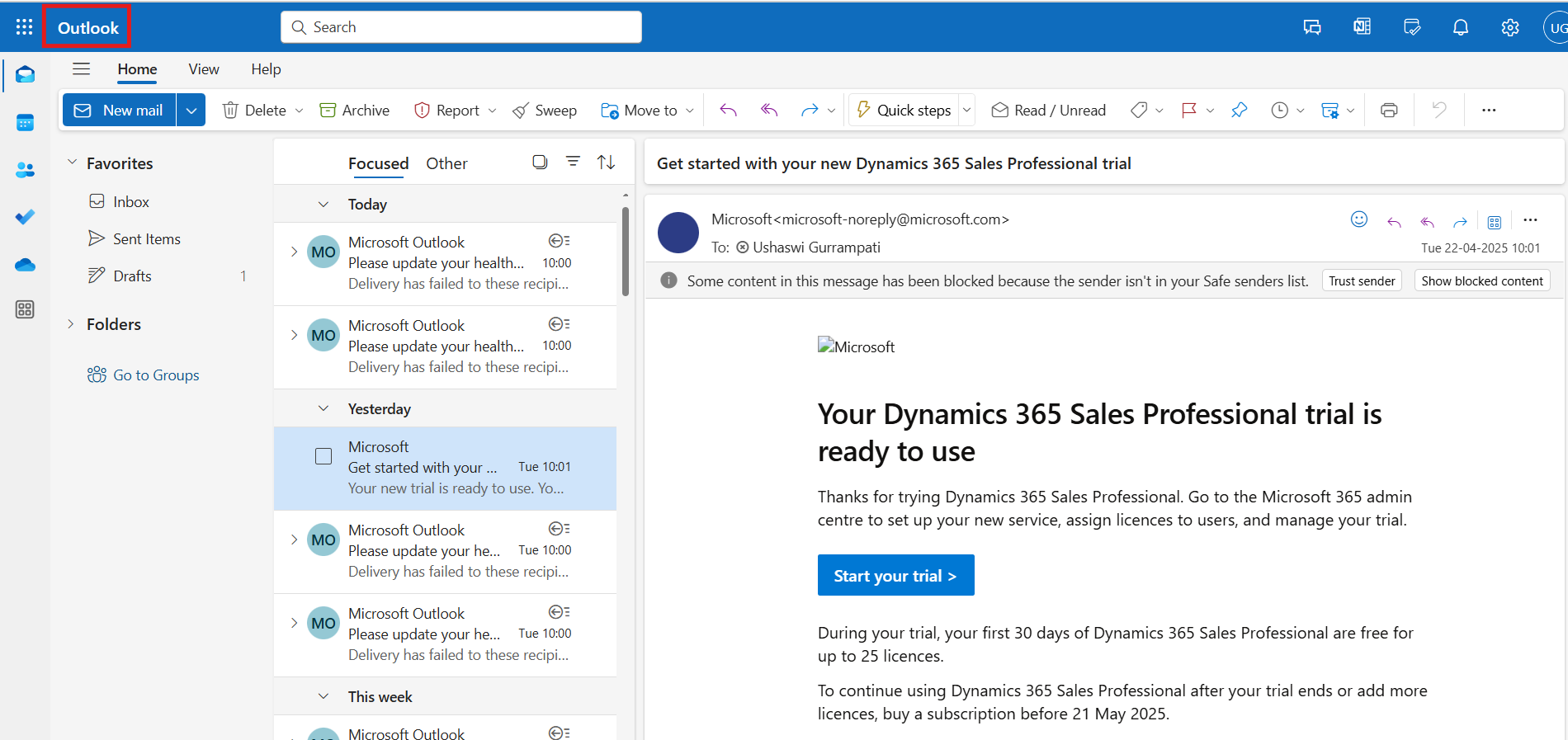
Open Outlook Web or the Outlook Desktop app and login to Microsoft Outlook.
In Outlook, click the “More Apps” icon (nine-dot grid) at the bottom-left
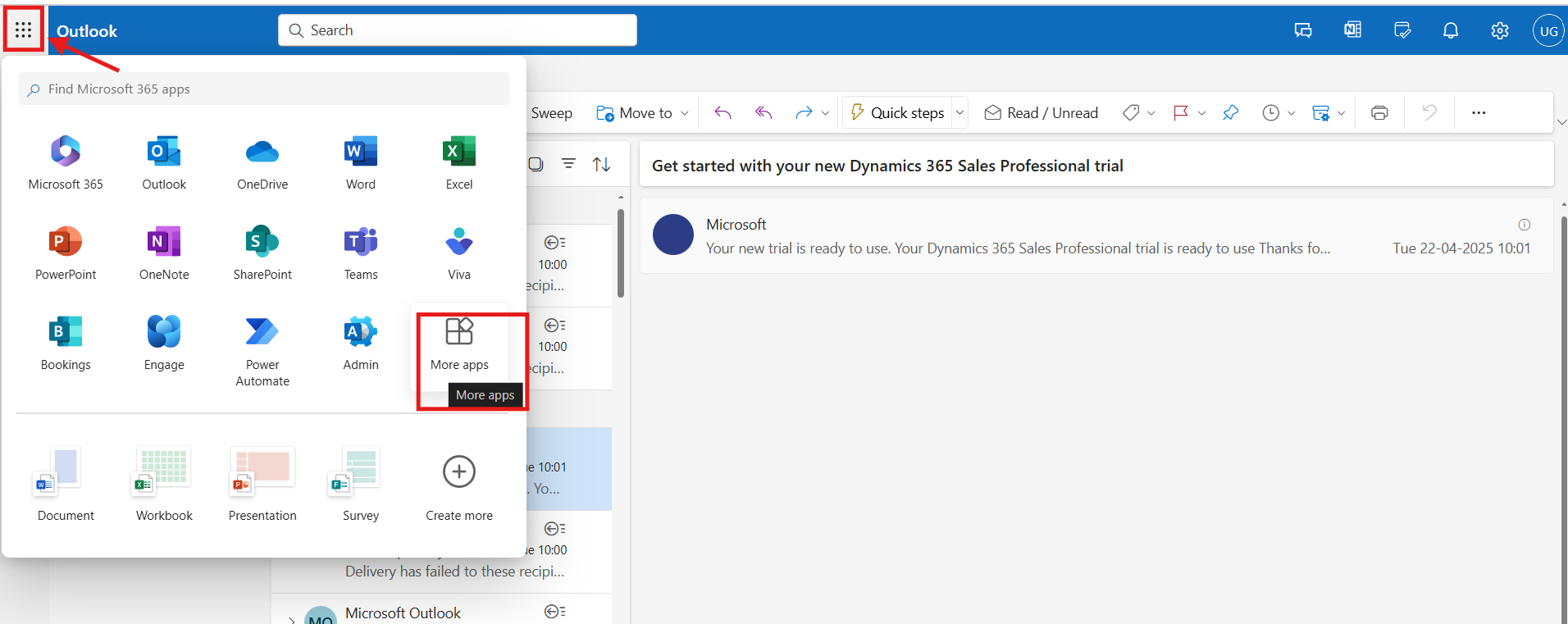
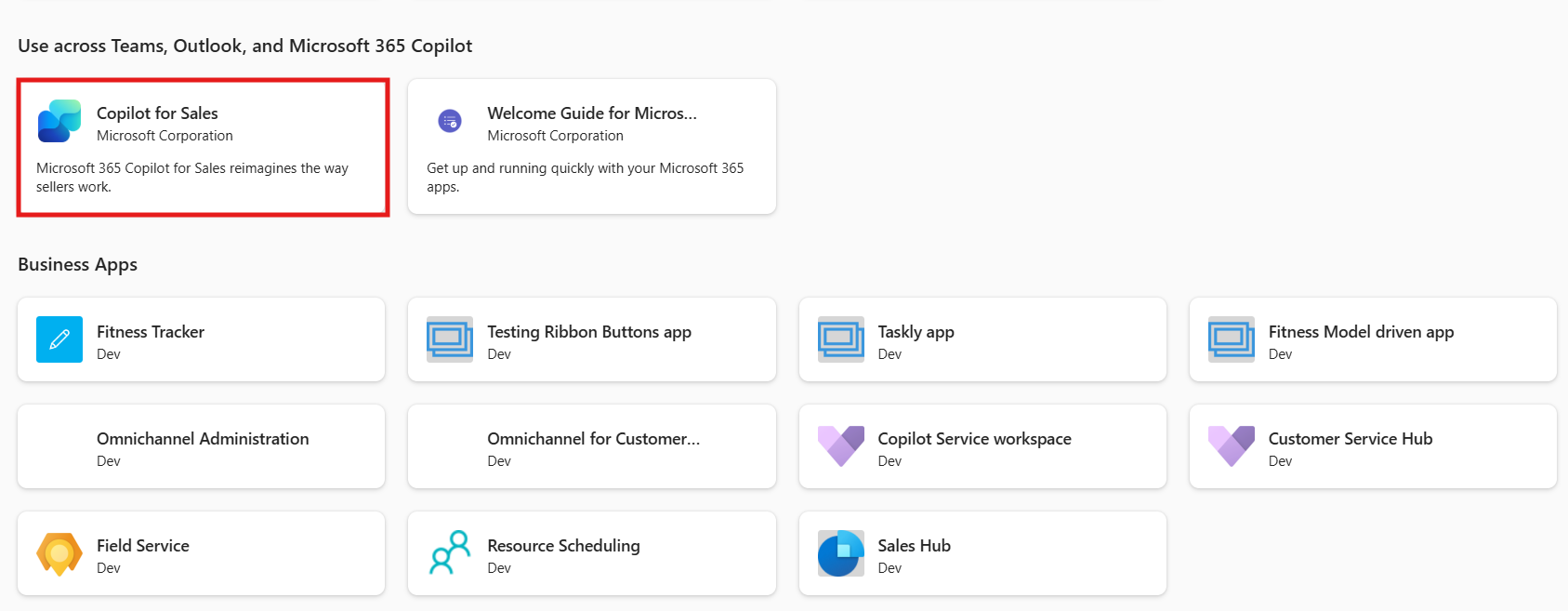
Look for Copilot for Sales in the app list and open it.
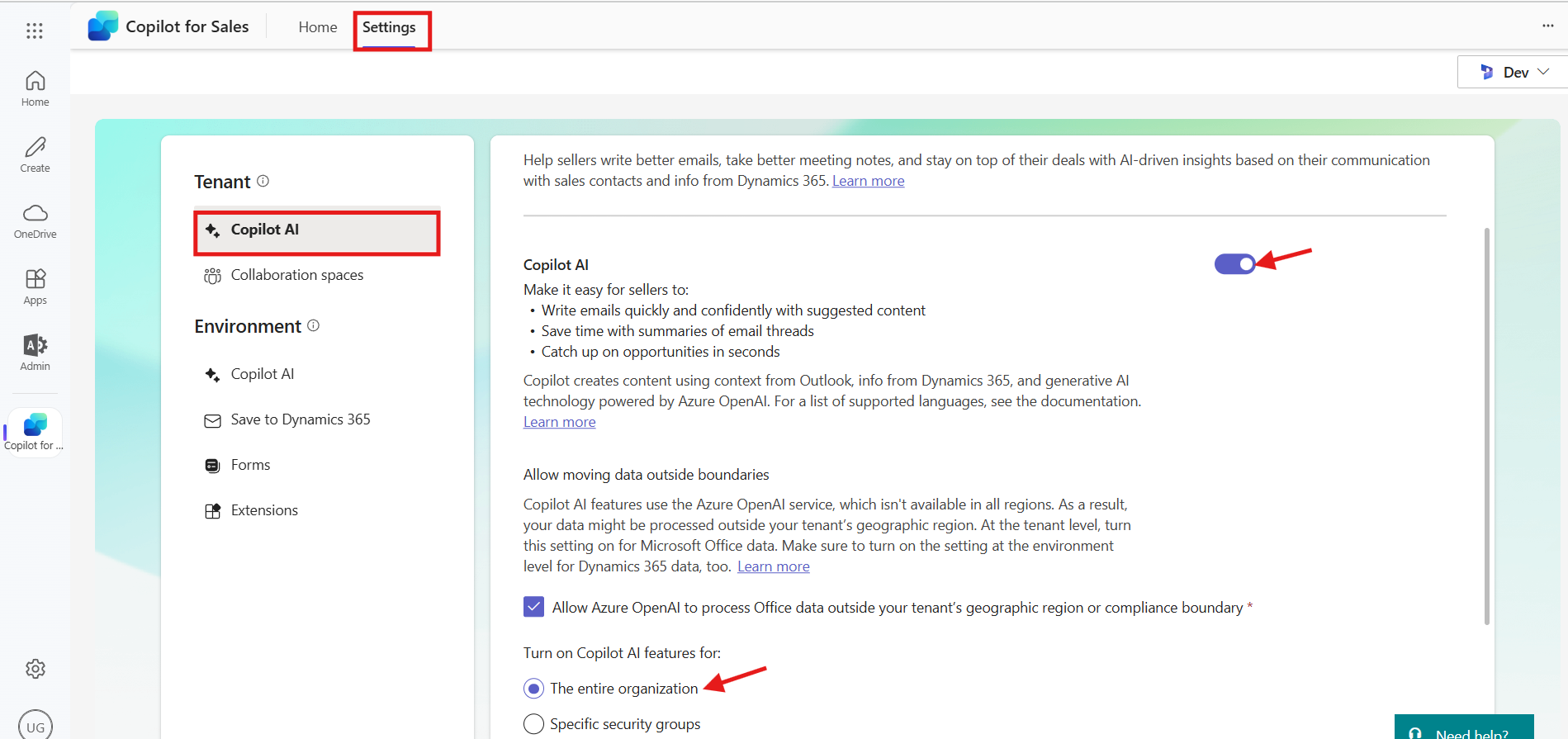
Go to Settings > Copilot AI > Enable Copilot AI > Turn on Copilot AI features for the entire organization.
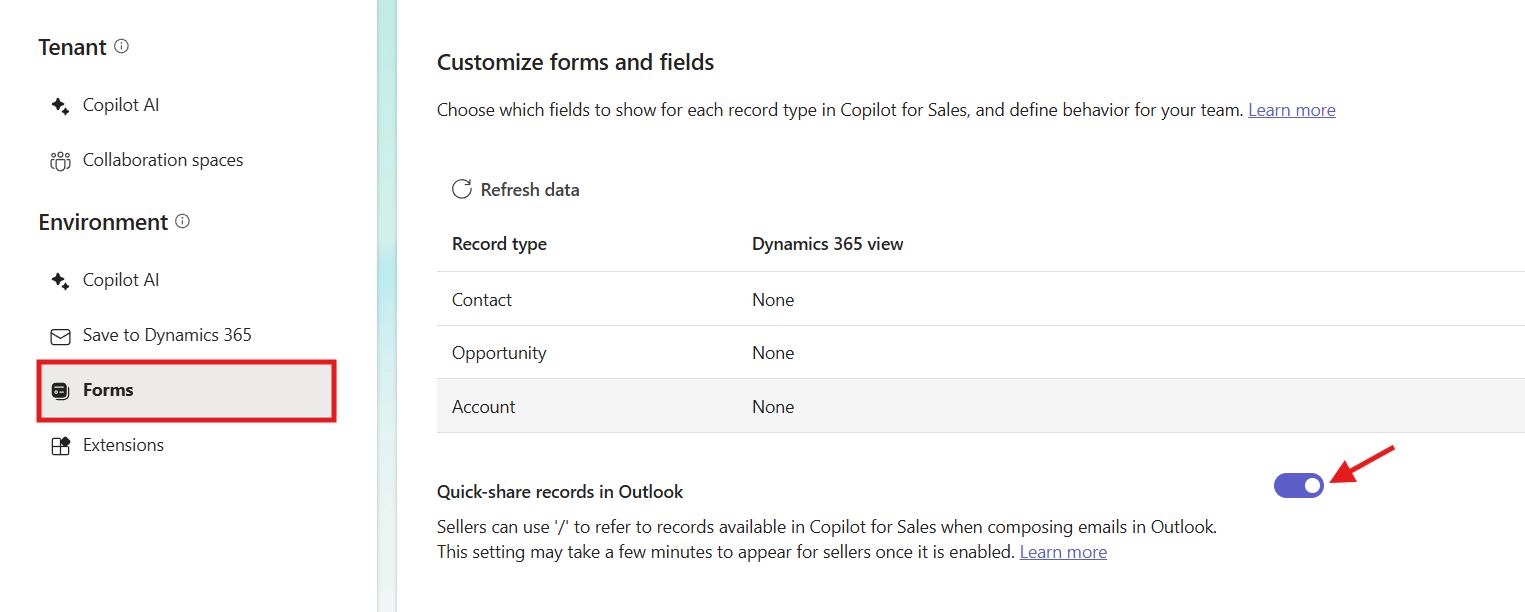
Go to Forms in same admin settings and enable Quick share records in Outlook.
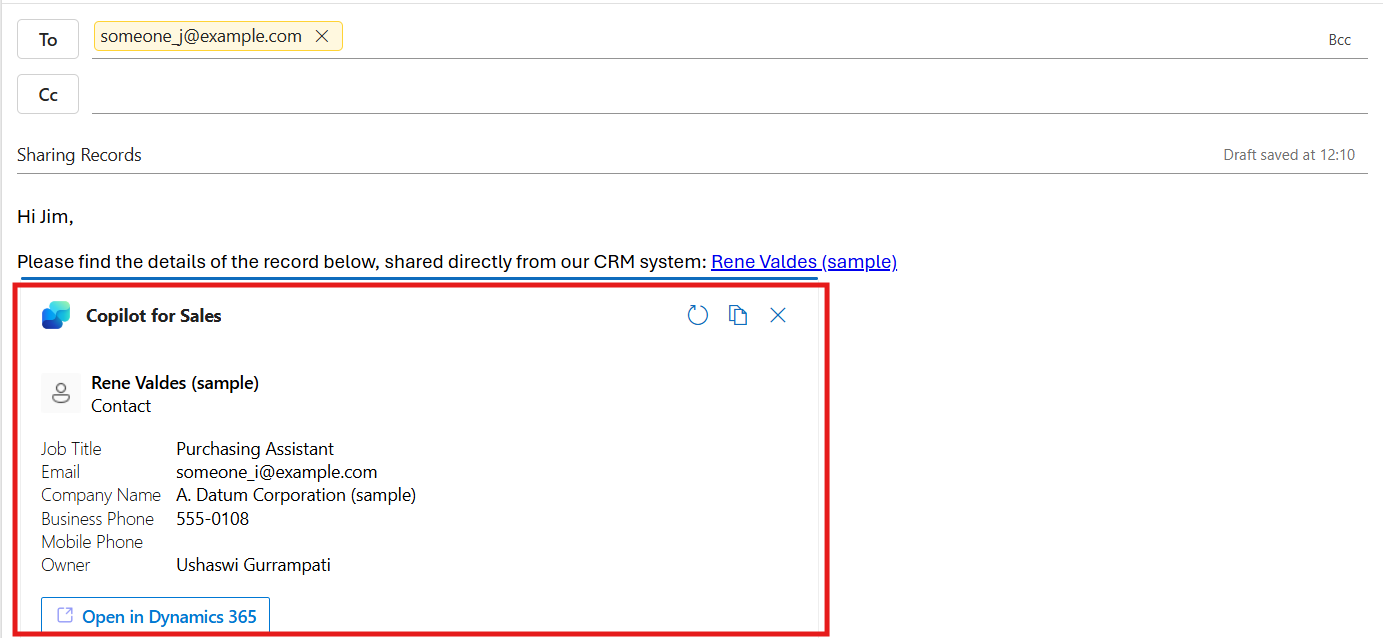
Create a new mail in outlook and type a forward slash ( / ) in the email body, and you'll see a list of relevant records from your CRM system.
Click a record to insert it into the email. It shows as an adaptive card with live CRM data.
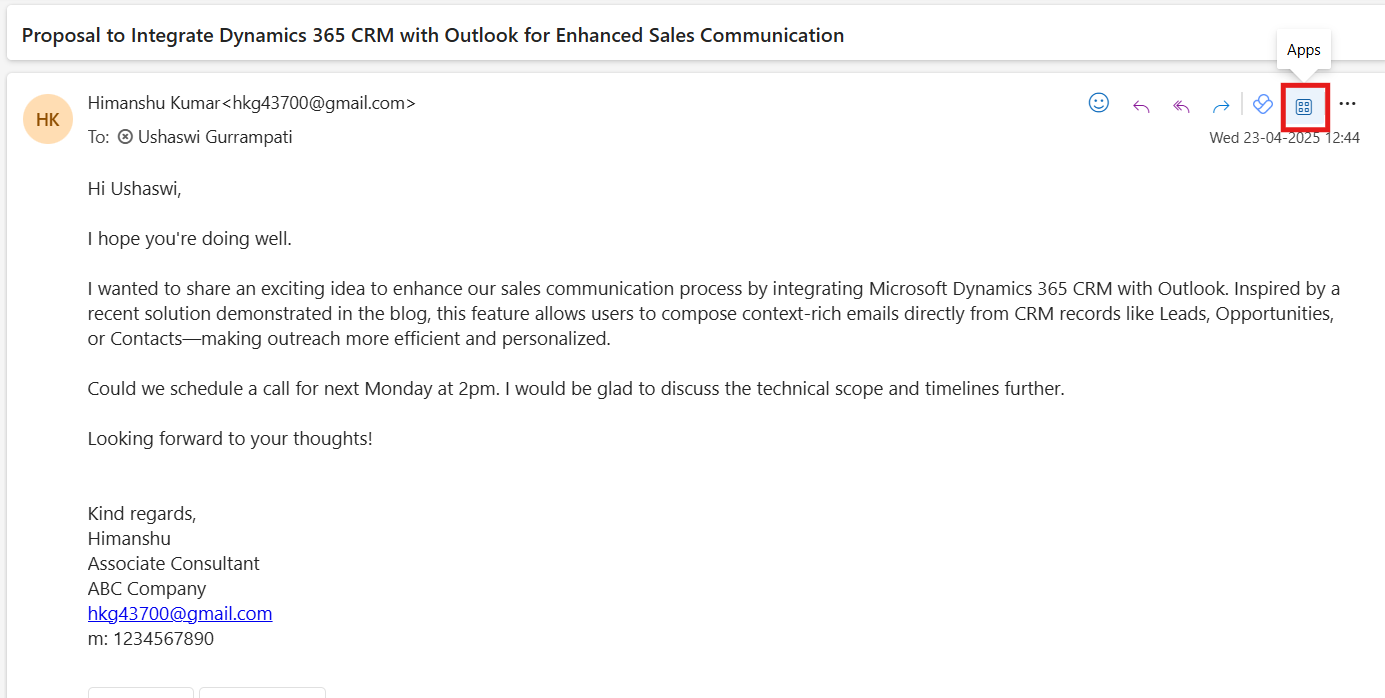
Open an existing email and click the Apps icon at the top-right corner.
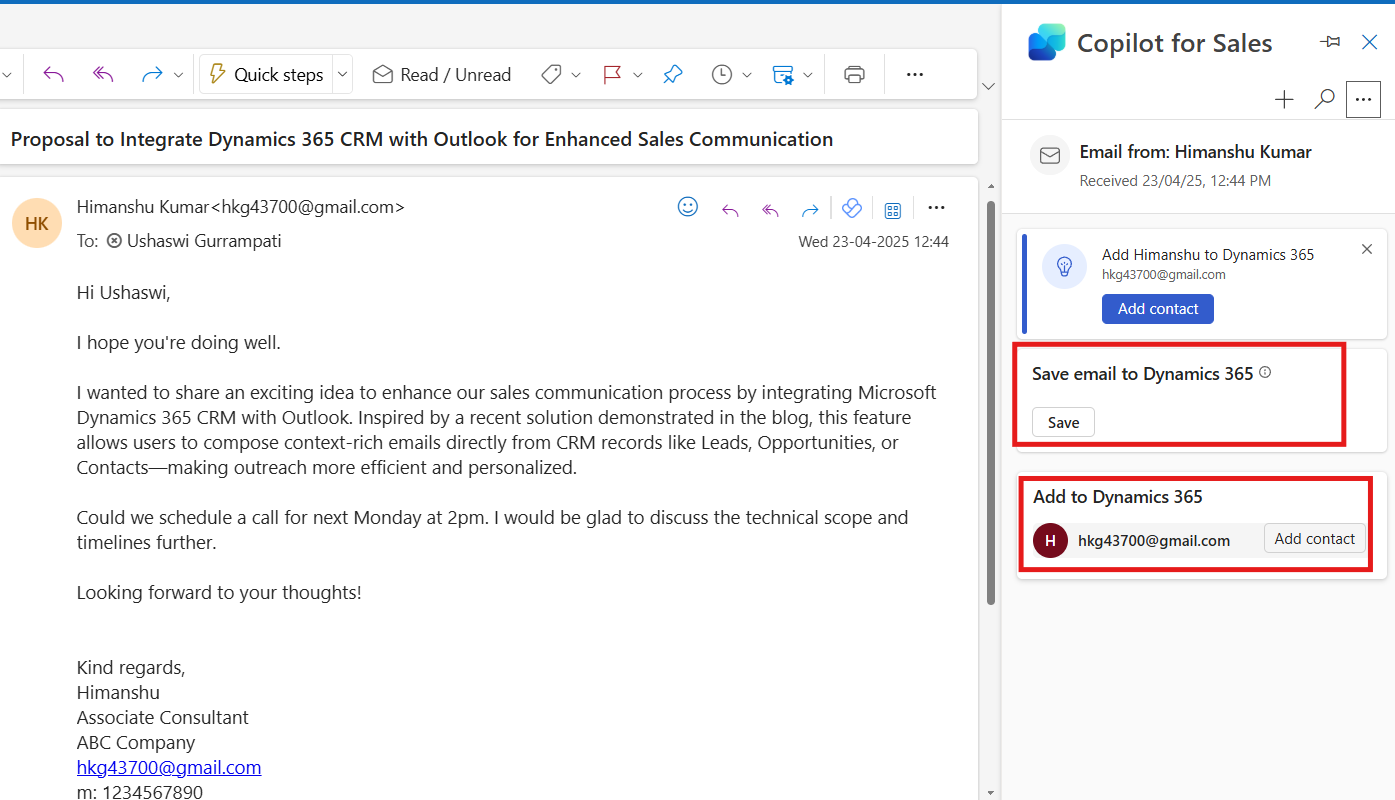
Click Copilot for Sales. You’ll get options to: a)Save email to Dynamics 365 b) Add contact to Dynamics 365
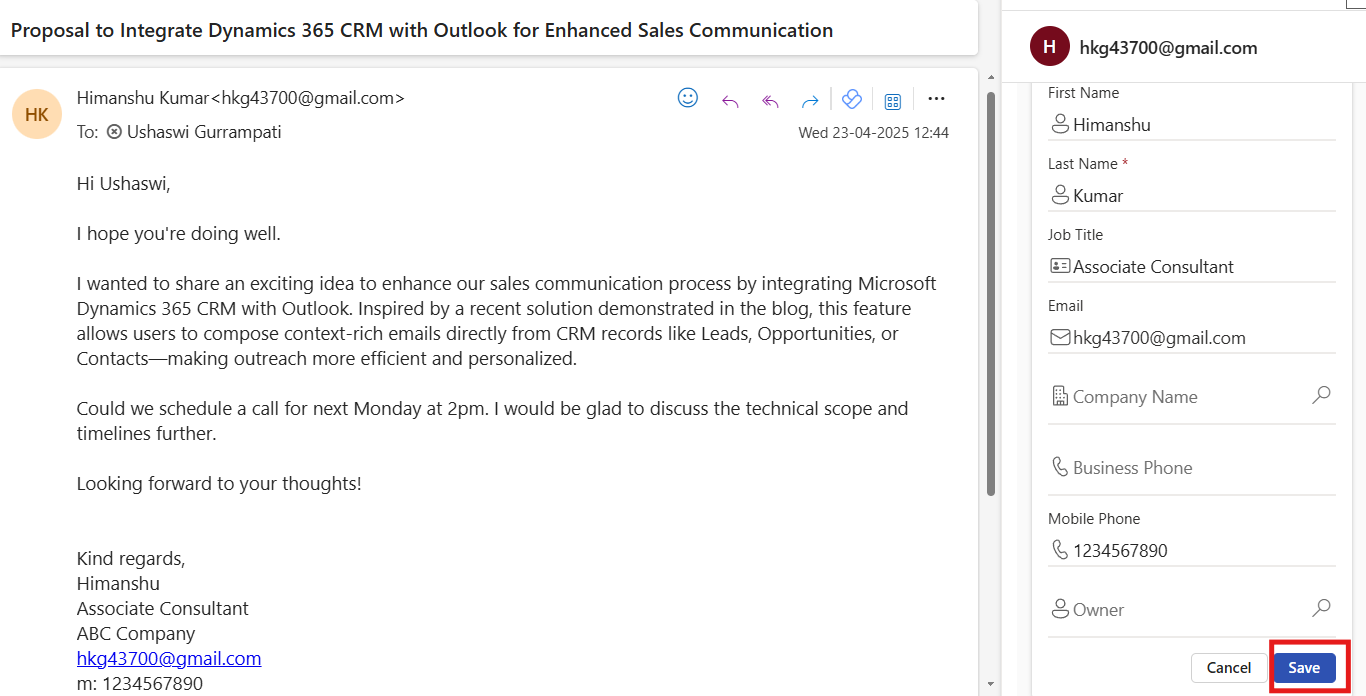
Select Add contact to Dynamics 365, you can see fields can be filled automatically.
Click on Save.
The contact will now be stored in Dynamics 365, visible under Contacts.
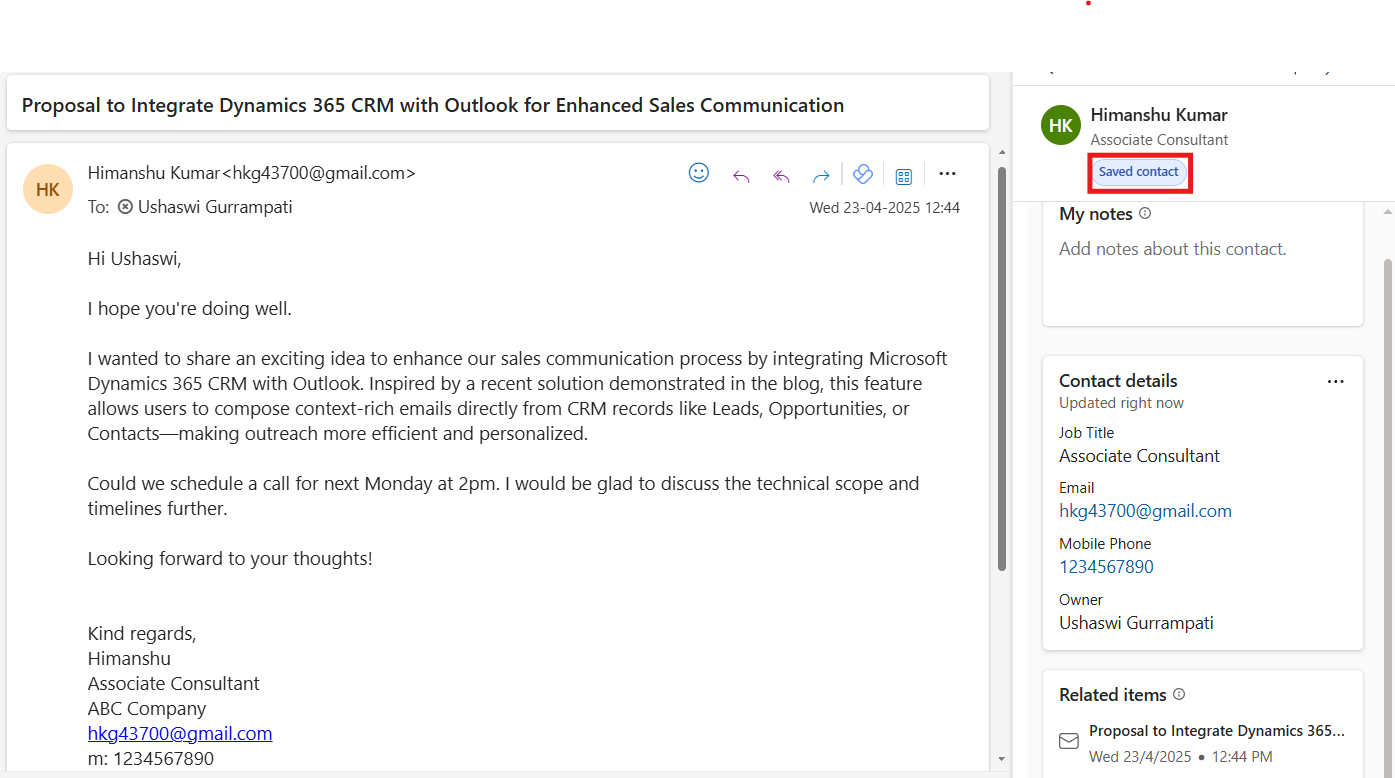
The integration of Copilot for Sales with Dynamics 365 in Outlook simplifies daily tasks for sales teams by bringing CRM data right into their inbox. It enables quick access to recent records, easy sharing of information, and seamless contact management.
Frequently Asked Questions (FAQs):
What is Copilot for Sales in Outlook?
Copilot for Sales is a feature that integrates Dynamics 365 CRM with Outlook, allowing users to access and interact with CRM data directly within their email environment.
How do I enable Copilot for Sales in Outlook?
You can enable it by going to the Microsoft 365 admin center, navigating to product settings, selecting Copilot for Sales, and turning on the Copilot AI features for your organization.
Can I access CRM records while composing an email?
Yes, by typing a forward slash ( / ) while composing an email, you can quickly bring up and insert recent CRM records.
Is it possible to save Outlook contacts and emails directly to Dynamics 365?
Yes, you can open an email, click on the Copilot for Sales icon, and choose options like saving the email to Dynamics 365 or adding the sender as a contact.
Do I need a Dynamics 365 Sales license to use this feature?
Yes, users need at least a Dynamics 365 Sales Professional license to access and use Copilot for Sales in Outlook.