In many business scenarios, customer-specific audio instructions, call recordings, or diagnostic voice notes need to be stored and reviewed inside Dynamics 365.
However, Dataverse does not provide any built-in way to automatically play audio files stored in File columns.
In this blog, I will demonstrate how to:
Store audio files in Dataverse File columns.
Retrieve those files using the Web API.
Automatically play them inside the Contact form using JavaScript.
This solution enhances the user experience by allowing CRM users to listen to audio instructions directly from the record without downloading files.
Business Scenario
Our organization stores voice notes for contacts—such as
Customer-specific instructions
Feedback recordings
Support voice notes
Each contact record has a file column named xyz_audiofile.
Whenever the user toggles the Play Audio checkbox, the audio file should automatically play.
Prerequisites:
Access to a Dataverse and Dynamics 365
System Customizer or System Administrator
Step-By-Step Guide:
Log in to the Power Apps portal https://make.powerapps.com/
Choose the environment and select the required solution from the solution list.
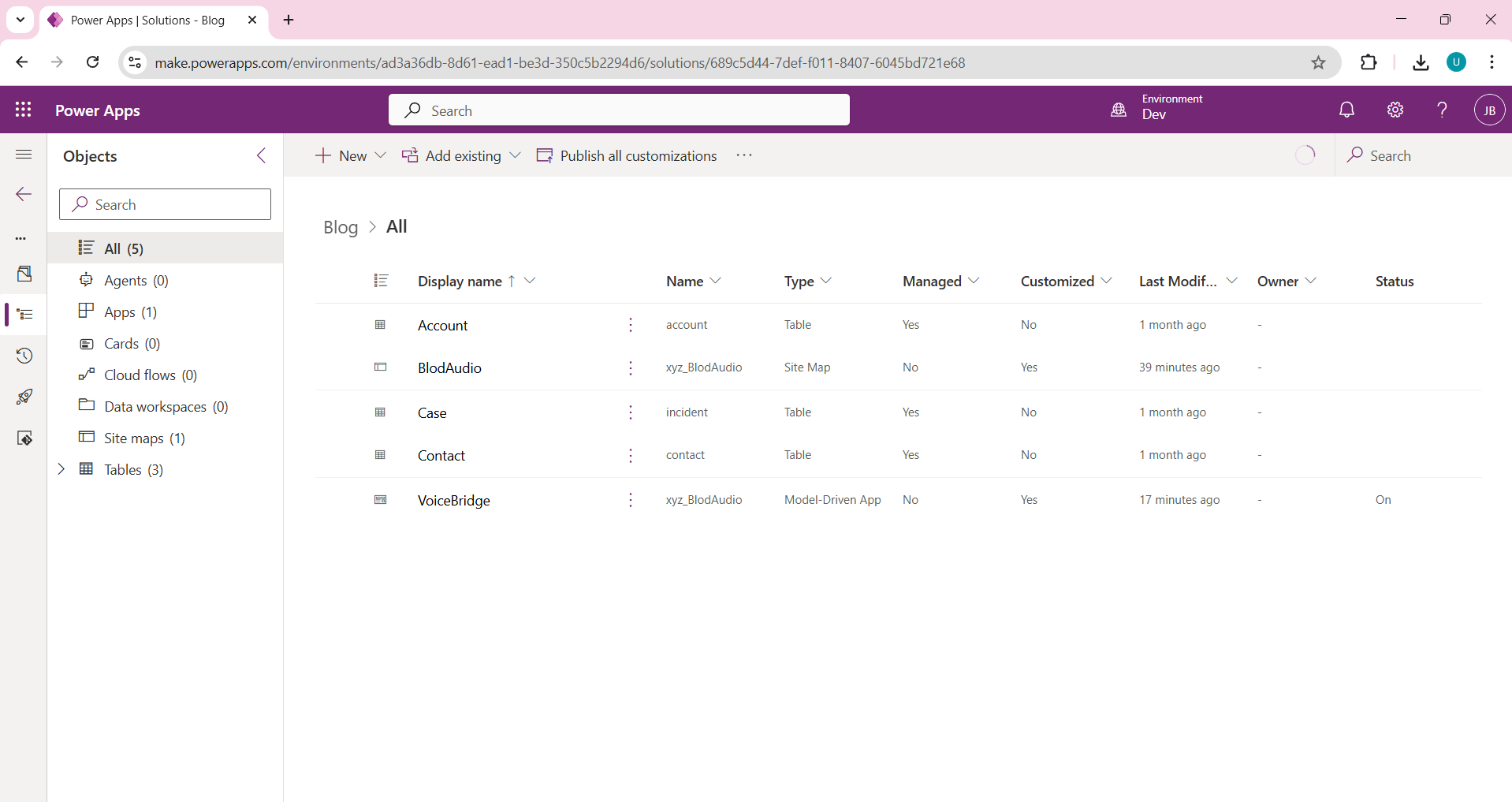
From the solution, locate the Contact entity and click Open to access its configuration.
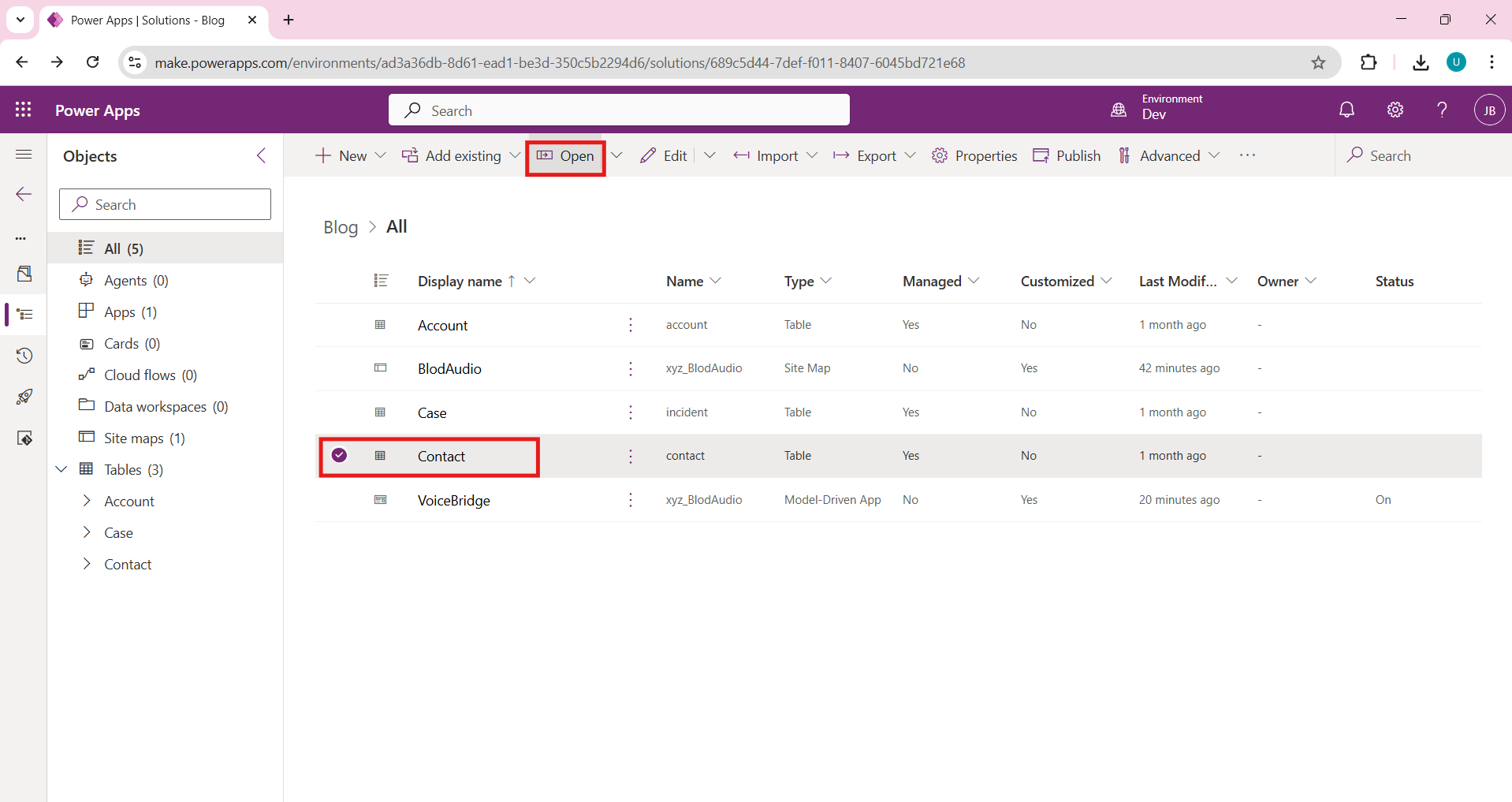
Click on New and select Column to create a new field for storing audio files.
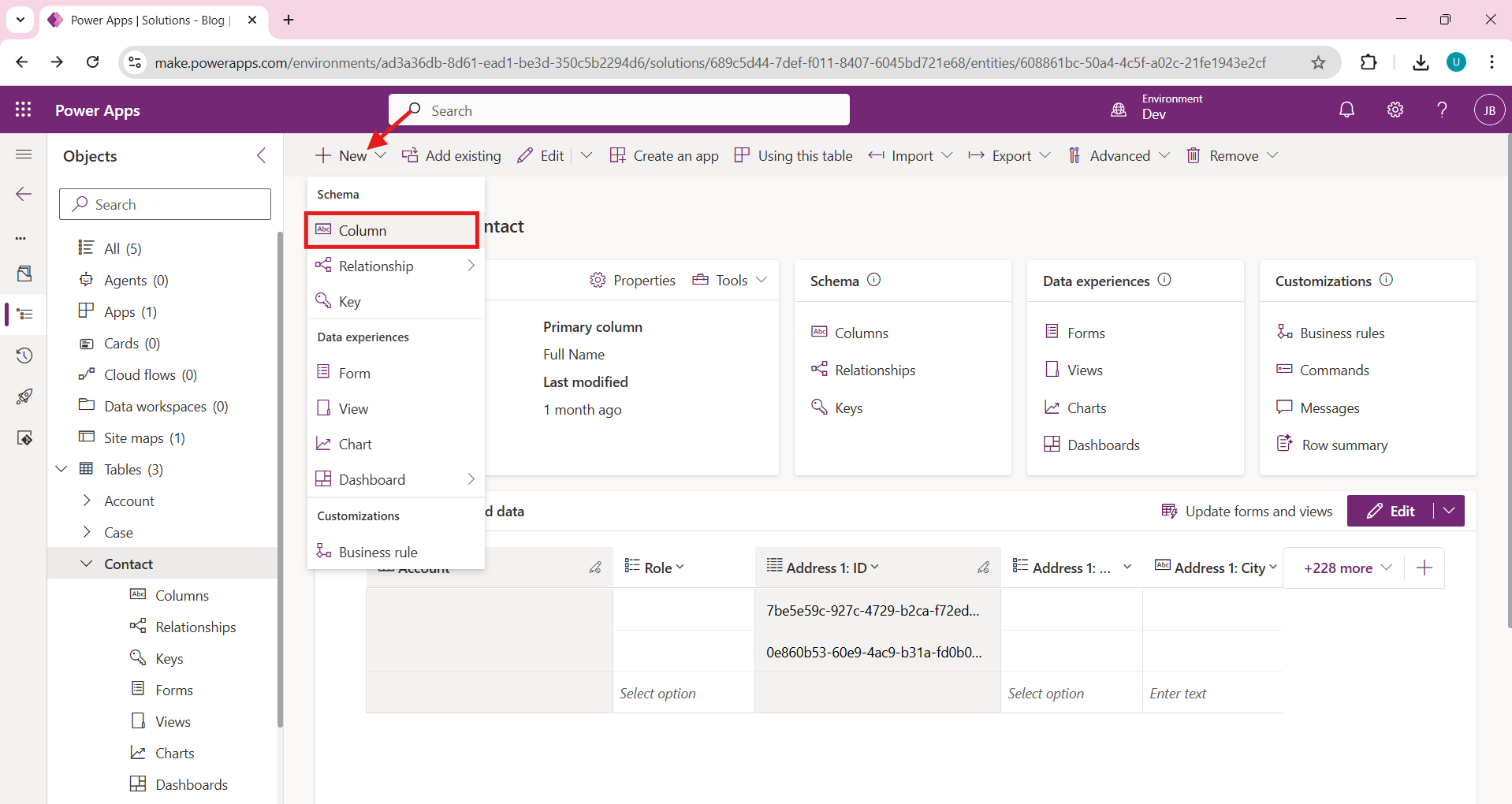
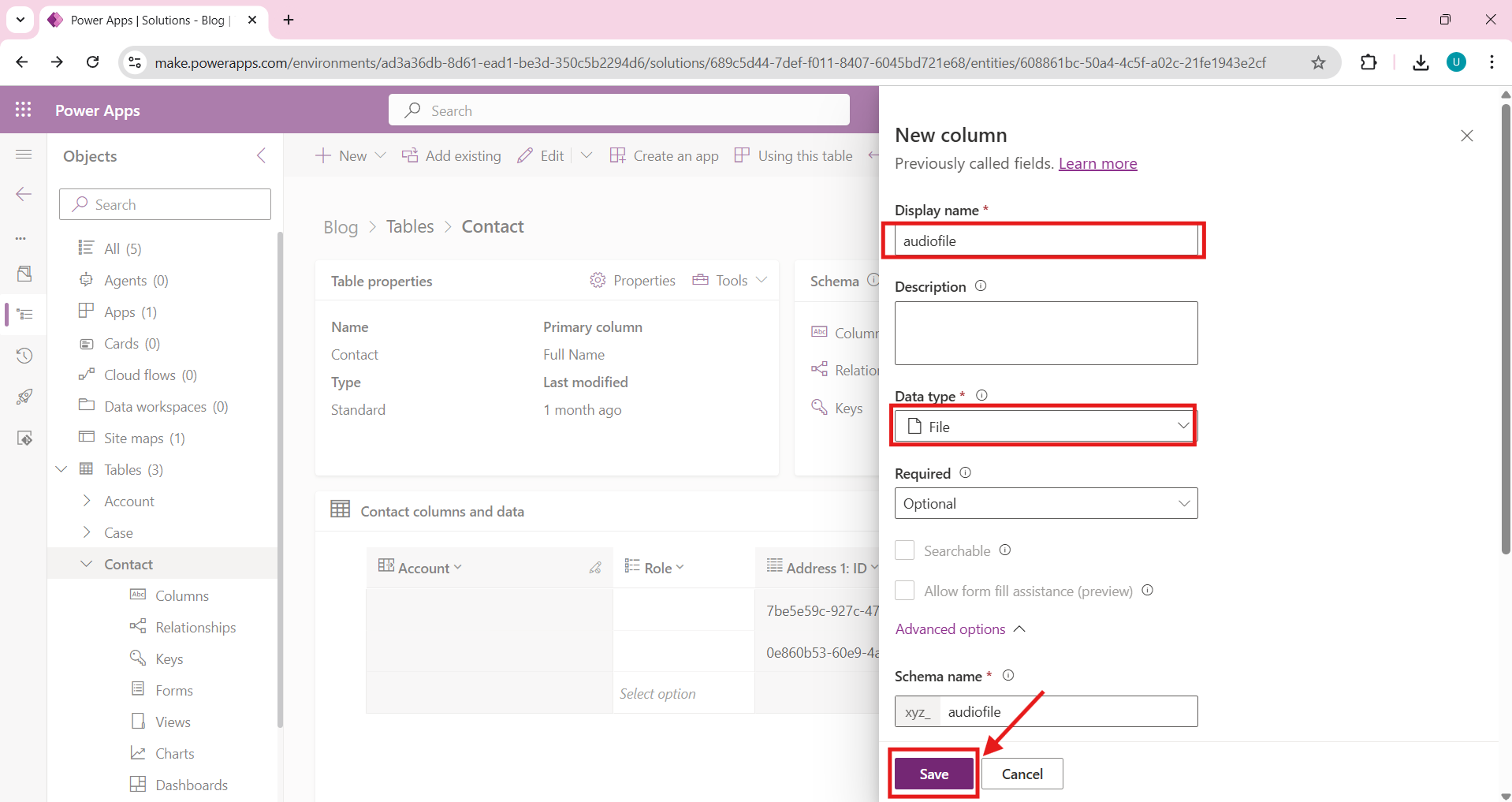
Display name: Audio File
Data type: File
Schema name: xyz_audiofile
Click Save.
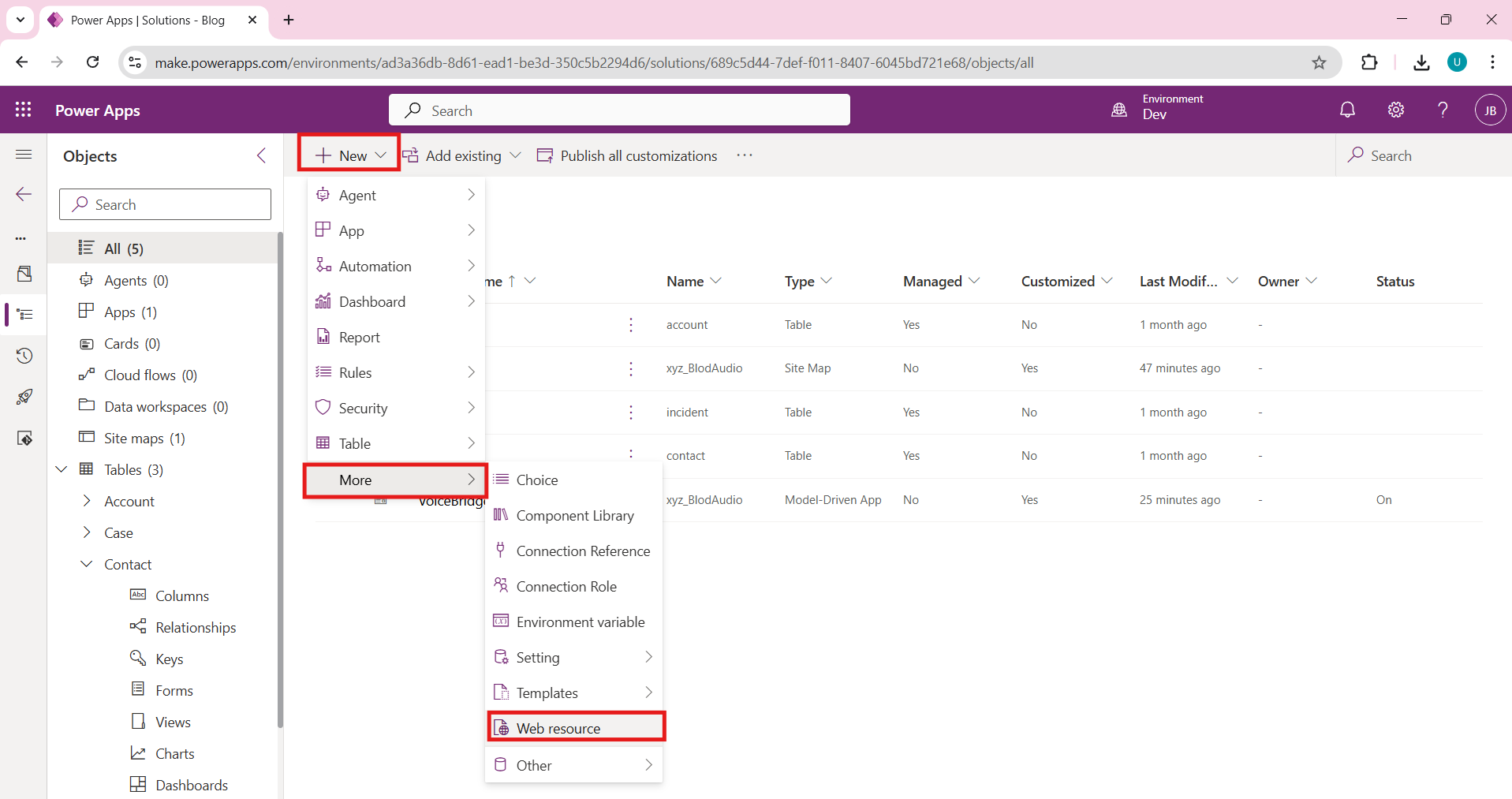
Return to the solution and click New, then choose More and select Web Resource.
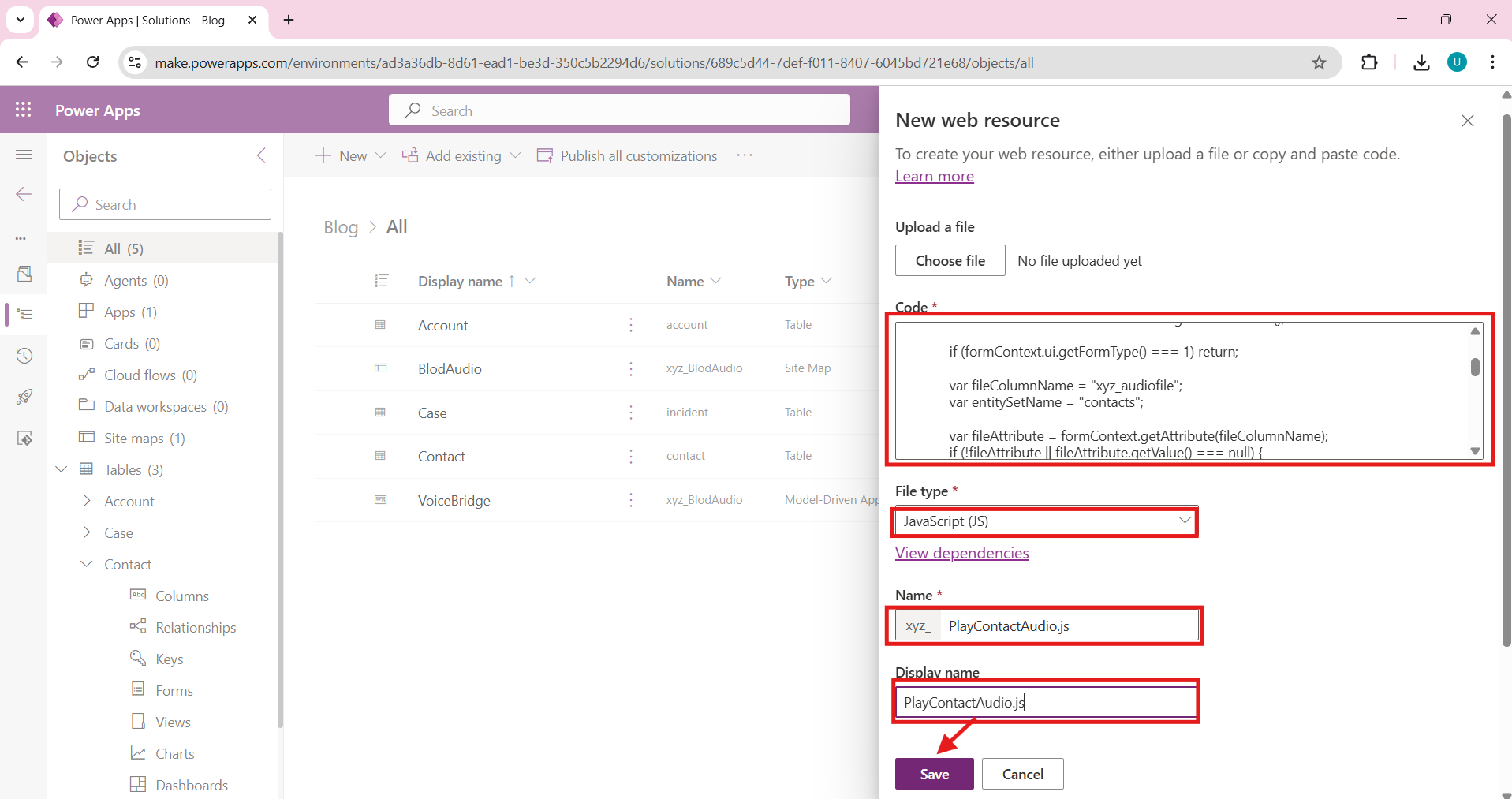
Create a new JavaScript web resource.
Name: xyz_PlayContactAudio.js
Type: JavaScript
Paste the JavaScript code provided in the implementation section and save the file.
var XYZSoundApp = window.XYZSoundApp || {};
XYZSoundApp.CurrentAudio = null;
XYZSoundApp.PlayAudio = (function () {
function playContactAudio(executionContext) {
try {
var formContext = executionContext.getFormContext();
if (formContext.ui.getFormType() === 1) return;
var fileColumnName = "xyz_audiofile";
var entitySetName = "contacts";
var fileAttribute = formContext.getAttribute(fileColumnName);
if (!fileAttribute || fileAttribute.getValue() === null) return;
if (XYZSoundApp.CurrentAudio) {
XYZSoundApp.CurrentAudio.pause();
XYZSoundApp.CurrentAudio.currentTime = 0;
}
var recordId = formContext.data.entity.getId().replace(/[{}]/g, "");
var clientUrl = Xrm.Utility.getGlobalContext().getClientUrl();
var audioUrl = clientUrl +
"/api/data/v9.2/" + entitySetName +
"(" + recordId + ")/" + fileColumnName + "/$value";
XYZSoundApp.CurrentAudio = new Audio(audioUrl);
XYZSoundApp.CurrentAudio.play();
}
catch (e) {
console.error(e);
}
}
return {
playContactAudio: playContactAudio
};
})();
Navigate to the Contact table and open the Forms section.
Open the main Contact form in edit mode so that event handlers can be added.
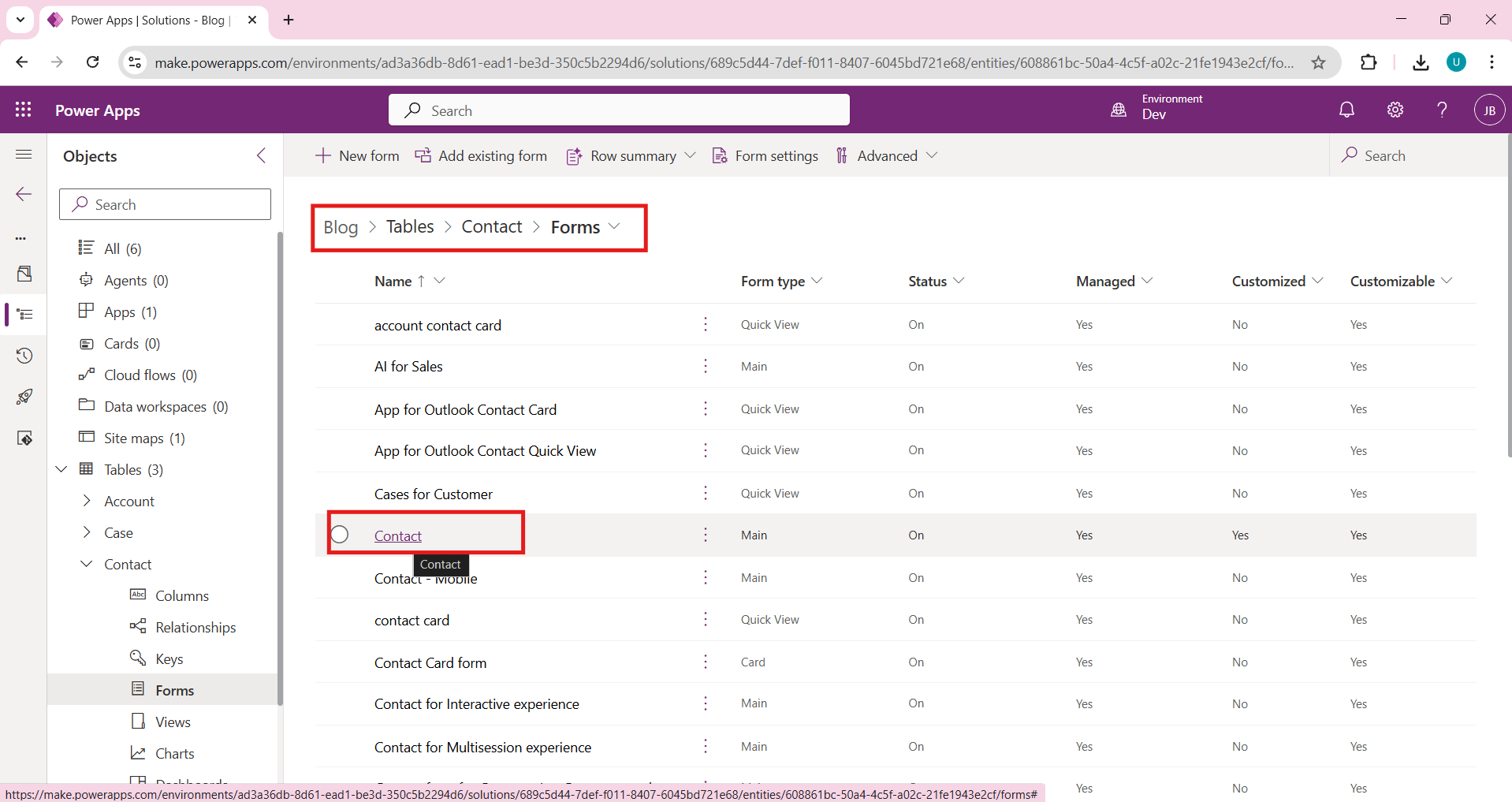
Add the audiofile field to the form.
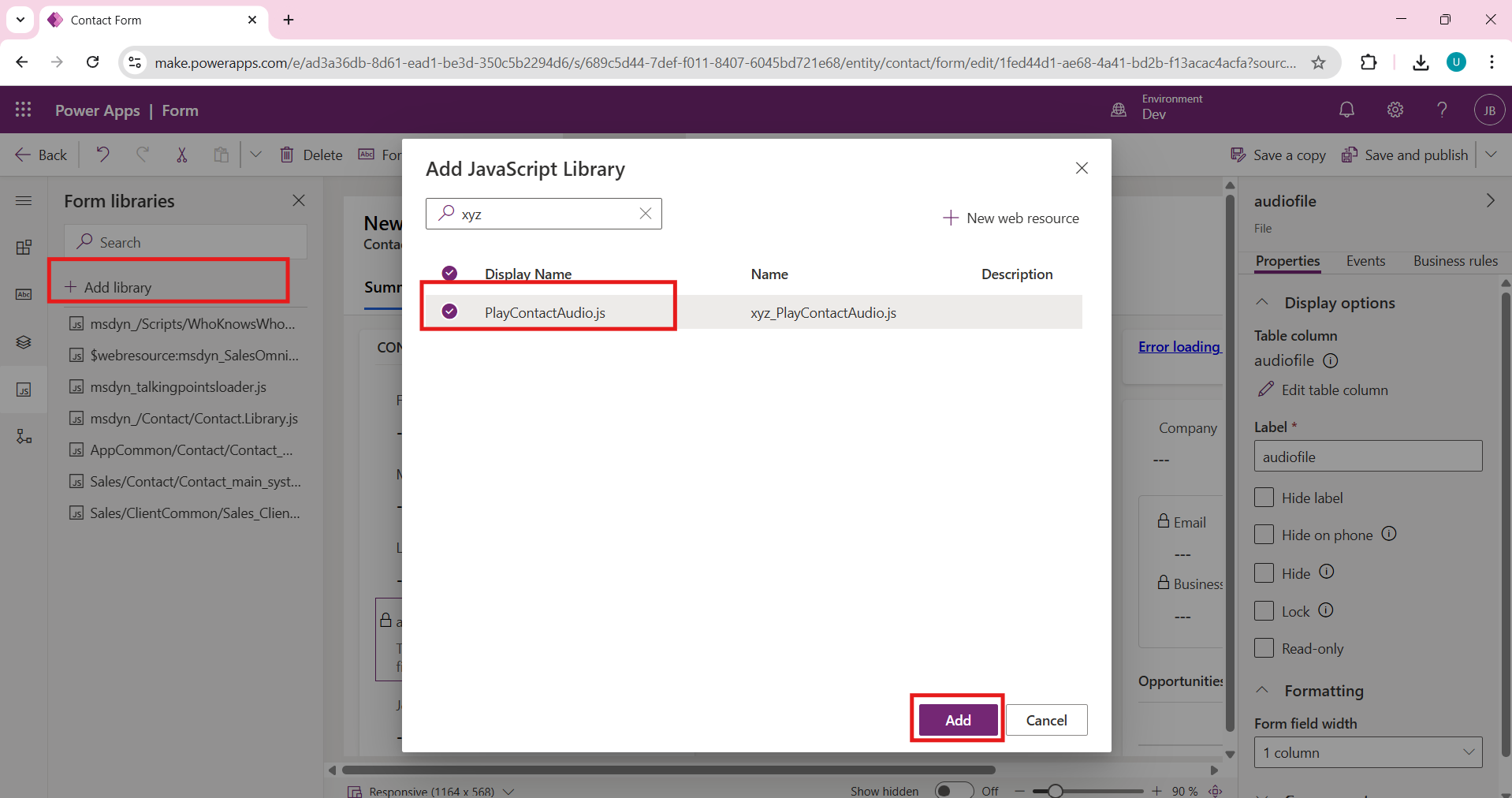
Inside the form editor, open the Form Libraries section and click Add Library.
Select the xyz_PlayContactAudio.js file and add it to the form.
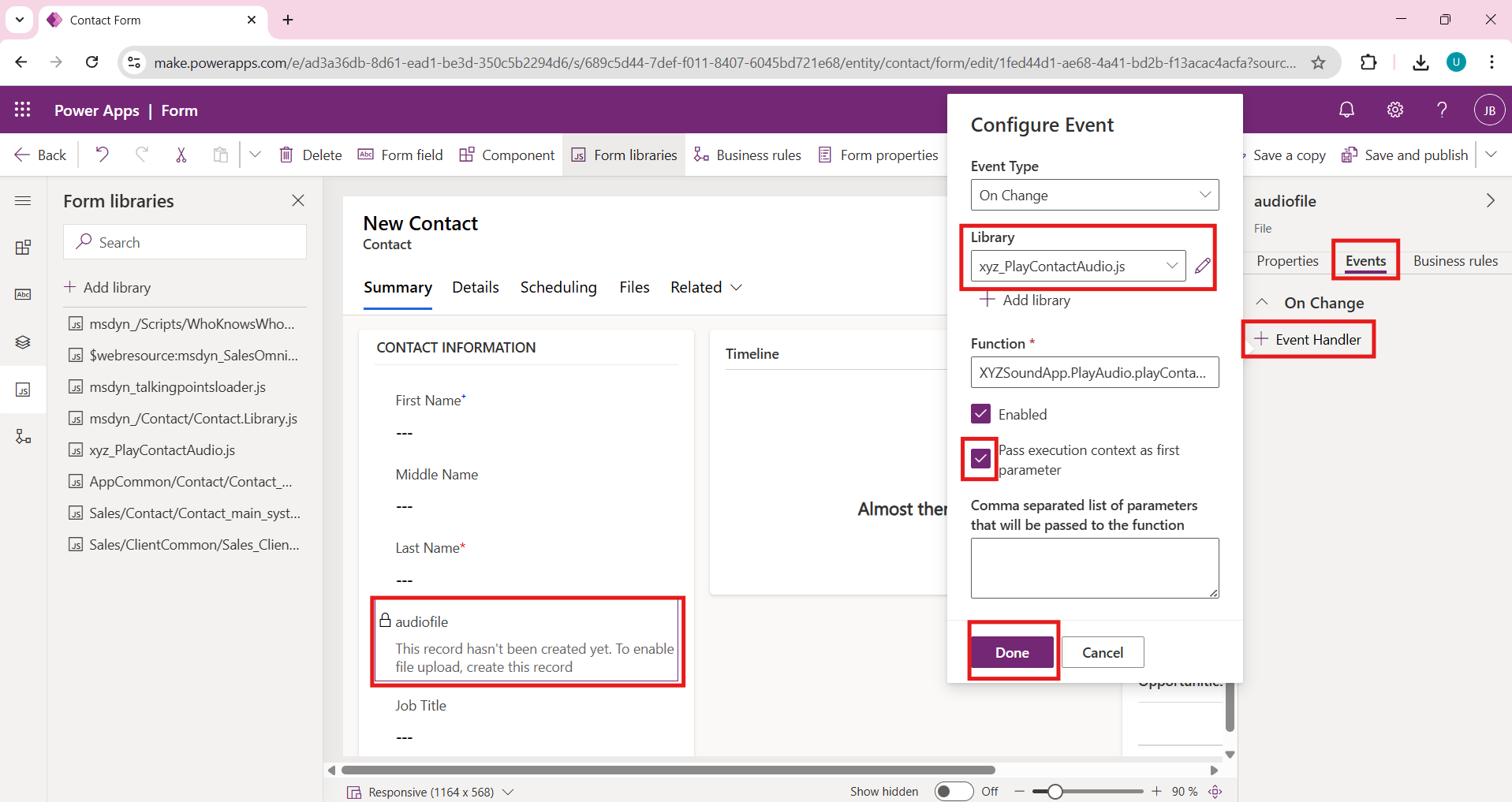
Select the Audio File field on the form and open its Events panel.
Add a new On Change event handler and choose the xyz_PlayContactAudio.js library.
Set the function name as XYZSoundApp.PlayAudio.playContactAudio and enable the option to pass the execution context.
Save and publish the form after completing this configuration.
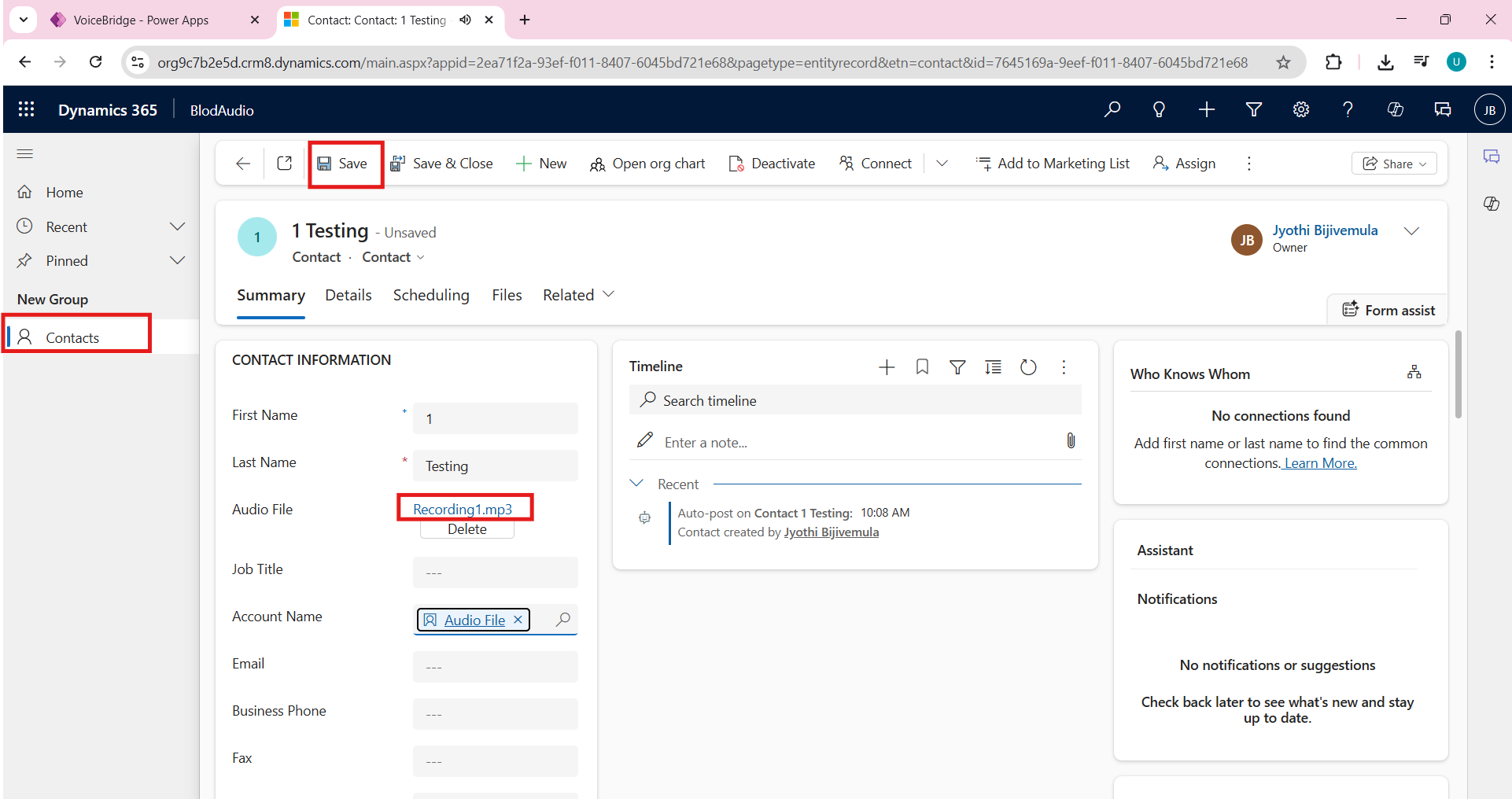
Open any existing Contact record and upload an audio file in the Audio File field.
Save the record so that the file is stored inside Dataverse.
Click anywhere on the form once to allow browser interaction and observe that the uploaded audio file starts playing automatically.
Audio instructions and customer voice notes often go unused in Dynamics 365 because they require file downloads. This solution enables direct audio playback from Contact records using a Dataverse File column and JavaScript. It enhances user productivity by allowing instant access to voice recordings within the CRM interface.
Frequently Asked Questions (FAQs):
Which audio formats are supported?
The solution works best with .mp3 and .wav file formats.
Why does the audio not play automatically on form load?
Modern browsers block auto-play until the user interacts with the page at least once.
Do I need Power Automate or plugins for this feature?
No, the entire solution works using client-side JavaScript and the Dataverse Web API.
Can this be used for other tables like Case or Account?
Yes, the same approach can be applied to any Dataverse table by updating the entity name and field logical name.