
Importing data into Dataverse using Power Apps Dataflows is straightforward for basic columns such as text, email, and phone numbers. However, lookup fields often cause issues because Dataverse must identify and link the correct related record during the import.
In this blog, I’ll walk through a reliable and scalable pattern to populate lookup fields using business identifiers and Alternate Keys, without relying on GUIDs. The example uses Excel as the source, but the same approach applies to other connectors.
Prerequisites
A Dataverse environment (Power Apps / Dynamics 365)
Access to make.powerapps.com
A source dataset
A stable business identifier in the parent dataset (for example: Account Number) that is unique and consistently populated
Business Scenario
A team receives a dataset of child records from an external source. Each child record must be linked to an existing parent record in Dataverse, but the source dataset does not contain Dataverse GUIDs. Instead, it contains a business identifier (for example, an Account Number) that can uniquely identify the parent record.
Goal:
Load parent records first.
Load child records next.
Automatically link each child record to the correct parent record using a business identifier, not GUIDs.
Step-by-Step Implementation
Choose a column from the parent table that can uniquely identify a record.I used the Account table’s Account Number column as the matching field to link related records during the import.
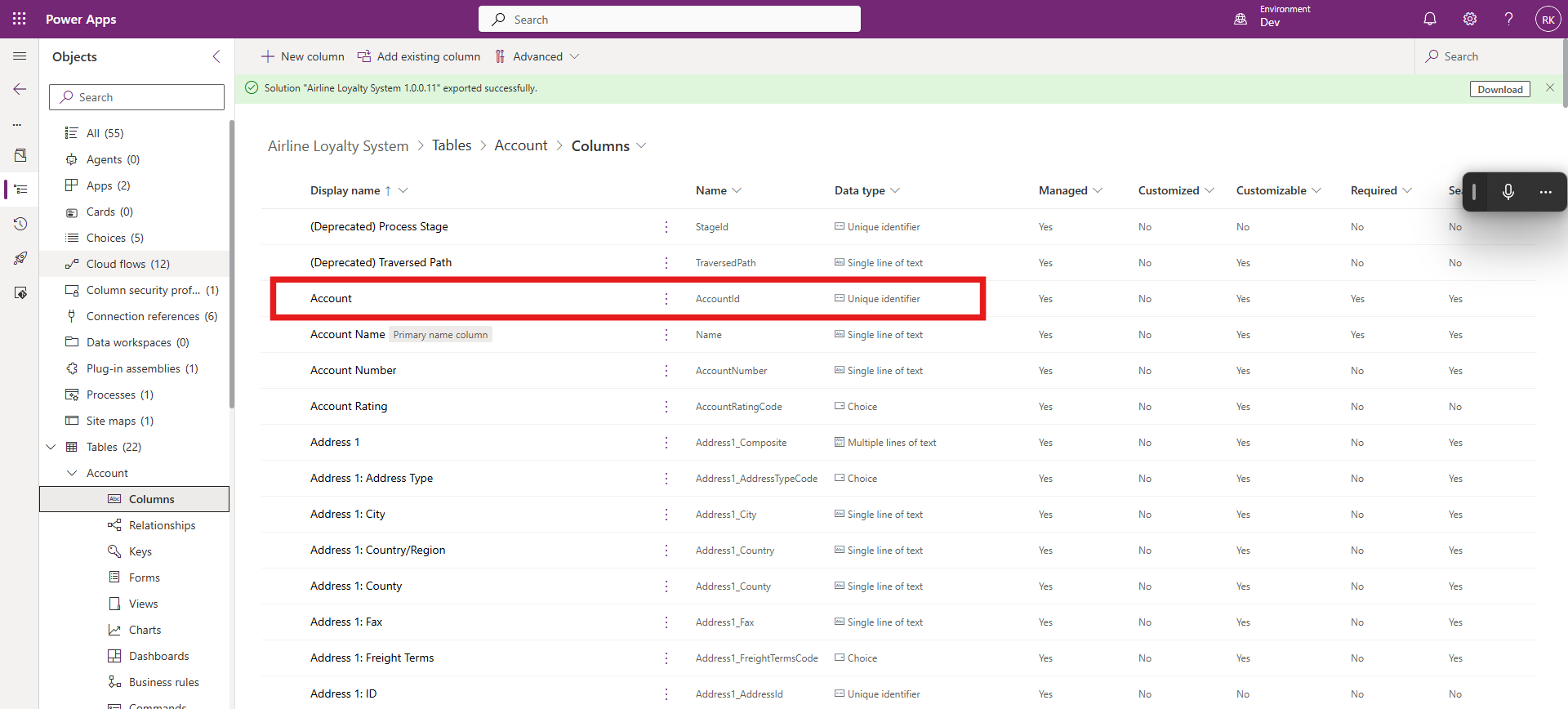
Navigated to Tables → Account (Parent Table) → Keys to create the Alternate Key.
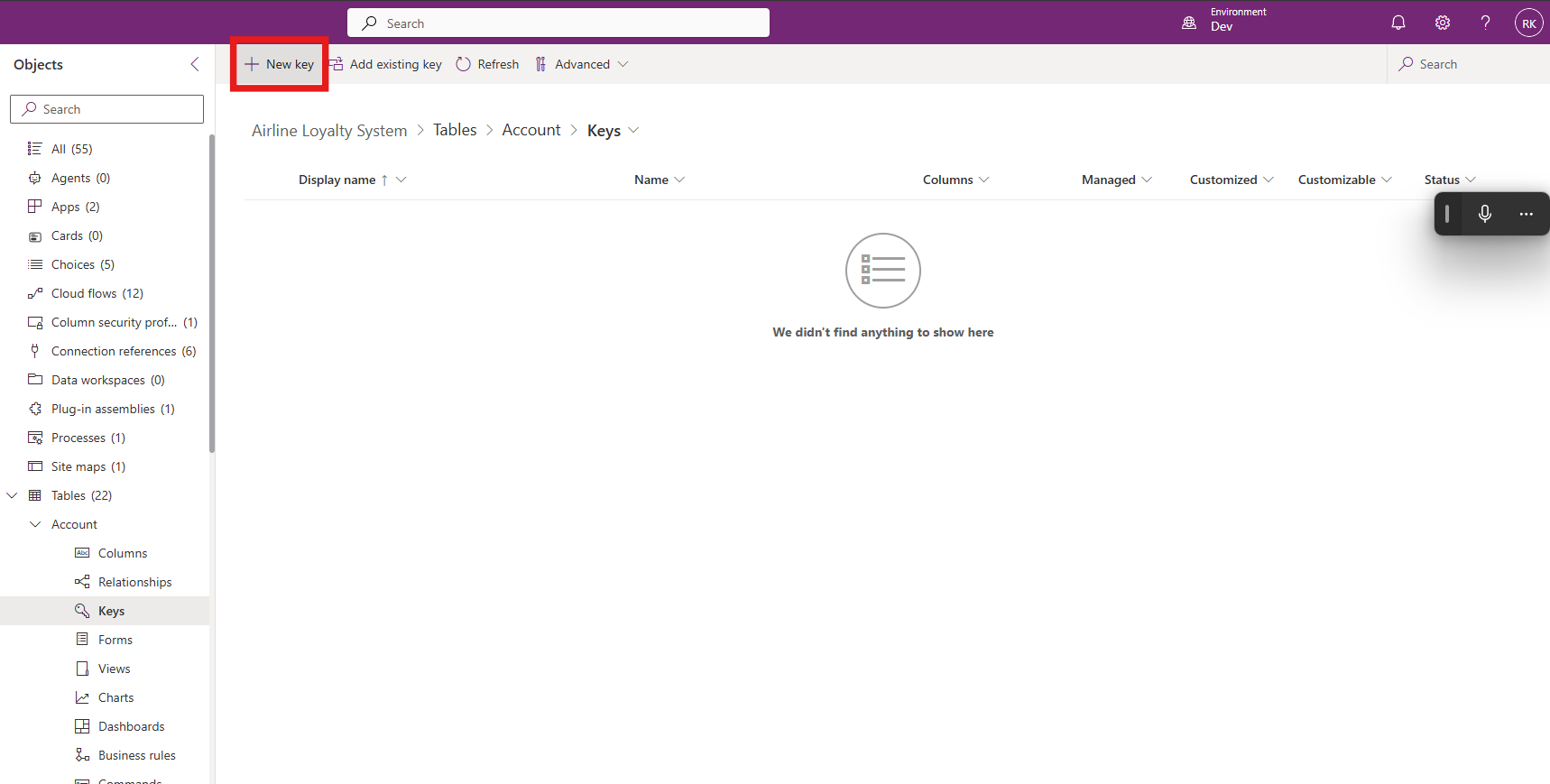
Give the key a clear name (for example, Account Number Key), select the matching column (for example, Account Number), then
save
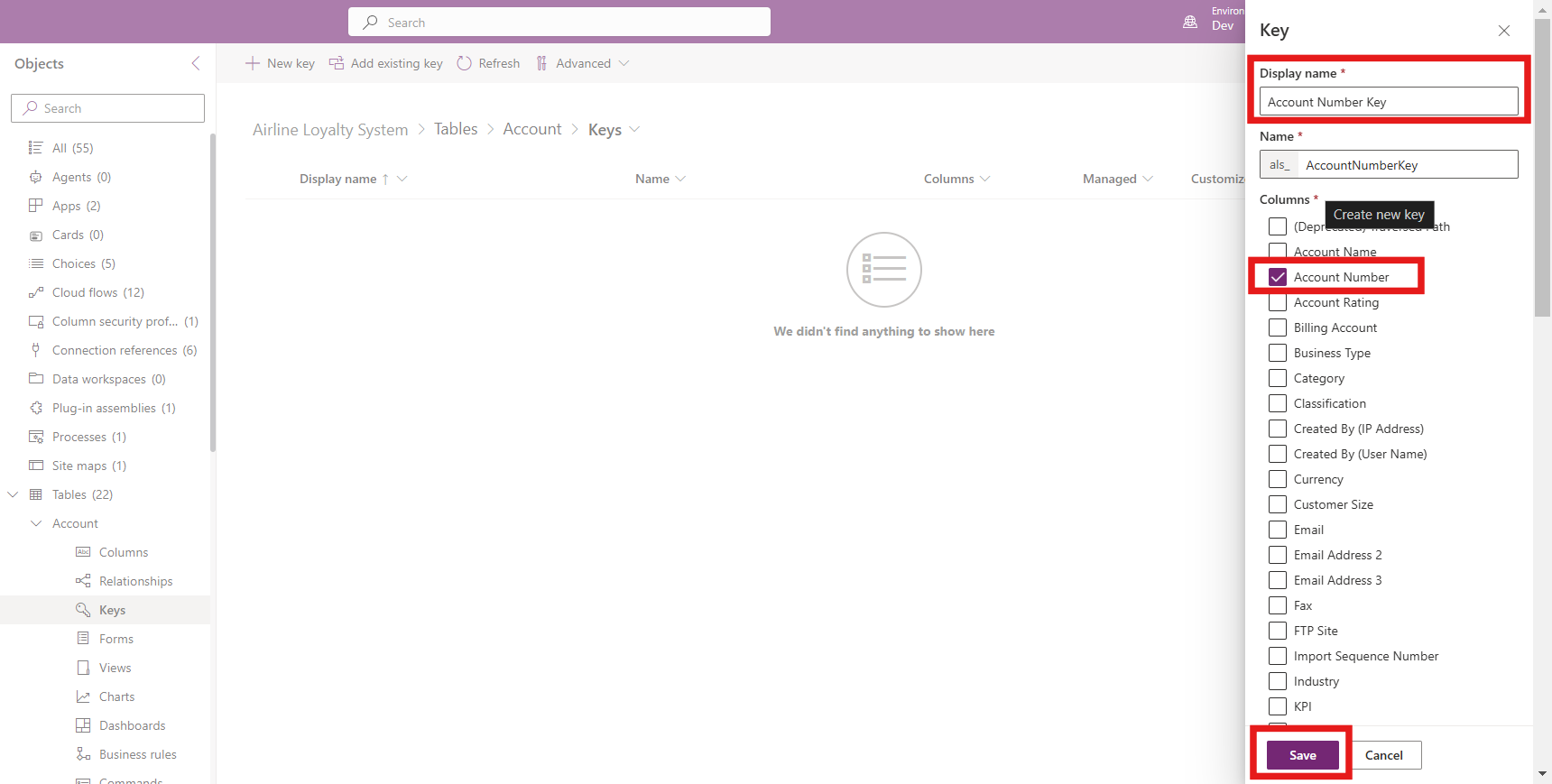
and wait until the key status displays Active.

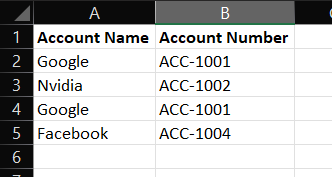
Your source data should include:
Parent dataset (loaded first):
Primary descriptive column (for example, Name)
Matching column used for lookup resolution (Account Number)
Child dataset (loaded after parent):
Child attributes (First Name, Last Name, Email)
Reference column containing the parent’s business identifier (for example, ParentAccountNumber)
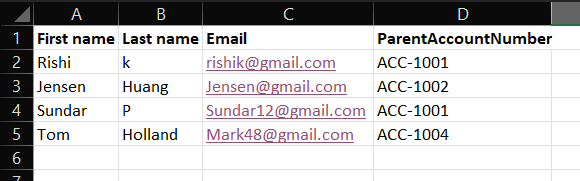
In my case, the source was Excel, and the child data included ParentAccountNumber.
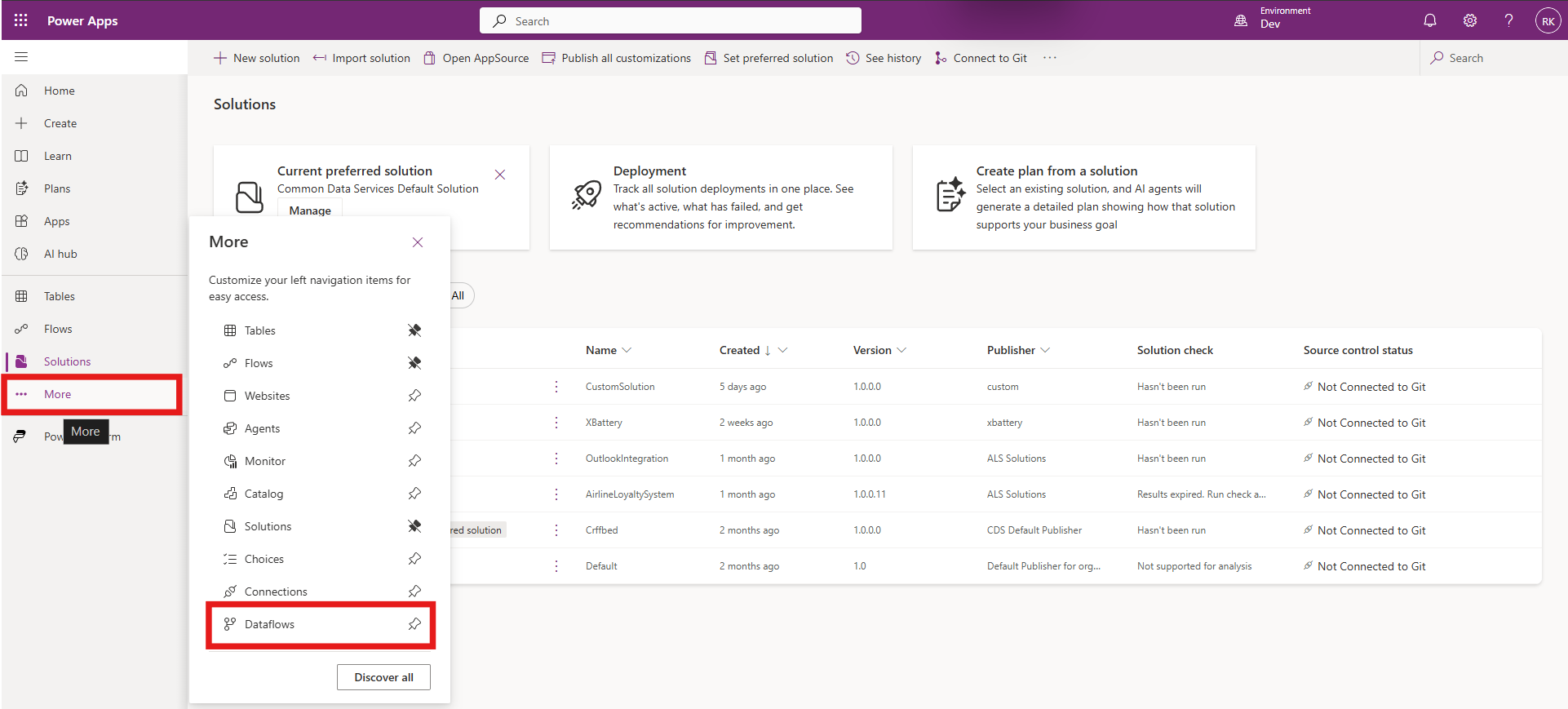
From the Solutions page, use the left navigation to select More, then open Dataflows to access dataflow to create and manage dataflows.
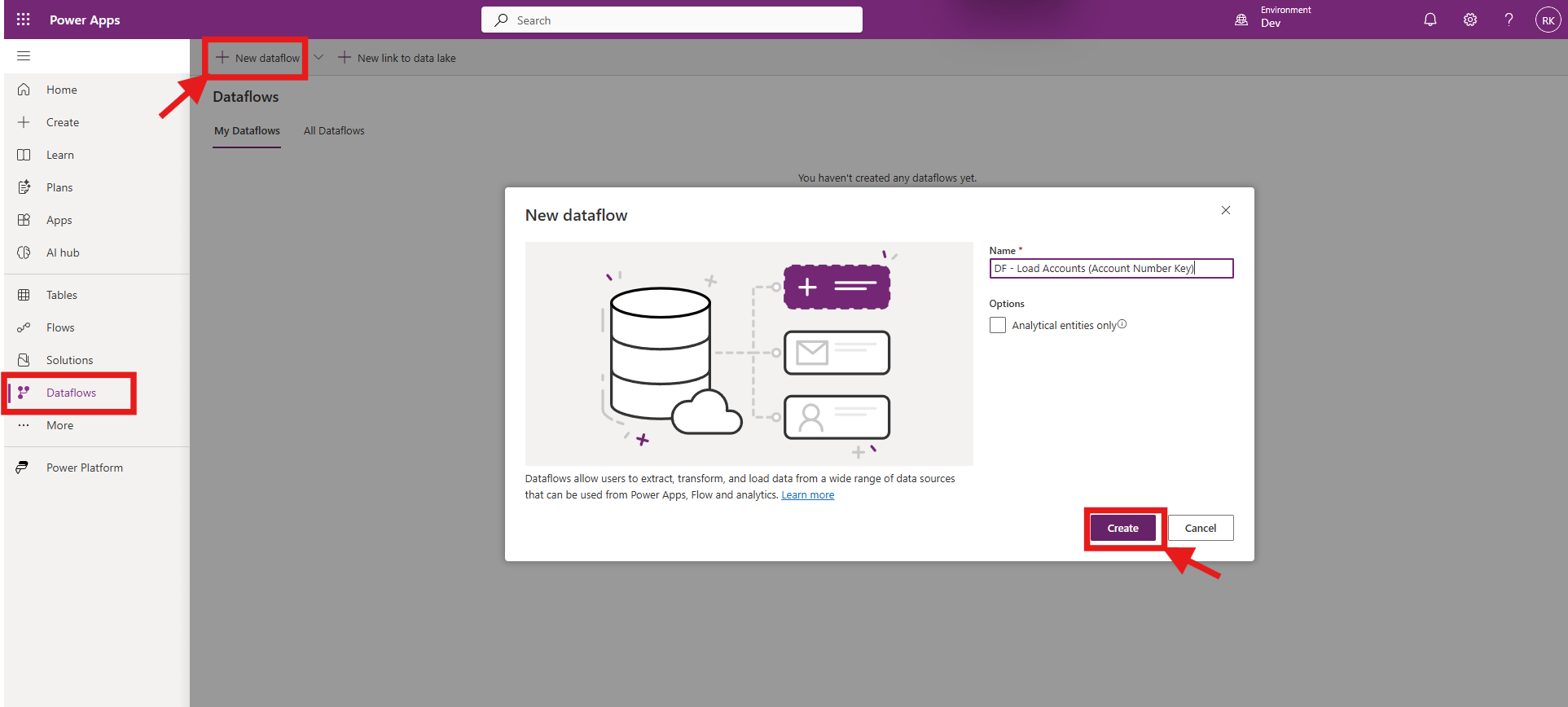
Click New dataflow, enter a meaningful name, and select Create to start building the dataflow.
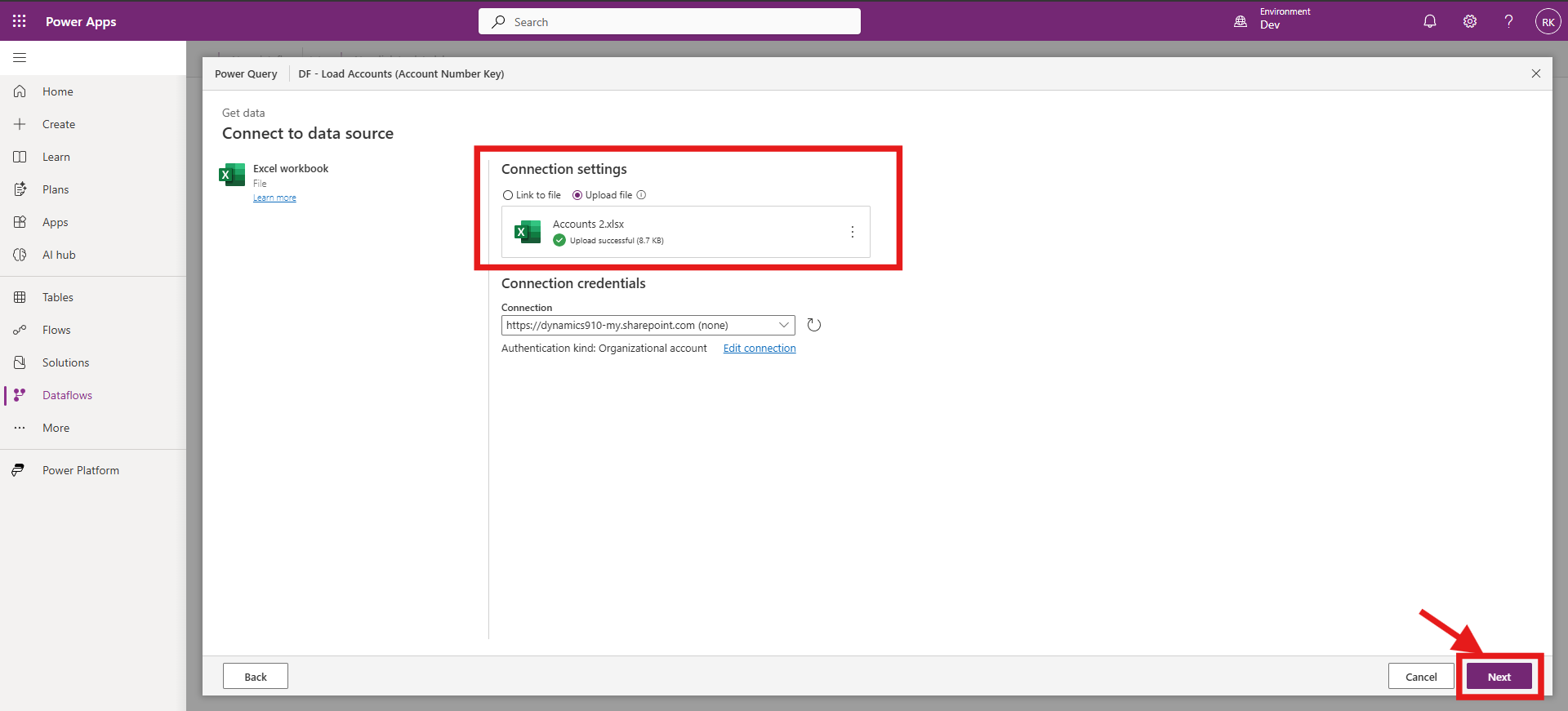
Select the appropriate data source connector to connect to the source and load the dataset (in my case, an Excel workbook).
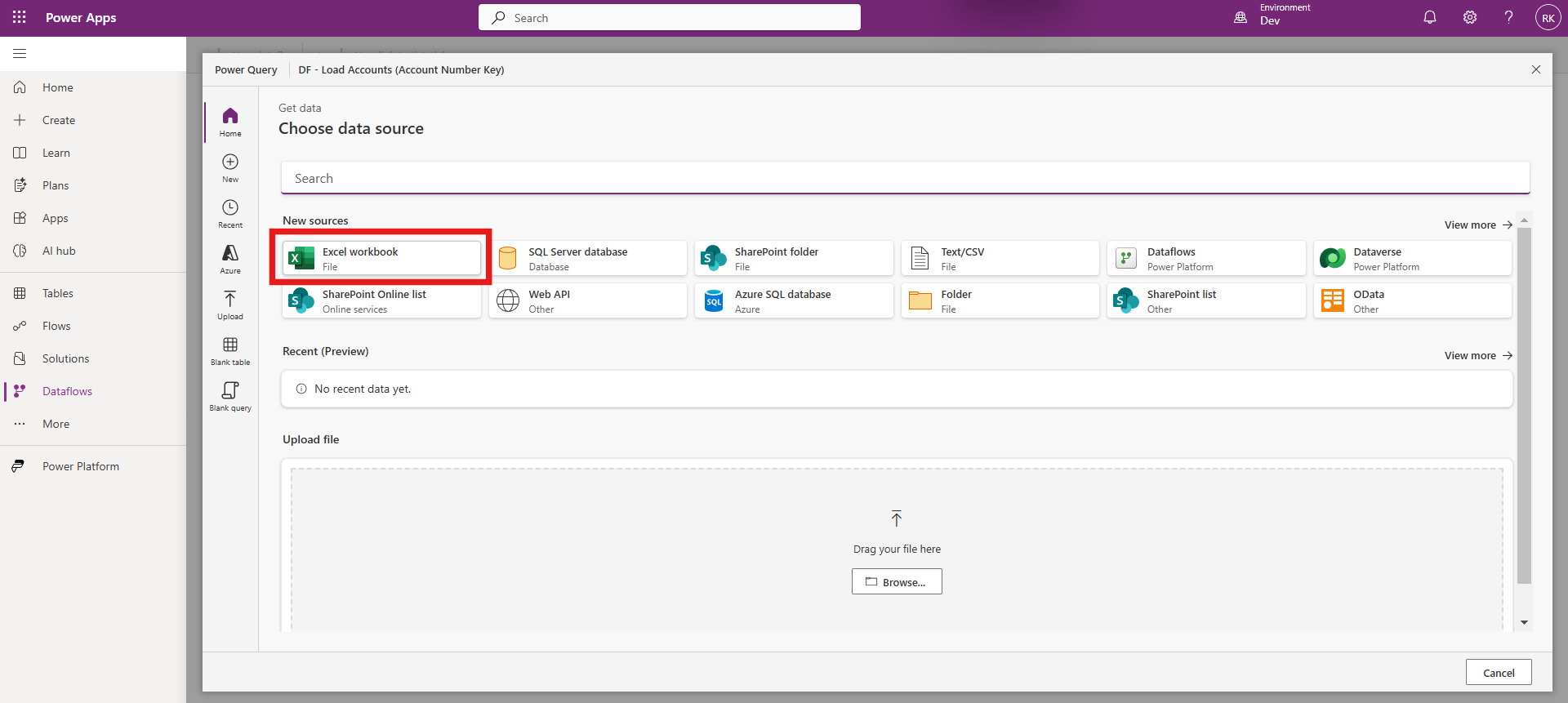
Upload or link your source file, confirm the connection settings, and click Next to continue.
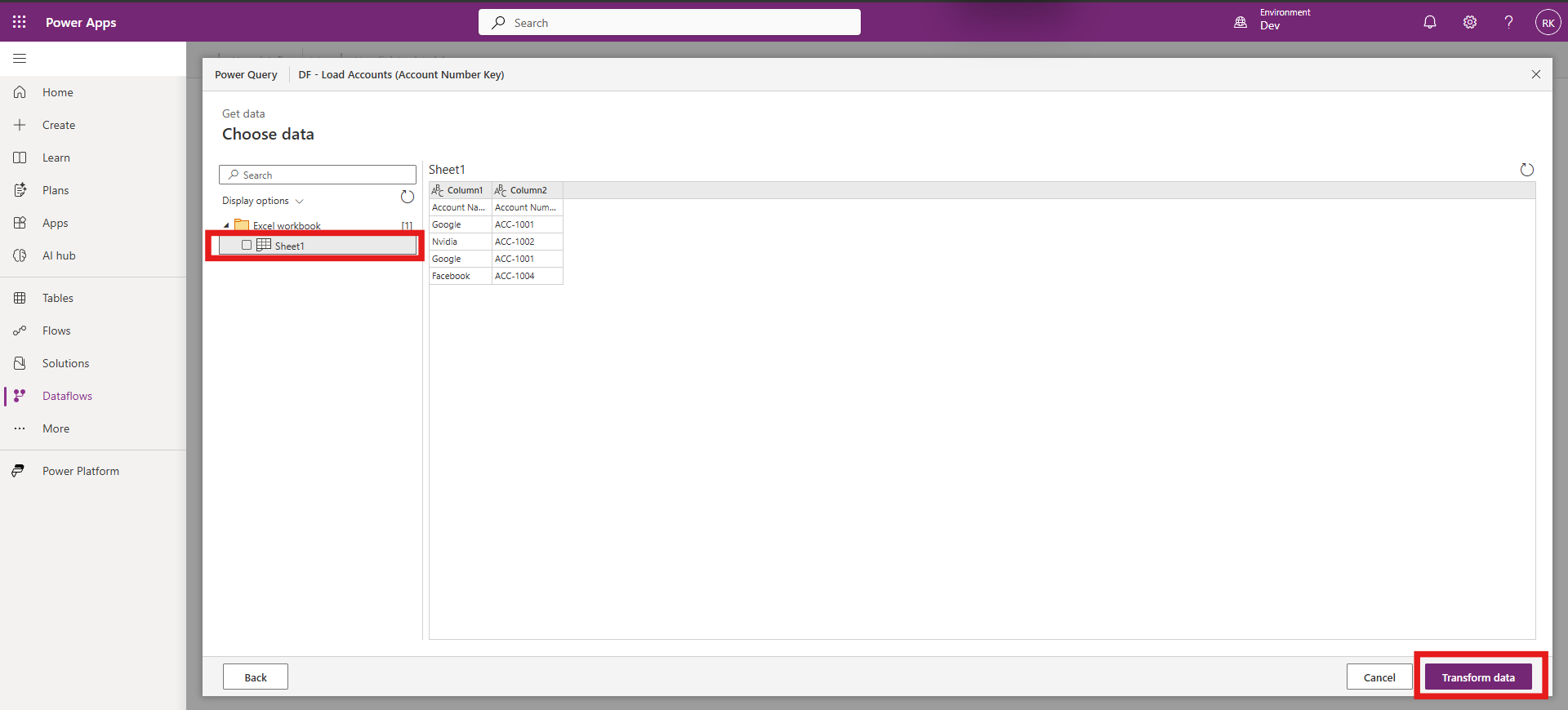
Select the required sheet or table from the source, then click Transform data to review and clean the data.
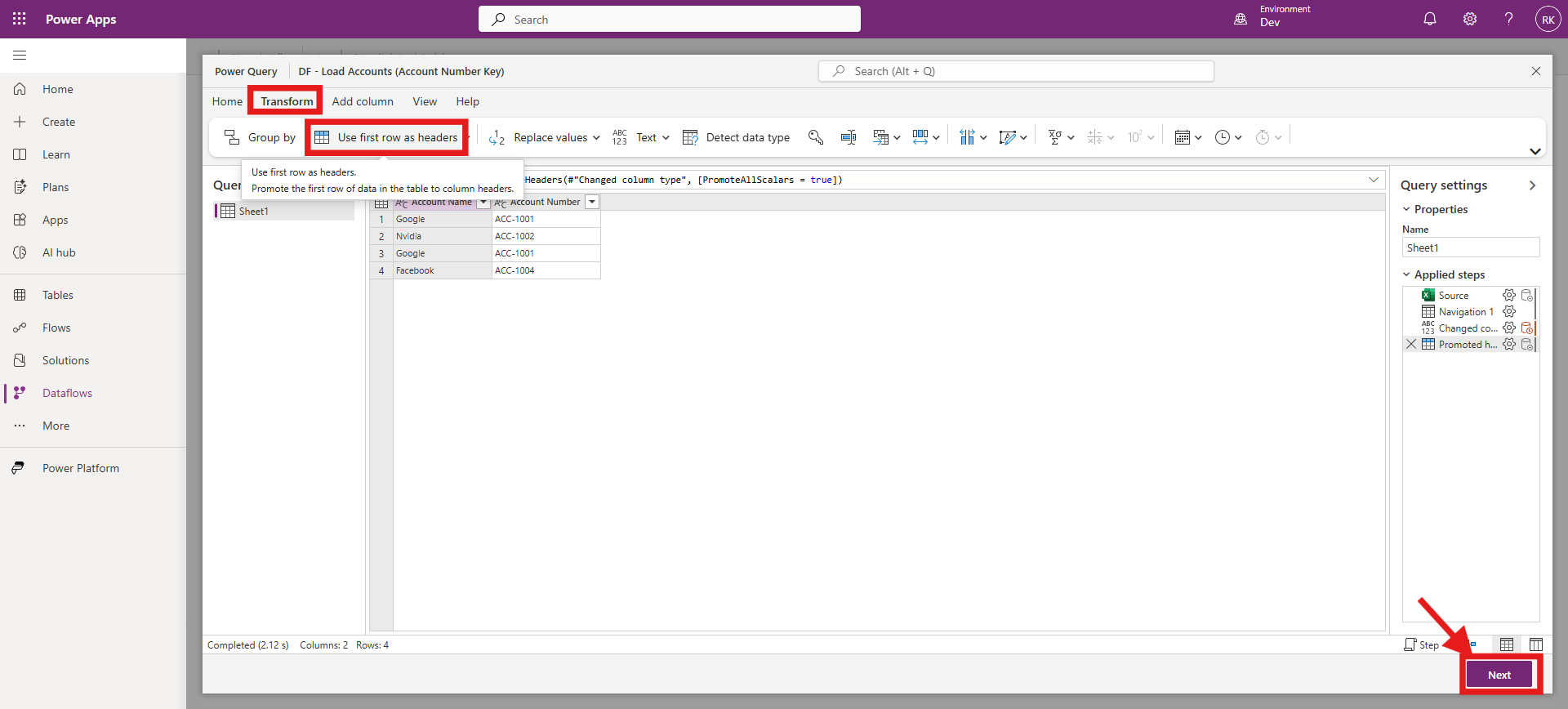
In Power Query, use Transform → Use first row as headers (if needed), apply any basic cleanup, and click Next.
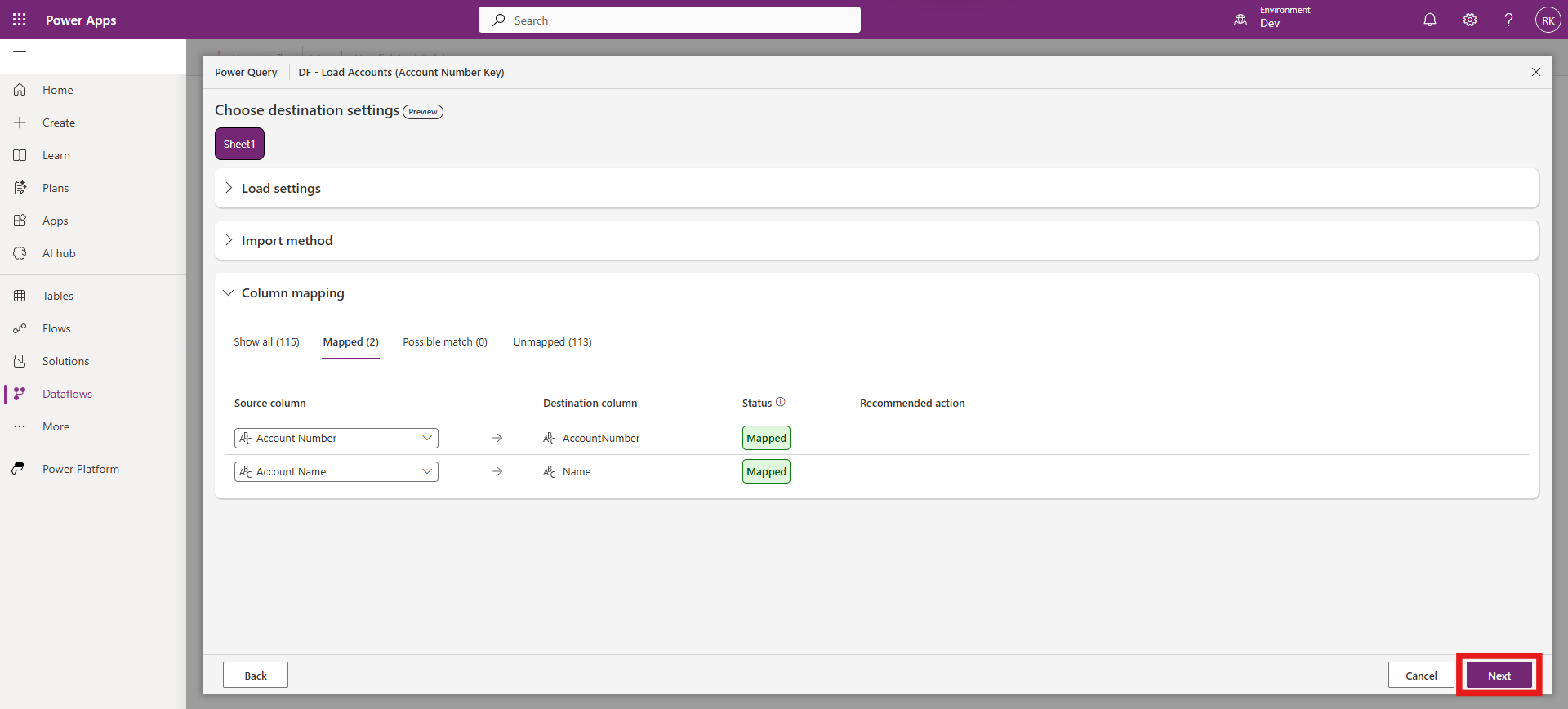
Under Load settings, choose Load to existing table, select the destination table,
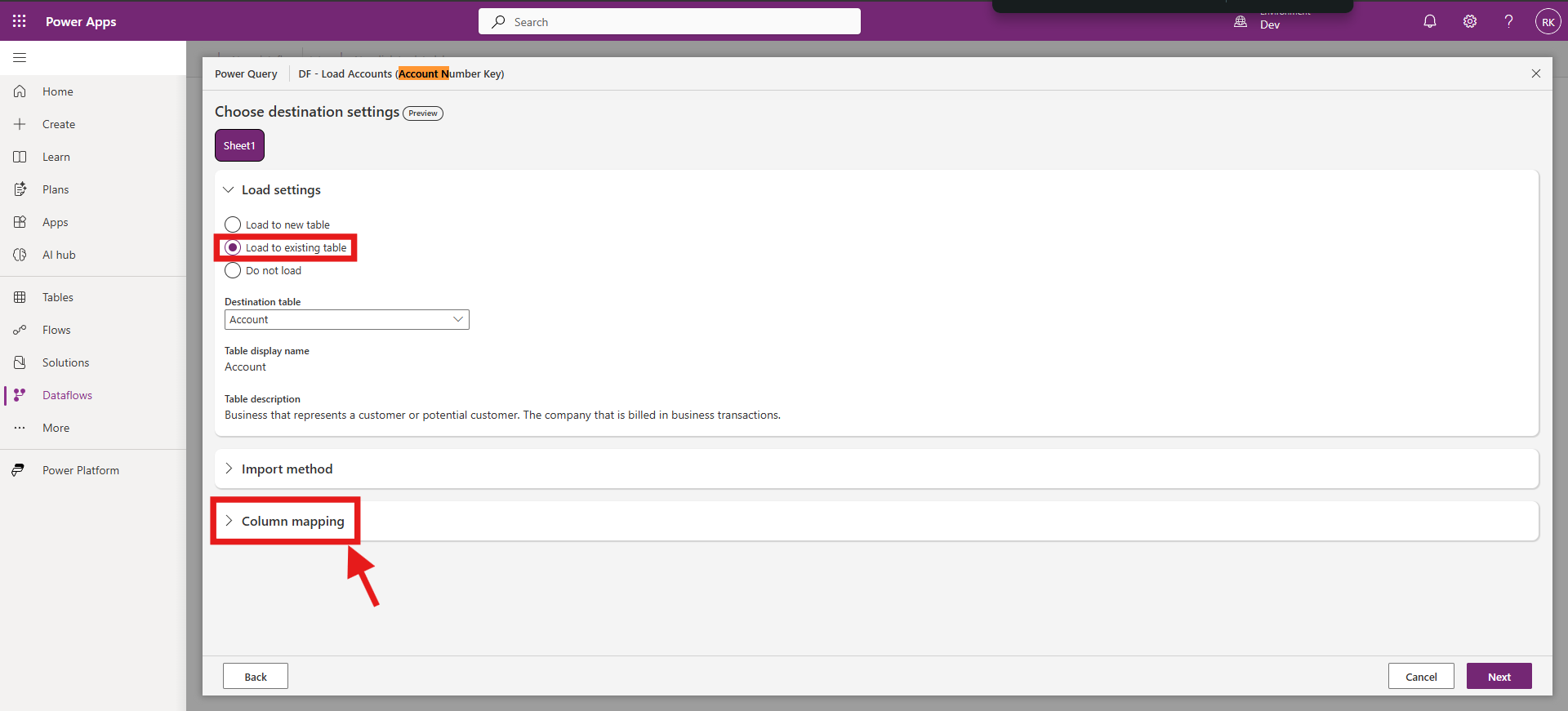
Then open Column mapping to map the fields.
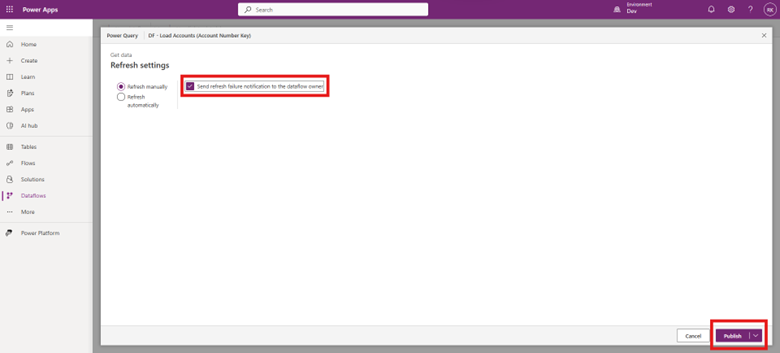
In Refresh settings, enable failure notifications if needed, then select Publish to save and create the dataflow.
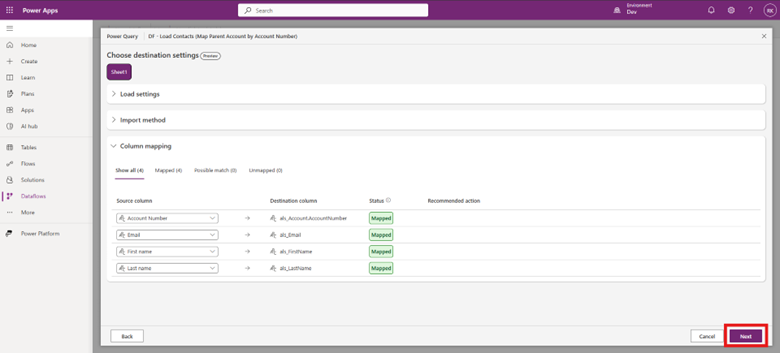
Repeat the same steps for the child dataflow: select the child destination table, map the required columns, click Next, and then Publish to complete the setup.
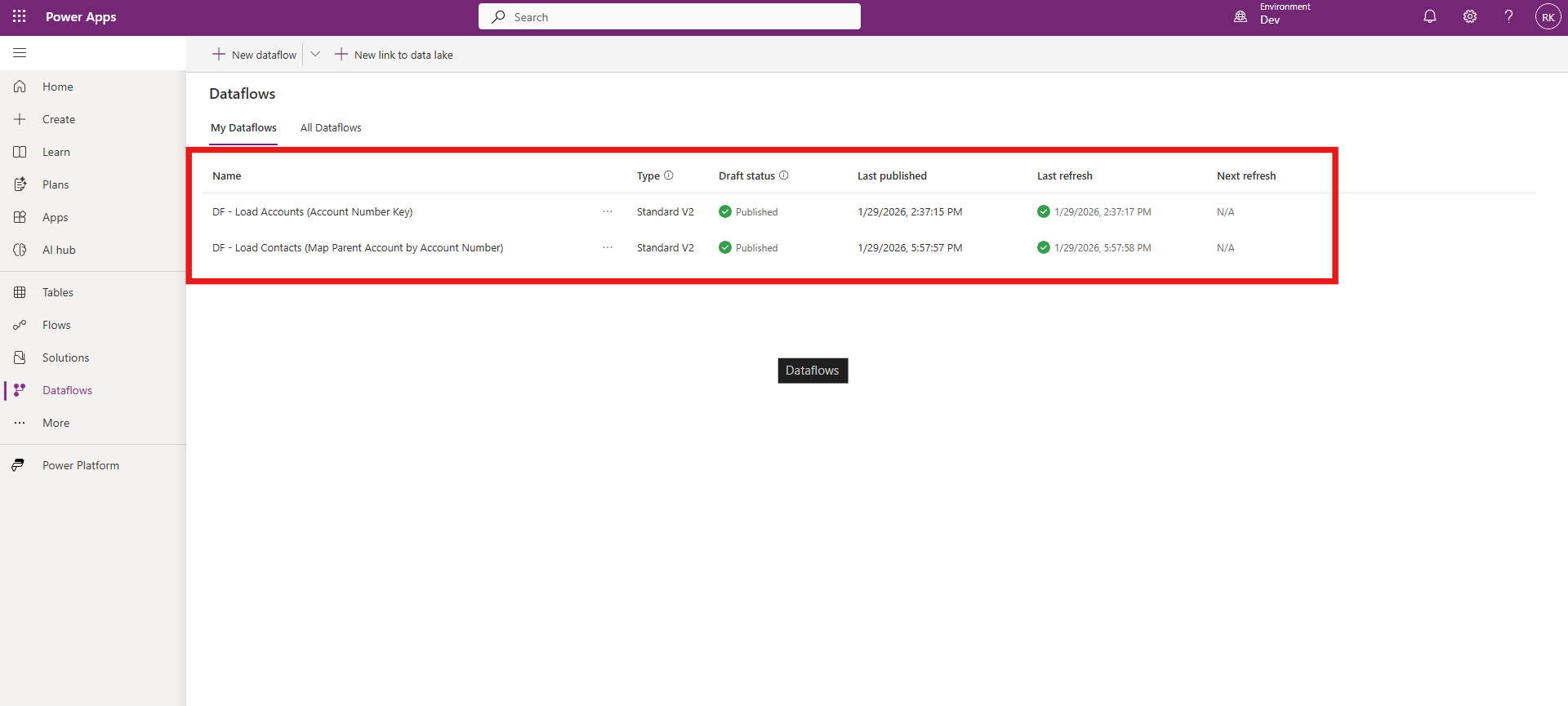
After publishing, both the parent and child dataflows will appear in the Dataflows list with a Published status and the latest refresh details.
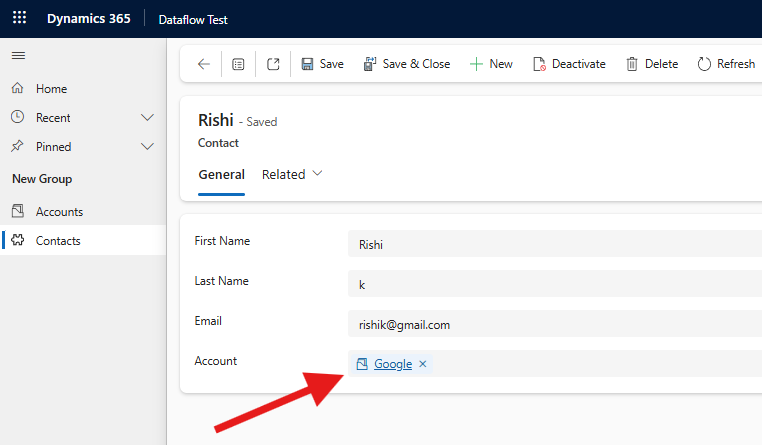
Finally, open an imported child record and confirm the lookup field is populated with the correct related parent record (for example, the Account lookup shows the expected value).
Conclusion
Lookup fields in Power Apps Dataflows become reliable when you combine Alternate Keys with a stable business identifier. By loading parent records first and resolving child lookups using a unique matching column, you can safely link related records without relying on GUIDs. This pattern is especially useful for ongoing integrations and repeatable imports where GUIDs are unavailable.
Avoid this approach when the matching column is not unique, values are inconsistent, or the source does not contain a stable identifier for lookup resolution.
FAQ
1) Why not map lookups using GUID values?
Most external data sources do not contain Dataverse GUIDs. Using a business identifier with an Alternate Key is typically more practical.
2) What does an Alternate Key do?
It defines a unique identifier (one or more columns) that Dataverse can use to find records during import, without relying on GUIDs.
3) What are common reasons lookup mapping fails?
Parent records were not loaded first.
Duplicate values exist in the matching column.
Extra spaces or formatting differences in the source data.
The wrong lookup field was mapped.