
Importing text fields with Power Apps Dataflows is typically straightforward, but Choice columns can fail when the incoming values do not align with the options configured in Dataverse. To avoid spelling and formatting issues, I used the numeric option values for the Choice field instead of the option labels.
In this blog, I’ll demonstrate a simple and reliable method for importing and mapping a Choice field using a data flow. The example uses Excel as the source, but the same steps apply to other connectors.
Prerequisites
A Dataverse environment (Power Apps / Dynamics 365)
Access to make.powerapps.com
A destination table that contains a Choice column
A source dataset that includes a column for the Choice value
Business Scenario
A team receives records from an external source. Along with basic details like name and email, the data also contains a value such as Preferred Contact Method (for example: Email, Phone, WhatsApp).
Step-by-Step Implementation
Create a Choice column on your target table (for example, Preferred Contact Method) and add several options, such as Email, Phone, WhatsApp, and SMS.
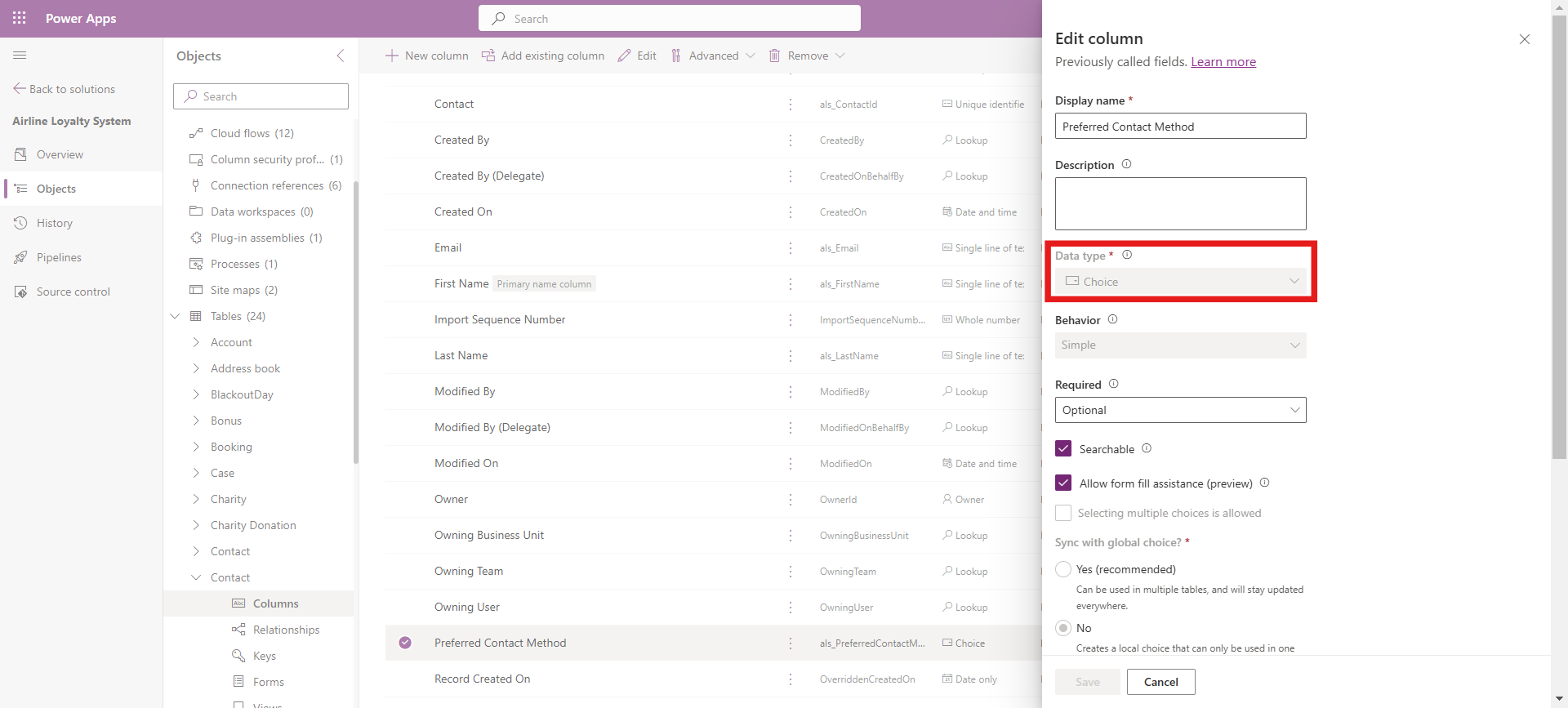
Open the Choice column configuration and note the numeric value assigned to each option. These numeric values are what Dataverse stores internally, and they can be used during import to avoid spelling mismatches.
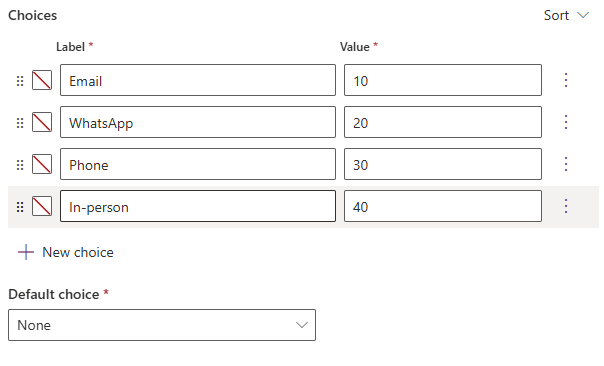
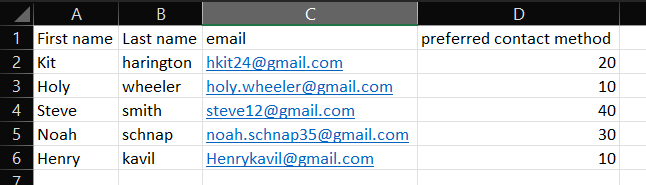
Make sure the source contains a column for the Choice field, and populate it with the numeric option values that match the configured options in Dataverse.
In my case, I used Excel as the source and added a column named PreferredContactMethodValue, where each row contains the numeric option value for the selected contact method.
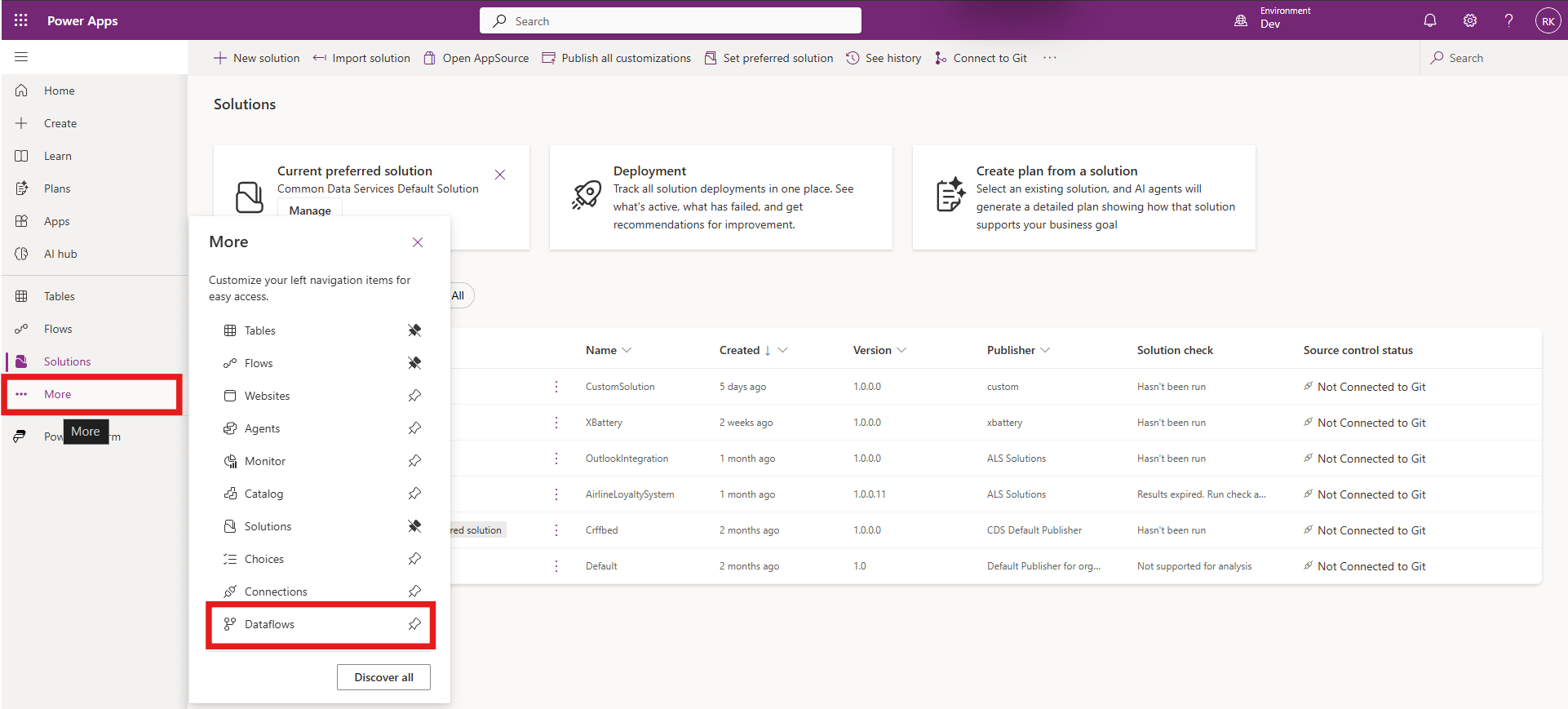
From the Solutions page, use the left navigation to select More, then open Dataflows.
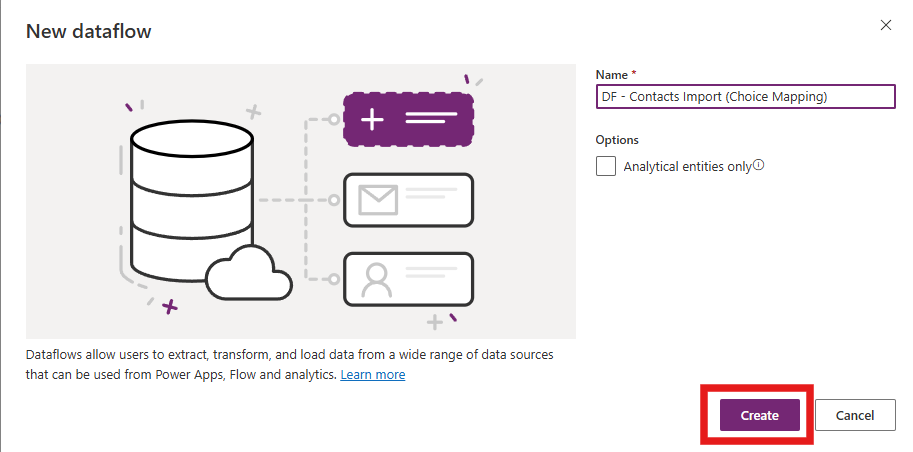
Click New dataflow, enter a meaningful name, and select Create.
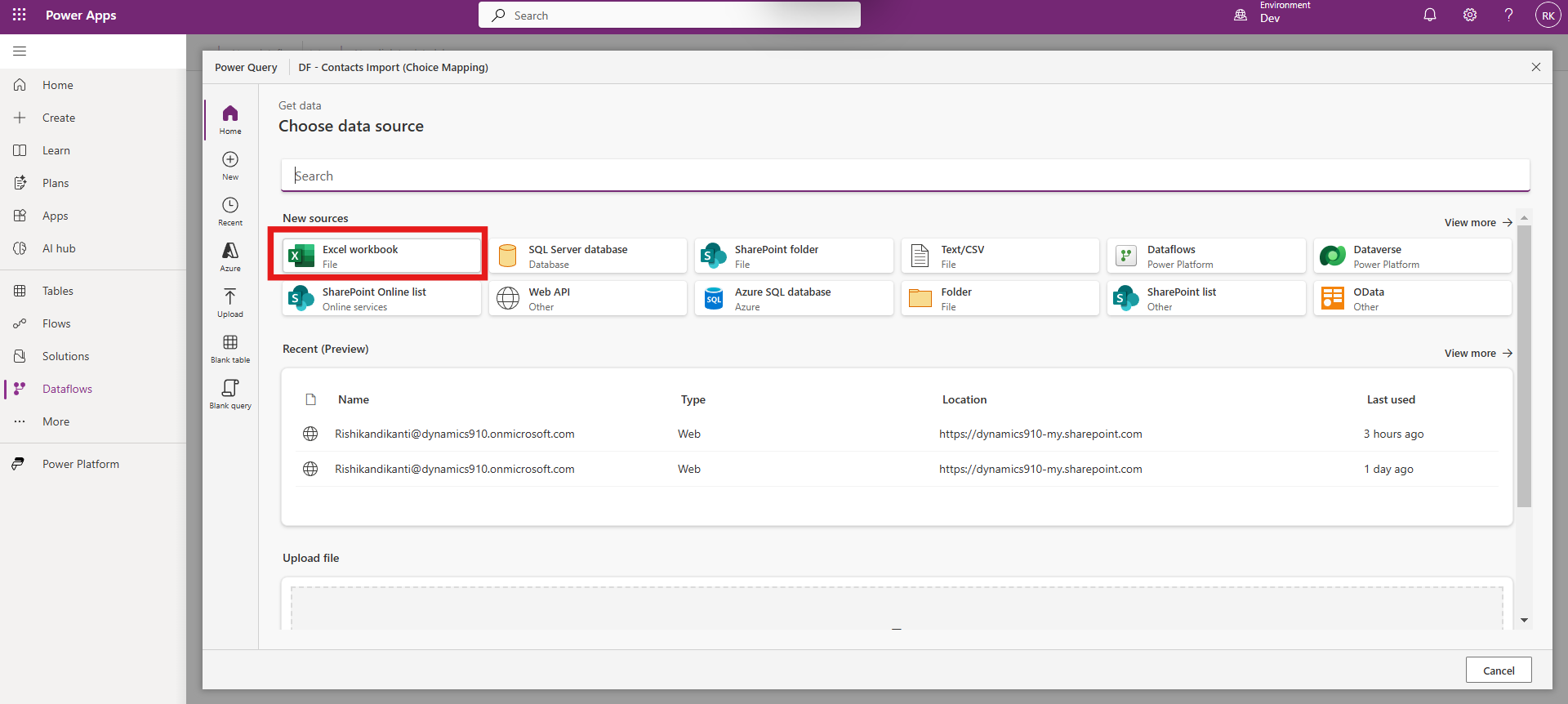
Choose the appropriate data source connector to connect and load the dataset (in my case, an Excel workbook).
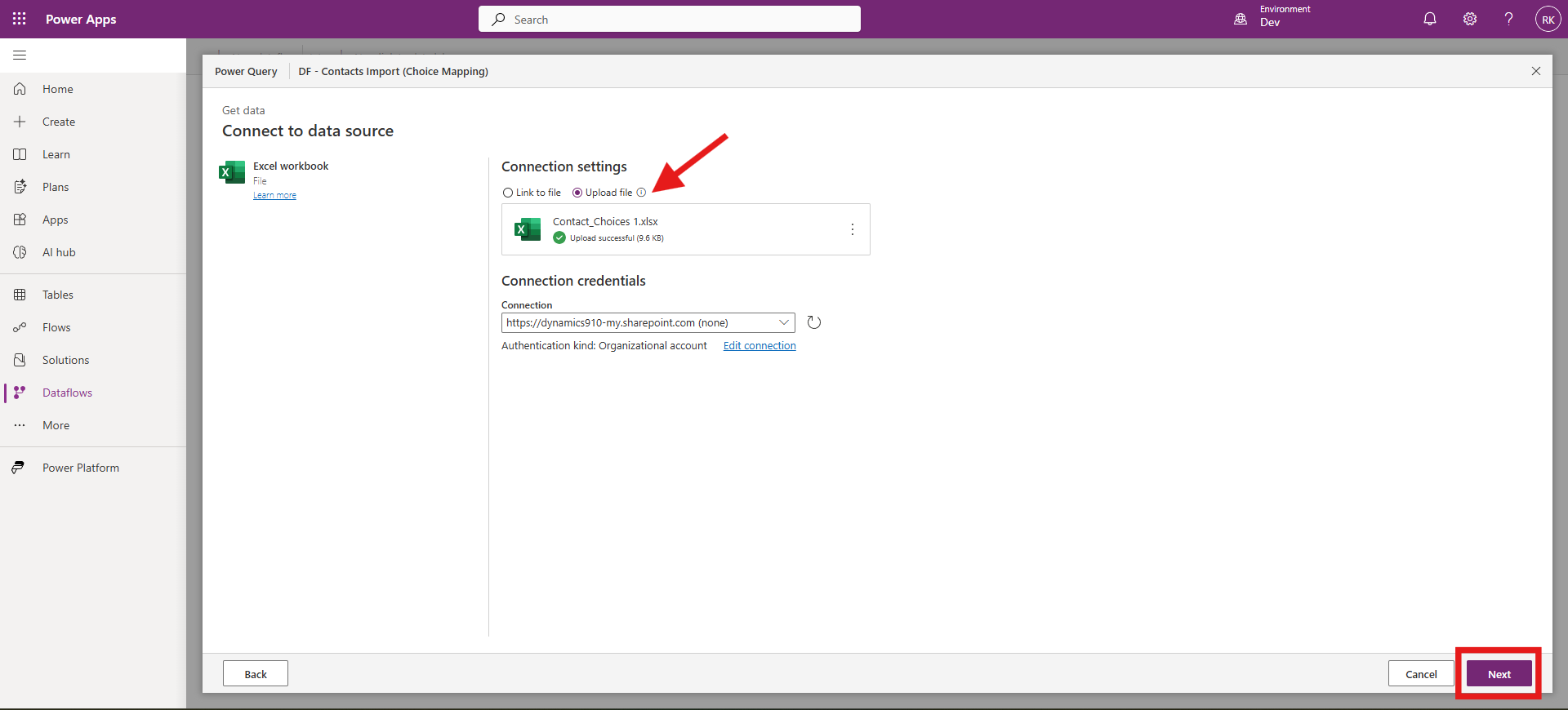
Upload or link your source file, confirm the connection settings, and click Next.
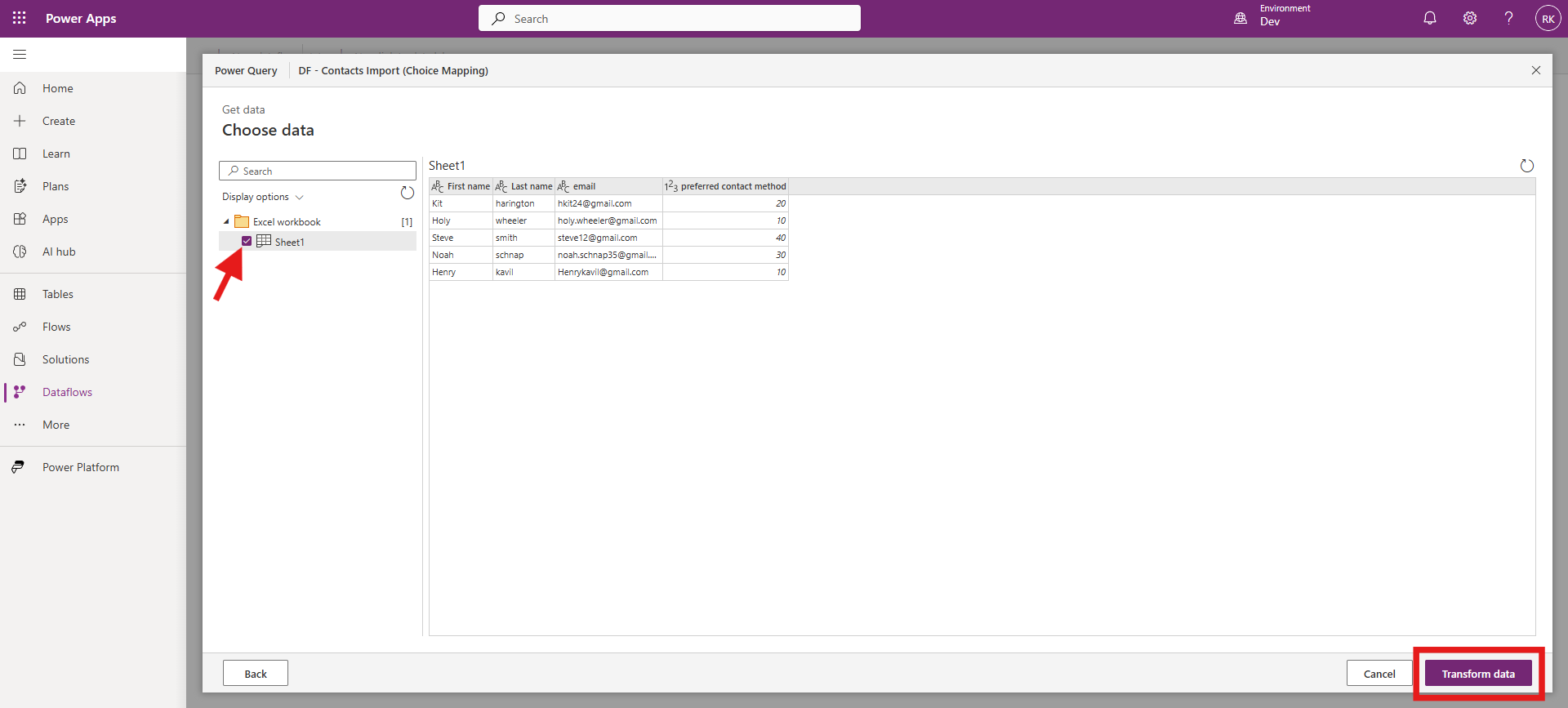
Select the required sheet or table from the source, then click Transform data.
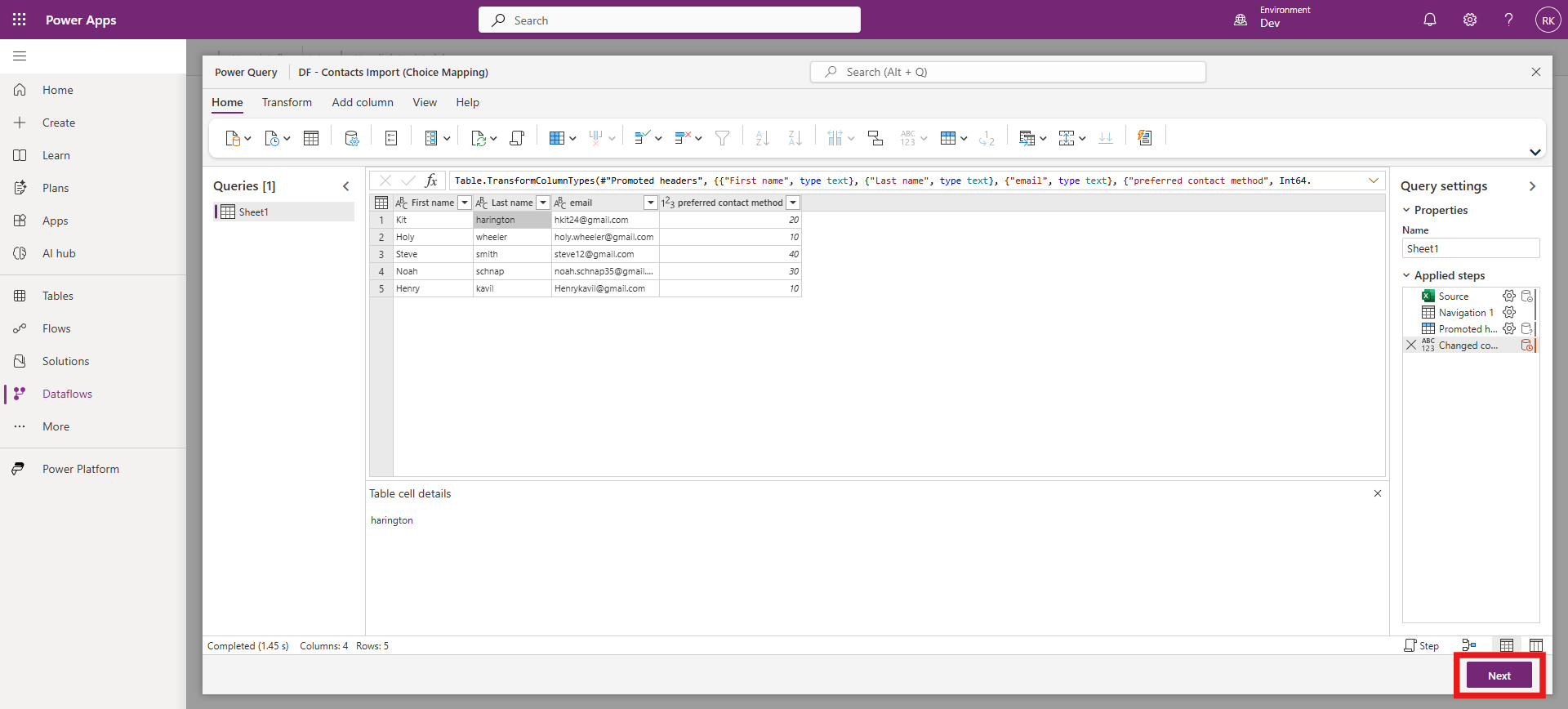
In Power Query, ensure the Choice column is set to a whole number (Int64) so the numeric option values can be mapped correctly, then click Next.
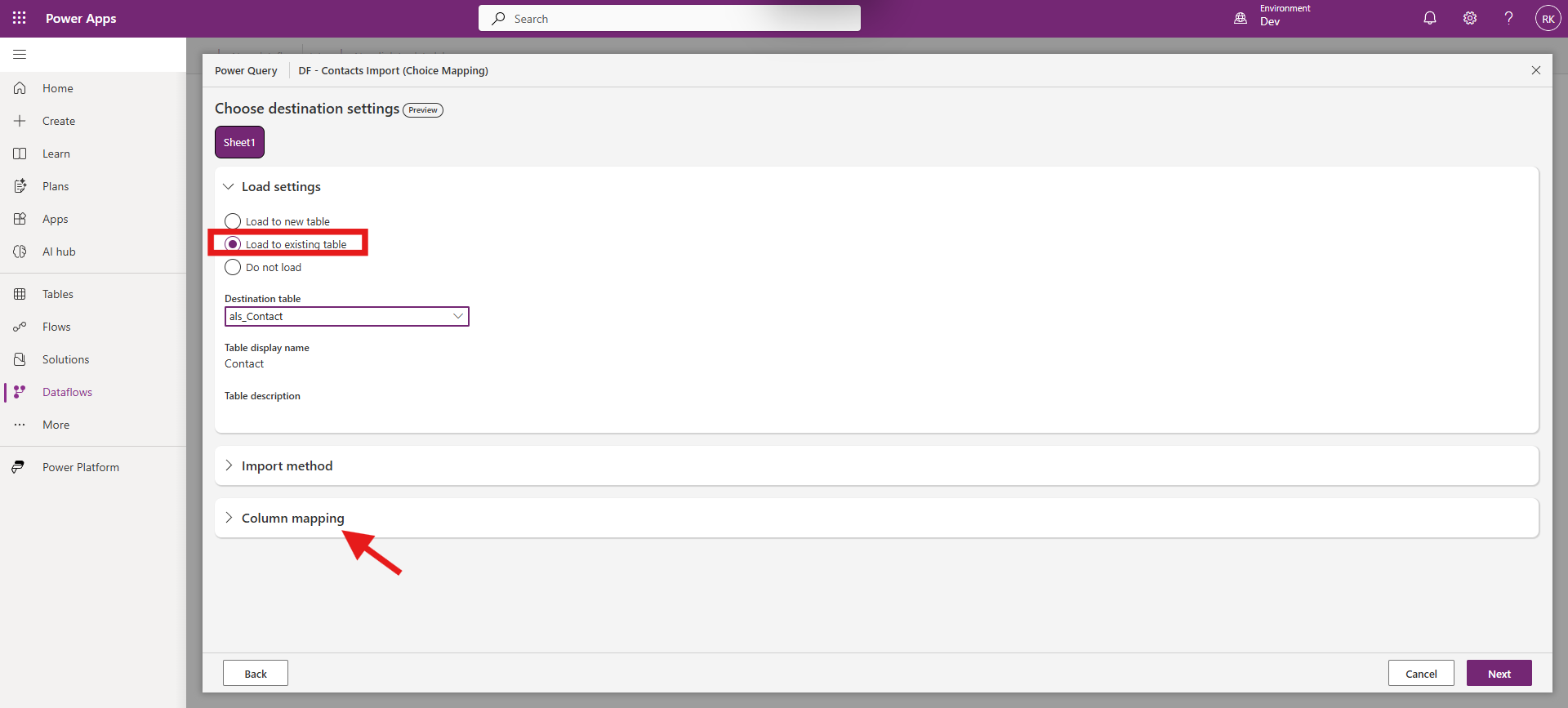
Under Load settings, choose Load to the existing table, select the destination table, and open Column mapping.
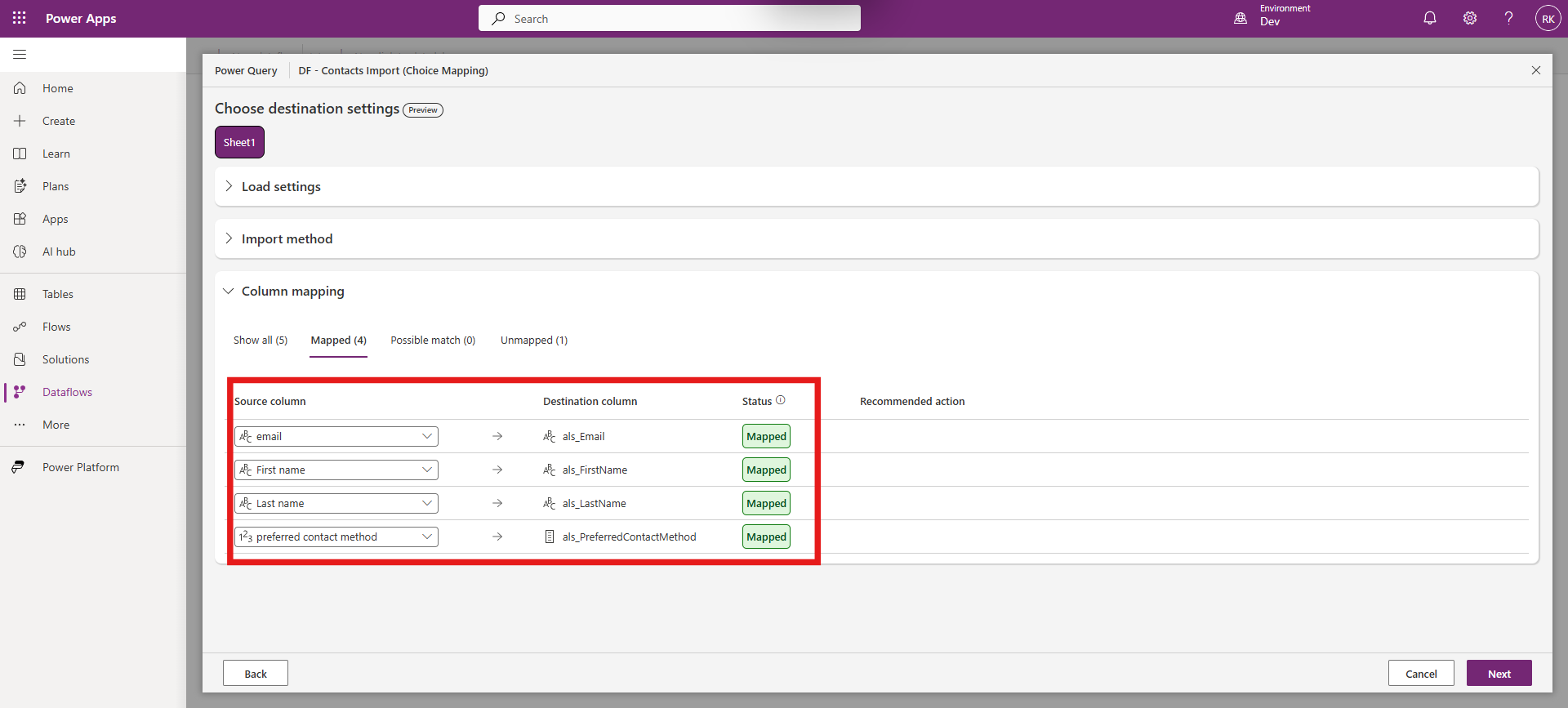
Map your source columns to the Dataverse columns, including mapping PreferredContactMethodValue to the Preferred Contact Method Choice column.
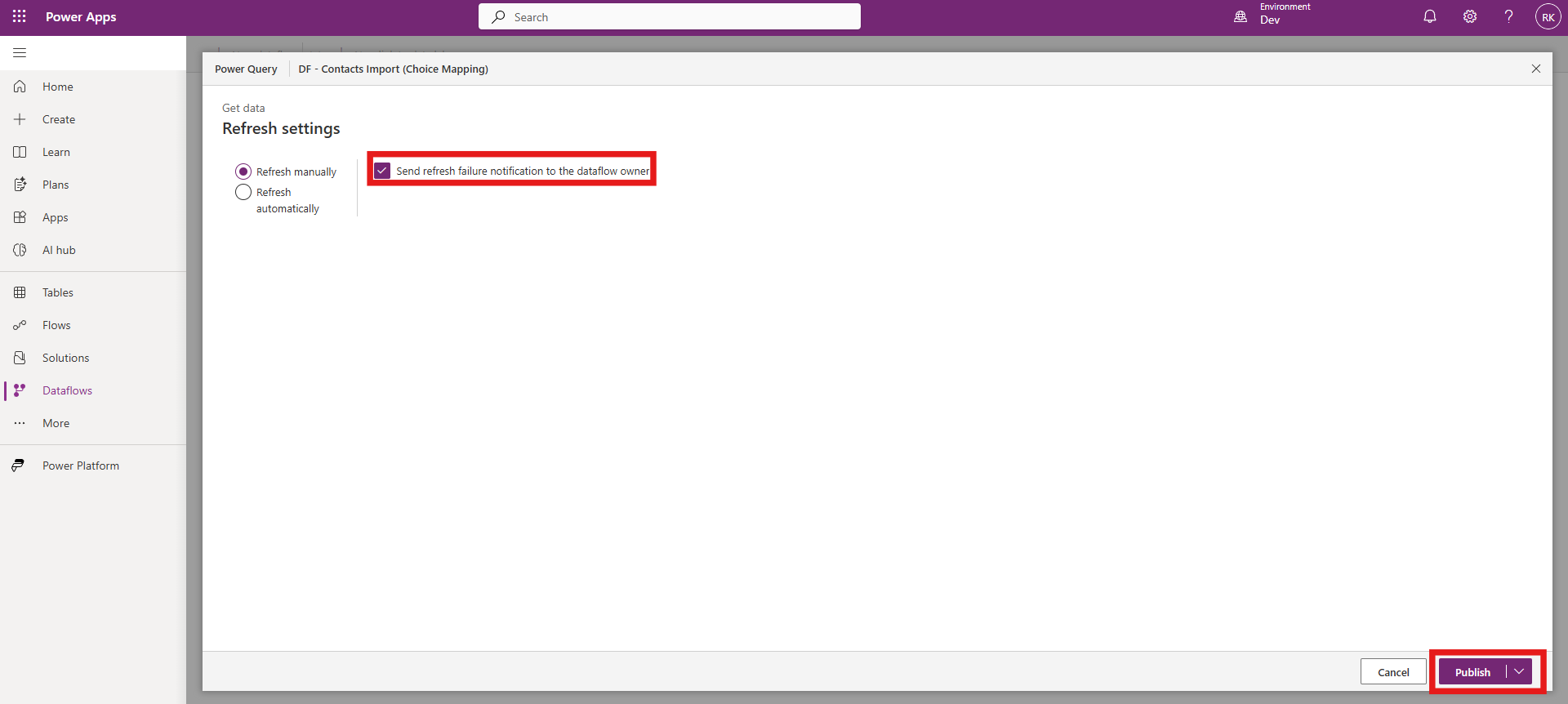
In Refresh settings, enable failure notifications if needed, then click Publish to save and create the dataflow.
After publishing, your Choice import dataflow will appear in the Dataflows list with a Published status and the latest refresh time.

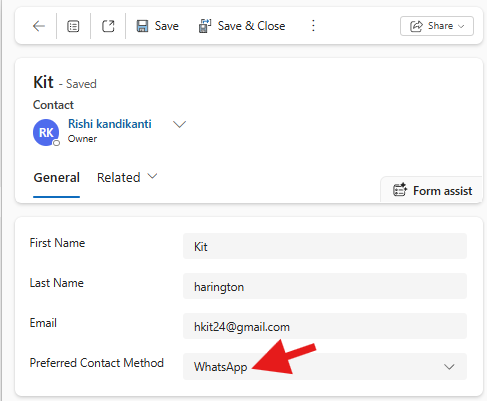
Open an imported record and confirm the Choice field is populated correctly (for example, Preferred Contact Method shows WhatsApp).
Conclusion
Choice fields load reliably through Power Apps Dataflows when the source values match the configured Dataverse options. Using numeric option values helps avoid common issues such as spelling differences, casing mismatches, and extra spaces. Once the mapping is set, the same dataflow can be reused for repeatable imports with predictable results.
FAQ
1) Why does a Choice field import fail even when the column is mapped? Most failures happen when the source value does not match a valid Choice option. This can occur due to invalid numeric values, missing options, or incorrect mapping.
2) Should I import the option label or the numeric value? Both are possible, but numeric option values are more reliable because they avoid spelling and formatting issues. If you use labels, they must match exactly.
3) What if the source contains values that are not present in the Dataverse options? Those values will not map correctly. Add the missing options in Dataverse or correct the values in the source before importing.